Configuring Single Sign-On using SAML 2.0 for OneLogin
ManageEngine PAM360 integrates seamlessly with OneLogin, a leading identity and access management solution, to provide robust and secure Single Sign-On (SSO) capabilities. Organizations can centralize user authentication and streamline access management by configuring PAM360 as a Service Provider (SP) and OneLogin as an Identity Provider (IdP). This integration involves supplying details about SP to IdP and vice-versa. This integration enhances security by leveraging OneLogin's advanced authentication mechanisms. It simplifies the user experience by allowing users to log in once via the IdP interface and gain access to PAM360 without re-authentication. Additionally, the integration supports Single Logout (SLO), ensuring that when users log out from one application, they are automatically logged out from all connected applications, thereby maintaining secure and efficient user session management. This document covers the following topics in detail:
- Prerequisites
- Adding PAM360 as an Application on the OneLogin Portal
- Configuring Custom NameID Field
- Downloading IdP Details
- Assigning PAM360 Application to Users
1. Prerequisites
To configure PAM360 as an SP in the OneLogin Console, you need SP details displayed in step 1 during theIdP configuration in PAM360. These details are necessary for setting up PAM360 as an SP on the OneLogin Console, ensuring a seamless integration between PAM360 and OneLogin.
2. Adding PAM360 as an Application on the OneLogin Portal
- Log in to the OneLogin portal and select Applications from the top pane.
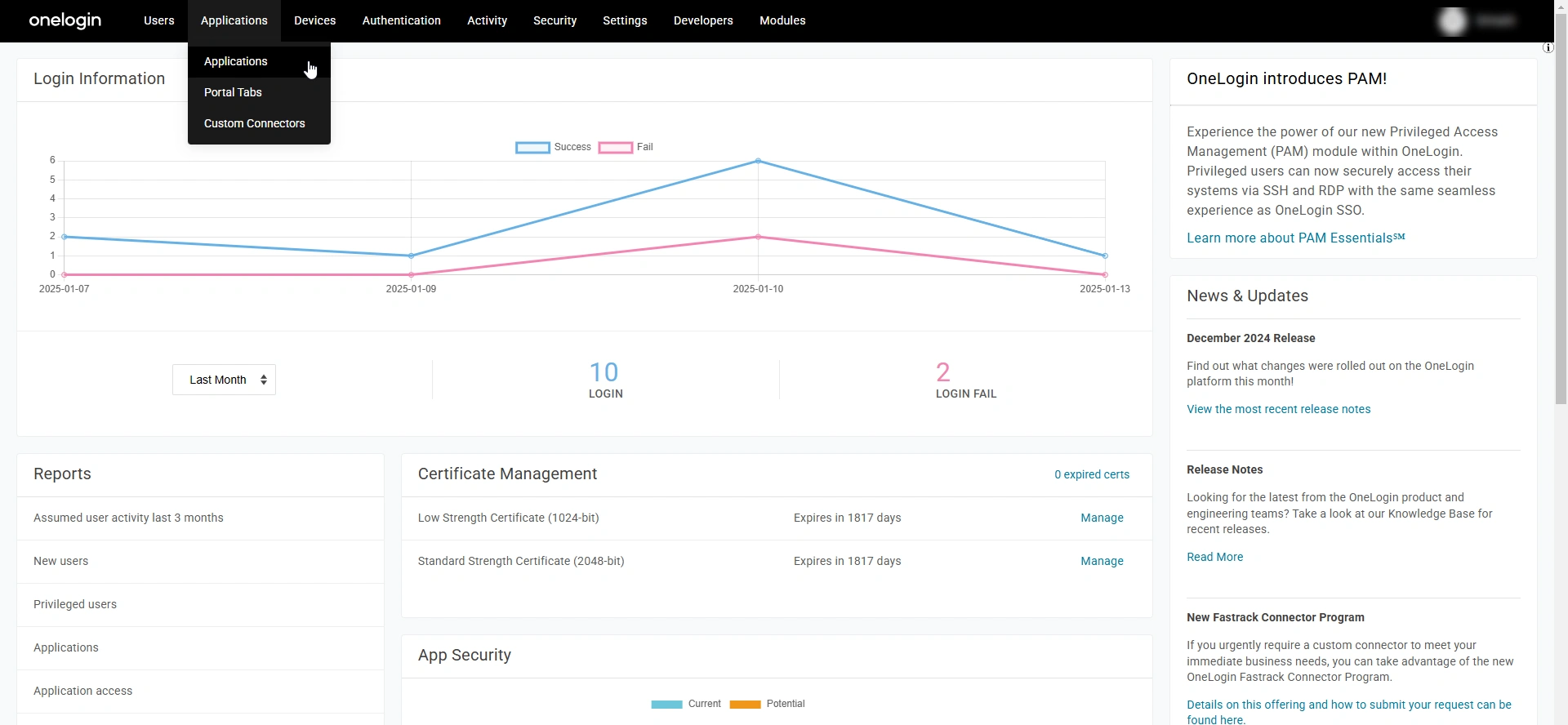
- On the Applications page, click the Add App button in the top-right corner of the screen.
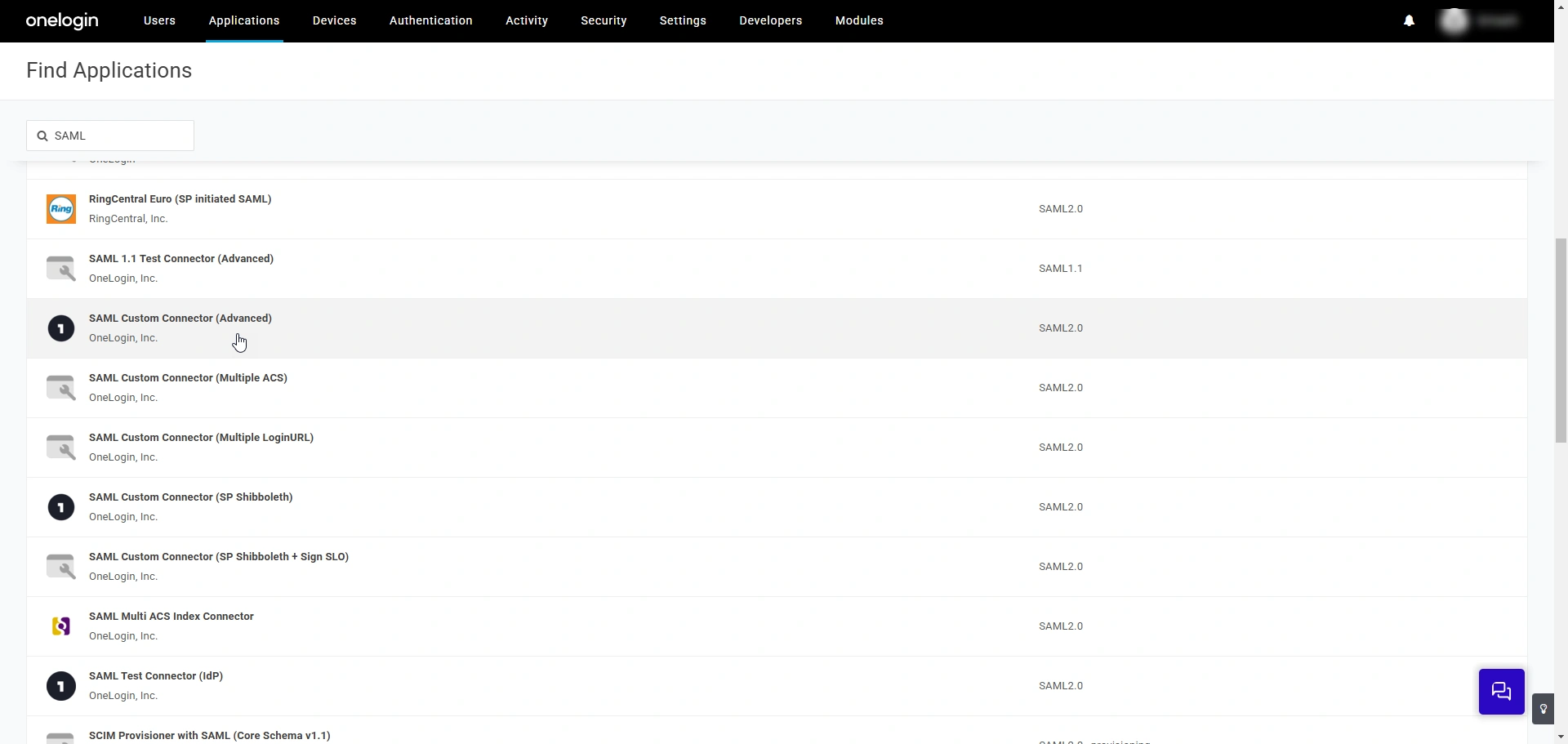
- On the Find Applications page that opens, find the SAML Custom Connector (Advanced) application using the search function and click on it.
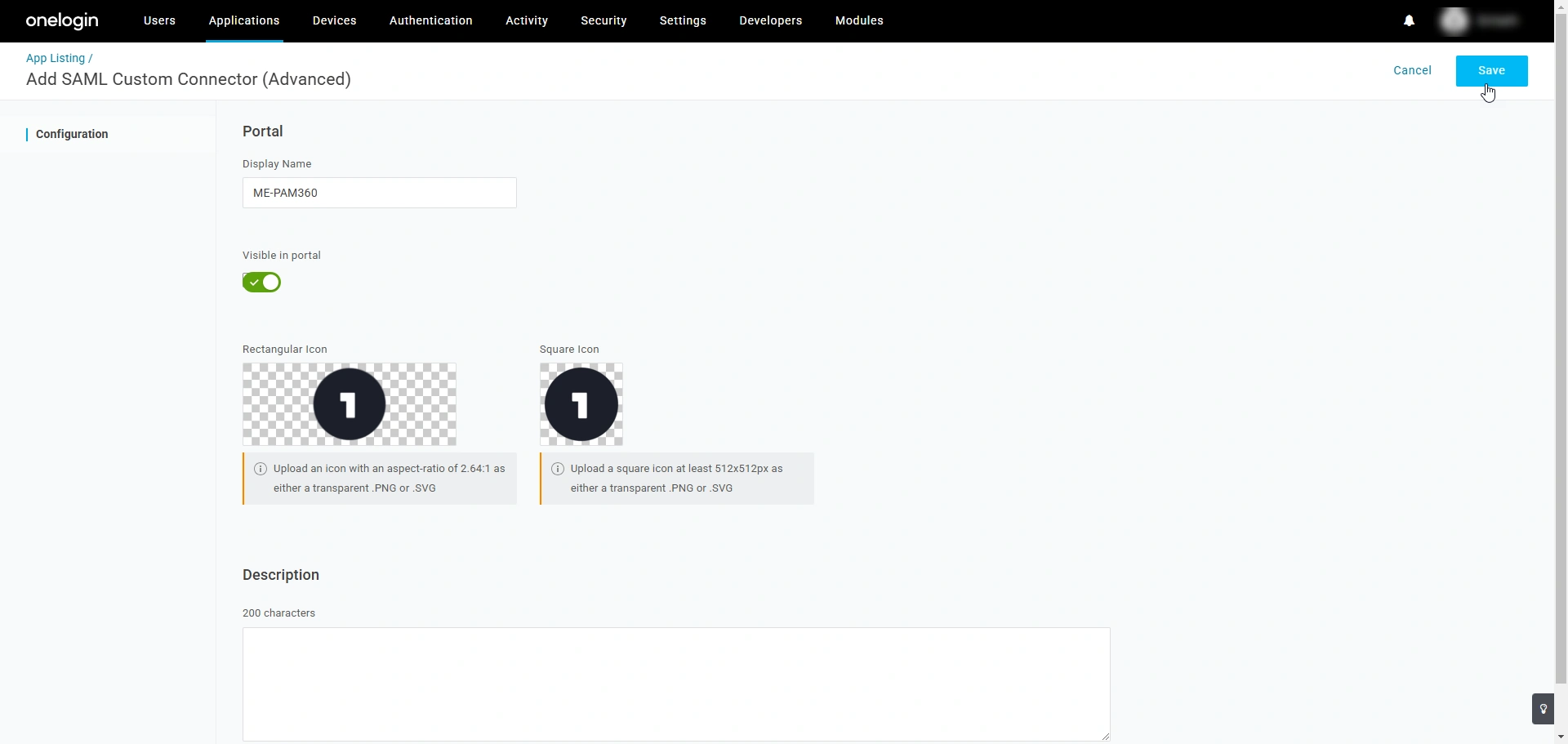
- On the Add SAML Custom Connector (Advanced) page that appears, enter the following details:
- Display Name - Enter a name of your choice in this field. This name will serve as a unique identifier for PAM360 on the OneLogin portal.
- Visible in Portal - Enable the toggle switch to display the custom SAML application on the OneLogin portal.
- Description - Enter a brief description of the custom SAML application.
- Click Save to create a custom SAML application.
- Switch to the Configuration tab and enter the following details:
- RelayState - Leave this field blank.
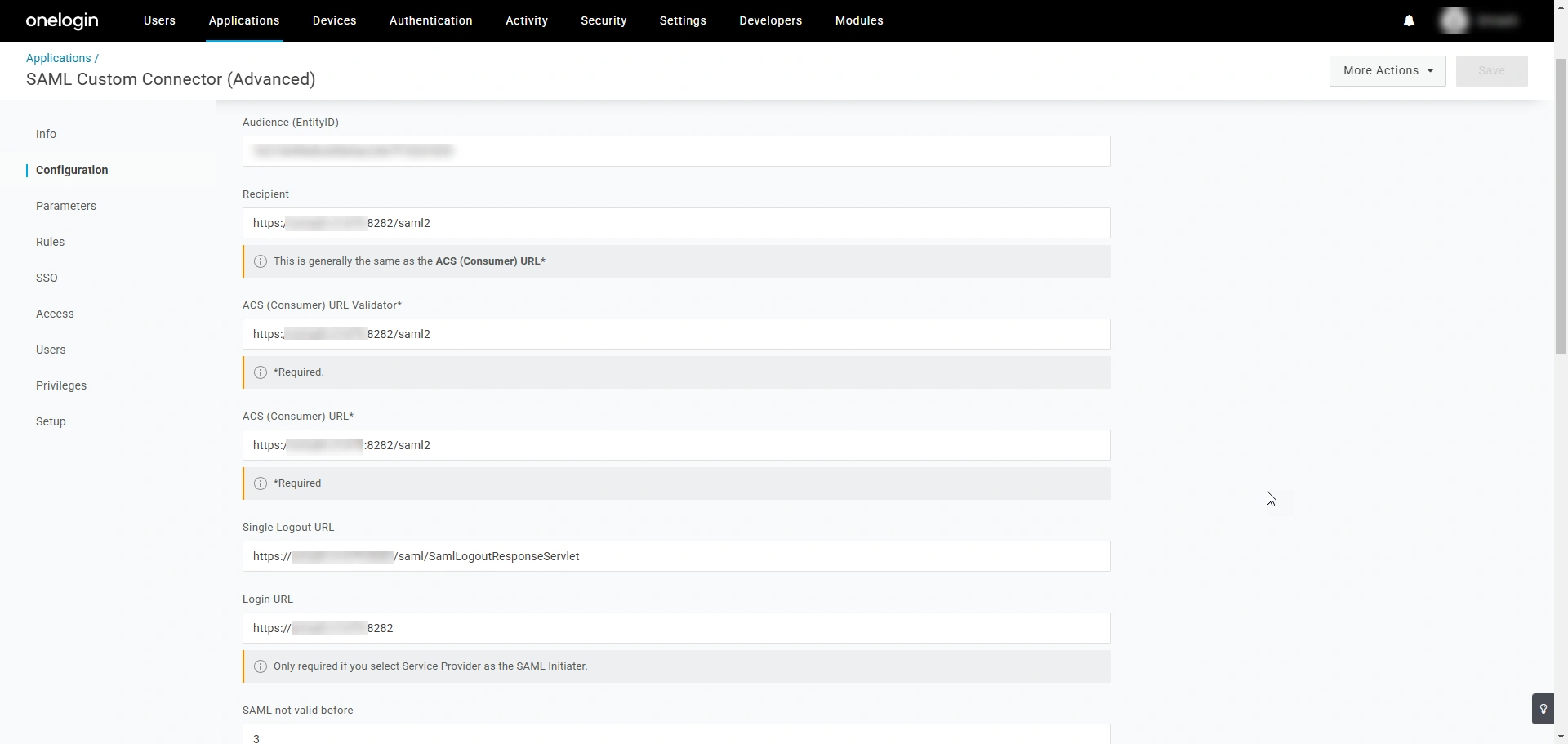
- Audience (EntityID) - Enter the PAM360's entity ID in this field.
- ACS (Consumer) URL Validator - This is the same as the ACS URL. Enter the PAM360's ACS URL in this field.
- ACS (Consumer) URL - Enter PAM360's Assertion Consumer Service (ACS) URL in this field. ACS URL is the PAM360's endpoint URL, where OneLogin will send the SAML responses.
- Single Logout URL - Enter the PAM360's Single Logout Service URL in this field.
- Login URL - Enter the PAM360 access URL in this field. You must provide the Login URL only if you use SP-initiated flow in your environment.
- SAML not valid before - Enter the duration (in minutes) before the assertion's timestamp during which it is not considered valid.
- SAML not valid on or after - Enter the duration (in minutes) after the assertion's timestamp during which it is not considered valid.
Caution
For an assertion issued at 10:00 AM, if the SAML not valid before field is set to 2, the assertion becomes valid from 9:58 AM, allowing a 2-minute window before the issued time. Similarly, if the SAML not valid on or after field is set to 2, the assertion remains valid until 10:02 AM, extending its validity for 2 minutes after the issued time. Assigning these fields carefully ensures the assertion's validity within a specific timeframe, enhancing synchronization and security.
- SAML initiator - Select the desired option from the dropdown. Choose OneLogin for IdP-initiated SAML flow and choose Service Provider for SP-initiated flow.
Caution
If you choose Service Provider in this dropdown, you must enter the PAM360's access URL in the Login URL field.
- SAML nameID format - Select Unspecified from the available options.
- SAML issuer type - The SAML issuer type refers to the entity responsible for generating and issuing SAML assertions as part of the Single Sign-On (SSO) process.
- Specific - Select this option if you are configuring OneLogin as an IdP for a single PAM360 instance. In this case, the IdP will have a unique entity ID.
- Generic - Select this option if you are configuring OneLogin as an IdP for multiple PAM360 instances. In this case, the IdP will have a common entity ID that can be used to configure multiple PAM360 instances/access URLs.
- SAML signature element - Select the element that the IdP should sign while it sends the assertion to the SP. Choose Both from the available options to configure the IdP to sign the SAML assertion and the response it sends to PAM360.
- Send NameID Format in SLO Request - Enable this checkbox to include the NameID Format in the Single Logout requests the IdP sends to the SP.
- Sign SLO Request - When this checkbox is enabled, the IdP will sign the SLO requests it sends to the SP.
- Sign SLO Response - When this checkbox is enabled, the IdP will sign the SLO response it sends to the SP.
- SAML sessionNotOnOrAfter - Specify the time duration (in minutes) for which the SAML session is valid.
- RelayState - Leave this field blank.
- After configuring the required parameters, click Save to save the configured settings.
3. Configuring Custom NameID Field
After configuring PAM360 as an application, you must configure the NameID parameters sent as a part of the Attribute Statement(s) in a SAML response. The Attribute Statement is a crucial part of the SAML Assertions that provides information about the authenticated user. PAM360 identifies the user by cross-referencing the attribute within the attribute statement with its username before granting access to the user. As the usernames in OneLogin and PAM360 could be different, you must specify the format. Follow these steps to add the NameID parameter:
- Navigate to the custom SAML PAM360 application page on the OneLogin portal and switch to the Parameters tab.
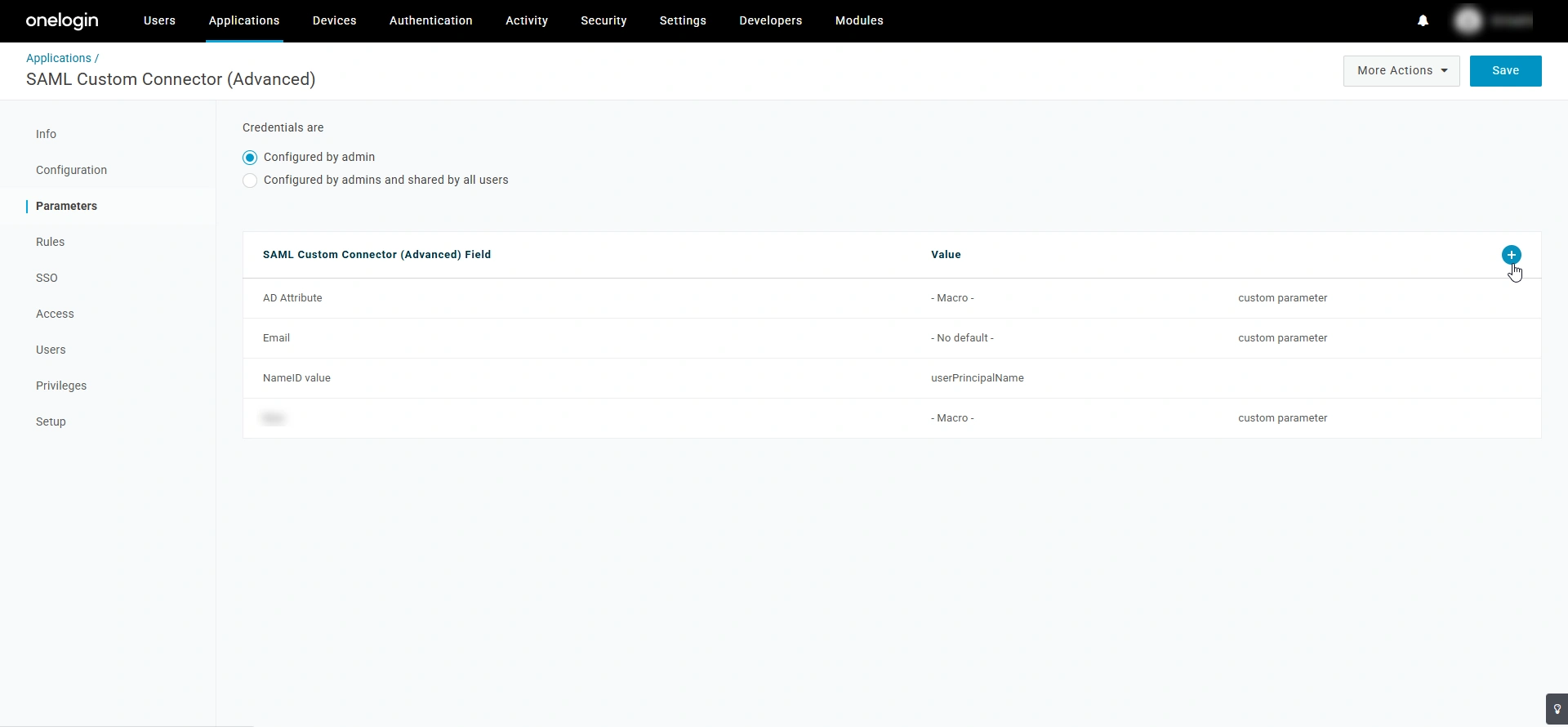
- Click the + button beside the SAML Custom Connector (Advanced) Field section.
- In the New Field window that appears, enter a name for the attribute you are adding in the Field name field and click Save.
- In the Value drop-down field that appears, select the desired parameter which you would like to include in the attribute statement that is sent as a part of the SAML assertion.
Credential Details Username Scenarios in PAM360 Value Macro PAM360 username matches the email address in the OneLogin portal
Email
NA
PAM360 username matches the Email ID prefix in the OneLogin portal
Email name part
NA
PAM360 username matches the conjunction of First Name and Last Name in the OneLogin portal. For example, if the first name is John, the last name is Doe, and the PAM360 username is John Doe
Macro
{firstname} {lastname}
If you have users imported from the Active Directory in your environment, then their username will be in the format Domain/Email ID Prefix
Macro
{email_domain_part}\{email_name_part}
- After selecting the desired parameter, enable the Include in SAML assertion checkbox and click Save.
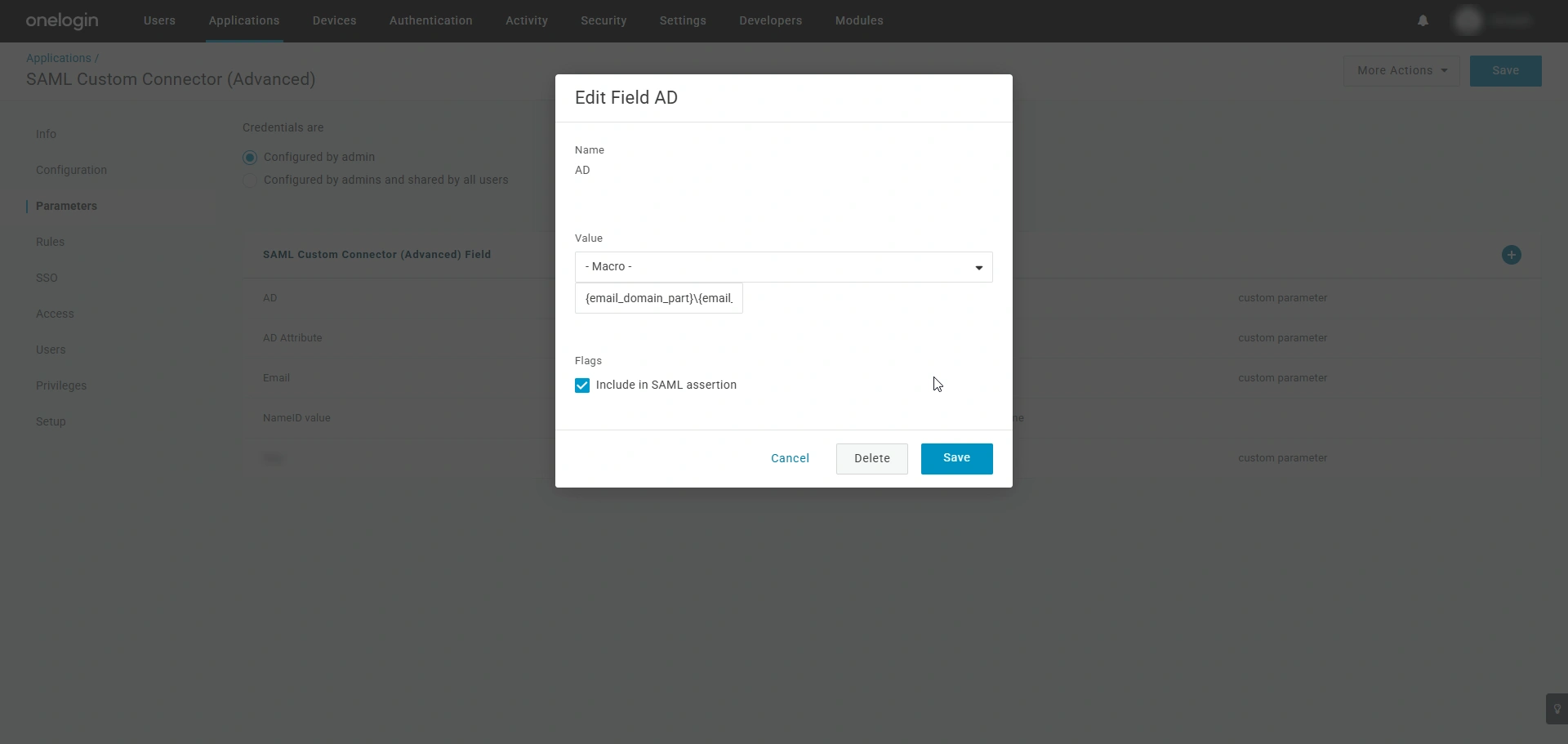
- Click the Save button on the top-right corner of the screen to save the configured NameID parameter.
4. Downloading IdP Details
- Navigate to the custom SAML PAM360 application page and switch to the SSO tab.
- Here, you will see the required IdP details, such as the Issuer URL (Entity ID), SAML 2.0 Endpoint (IdP Login URL), SLO Endpoint (IdP Logout URL), and the X.509 Certificate (IdP Certificate). Copy these details as you will require them while configuring OneLogin as an IdP on the PAM360 interface.
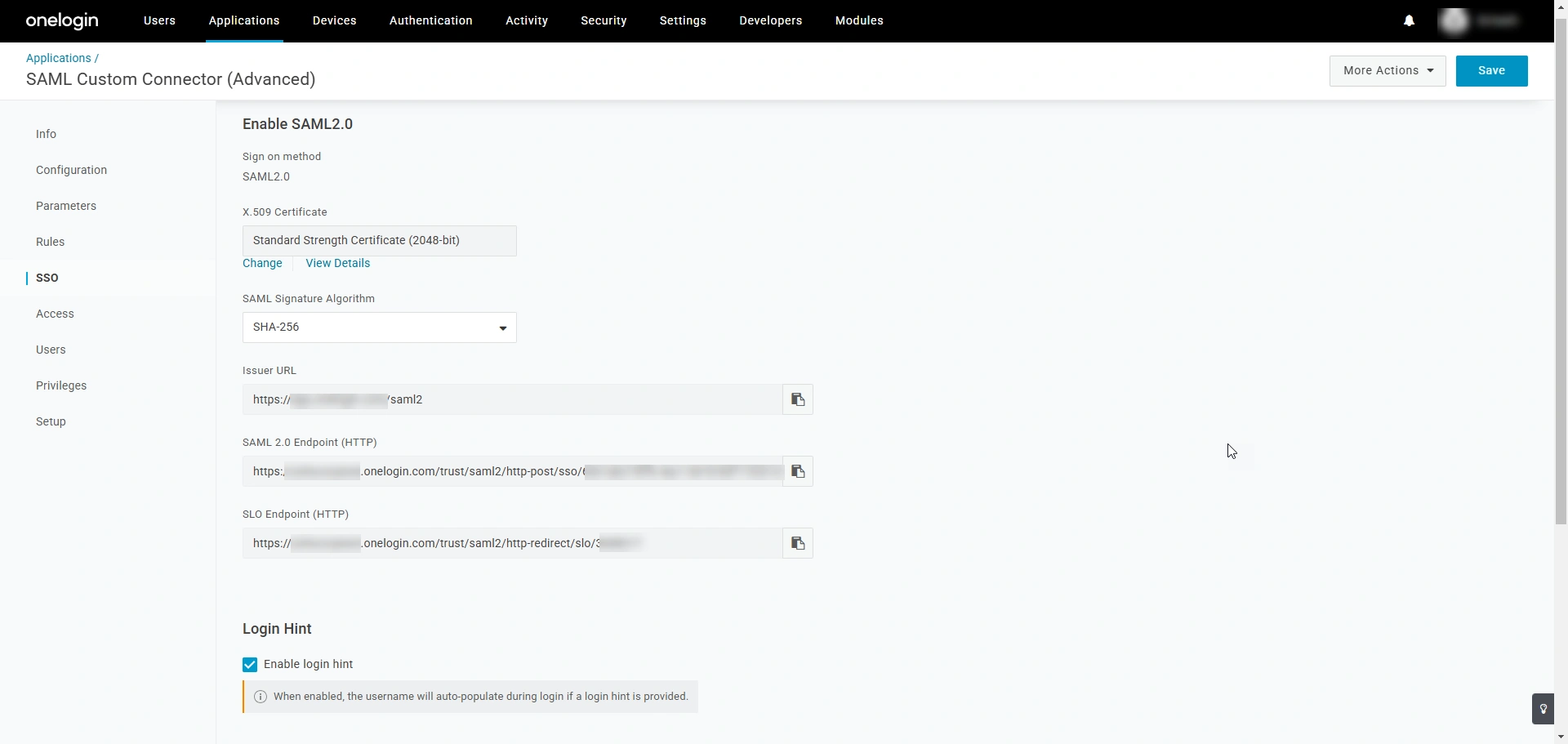
- To download the IdP certificate, click the View Details button below the X.509 Certificate field.
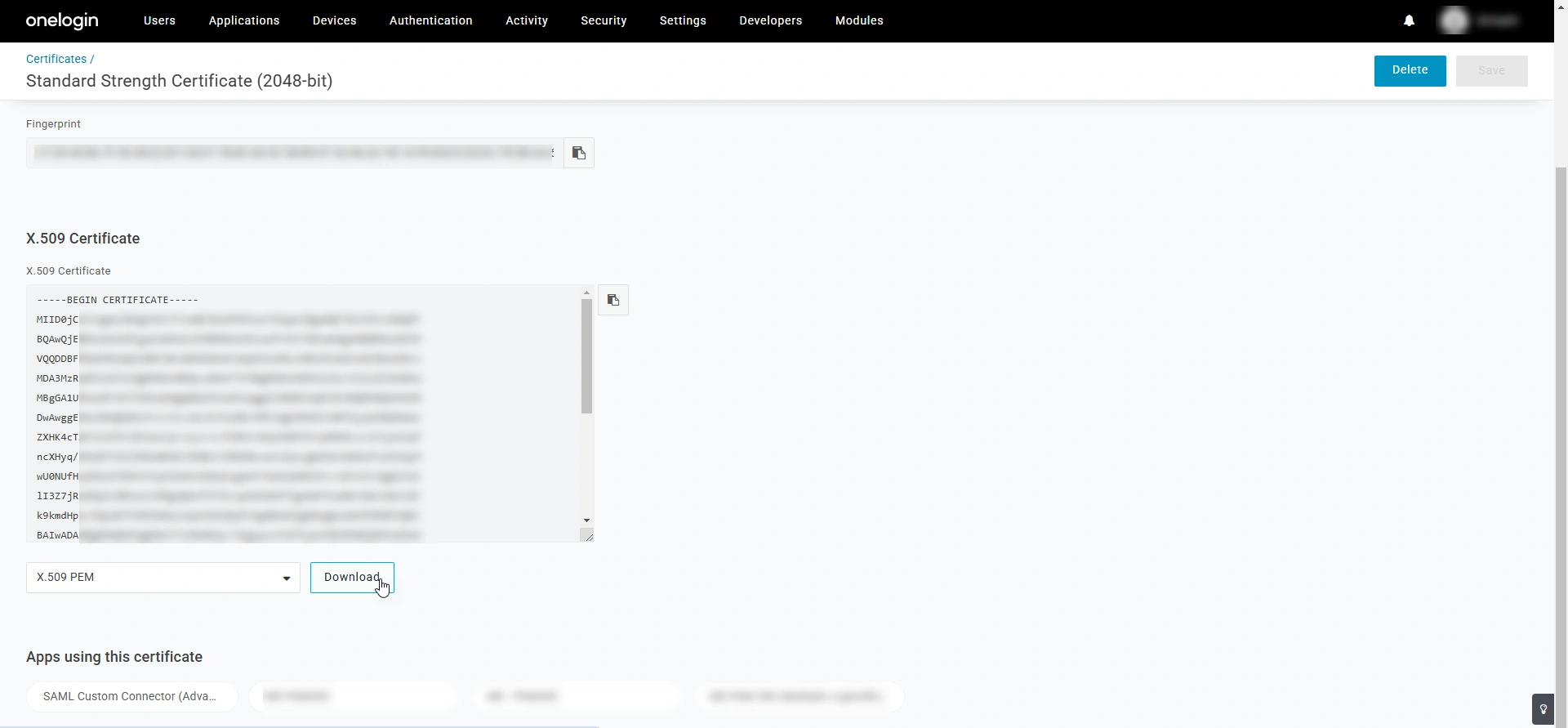
- In the certificate details page that appears, scroll down to the end of the page and click the Download button to download the IdP certificate to your machine.
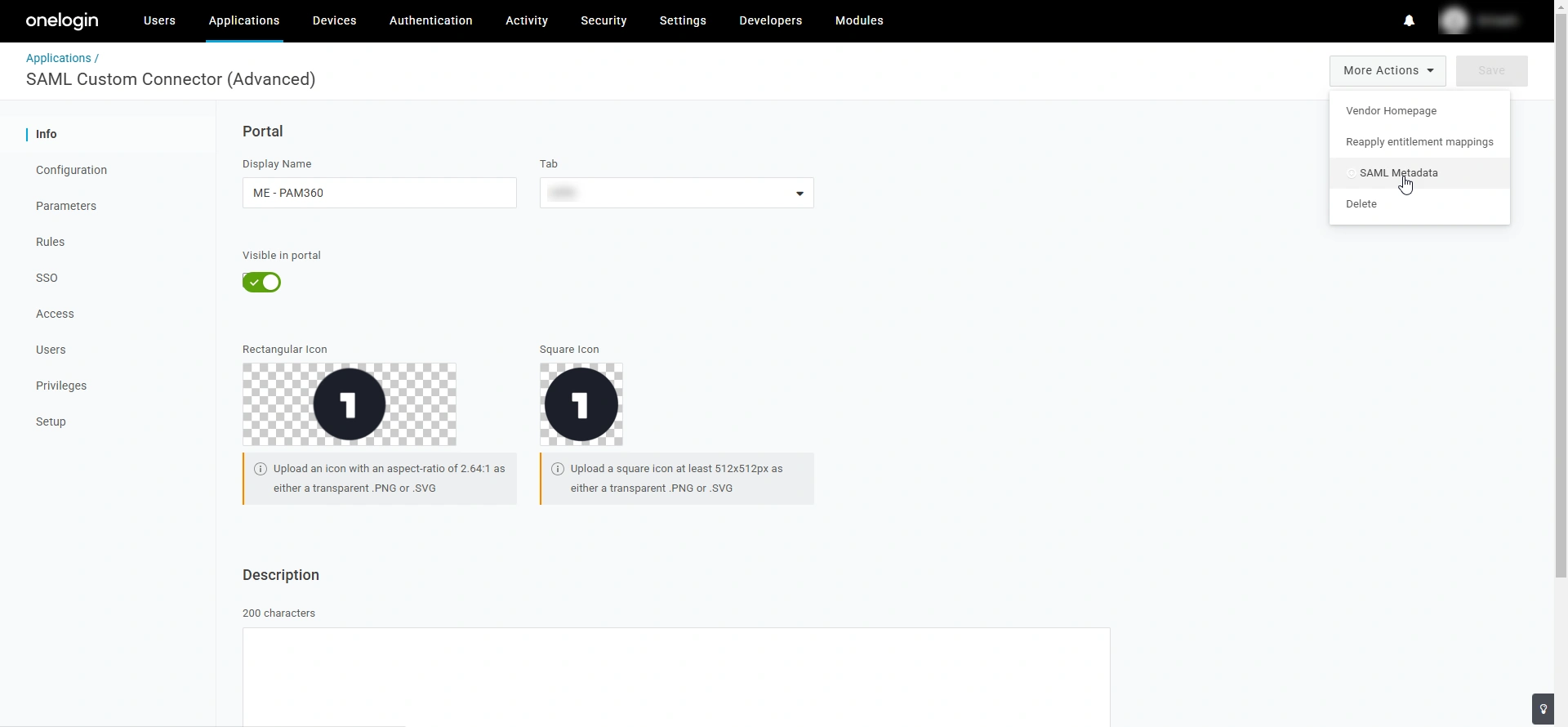
- To download the IdP details as a metadata.xml file, navigate to the custom SAML PAM360 application page, click the More Actions button on the top-right corner of the screen, and select SAML Metadata from the displayed options.
5. Assigning the PAM360 Application to the Users
Follow these steps to assign the PAM360 application created on the OneLogin portal to the users in your directory.
- Select Users from the top pane.
- On the Users page, click the desired user to whom you wish to assign the PAM360 application.
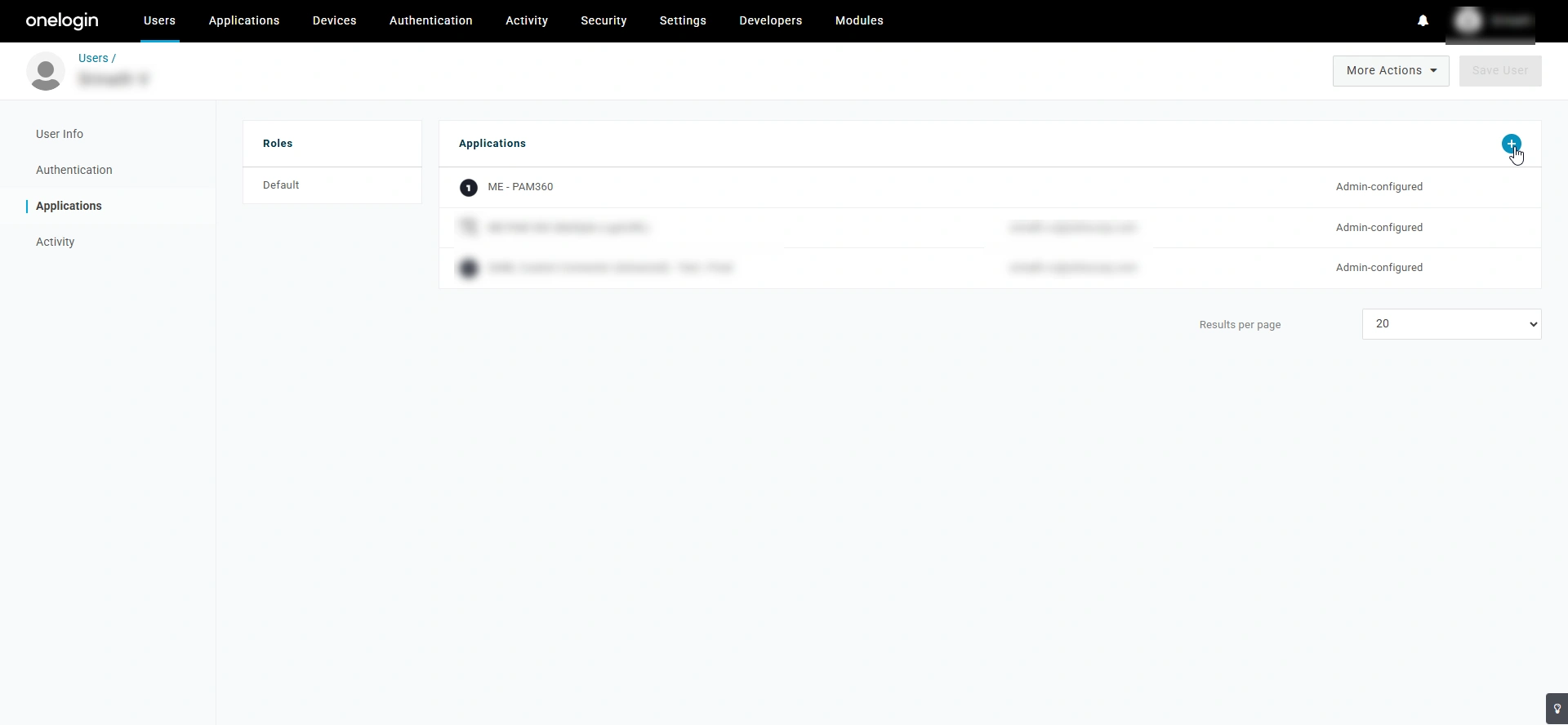
- On the user profile page, switch to the Applications tab and click the + button beside the Application section.
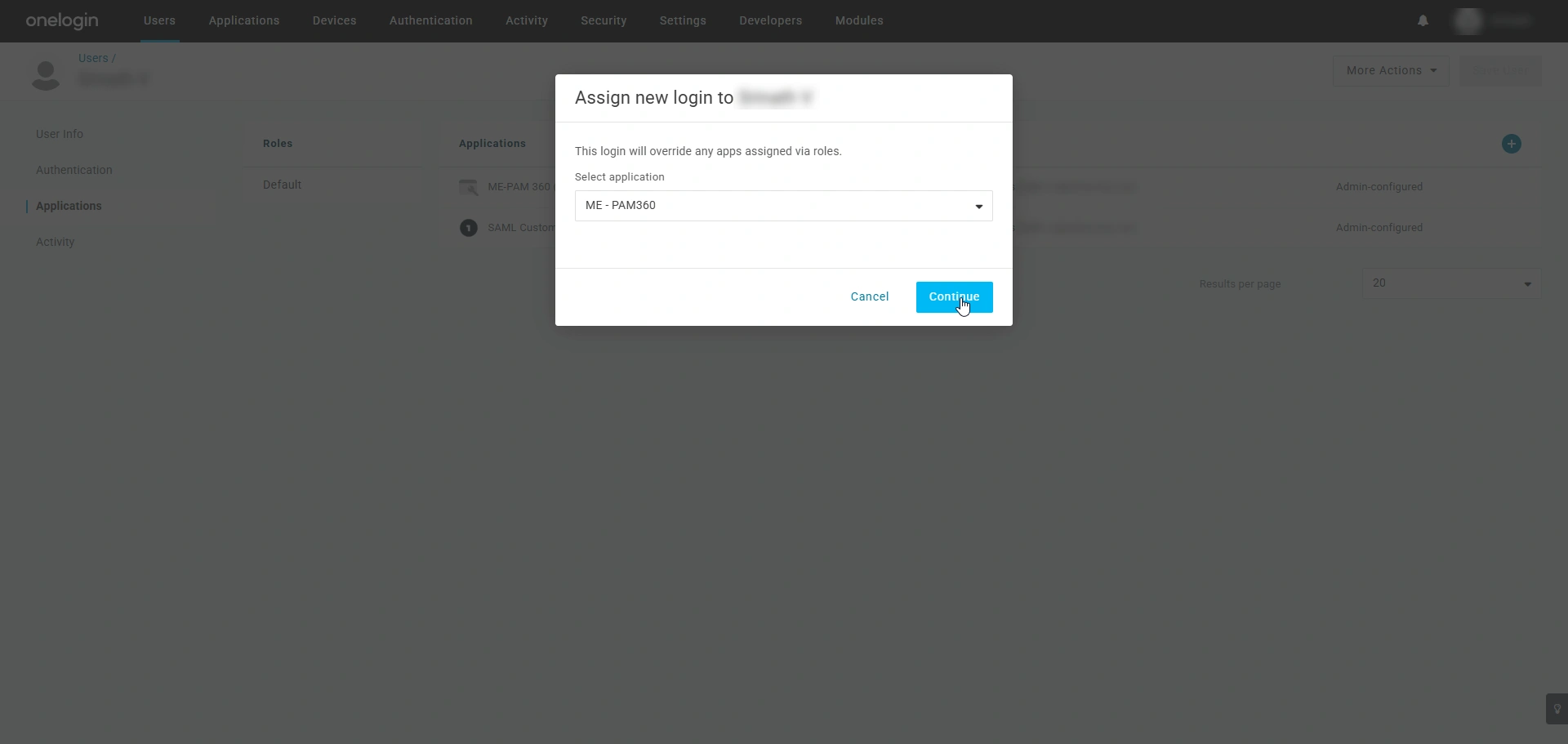
- In the Assign new login to user window, select the application you wish to assign to the user from the drop-down menu, and click Continue.
- In the Edit application login for user window, enable the Allow the user to sign in checkbox and click Save.
You have successfully added the PAM360 custom SAML application to the user.
After configuring PAM360 as an SP in the OneLogin portal, you must configure OneLogin as an IdP in PAM360 to establish it as a trusted entity. Access the PAM360 browser window and proceed with the IdP configuration starting from Step 2 - Configure Identity Provider Details. Explore this link for the detailed IdP configuration steps. Based on the provided steps, configure OneLogin as an IdP and configure the SAML properties on the PAM360 interface.