Session Events Monitoring in PAM360
Session Events Monitoring in PAM360 enables administrators to monitor user keystrokes and system events in Windows sessions using the PAM360 agent. By capturing commands, keystrokes, and system events, this feature provides clear visibility into user actions and system behavior, strengthening auditing, security monitoring, and compliance reporting.
When the PAM360 agent is installed on a machine with System Events Logging and Keystroke Logging modules enabled, it captures all system events and user keystrokes for both Managed Sessions (i.e PAM360-initiated sessions) and Unmanaged Sessions (i.e direct logins or via external clients) to the target system. This ensures complete activity recording and uninterrupted audit visibility, even when access occurs outside PAM360’s centralized workflows.
This help document covers the following topics in detail:
- Prerequisites
- Installing PAM360 Agent with Session Events Monitoring Modules
- Restricting Access to the PAM360 Agent Service
- Session Events Monitoring
- Search Events
- Limitations
- Troubleshooting Tip
1. Prerequisites
- Session Events Monitoring is supported only on 64-bit Windows operating systems.
- The PAM360 agent should be installed on the target machine with the System Event Logging and Keystroke Logging modules enabled. The agent monitors sessions to capture system events and user keystrokes, to ensure complete session monitoring and audit visibility.
2. Installing PAM360 Agent with Session Events Monitoring Modules
Session events monitoring in PAM360 relies on agent-based data collection to provide complete visibility and audit coverage of privileged activities. To capture session events and user keystrokes across target machines, the PAM360 agent should be installed on the relevant target machines with the required modules enabled.
To record system-level activities, the PAM360 agent should be installed with System Events Logging enabled. This allows PAM360 to capture key session-related system events such as session logon and logoff, program start and termination, and active window changes for both managed and unmanaged sessions.
To capture user keystrokes, the PAM360 agent should be enabled or installed with the Keystroke Logging module. The Keystroke Logging module records all user keystrokes on the target machine and commands executed in the supported command-line environments, ensuring activity is captured not only for sessions initiated through PAM360 but also for direct logins to the system.
Refer to this document to learn more about installing a PAM360 agent or enabling the respective agent modules.
Caution
Antivirus software may block the agent process. Ensure that the agent installation folder is excluded from antivirus scans and quarantines.
- If you are using a custom antivirus solution, refer to the vendor’s documentation for instructions on configuring folder exclusions.
- If you are using Windows Security, follow the steps outlined in the Windows Security documentation to exclude folders from scans.
3. Restricting Access to the PAM360 Agent Service
Restricting access to the PAM360 agent service prevents end-users from stopping the service and bypassing session event and keystroke logging on target machines. While a standard user account cannot stop the service by default, a Windows administrator account can. To enforce strict monitoring, it is recommended to provision users with a standard user account for access and restrict service control for administrative users. To restrict administrative access, follow these steps:
- Create a dedicated administrator account and configure service permissions so that only this account can start, stop, or modify the PAM360 agent service.
- Ensure this service account has full permissions, as the agent requires service access for updates. This configuration is not available through the PAM360 web interface and should be performed manually on the target machines.
- Service permissions can be viewed and modified using the following commands:
sc sdshow <service_name>
sc sdset <service_name> "<SDDL>"
4. Session Events Monitoring
Once the PAM360 agent is installed on the target system, it continuously captures session activity whenever a session is initiated, either from the PAM360 interface (managed sessions) or through direct/native client access (unmanaged recorded sessions). The agent records system events such as session logon and logoff, program start and termination, active window changes, and user keystrokes, including commands entered in supported command-line environments.
All captured activities are associated with their respective session audit and stored as session event data in PAM360. To view these session events, follow the steps below:
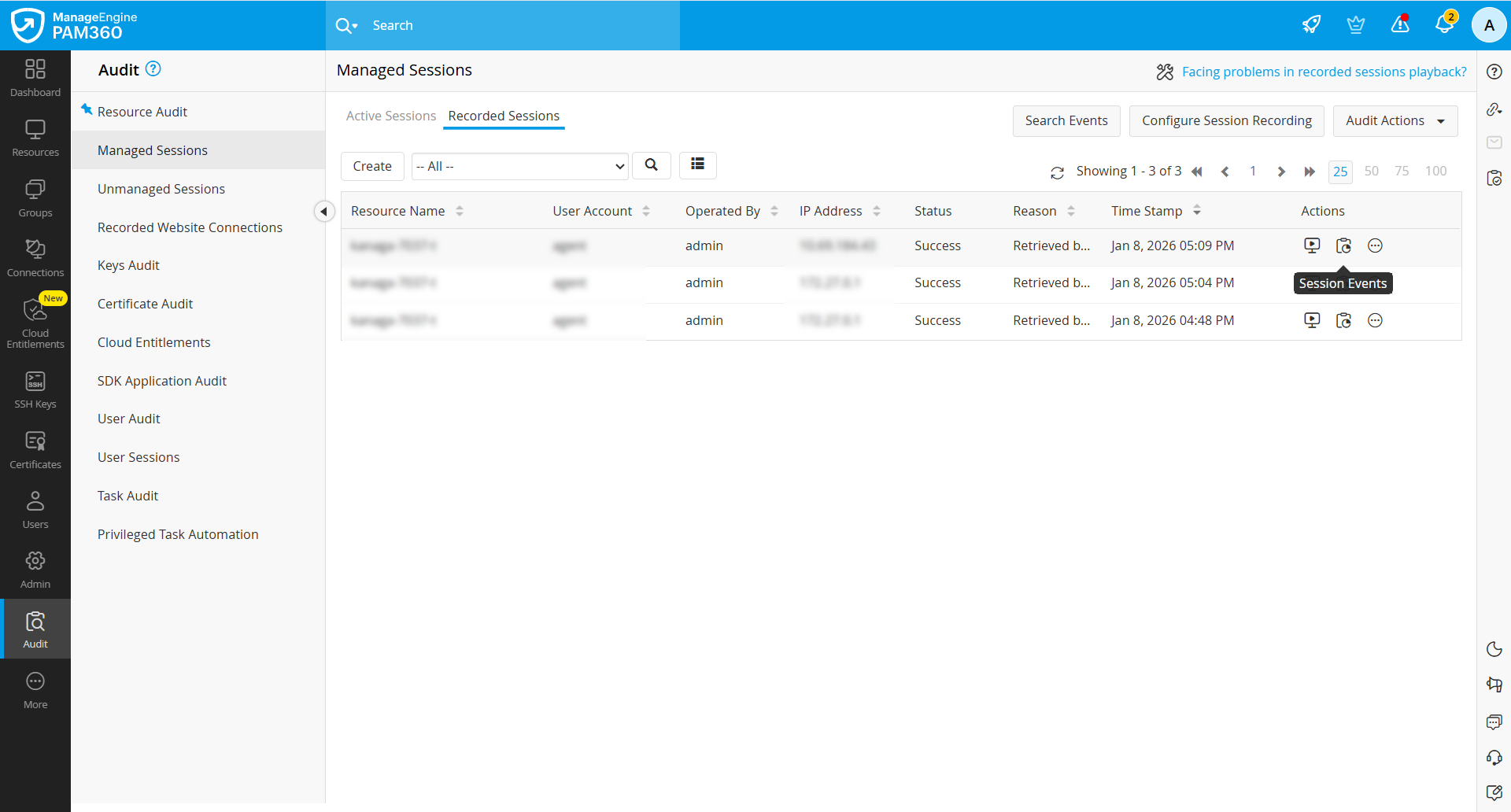
- Navigate to Audit >> Managed Sessions / Unmanaged Sessions >> Recorded Sessions, locate the required session, and click Session Events icon from the Actions column corresponding to the resource.
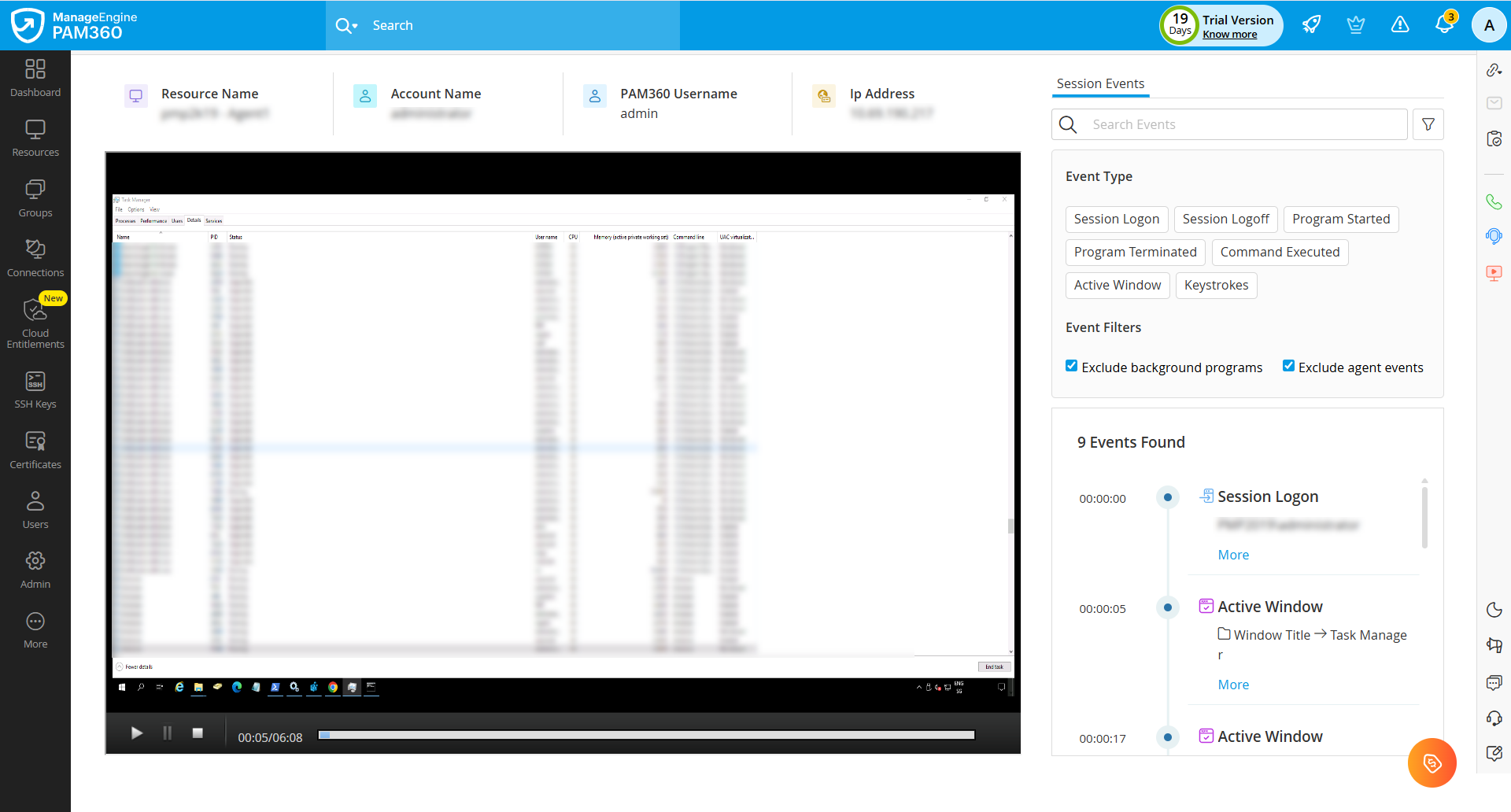
- For Managed Sessions: On the Session Events page, the recorded session playback is displayed on the left, while the corresponding session events are listed on the right. You can review the events to understand what occurred during the session. Each event includes a timestamp, which you can use as a reference while navigating the session recording.
- For Unmanaged Sessions: Since these sessions are initiated directly and bypass PAM360, only the Session Events page will be available to display the recorded events. Session playback is not supported for these sessions, as PAM360 does not currently capture or store playback data for connections established outside its control. You can still review the listed events to understand the actions performed during the session, with each event showing the exact timestamp of occurrence.
- Use the Filter option next to the event search bar to narrow down specific event types. The following event types are captured during a session:
- Session Logon - User login to the target system.
- Session Logoff - User logout or session termination.
- Program Started - Process started during the session.
- Program Terminated - Process closed or terminated during the session.
- Command Executed - Commands executed in supported command-line sessions (currently limited to Windows Command Prompt).
- Active Window - Changes in the active application or system window during the session.
- Keystrokes - User keystrokes on the machine during the session.
- Under Event Filters, the following options are available to further refine the displayed events:
- Exclude background programs - Select this option to hide events generated by background system processes and services, allowing you to focus only on user-initiated activities during the session.
- Exclude agent events - Select this option to exclude events triggered by the PAM360 agent itself, so that only user actions performed on the target system are displayed.
5. Search Events
The Search Events feature enables a global search across multiple sessions. Click Search Events in the top pane of Managed Sessions or Unmanaged Sessions to begin.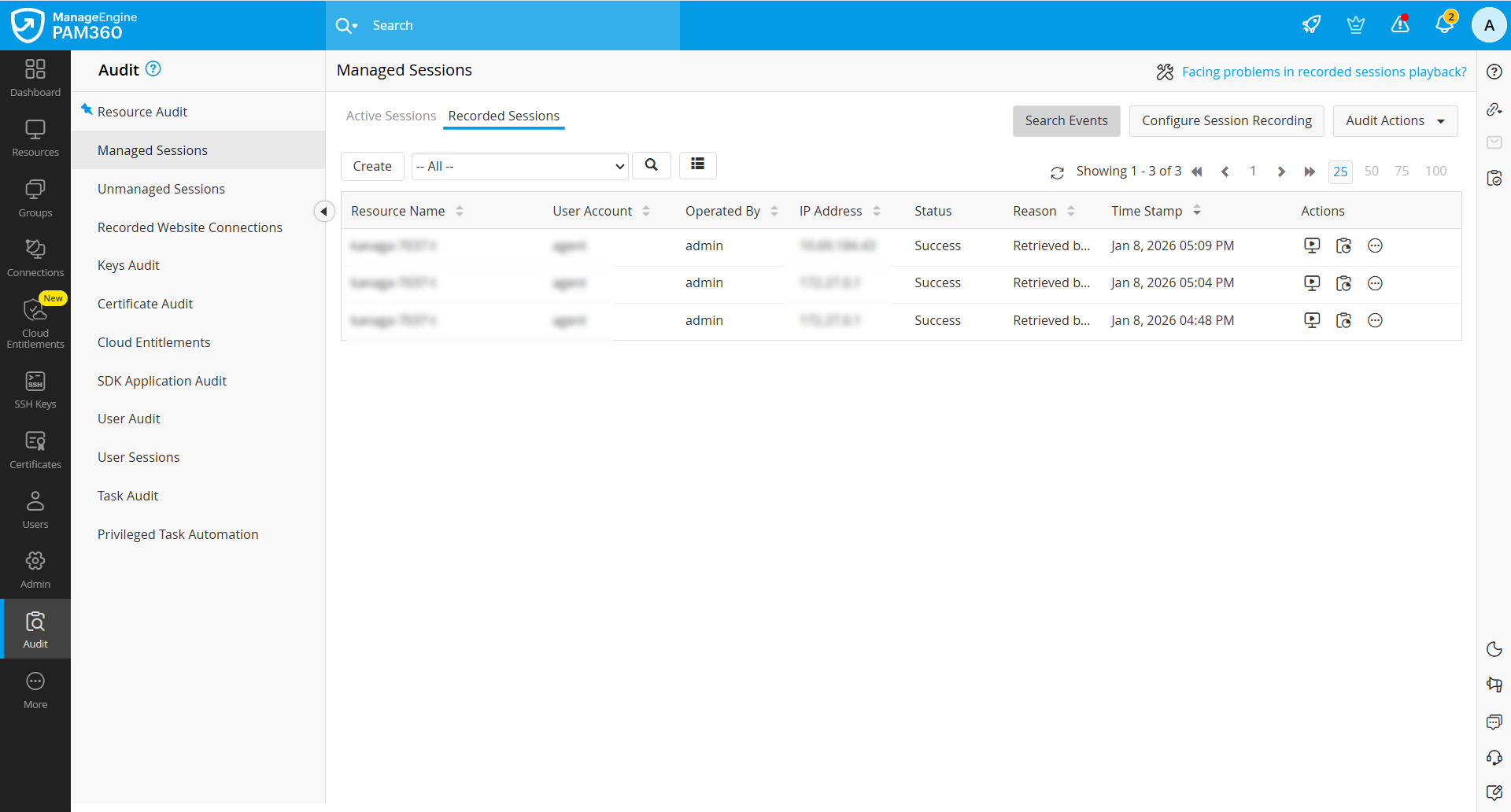
The Event Search page displays all sessions - managed and unmanaged, along with their details. Enter a keyword in the Search field to fetch the relevant events that occurred during the sessions. Refine the results using the Managed Session and Unmanaged Session filters. Selecting a session from the results displays the events associated with the keyword.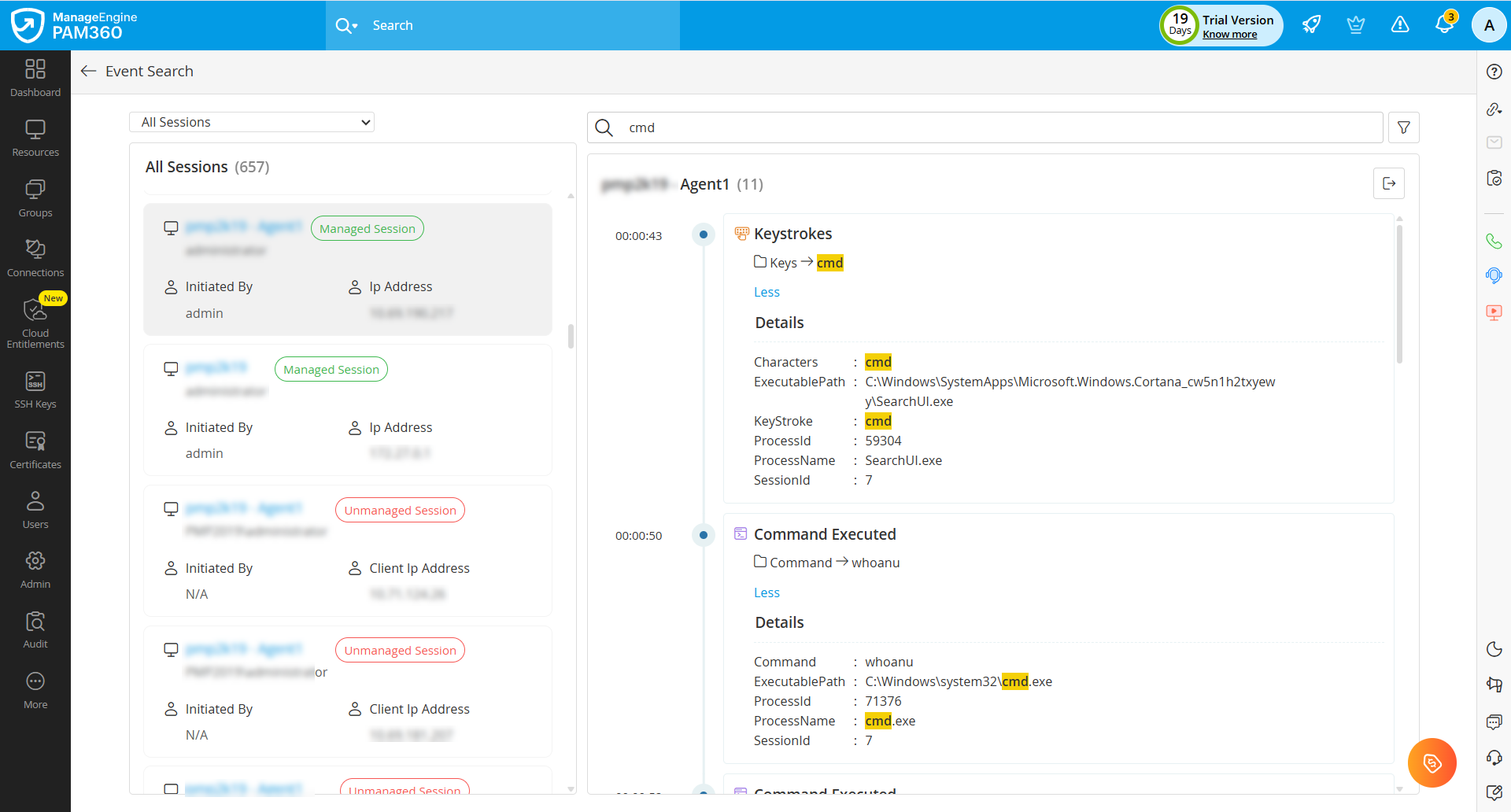
6. Limitations
- Command-level monitoring is currently supported only for Windows Command Prompt (cmd.exe) executed through conhost.exe.
- Session Events Monitoring is not supported for sessions accessed via VNC, Landing Server, or PAM360 Remote Connect. However, activities performed during these sessions are still captured and are displayed exclusively under Unmanaged Sessions in the Session Events view.
- Session events for PAM360 Remote Connect are captured and displayed under Unmanaged Sessions in the Session Events view, even though the session is launched through PAM360.
- Session events are not captured for sessions initiated through the Read-Only (RO) server when the primary server is down, as the ManageEngine PAM360 Session Logger is not supported on RO servers.
- In MS SQL High Availability model, session events for connections initiated on the secondary server are captured and displayed under Unmanaged Sessions.
7. Troubleshooting Tip
From build 8500 onwards, when the PAM360 agent is installed with the Session Events module, an additional dependent service named Session Logger is installed and runs alongside the standard PAM360 agent service. If the Session Logger fails to start and returns error code 193, it may be caused by one of the following reasons:
- When PAM360 agent is installed on a Windows machine other than 64-bit. The PAM360 agent supports only 64-bit Windows operating systems.
- When the Service Control Manager (SCM) is unable to locate the agent executable. This may happen due to a conflict or incorrect executable path on the C: drive. In such cases restart the machine. After reboot, a popup may appear requesting the renaming of conflicting files. Completing this action resolves the service startup issue.