Configuring Enterprise Ticketing Systems in PAM360
PAM360 provides administrators with the flexibility to integrate a variety of enterprise ticketing systems, enabling streamlined validation of service requests for privileged access. By integrating these ticketing systems, PAM360 extends access control workflow capabilities by granting approvals to password access requests upon automatic validation of corresponding service requests in the ticketing system. This ensures compliance with organizational security standards, minimizes unauthorized access risks, and simplifies audit trails for privileged account activities.
With PAM360, you can configure both on-premises and cloud-based ticketing solutions to align with your IT service management (ITSM) processes. Whether your organization uses ServiceDesk Plus, ServiceNow, Jira Service Desk, or BMC Remedyforce, PAM360 allows seamless integration with these platforms, offering robust support for incident and service request management.
In this document, you will learn how to configure and integrate the following ticketing systems with PAM360:
- Integrating ManageEngine ServiceDesk Plus
- Integrating ManageEngine ServiceDesk Plus Cloud
- Integrating ManageEngine ServiceDesk Plus MSP
- Integrating ServiceNow
- Integrating Jira Service Management On-Premises
- Integrating Jira Service Management Cloud
- Integrating BMC Remedyforce
- Integrating BMC Helix ITSM
- Integrating TOPdesk
- Integrating GLPI
- Integrating Salesforce Service Cloud
- Ticketing System Validation Enforcement and Exceptions
Additional Detail
For custom or other ticketing system integration with PAM360, refer to this help document.
1. Integrating ManageEngine ServiceDesk Plus
PAM360 facilitates integration with ManageEngine ServiceDesk Plus by validating change request in addition to the ticket ID entered by the user in the ticketing system. And validation occurs only when the change ID provided is approved in Manage Engine Service Desk Plus.
To integrate ManageEngine ServiceDesk Plus with PAM360 as a ticketing system, perform the below steps.
- Log in to ManageEngine ServiceDesk Plus.
- Click API Key Generation under Username at the top-right corner of the page.
- Copy the generated key and log in to the PAM360 web interface.
- Navigate to Admin >> Integrations >> Ticketing System.
- On the page that appears, click the Enable button in the ManageEngine ServiceDesk Plus tile.
- In the pop-up window that appears, enter the copied key in the Technician Key field.
- In the Ticketing System URL field, enter the URL of the ServiceDesk Plus server (for example, https://dnsname:port).
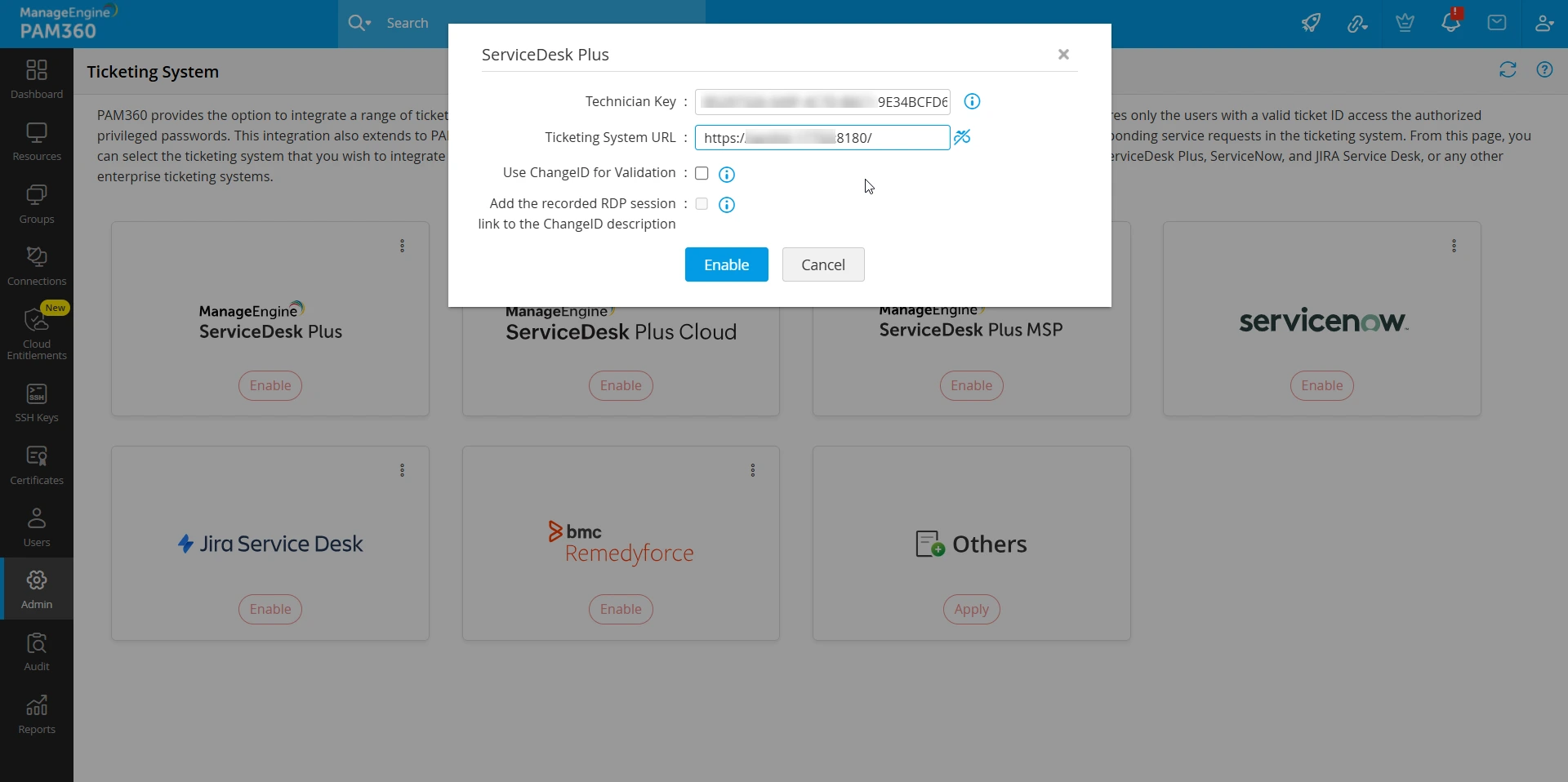
- Tick the Use ChangeID for Validation checkbox to make users provide valid Change IDs for the validation of password access requests and other similar operations. If the checkbox is disabled, users have to submit valid Request IDs for the validation.
- Next, tick the Add the recorded RDP session link to the ChangeID description checkbox if you want to add the link of recorded RDP session to the ChangeID description.
- Click the Enable button to complete configuring the ticketing system integration. Then, click the Refresh icon at the top-right corner of the page to make the changes appear.
Now, the ManageEngine ServiceDesk Plus ticketing system has been integrated successfully.
2. Integrating ManageEngine ServiceDesk Plus Cloud
PAM360 integrates with ManageEngine ServiceDesk Plus Cloud to automatically validate access request with a valid ticket ID to grant privileged access. The ServiceDesk Plus Cloud ticketing system integration involves three stages:
- Generating Client ID and Client Secret
- Configuring ServiceDesk Plus Cloud Ticketing System
- Authorizing ServiceDesk Plus Cloud Integration
2.1 Generating Client ID and Client Secret
- Go to the Zoho Developer Console.
- Select the Client Type as Server-based Application.
- Enter the following details:
- Client Name: The name of your application you want to register with ManageEngine ServiceDesk Plus Cloud (PAM360 is advisable).
- Home page URL: Mention the PAM360 access URL. For example: https://<hostname>:port/ (or) https://<domain_name>.com
- Authorized Redirect URIs: <Home_page_URL>/sdpodAuth/saveSDPODRefreshAndAccessTokens
- Click Create to generate the following credentials:
- Client ID: The consumer key generated from the connected application.
- Client Secret: The consumer secret generated from the connected application.
With the Client ID and Client Secret copied from the developer console, go to the PAM360 web interface and perform the ServiceDesk Plus Cloud ticketing system configuration.
2.2 Configuring ServiceDesk Plus Cloud Ticketing System
- Navigate to Admin >> Integrations >> Ticketing System.
- Click Enable under ManageEngine ServiceDesk Plus Cloud.

- Now, enter the Client ID and Client Secret that you have copied earlier.
- Mention the Ticketing System URL and the Redirect URL.
Caution
- If there are multiple portals available in the ServiceDesk Plus Cloud, enter the Ticketing System URL with the relevant portal name. For example, https://sdpondemand.manageengine.com/app/<itdesk>
- Mention the Home page URL from the previous step as the Redirect URL.
- Click Enable to complete the configuration and enable the ServiceDesk Plus Cloud ticketing system.
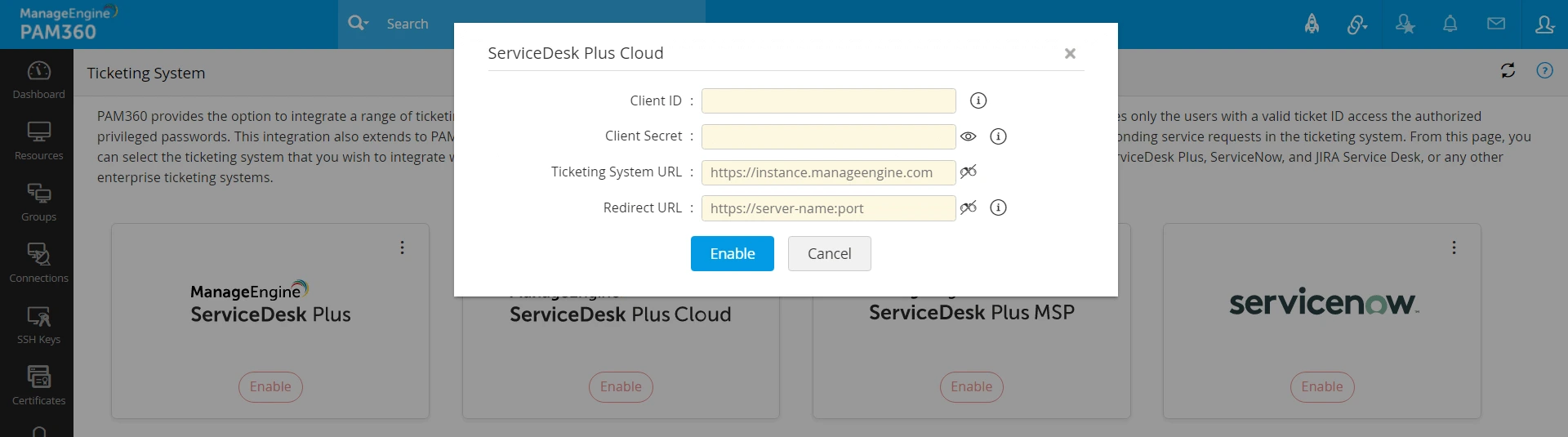
The ServiceDesk Plus Cloud configuration has been saved successfully.
2.3 Authorizing ServiceDesk Plus Cloud Integration
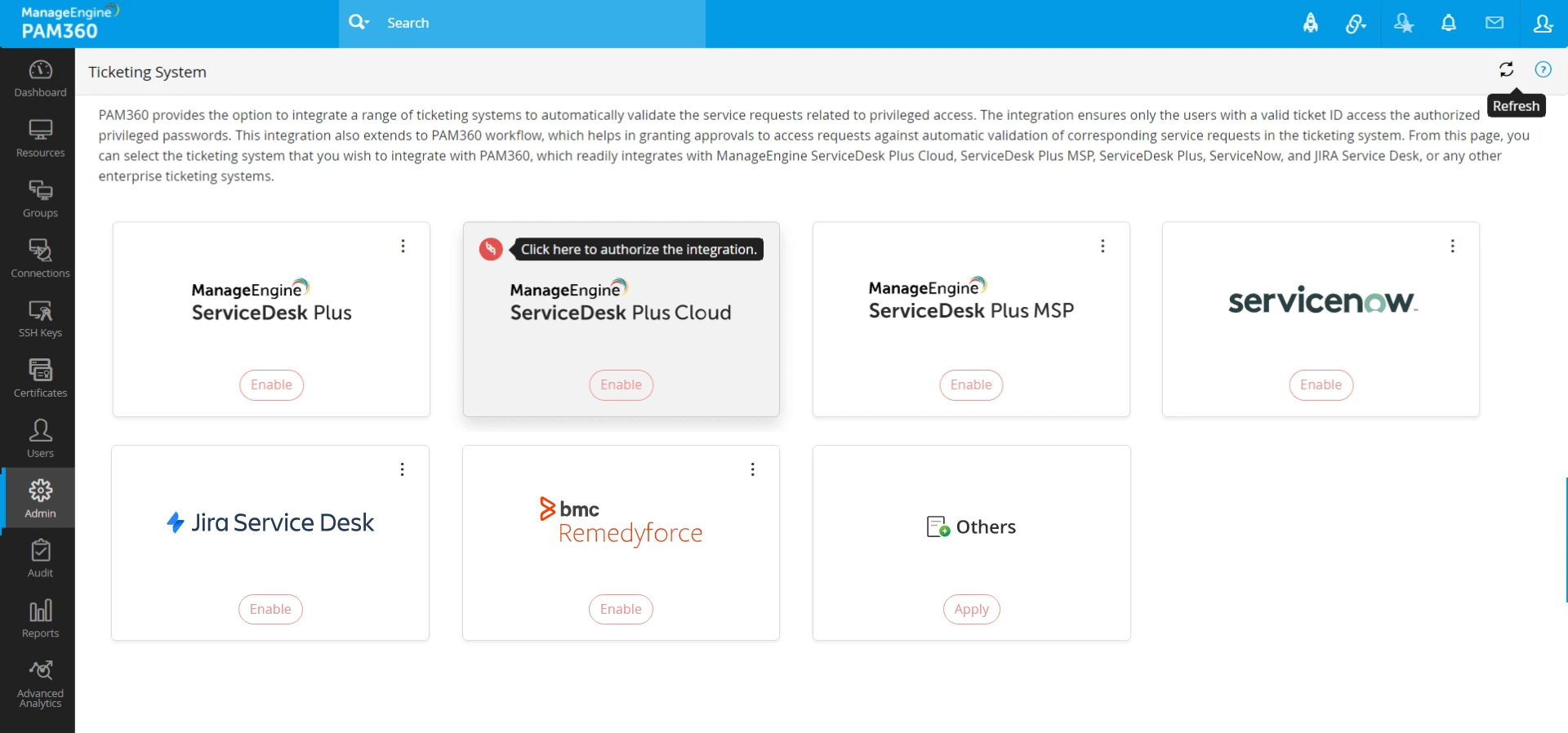
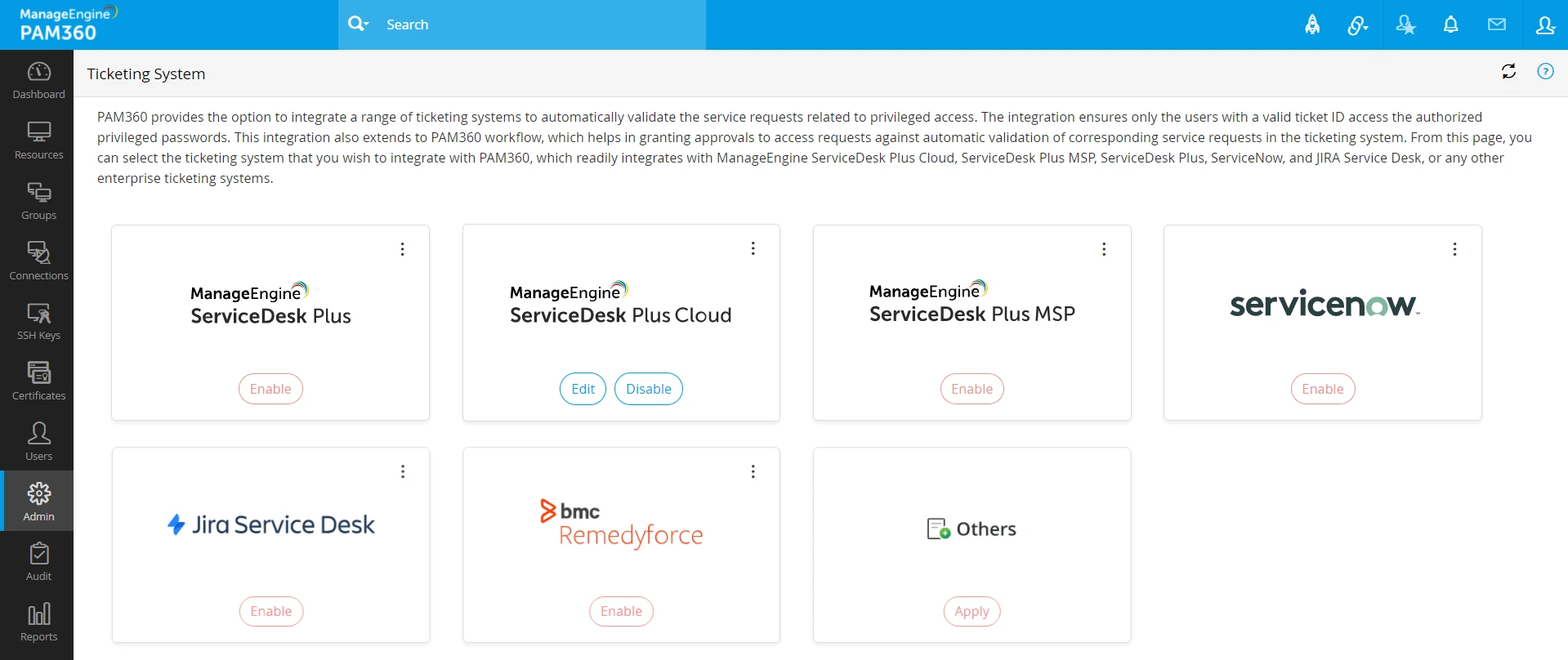
- On the Ticketing System page, click the Refresh icon at the top-right corner for the changes to appear.
- Then, click the red icon at the top-left corner of the ManageEngine ServiceDesk Plus Cloud tile. This will authorize the integration.
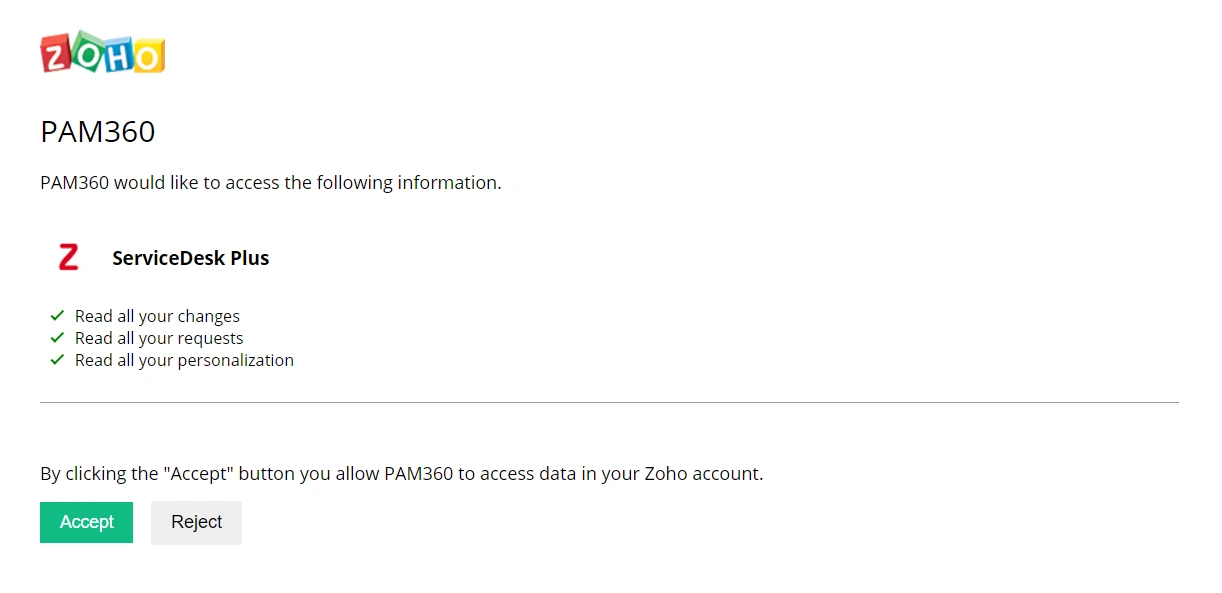
- In the UI that appears, Accept the consent form to access the data.
Caution
Remember, only users with a technician role in the Ticketing System should Accept the above request to view and validate the tickets.
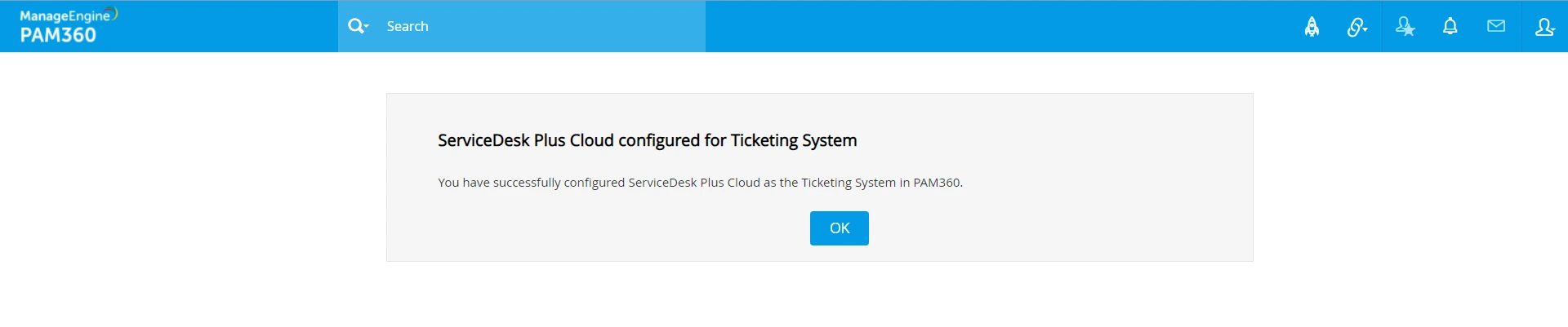
- Now, ServiceDesk Plus Cloud has been configured successfully as ticketing system in PAM360. Click OK to exit the GUI and click the Refresh icon at the top-right corner of the Ticketing System page in PAM360 again for the changes to appear.
3. Integrating ManageEngine ServiceDesk Plus MSP
PAM360 supports integration with ManageEngine ServiceDesk MSP to automatically validate access request to privilege access only with a valid ticket ID. This can be done by generating a Technician key and entering the valid ticket ID in the ticketing system. To perform the integration, follow the below steps:
- Log in to ManageEngine ServiceDesk Plus MSP.
- Click API Key Generation under Username at the top-right corner of the page.
- Copy the generated key and log in to the PAM360 web interface.
- Navigate to Admin >> Integrations >> Ticketing System.
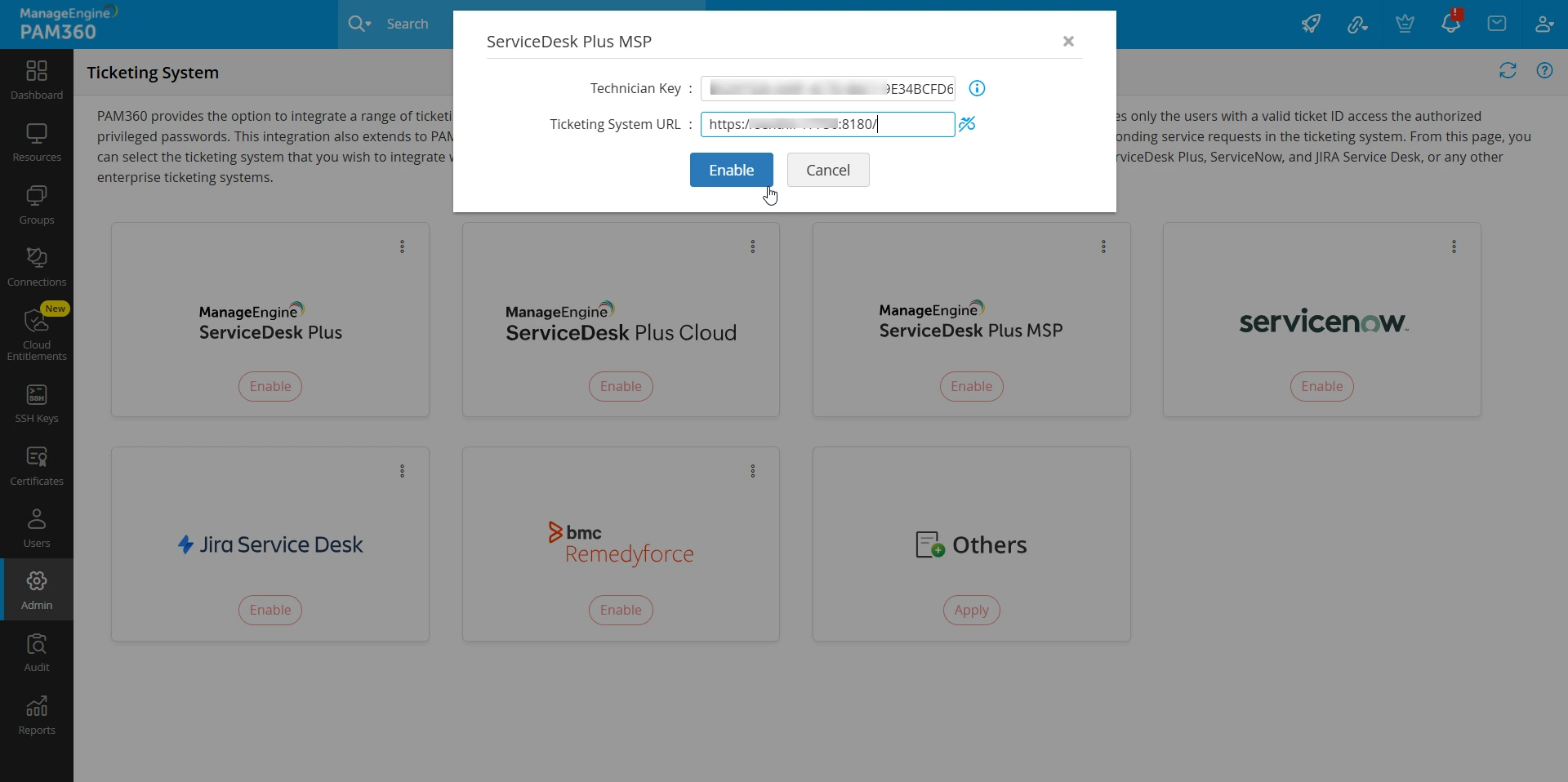
- Click the Enable button for ServiceDesk Plus MSP.
- In the pop-up that appears, enter the key that you have copied in the Technician Key field.
- In the Ticketing System URL field, enter the URL of the ServiceDesk Plus MSP server (for example, https://dnsname:port).
Now, the ManageEngine ServiceDesk Plus MSP ticketing system has been integrated successfully.
4. Integrating ServiceNow
By integrating ServiceNow with PAM360, organizations can automate the validation of service requests for privileged access, ensuring that access is granted only in response to approved and verified tickets. This integration helps enforce security policies, improve accountability, and streamline IT workflows by bridging the gap between privileged access management and ITSM.
The integration supports automated ticket validation, making it easier for administrators to align with organizational compliance standards and reduce manual effort. With this setup, every request for privileged access is linked to a corresponding ServiceNow ticket, ensuring a secure and efficient approval process.
Caution
Ensure that you have the ServiceNow login credentials ready before integrating it with PAM360.
To configure ServiceNow ticketing system in PAM360, perform the below steps:
- Log in to the PAM360 web interface and navigate to Admin >> Integrations >> Ticketing System.
- On the page that appears, click the Enable button on the ServiceNow tile.
- In the pop-up that opens, click on Generate beside the AUTH Token field.
- In the pop-up that appears, enter the ServiceNow login credentials (username and password).
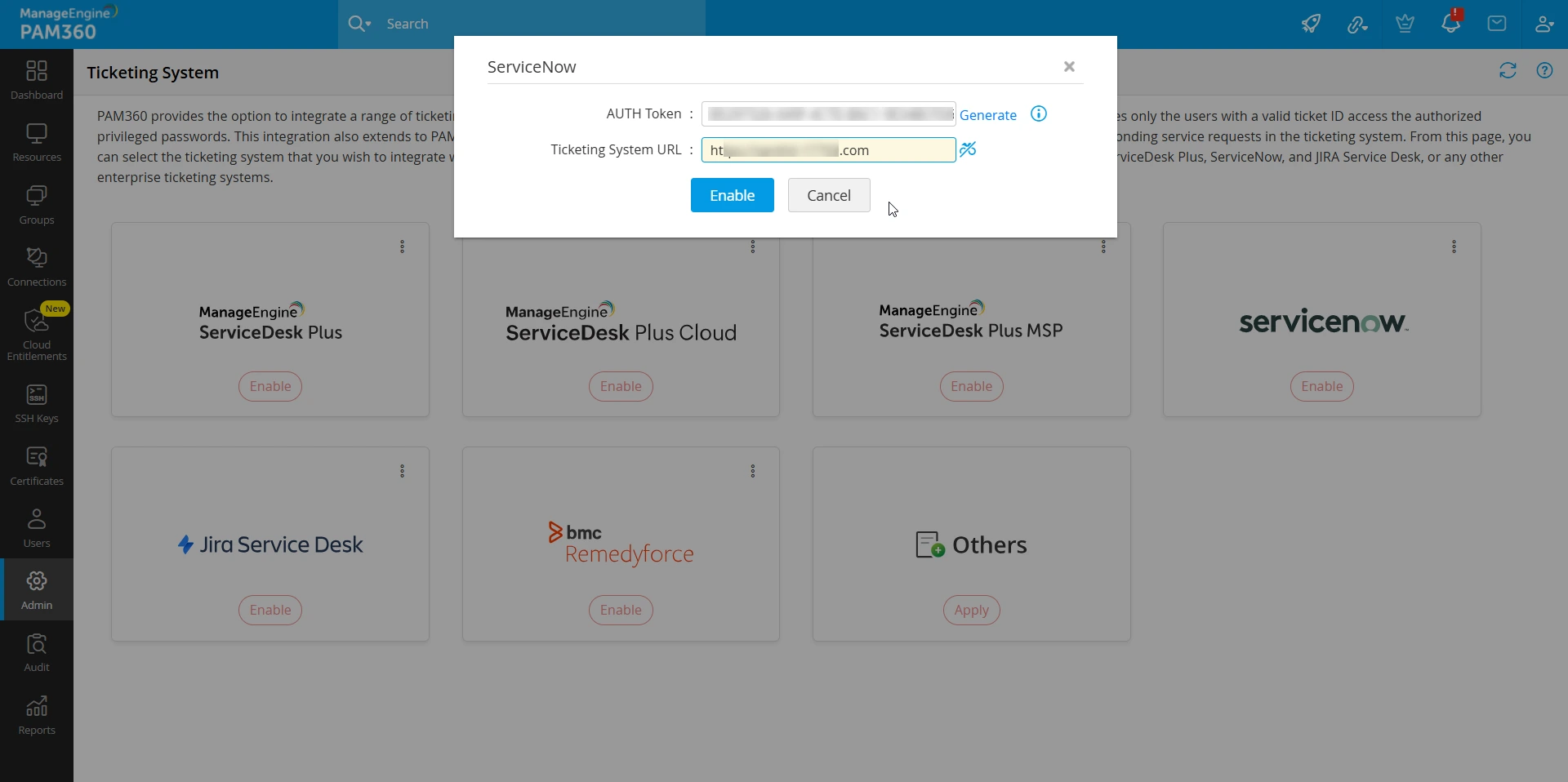
- Once the AuthToken is generated, enter the ServiceNow server URL (for example, https://instance.servicenow.com)in the Ticketing System URL field.
- Click the Enable button to complete configuring the ticketing system.
Now, click the Refresh icon at the top-right corner of the page to make the changes appear. You have successfully integrated ServiceNow ticketing system with PAM360.
Using the ServiceNow ticket IDs, privileged actions such as password access requests, retrieval, and rotation are performed by the user. The following are some ServiceNow ticket ID formats:
- ServiceNow Incident - INC(7 digit number) eg) INC0010007
- ServiceNow Change - CHG(7 digit number) eg) CHG0000003
- ServiceNow Change Task - CTASK(7 digit number) eg) CTASK0000009
- ServiceNow Request - REQ(7 digit number) eg) REQ0010004
- ServiceNow Request Item - RITM(7 digit number) eg) RITM0010007
- ServiceNow Problem - PRB(7 digit number) eg) PRB0000007
- ServiceNow Project - PRJ(7 digit number) eg) PRJ0000009
- ServiceNow Project Task - PRJTASK(7 digit number) eg) PRJTASK0010001
- ServiceNow Task - TASK(7 digit number) eg) TASK0010001
5. Integrating Jira Service Management On-Premises
Prerequisite: To establish secure HTTPS communication between the PAM360 server and the Jira Service Management server, import the SSL certificate of the Jira Service Management server into the PAM360 certificate store. Refer to FAQ question 11 under the Certificates section for detailed instructions on importing the SSL certificate into the PAM360 certificate store.
- Log in to Jira Service Management application with a Jira Administrator account.
- In the page that appears, click the Profile icon in the top right corner and select Personal Access Tokens from the left pane.
- Click the Create Token button in the top right corner of the screen.
- In the Create a personal access token page that appears, enter the following details
- Token Name - Specify a name for the token you are creating.
- Expiry - Enter the number days for which the token should remain valid.
Caution
The Personal Access Token is displayed only once. Ensure that you copy and securely store the token before closing the page, as it is required to configure the Jira Service Management integration in PAM360.
- After entering the required details, click Create to generate the token.
- In the window that appears, the token will be displayed. Copy the personal access token.
- Now, log in to the PAM360 web interface and navigate to Admin >> Integrations >> Ticketing System.
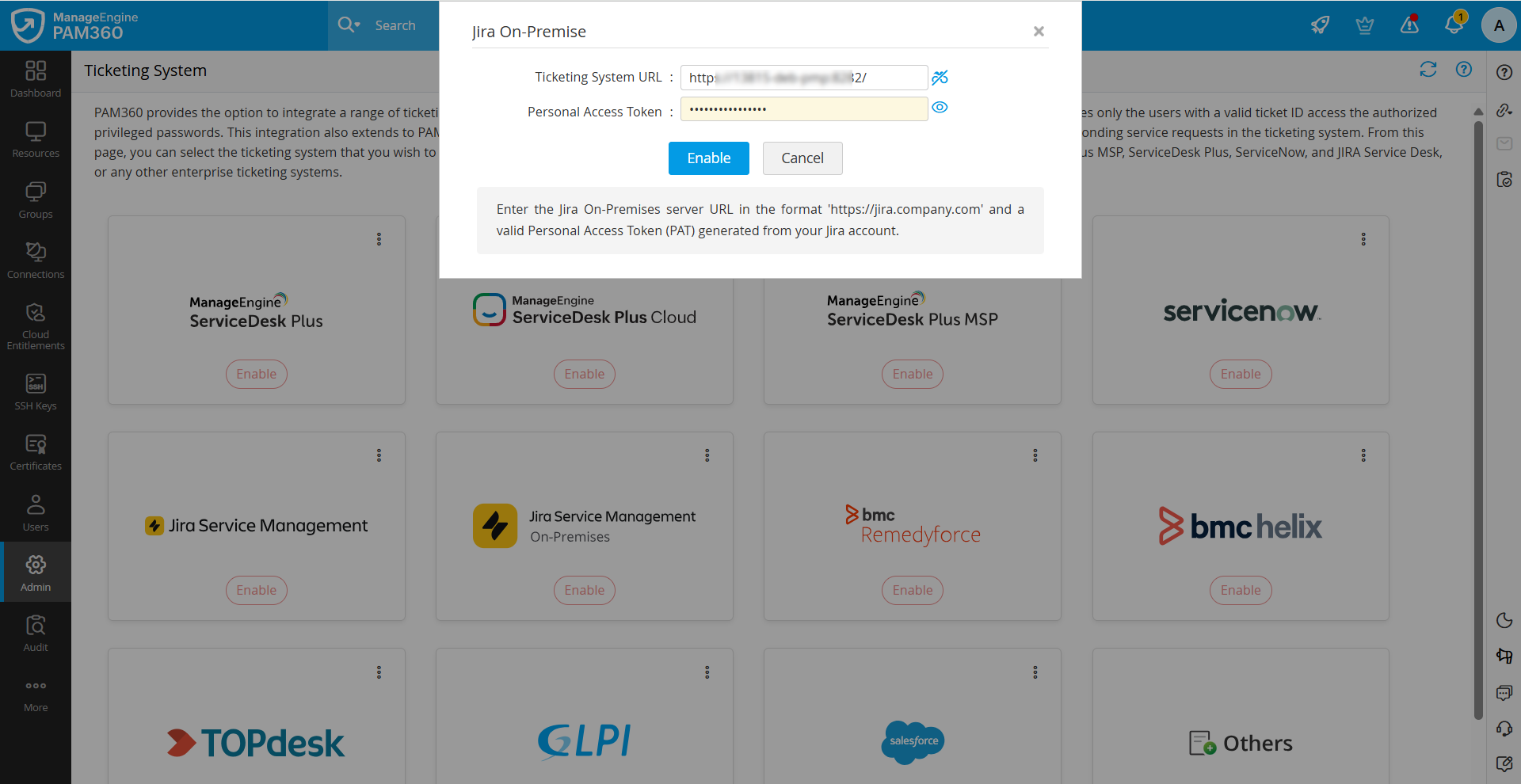
- On the page that appears, click the Enable button under Jira Service Management./li>
- In the pop-up window that appears, enter the following details:
- Personal Access Token - Paste the Personal Access Token generated in Jira Service Management.
- Ticketing System URL - Enter the URL of the Jira Service Management server deployed in your environment.
- After entering the required details, click Enable to save the configuration and complete the integration.
6. Integrating Jira Service Management Cloud
PAM360 now seamlessly integrates with Jira Service Management Cloud, enabling organizations to automate the validation of service requests related to privileged access. This integration ensures that access to critical resources is granted only in response to authorized and approved Jira tickets. PAM360 facilitates secure authentication and authorization through OAuth 2.0, ensuring that only verified service requests trigger privileged access. With this integration, administrators can streamline access control processes by leveraging Jira Service Management Cloud's robust ticketing capabilities.
The Jira Service Management Cloud integration involves three stages:
- Generating Client ID and Client Secret
- Configuring Jira Service Management Cloud Ticketing System
- Authorizing Jira Service Management Cloud Integration
6.1 Generating Client ID and Client Secret
- Go to Atlassian Developer Console and log in with your email account.
- Click the Create drop-down and select the OAuth 2.0 integration from the drop-down list.
- Provide the application Name (recommended name, 'PAM360') in the field that appears, and agree to the Atlassian's developer terms by selecting the checkbox. Click Create.
- In the UI that appears, click Permissions from the left pane and perform the below steps:
- Click Add and then Configure against the Jira API.
- On the page that appears, click Edit Scope under Jira Service Management API.
- Select View Jira Service Management Request Data and click Save.
- Select Authorization from the left pane and click Add.
- In the UI that appears, specify the Callback URL in the format - https://<hostname>:<port>/jiraAuth/saveJiraAccessToken and click Save changes.
- Click Settings from the left pane and note down the Client ID and Client Secret.
With the Client ID and Client Secret copied from the developer console, go to the PAM360 web interface and perform the Jira Service Management Cloud ticketing system configuration.
6.2 Configuring Jira Service Management Cloud Ticketing System
- Log in to the PAM360 web interface and navigate to Admin >> Integrations >> Ticketing System.
- On the Ticketing System page, click the Enable button on the Jira Service Desk tile.
- In the pop-up window that appears,
- Enter the Client ID and Client Secret (that you have noted down previously) in the required fields.
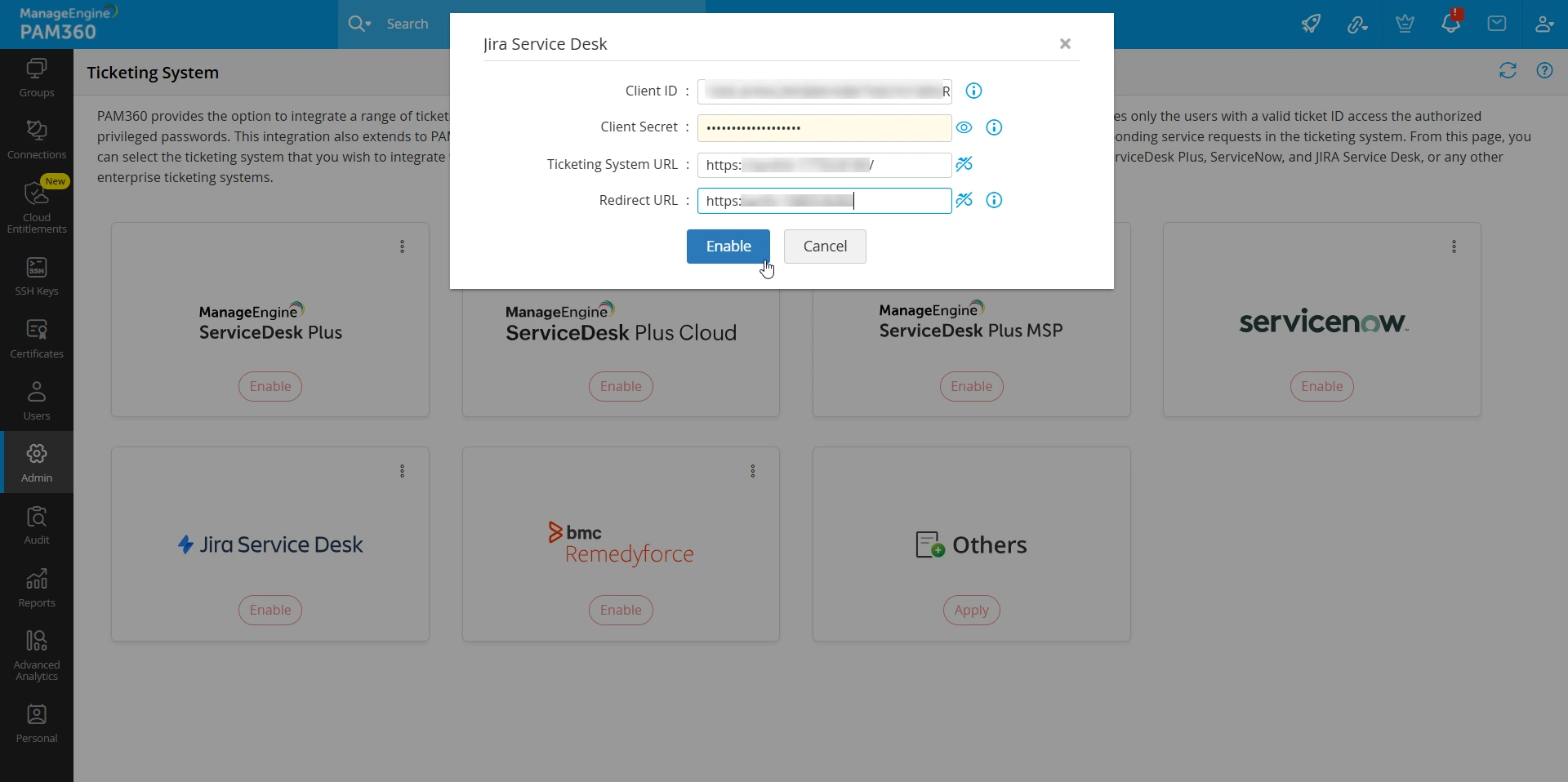
- Next, enter the ticketing system URL (for example, https://instance.atlassian.net) in the Ticketing System URL field.
- Specify the redirect URL (for example, https://<dnsname>:<port> or https://<instance>.<server>.com) in the Redirect URL field to return the data after authorization.
- Click the Enable button to complete the configuration and enable the Jira Service Desk ticketing system.
- Enter the Client ID and Client Secret (that you have noted down previously) in the required fields.
The Jira Service Management Cloud configuration has been saved successfully.
6.3 Authorizing Jira Service Management Cloud Integration
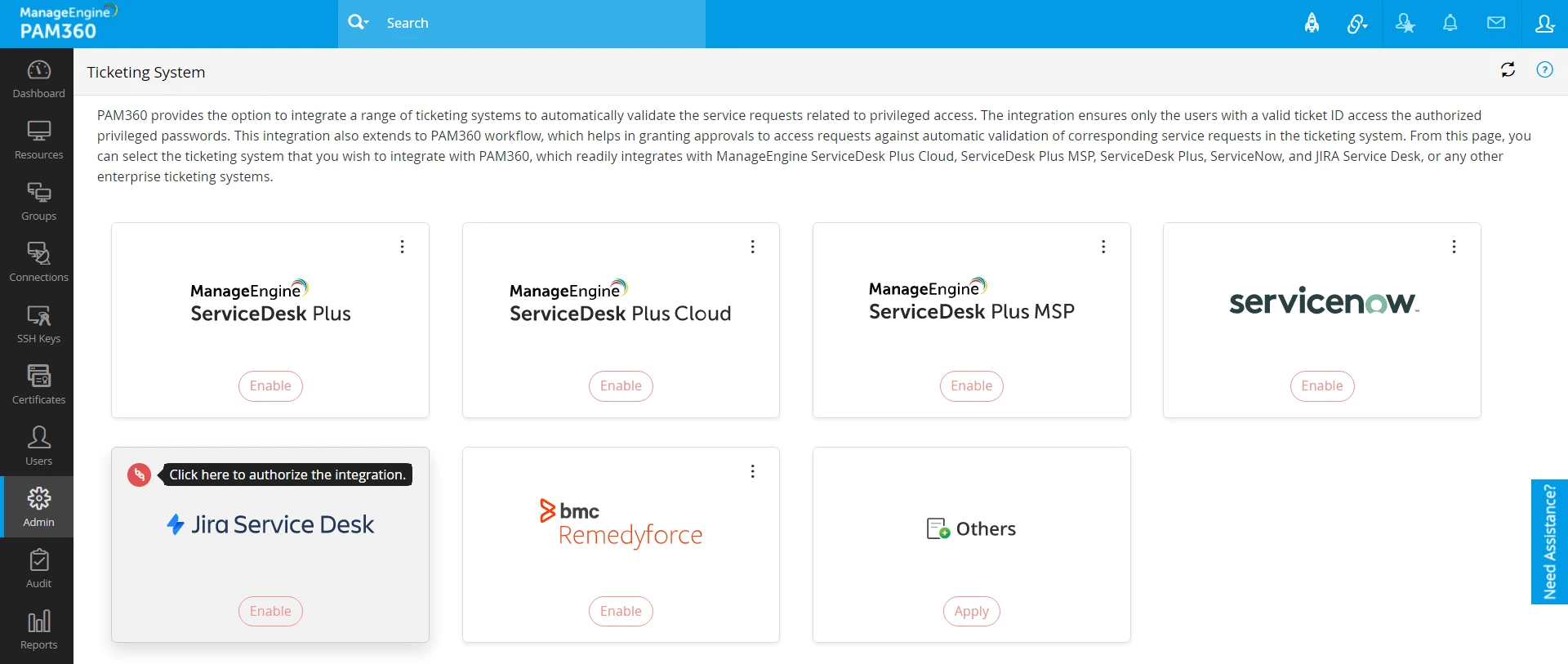
- On the Ticketing System page, click the Refresh icon at the top-right corner for the changes to appear.
- Then, click the red icon at the top-left corner of the Jira Service Desk tile. This will authorize the integration.
- In the UI that appears, Accept the consent form to allow PAM360 to access the data.
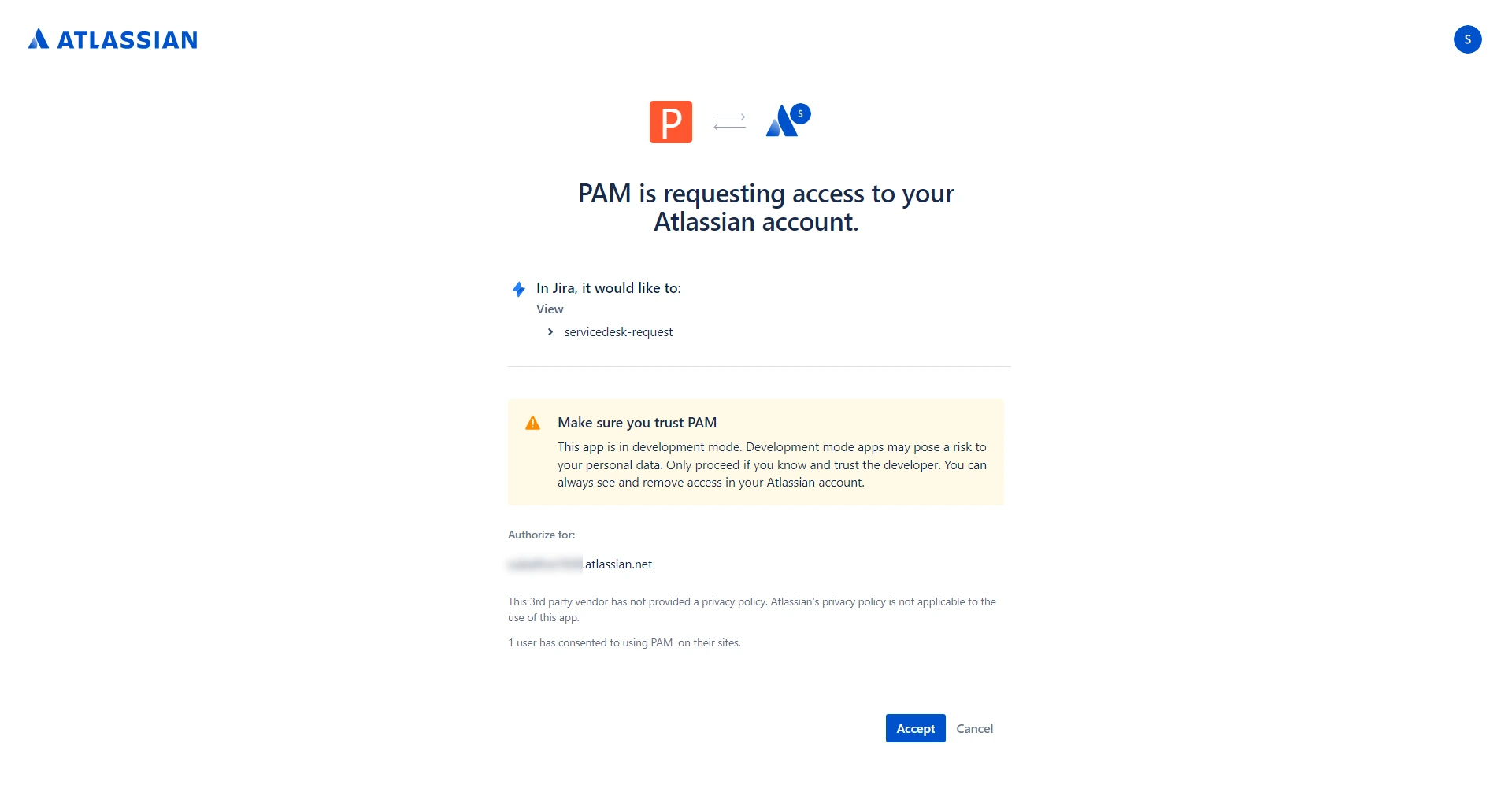
You will now be redirected to the PAM360 UI with a success message. Jira Service Management Cloud has been configured successfully as a ticketing system in PAM360.
7. Integrating BMC Helix Remedyforce
BMC Helix Remedyforce is a complete IT service management tool that includes Incident/Problem Management, Client Management, Service Management, Reports/Analysis, etc., that can be tailored to meet the requirements of enterprises. PAM360 now integrates with BMC Helix Remedyforce to provide automatic validation of service requests pertaining to privileged access. Users will have to submit valid ticket ID's to administrators to gain access to privileged passwords. Through automatic validation of the relevant service requests in the ticketing system, the integration assists in approving access requests.
To configure BMC Helix Remedyforce as ticketing system in PAM360, perform the below steps:
- Navigate to Admin >> Integrations >> Ticketing System.
- Click the Enable button in the BMC Remedyforce tile.
- In the pop-up that appears,
- Enter the Salesforce account credentials in the Username and Password fields.
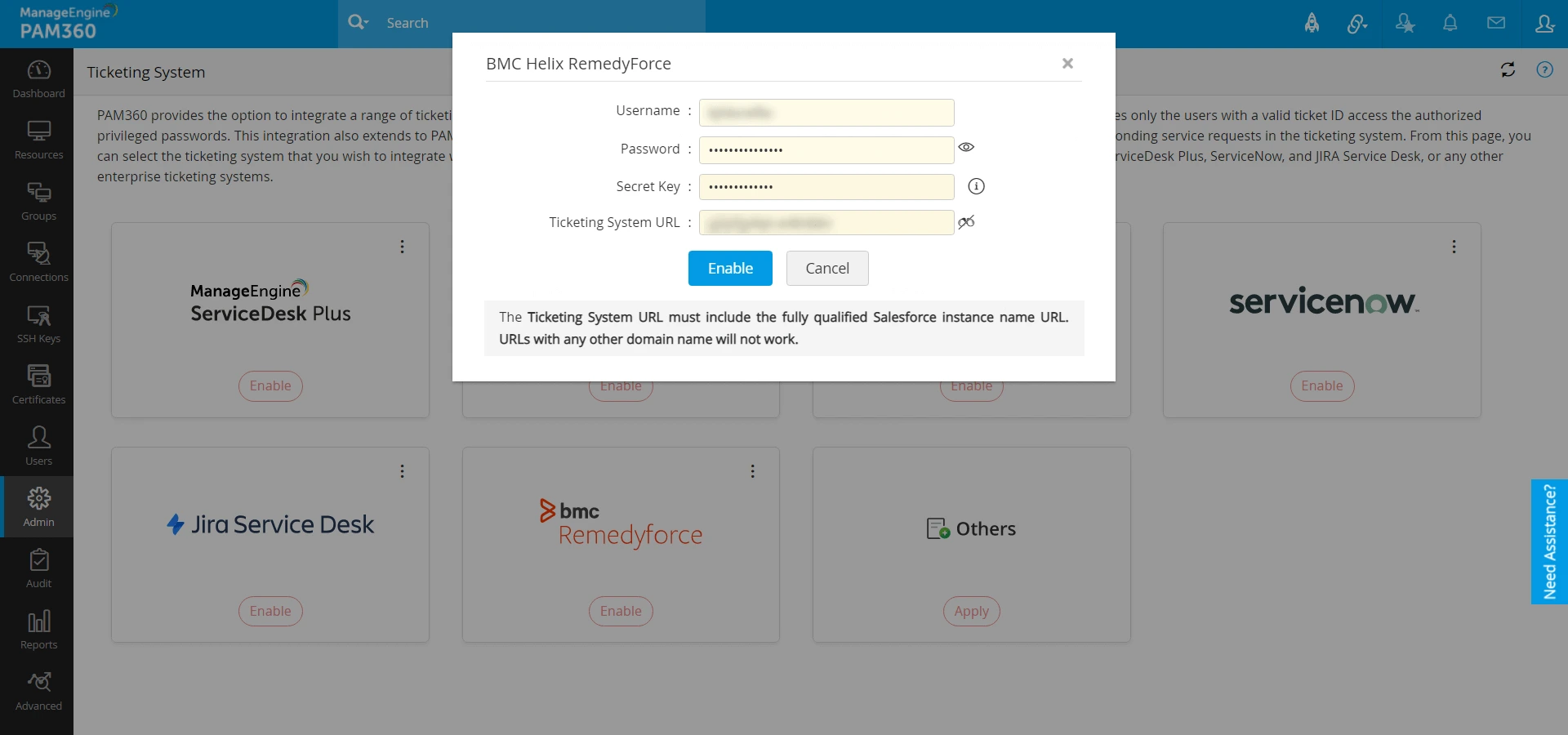
- Specify the security token in the Secret Key field. To know more about the Security Token, click here.
- Mention the Salesforce Instance Name URL in the Ticketing System URL field.
- Click the Enable button to complete the configuration.
Caution
The Ticketing System URL should include the fully qualified Salesforce instance name URL. Also, note that URLs with any other domain name will not work.
- Enter the Salesforce account credentials in the Username and Password fields.
You have now successfully enabled BMC Helix Remedyforce as a ticketing system in PAM360.
8. Integrating BMC Helix ITSM
PAM360 authenticates with BMC Helix ITSM using a username and password. Before configuring the integration, ensure that you have a BMC Helix ITSM administrator account with the following permissions:
- REST API access is enabled for the account
- Read permission on HelpDesk form(HPD)
- The account is active and not locked or expired
Follow the below steps to integrate BMC Helix ITSM with PAM360:
- Log in to the PAM360 interface, navigate to Admin >> Integrations >> Ticketing System, and click the Enable button under BMC Helix ITSM.
- In the pop-up window that appears, enter the following details:
- Username - Specify the username of the BMC Helix ITSM administrator account.
- Password - Enter the password associated with the account.
- Ticketing System URL - Enter the URL of the BMC Helix ITSM server deployed in your environment.
- After entering the required details, click the Enable button to complete the ticketing system integration configuration.
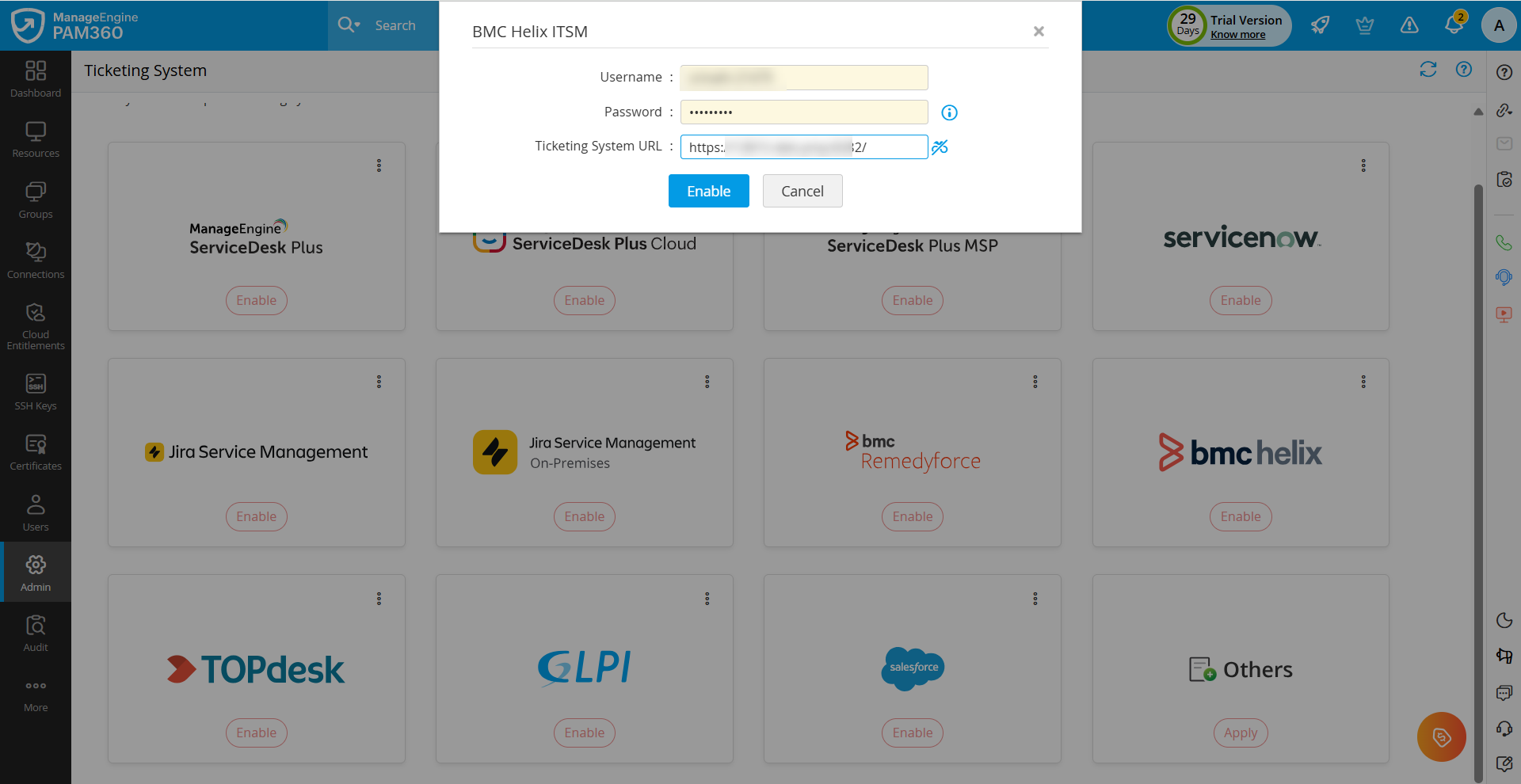
You have successfully integrated BMC Helix ITSM with PAM360.
9. Integrating TOPdesk
Follow the below steps to integrate TOPdesk with PAM360:
- Log in to your TOPdesk Operator account.
- Click the Profile icon in the top right corner of the page and select My Settings from the displayed options.
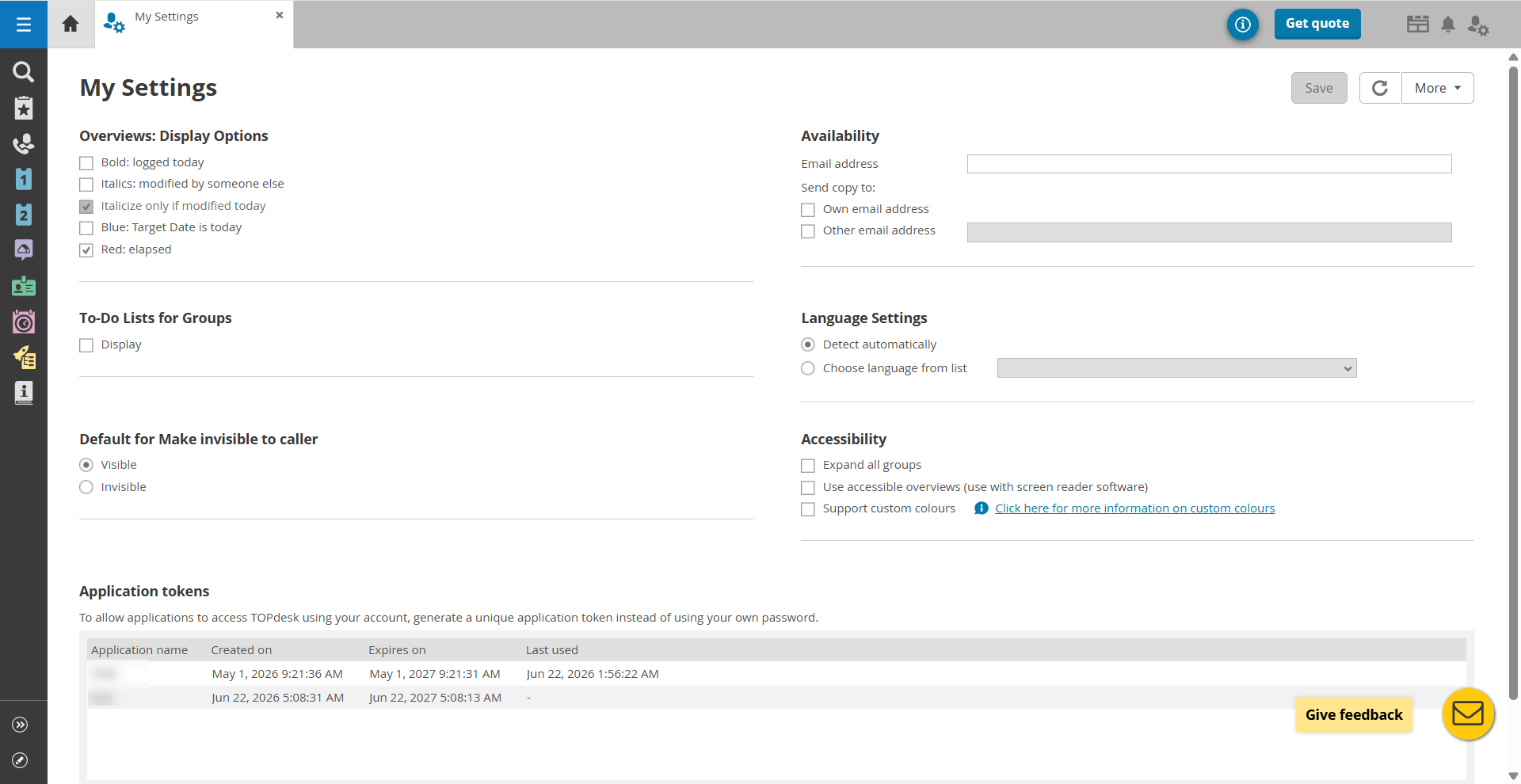
- In the My Settings page, scroll down to the Application Token section and click Add to add an application token to integrate TOPdesk with PAM360.
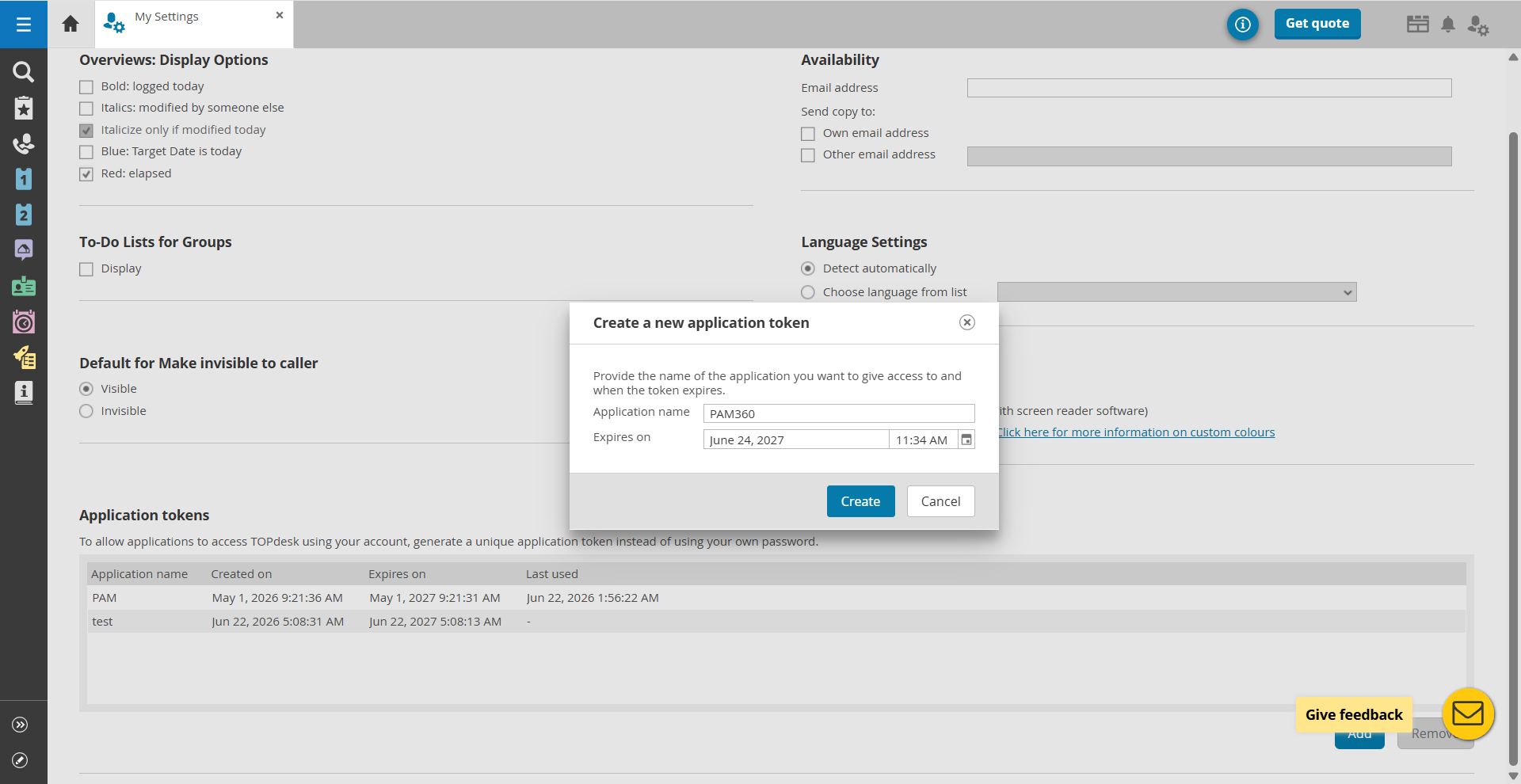
- In the Create a new application token window that appears, enter the following details:
- Application Name - Enter the application name for which you are creating an application token in this field.
- Expiry Date - Use the Calendar icon to select an expiry date for this application token.
Caution
The application token is displayed only once. Ensure that you copy and securely store the token before closing the page, as it is required to configure the TOPdesk integration in PAM360.
- After entering the required details, click Create to generate the application token.
- In the window that appears, the application token will be displayed. Copy the application token.
- Now, log in to the PAM360 web interface and navigate to Admin >> Integrations >> Ticketing System and click the Enable button under TOPdesk.
- In the pop-up window that appears, enter the following details:
- Personal Access Token - Paste the application token generated in TOPdesk.
- Ticketing System URL - Enter the URL of the TOPdesk server deployed in your environment.
- After entering the required details, click the Enable button to complete the integration.
10. Integrating GLPI
Integrating GLPI with PAM360 involves the following steps:
- Enabling REST API Access in GLP
- Generating an App Token in GLPI
- Generating a User Token in GLPI
- Configuring the Integration in PAM360
10.1 Enabling REST API Access in GLPI
Follow the below steps to enable REST API access:
- Log in to the GLPI portal with an administrator account.
- From the left pane, navigate to Setup >> General, and select API under General Setup
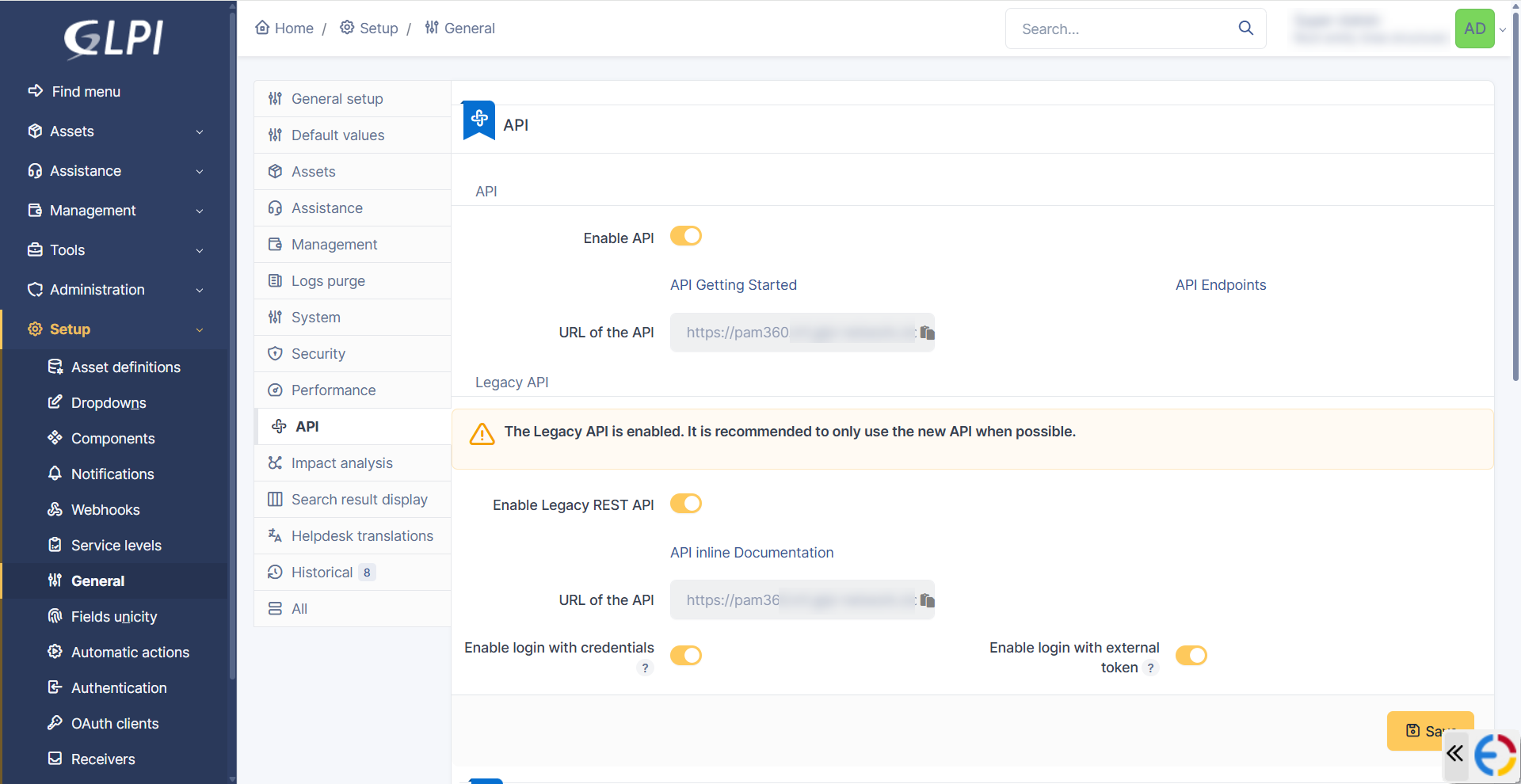
- In the API page, under the Legacy API section, enable the following options:
- Enable Legacy REST API
- Enable login with Credentials
- Click Save to apply the changes.
10.2 Generating an App Token in GLPI
Follow the below steps to generate an application token from the GLPI interface:
- In the API page, scroll down to the API clients section, and click the Add API client button.
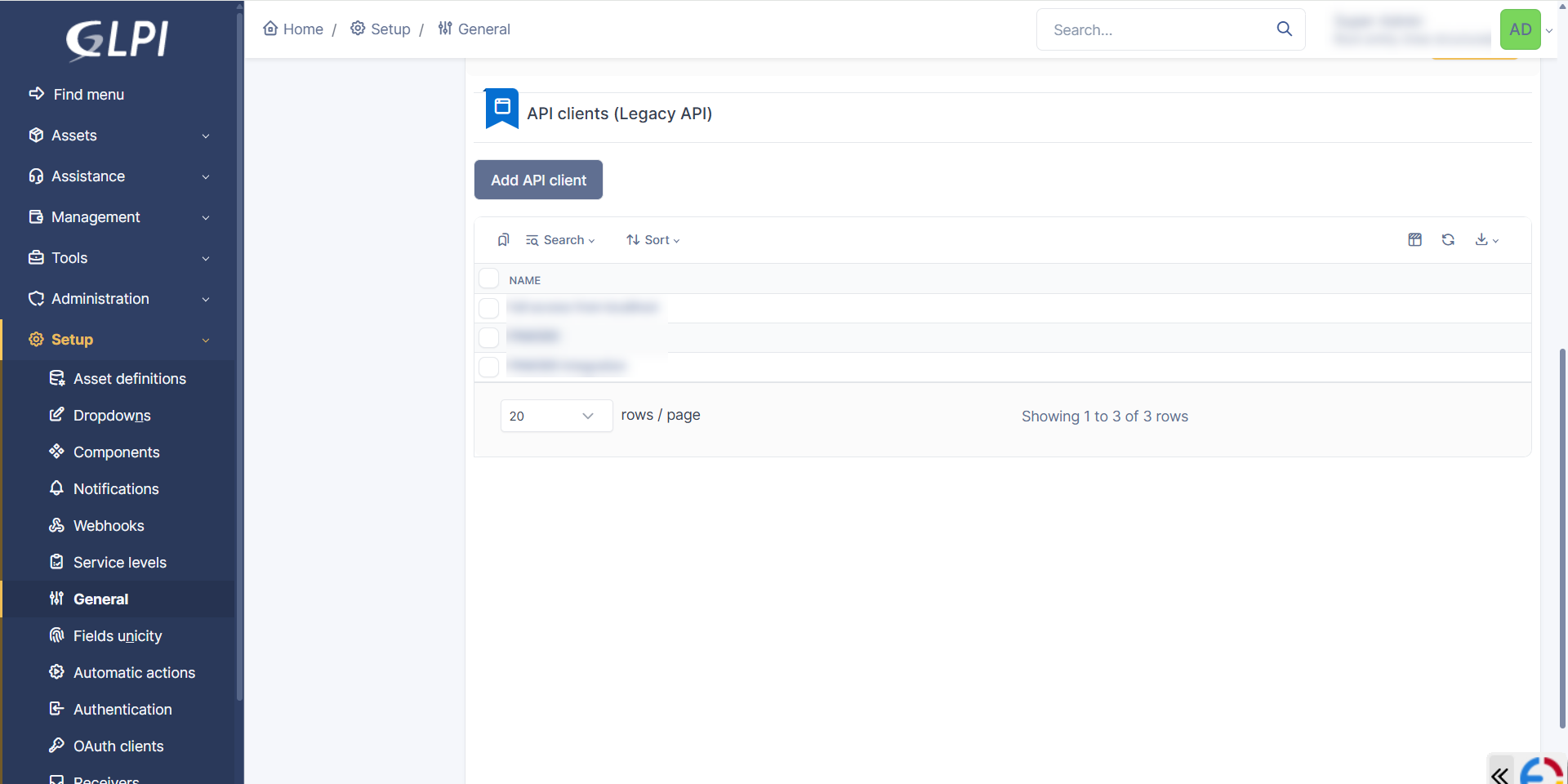
- In the New item - API client page that appears, enter the following details:
- Name - Enter name for the API client you are adding, for example: PAM360.
- Active - Enable this option.
- Log connections - Enable this option if you want GLPI to log API connection attempts.
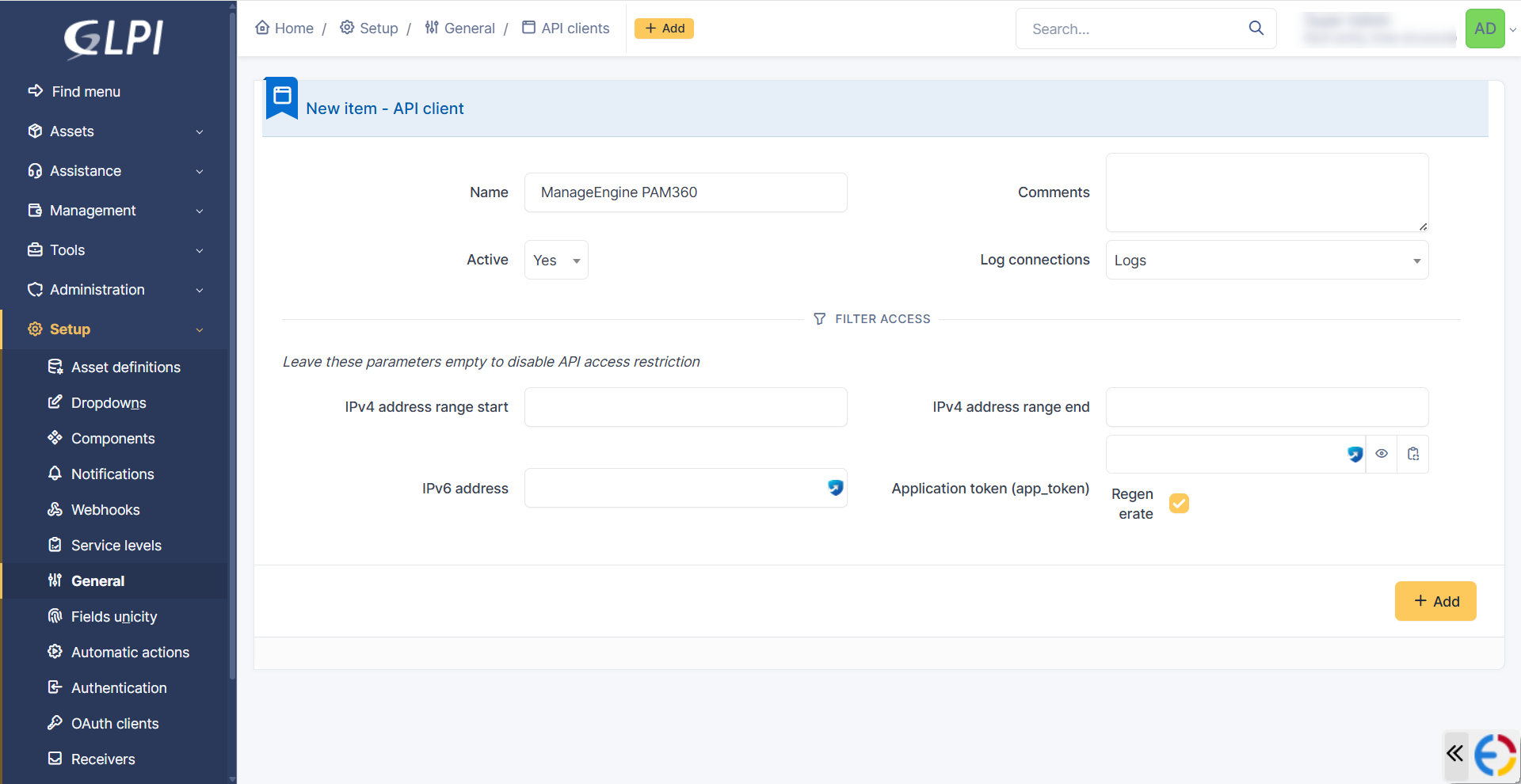
- Leave the parameters under the FILTER ACCESS section unconfigured to disable any API access restriction.
- After entering the required details click the + Add button to generate the Application token.
- The Application token will be generated and displayed beside the Application token (app_token) field.
10.3 Generating a User Token in GLPI
Follow the below steps to generate a user token from the GLPI interface:
- Click the Profile icon in the top-right corner of the window and select My Settings from the displayed options.
- In the My Settings page, copy the existing API token displayed under the Passwords and access keys section.
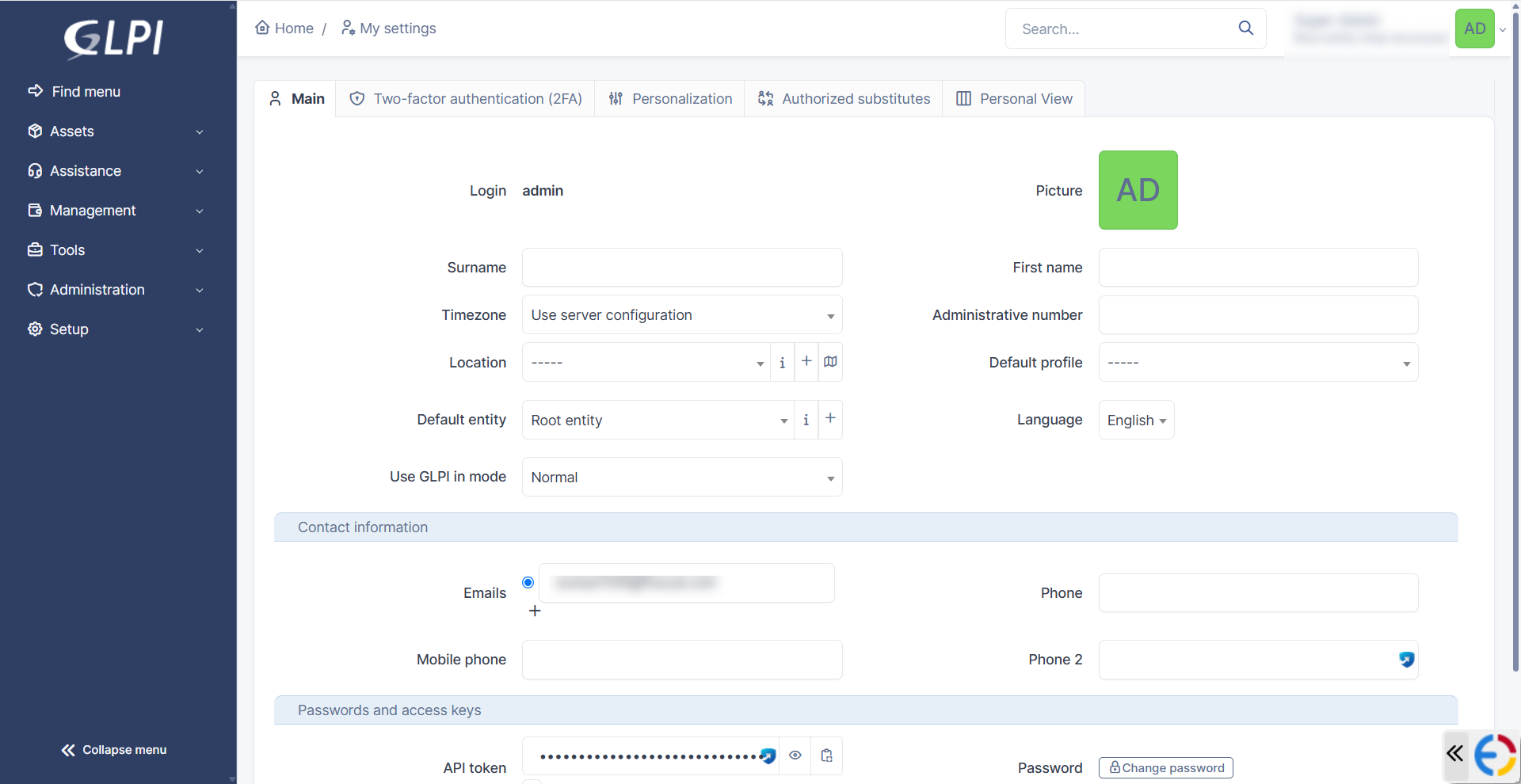
- If you are creating a token for the first time, click the Generate API Token button.
You have successfully completed the necessary integration steps in the GLPI interface.
10.4 Configuring the Integration in PAM360
Next, you should complete the integration in the PAM360 interface. To do so, follow the below steps:
- Log in to the PAM360 web interface, navigate to Admin >> Integrations >> Ticketing System, and click Enable under GLPI.
- In the pop-up window that appears, enter the following details:
- Application Token - Paste the Application Token generated in GLPI.
- API Token - Paste the User Token generated in GLPI.
- Ticketing System URL - Enter the URL of the GLPI server deployed in your environment.
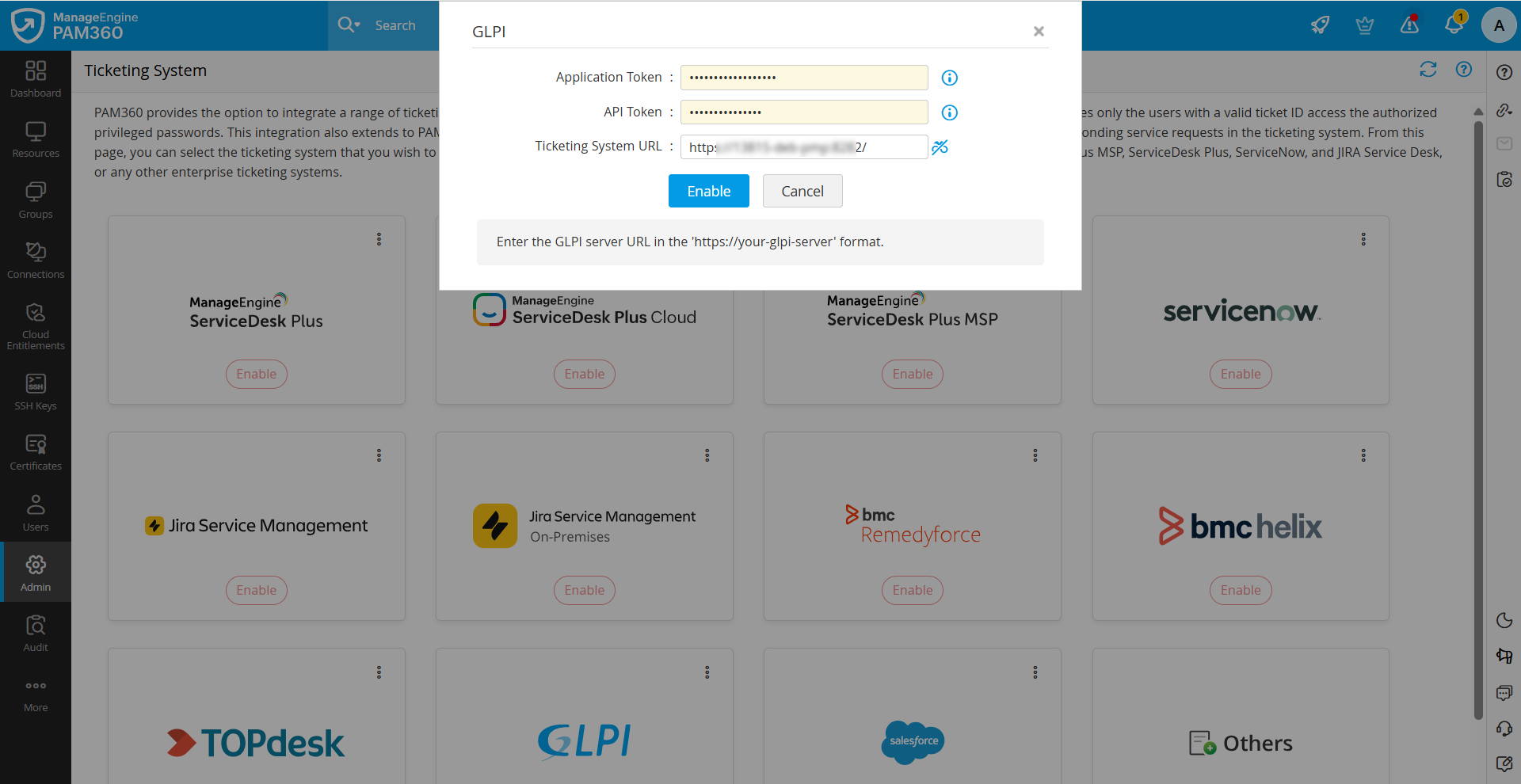
- After entering the required details, click Enable to complete the integration.
11. Integrating Salesforce Service Cloud
Integrating Salesforce ITSM with PAM360 involves the following steps:
- Creating an External Client Application in Salesforce
- Assigning a Run-As (Execution) User
- Retrieving Consumer Key and Consumer Secret
- Configuring Salesforce ITSM Details in PAM360
11.1 Creating an External Client Application in Salesforce
To integrate Salesforce with PAM360, you should first create an External Client App in Salesforce for PAM360. To do so, follow the steps below:
- Log in to the Salesforce portal using a System Administrator account.
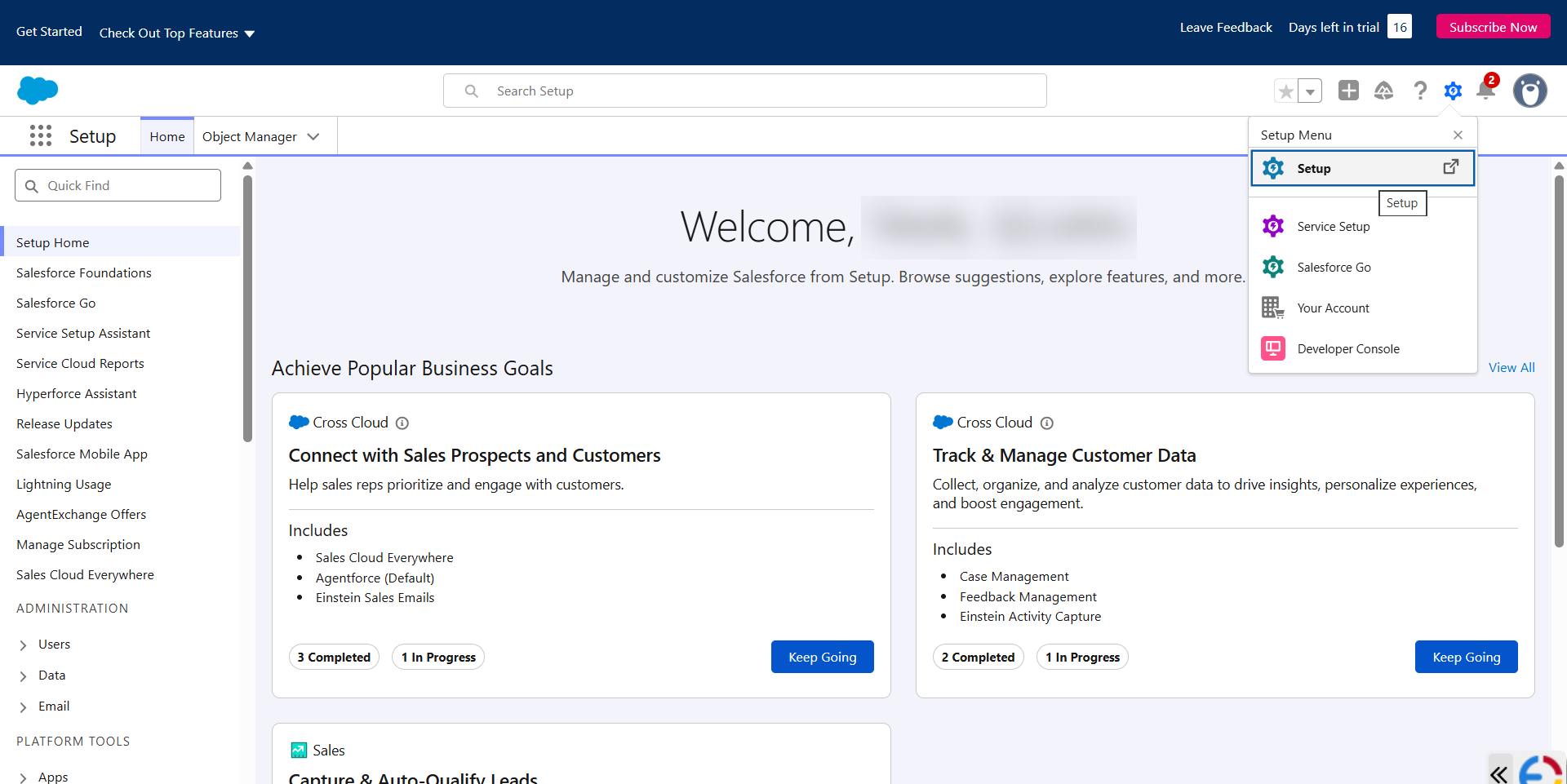
- Click the setup gear icon in the top right corner and select Setup from the displayed options.
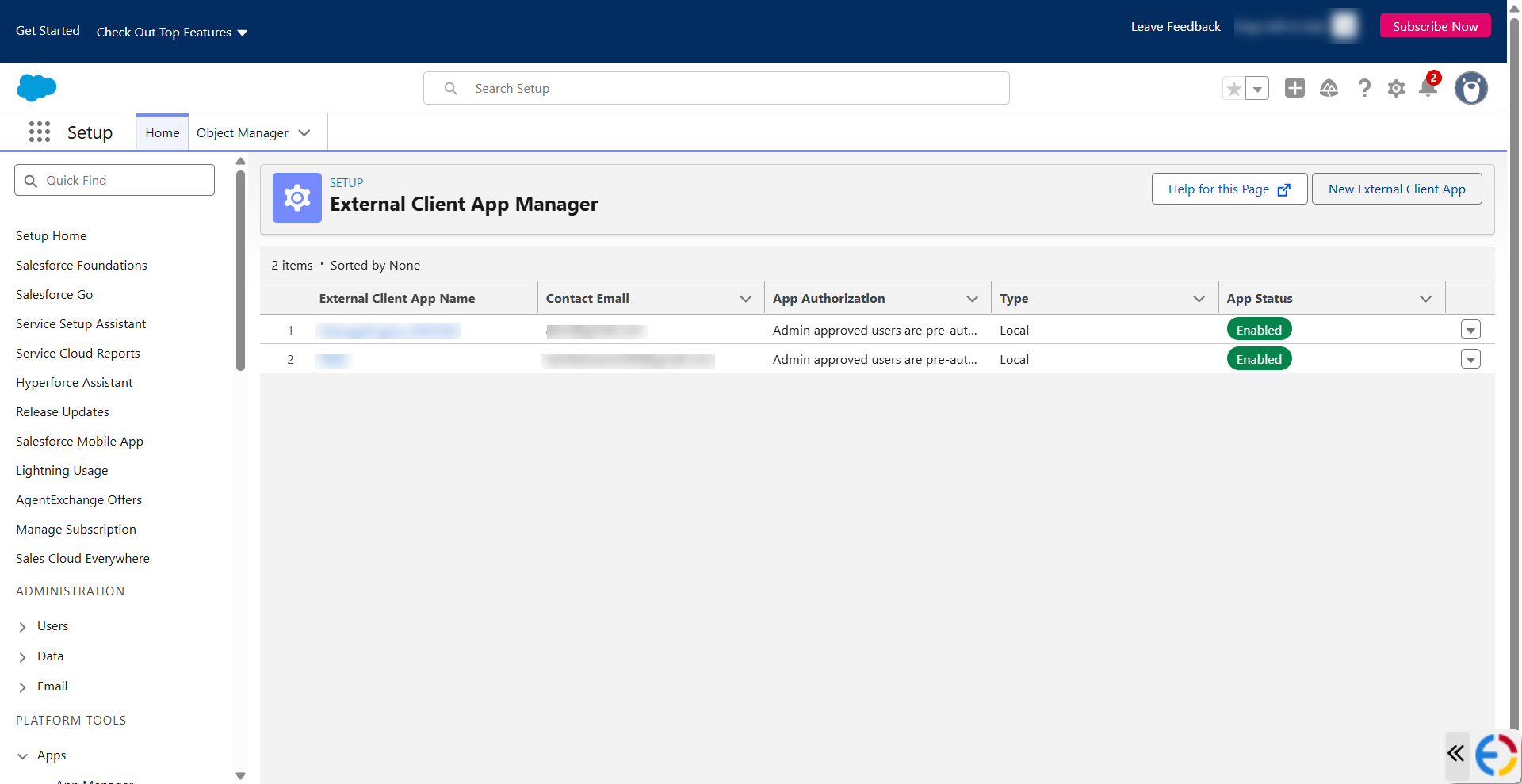
- In the new window that opens, under PLATFORM TOOLS in the left pane, select Apps >> External Client Apps >> External Client App Manager. Alternatively, use the Quick Find option to locate External Client App Manager.
- In the SETUP External Client App Manager page, click the New External Client App button in the top-right corner.
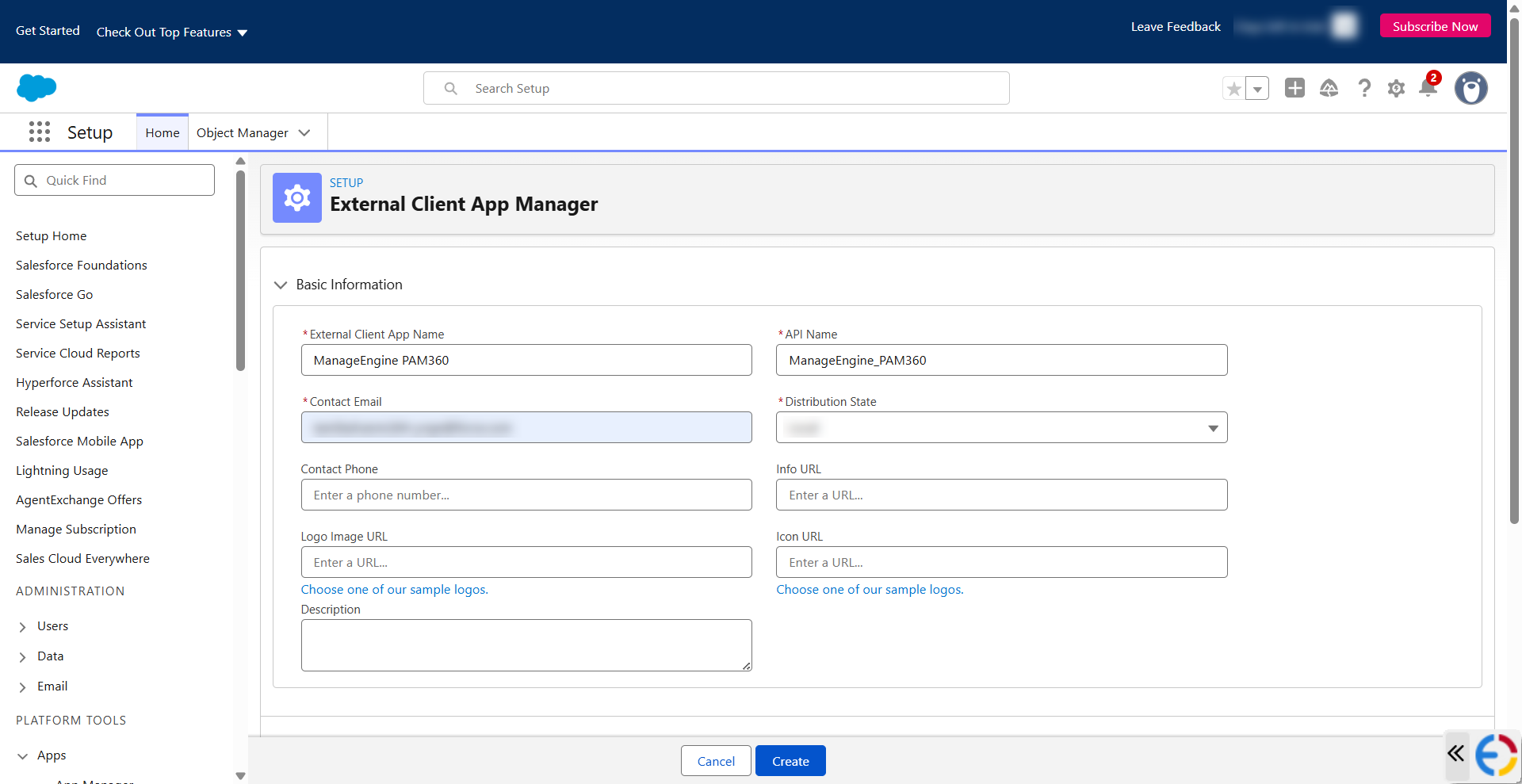
- In the new window that appears, specify the basic information, such as the client application name and contact email address.
- Expand the API (Enable OAuth Settings) section and tick the Enable OAuth checkbox.
- Under the App Settings, specify the call back URL as https://localhost. This value is not required for this integration workflow. However, Salesforce mandates this field during External Client App creation.
- Manage user data via APIs (api)
- Perform requests at any time (refresh_token, offline_access)
- Under Flow Enablement, tick the Enable Client Credentials Flow checkbox. In the confirmation pop-up window that appears click OK.
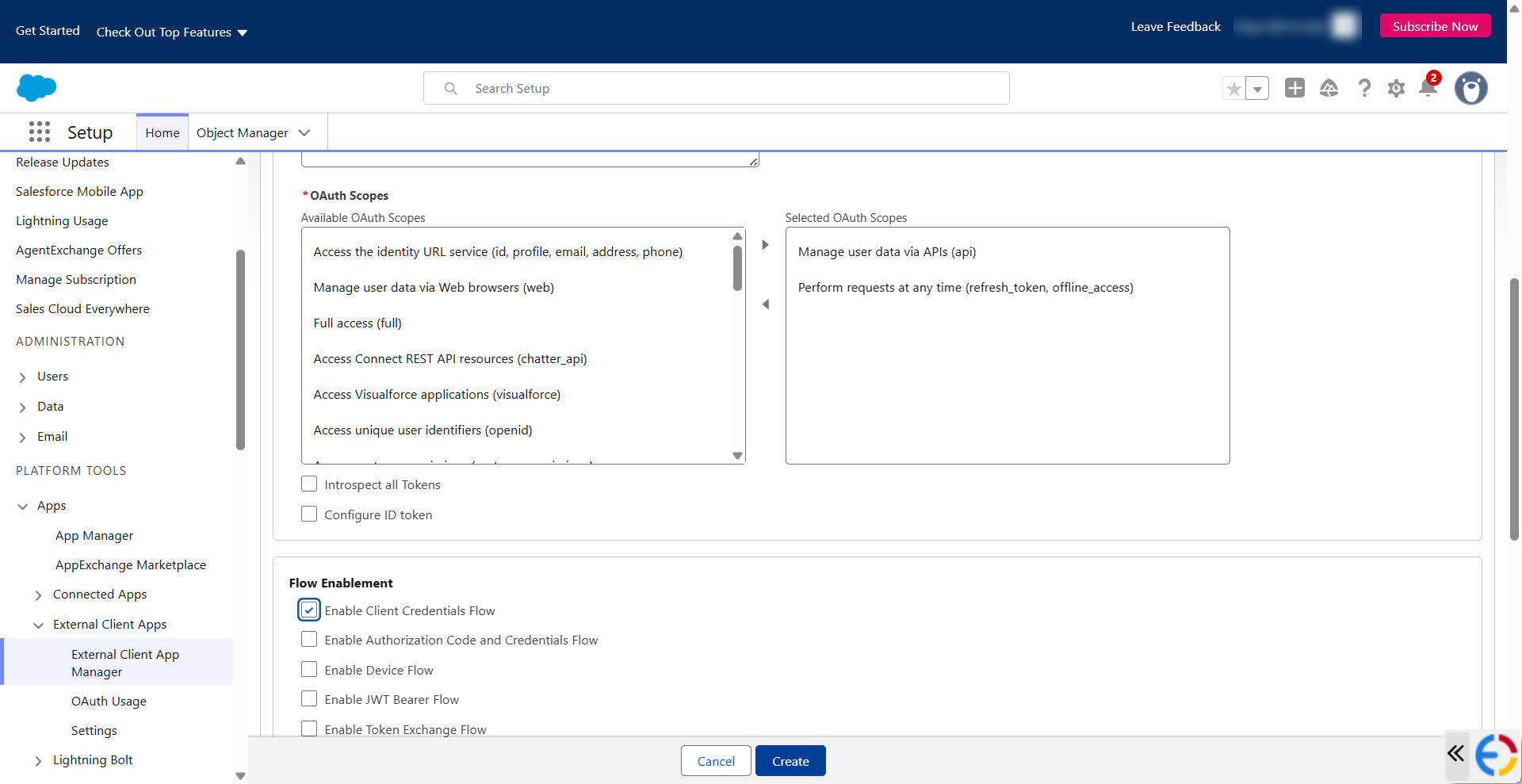
- Now, click Create to create an external client app for PAM360.
11.2 Assigning a Run-As (Execution) User
Follow the below steps to assign a run-as user:
- On the PAM360 client application page, click the Edit button in the Policies tab.
- Expand the OAuth Policies section, set the Permitted Users under Plugin Policies as Admin approved users are pre-authorized, and click OK in the confirmation pop-up window that appears.
- Next, under OAuth Flows and External Client App Enhancements, tick the Enable Client Credentials Flow checkbox.
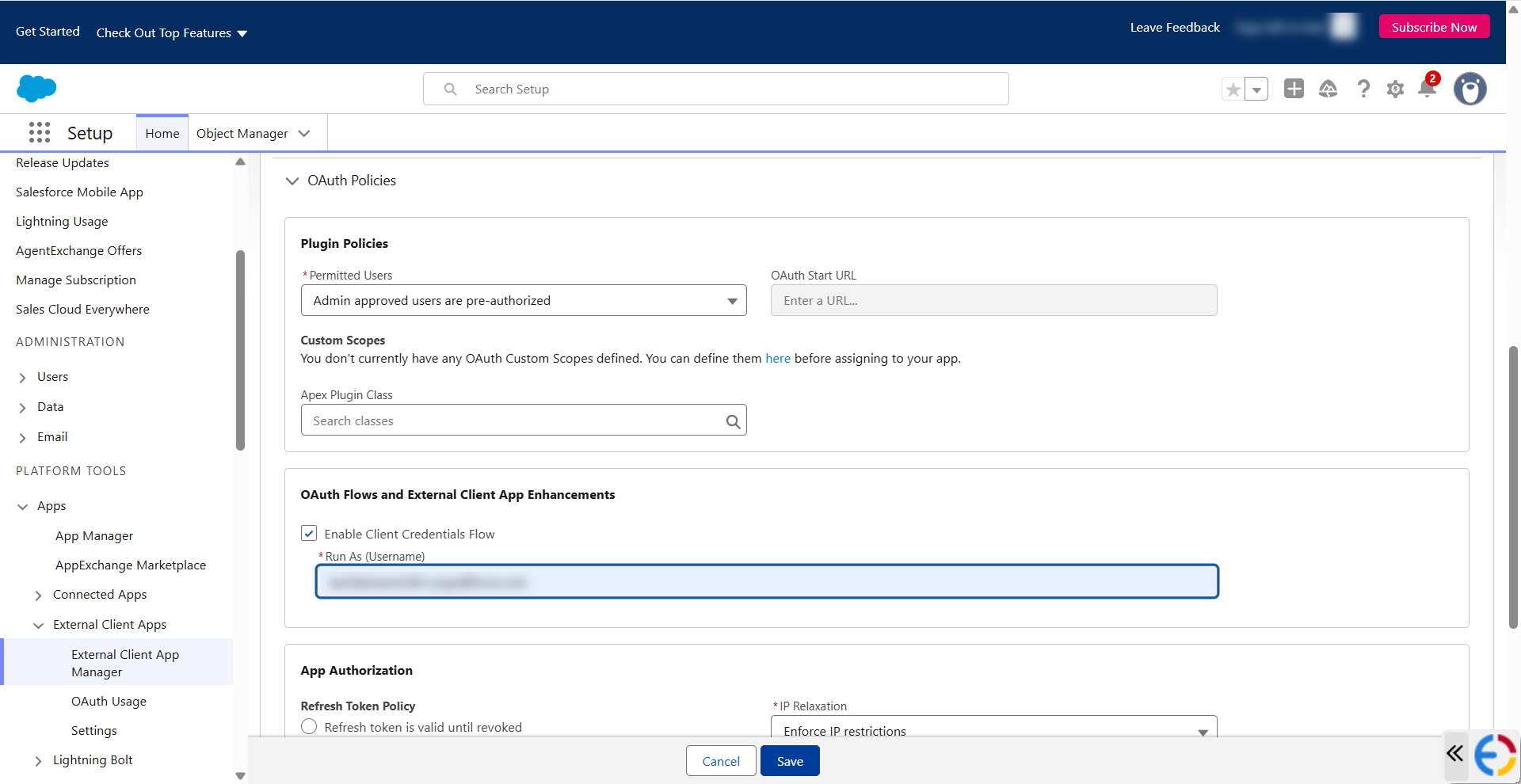
- In the Run As (Username) field that appears, specify the email address of the Salesforce user account within your organization that should be used as the execution user for this integration, and click Save.
Additional Detail
The Client Credentials flow executes all API calls using the specified Run-As user account. The permissions assigned to this account determine the data that PAM360 can access. We recommend using a dedicated Salesforce user account with only the permissions required for this integration.
11.3 Retrieving Consumer Key and Consumer Secret
Next, generate the consumer key and consumer secret required to integrate Salesforce with PAM360. To do so, follow the below steps:
- On the PAM360 client application page, switch to the Settings tab, expand the OAuth Settings section, and click the Consumer Key and Secret button.
- You will be redirected to a a verification page. Complete the verification by entering the verification code sent to your registered email address.
- The Consumer Key and Consumer Secret for the external client application created for PAM360 will be displayed. Copy and securely store these values, as these are required while configuring the integration in PAM360.
Caution
The consumer key and consumer secret are sensitive credentials that provide access to Salesforce APIs. Store them securely and avoid sharing them with unauthorized users. If these credentials are compromised or lost, regenerate them immediately and update the new values in the PAM360 ticketing system integration configuration. Previously generated credentials become invalid after regeneration.
11.4 Configuring Salesforce ITSM Details in PAM360
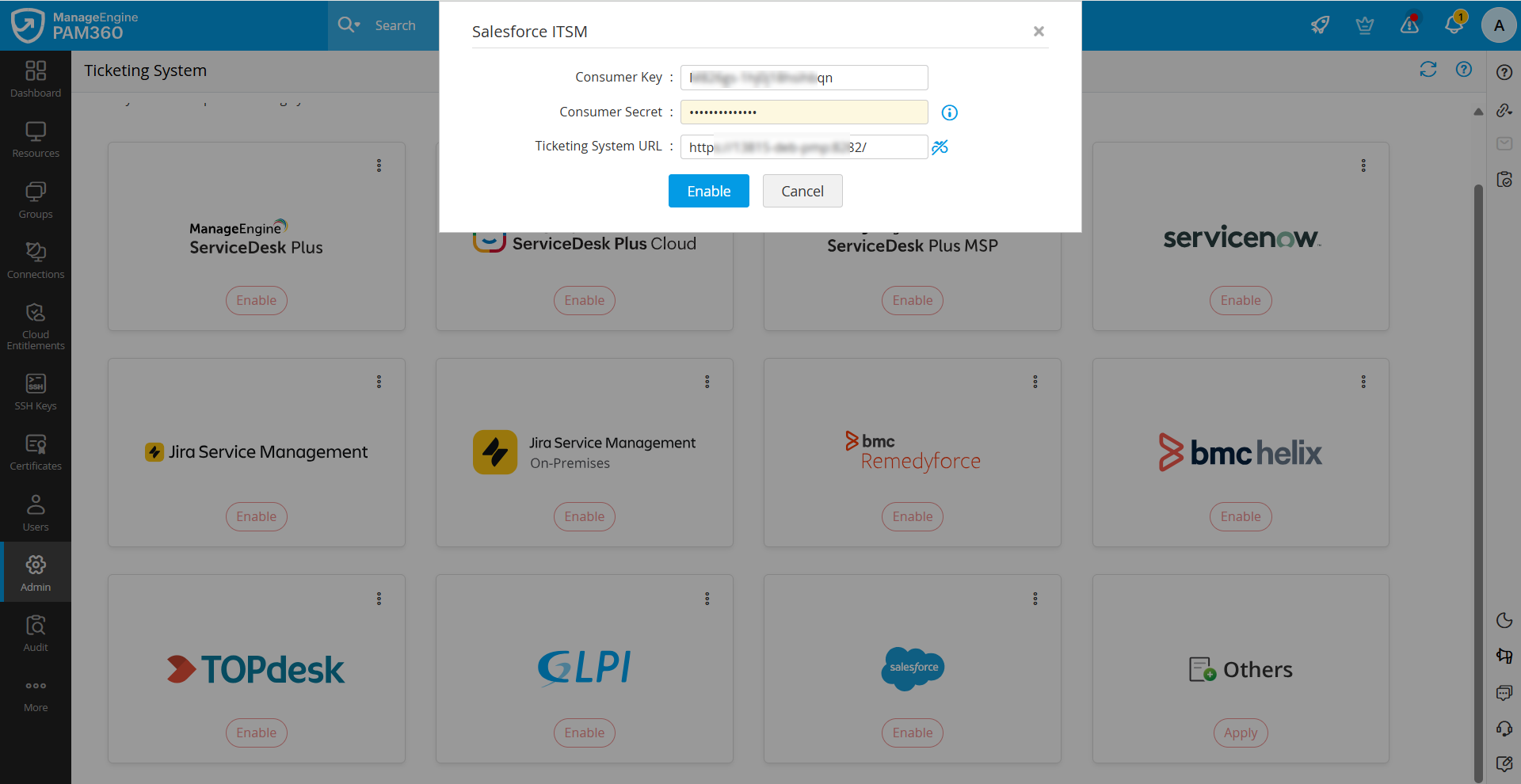
- Log in to the PAM360 interface, navigate to Admin >> Integrations >> Ticketing System, and click Enable under Salesforce ITSM.
- In the pop-up window that appears, enter the the following details:
- Consumer Key - Enter the Consumer Key in this field.
- Consumer Secret - Enter the Consumer Secret generated in Salesforce.
- Ticketing System URL - Enter the URL of the Salesforce ITSM server deployed in your environment.
- After entering the required details, click the Enable button to complete the integration.
12. Ticketing System Validation Enforcement and Exceptions
Once the ticketing system integration is configured, it is enforced globally, requiring users to provide valid ticket IDs to access passwords. By default, super administrators are exempt from this requirement. In addition to global enforcement, ticket ID validation can also be applied selectively at different levels, such as specific resource groups or user groups. Furthermore, users can be required to provide ticket IDs as part of the access control workflow, allowing automated access after successful ticket validation.
The following sections outline the options available for managing ticketing validation enforcement:
- Selective Enforcement for Resource Groups: Enable or disable ticketing enforcement for specific resource groups.
- General Settings for Ticketing Validation: Configure ticketing validation rules globally for user-specific operations.
- User Group-Specific Ticketing Settings: Define ticketing validation rules for individual user groups.
- Ticket ID Validation for Auto Approval Workflow: Enable ticket ID validation for resources configured with auto-approved access control.
12.1 Selective Enforcement for Resource Groups
You can enable or disable ticketing enforcement for specific resource groups:
- Navigate to the Groups tab and select the desired resource groups.
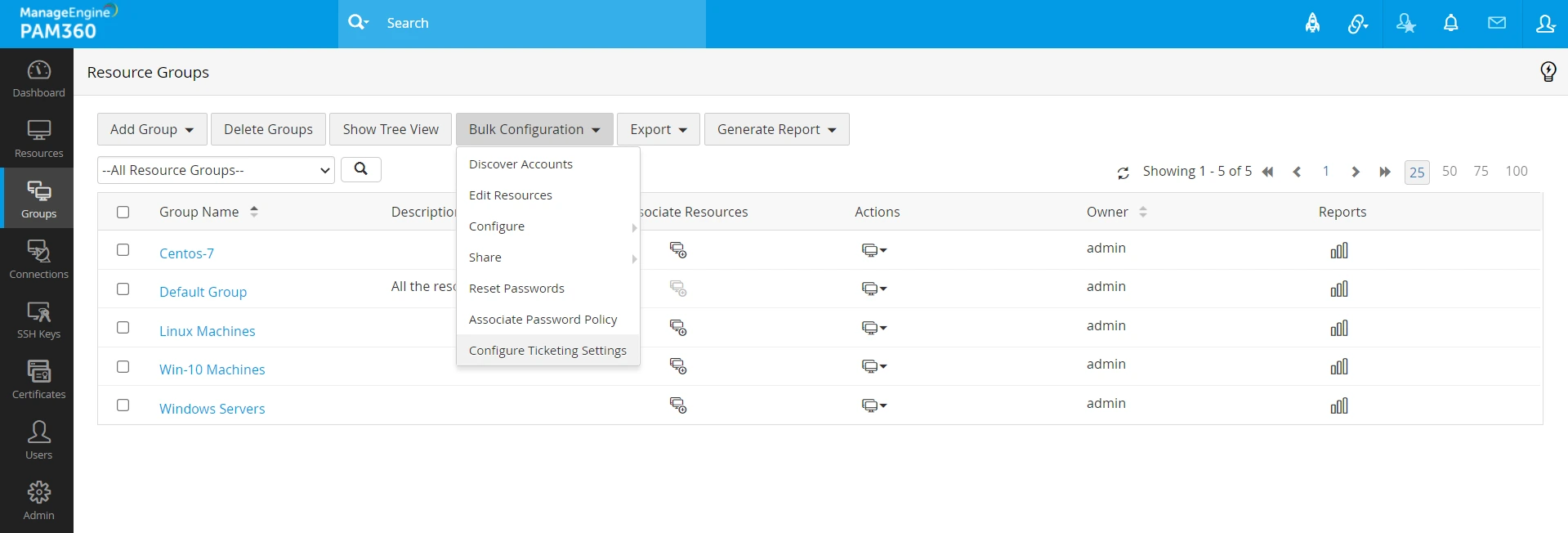
- Click the Bulk Configuration button at the top pane, select Configure Ticketing Settings, and enable or disable the ticketing system for the resource group accordingly.
12.2 General Settings for Ticketing System Validation
From the General Settings, you can selectively allow or restrict ticket validation requirements for user-specific operations:
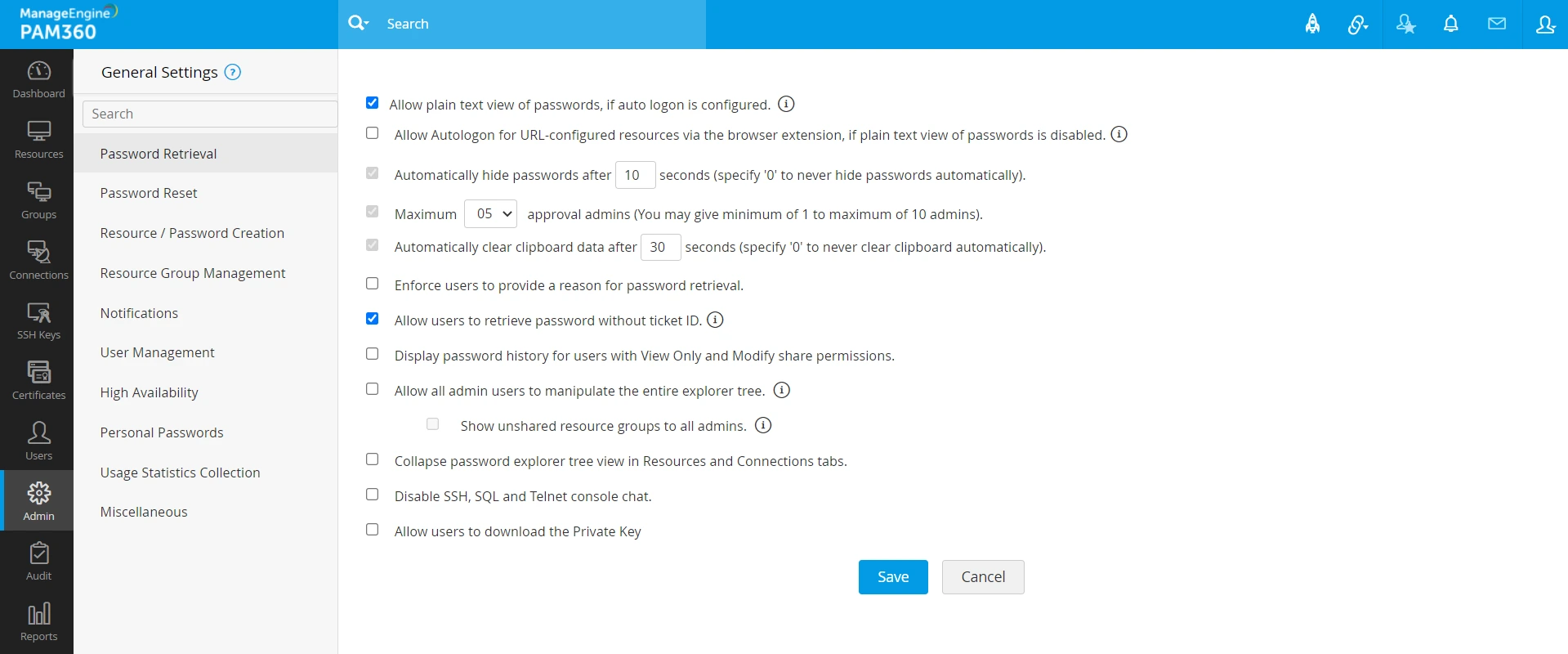
- Allow users to retrieve passwords without a ticket ID (under the Password Retrieval section).
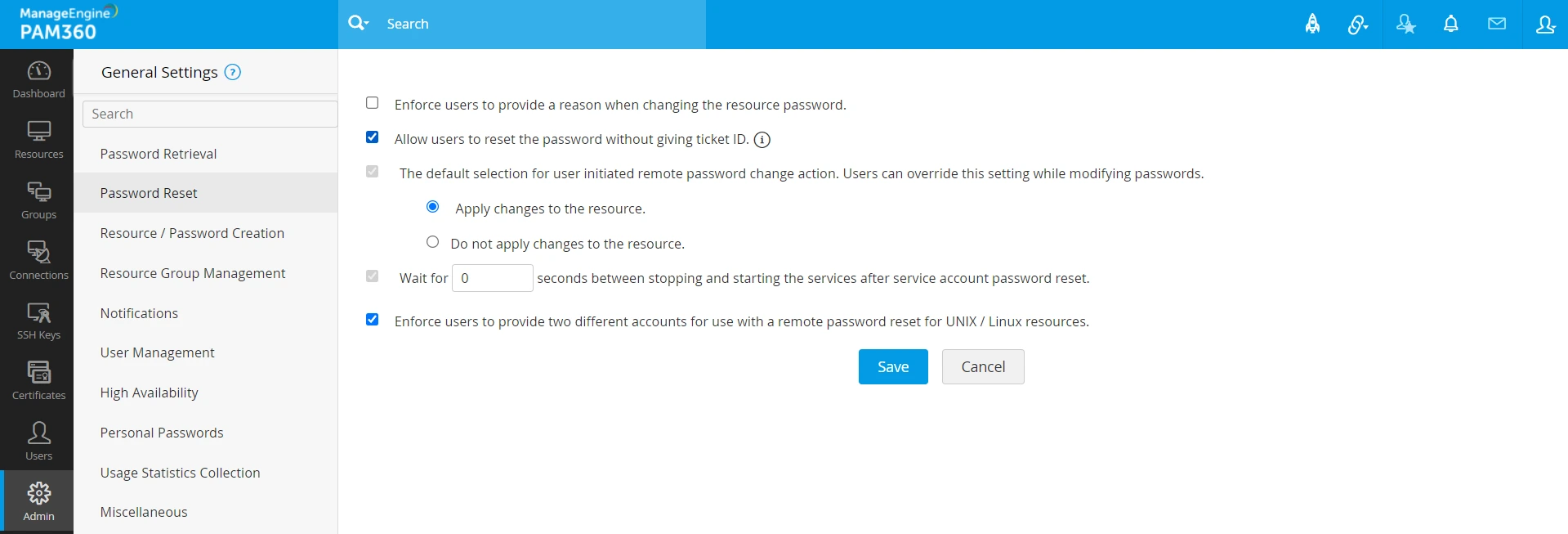
- Allow users to reset passwords without a ticket ID (under the Password Reset section).
12.3 User Group-Specific Ticketing Settings
To configure ticketing validation rules for specific user groups, navigate to the User Groups tab and define ticketing settings as per your requirements for each user group.
By offering flexible configuration options, PAM360 enables precise control over ticketing validation enforcement across users, groups, and resource groups.
12.4 Ticket ID Validation for Auto Approval Workflow
To enable the ticket ID validation for auto approval of password access requests for a resource/account, perform the below steps:
- Navigate to the Resources tab. Click the Resource Actions icon beside the resource and select Configure >> Access Control >> Auto Approval.
- If you want to configure the ticket ID validation for an account, switch to the Passwords tab and click Account Actions beside the account. Select Configure Access Control >> Auto Approval.
- In the Auto Approval tab, tick the Approve access requests automatically for requests raised checkbox.
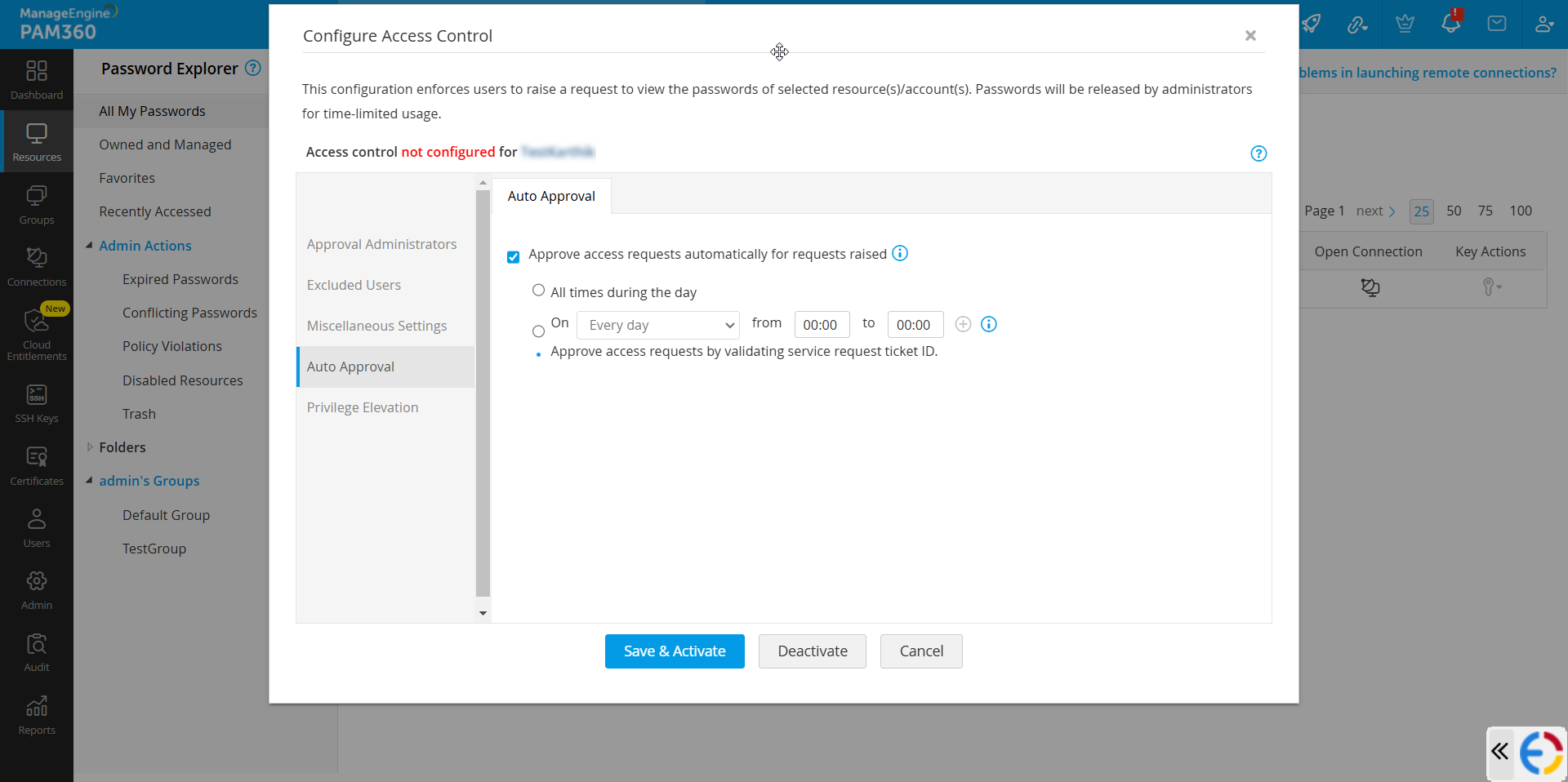
- Now, select the Approve access requests by validating service request ticket ID option and click Save & Activate.
For detailed instructions on how access control works for ticket ID validation on service requests, click here.