Advanced Configuration in Ticketing Systems Integration
Besides ticket number and ticket status, PAM360 facilitates advanced settings to validate custom requirements and criteria. For example, you can choose to check if the PAM360 user who is raising the password access request matches with the 'REQUESTER' column in the ticketing system. Similarly, you can check for certain specific conditions related to the ticket - for instance, 'PRIORITY' of the ticket as 'HIGH'. PAM360 offers the total flexibility to check for any parameter in the ticketing system, including additional fields. Advanced configurations can be carried out either using a readily available configuration setting or by implementing a custom class.
In this document, you will learn the followings in the ticketing system:
- Filter Columns
- Advanced Configuration
- Custom Implementation
- Testing Ticketing System Configuration Setup
- Interface Description for Ticketing System
1. Filter Columns
In general, the ticketing systems may have several columns and fields. You can filter the columns and choose to display only the required ones in the ticketing system column dropdown on the Advanced Configuration settings page. To configure custom filter columns,
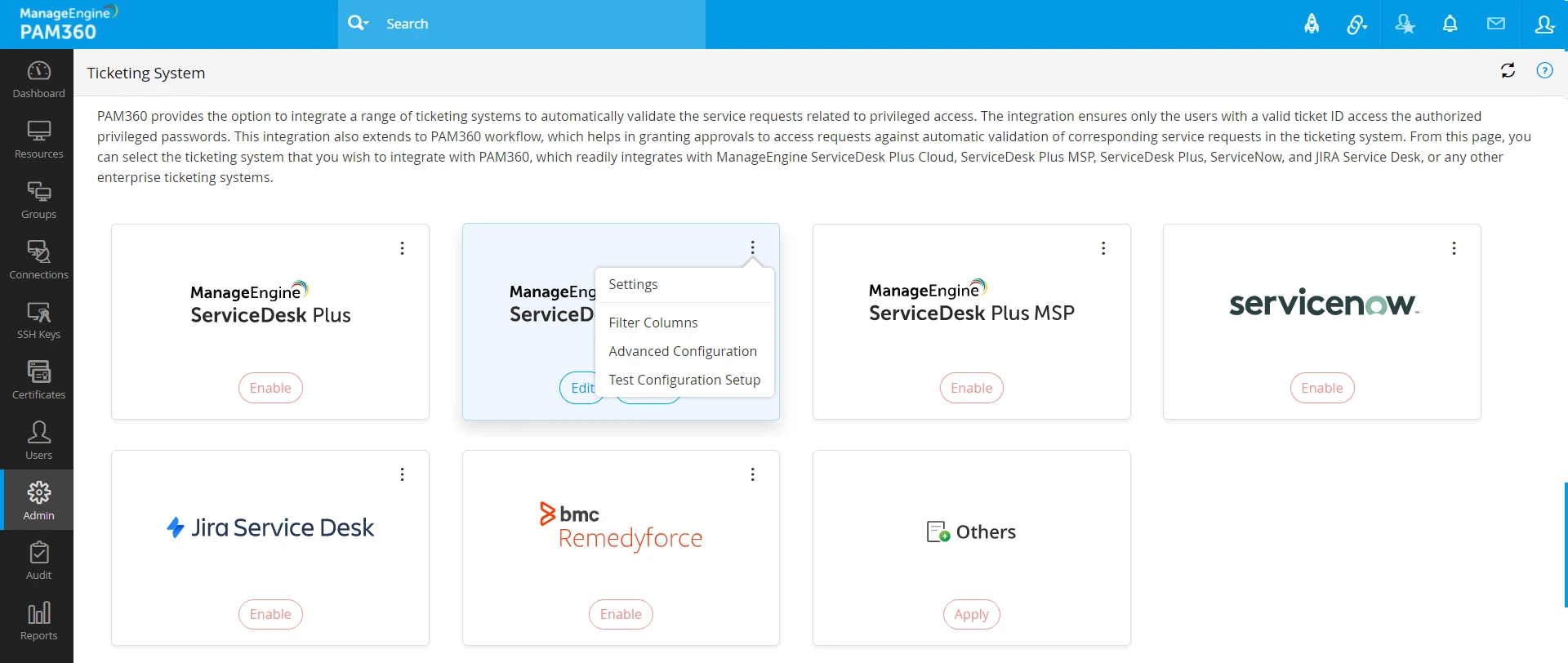
- Upon enabling the ticketing system, click the three-dot menu on the top of a tile and click Filter Columns.
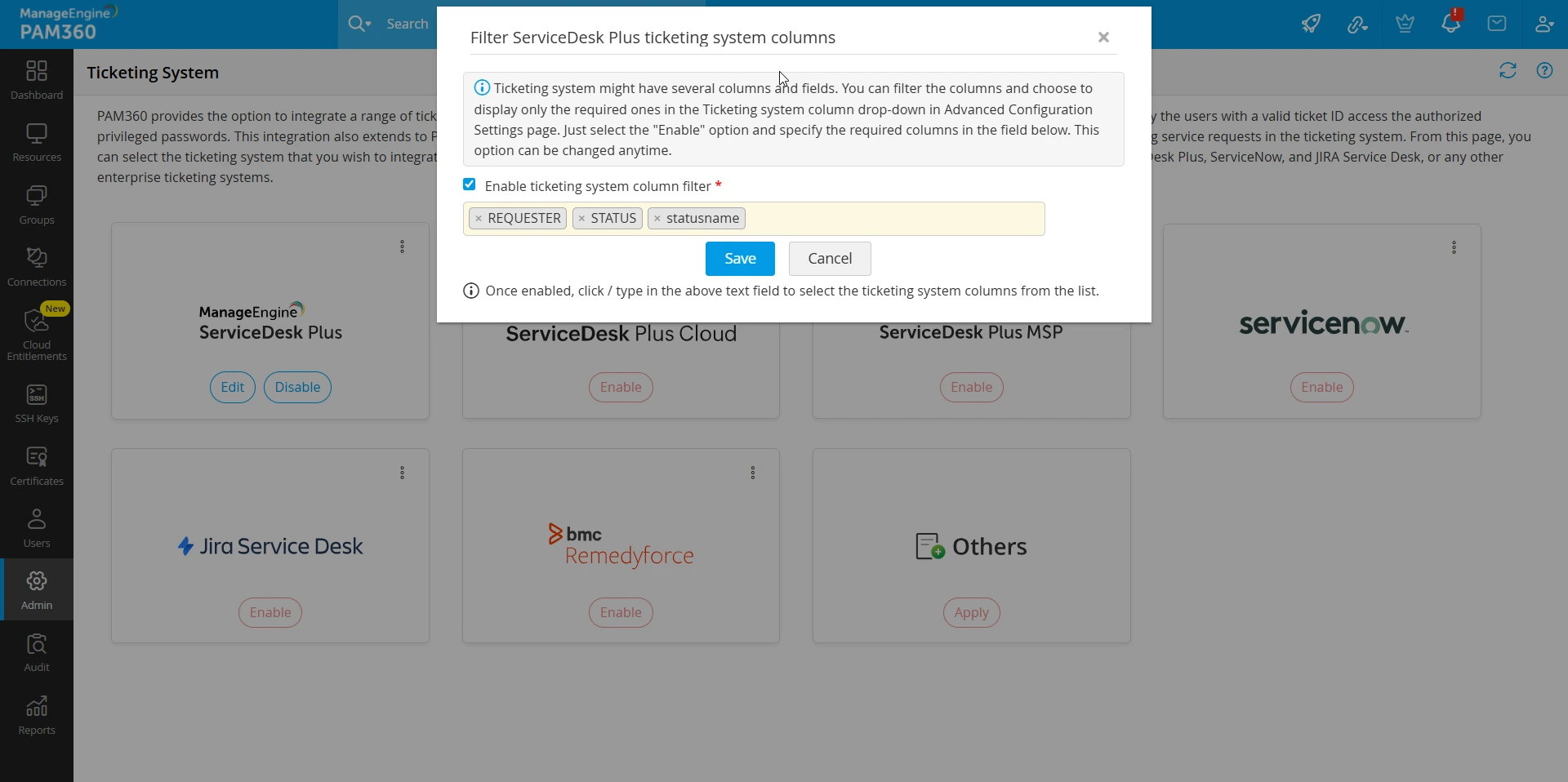
- In the dialog box that appears, tick the Enable ticketing system column filter checkbox.
- In the text field, select the column filters that need to be displayed on the columns dropdown during the advanced configuration.
- Click Save to apply the changes.
2. Advanced Configuration
To carry out advanced configurations for the ticketing system in PAM360,
- Navigate to Admin >> Integrations >> Ticketing System.
- Click the three dots menu at the top-right corner of the ticketing system tile and select Advanced Configuration.
- In the GUI that opens, advanced configurations can be carried out either by means of a readily available configuration setting or by implementing a custom class.
2.1 Map Entries in PAM360 vs Ticketing System
Under Advanced Configuration, you can use the Map Entries in PAM360 vs Ticketing System option to ensure that specific fields in PAM360 align with corresponding fields in your ticketing system. This mapping helps validate whether the details provided in service requests match the predefined attributes in PAM360 before granting privileged access. Follow the below steps to configure field mapping:
- Select the PAM360 Column - The Column Name dropdown displays available fields in PAM360, including Resource Name, Resource Type, Account Name, PAM360 User Name, DNS Name, and custom fields.
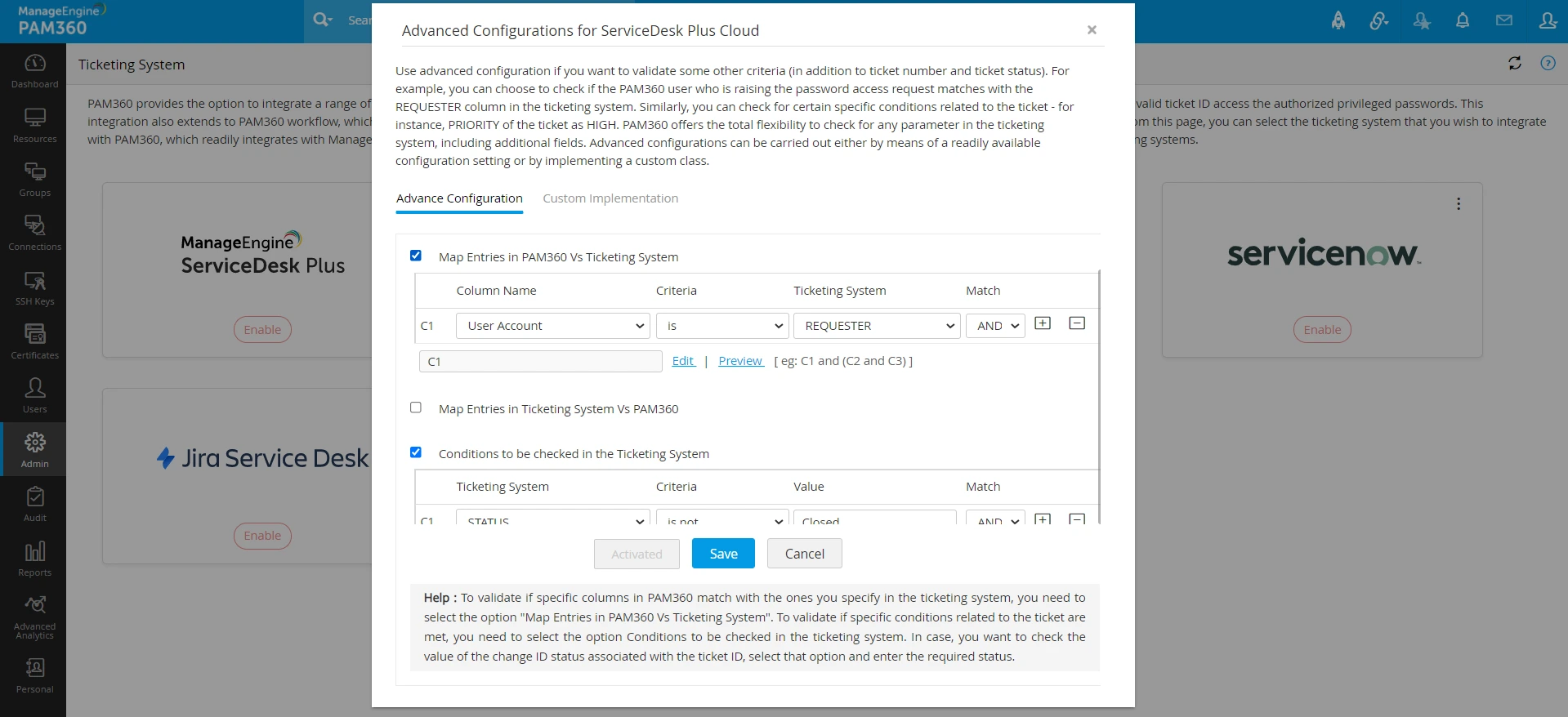
- Define Validation Criteria - Choose a condition for validation, such as:
- is
- is not
- contains
- does not contain
- starts with
- ends with
- Select the Ticketing System Column - The Ticketing System dropdown lists available fields (including custom fields) from the integrated ticketing system. Select the field that should be mapped to the chosen PAM360 field.
Example: If you map RESOURCE NAME in PAM360 to ASSET in the ticketing system, PAM360 will verify whether the specified RESOURCE NAME matches the ASSET name in the service request. Access will be granted only if the validation is successful.
This mapping ensures an extra layer of security, preventing unauthorized access and maintaining consistency between PAM360 and your ticketing system.
2.2 Map Entries in Ticketing System vs PAM360
The Map Entries in Ticketing System vs PAM360 option allows you to validate whether specific fields in your ticketing system align with corresponding fields in PAM360. This ensures that the information provided in service requests is consistent with PAM360’s records before granting privileged access. Follow the below steps to configure field mapping:
- Select the Ticketing System Field - The Ticketing System dropdown displays available fields (including custom fields) from the integrated ticketing system. Choose the field that should be mapped to a corresponding field in PAM360.
- Define Validation Criteria - Choose a condition for validation, such as:
- is
- is not
- contains
- does not contain
- starts with
- ends with
- Map to the PAM360 Column - The Column Name dropdown lists the available fields in PAM360, such as Resource Name, Resource Type, Account Name, PAM360 User Name, DNS Name, and custom fields. Select the corresponding PAM360 field to complete the mapping.
Example: If you map USER NAME in PAM360 to Username in the ticketing system, PAM360 will verify whether the specified USER NAME matches the Username in the service request. Access will be granted only if the validation is successful.
By configuring this mapping, PAM360 verifies whether the specified values in the ticketing system match the predefined fields in PAM360. Access to privileged accounts will be granted only if the validation is successful, ensuring stronger security and alignment between your ITSM and PAM360.
2.3 Conditions to be Checked in the Ticketing System
To validate if specific conditions related to the ticket are met, you need to select the Conditions to be checked in the ticketing system option. By default, PAM360 checks if the ticket STATUS is not in CLOSED state.
- You can select any number of additional conditions, and PAM360 will validate all of them with the ticketing system. By default, PAM360 lists down all the fields available in the ticketing system, including the custom fields. You can specify the value that PAM360 has to validate.
- If you are integrating ManageEngine ServiceDesk Plus Cloud as ticketing system in PAM360, select to Check the value of the change ID status associated with the ticket ID and specify the Change ID Status.
- Click Save to save changes to the ticketing system configurations.
Example: A technician requests access to a database server through the ticketing system. The organization has stringent regulations, ensuring that access is granted only if specific conditions are met. To automate this validation, the administrator configures the following conditions in PAM360:
- The Ticket STATUS must be APPROVED before access is granted.
- If using ManageEngine ServiceDesk Plus Cloud, the Change ID Status must be COMPLETED to ensure the change request associated with the access request has been fully processed.
When the technician submits an access request in PAM360, the system checks these conditions against the ticketing system. If the ticket STATUS is APPROVED and the Change ID Status is COMPLETED, access is granted automatically. If any condition fails, access is denied, ensuring compliance with security policies and preventing unauthorized access.
3. Custom Implementation
If the advanced configuration setting is not sufficient to meet your organization's requirements, you can have a custom implementation. You can extend the default implementation provided by PAM360 and have the additional functionalities. The following example shows how the default implementation created for ServiceNow, and extended to serve as the custom implementation.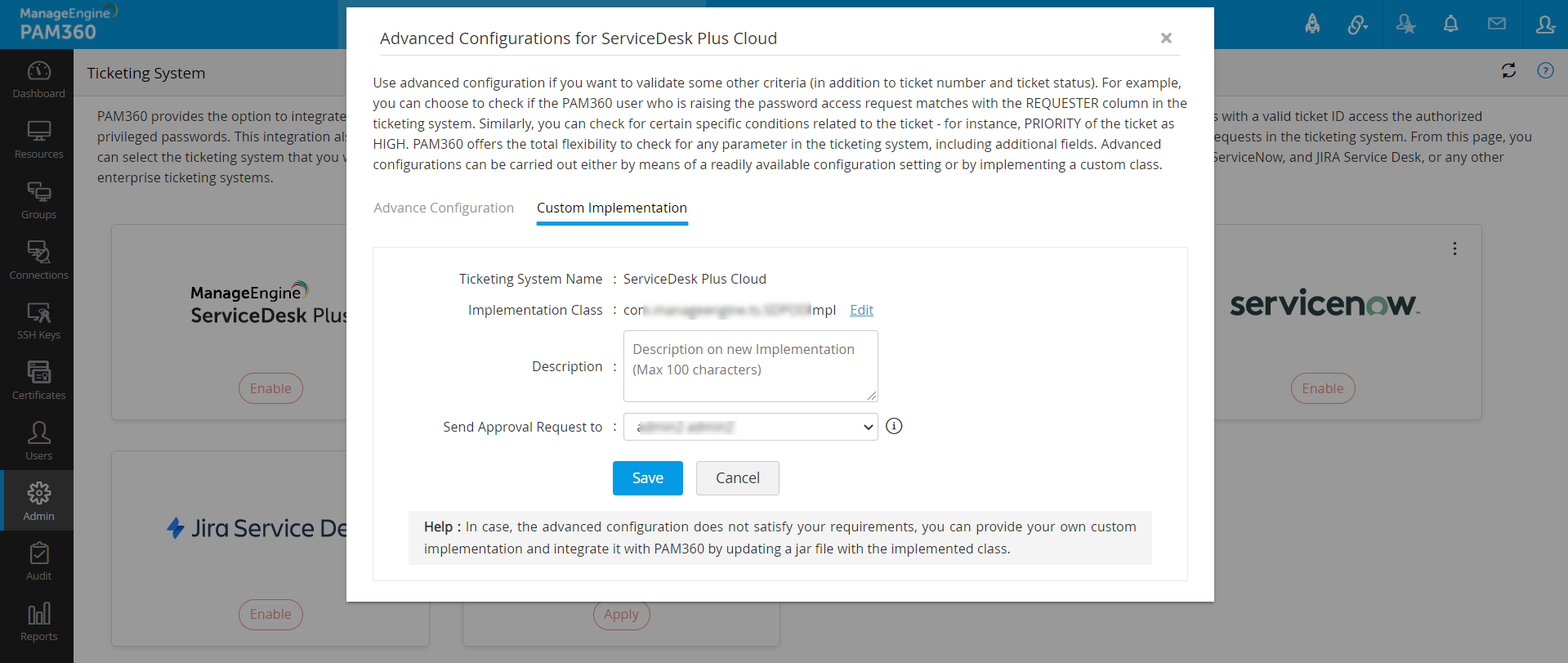
	package com.manageengine.ts;
	import java.util.Properties;
	import org.json.simple.JSONObject;
	import com.adventnet.passtrix.helpdesk.ServiceNowImpl;
	//ServiceNow custom implementation
	public class ServiceNowCustomImpl extends ServiceNowImpl
	{
	public boolean checkViewHelpDeskRequest(String ticketId, Properties pam360Columns, Properties credentialDetails, JSONObject criteriaDetails)
	throws Exception
	{
	boolean result = super.checkViewHelpDeskRequest(ticketId, pam360Columns, credentialDetails, criteriaDetails);
	//Your own implementation
	return result;
	} }
The table below lists down default functionality processing classes for the ticketing systems that readily integrate with PAM360:
| Ticketing System | Class |
|---|---|
ServiceDesk Plus On-Demand | com.adventnet.passtrix.helpdesk.ServiceDeskPlusOnDemandImpl |
ServiceDesk Plus MSP | com.adventnet.passtrix.helpdesk.ServiceDeskPlusMSPImpl |
ServiceDesk Plus | com.adventnet.passtrix.helpdesk.ServiceDeskPlusOnPremiseImpl |
ServiceNow | com.adventnet.passtrix.helpdesk.ServiceNowImpl |
JIRA | com.adventnet.passtrix.helpdesk.JiraServiceDeskImpl |
4. Testing Ticketing System Configuration Setup
After completing the integration, you can do a testing to ensure that PAM360 can establish communication with the ticketing system properly.
- Click the three-dot menu on the top- right corner of the ticketing system tile and select Test Configuration Setup.
- In the window that appears, select Operation from the dropdown and enter the ticket ID in the Ticket ID field.
- Click Test to check the response in the Output section.
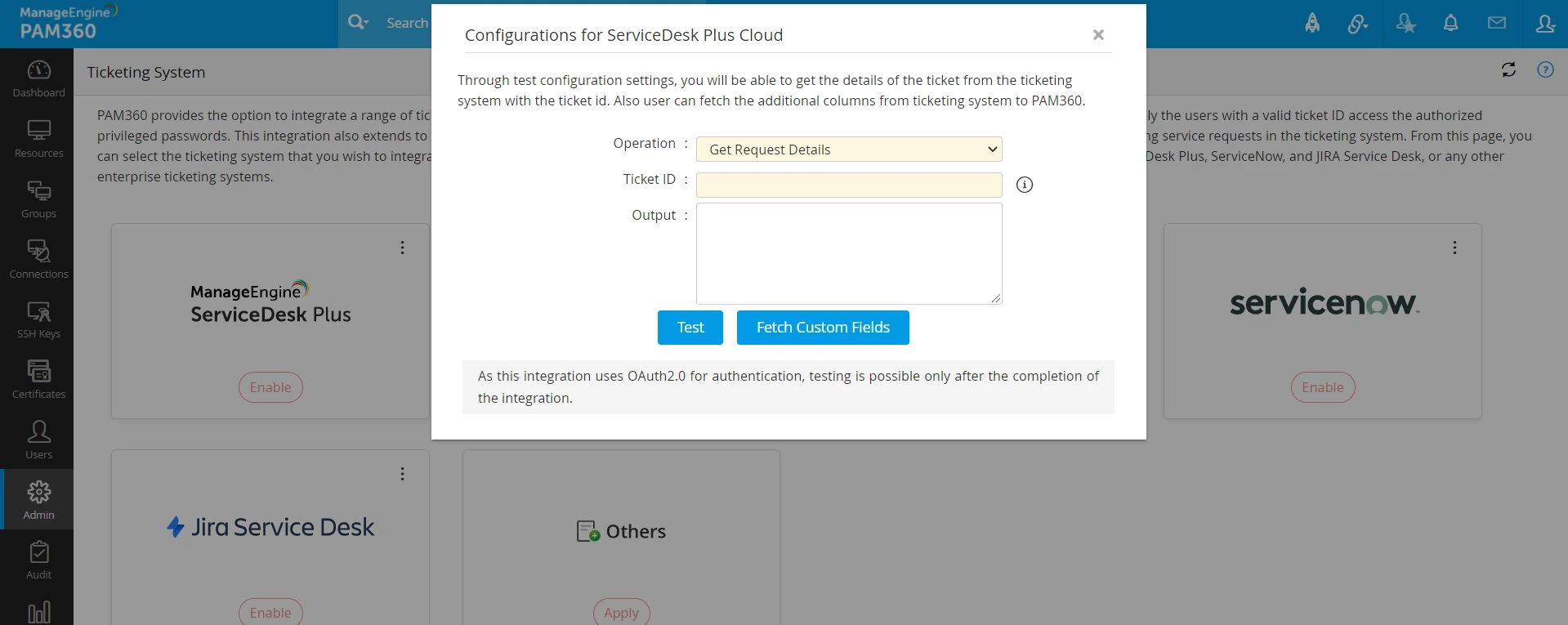
- As part of this testing, you can also Fetch Custom Fields from PAM360 and include them in the filter columns and advanced configuration setup.
Additional Detail
The output results (API response) are generated based on the input provided after completing the test configuration setup.
- If the test configuration fails, follow these troubleshooting steps:
- Ensure that the mapped entries match the exact column names.
- Verify that the specified conditions align with the selected validation criteria.
For further assistance in troubleshooting ticketing system integration issues, contact PAM360 support.
5. Interface Description for Ticketing System
The interface for ticketing system integration defines the essential methods required to facilitate seamless communication between PAM360 and a ticketing system. This interface serves as a blueprint for implementing the integration, ensuring standardization and consistency across different ticketing systems.
Ticketing system integration in PAM360 enables administrators to track, manage, and resolve privileged access-related requests through an external ticketing platform. Implementing the provided interface allows developers to customize and extend the integration to meet specific organizational needs.
Below is the code snippet for the ticketing system interface:
	package com.manageengine.ts;
	import java.util.Properties;
	import org.json.simple.JSONObject;
	//This class provides the methods to implement ticketing system integration. You need to implement this interface
	public interface TicketingSystemInterface
	{
	/**
	* Used to display the error message while doing the ticketing system related operations. The output gets reflected in audit trails.
	* @return Error message, if the ticketing system accessible, return null. Otherwise, return a proper error message.
	*/
	public String getErrorMsg();
	/**
	* Used to return the properties related to the ticketing system operation
	* @return Comments and needed message
	*/
	public Properties getRequestProperties();
	/**
	* Used for testing configuration setup. While testing, the administrator will be able to get ticket details from the ticketing system.
	* @param tsName Ticketing system Name
	* @param tsUrl Ticketing system Web URL
	* @param authToken Authentication Token assigned to a technician of ticketing system (Base64 authorization string constructed
	using login credentials in the case of ServiceNow ticketing system)
	* @param ticketId Ticket ID given as the input ((Ticket ID/Sys ID in the case of ServiceNow ticketing system)
	* @param Ticketing System operation type
	* {@value 0} Ticketing Operation
	* {@value 1} Change Related Operation
	* @return the output from ticketing side
	* @throws Exception
	*/
	public JSONObject helpdeskCheck(String tsName, String tsUrl, String authToken, String ticketId, String operation) throws Exception;
	/**
	* Actual function that will be called upon whenever a ticketing system related operation is done from PAM360 GUI
	* @param ticketId Ticket ID (Ticket ID/Sys ID in the case of ServiceNow ticketing system)
	* @param pam360Columns Details of the PAM360 account for which ticketing system query is raised
	* @param credentialDetails Key details of ticketing system (Authentication token or Base64 authorization string
	and web URL of ticketing system)
	* @param criteriaDetails Criteria mapping done as part of advanced configuration
	* @return Final output that will be sent to PAM360 server
	* {@value true} Success case - Allows the operation to proceed
	* {@value false} Failure case - Denies the operation to proceed
	* @throws Exception
	*/ public boolean checkViewHelpDeskRequest(String ticketId, Properties pam360Columns, Properties credentialDetails, JSONObject criteriaDetails)
	throws Exception; }