Integration with Trident Hardware Security Module (HSM)
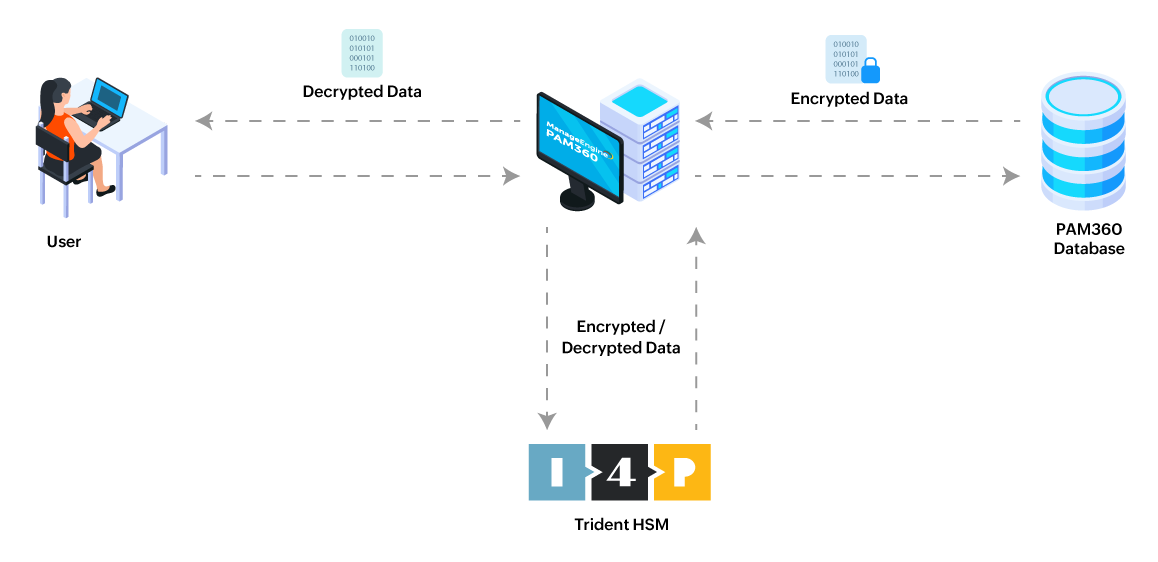
PAM360 offers robust encryption methods to secure the privileged credentials stored in the PAM360 repository. By default, PAM360 employs AES-256-bit encryption to protect these credentials. For heightened security, PAM360 supports integration with the Trident HSM, which handles all the encryption and decryption operations directly within the hardware. This approach not only strengthens data protection but also allows for the encrypted key to be securely stored within the hardware module, providing an additional layer of security against unauthorized access. This document covers the following topics in detail:
1. Prerequisites
Before proceeding with the integration, ensure the following prerequisites are met:
- A valid instance of Trident HSM is properly installed and set up in your environment. The Trident HSM installation guide details the necessary steps to complete this setup.
- The Trident HSM service is accessible from the PAM360 server in your environment.
- A dedicated user account in Trident HSM, which will be used by PAM360 to connect with the Trident HSM service.
- The mpcm-api.jar file provided by i4p Informatics as a part of the Trident SDK.
2. Workflow
Integrating PAM360 with Trident HSM involves several key steps to ensure secure and seamless encryption management, including configuring the Trident HSM, establishing connectivity with PAM360, and updating the encryption mechanism to use Trident HSM for storing the PAM360 encryption key.
3. Migrating to Trident HSM Encryption Method
Follow these steps to migrate to Trident HSM for securely storing the PAM360 encryption key:
- Stop the PAM360 service.
- Navigate to the <PAM360-Installation-Directory>\lib folder and paste the mpcm-api.jar file provided by i4p Informatics as a part of Trident SDK.
- Open the command prompt with administrator privileges and navigate to the <PAM360-Installation-Directory>\bin folder.
- Execute the migration script based on your operating system:
- Windows - SwitchToHSM.bat
- Linux - sh SwitchToHSM.sh
- In the Switch to HSM Encryption window, select Trident as the HSM Solution and enter the following details:
- CMAPI URL - Enter the Trident HSM's service URL in the format https://<trident-hostname>:<port number>. It is the endpoint through which PAM360 communicates with the Trident HSM for operations such as encryption key storage, retrieval, and encryption.
- Username - Enter the username of the dedicated Trident HSM user account you created specifically for this integration, which PAM360 will use to authenticate its connection. The user role should be Key User and the user type should be mpcm user.
- Password - Enter the password of the specified user account in this field.
- Key Password - Enter the encryption key password in this field.

- After entering the required details, click Migrate to migrate from the default PAM360 cryptography to Trident HSM.
- Restart the PAM360 service to complete the migration process.
To verify the encryption method currently in use, navigate to Admin >> Server Hardening >> Encryption and HSM. The Hardware Security Module tab within the Encryption and HSM page displays the active encryption method, confirming successful integration and migration to Trident HSM.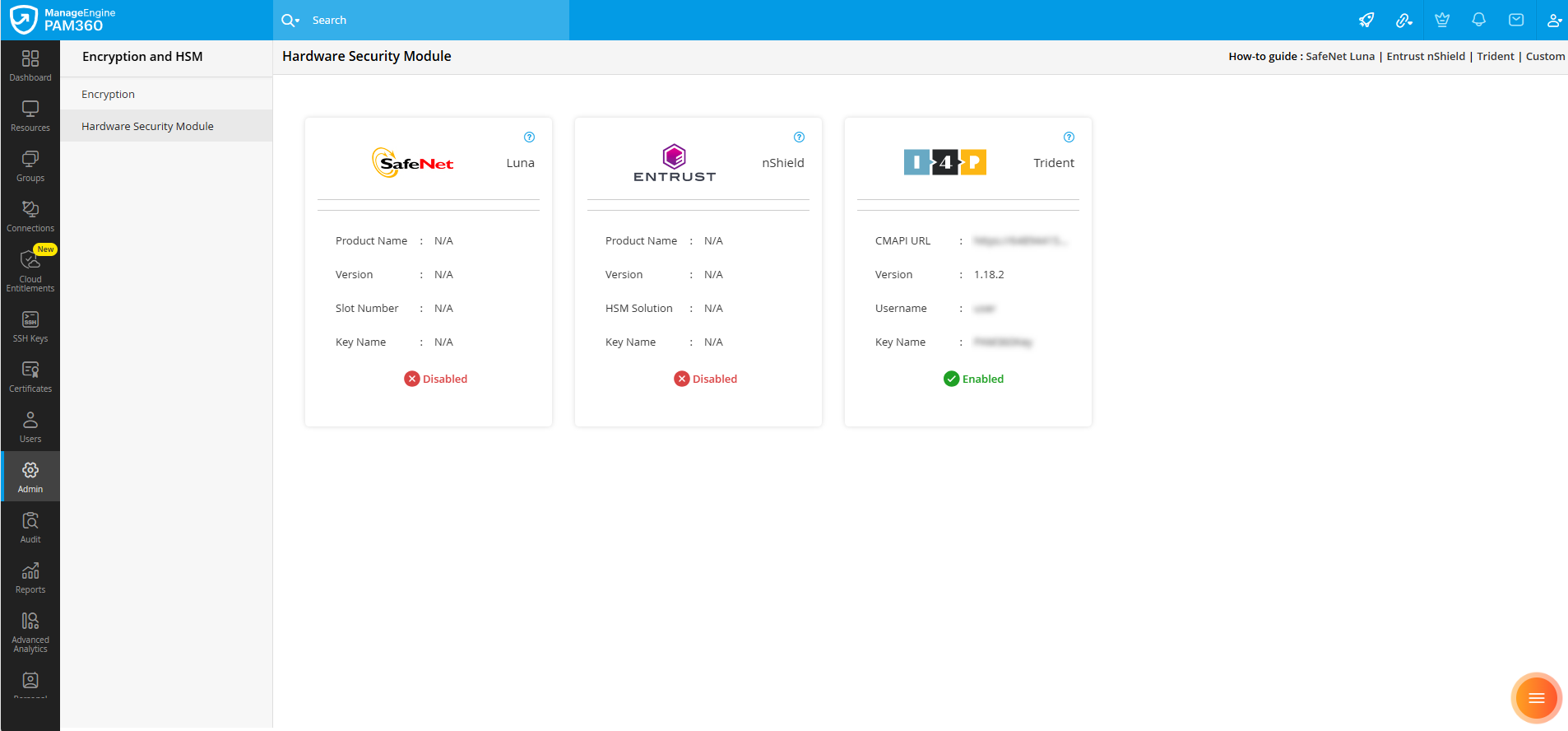
Caution
- Once Trident HSM is configured as the primary encryption method, switching back to PAM360’s native encryption requires a complete reconfiguration of PAM360. To revert to PAM360 encryption and recover some data from your old build, you can choose one of the following approaches:
- Export all resources and passwords from the PAM360 build that uses HSM encryption. Then, uninstall the existing build and perform a fresh installation of PAM360 without HSM encryption. Please note that reinstalling PAM360 will erase all existing data. However, you can import the previously exported resources and passwords to recover some of the data.
- Uninstall the current version and restore an older backup of PAM360 created with the PAM360 encryption key.
- It is not possible to switch encryption modes after the initial configuration.
- If the current encryption method in your PAM360 server is SafeNet Luna HSM or Entrust nShield HSM, direct migration to Trident HSM is not supported and requires complete reconfiguration of PAM360.
4. Troubleshooting Tips
Below are some of the errors you may encounter in the SwitchToHSM_log.txt file if there are discrepancies in the values passed during the integration process. The file is available within the <PAM360-Installation-Directory>\logs folder.
1. java.lang.ClassNotFoundException: mpcm.api.parameters.ApiConfiguration (or) java.lang.NoClassDefFoundError: mpcm/api/parameters/ApiConfiguration
Problem: The mpcm-api.jar file is not available in the directory path<PAM360-Installation-Directory>\lib.
Solution: Place the mpcm-api.jar file in the lib folder within the <PAM360-Installation-Directory>\lib folder, as described in Step 2 of the migration process, to resolve this error.
2. Unable to connect to the Trident HSM. Please check the CMAPI URL/Username/Password.
Problem: The Trident HSM service is not reachable, or the credentials provided during migration are invalid.
Solution: Verify that the Trident HSM service is accessible from the PAM360 server in your environment. Also, ensure the CMAPI URL, Username, and Password are correct.