Managing Users via User Groups in PAM360
User Groups in PAM360 help streamline access management by allowing administrators to organize users based on roles, responsibilities, or departments. User Groups also help simplify the process of sharing privileged resources with multiple users who require similar access. Administrators can associate multiple users with a user group and share the required resources or resource groups with the necessary share permissions. This approach eliminates the need to individually select each user while sharing resources, resulting in a more efficient and time-saving process. Additionally, administrators can designate user groups as approval administrators for password access requests while configuring the access control workflow. With user groups, administrators can efficiently manage users, share resource access, and configure workflows.
This help document covers the following topics in detail:
- Adding User Groups
- Importing User Groups from Active Directory
- Configuring User Group Privileges
- Exporting Passwords for Offline Access
- Managing User Groups
1. Adding User Groups
To create a new user group, navigate to the Users >> User Groups tab and click Add Groups. In the pop-up that opens, enter the Group Name and Description, and click Save & Proceed.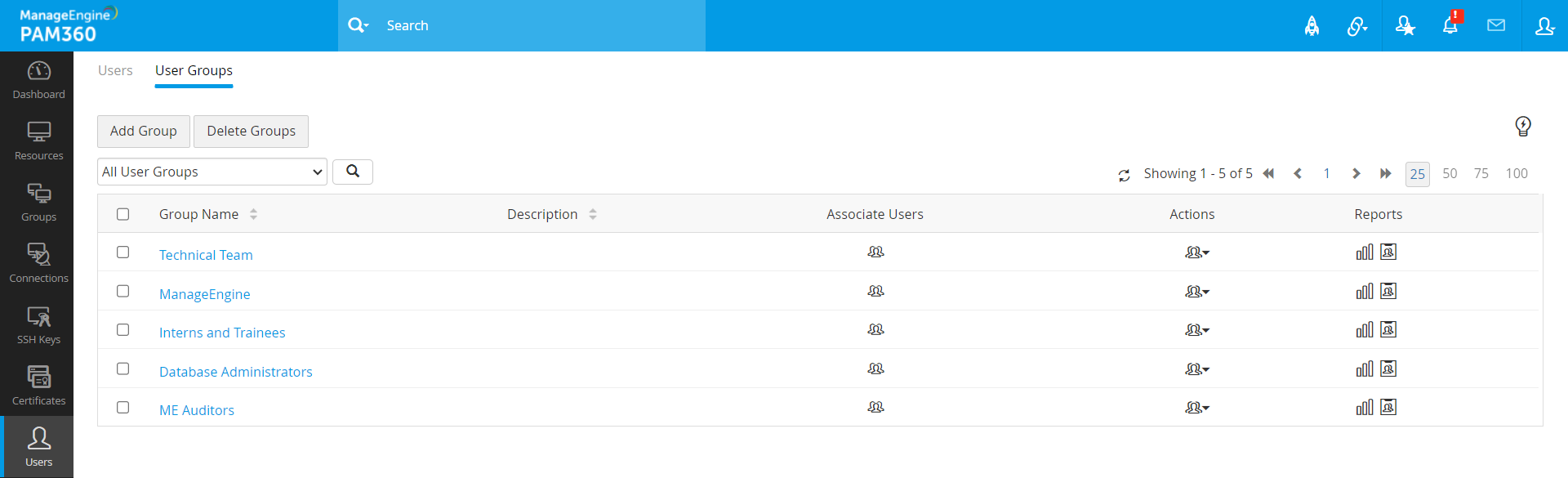
Once the user group is added, the Add Users window will open up. Here, click Add to Group beside the required users to add them to the user group. The changes will take effect as and when you add users.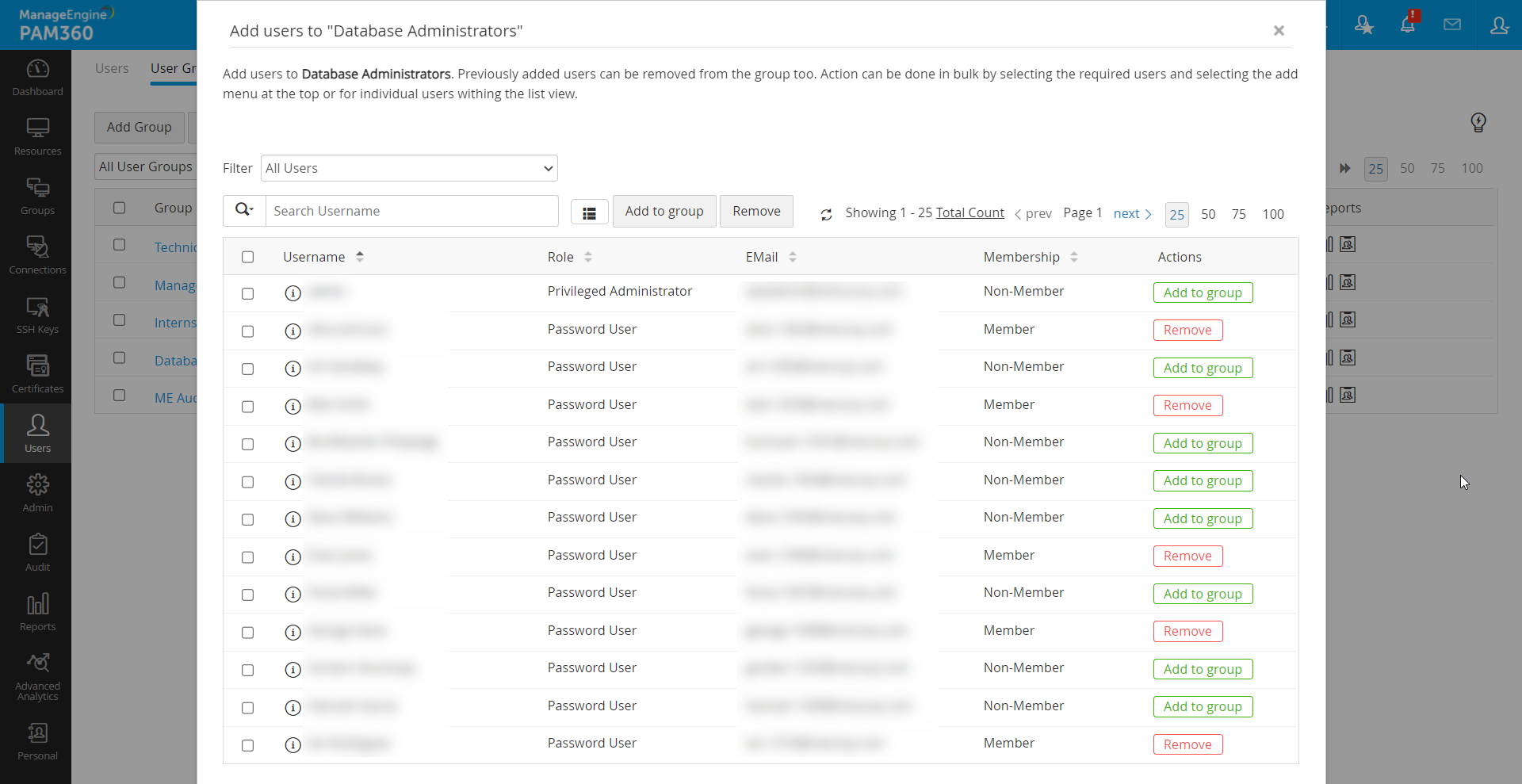
2. Importing User Groups from Active Directory
You can import Groups and Organizational Units (OUs) from AD and retain them in the same user group structure in PAM360. This streamlines access management by enabling you to replicate and manage group-based privileges as defined in your directory service. Click here to learn more about importing users from AD. Upon importing, you can synchronize the user group structure in PAM360 with that of ADs at periodic intervals. Click here to learn more about AD synchronization schedules. In the User Groups tab, all user groups imported from AD are listed. You can use the Filter option to view user groups based on the user directory from which the user groups were imported. Select Filter >> AD User Groups to view the list of user groups imported from your AD domain.
Additional Details
From PAM360 Builds 8100 and above, the User Groups tab features a new filter option, Empty User Groups, which displays the list of all the user groups in your environment without any users. These could be user groups created in PAM360 or those user groups in your AD domain that do not contain any users.
3. Configuring User Group Privileges
Navigate to the Users >> User Groups tab, click the Actions icon beside the required user group and click User Group Privileges.
Caution
The setting changes made in the User Group Privileges window apply only to the users who are part of the selected user group.
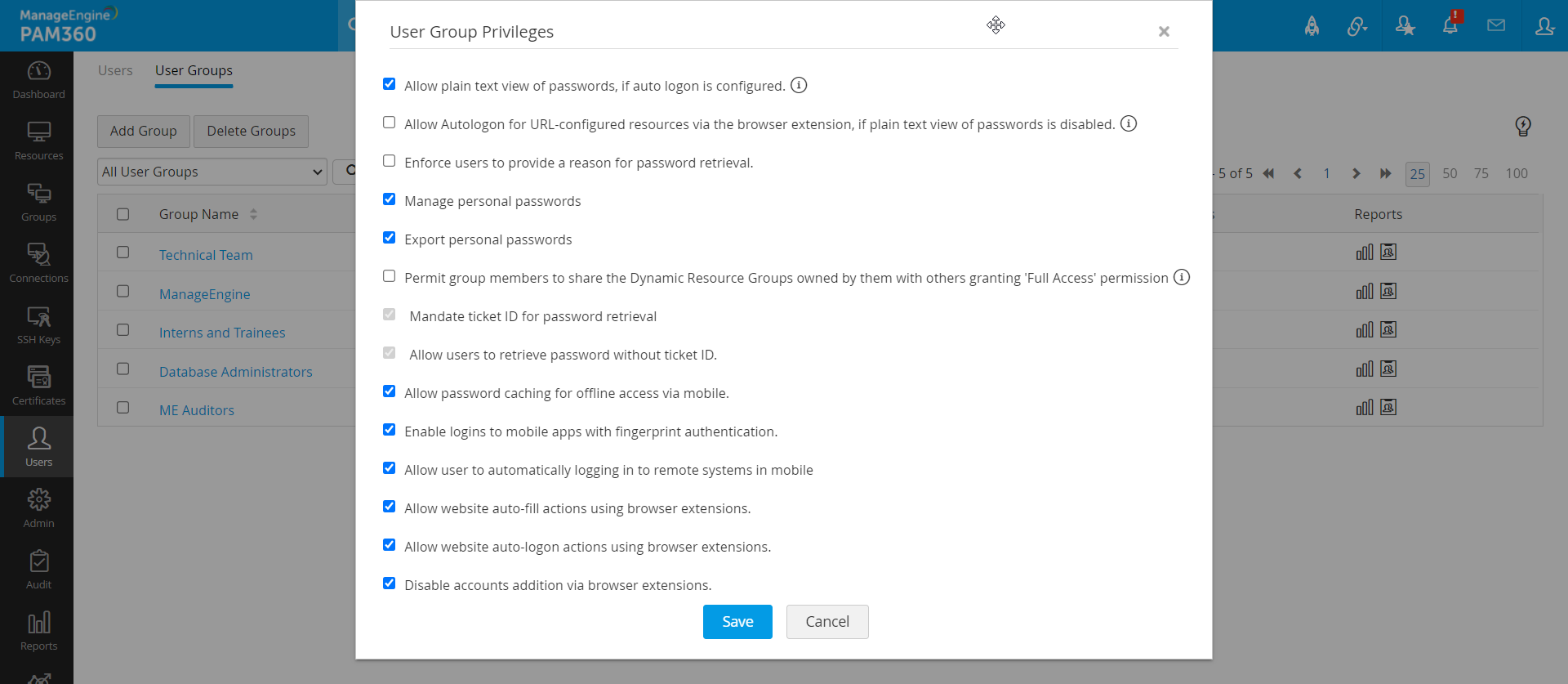
Enable the required user group privileges that follow:
- Allow plain text view of passwords, if auto logon is configured: Enable this option to grant members of the user group the ability to view shared resources passwords in plain text when auto logon is configured. If disabled, group members will not be able to retrieve the passwords directly but can still initiate remote sessions via auto logon. This restriction specifically applies to Password Users, Password Auditors, and custom roles with similar privileges.
- Allow Autologon for URL-configured resources via the browser extension, if plain text view of passwords is disabled: This option allows users to automatically log in to websites and web applications without manually entering credentials, even when plain text password view is disabled. It is essential to ensure that the necessary security measures are enforced on the client-side browser and user systems to maintain security.
- Enforce users to provide reason for password retrieval: Enable this setting to prompt users to provide a reason when retrieving a password. This requirement applies only to Password Users, Password Auditors, and custom roles with equivalent privileges.
- Manage personal passwords: Individual users can manage personal passwords, such as credit card PINs and bank account credentials, under the Personal tab. To restrict personal password management for a specific user group, deselect this option. Once disabled, the Personal tab will be hidden in the PAM360 interface for all members of the selected group.
- Export personal passwords: Enable this option to allow users in the group to export their personal passwords stored in the Personal tab. To restrict password export for a particular user group, unselect this option.
- Permit group members to share the Dynamic Resource Groups owned by them with others granting Full Access permission: By default, the permission to grant Full Access to dynamic resource groups is disabled in the User Group Settings.
This setting is disabled by default for security reasons, as it could potentially allow administrators to gain unauthorized access to resources they do not own.
If enabled, a user granted Full Access to a dynamic resource group will have full access to all existing resources within the group and any future resources added based on specific criteria (e.g., Resource name contains).
It is recommended to create a user group comprising only Administrators, Password Administrators, or Privileged Administrators who need authorization to grant Full Access permission for their dynamic resource groups. After the group is created, enable the option 'Permit group members to share the Dynamic Resource Groups owned by them with others granting Full Access permission' under User Group Privileges. - Mandate ticket ID for password retrieval: Enable this setting to require users to provide a valid ticket ID when retrieving a password. This option is applicable only if a ticketing system integration is in place.
- Allow users to retrieve password without ticket ID: Enable this option to allow users to retrieve a password by clicking the 'password' field without the need to submit a ticket request. This restriction applies only to Password Users, Password Auditors, and custom roles with similar privileges. It is also applicable only if ticketing system integration is in place.
To disable options a, c, and h for a specific group of users, create a new user group, add the users to it, and customize the settings for that group alone.Caution
To enforce options a, c, and h for a user group, the settings should be enabled both locally (at the user group level) and globally (in General Settings).
- Case 1: If options are enabled globally under General Settings, they will be applied to all user groups by default. However, you can disable these settings for a specific group via the User Group Privileges window.
- Case 2: If the options are disabled globally under General Settings, they will not apply to user groups, even if they are enabled locally under User Group Privileges.
These conditions apply only to Password Users, Password Auditors, and custom roles with similar privileges.
- Case 1: If options are enabled globally under General Settings, they will be applied to all user groups by default. However, you can disable these settings for a specific group via the User Group Privileges window.
- Allow password caching for offline access via mobile: Enable this setting to allow users to save a password cache in the PAM360 mobile application, enabling offline access to passwords.
- Enable login to mobile apps with fingerprint authentication: Allow users to log in to their PAM360 mobile applications using fingerprint authentication on their devices.
- Allow user to automatically logging in to remote systems in mobile: Enable this option to permit automatic login to remote systems through the PAM360 mobile app.
- Allow website auto-fill actions using browser extensions: Enable this setting to allow users to auto-fill login credentials for saved website accounts through PAM360 browser extensions.
- Allow website auto-logon actions using browser extensions: This option allows users to connect to a remote resource using the auto-logon feature via PAM360 browser extensions.
- Disable accounts addition via browser extensions: Disable this option to prevent users from adding accounts to resources through PAM360 browser extensions. Note that account addition via browser extension is available only in Chrome.
4. Exporting Passwords for Offline Access
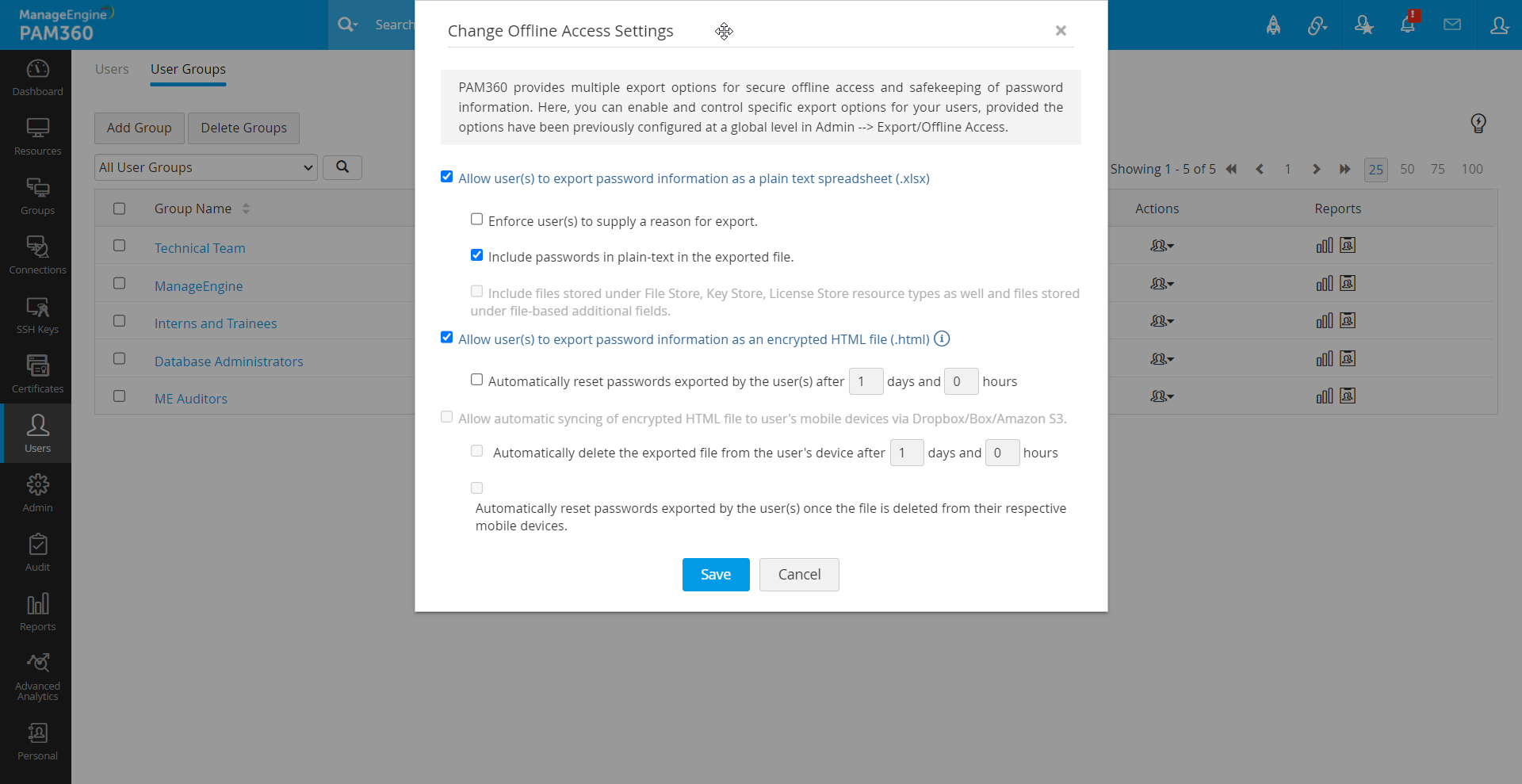
PAM360 provides multiple export options for secure offline access and the safekeeping of password information. To configure the offline export settings for a user group, follow the below steps:
- Navigate to the Users >> Groups tab.
- Click the Actions icon next to the desired group and choose Change Offline Access Settings from the dropdown menu.
- In the pop-up that appears, enable or disable the offline access settings as required and click Save.
5. Managing User Groups
5.1 Editing a User Group
Follow the below steps to modify an existing user group:
- Go to the UserGroups tab.
- Click the Actions icon next to the group you want to edit and select Edit Group Attributes.
- In the pop-up form, you can update the Group Name and Description.
- Click the Associate Users icon next to the group you wish to add new users to the group or remove previously added users from the group.
- From the user list that opens, click Add to Group beside the required user to add to the user group.
- Click Remove beside the respective user to remove a user from the group.
Changes will take effect immediately.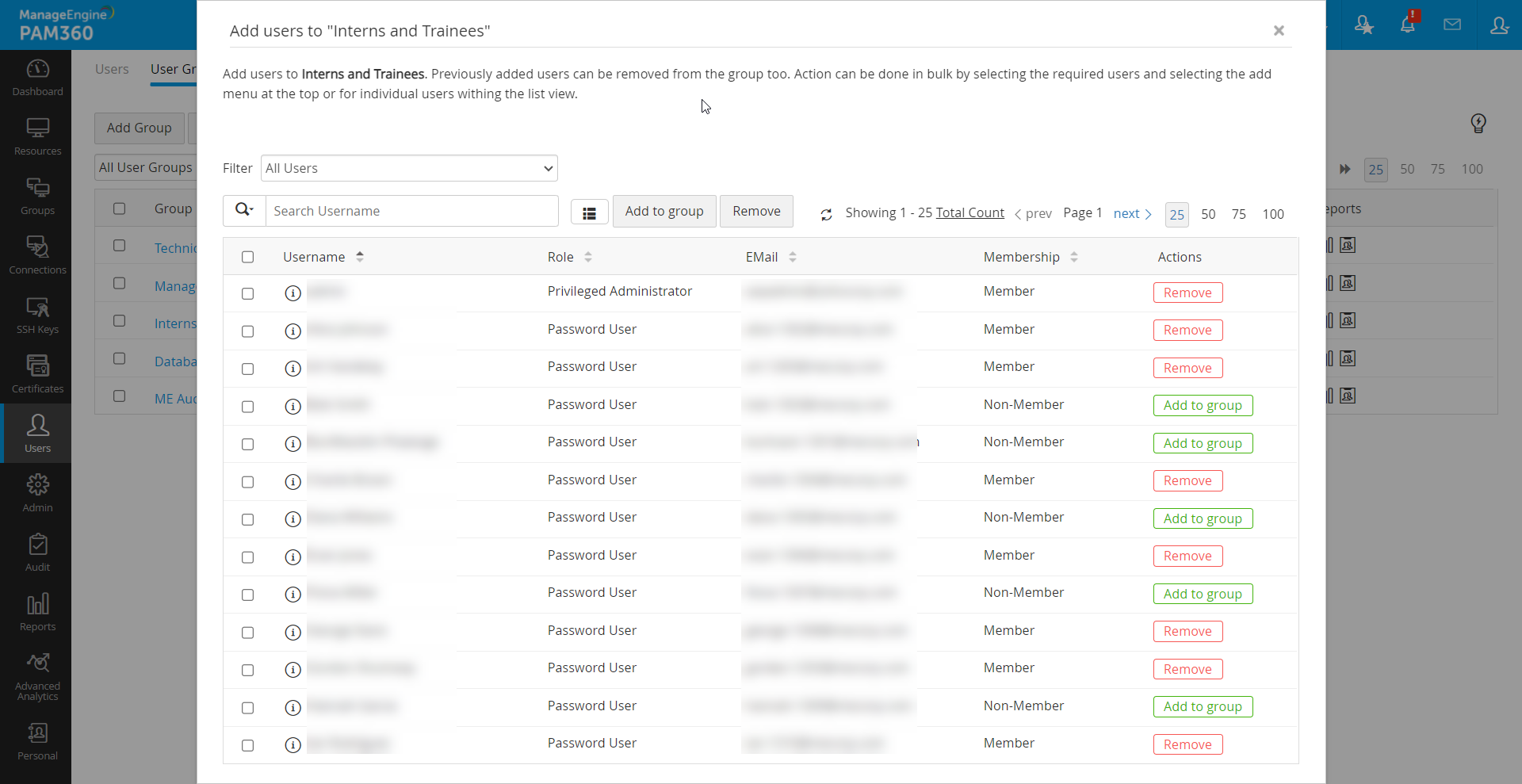
5.2 Adding Users to an Existing User Group
Follow the below steps to add users to an exisiting user group:
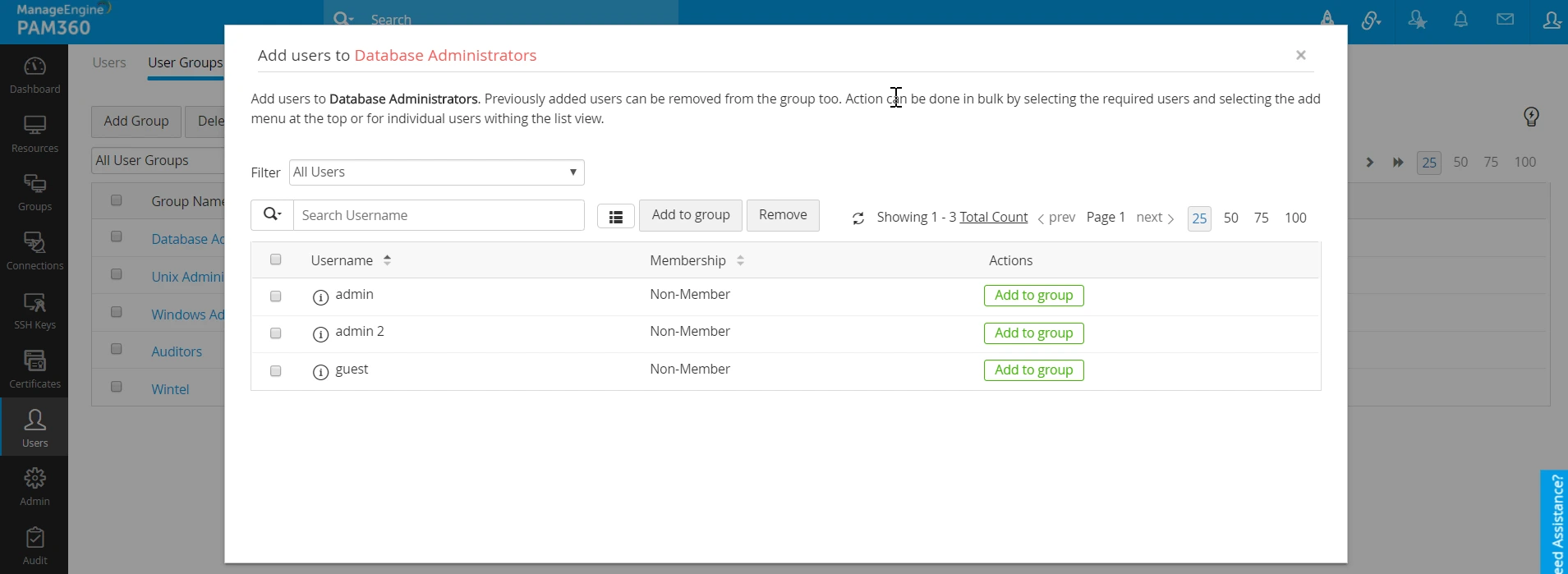
- To add new users to the group or remove previously added users from the group, click the Associate Users icon beside the required group.
- Click Add to Group to add a non-member to the group.
- Click Remove to remove previously added users from the group. The changes will take effect as and when you make them.
5.3 Adding Users to Multiple User Groups
To add a user to multiple user groups in PAM360,
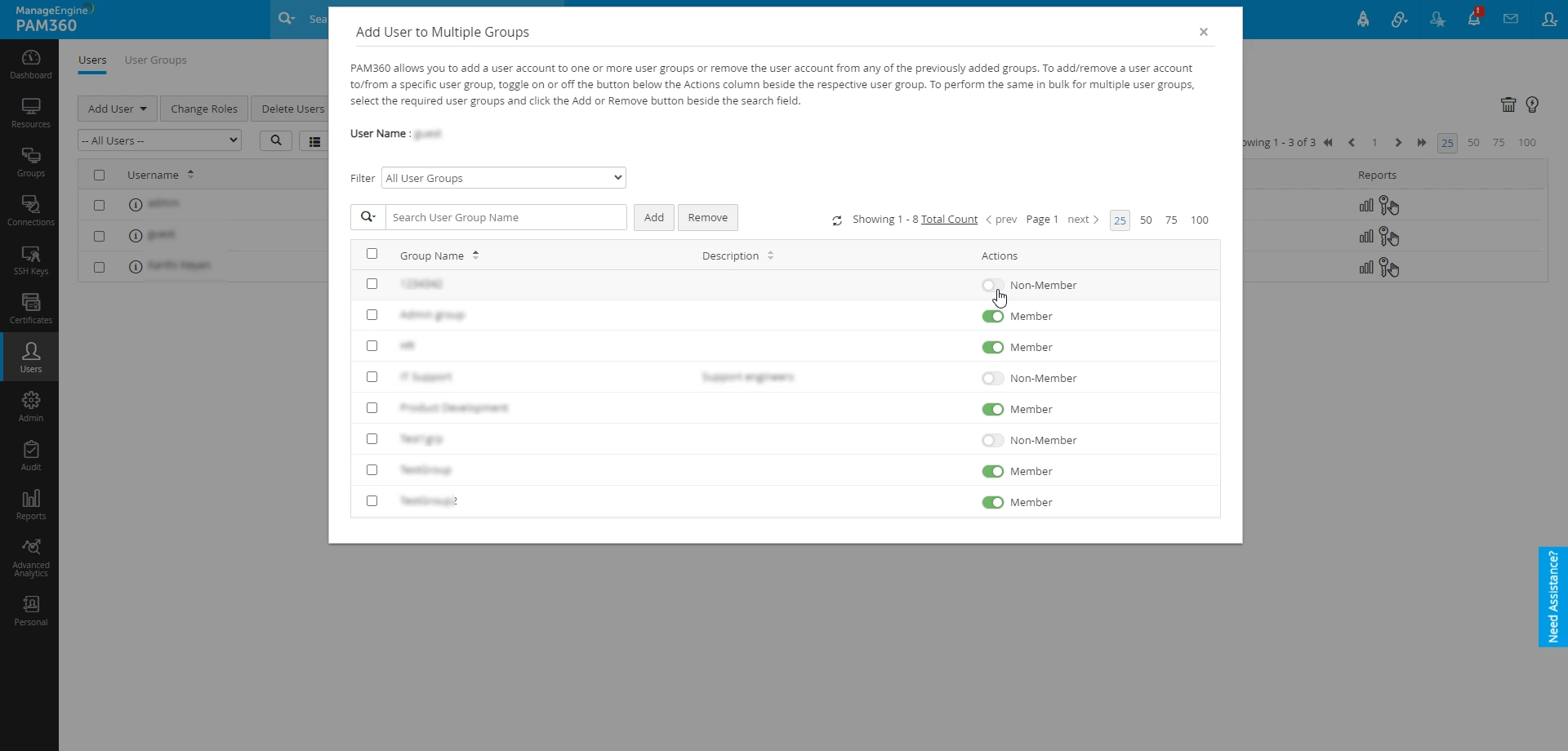
- Navigate to the Users tab, click the User Actions icon beside the respective user, and click Add User to Multiple Groups.
- In the dialog box that appears, add the user to the desired user groups by switching the toggle button in the Actions column beside the respective user groups.
- To perform the same in bulk, select the required user groups and click on the Add button at the top pane to add the user to multiple user groups.
5.4 Deleting a User Group
When you delete a user group, all settings applied to that group will no longer be in effect for its members. However, this action does not impact the resources stored in PAM360, though resources shared with the group will no longer be accessible to its former members. To delete a user group, follow these steps:
- Navigate to the User Groups tab and select the group you wish to delete.
- Click the Delete Groups button at the top of the screen.
- In the confirmation pop-up, click OK to finalize the deletion.