Search Archived Events
Search Archived Events is an efficient way to find specific events from the archive files. Unlike with the Restore Archived Events option, which loads the file into the database, the archive files here will be indexed and can thus be searched to find any specific event faster. This feature also enables you to search across all log categories.
Note:
- Archive files must be indexed in order to be searched or viewed as a report.
- Once a file is indexed, it can be viewed as a report through the options available on the left side of the same page.
- Indexing archive files under Search Archived Events will not show the reports on the Reports tab. To view reports on the Reports tab, use the Restore Archived Events option.
- A maximum of 50 files can be indexed per log category. Each archive file will consume 40-70MB of space when indexed.
- By default, indexed files will be stored inside the product installation directory. To change the location, use the Settings option under Index Files For Search.
- Ensure enough space is available in the installation directory or configured location before indexing.
- To search archived events for DataEngine categories, open the ADAudit Plus console and navigate to Admin > Configuration > Restore Archived Events. The DataEngine categories available for searches and restoration on this page include the following:
- AD Replication Audit
- Advanced DNS Server Audit
- PowerShell Auditing
- Sysmon Auditing
- Threat Action Data
- Threat Action Breakdown
- Cloud Activity Logs
- File Audit
- Account Logon
How to perform an archive search
Steps:
- Navigate to Admin > Configuration > Search Archived Events.
- Click Index Files For Search and select the timeframe and log category according to your requirements.
- Select the desired files (a maximum of 50 files per category) and click the Index icon in the Actions column.
- When a file is scheduled for indexing, the status will be updated in the status bar on the same page . Once a file is indexed, view it as a report through the options available on the left side of the same page (unlike under Restore Archived Events where once restored, reports can be viewed on the Reports tab).
- Use the search bar in each report to precisely locate any specific event.
Archive Global Search
This option allows you to search across all log categories. When a search query is entered, a summary of the query result for all log categories will be displayed. You can further drill down on this to view the actual report.
Search box

Simple searches
Steps:
- Select the search field and operator from the left drop-down menu (hover over the drop-down menu to open it).
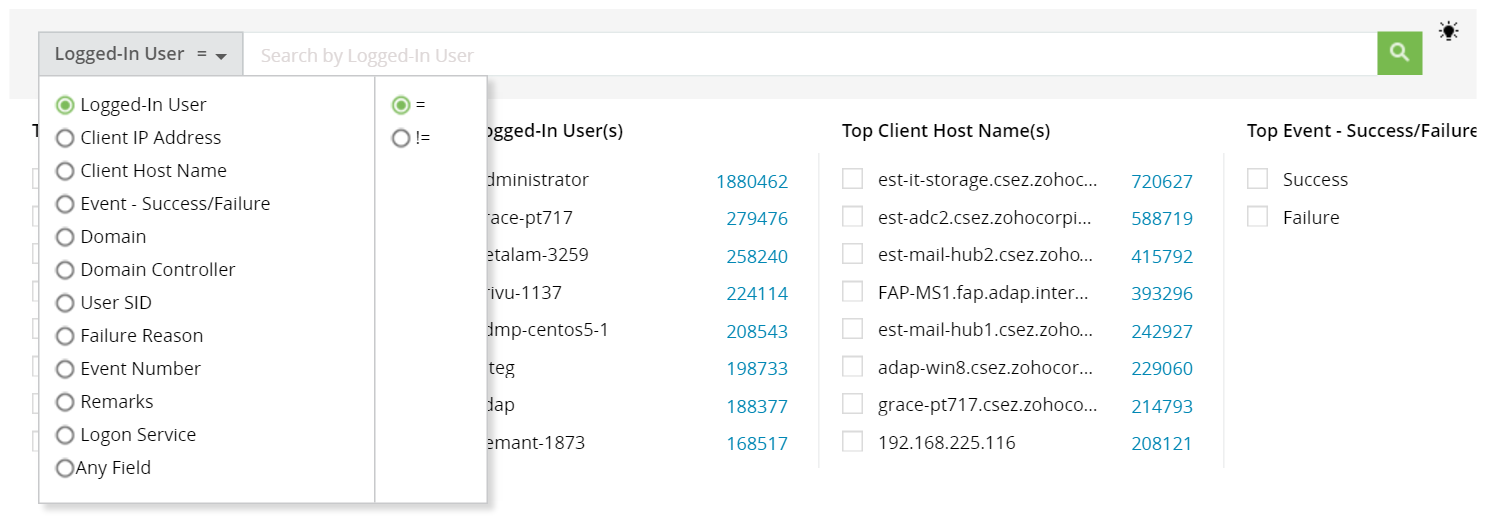
- Enter the search text in the search box and click the green search icon.

Reports relevant to the search will be displayed below.
Note:
- The search box supports wildcard characters * and ?.
- E.g., ad* will fetch all texts starting with ad, such as admin, administrator, or adon, while ad*n will fetch all texts starting with ad and ending with n, such as admin or adon.
- If the search text contains multiple words separated by spaces, enclose it within double quotation marks.
Advanced searches
Steps:
- For a multi-query search, click the plus button once you type the search text. This will open an advanced search panel.

- Type the search text in the search box and click AND or OR to append it to the query displayed above.


- To group queries, drag and drop the brackets wherever required.


- To delete any query, hover over it and click the delete button.

- Click the operator to toggle between operators.
- Once the queries are ready, click the green search button to fetch the reports for the queries.
Don't see what you're looking for?
-
Visit our community
Post your questions in the forum.
-
Request additional resources
Send us your requirements.
-
Need implementation assistance?
Try OnboardPro