Configuring single sign-on to ADAudit Plus using a custom identity provider
You can configure any custom identity provider of your choice to enable single sign-on to access ADAudit Plus. To do this, follow these steps:
Configure a custom identity provider in ADAudit Plus
Log in to the ADAudit Plus web console with admin credentials, and navigate to Admin → Administration → Logon Settings → Single Sign-On. Check the box next to Enable Single Sign-On, and select SAML Authentication → Identity Provider (IdP) → Custom Identity Provider. Upload the metadata file of the custom identity provider.
- If needed, enable Single Logout under SAML Authentication advanced settings.
- Click Save.
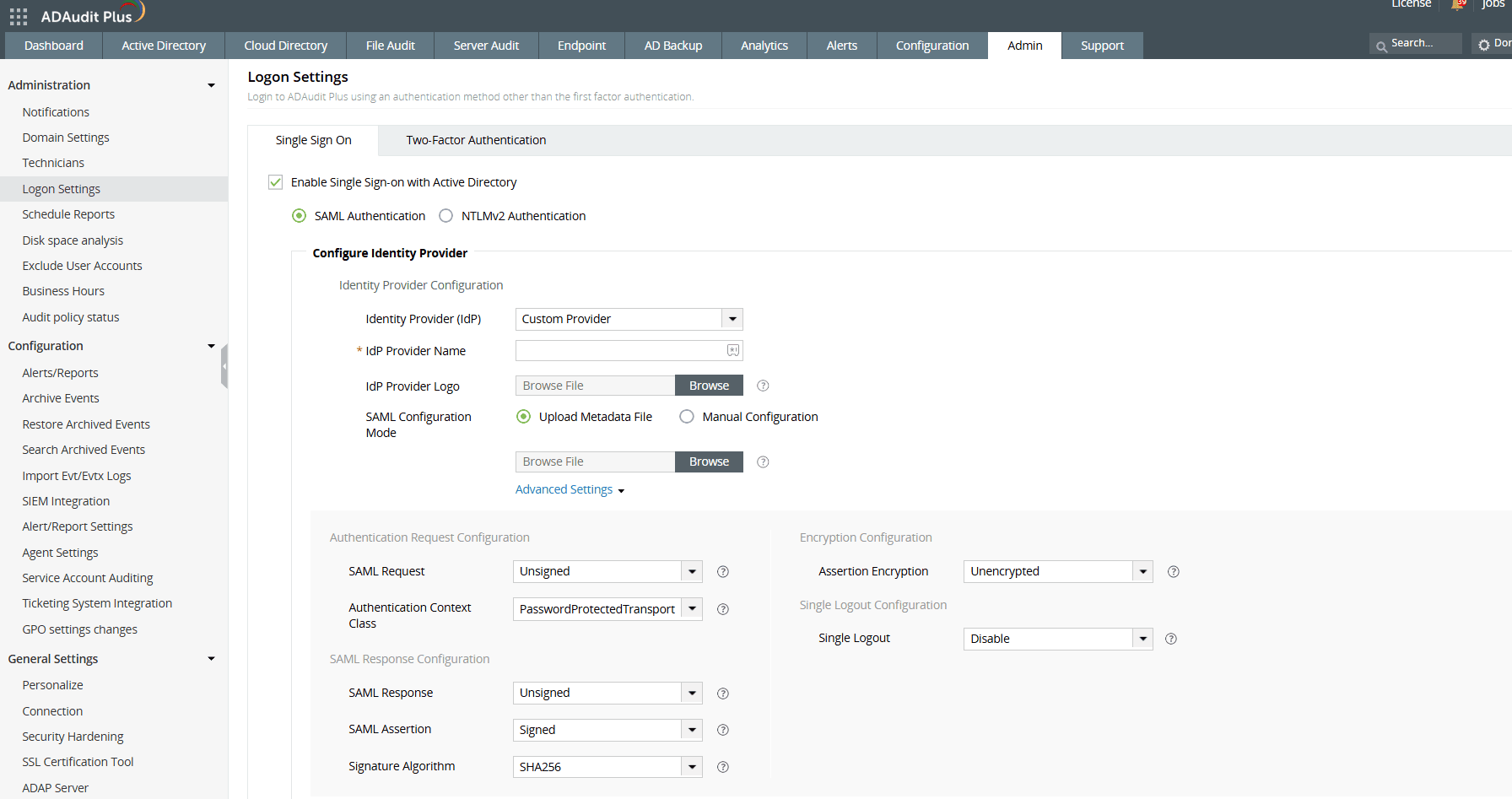
Authentication Request Configuration
| Setting | Description | Available values |
|---|---|---|
| SAML Request | Defines whether the authentication request sent to your custom identity provider is digitally signed |
|
| Authentication Context Class | Specifies the method your custom identity provider should use to authenticate users |
|
SAML Response Configuration
| Setting | Description | Available values |
|---|---|---|
| SAML Response | Specifies whether the overall SAML response from your custom identity provider is signed |
|
| SAML Assertion | Specifies whether the SAML assertion inside the response is signed |
|
| Signature Algorithm | Defines the algorithm used for generating digital signatures in SAML responses |
|
Encryption Configuration
| Setting | Description | Available values |
|---|---|---|
| Assertion Encryption | Determines whether the SAML assertions returned from your custom identity provider are encrypted |
|
| Encryption Certificate | Certificate used for encrypting the assertion |
|
If you want to mandate domain technicians to log into ADAudit Plus only through SAML authentication, check the Force SAML Login box in the bottom-right corner.
Note Once enabled, accessing ADAudit Plus' login page will redirect domain technicians to the single sign-on URL. However, administrators and technicians with ADAudit Plus authentication credentials can access the ADAudit Plus login page by using the /adminLogin tag after the login page URL.
Configuring single sign-on to ADAudit Plus using Azure
- Login to your Azure Portal and navigate to Enterprise Applications > All Applications > New Application.
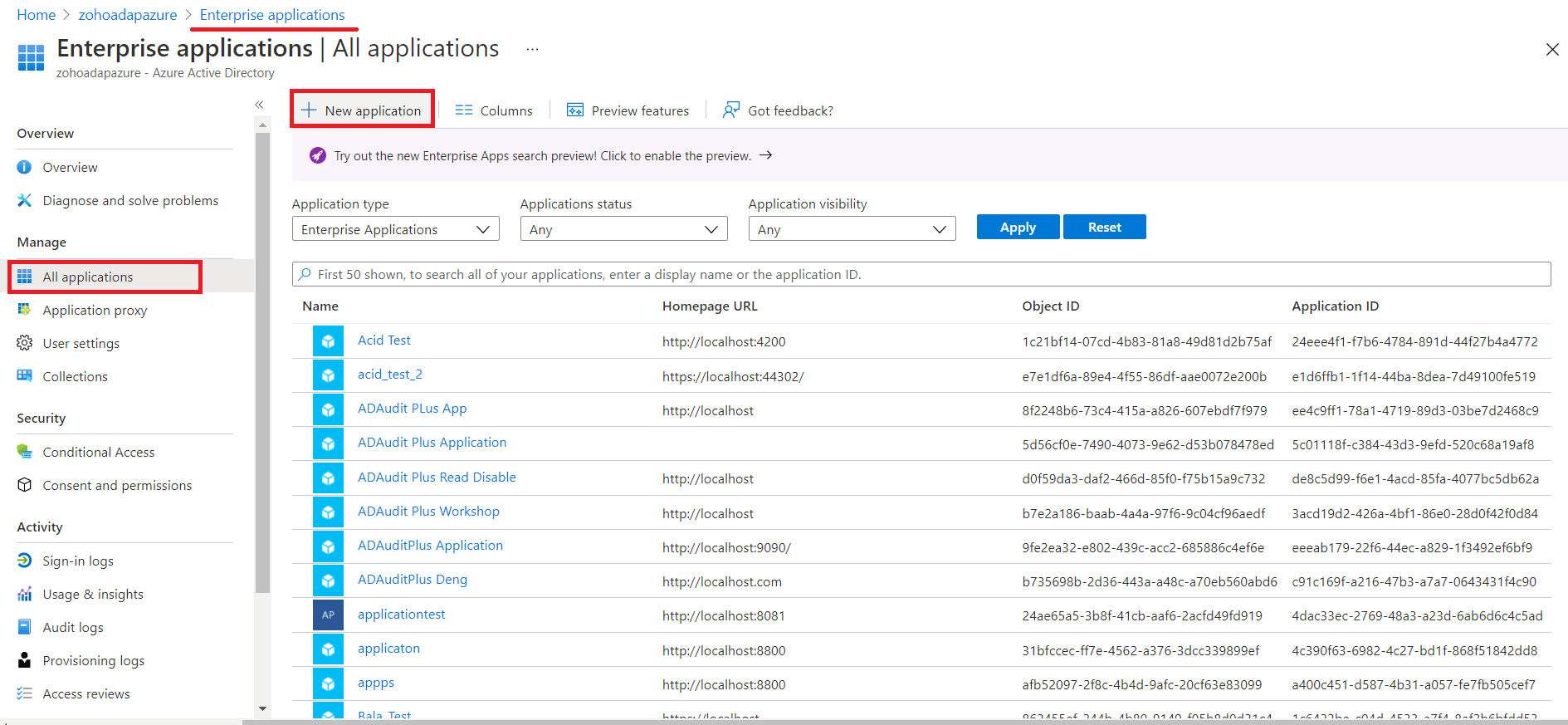
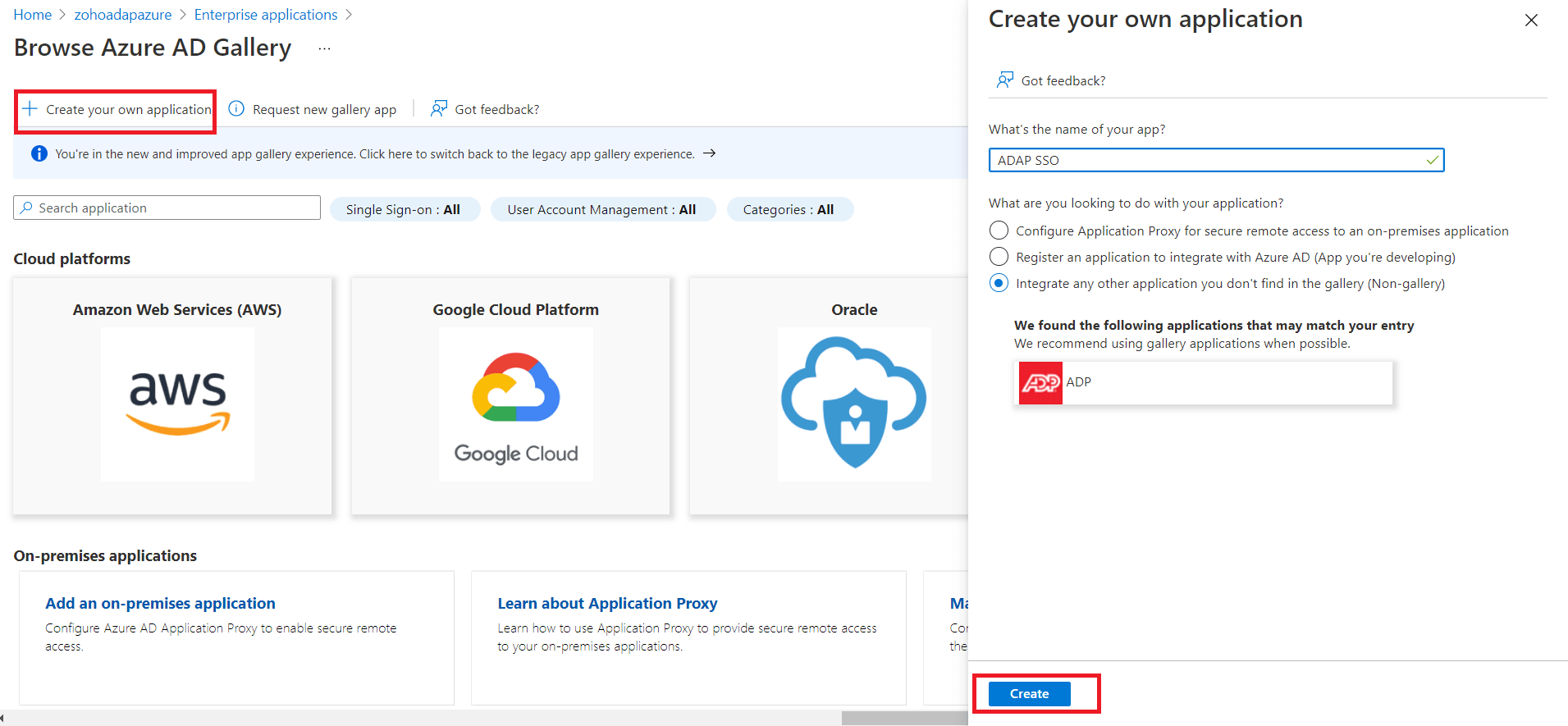
- In the New Application page, click Create your own Application → Give a name for the application and click Create.
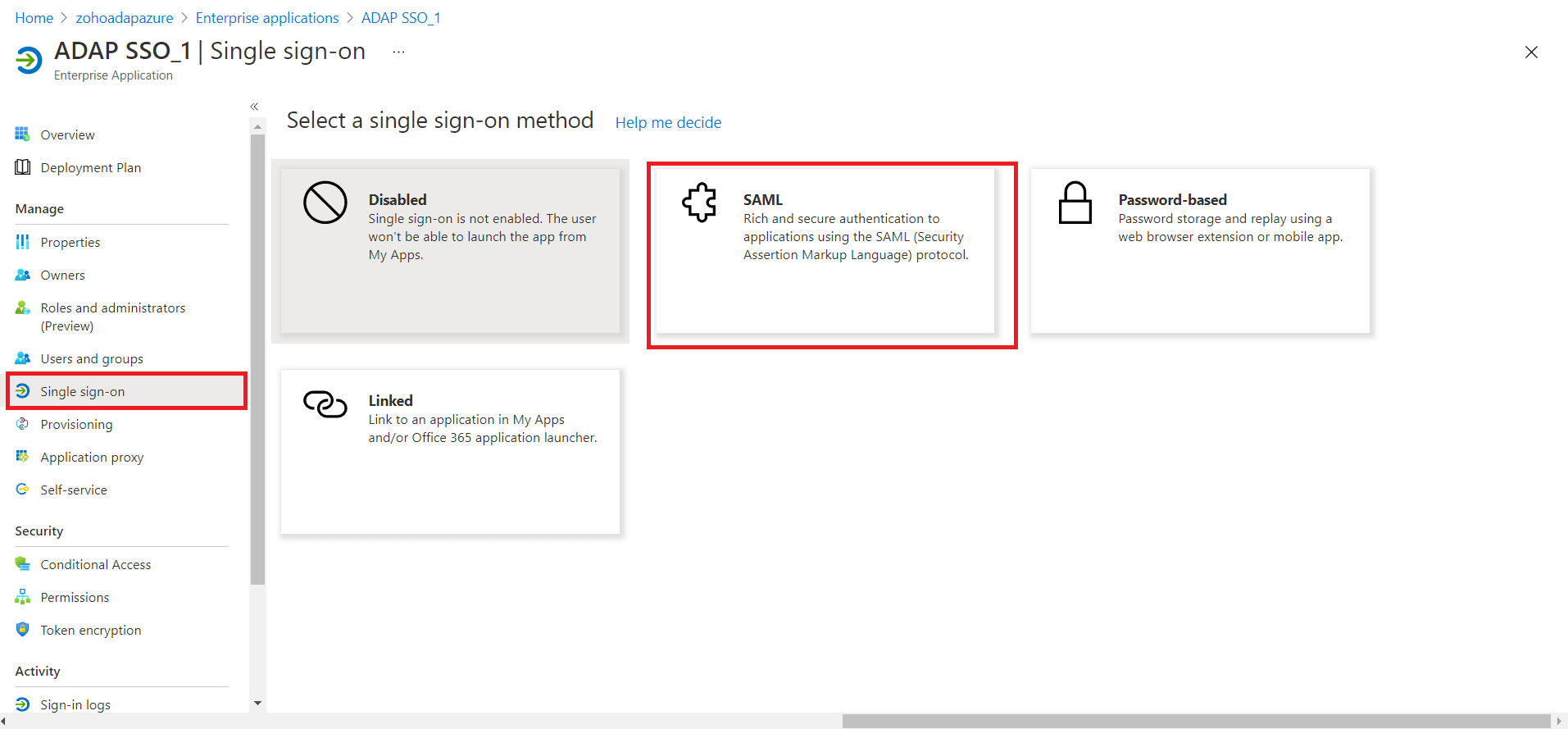
- In your application, click Single Sign-On > SAML.
- Under Set up Single Sign-On with SAML > Basic SAML Configuration, click Edit.
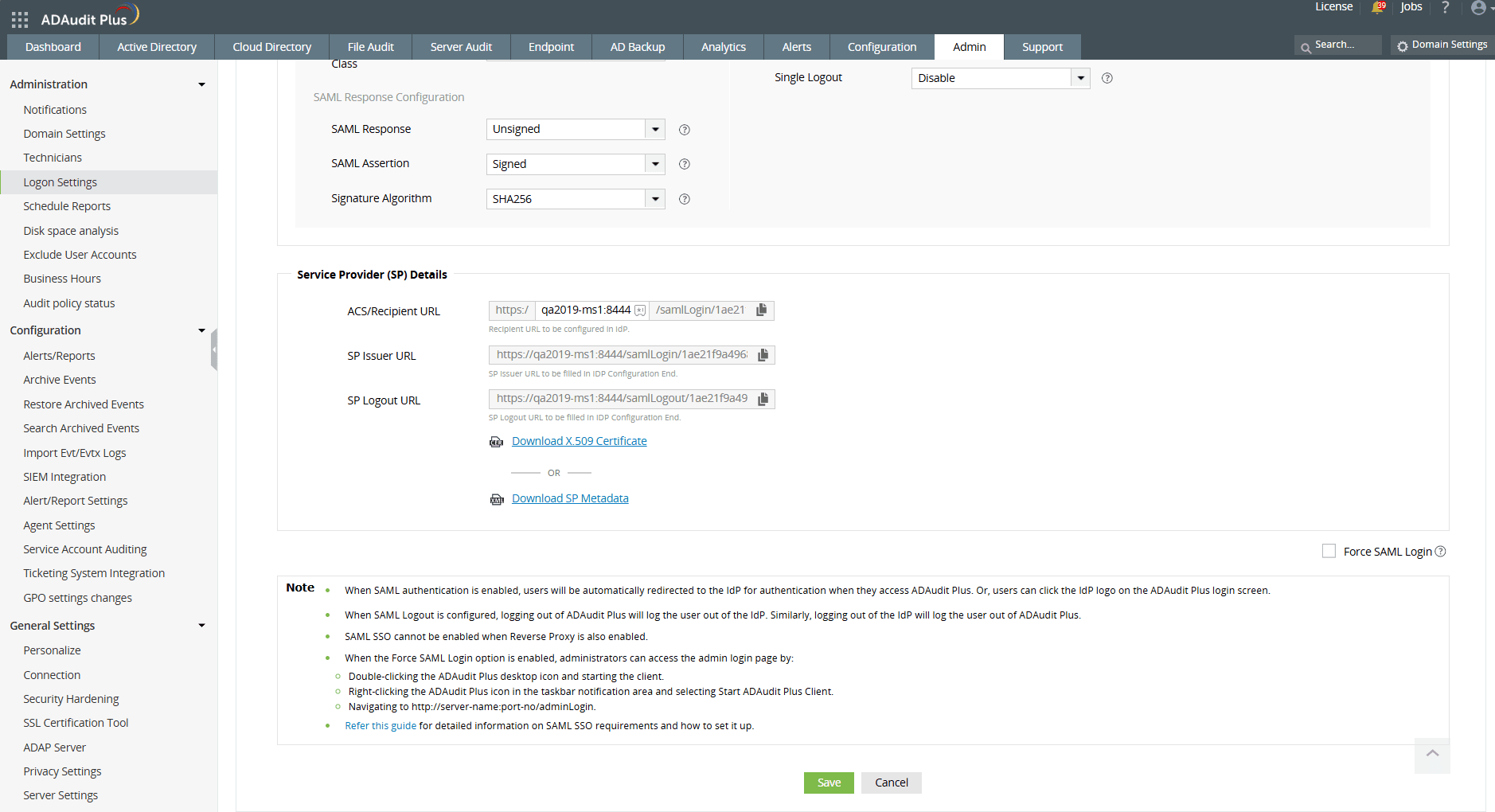
- Copy the ACS URL from ADAudit Plus and paste the it under Identifier and Reply URL.
Note To find the values for the ACS URL, log in to the ADAudit Plus console, navigate to Admin > Administration > Logon Settings > Single Sign-On. Check the box next to Enable Single Sign-On, and select SAML Authentication > Identity Provider (IdP) > Custom Identity Provider. You can find the ACS URL value here.
- Copy Logout URL from ADAudit Plus and paste it under Logout URL.
Note To get the Logout URL, log in to the ADAudit Plus console, navigate to Admin > Administration > Logon Settings > Single Sign-On. Check the box next to Enable Single Sign-On, and select SAML Authentication > Identity Provider (IdP) > Custom Identity Provider. You can find the Logout URL value here.
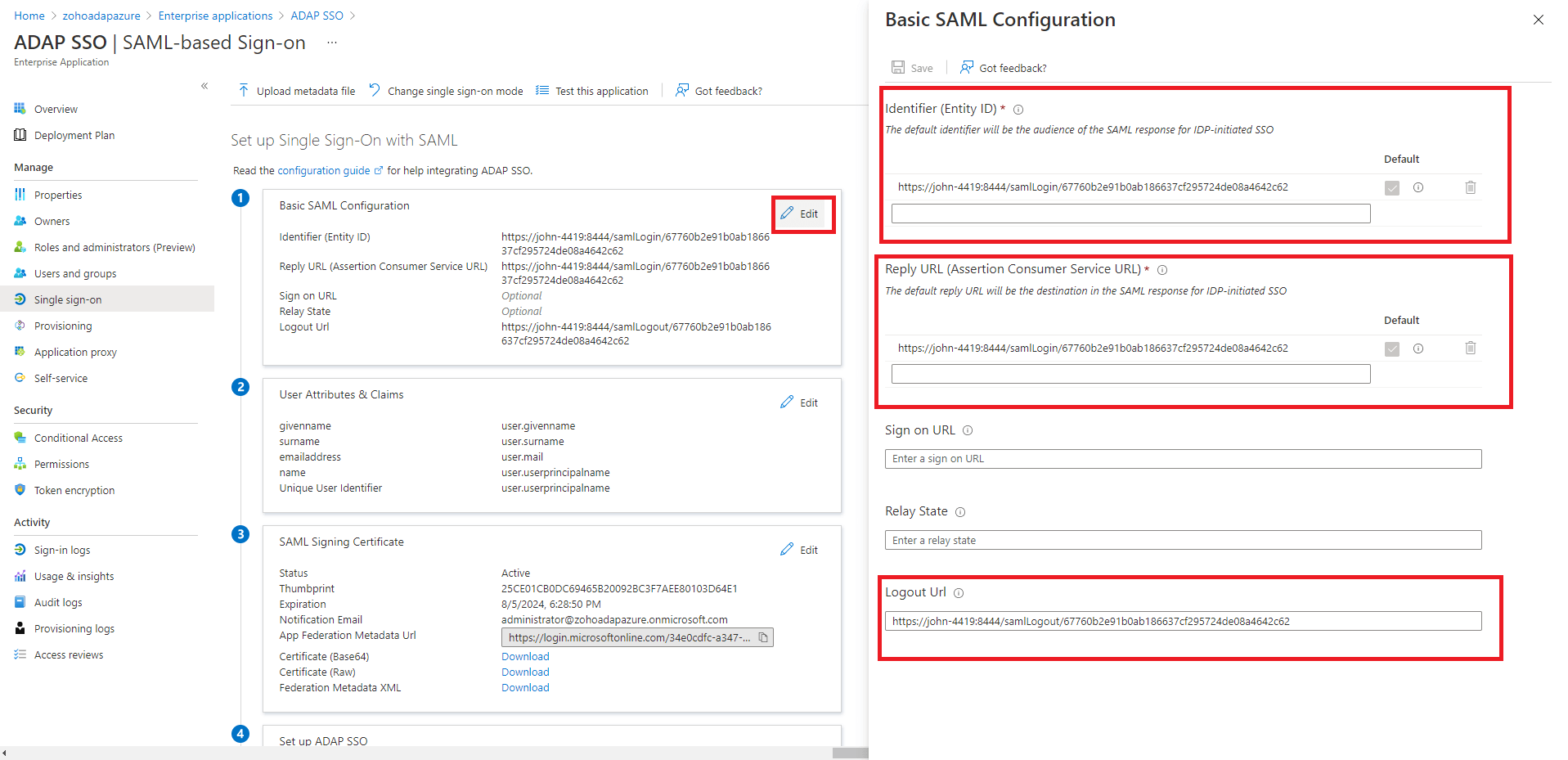
- Copy the ACS URL from ADAudit Plus and paste the it under Identifier and Reply URL.
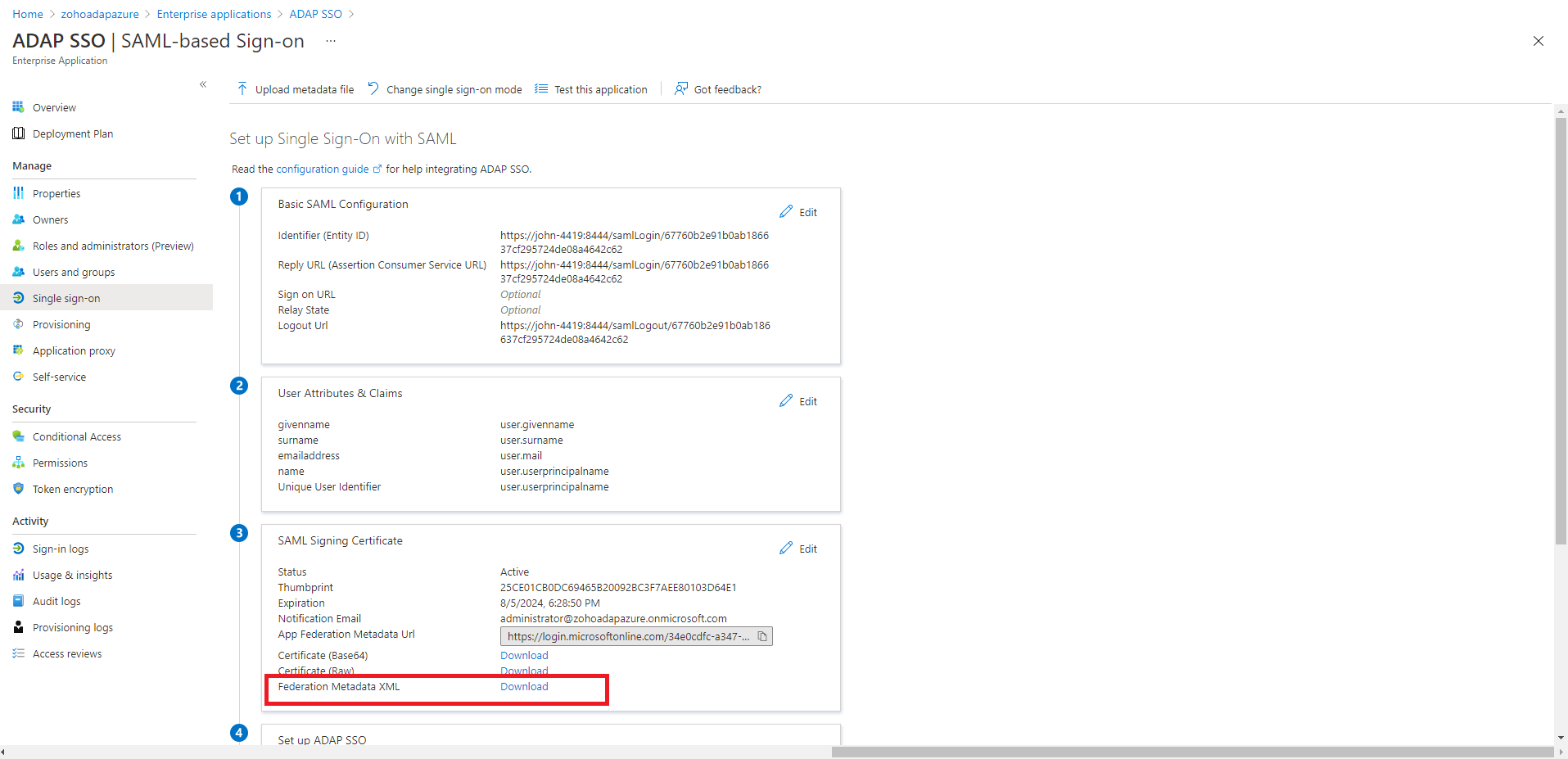
- Click Download against Federation Metadata XML.
- Log in to the ADAudit Plus console, navigate to Admin > Administration > Logon Settings > Single Sign-On. Check the box next to Enable Single Sign-On, and select SAML Authentication > Identity Provider (IdP) > Custom Identity Provider > Enter a suitable name against the IdP Provider Name field > Upload the Federation Metadata XML file downloaded in the previous step.
- If needed, enable Single Logout under SAML Authentication advanced settings.
Note Ensure that the configuration settings selected here match those configured in your custom identity provider.
Authentication Request Configuration
Setting Description Available values SAML Request Defines whether the authentication request sent to your Azure identity provider is digitally signed - Signed
- Unsigned
Authentication Context Class Specifies the method your Azure identity provider should use to authenticate users - None
- Windows Authentication
- Kerberos
- PasswordProtectedTransport
- Password
- TLS Client
- Unspecified
- X.509 Certificate
SAML Response Configuration
Setting Description Available values SAML Response Specifies whether the overall SAML response from your Azure identity provider is signed - Signed
- Unsigned
SAML Assertion Specifies whether the SAML assertion inside the response is signed - Signed
- Unsigned
Signature Algorithm Defines the algorithm used for generating digital signatures in SAML responses - SHA1
- SHA256
- SHA384
- SHA512
Encryption Configuration
Setting Description Available values Assertion Encryption Determines whether the SAML assertions returned from your Azure identity provider are encrypted - Encrypted
- Unencrypted
Encryption Certificate Certificate used for encrypting the assertion - Self-Signed
- CA Signed
If you want to mandate domain technicians to log into ADAudit Plus only through SAML authentication, check the Force SAML Login box in the bottom-right corner.
Note Once enabled, accessing ADAudit Plus' login page will redirect domain technicians to the single sign-on URL. However, administrators and technicians with ADAudit Plus authentication credentials can access the ADAudit Plus login page by using the /adminLogin tag after the login page URL.
- Click Save.
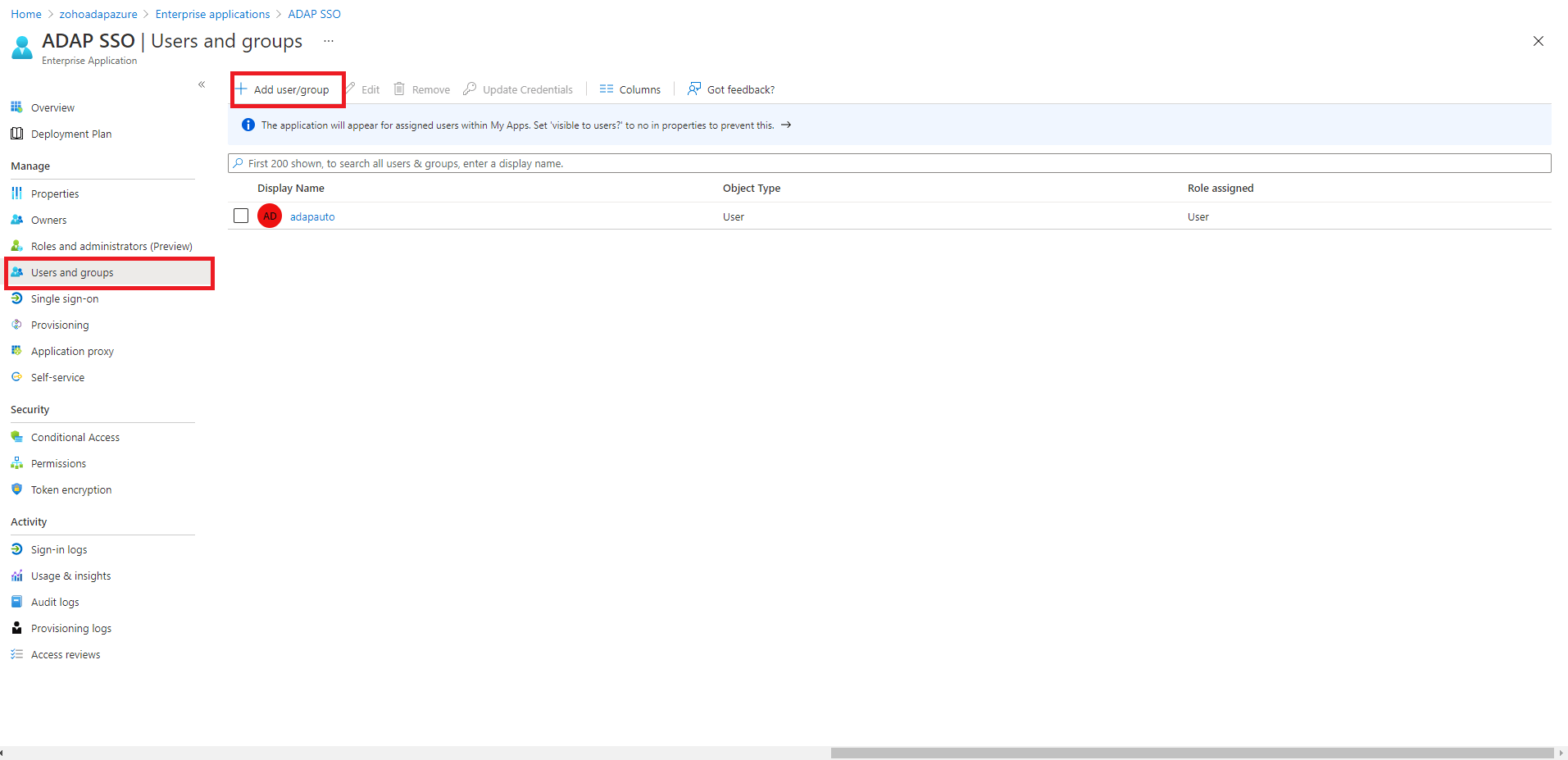
- In the Azure portal, click Users and Groups > Add the required users and groups.