Click here to shrink
Click here to expand Click here to expand
Configuring single sign-on to ADAudit Plus using OneLogin

Step 1: Configure ADAudit Plus in OneLogin

  1. Log in to the OneLogin portal.
  2. Click on the Apps tab, select Add Apps → SAML Test Connector (IdP).
  3. Enter the Display Name, and upload the icon for the application. Click Save.
  4. Under the Configuration tab, enter the values for ACS (Consumer) URL Validator and ACS (Consumer) URL.
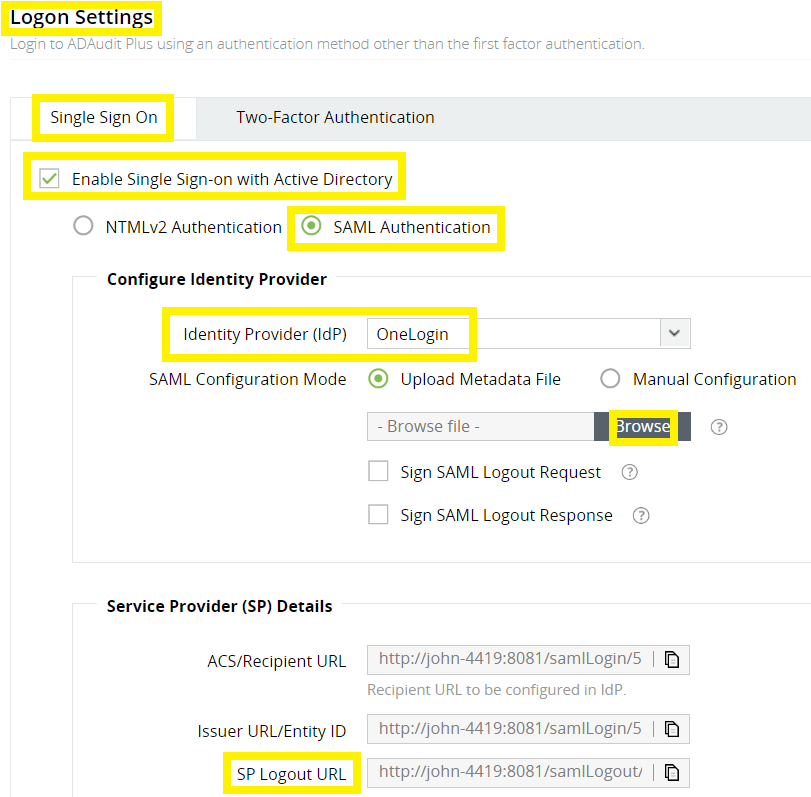
    Note: To find the values for the ACS (Consumer) URL Validator and ACS (Consumer) URL, log in to the ADAudit Plus console, navigate to Admin → Administration → Logon Settings → Single Sign-On. Check the box next to Enable Single Sign-On, and select SAML Authentication → Identity Provider (IdP) → OneLogin. Copy the ACS/Recipient URL value, and paste it in these two fields.
  5. Click More Actions in the top panel. Click SAML Metadata to download the metadata file, and click Save.

Step 2: Configure OneLogin in ADAudit Plus

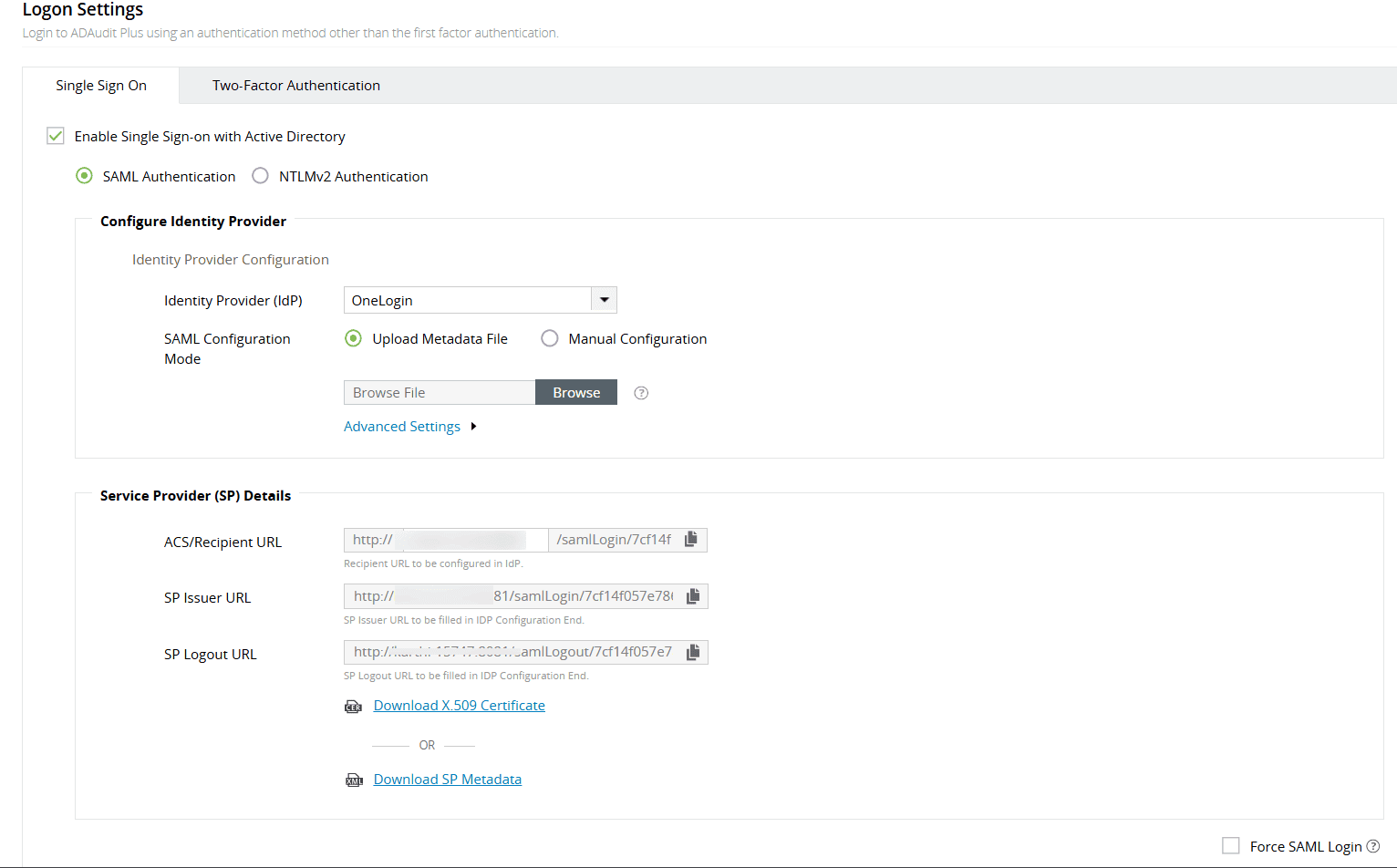
  1. Log in to the ADAudit Plus web console with admin credentials. Navigate to Admin → Administration → Logon Settings → Single Sign-On. Check the box next to Enable Single Sign-On, and select SAML Authentication.
  2. Select OneLogin from the Identity Provider (IdP) drop-down. Under SAML Configuration Mode, select Upload Metadata File. Click Browse, and upload the metadata file obtained at the end of Step 1.

    To enable NTLM-based single sign-on

    Note: You can also configure SAML in Manual Configuration mode.
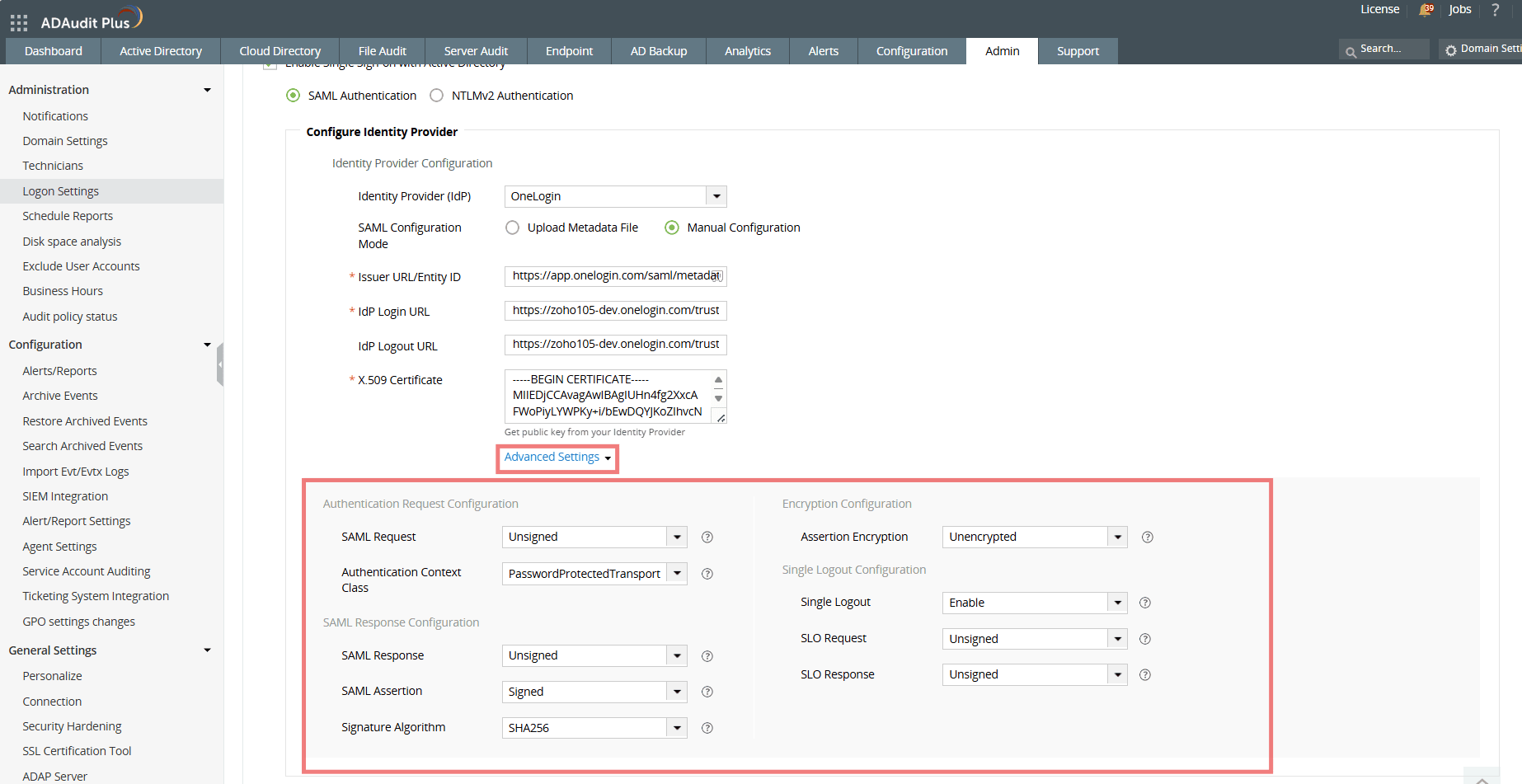
    1. Copy and paste the Issuer URL/Entity ID.
    2. Paste the IdP Login URL.
    3. Paste the IdP Logout URL.
    4. Paste the X.509 Certificate value from your identity provider.
  3. If needed, enable Single Logout under Advanced Settings. Copy the SP Logout URL in ADAudit Plus, and paste it in the Single Logout URL field in OneLogin's Configuration page.
  4. Advanced Settings configuration:
    Note: Ensure that the configuration settings selected here match those configured in your OneLogin identity provider.

    Configure OneLogin in ADAudit Plus

    Authentication Request Configuration

    Setting Description Available values
    SAML Request Defines whether the authentication request sent to OneLogin is digitally signed
    • Signed
    • Unsigned
    Authentication Context Class Specifies the method OneLogin should use to authenticate users
    • None
    • Windows Authentication
    • Kerberos
    • PasswordProtectedTransport
    • Password
    • TLS Client
    • Unspecified
    • X.509 Certificate

    SAML Response Configuration

    Setting Description Available values
    SAML Response Specifies whether the overall SAML response from OneLogin is signed
    • Signed
    • Unsigned
    SAML Assertion Specifies whether the SAML assertion inside the response is signed
    • Signed
    • Unsigned
    Signature Algorithm Defines the algorithm used for generating digital signatures in SAML responses
    • SHA1
    • SHA256
    • SHA384
    • SHA512

    Encryption Configuration

    Setting Description Available values
    Assertion Encryption Determines whether the SAML assertions returned from OneLogin are encrypted
    • Encrypted
    • Unencrypted
    Encryption Certificate Certificate used for encrypting the assertion
    • Self-Signed
    • CA Signed
  5. If you want to mandate domain technicians to log into ADAudit Plus only through SAML authentication, check the Force SAML Login box in the bottom-right corner.
    Note: Once enabled, accessing ADAudit Plus' login page will redirect domain technicians to the single sign-on URL. However, administrators and technicians with ADAudit Plus authentication credentials can access the ADAudit Plus login page by using the /adminLogin tag after the login page URL.
  6. Click Save.

Configure OneLogin in ADAudit Plus

Don't see what you're looking for?

  •  

    Visit our community

    Post your questions in the forum.

     
  •  

    Request additional resources

    Send us your requirements.

     
  •  

    Need implementation assistance?

    Try OnboardPro


On this page

Copyright © 2020, ZOHO Corp. All Rights Reserved.

Get download link