- Related Products
- AD360
- Log360
- ADManager Plus
- ADSelfService Plus
- EventLog Analyzer
- Exchange Reporter Plus

 Click here to expand
The connection settings in ADAudit Plus allow you to specify the desired protocol (HHTP/HTTPS) for communication between the ADAudit Plus web client and the server. HTTP is the default mode for communication. You can also specify the TLS version and ciphers that you wish to use here. Furthermore, you can choose to enable LDAPS for communication between the product and Active Directory (AD) and TLS.
| TLS Version | Description |
|---|---|
| TLSv1 | Provides encrypted communication with basic security |
| TLSv1.1 | Adds stronger protection against certain attack types |
| TLSv1.2 | Supports modern encryption algorithms and SHA-256 |
| Cipher Suite | Description |
|---|---|
| TLS_ECDHE_RSA_WITH_AES_128_CBC_SHA | ECDHE key exchange, RSA authentication, AES-128 CBC, SHA-1 |
| TLS_ECDHE_RSA_WITH_AES_256_CBC_SHA | ECDHE key exchange, RSA authentication, AES-256 CBC, SHA-1 |
| TLS_DHE_RSA_WITH_AES_128_CBC_SHA | DHE key exchange, RSA authentication, AES-128 CBC, SHA-1 |
| TLS_DHE_RSA_WITH_AES_256_CBC_SHA | DHE key exchange, RSA authentication, AES-256 CBC, SHA-1 |
| TLS_DHE_DSS_WITH_AES_128_GCM_SHA256 | DHE key exchange, DSS authentication, AES-128 GCM, SHA-256 |
| TLS_ECDHE_RSA_WITH_AES_128_CBC_SHA256 | ECDHE key exchange, RSA authentication, AES-128 CBC, SHA-256 |
| TLS_ECDHE_ECDSA_WITH_AES_128_CBC_SHA256 | ECDHE key exchange, ECDSA authentication, AES-128 CBC, SHA-256 |
| TLS_ECDHE_ECDSA_WITH_AES_128_CBC_SHA | ECDHE key exchange, ECDSA authentication, AES-128 CBC, SHA-1 |
| TLS_ECDHE_RSA_WITH_AES_256_CBC_SHA384 | ECDHE key exchange, RSA authentication, AES-256 CBC, SHA-384 |
| TLS_ECDHE_ECDSA_WITH_AES_256_CBC_SHA384 | ECDHE key exchange, ECDSA authentication, AES-256 CBC, SHA-384 |
| TLS_ECDHE_ECDSA_WITH_AES_256_CBC_SHA | ECDHE key exchange, ECDSA authentication, AES-256 CBC, SHA-1 |
| TLS_DHE_RSA_WITH_AES_128_CBC_SHA256 | DHE key exchange, RSA authentication, AES-128 CBC, SHA-256 |
| TLS_DHE_DSS_WITH_AES_128_CBC_SHA256 | DHE key exchange, DSS authentication, AES-128 CBC, SHA-256 |
| TLS_DHE_RSA_WITH_AES_256_CBC_SHA256 | DHE key exchange, RSA authentication, AES-256 CBC, SHA-256 |
| TLS_DHE_DSS_WITH_AES_256_CBC_SHA | DHE key exchange, DSS authentication, AES-256 CBC, SHA-1 |
| !DES | Disables all ciphers that use DES encryption |
| !3DES | Disables all ciphers that use 3DES encryption |
| !MD5 | Disables all ciphers that use MD5 hashing |
| SSL_RSA_WITH_3DES_EDE_CBC_SHA | RSA key exchange, RSA authentication, 3DES CBC, SHA-1 |
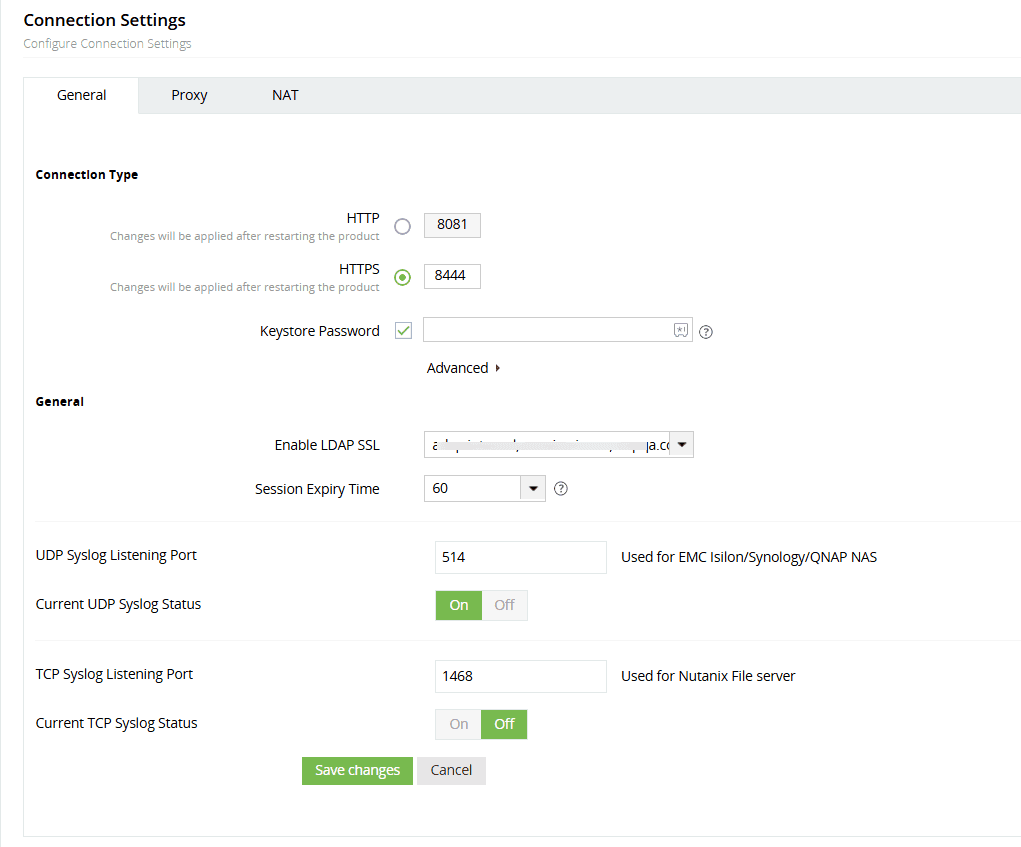
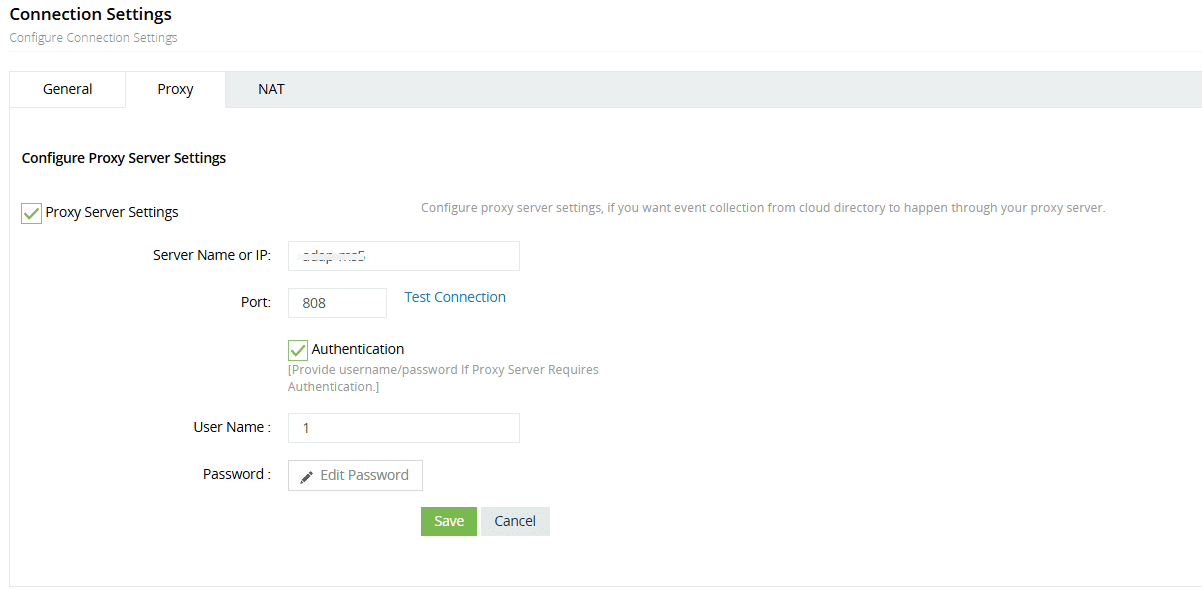
To configure ADAudit Plus and use a proxy server to connect to the internet, follow the steps below:
Note: Use Test Connection to verify that the proxy server connection is valid.
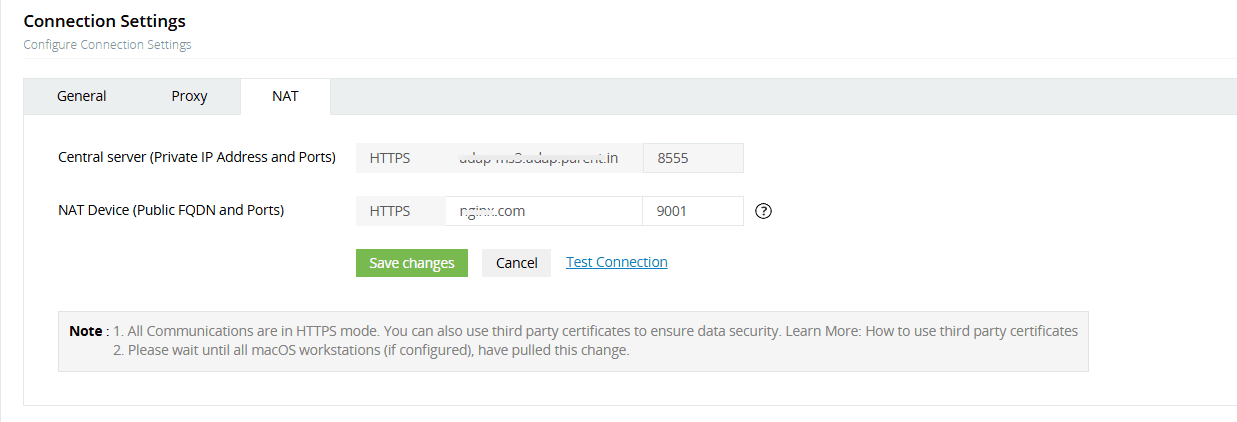
When endpoint devices need to access the ADAudit Plus server through the internet, you can configure a network address translation (NAT) device. This will map your internal IP address to a public IP address or fully qualified domain name (FQDN), which the devices can use to access the central server.
Configure the NAT device by following the steps below:
Copyright © 2020, ZOHO Corp. All Rights Reserved.