Configure File Analysis in ADAudit Plus
Configuring servers
To configure your target server using file analysis in ADAudit Plus, follow the steps below:
- Log in to the ADAudit Plus web console.
- Go to File Audit > File Analysis > Configured Server(s) > Windows File Server.
- On the Windows File Server Configuration page, click + Add Server.
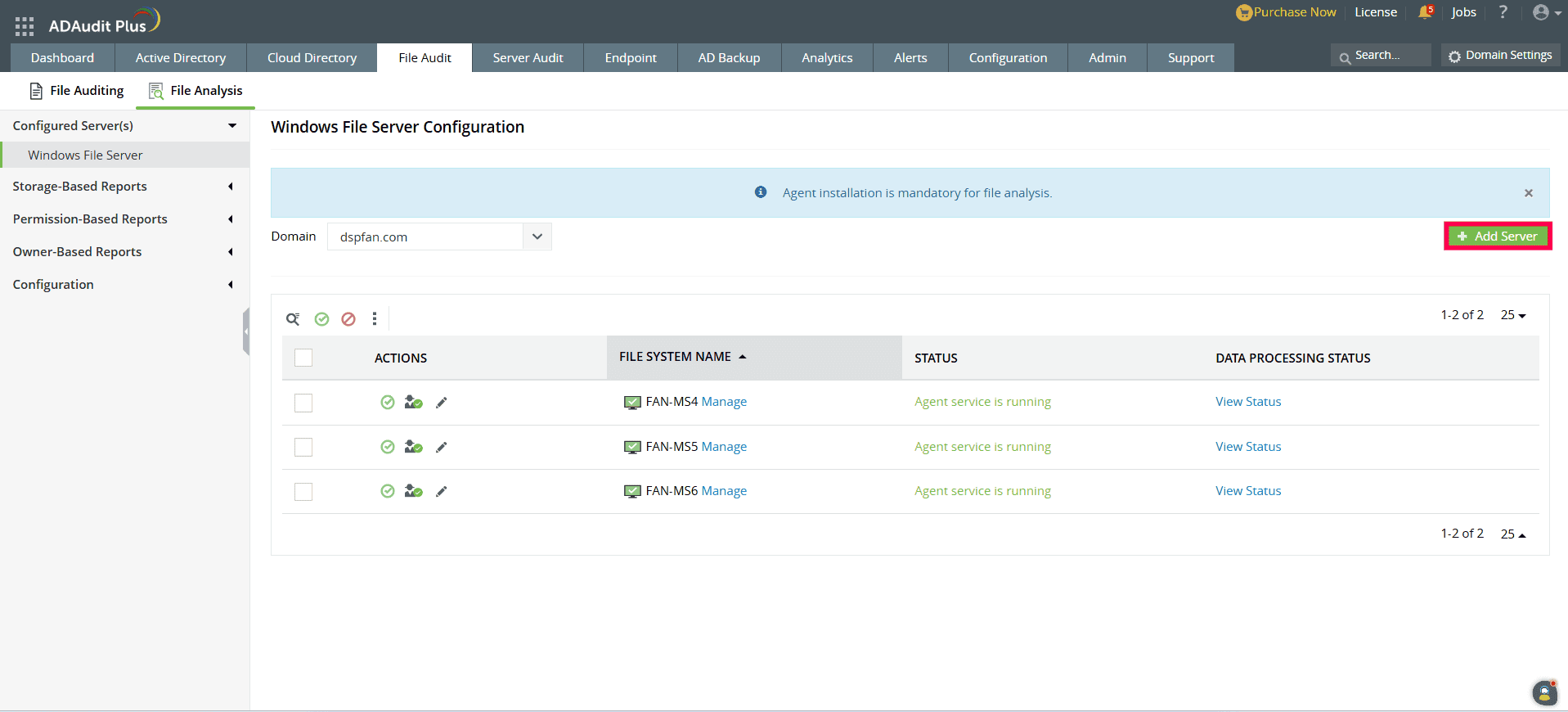
- Select the target domain from the drop-down. If the desired domain isn't listed, click Add New Domain. The newly added domain will then appear in the drop-down list. Now, select the required server from the list.
- Finally, choose an option under Select Drives for Analysis. The scan will start based on your selection.
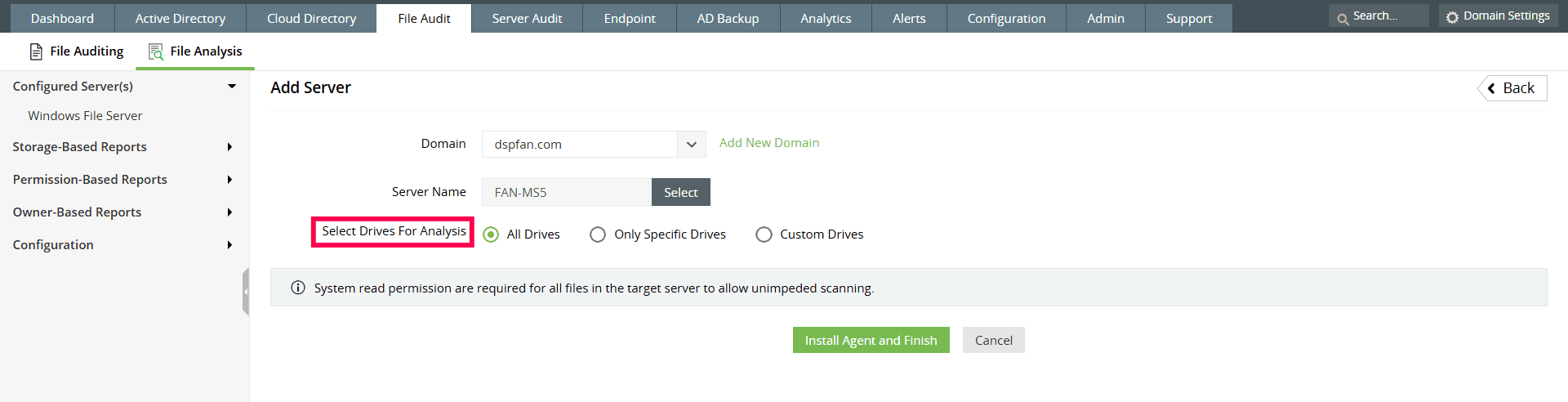
- All Drives: Used to scan all drives in the selected server.
- Only Specific Drives: Used to scan custom specific drives.
- Custom Drives: Used to scan mounted drives or when the specific drives option is unavailable. The specific drives option will be disabled automatically if ADAudit Plus is unable to detect any drives.
- Click Install Agent and Finish.
Notes:
- System read permissions are required for all files in the target server to allow unimpeded scanning.
- Once the initial full scan is initiated, reports will be populated. You can view the Data Collection Status and Data Analysis Status by clicking View Status in the Data Processing Status column.
View data processing status
Find the real-time status of scheduled data scans, along with a summary of the current processing state of all collected data under Crunch and Schedule Status.
The data processing status is bifurcated into two.
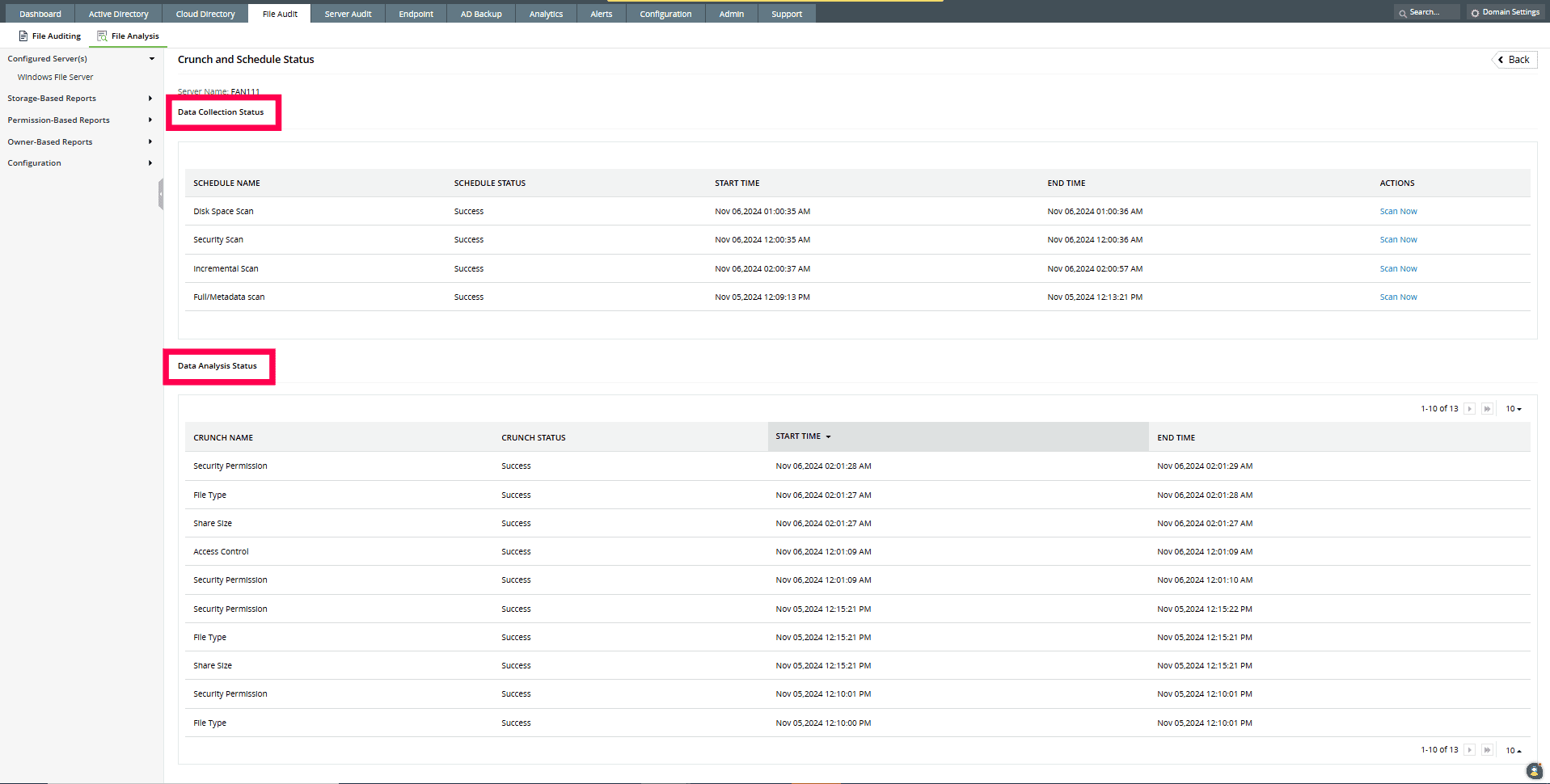
Data collection status: Provides a granular view of all the scans that takes place when a server is configured.
The following lists the various scan types in the Data Collection Status, with their default schedules:
| Scan type |
Description |
Scan interval |
| Disk space scan |
Assess overall disk space usage. |
Runs once every 24 hours. |
| Security scan |
Assess the permissions of files and folders . |
Runs once every 24 hours. |
| Incremental scan |
Scans to detect file and folder changes since the previous scan. |
Runs once every 24 hours. |
| Full/ metadata scan |
Scans to fetch the overall file and folder metadata. This scan can be paused during business hours. |
Runs once every 30 days |
Notes:
- To start a specific scan immediately, click Scan Now next to it.
- Customize the scan frequency by navigating to File Analysis > Configuration > Scan Configuration.
- Always run a security scan before performing a manually initiated incremental/ full metadata scan to avoid inconsistency in the permission-based report.
Data analysis status: The data crunching processes performed on the collected data are displayed here and are used to generate summary reports.
Managing file servers
- Log in to the ADAudit Plus web console and go to the File Audit tab.
- In the left pane, navigate to File Analysis > Configured Server(s) > Windows File Server.
- On the Windows File Server Configuration page, do the following:
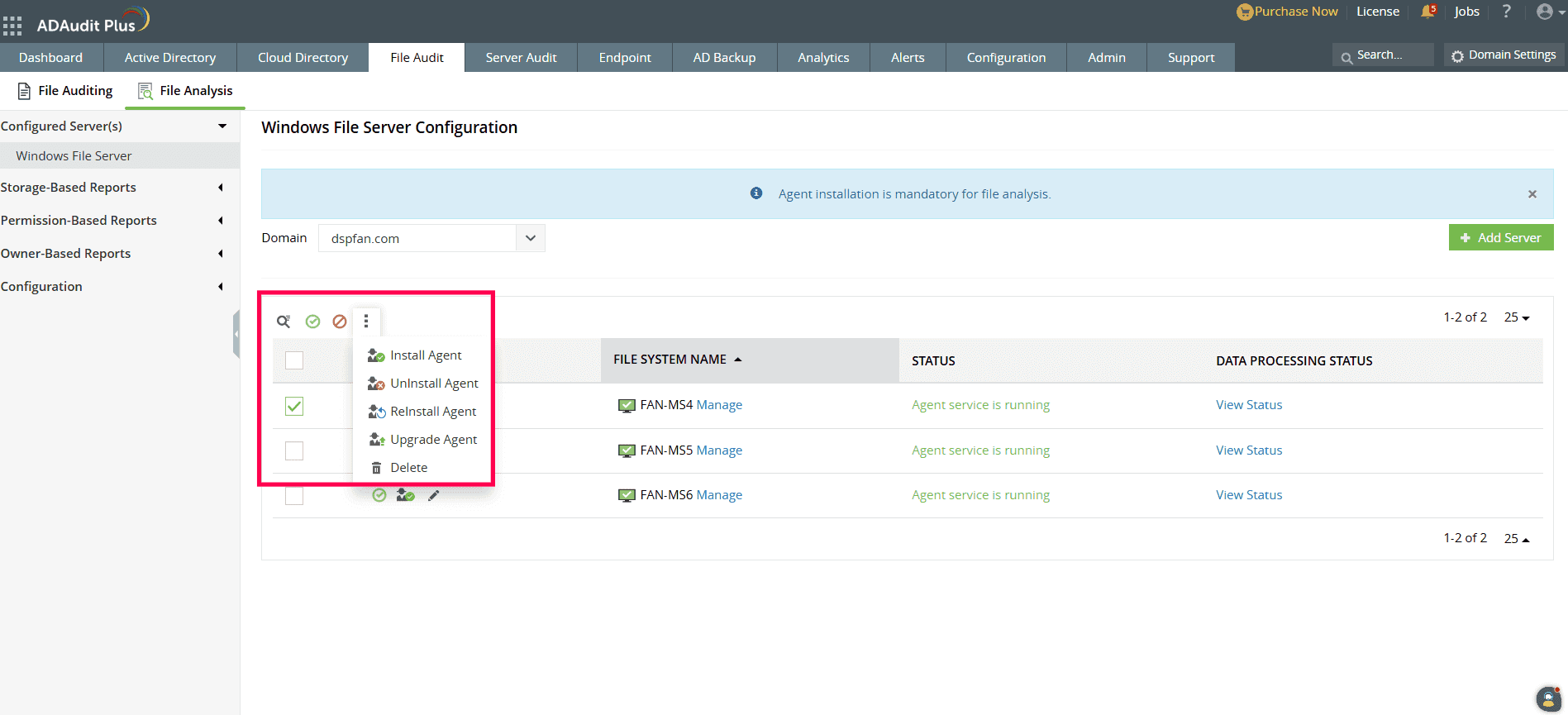
- Deleting servers: Select the server you want to remove, and click the three dots icon above the Actions column. Choose Delete to permanently remove one or more file servers from ADAudit Plus.
Note: Deleting a server will also erase all associated data, which cannot be recovered.
- Editing servers: Click Modify next to the server you want to edit, and add or delete drives as required and click Save to apply the updates.
- Enabling servers: To enable an individual server, click Start Data Collection from this server under the Actions column corresponding to that server.
- Disabling servers: To disable an individual server, click Stop Data Collection from this server under the Actions column corresponding to that server.
Don't see what you're looking for?
-
Visit our community
Post your questions in the forum.
-
Request additional resources
Send us your requirements.
-
Need implementation assistance?
Try OnboardPro