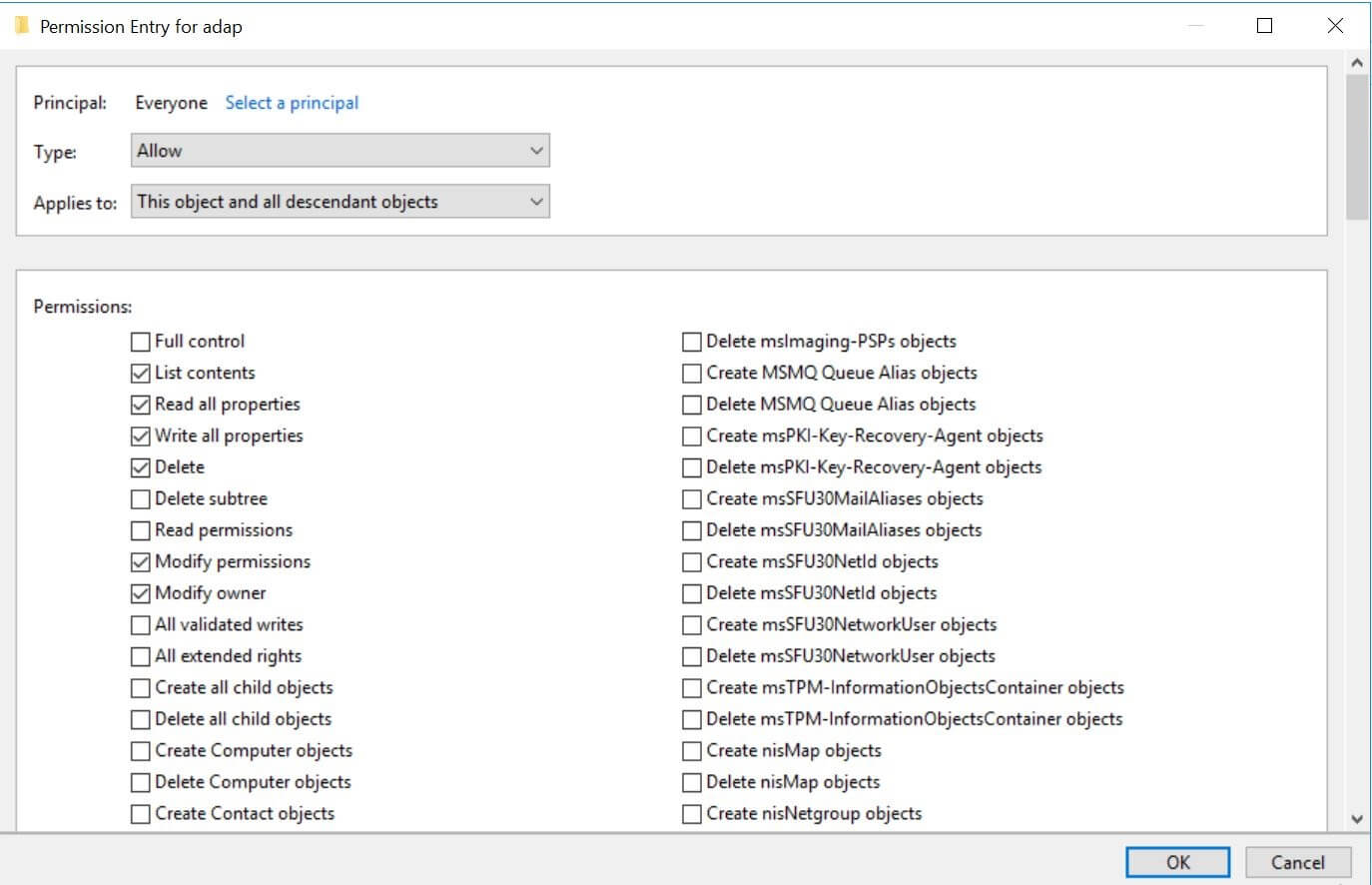
Configuring object-level auditing
Manual process
Configure object-level auditing manually using the steps below:
To configure object-level auditing automatically:
- Using domain admin credentials, log in to any computer that has Active Directory Users and Computers on it.
- Go to Start > Windows Administrative Tools > Active Directory Users and Computers.
- Click View > Advanced features.
- Right-click on the domain, and go to Properties > Security > Advanced > Auditing > Add.
- In the Auditing Entry window, click Select a principal. Under Enter the object name to select, type in Everyone, and click OK.
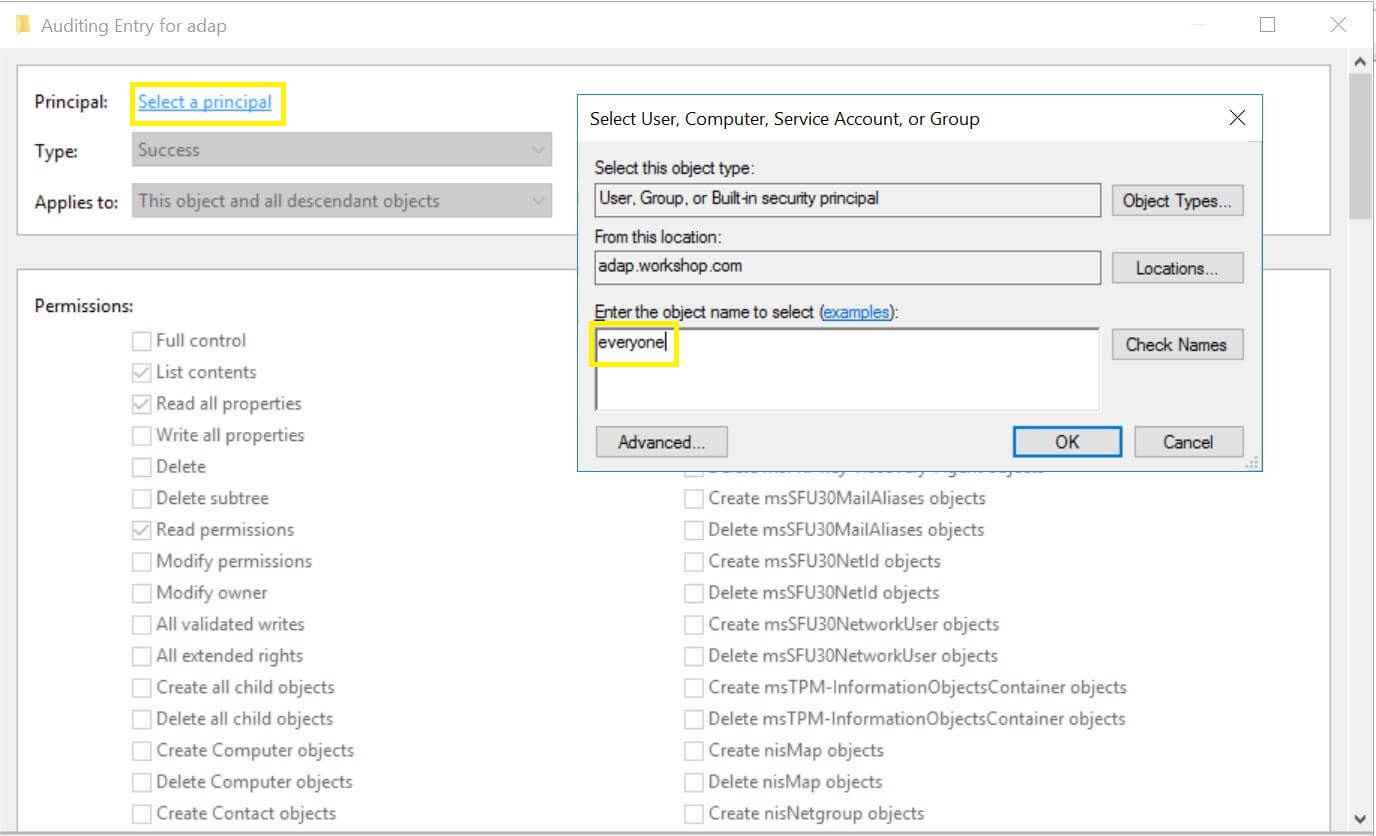
- Select Type: Success. Select the appropriate permissions as directed below.
Note Use Clear all to remove all permissions and properties before selecting the appropriate permissions.
| Auditing entry number | Auditing entry for | Access | Apply to Windows Server 2003 | Apply to Windows Server 2008/Windows Server 2012 |
| 3 and 4 | GPO | Create groupPolicyContainer objects |
This object and all child objects | This object and all descendant objects |
Write all properties |
groupPolicyContainer objects | Descendant groupPolicyContainer objects |