How to find the source of failed login attempts
Failed logons in AD may seem like harmless typos, but they can also signal the early stages of an account compromise. It’s essential for administrators to quickly trace the origin of these failed attempts, identifying who tried to log in, when the attempt occurred, and where it came from.
This page walks you through two effective methods to investigate failed login attempts. First, how to use the native Windows Event Viewer to manually locate and interpret Event ID 4625, which logs all failed logon attempts. Then, we'll explore a faster, more efficient approach using ManageEngine ADAudit Plus, which automates event collection, correlation, and reporting.
Fully functional 30 day free trial. No credit card required
Thanks!
Your download is in progress and it will be completed in just a few seconds!
If you face any issues, download manually here
Start your 30-day free trial
With Native Auditing
Steps to enable logon failure auditing using group policy:
The simplest way to view logged in users is by using the query user command.
- Open the Group Policy Management Console (GPMC) or run the command gpmc.msc.
- If you want to audit all the accounts in the domain, right-click the domain name and click Create a GPO in this domain, and Link it here. If you want to audit accounts in a specific organizational unit (OU), right-click the OU and click Create a GPO in this domain, and Link it here.
- Provide a relevant name for the GPO, right-click it, choose Edit, and navigate to Computer Configuration > Policies > Windows Settings > Security Settings > Advanced Audit Policy Configuration > Audit Policies > Logon/Logoff > Audit Logon. In the Audit Logon Properties window, select the Failure check box (selecting Success is optional), and click OK.
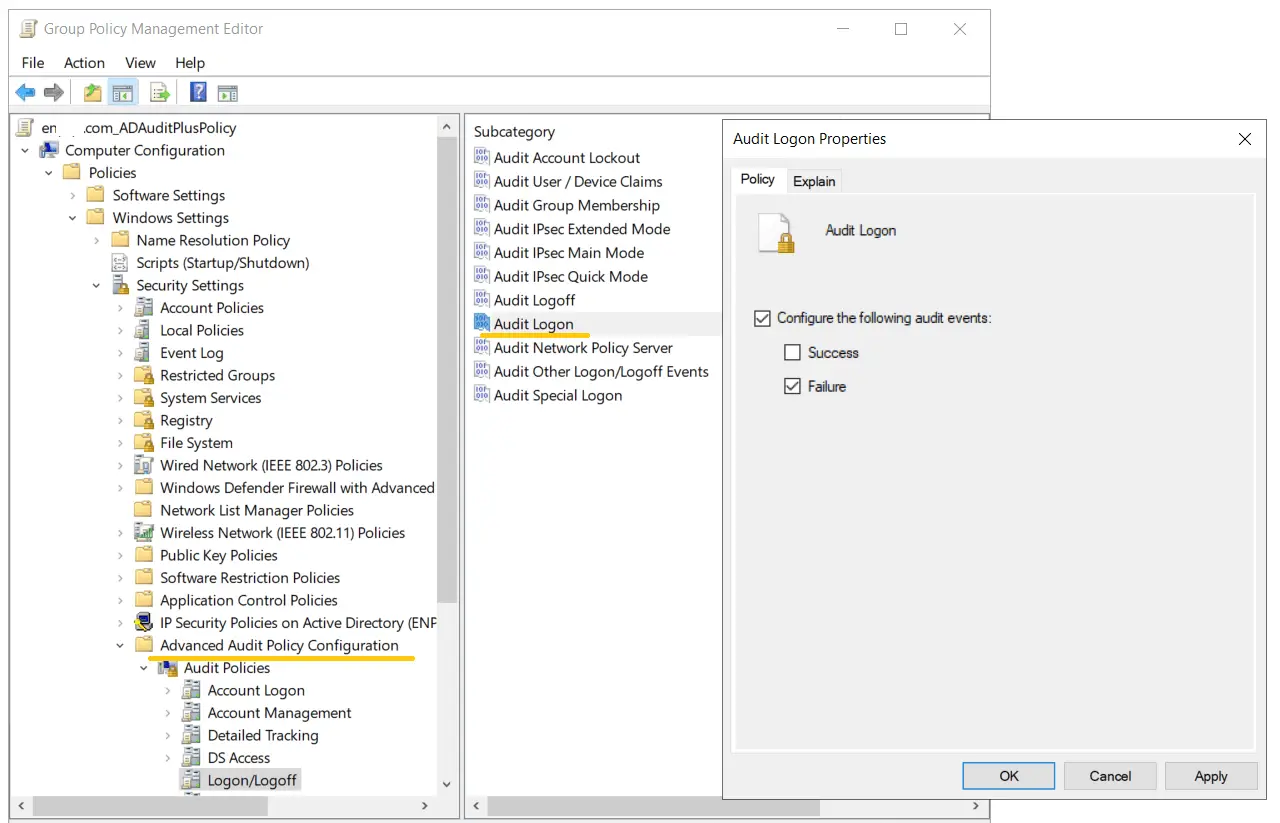
- Go back to the GPMC, right-click the OU or domain in which the GPO was linked, and click Group Policy Update. This step makes sure the new Group Policy settings are applied instantly instead of waiting for the next scheduled refresh.
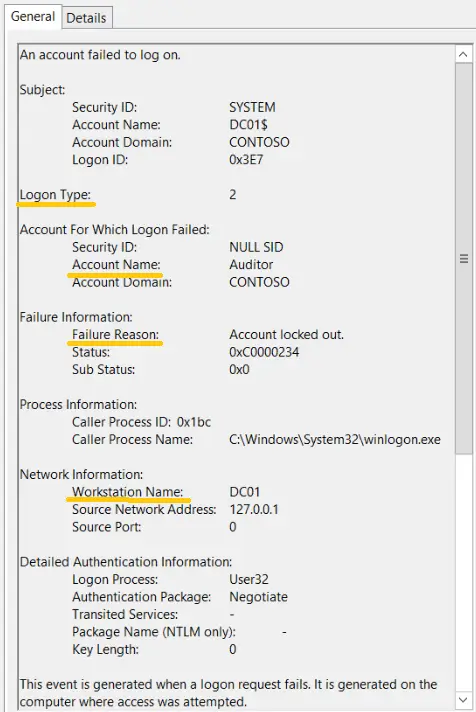
- Open the Event Viewer. On the left pane, navigate to Windows log > Security.
- On the right pane, navigate to Security > Filter current log.
- In the pop-up window, enter the 4625 in the field labeled
. This will provide you with a list of occurrences of Event ID 4625. Double-click the Event ID to view its properties.
Once the above steps are complete, logon failure events will be recorded as event logs, and they can be viewed in the Event Viewer by following the steps below.
Steps to find the source of failed login attempts in Windows Event Viewer:
With ADAudit Plus
Steps to find the source of failed login attempts using ADAudit Plus:
- Ensure Audit Logon Failure is enabled via GPO.
- Download and install ADAudit Plus.
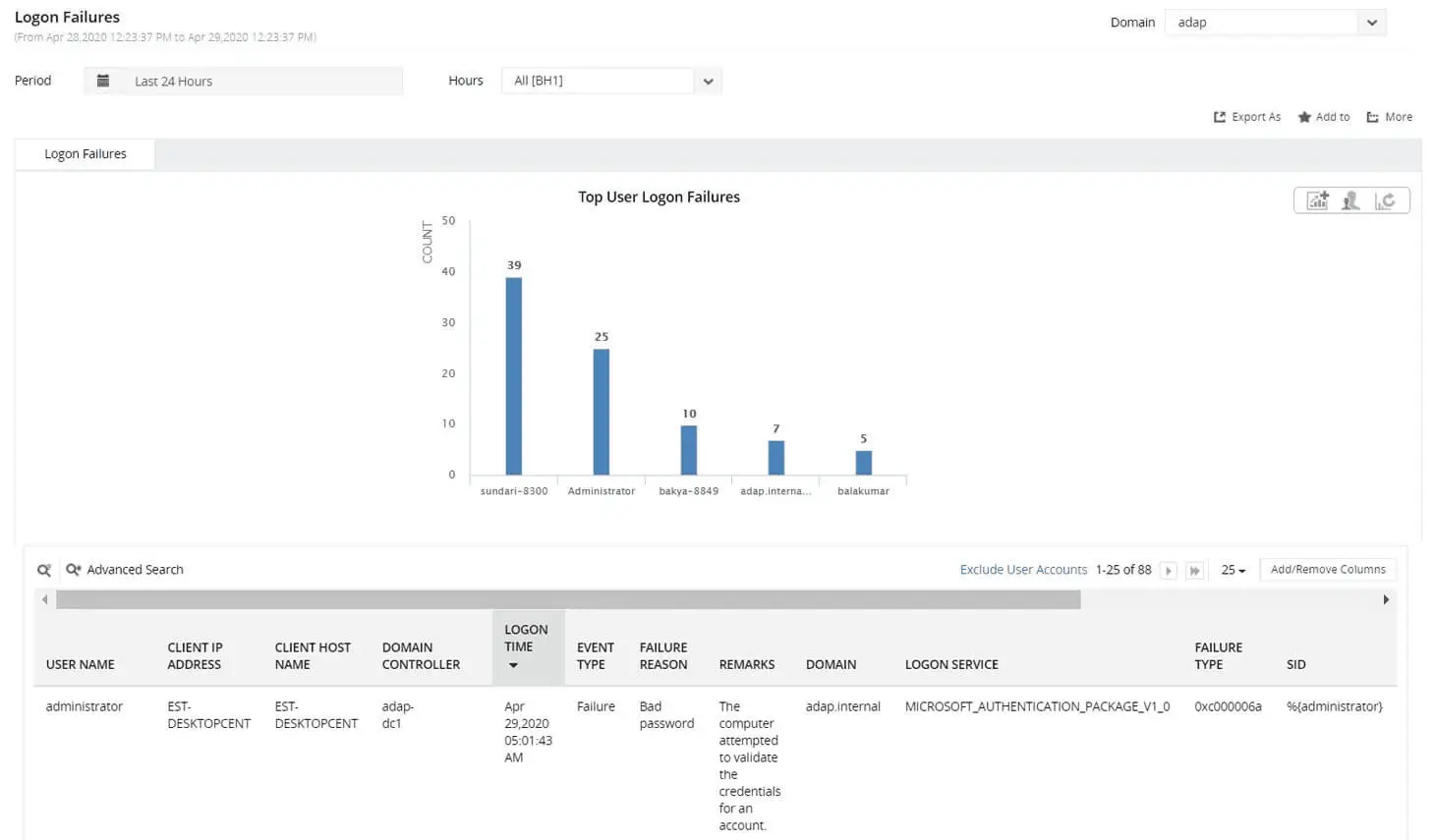
- Log in to ADAudit Plus, navigate to Active Directory > Auditing > User Logon Reports > Logon Failures.
Select the Domain and Period. Filter the report by user, client IP address, host name, domain controller, time range, or failure reason to quickly identify the source of the failed logon.
Why tracking failed logons matters
- Detect brute-force attempts and password-spray activity early.
- Identify misconfigurations such as services or scheduled tasks that are running on stale credentials.
- Speed up incident response and compliance investigations with clear audit trails.
Over 280,000 organizations across 190 countries
trust ManageEngine to manage their IT.


Trusted and Recommended by Leading Industry Experts Worldwide
-
Global Infosec
Awards 2025 -
Top InfoSec Innovator
Awards for 2024 -
Gartner Peer Insights
Customers' Choice 2023 - Cloud Connect 2024