How to find who logged into the computer
Monitoring domain users' logon and logoff can provide the organization with beneficial data about their employees such as attendance, work hours, break time, and more. Another reason why logon time should be monitored is for the security of the organization. System admins can use logon and logoff data to prevent potential insider cyberattacks on the organization by detecting unusual activity, such as prolonged logon during non-business hours, or logon activity when the employee has called in sick.
The following is a comparison between auditing the logon and logoff activities of domain users using native auditing tools and ManageEngine's ADAudit Plus, a comprehensive real-time Active Directory auditing solution.
Fully functional 30 day free trial. No credit card required
Thanks!
Your download is in progress and it will be completed in just a few seconds!
If you face any issues, download manually here
Start your 30-day free trial
With Native AD Auditing
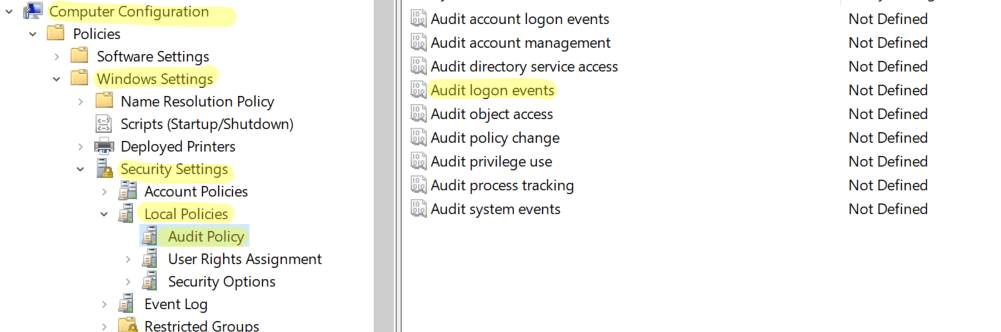
Step 1: Enable Audit Policy
- Open Server Manager on Windows server.
- Under the Manage tab, open the Group Policy Management console.
- Go to Forest -> Domain -> Your Domain -> Domain Controllers.
- You can either edit an existing group policy object or create a new one.
- In the Group Policy Editor, navigate to Computer Configuration -> Policies -> Windows Settings -> Security Settings -> Local Policies -> Audit Policy.
- In Audit Policy, select 'Audit logon events' and enable 'Success' and 'Failure' auditing.
Step 2: Enable logon-logoff
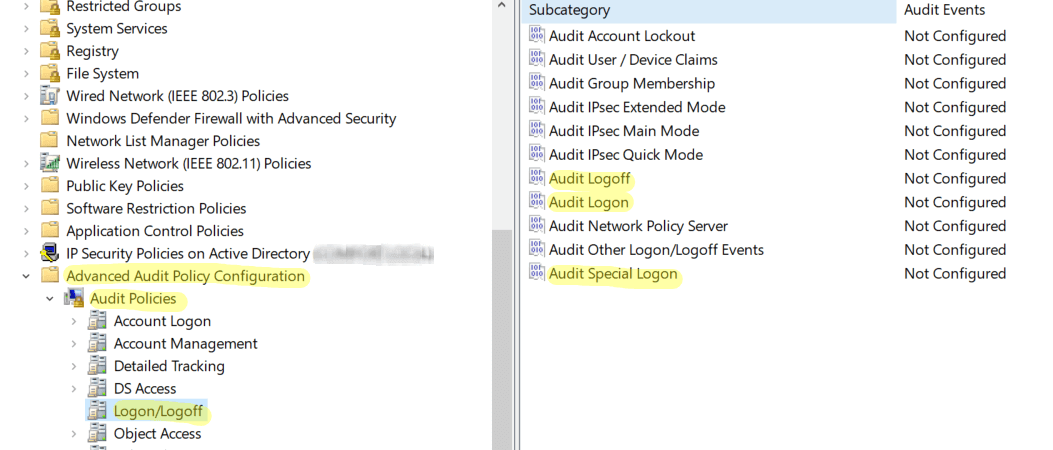
- Go back to Computer Configuration. Navigate to Windows Settings -> Security Settings -> Advanced Audit Policy Configuration -> Audit Policy -> Logon/Logoff.
- Under that, enable Success and Failure auditing for Audit Logon, Audit Logoff, and Audit Special Logon.
- Open the Group Policy Management console and select the GPO that you have edited or created. Under Security Filtering, add the users whose logons need to be tracked. You can also choose to audit every domain user's logon by selecting All users. To audit a group of domain users, the specific group(s) can be added.
Step 3: Use Active Directory Event Viewer to check the logs
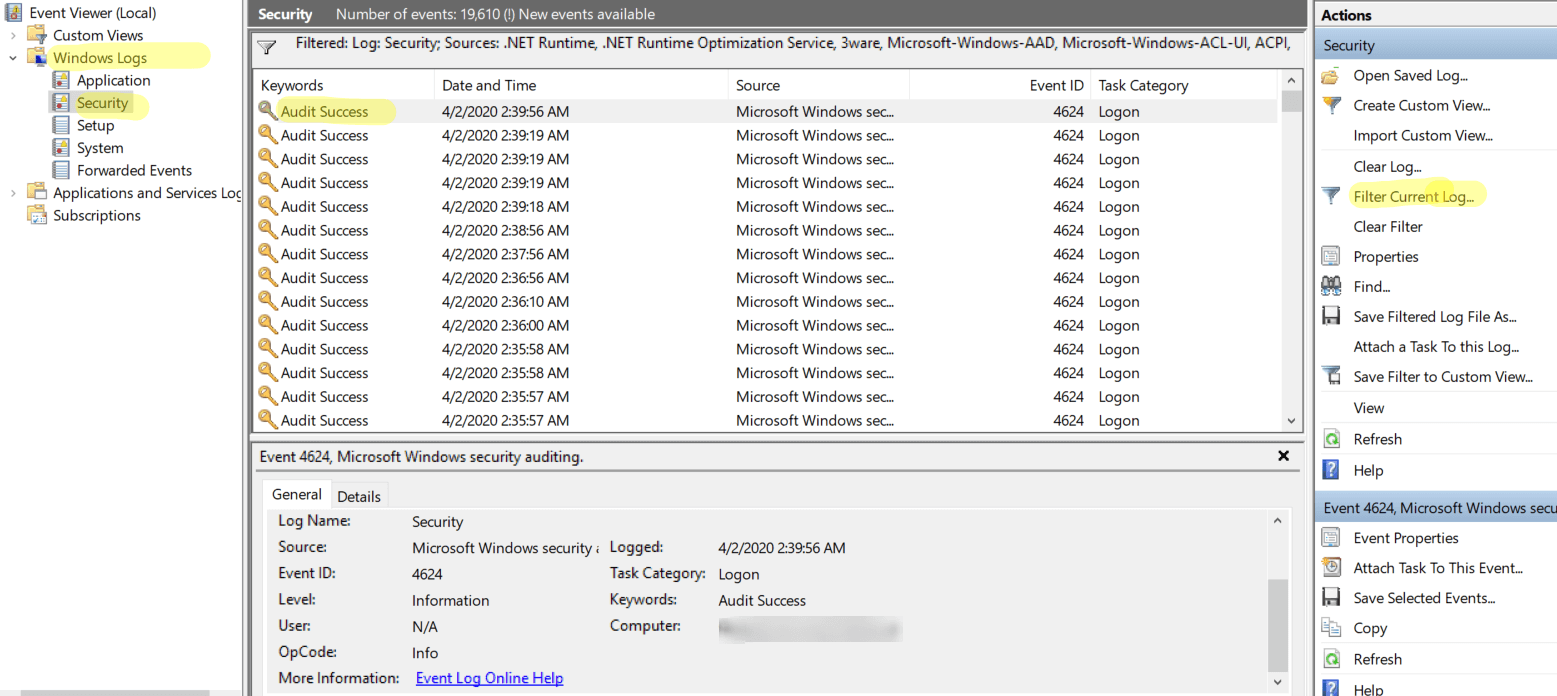
- Open Event Viewer and navigate to Windows logs -> Security.
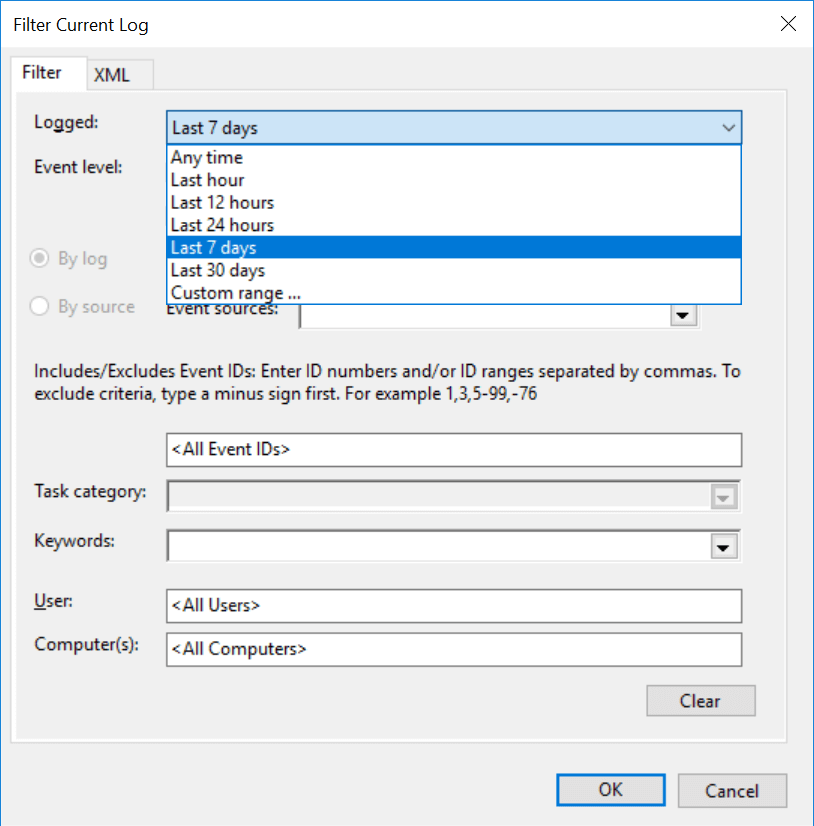
- Look for the event IDs 4624 (Account was logged on), 4634 (Account was logged off), 4647 (user initiated logoff), 4672 (special logon), 4800 (the workstation was locked), and 4801 (workstation was unlocked).
With ADAudit Plus
- Follow steps 1 and 2 given in the native auditing section to turn on Audit Policy and to enable logon-logoff auditing.
- Login to ADAudit Plus web console as an administrator.
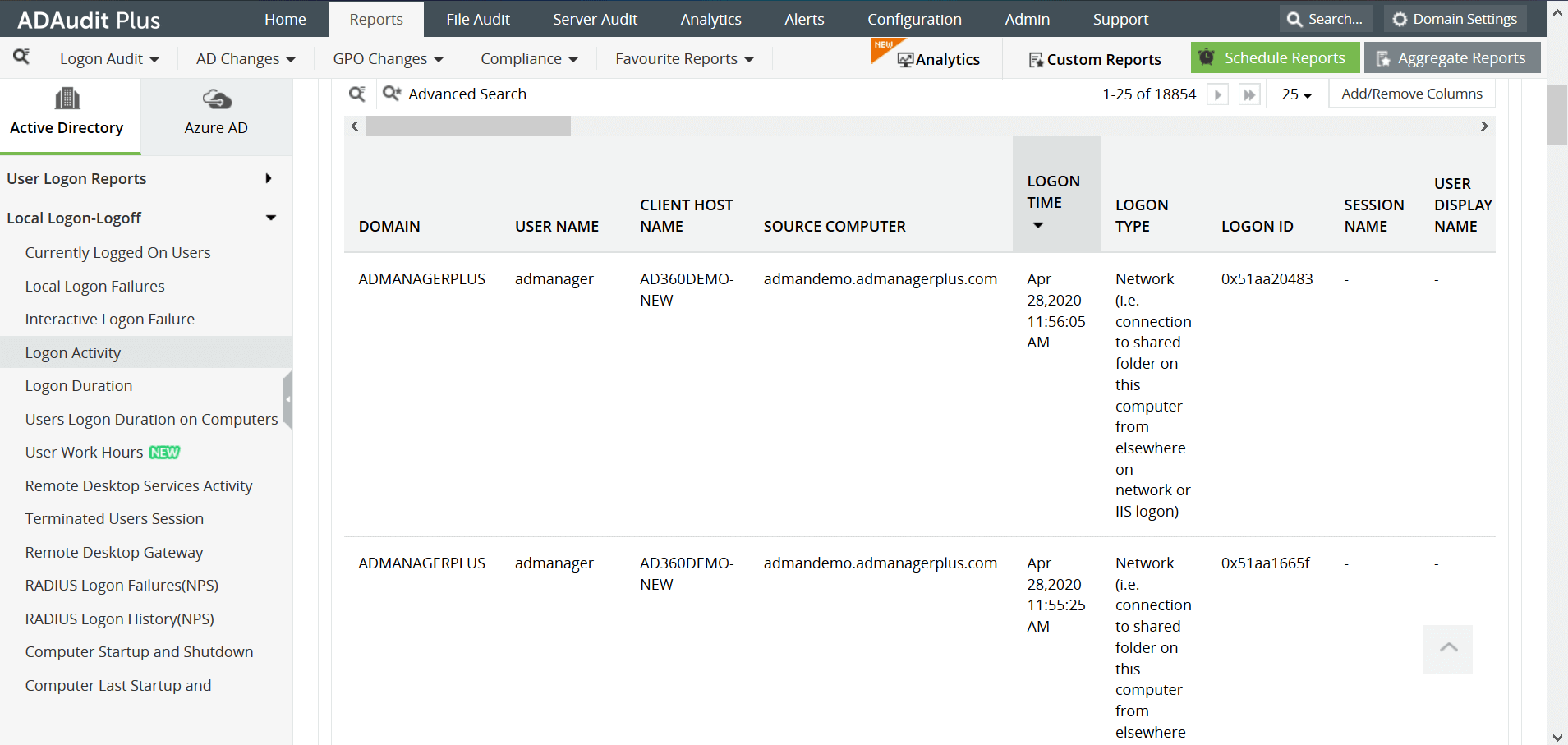
- Click on the Reports tab. From the Local logon-logoff section in the left pane, select the Logon Activity report.
The Logon Activity report in ADAudit Plus shows the logon attempts, along with the username, logon time, name of the workstation, type of logon among other examples.
Here are some of the limitations to generate a report of logon activity in Active Directory using native auditing methods:
- Each domain controller shows a different logon time due to non-replication of data.
- It is a complex process to obtain the required data amidst the noise.
- It is difficult to generate the report for different time zones and date formats.
With ADAudit Plus, it is easy to obtain a report of logon activity in Active Directory in just a few clicks, and it is displayed in a simple and intuitively designed UI.
Over 280,000 organizations across 190 countries
trust ManageEngine to manage their IT.


Trusted and Recommended by Leading Industry Experts Worldwide
-
Global Infosec
Awards 2025 -
Top InfoSec Innovator
Awards for 2024 -
Gartner Peer Insights
Customers' Choice 2023 - Cloud Connect 2024