How to find out which computer a user is logged into
To find out which computer a specific user is logged into using PowerShell, you can use different methods depending on your environment (e.g., domain or local network). Below are a few common methods to get the logged on user information along with the computer name using PowerShell for Windows domain environment with Active Directory.
Fully functional 30 day free trial. No credit card required
Thanks!
Your download is in progress and it will be completed in just a few seconds!
If you face any issues, download manually here
Start your 30-day free trial
PowerShell
PowerShell script using quser to get the machine name for where a user is logged in
This method helps you find where a specific user is currently logged on across all enabled computers in Active Directory. The following PowerShell script remotely runs the quser command on each computer to check for active sessions matching the username, then reports the results.
#Please replace <UserName> with the username you want in the results
$Username = "<UserName>"

# Get all enabled Windows computers from AD
$Computers = Get-ADComputer -Filter 'Enabled -eq $true' -Property Name | Select-Object -ExpandProperty Name

# Track if the user was found
$UserFound = $false

foreach ($Computer in $Computers) {
try {
# Run quser on the remote machine and capture the output
$Sessions = quser /server:$Computer 2>&1

if ($LASTEXITCODE -eq 0 -and $Sessions) {
if ($Sessions -match $Username) {
Write-Host "User '$Username' is logged into $Computer" -ForegroundColor Green
$UserFound = $true
}
}
}
catch {
Write-Host "Unable to query $Computer" -ForegroundColor Yellow
}
}

# Final message if user was never found
if (-not $UserFound) {
Write-Host "User '$Username' is not logged into any computer in the domain" -ForegroundColor Red
}
PowerShell script using CIM to get every logged on user
This method helps you find the logged on users on multiple computers by remotely querying them using CIM. The following PowerShell script queries all enabled computers in Active Directory and attempts to retrieve the currently logged on user from each one.
# Get all enabled computers from AD
$Computers = Get-ADComputer -Filter { Enabled -eq $true } | Select-Object -ExpandProperty Name

# Initialize an array for results
$output = @()

foreach ($Computer in $Computers) {
try {
# Try to get the currently logged-on user from the remote system
$User = (Get-CimInstance -ClassName Win32_ComputerSystem -ComputerName $Computer -ErrorAction Stop).UserName

if ($User) {
$Status = $User
}
else {
$Status = "No interactive user currently logged in"
}

$Obj = [PSCustomObject]@{
Computer = $Computer
Status   = $Status
}
}
catch {
# If the query fails (offline, access denied, etc.)
$Obj = [PSCustomObject]@{
Computer = $Computer
Status   = "Error: $($_.Exception.Message)"
}
}

# Add the object to the results
$output += $Obj
}

# Display results in a clean table
$output | Format-Table -AutoSize
PowerShell script using WMI to find a logged in user on a remote computer
This method helps you retrieve the currently logged on user from a single specified remote computer by querying its WMI Win32_ComputerSystem class. The following PowerShell script outputs the username or an appropriate status message, depending on the query result.
#Please replace <ComputerName> with the computer name you want in the results
$ComputerName = "<ComputerName>"

try {
# Query the Win32_ComputerSystem class via WMI
$UserName = (Get-WmiObject -Class Win32_ComputerSystem -ComputerName $ComputerName -ErrorAction Stop).UserName

if ($UserName) {
Write-Host "Computer: $ComputerName | Logged-on User: $UserName"
} else {
Write-Host "Computer: $ComputerName | No interactive user currently logged in" -ForegroundColor Yellow
}
}
catch {
Write-Host "Computer: $ComputerName | Unable to query WMI. Error: $($_.Exception.Message)" -ForegroundColor Red
}
ADAudit Plus
How to find out which computer a user is logged into using ManageEngine ADAudit Plus
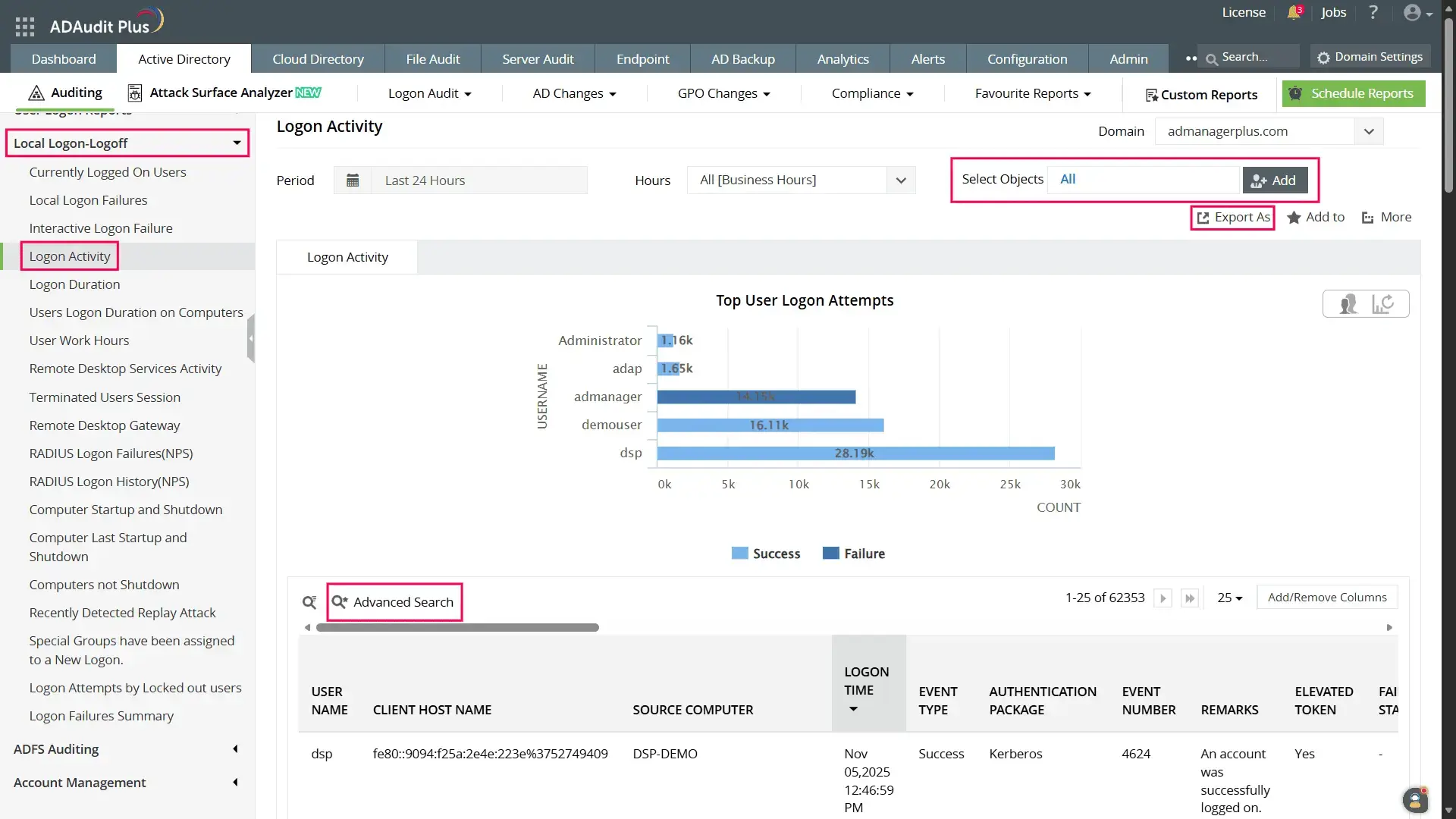
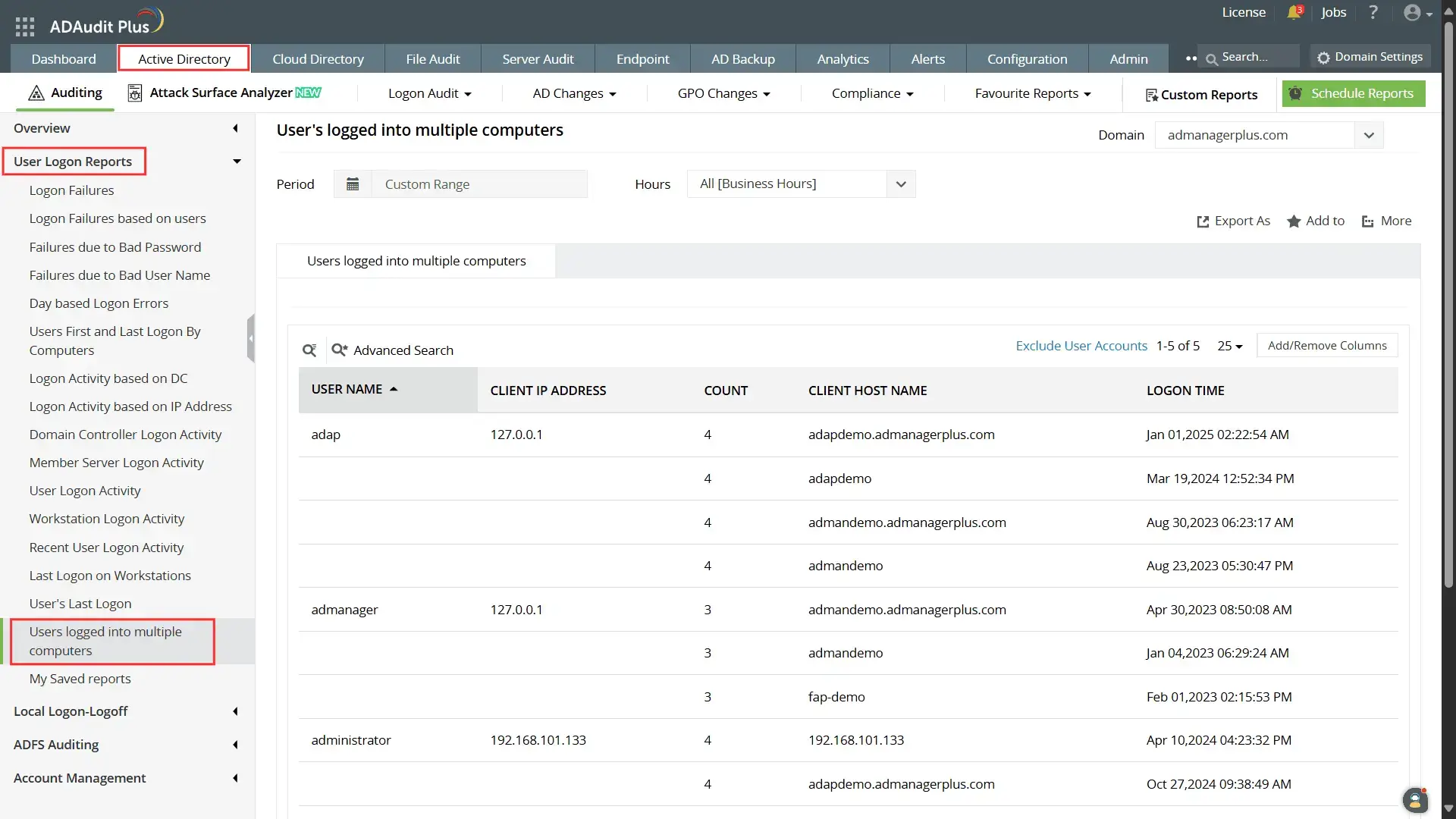
ADAudit Plus will automatically scan all DCs in the domain to retrieve information about all the computers that users are logged on to a computer, then generate the report and present it in a simple and intuitively designed UI.
To obtain the report:
- Log into ADAudit Plus web console.
- Go to Active Directory > Local Logon-Logoff > Logon Activity.
- Use the Select Objects filter to filter logon activity by computer, and the Advanced Search to filter logon activity by user.
- If you wish to find out users logged into multiple machines, go to Active Directory > User Logon Reports > Users logged into multiple computers
- Select the required Domain.
- Select Export as to export the reports in any of the preferred formats (CSV, PDF, HTML, and XLS).
Limitations of using PowerShell scripts
The following are limitations for using native tools like Windows PowerShell for obtaining reports of all the computers the users are logged on to:
- The scripts do not natively support advanced filtering (e.g., by OU or partial usernames) without modifying LDAP queries.
- They do not handle time zone or date/time formatting, which must be manually added (if needed).
- Exporting results to different formats (CSV, JSON) requires additional scripting.
- They rely on remote access permissions and network availability, which can limit success on some machines.
- Running the scripts sequentially against many computers may cause performance delays.
- Some modifications are required to adapt scripts to specific reporting or formatting needs.
Frequently asked questions
What permissions are needed to check logged-in users with PowerShell?
How to find out which computer a user is logged into across the domain?
By looping through all computers in your Active Directory with the Get-ADComputer command, you can use PowerShell to search every machine for a specific username. Please refer to the second method under the PowerShell tab.
Is it possible to run these PowerShell commands without Active Directory?
Yes, but with limitations. You can query local or remote computers directly using WMI or CIM commands, but you will need to specify computer names manually since AD lookup will not be available.
What is the difference between WMI and CIM commands for this task?
WMI (Get-WmiObject) is older and may be deprecated in newer PowerShell versions. CIM (Get-CimInstance) uses newer protocols (WS-Man) and is generally faster and more secure for remote queries.
Why would an administrator need to find out which computer a user is logged into?
Administrators often need to identify a user’s logged-in computer to troubleshoot issues such as login failures, errors, or network access problems. It’s also useful for monitoring user activity, managing remote support sessions, or ensuring compliance with security policies. Knowing which device a user is logged into helps IT teams respond quickly and efficiently to technical or security incidents.
Over 280,000 organizations across 190 countries
trust ManageEngine to manage their IT.


Trusted and Recommended by Leading Industry Experts Worldwide
-
Global Infosec
Awards 2025 -
Top InfoSec Innovator
Awards for 2024 -
Gartner Peer Insights
Customers' Choice 2023 - Cloud Connect 2024