How to get user login history in Active Directory
Auditing Active Directory (AD) user login history is essential for meeting the security and compliance needs of any IT environment, as it allows administrators to identify unusual or potentially malicious activity—such as a sudden increase in failed login attempts—while also maintaining a comprehensive audit trail of all user logins across the domain.
The table below compares the steps to get AD user login history using a PowerShell script versus ADAudit Plus, highlighting how simple the process is with ADAudit Plus.
Fully functional 30 day free trial. No credit card required
Thanks!
Your download is in progress and it will be completed in just a few seconds!
If you face any issues, download manually here
Start your 30-day free trial
PowerShell
Steps to get user login history using PowerShell:
Log in to the target computer and open Windows PowerShell as an administrator (required for Security log access). Enter the PowerShell script below:
Sample Windows PowerShell script

                                                        $LogonEvents = Get-WinEvent -ComputerName adap-server-dc1 -FilterHashtable @{
                                                            LogName = 'Security'
                                                            ID = 4624
                                                            StartTime = (Get-Date).AddDays(-2)  # Last 7 days
                                                        } -ErrorAction SilentlyContinue

                                                        foreach ($event in $LogonEvents) {
                                                            $xml = [xml]$event.ToXml()
                                                            $user = $xml.Event.EventData.Data | Where-Object { $_.Name -eq 'TargetUserName' }
                                                            $logonType = $xml.Event.EventData.Data | Where-Object { $_.Name -eq 'LogonType' }

                                                            if ($logonType.'#text' -eq '2' -or $logonType.'#text' -eq '10' -or $logonType.'#text' -eq '3') {  # Interactive or RDP or Network Logon
                                                                Write-Output "$($user.'#text') logged on at $($event.TimeCreated) on $($event.MachineName)"
                                                            }
                                                        }
Update the script parameters based on your requirements:
- DC: Replace the value of -ComputerName with the appropriate DC name.
- Time Range: Modify the AddDays value in StartTime to match the required period (for example, -2 for the last 2 days).
- Logon Types: Adjust the logon type filters (or example, 2=Interactive, 3=Network, and 10=RDP) according to your needs.
ADAudit Plus
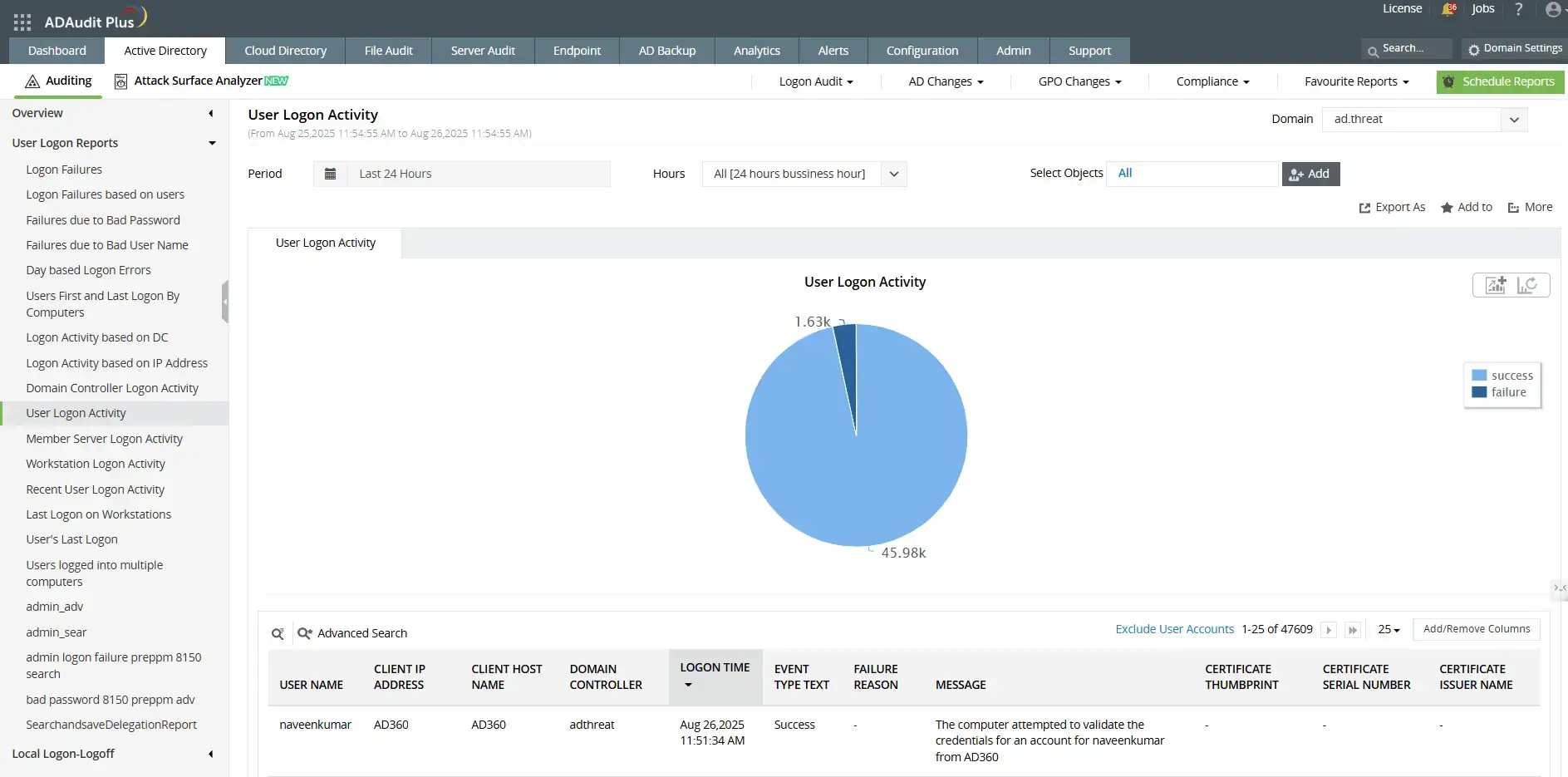
Steps to get user login history using ADAudit Plus:
- Log in to ADAudit Plus as an administrator. Navigate to Active Directory > User Logon Reports > User Logon Activity.
- Select the Domain, Period, and Object for which you want to view user login history from the drop-down menu.
Bridging the gaps in native auditing with ADAudit Plus
AD user login history auditing is essential for addressing security and compliance needs in a Windows Server environment. However, limitations in native Windows auditing tools, such as the need for expertise, the time-intensive process, and missing capabilities, make it necessary to use third-party auditing tools like ADAudit Plus.
- Centralized auditing: Event logs that contain logon audit data are not replicated, so manually reviewing logs on each computer is impractical. While Windows Event Forwarding (WEF) enables log aggregation, setting it up involves technical complexity. ADAudit Plus simplifies the process by aggregating logs from all computers into a central console.
- Threat mitigation: Windows Task Scheduler can alert on specific Event IDs but cannot detect unusual patterns, like multiple failed logons followed by a successful one, a telltale sign of a brute-force attack. ADAudit Plus leverages correlation and machine learning to detect such patterns in real time.
- Compliance reporting: Windows events often lack complete context. For example, a users logon duration is split across events, needing manual correlation. PowerShell can help but isn’t practical for real-time auditing at scale. ADAudit Plus provides a consolidated audit trail of all changes and helps meet compliance requirements.
Frequently asked questions
Do I need to enable auditing before I can view user login history?
Yes. Logon events are not recorded by default. You must enable the appropriate audit policies under Advanced Audit Policy > Logon/Logoff, to ensure all logon and logoff events are captured.
How long is login history stored in Active Directory?
The retention period depends on your security log size and overwrite settings on each machine. Once the log is full, older entries are overwritten. Increasing log size or centralizing logs in an auditing tool can help store login history for longer.
Why am I not seeing any logon events in the security log?
- Logon auditing is not enabled in Group Policy.
- The correct advanced audit policy category (e.g., “Logon/Logoff”) is not configured.
- Security logs have rolled over and overwritten older entries.
Why are my security logs missing older login history?
Common reasons:
- The log size limit is too small, causing older events to be overwritten.
- Log retention settings are set to “Overwrite as needed.”
Over 280,000 organizations across 190 countries
trust ManageEngine to manage their IT.


Trusted and Recommended by Leading Industry Experts Worldwide
-
Global Infosec
Awards 2025 -
Top InfoSec Innovator
Awards for 2024 -
Gartner Peer Insights
Customers' Choice 2023 - Cloud Connect 2024