Over 280,000 organizations across 190 countries
trust ManageEngine to manage their IT.

Generate the following AD group reports with the click of a button

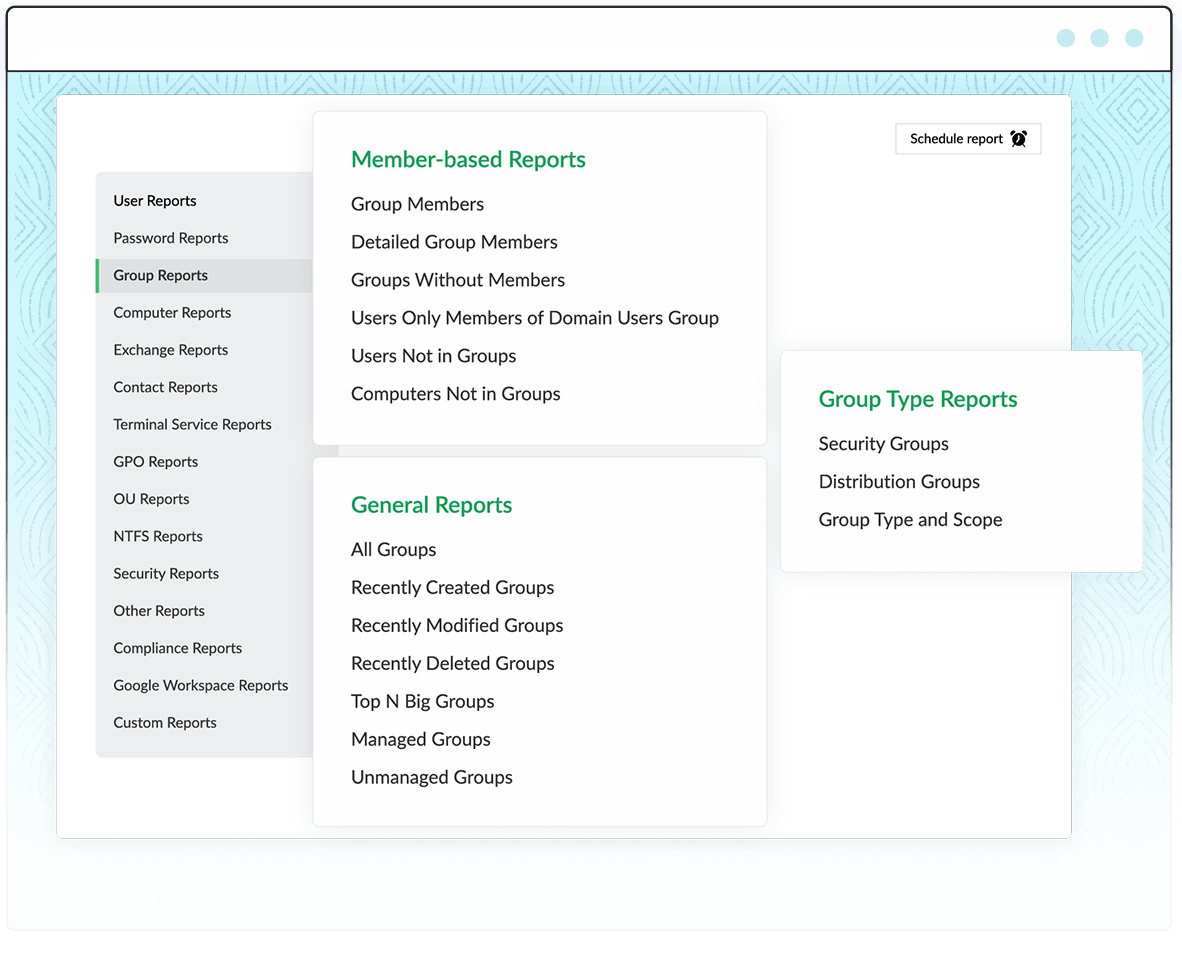
Member-based group reports in ADManager Plus:

  • Group Members: Get details of the users in the selected group.
  • Users Not in Groups: Get the list of users who are not a part of the specified group.
  • Users Only Members of Domain Users Group: Get the list of users who are only members of the Domain Users Group.
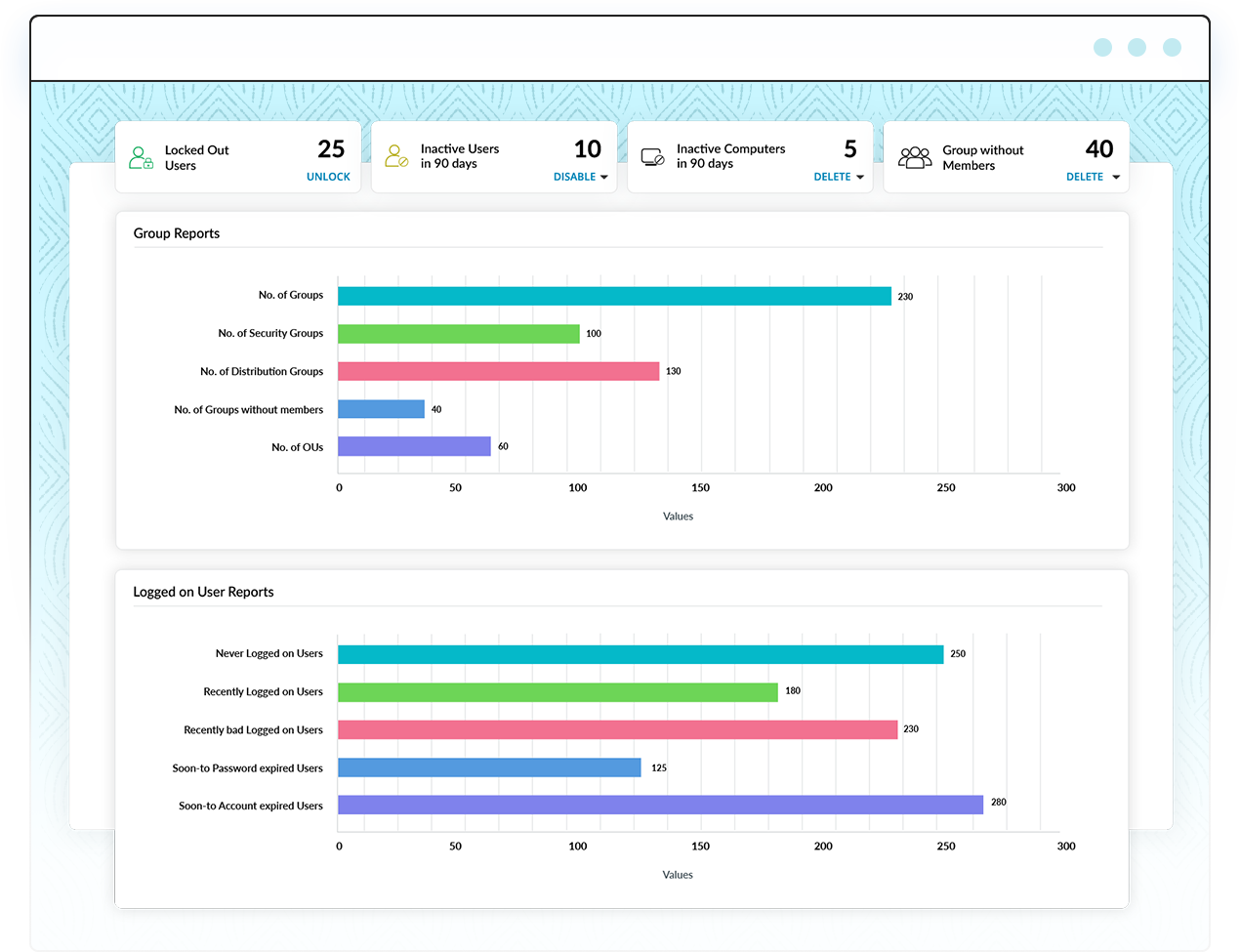
  • Groups Without Members: Find the unwanted groups in a particular domain.
  • Computers Not in Groups: Get the list of computers who are not a part of the specified group.
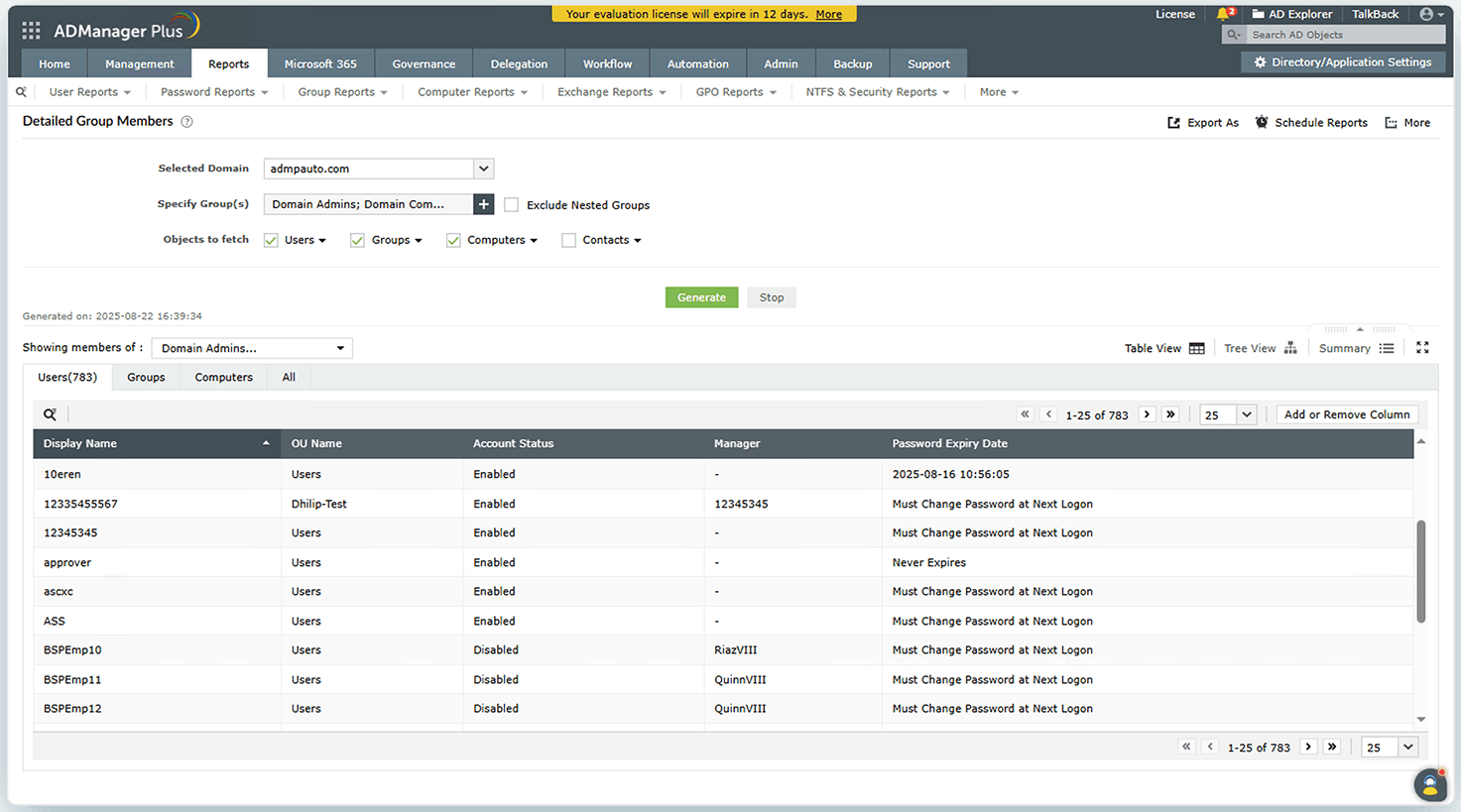
  • Detailed Group Members: Get detailed information about specified Active Directory Distribution Groups and Security Groups along with their nested groups.
 

Choose which domain and groups you want to report on


Export group membership reports in various formats, such as CSV, PDF, XLSX, CSVDE, and HTML.


This option will show the tree view of all the members of the group.


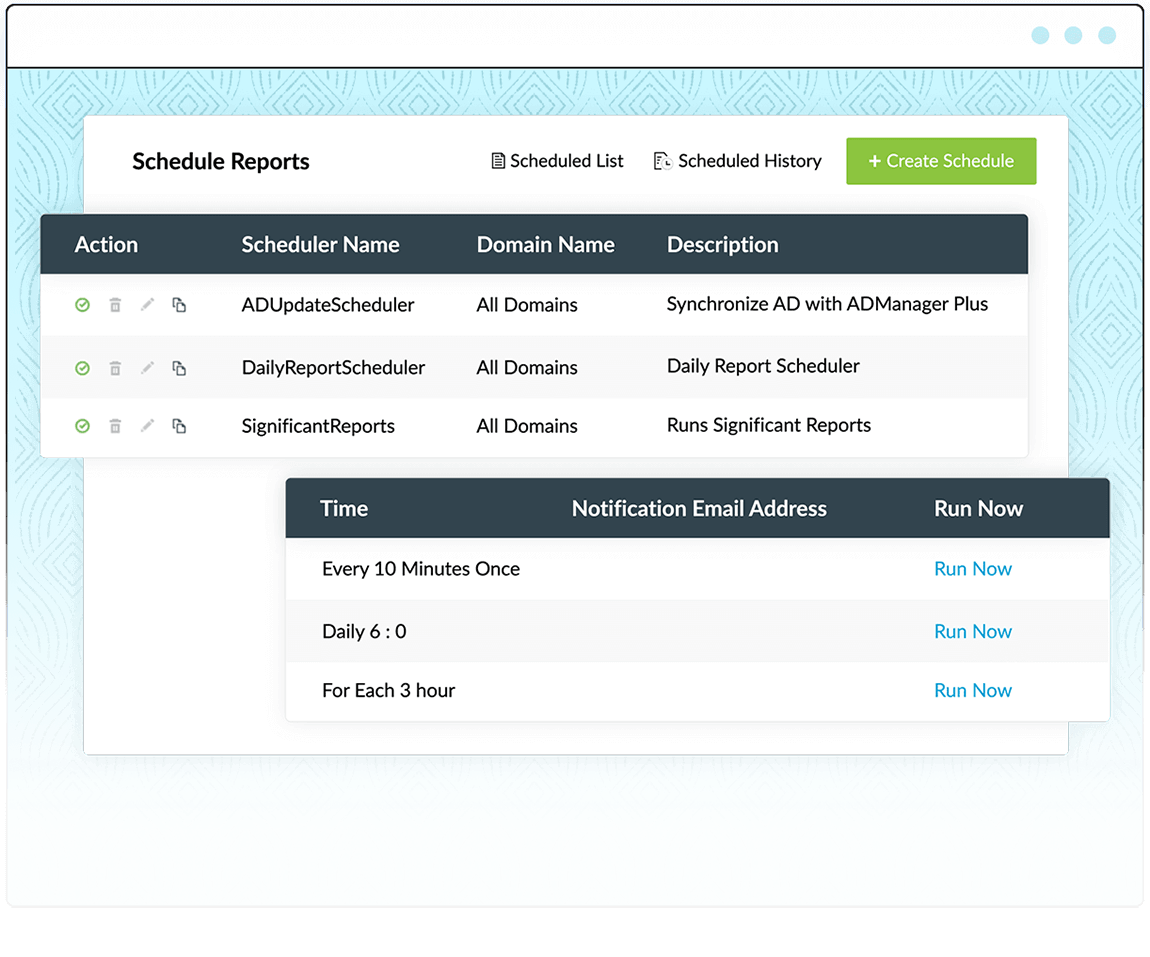
Schedule reports to run at specific time intervals and have them delivered straight to your inbox.
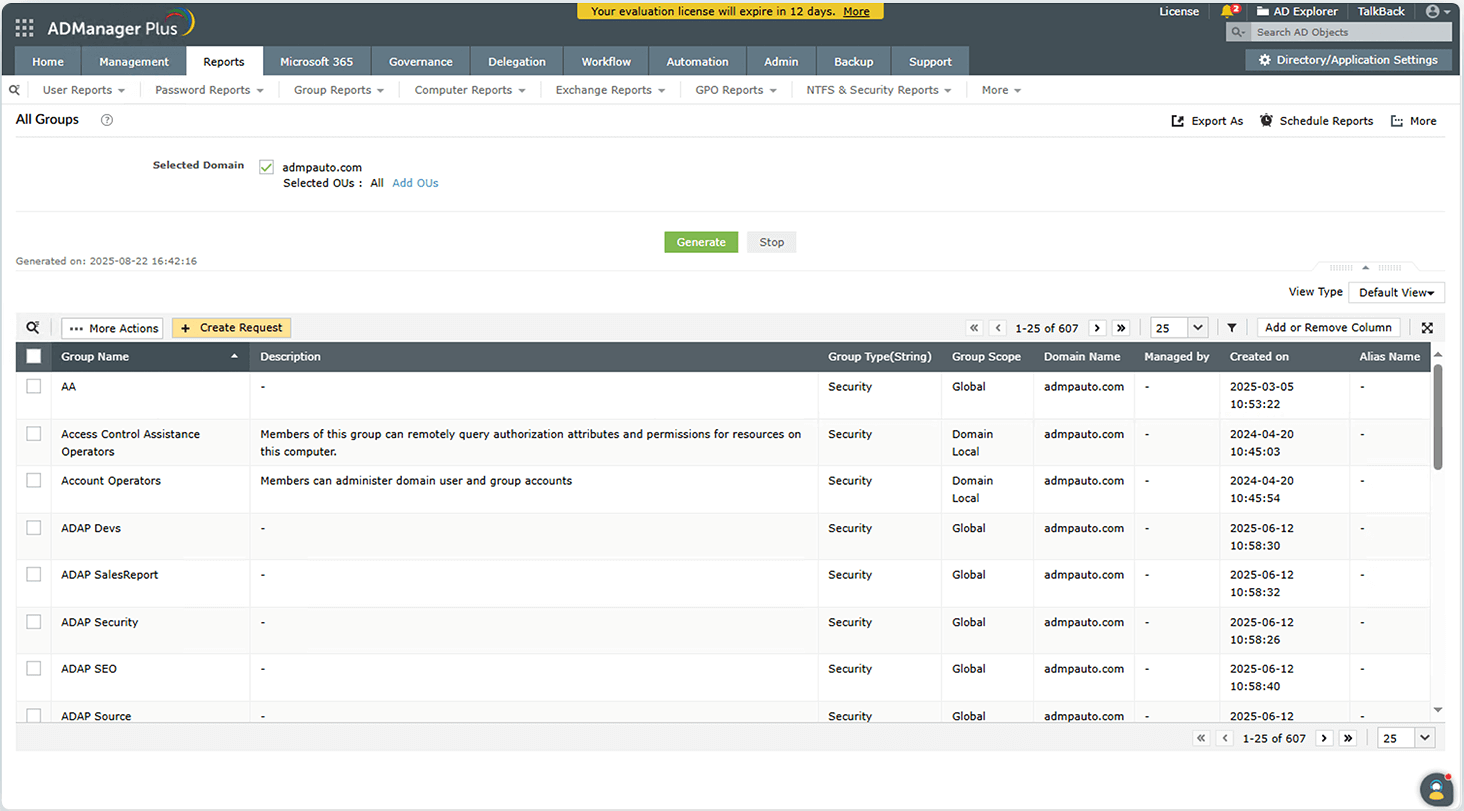
General group reports in ADManager Plus:

  • All Groups: Get the details of all the groups in the specified domain.
  • Recently Modified Groups: Get the list of all the groups for which attributes were modified within a particular period.
  • Top N Big Groups: Get the details of the large groups in the domain based on its member count.
  • Unmanaged Groups: Get the details of the groups that do not have managers.
  • Recently Created Groups: Fetch the list of all the groups that were created during the specified time frame.
  • Recently Deleted Groups: Identify all the groups that were deleted from Active Directory within a specific time span.
  • Managed Groups: Get the details of the groups that have managers.
 

Add or remove columns to view only the desired group attributes.
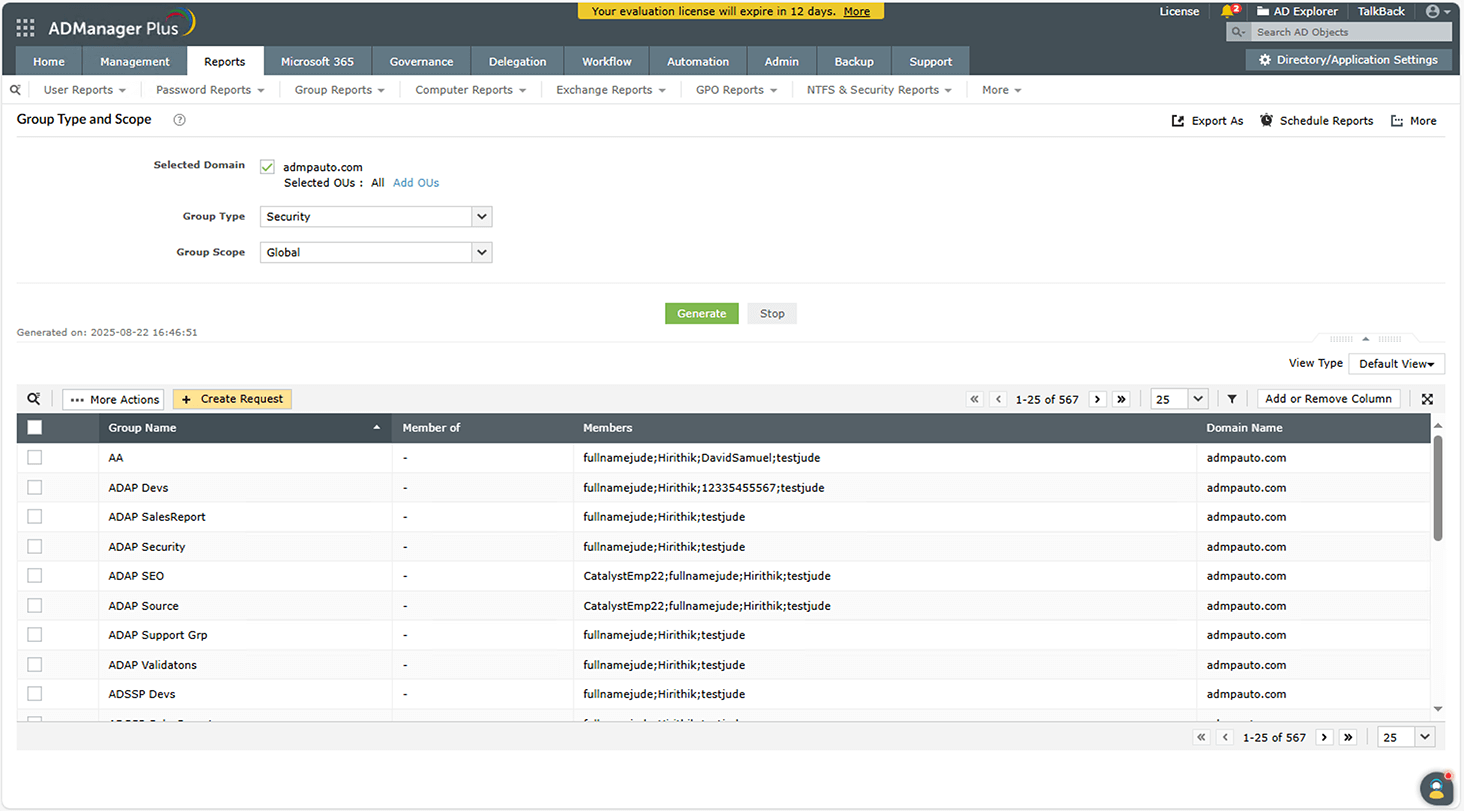
Group type reports in ADManager Plus:

  • Security Groups: Get the details of the security groups available in the selected domain(s).
  • Group Type and Scope: Get details of groups based on their type and scope. The group type can be either Security or Distribution, and its scope can be Global, Domain Local, or Universal.
  • Distribution Group: Get the list of all distribution groups available in the selected domain.
 

Select the desired group type and scope


Manage groups right from the reports' results.

Start your free trial

Key use cases of using ADManager Plus for
Active Directory group reports

 
  • Scenario

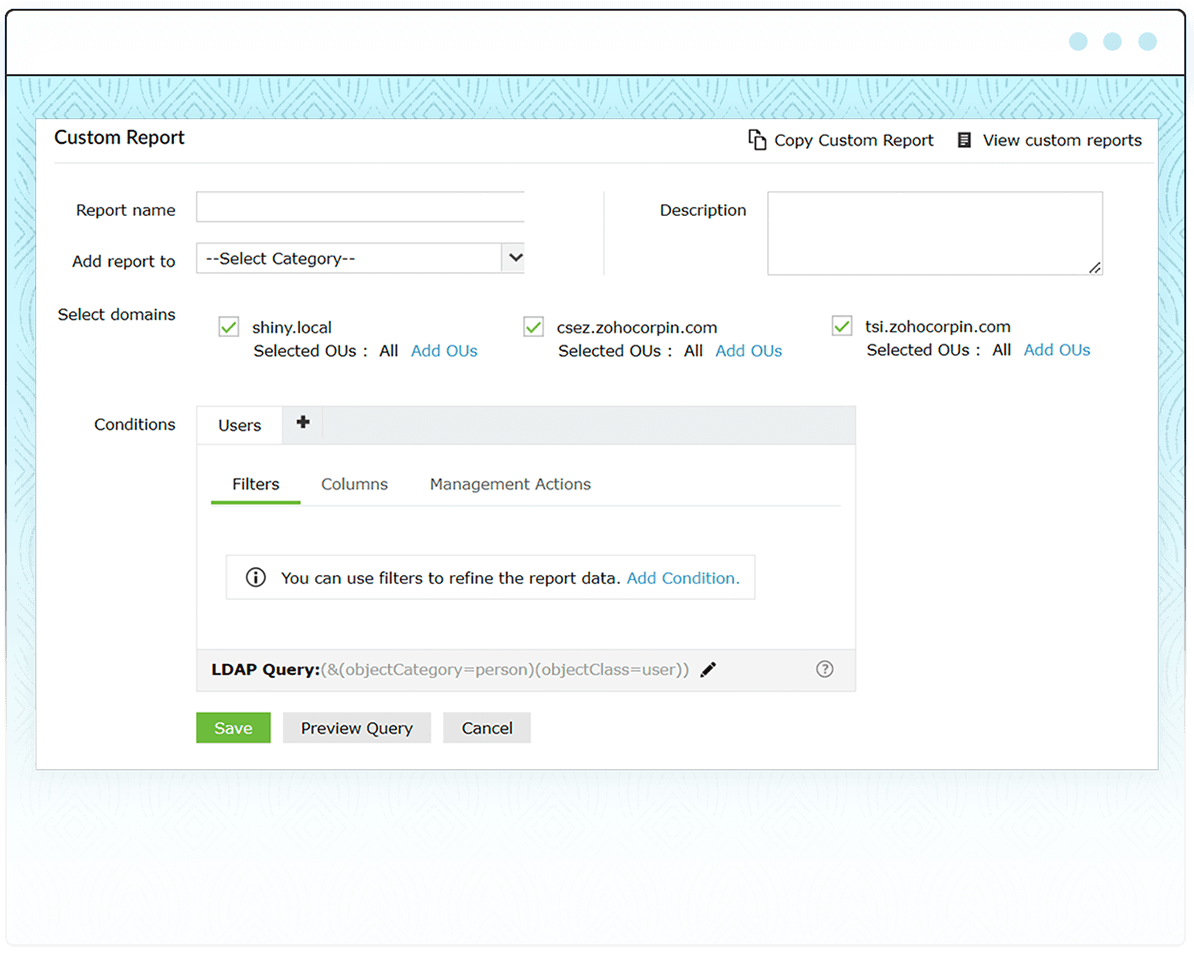
    Your organization wants to generate a report containing users that are part of a particular group with a specific last logon time.


    Solution

    With ADManager Plus' custom reports feature, you can create a custom report by filtering the group and the last logon time in just a few clicks.

     
  • Scenario

    You need to delete all the groups without members as a part of your AD cleanup.


    Solution

    With ADManager Plus,you can generate a report of all the groups without users and delete those groups from within the report.

     
  • Scenario

    You want to generate a report to view the complete list of objects from a specific group along with its nested groups.


    Solution

    View the nested groups and the list of objects of a specific group with the Detailed Group Members report in ADManager Plus.


Beyond group membership reports

ADManager Plus isn’t just a group membership reporting tool, it’s your
all-in-one hybrid AD management & reporting tool.

Risk Assessment

Identify and evaluate possible risk
indicators within your AD
and Microsoft 365 environments.

Comprehensive AD Reports

Generate 200+ pre-built reports on
users, groups, logons, GPOs, and
more for complete visibility.

Bulk AD Management

Easily manage users, groups,
computers, and more in bulk without
using PowerShell scripts.

AD Automation

Automate routine tasks like user provisioning, deprovisioning, cleaning up inactive objects, and more.

Start your free trial

Frequently asked questions

Why is the Microsoft 365 last logon report needed?

As a security measure, organizations often need to keep track of the logon activities of Microsoft 365 mailbox users. Aside from security, logon information is collected for various reasons such as adhering to compliance standards, detecting policy violations, and identifying licenses assigned to inactive users so you can reassign them to active users.

What are the AD attributes related to the user logon time?

The attributes related to the user logon time are lastLogon and lastLogonTimeStamp. The former is a non-replicating attribute and is updated only in the domain controller that authenticates the user during logon. The latter is the replicated version and its value gets updated whenever the difference between the previous timestamp and the current timestamp exceeds a certain threshold value.
ADManager Plus retrieves the lastLogon value from all DCs and the latest values will be updated for the lastLogon and lastLogonTimeStamp fields.

What are the limitations of generating this report with native AD tools and scripts?

With the Microsoft 365 Admin Center, you can only view the most recent logon information of users individually. If admins wish to obtain the last logon time of multiple Microsoft 365 mailbox users at once, the only alternative is using complex PowerShell scripts. Furthermore, with PowerShell, only limited filtering options are available, which makes it difficult to narrow down and find any suspicious logon activities.

How does ADManager Plus simplify Microsoft 365 last logon reporting?

ADManager Plus provides detailed M365 user logon information such as last logon times, last logoff times, details of M365 licenses, and more without using any scripts. Besides listing logon information about users with specific licenses, it displays the AD attributes of users such as logon time, account status, and more.

Over 100,000 technicians
trust ADManager Plus to manage their
Windows environment.

  • ADManager Plus provides us a single point for our Active Directory Reports. For a small IT department this is crucial for saving time and being able to apply our energy to keeping things running smooth. I foresee this being in our arsenal of network tools for a long time to come.

    Mark Anderson

    IT Support, ET Investments

  • ADManager Plus - The Swiss Army Knife for AD Administrator
    It has made managing and administrating Active Directory easy, fast and efficient. Everyday tasks which earlier required us to write Powershell scripts are now easily achievable using an workflow like interface.

    Deputy Chief IT Engineer

    Company Size: 1B - 3B, Energy and Utilities

×

Thanks!

Your download is in progress and it will be completed in just a few seconds! If you face any issues, download manually here

×

Start your 30-day free trial

  •  
  • *
     
  •  
  •  
  • By clicking 'Submit' you agree to processing of personal data according to the Privacy Policy.
×