Comprehensive AD logon reports—all in one place!
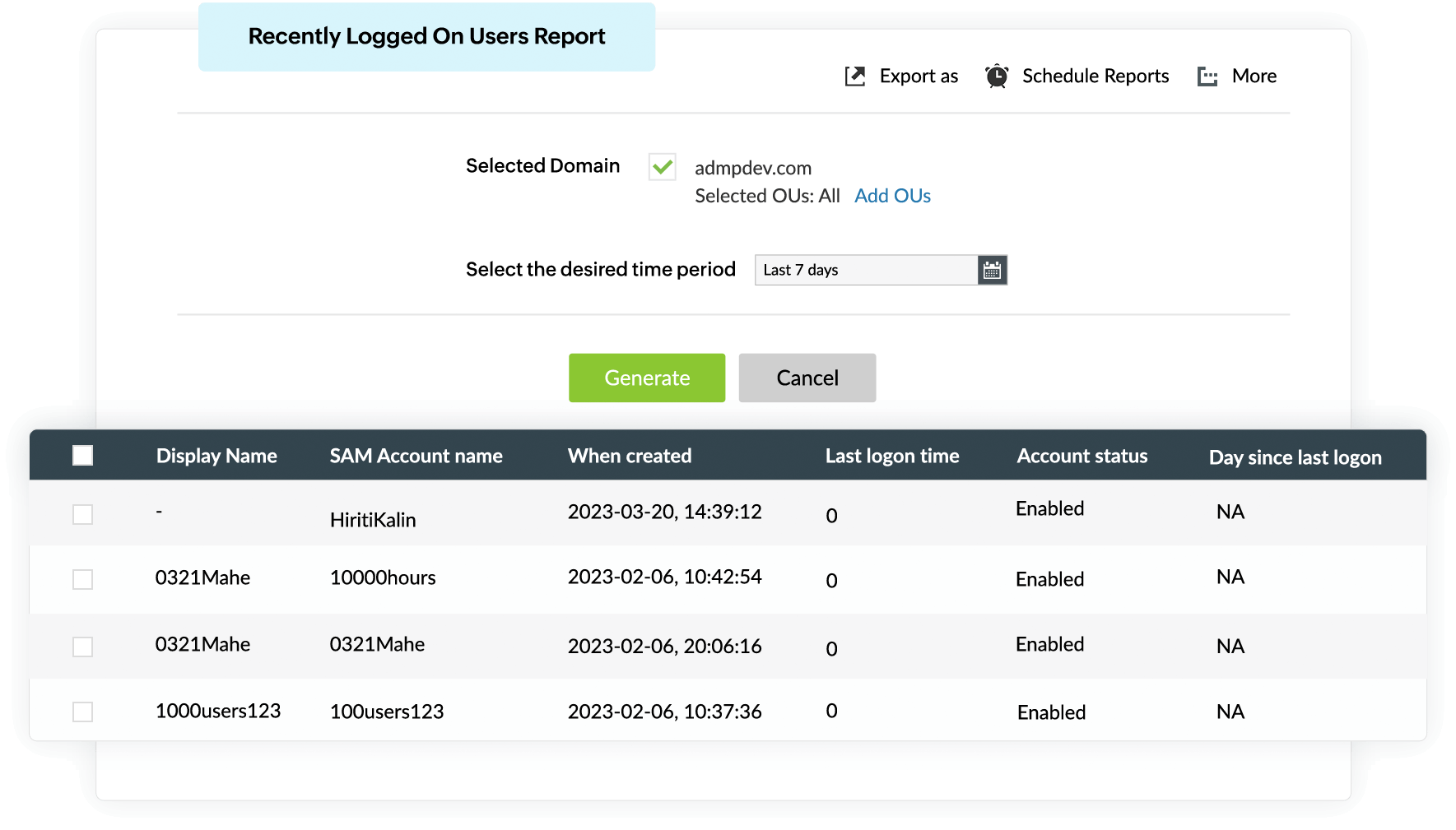
User logon activity
1
 

Select the domain for which the report is required.

1
 

Choose the period for which the report will be created.

1
 

Generate the Inactive users report.

1
 

Easily determine which users have logged on in the past 24 hours, seven days, or a custom date range based on their last logon time.
  • 1. Select the domain for which the report is required.
  • 2. Choose the period for which the report will be created.
  • 3. Generate the Inactive users report.
  • 4. Easily determine which users have logged on in the past 24 hours, seven days, or a custom date range based on their last logon time.
Measure productivity
1
 

Perform Quick Search using this icon.

1
 

Use this option to Delete users instantly.

1
 

Disable users from the results page.

1
 

You can Add or Remove Column to customize the report.

1
 

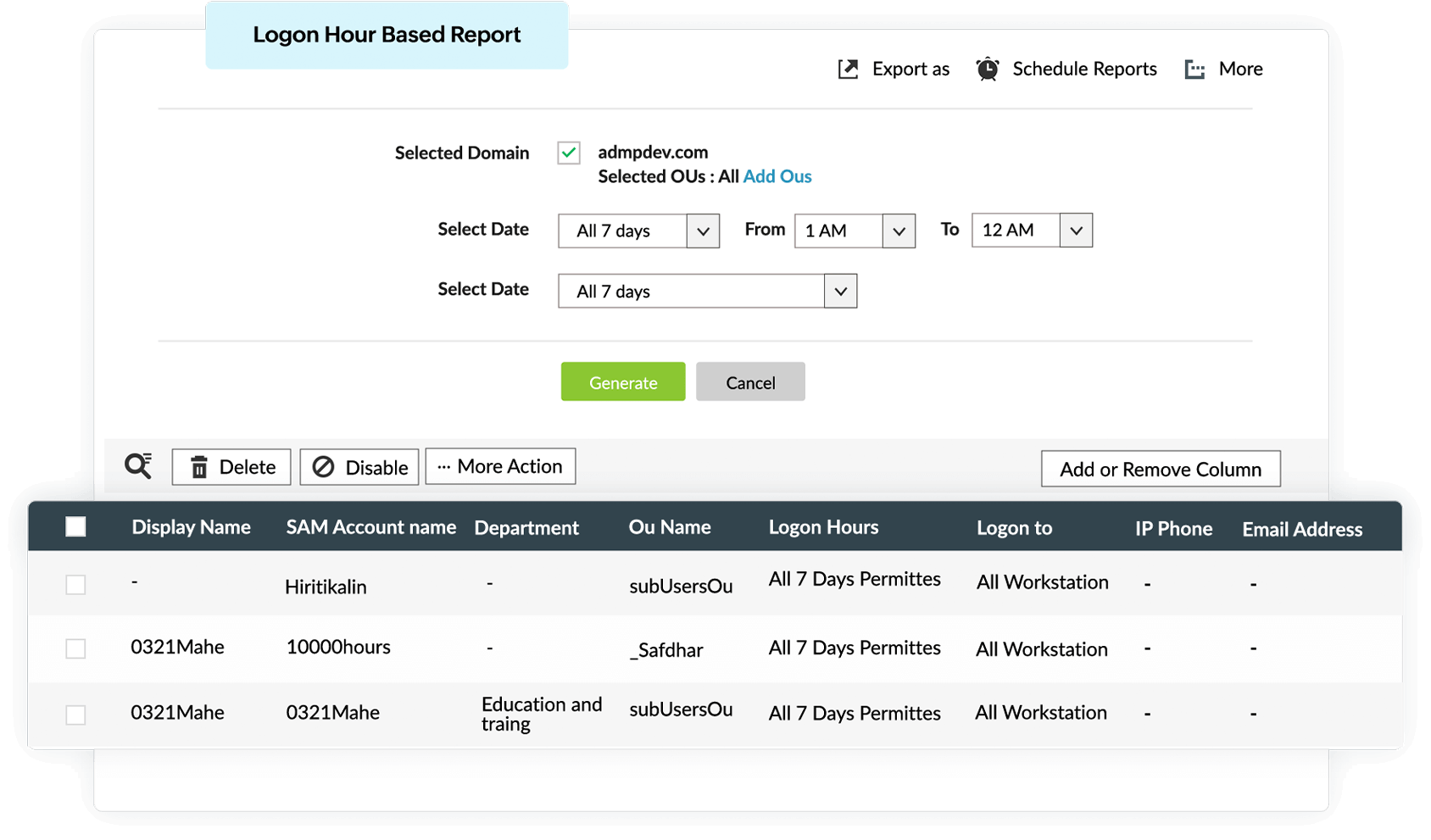
Track users' logon hours across Active Directory, making it easier to detect off-hours logins, potential misuse, or policy violations.
  • 1. Perform Quick Search using this icon.
  • 2. Use this option to Delete users instantly.
  • 3. Disable users from the results page.
  • 4. You can Add or Remove Column to customize the report.
  • 5. Track users' logon hours across Active Directory, making it easier to detect off-hours logins, potential misuse, or policy violations.
Audit hybrid logon activity
1
 

You can Change Password at Next Logon for selected users.

1
 

Manage users instantly from the reports itself—disable, delete, or move users to another OU.

1
 

Select Create Request to raise a workflow request directly from the report.

1
 

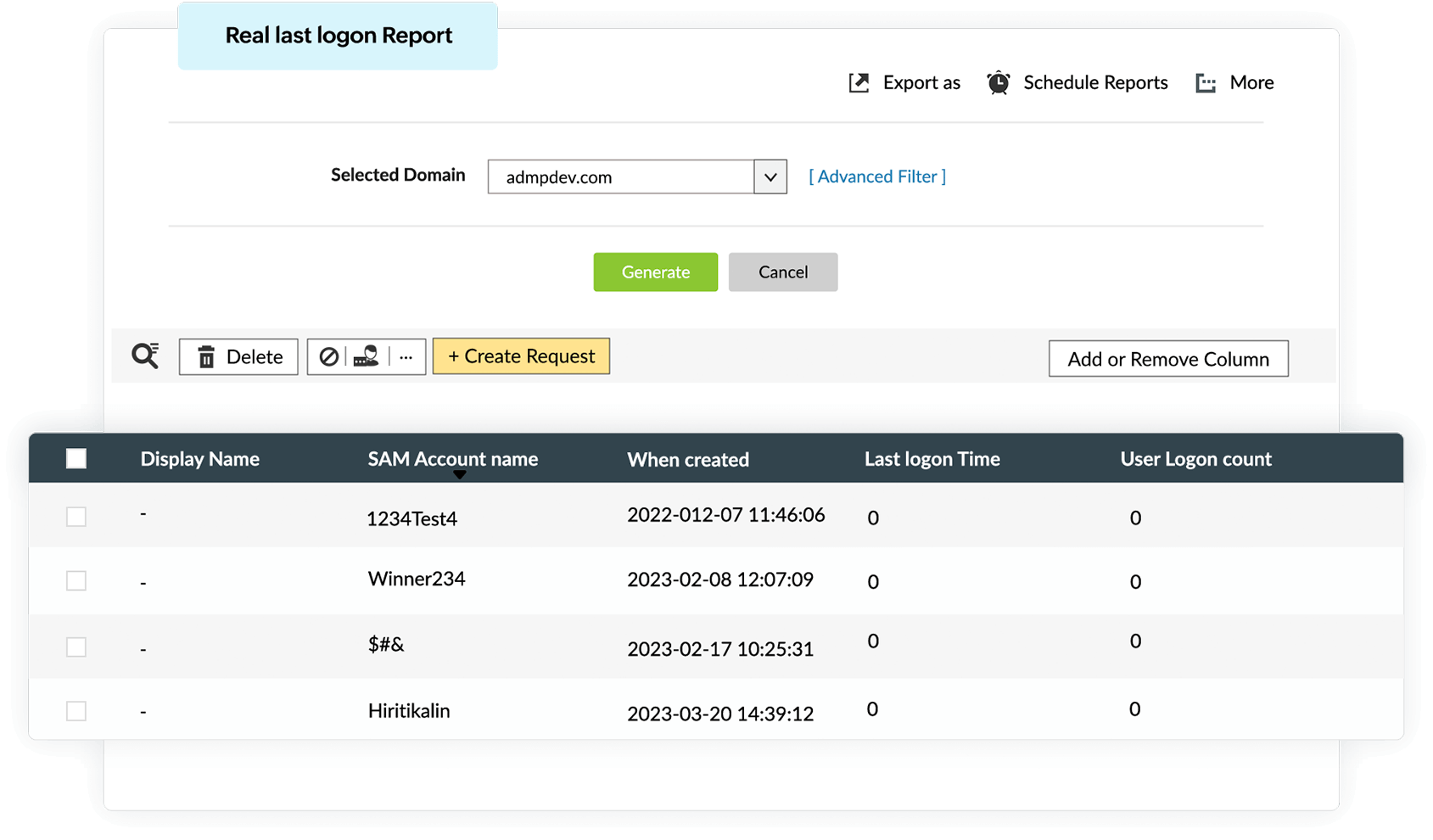
ADManager Plus queries all domain controllers and presents the true last logon date and time in Active Directory.
  • 1. You can Change Password at Next Logon for selected users.
  • 2. Manage users instantly from the reports itself—disable, delete, or move users to another OU.
  • 3. Select Create Request to raise a workflow request directly from the report.
  • 4. ADManager Plus queries all domain controllers and presents the true last logon date and time in Active Directory.
Audit hybrid logon activity
1
 

Export last logon time of Active Directory users in CSV, XLSX, PDF, HTML, and CSVDE formats.

1
 

Automate report generation by scheduling reports to run at desired frequencies.

1
 

Select the More option to review the printable view, manage export settings, and add the report to the dashboard.
  • 1. Export last logon time of Active Directory users in CSV, XLSX, PDF, HTML, and CSVDE formats.
  • 2. Automate report generation by scheduling reports to run at desired frequencies.
  • 3. Select the More option to review the printable view, manage export settings, and add the report to the dashboard.
Audit hybrid logon activity
1
 

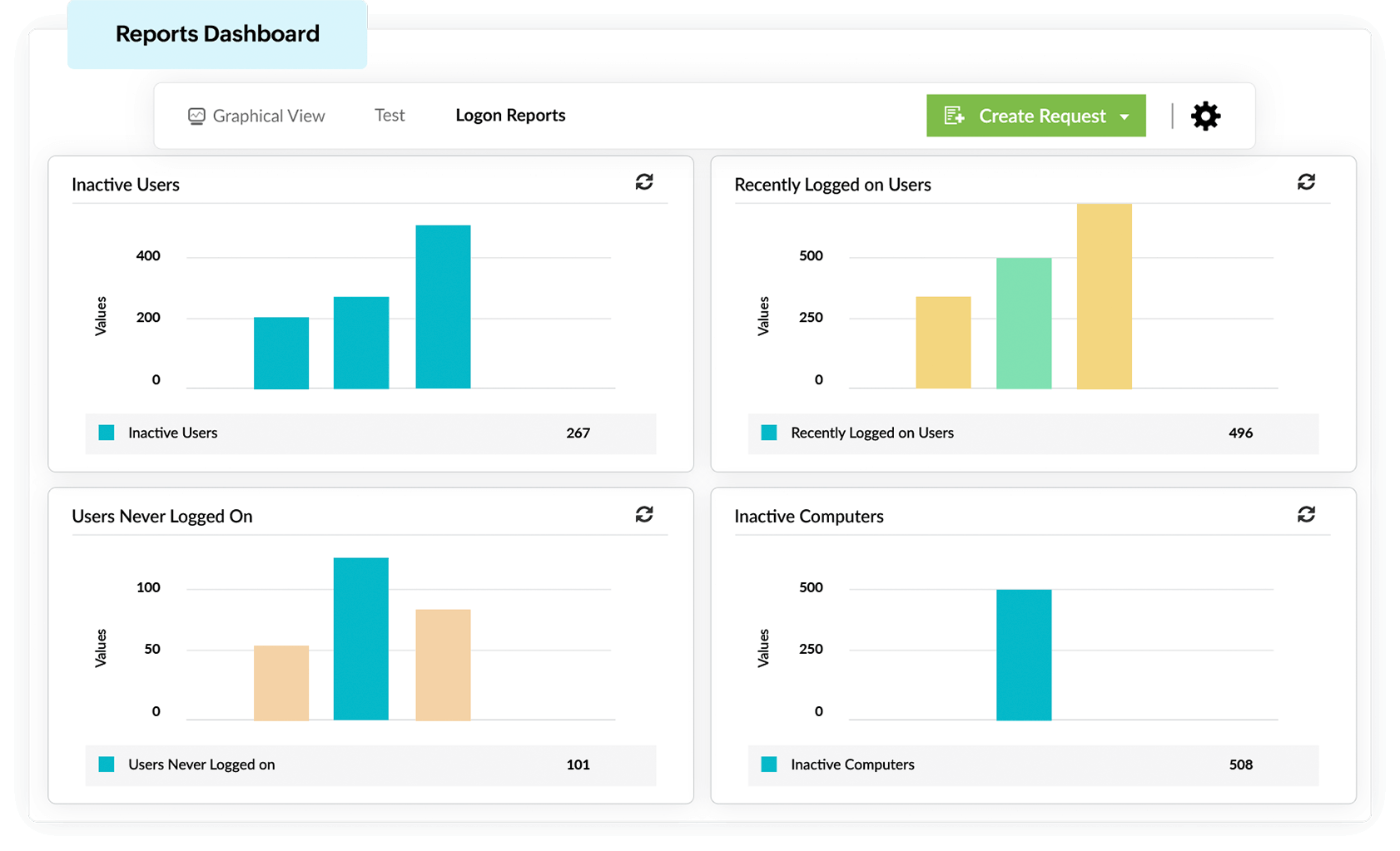
Gain complete visibility into user activity by adding key reports on Active Directory last logon date, user login history, and more as widgets.


  • 1. Gain complete visibility into user activity by adding key reports on Active Directory last logon date, user login history, and more as widgets.

Track user logins and last logon dates in Active Directory without PowerShell

Frustrated with PowerShell scripts and scattered event logs?
ADManager Plus gives you instant answers to critical questions like:

  • When was a user’s last logon in Active Directory?
  • Which computer did a user last log in to?
  • How do I check user login history in Active Directory?
  • What was the last time a specific AD account logged in?

Stop wasting hours. Get detailed insights in seconds.

Active Directory last logon reports in ADManager Plus

Real last logon report

Get the real last logon date in Active Directory by fetching data from all domain controllers. This report shows the exact last login time of each user and the computers they logged in to.

Inactive users report

Track down all user accounts that haven’t logged in for a specified number of days. You can easily find the last login for a user in AD, then disable, delete, or move inactive users in bulk.

Inactive computers report

View a list of computers in Active Directory from which no user logon has occurred for a certain duration. This helps you identify unused systems and perform bulk computer management operations such as disabling or moving them.

Recently logged on users report

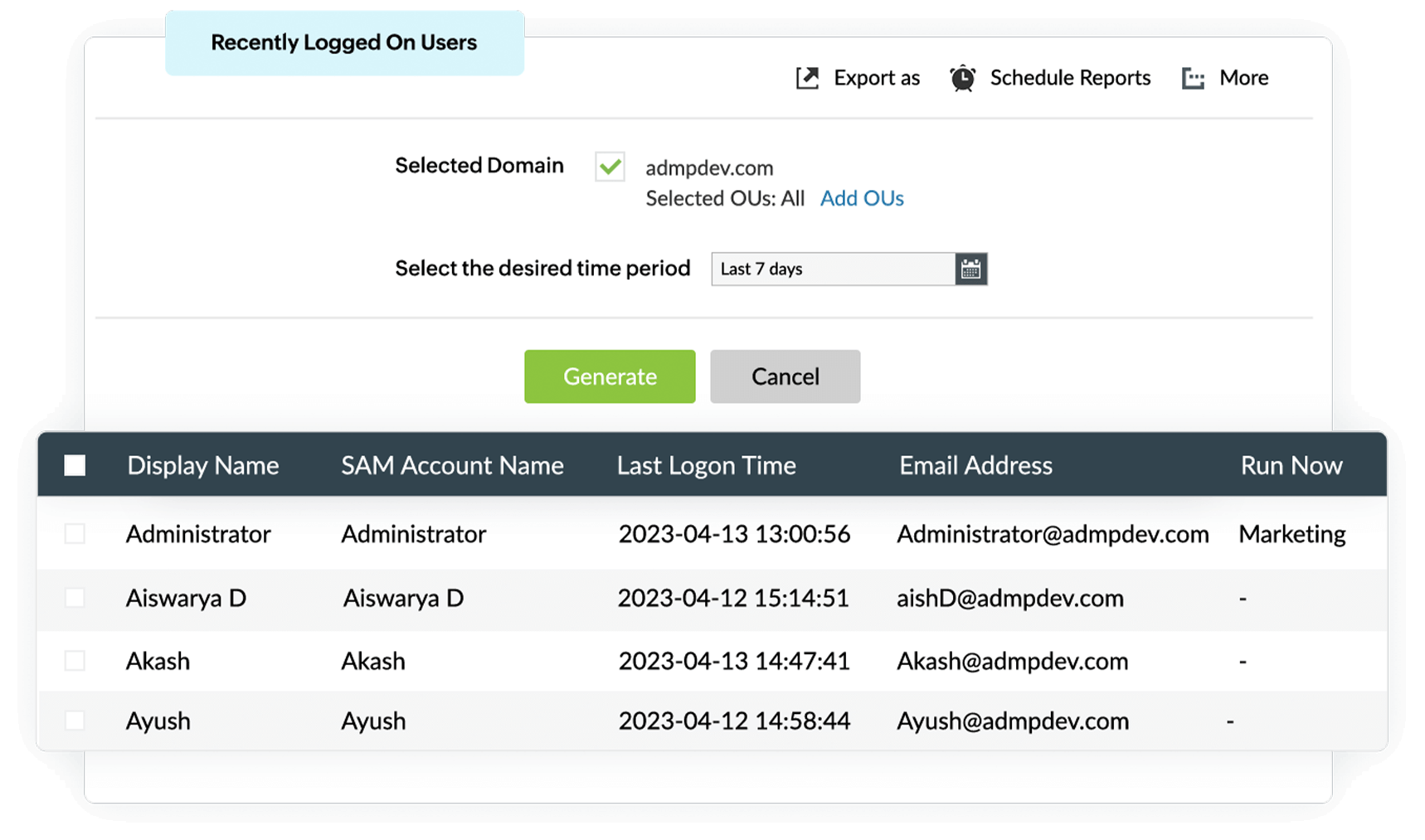
Choose the past number of days for which you want to view data for, and view the list of users who have logged on during that time. Modify their logon hours, disable or delete users, and more, right from this report.

Logon hour based report

View the details of users who have permission to log in on specified days at specified times. Modify users' logon hours without switching from the report window.

Users never logged on report

Obtain a list of users who have not logged on at all. Disable and/or delete those users instantly in just a few mouse clicks.

Start your free trial

Over 280,000 organizations across 190 countries
trust ManageEngine to manage their IT.

IT administrators can leverage the last logon reports to check and monitor any unauthorized logons to their AD environment.
In the event of a security incident, the last logon reports can help in identifying the source of the incident.

The AD real last logon reports come in handy
in the following scenarios:

Scenario 1
You are tasked with deploying a set of Group Policy settings for users who have login permissions for specified times on specific days.

To execute this,

you first have to separate those users and move them to a different OU. Start by generating the Logon Hour-Based Report by specifying the allowed logon hours criteria. Once the report is generated, you can move the users to the desired OU right from the report. You can then apply the desired Group Policy settings to that OU.

With ADManager Plus'

last logon reporting capability, you can generate the Inactive Users report and:

i) Disable users who have not logged on for the past x days.

ii) Delete users who have not logged on for the past y days.

You can execute the above two operations with simple, GUI-based actions.

Scenario 2
During your routine AD cleanup, you need to disable and delete users based on your organization's housekeeping policy.

Functions like...

resetting passwords, unlocking user accounts, moving users, and modifying profile attributes, inheritable permissions, and group attributes can be carried out based on the information available in the Real Last Logon report.

Start your free trial

9 out of 10 Fortune 100 companies trust
ManageEngine to manage their IT.

 
4.6/5
 
4.1/5
 
4.5/5
 
4.47/5
 
4.6/5
 
4.6/5
Start your free trial

Highlights of ADManager Plus' logon reports

View last logon date in Active Directory

Generate reports showing the last logon time for all Active Directory users. Filter results by OU, domain, or time range.

Check user login history in Active Directory

Track login trends and identify unusual patterns by accessing detailed Active Directory user login history.

Find where a user last logged in from

Pinpoint which computer a user last accessed based on their last logon date.

Manage users on the fly from reports

Delete, disable, or move users to another container from the various logon reports available.

Export AD user last logon details

Generate reports and export them in various formats, such as PDF, HTML, or XLSX.

Audit-ready compliance reports

Export reports on Active Directory user login history and meet audits and regulatory requirements swiftly.

Frequently asked questions

1. Why are last logon reports important?

The last logon reports allow you to check for any unauthorized logons in your AD environment. If a cybersecurity incident occurs, the last logon reports are useful in determining the source of the incident and performing damage control.

2. Which AD attributes are used to fetch the last logon time? How are they different?

The following AD attributes are used:
LastLogon - This attribute is updated in the domain controller when a user logs on to their workstation. This attribute is not replicated.
LastLogonTimeStamp - This attribute is the replicated version of the LastLogon attribute.
LastLogonDate - This attribute is the locally calculated value of the LastLogonTimeStamp attribute. It is expressed in date format.

3. What are the AD last logon reports available in ADManager Plus?

ADManager Plus lets you generate the following AD last logon reports without any PowerShell scripts: Real Last Logon, Inactive Users, Inactive Computers, Recently Logged On Users, Logon Hour-Based, and Users Never Logged On.

4. How is ADManager Plus different from the native AD last logon reporting tools?

Besides completely eliminating the need for PowerShell scripts, ADManager Plus also lets you perform management actions right from the real last logon reports. There is also an option to customize the attributes that you wish to be displayed along with the user last logon details.

5. How can I check a user’s last logon date in Active Directory?

You can check the last logon date of a user using ADManager Plus’s Real Last Logon report, which provides the most accurate logon time by querying all domain controllers for the lastLogon attribute of users in your Active Directory environment. Unlike the lastLogonTimestamp attribute, which can be outdated due to replication delays, the ADManager Plus consolidates lastLogon data from multiple domain controllers to ensure precision. This report allows you to get AD users' last logon date, computer or workstation the user logged into, and manage them on the fly.
Start your free trial

Over 100,000 technicians
trust ADManager Plus to manage their
Windows environment.

  • ADManager Plus provides us a single point for our Active Directory Reports. For a small IT department this is crucial for saving time and being able to apply our energy to keeping things running smooth. I foresee this being in our arsenal of network tools for a long time to come.

    Mark Anderson

    IT Support, ET Investments

  • ADManager Plus - The Swiss Army Knife for AD Administrator
    It has made managing and administrating Active Directory easy, fast and efficient. Everyday tasks which earlier required us to write Powershell scripts are now easily achievable using an workflow like interface.

    Deputy Chief IT Engineer

    Company Size: 1B - 3B, Energy and Utilities

ADManager Plus does more!

AD Management

Leverage the customizable templates to manage all AD objects with simple, GUI-based actions.

AD Reporting

Gain in-depth visibility into your AD environment with over 200 out-of-the-box reports, without any PowerShell scripts.

Integrations

Expand the capabilities of ADManager Plus by integrating with other leading IT products.

×

Start your 30-day free trial

  •  
  • *
     
  •  
  •  
  • By clicking 'Submit' you agree to processing of personal data according to the Privacy Policy.