Over 280,000 organizations across 190 countries
trust ManageEngine to manage their IT.

ManageEngine ADManager Plus, a Microsoft 365 accounts creation tool,comes with the following features:

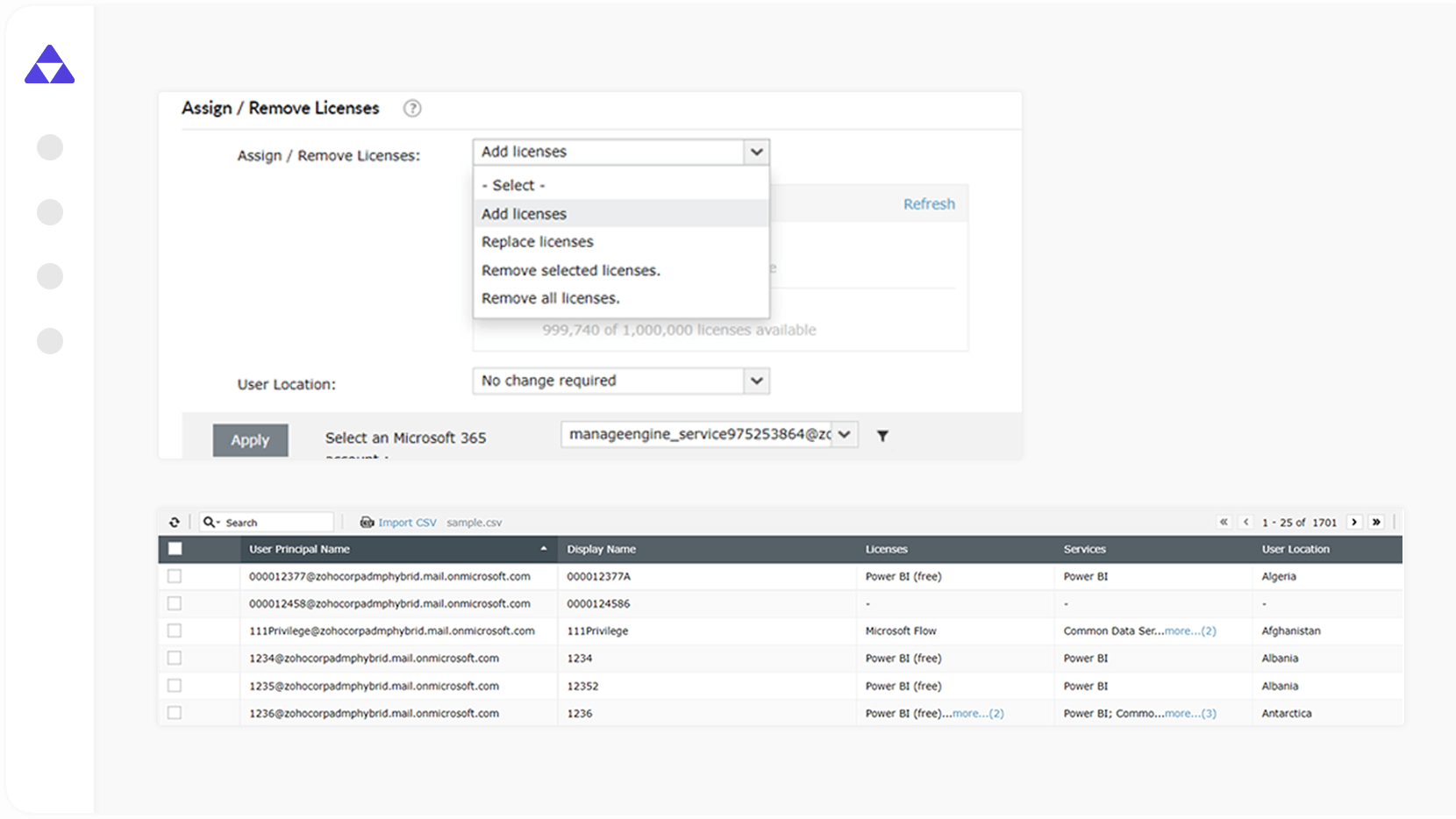
  • Bulk assign licenses while creating Microsoft 365 users

    Assign Microsoft 365 licenses in bulk using a CSV file while creating Microsoft 365 users. You can also assign licenses at a later date.

    Bulk assign licenses while creating Microsoft 365 users
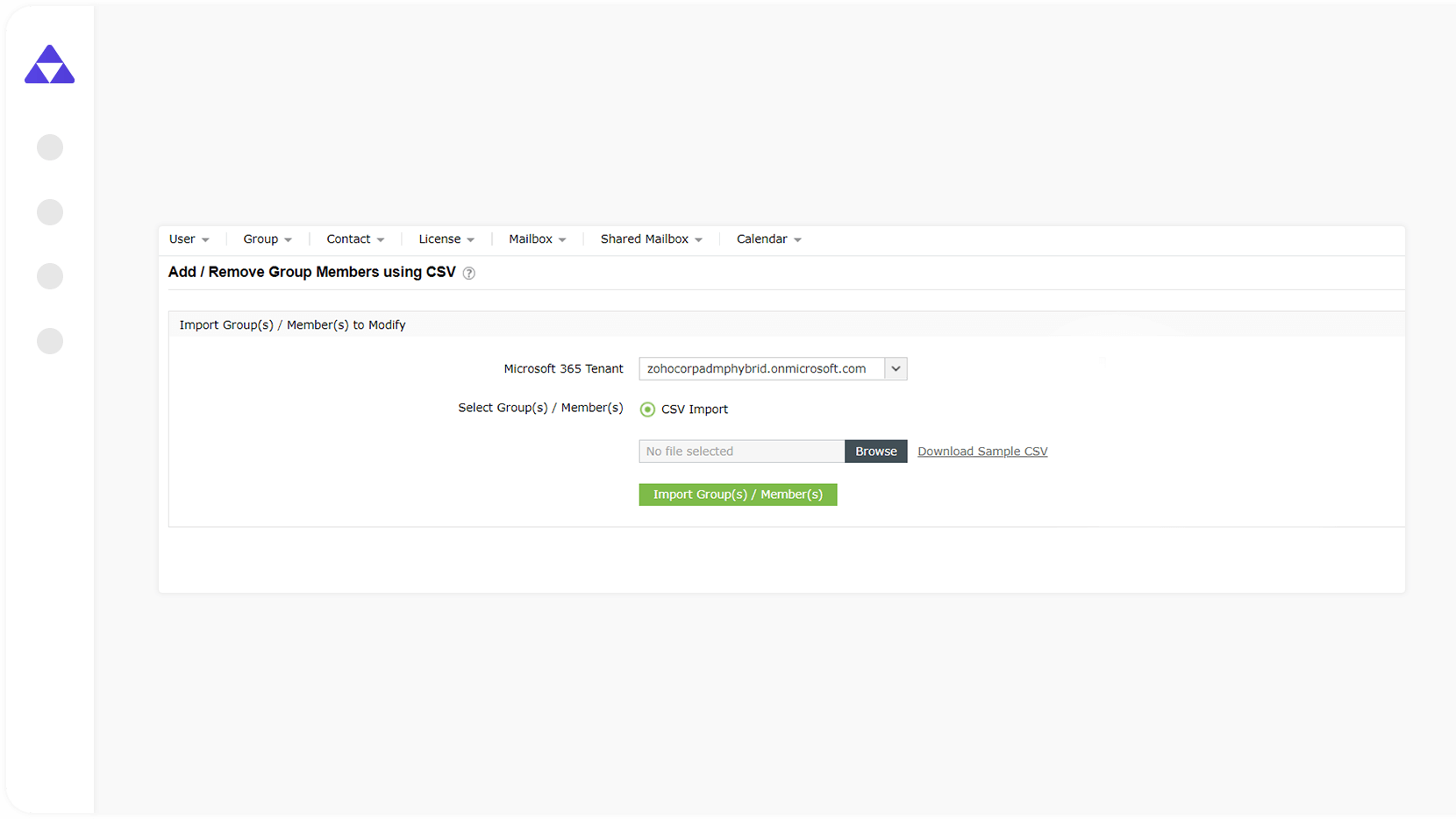
  • Bulk add Microsoft 365 users to groups

    Add or remove multiple Microsoft 365 users from multiple groups, including the distribution groups, by uploading a CSV file.

    Bulk add Microsoft 365 users to groups
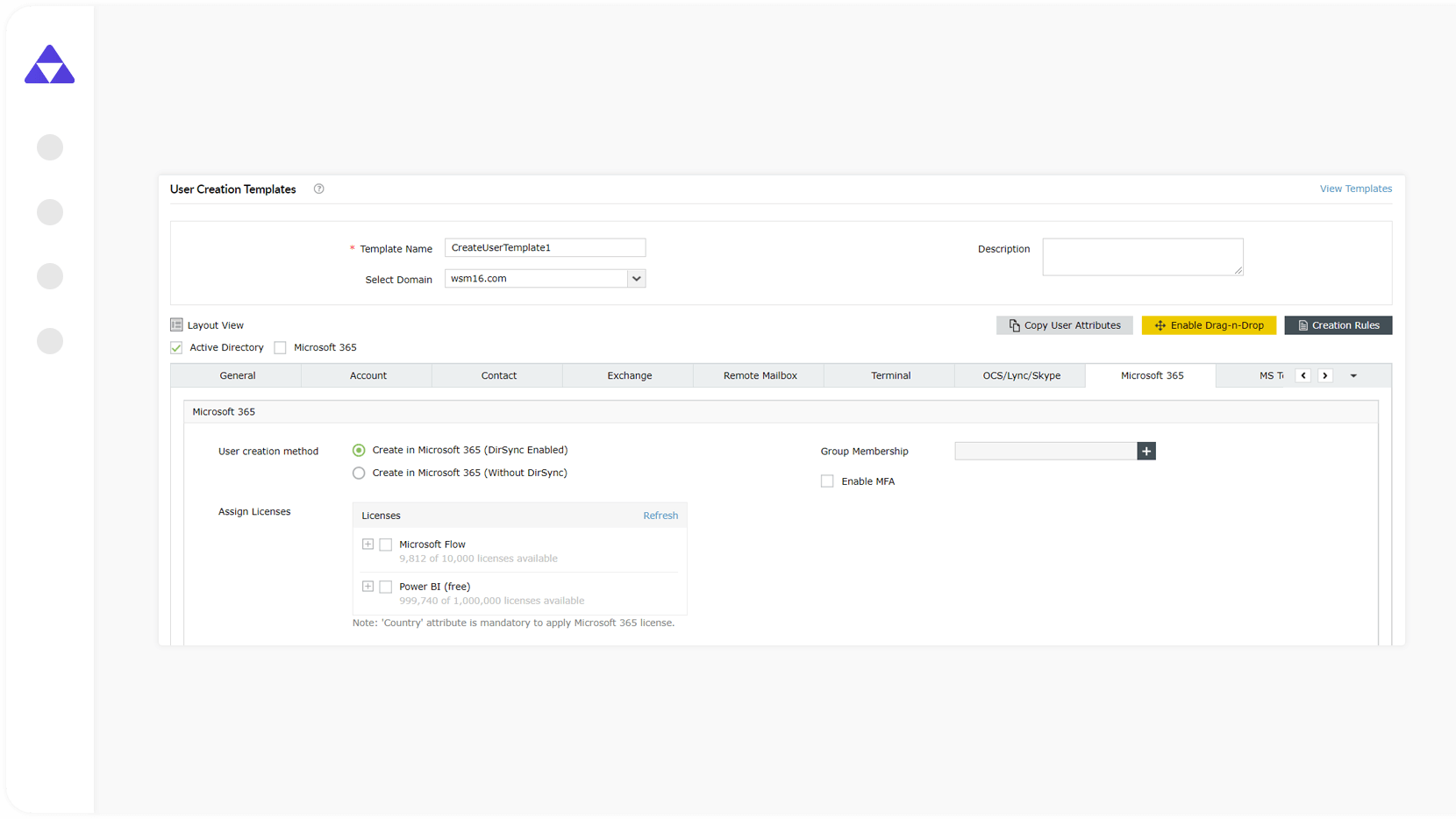
  • Bulk manage Microsoft 365 users using templates

    Use customizable templates to preconfigure specific attributes while creating and modifying Microsoft 365 users in bulk.

    Bulk manage Microsoft 365 users using templates
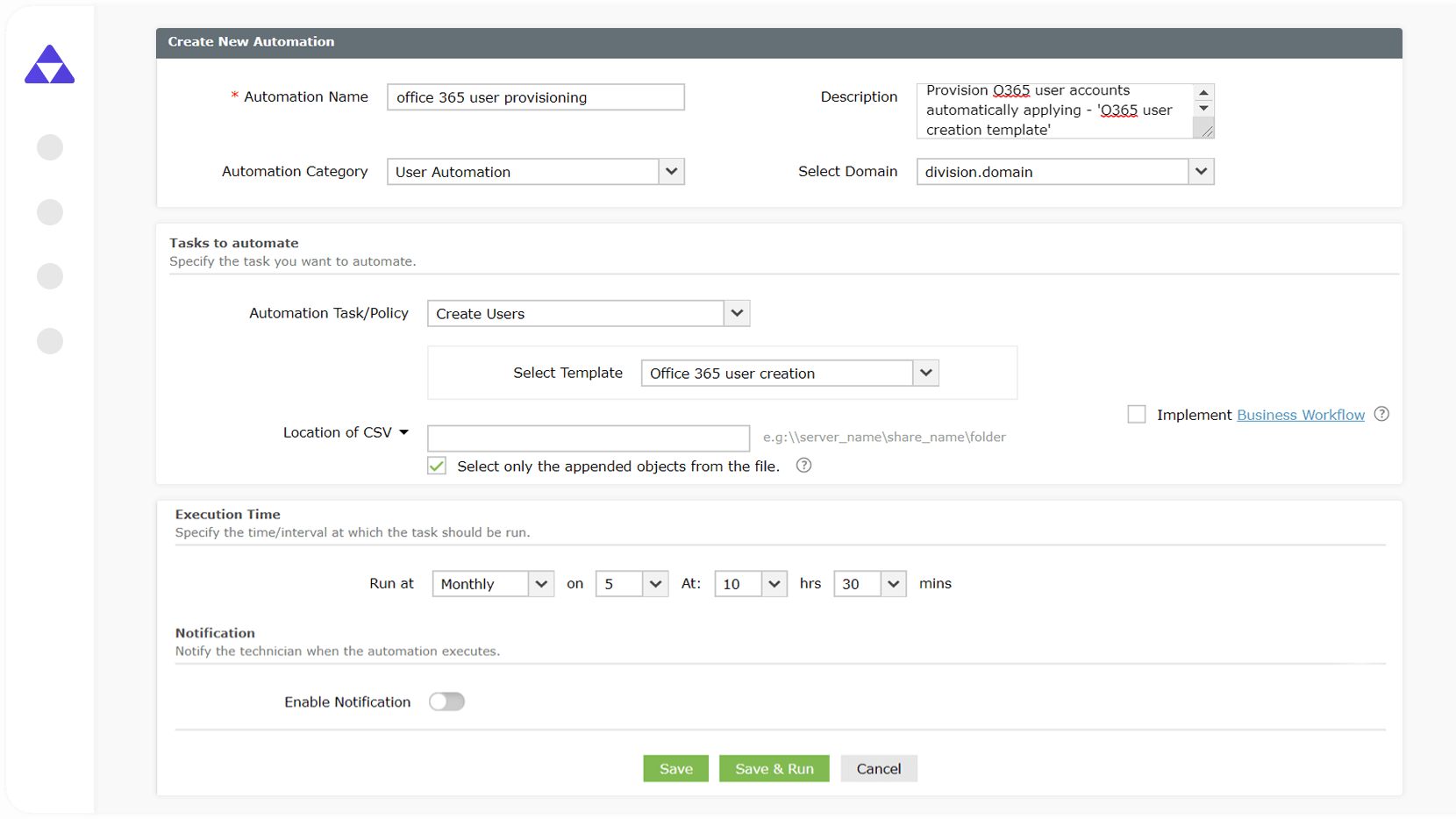
  • Automate Microsoft 365 user creation with DirSync

    Automate Microsoft 365 account provisioning and specify whether the user accounts are to be synchronized with the on-premises AD environment.

    Automate Microsoft 365 user creation with DirSync
Bulk assign licenses while creating Microsoft 365 users
groups - bulk add users to office 365 group
add multiple users to office 365 group via csv
Automate Microsoft 365 user creation with DirSync
Start your free trial

9 out of 10 Fortune 100 companies trust
ManageEngine to manage their IT.

 
4.6/5
 
4.1/5
 
4.5/5
 
4.47/5
 
4.6/5
 
4.6/5

1. Sample script to add users to Microsoft 365 groups

Add-UnifiedGroupLinks -Identity "HR Department" - LinkType Members -Links cal@abccompany.com, nina@abccompany.com

2. Sample script to manage licenses of Microsoft 365 users

Get-MsolUser -All -UsageLocation ‘UK’ | Set-MsolUserLicense -AddLicenses “tenantname : ENTERPRISEPACKAGE”

Limitations

1. The scripts will get longer and more complicated when
additional filters are added.

2. An extensive knoweldge of AD and scripting is required to
troubleshoot these scripts.

Steps to add users to Microsoft 365 groups

1. Navigate to Microsoft 365 > Group Management > Add/Remove Group Members using CSV.

2. Select the desired Microsoft 365 tenant, and import group members in a CSV file.

Steps to assign licenses for Microsoft 365 users

1) Navigate to Microsoft 365 > License Management > Assign/Remove Licenses.

2) Select Add licenses, choose the desired license(s) and User Location from the drop-down list.

3) Choose the Microsoft 365 account along with the desired users, and click Apply.

Start your free trial

Microsoft 365 account provisioning is just the tip of the iceberg! Here are a few other popular features in ADManager Plus

  • AD Management and Reporting

    Leverage the customizable templates to manage all AD objects with simple, GUI-based actions, and stay on top of your AD environment with over 200 out-of-the-box reports.

  • Microsoft 365 Management and Reporting

    Create and manage Microsoft 365 users and their licenses, groups, contacts, mailboxes, and more. Gain visibility on your Microsoft 365 environment with over 90 built-in reports.

  • AD Automation

    Automate routine AD tasks like creating users, deleting inactive users, and more. Track the status of automated tasks whenever required.

Frequently asked questions

Why is the Microsoft 365 last logon report needed?

As a security measure, organizations often need to keep track of the logon activities of Microsoft 365 mailbox users. Aside from security, logon information is collected for various reasons such as adhering to compliance standards, detecting policy violations, and identifying licenses assigned to inactive users so you can reassign them to active users.

What are the AD attributes related to the user logon time?

The attributes related to the user logon time are lastLogon and lastLogonTimeStamp. The former is a non-replicating attribute and is updated only in the domain controller that authenticates the user during logon. The latter is the replicated version and its value gets updated whenever the difference between the previous timestamp and the current timestamp exceeds a certain threshold value.
ADManager Plus retrieves the lastLogon value from all DCs and the latest values will be updated for the lastLogon and lastLogonTimeStamp fields.

What are the limitations of generating this report with native AD tools and scripts?

With the Microsoft 365 Admin Center, you can only view the most recent logon information of users individually. If admins wish to obtain the last logon time of multiple Microsoft 365 mailbox users at once, the only alternative is using complex PowerShell scripts. Furthermore, with PowerShell, only limited filtering options are available, which makes it difficult to narrow down and find any suspicious logon activities.

How does ADManager Plus simplify Microsoft 365 last logon reporting?

ADManager Plus provides detailed M365 user logon information such as last logon times, last logoff times, details of M365 licenses, and more without using any scripts. Besides listing logon information about users with specific licenses, it displays the AD attributes of users such as logon time, account status, and more.

Over 100,000 technicians
trust ADManager Plus to manage their
Windows environment.

  • ADManager Plus provides us a single point for our Active Directory Reports. For a small IT department this is crucial for saving time and being able to apply our energy to keeping things running smooth. I foresee this being in our arsenal of network tools for a long time to come.

    Mark Anderson

    IT Support, ET Investments

  • ADManager Plus - The Swiss Army Knife for AD Administrator
    It has made managing and administrating Active Directory easy, fast and efficient. Everyday tasks which earlier required us to write Powershell scripts are now easily achievable using an workflow like interface.

    Deputy Chief IT Engineer

    Company Size: 1B - 3B, Energy and Utilities

×

Start your 30-day free trial

  •  
  • *
     
  •  
  •  
  • By clicking 'Submit' you agree to processing of personal data according to the Privacy Policy.