End-User Notifications of Application Control & Privilege Management
This documents lists the different notifications that appear to the end-user on different application policy scenarios.
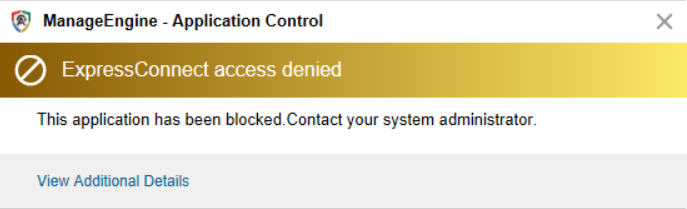
Blocked Application
Here is the notification shown in the endpoint when the user tries to access a blocklisted application. If the user checks the 'Don't show this again' option while closing the prompt, the notification won't be displayed again for that specific application.

Unmanaged Application in Strict Mode
This is the notification shown when the user tries to access an unmanaged application when running in strict mode.
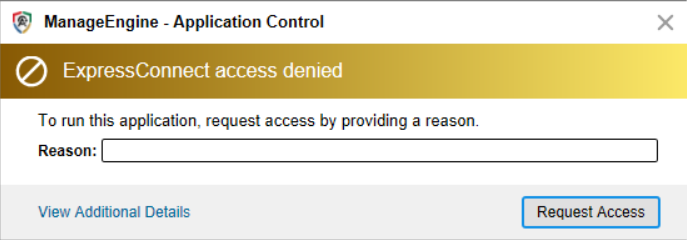
Unmanaged Application with Request Access
This is the notification shown when an unmanaged application is accessed in Strict mode and the deployed application policy has the request access option enabled.
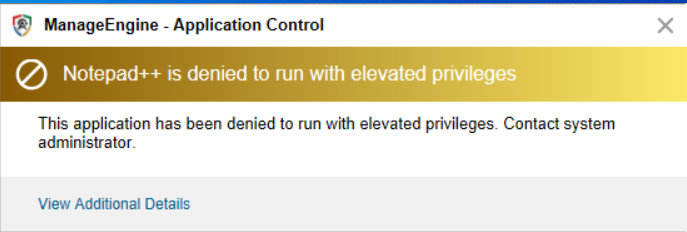
Allowlisted Unelevated Application
Here is the notification shown when the end user tries to run an allowed applications with elevated privileges, when the application is not a part of the privileged list.
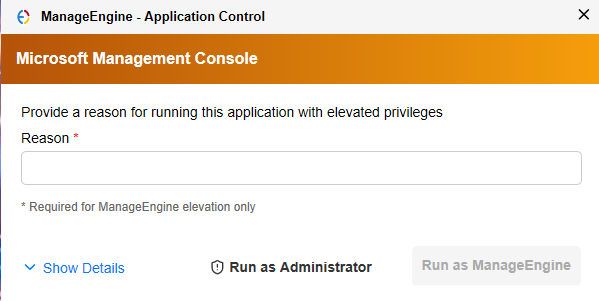
Self-Elevation of Application
Here is the notification shown in the endpoint when the end user tries to self-elevate by providing a justification. The user can select the 'Run as Administrator' option and elevate the component by providing the admin credentials, or click 'Run as ManageEngine' and directly elevate the component.
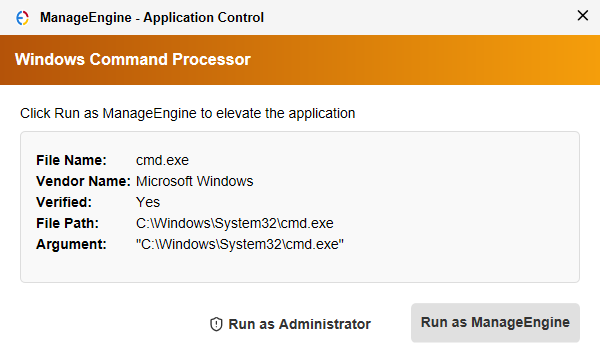
Elevation of Windows Components
Here is the notification shown in the endpoint when the end user tries to elevate a Windows component such as a Control Panel setting. The user can select the 'Run as Administrator' option and elevate the component by providing the admin credentials, or click 'Run as ManageEngine' and directly elevate the component.
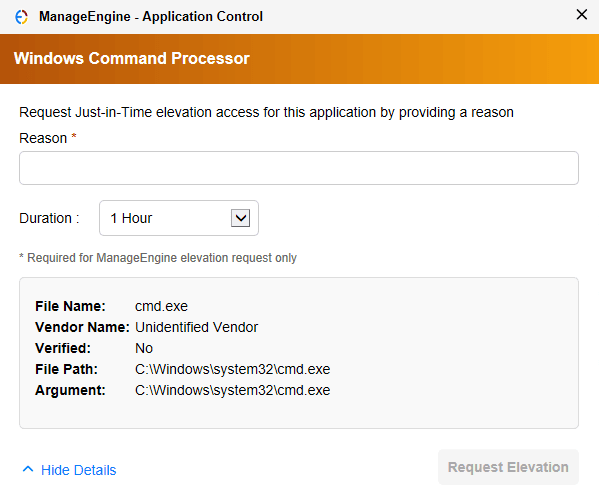
Just-In-Time Elevation Request
Here is the notification shown in the endpoint when the end-user tries to request Just-In-Time (JIT) elevation. This can only be done if the request for JIT elevation is configured when creating the privileged application list.
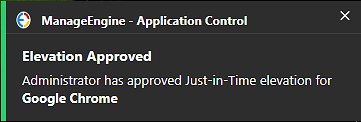
Just-In-Time Access Request Approved
This is the notification dialog shown when the Just-In-Time access request is approved by the administrator for the requested application by the specific end-user.
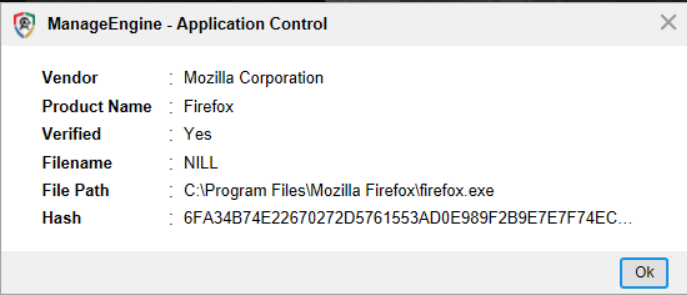
Application Details
This notification gives the details of the blocked application when the user clicks View Additional Details in the blocked application notification prompt.
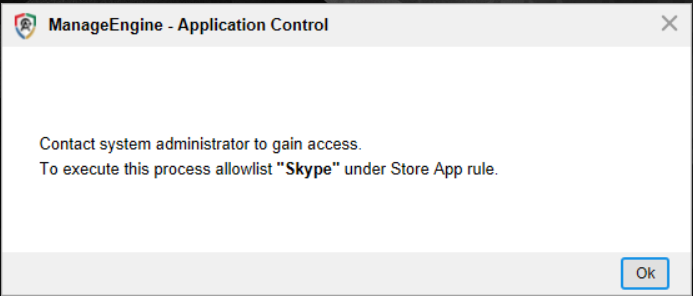
StoreApp Application Details
This notification is shown when the user clicks View Additional Details in the blocked Store application notification prompt.
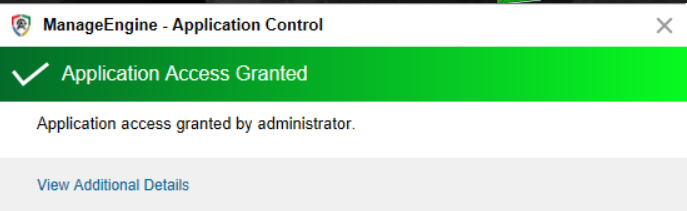
Application Access Granted
This is the notification dialog shown in acknowledgement of the application granted access by the administrator for the requested applications by the specific endpoint.
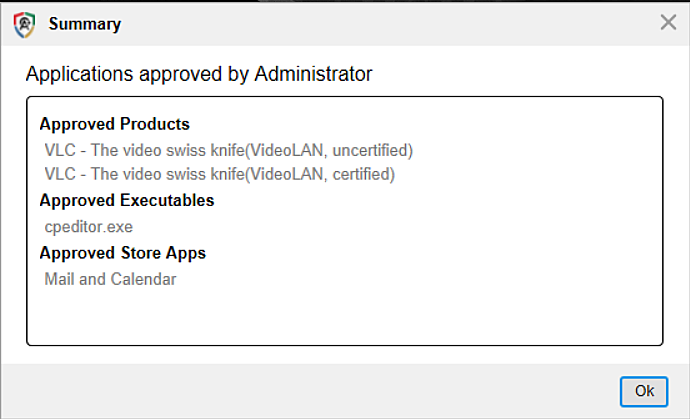
Approved Applications Details
This notification gives the details of the items approved by the administrator when the user clicks View Additional Details in the application granted access notification prompt.
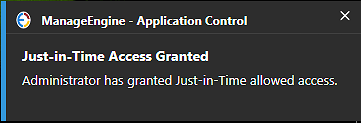
Just-In-Time Access Granted for Allowlisting
This is the notification dialog shown when the administrator grants Just-In-Time access for allowlisting.
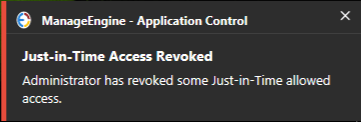
Just-In-Time Access Revoked for Allowlisting
This notification dialog appears when an administrator withdraws the temporary allowlisting access prior to the specified duration.
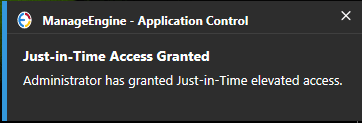
Just-In-Time Access Granted for Elevation
This is the notification dialog shown when the administrator grants Just-In-Time access for elevation.
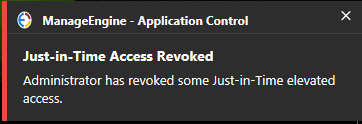
Just-In-Time Access Revoked for Elevation
This notification dialog appears when an administrator withdraws the temporary elevation access prior to the specified duration.