BitLocker Audit & Reports
Where to check per-device encryption status, and what the BitLocker and TPM reports actually show.
Overview
Managed Computers
Use this view to review device encryption state, policy and prerequisite status.
What the Managed Computers view shows
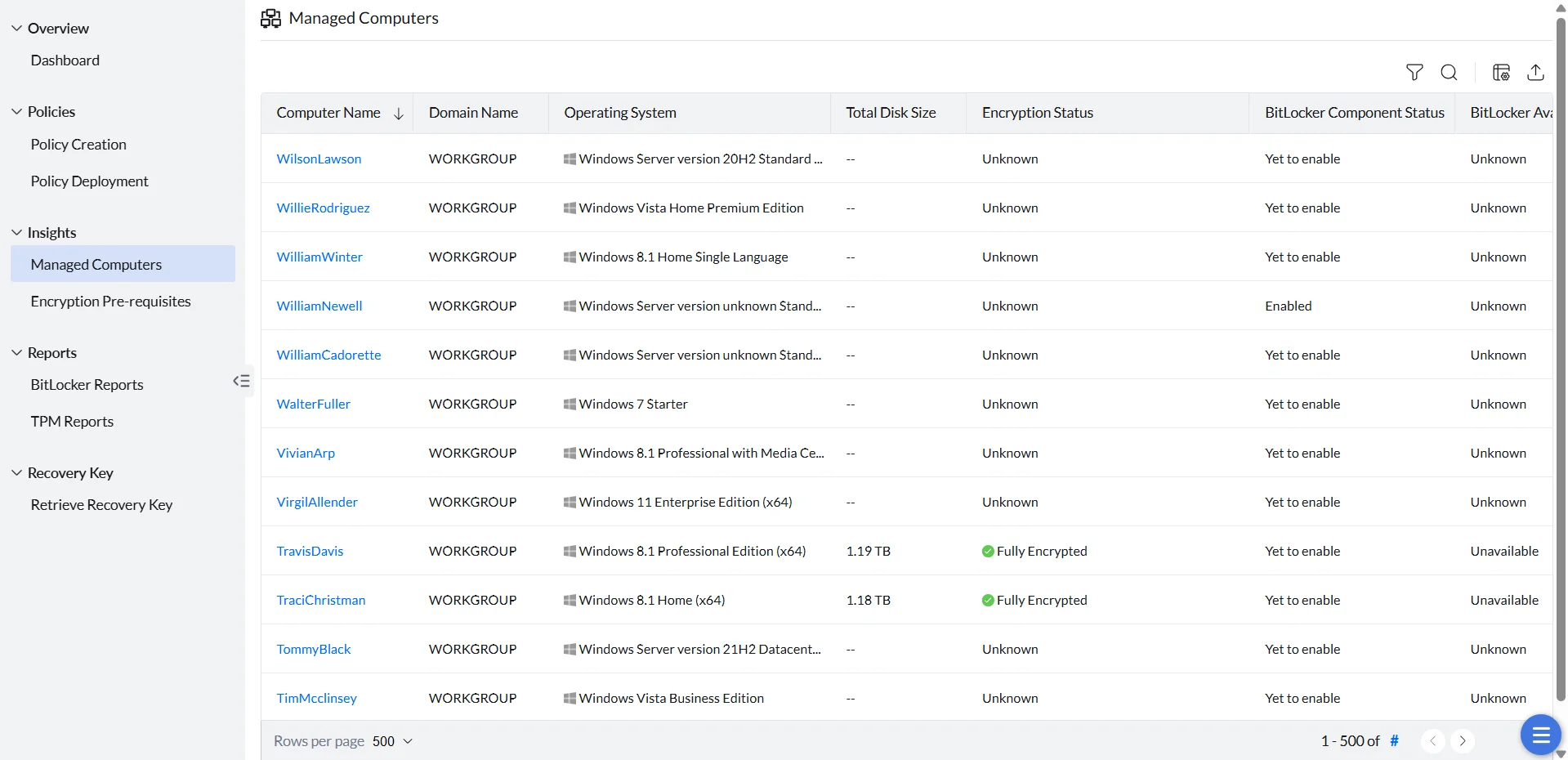
The Managed Computers section under Insights lists device name, domain, operating system, storage capacity, encryption status, applied policy, BitLocker and TPM availability, and component and prerequisite status. Listing depends on managed scope, component state and reported data. A deployed policy is not an unconditional prerequisite for every record.
| State | Meaning and next check |
|---|---|
| BitLocker component not installed | The module has not reported an installed BitLocker agent component. Check add-on scope, component status/remarks and agent communication. |
| Component installed; drive data not posted | Component installation and drive-data reporting are separate. Request an update and inspect the latest reported data. |
| Unknown / Yet to Sync Data | The corresponding data is not available to the view. Check the field and last update; this is not proof that the drive is decrypted. |
| Field | Interpretation |
|---|---|
| BitLocker Availability | The reported availability of the Windows BitLocker feature. It does not by itself establish that all deployment prerequisites passed. |
| Prerequisite Status | The reported readiness result. Review the failed prerequisite separately from feature availability. |
| Unknown | The corresponding field has no usable reported value in this view. It is not a declaration that encryption is off. |
| Yet to enable / no encryption-status icon | Read the component status and remarks. Open the computer details to distinguish a missing component from drive data not yet posted. |
The component-empty view can show BitLocker components are not installed in this system. Data will be available once BitLocker components are installed. Check the actual status columns and component diagnostics before assigning a cause.
The Windows BitLocker feature and the Endpoint Central BitLocker component are separate prerequisites. Do not reinstall the agent or clear the TPM solely because a status is unknown. If the component remains unavailable despite valid scope and healthy communication, send the component status, remarks, builds and diagnostic results to support.
For deployment and component checks, see BitLocker encryption troubleshooting.
Reading the Encryption Status icon
Encryption Status is a machine-level summary across all of a computer's drives. The color of the icon next to the status matters as much as the status text itself:
If a drive remains Fully Decrypted after deployment, compare policy status with the actual drive status. Check encryption verification and password requirements and BitLocker encryption troubleshooting. A successful deployment does not by itself confirm encryption completion.
| Field | Interpretation |
|---|---|
| Unknown | The corresponding encryption data is not available in this view. Check component and reported drive data separately. |
| Fully Decrypted | Review the reported conversion state, prerequisite result and the active policy’s encryption action. The icon alone does not establish why the drive is decrypted. |
| Fully Encrypted | Review the reported drive conversion and Protection Status separately. Completed encryption alone does not confirm active protection. |
Interpret Encryption Status, Prerequisite Status, component state and the active policy separately. A Fully Decrypted icon alone does not identify a failed prerequisite or prove which authentication setting caused the state. Check the actual prerequisite result and the TPM/non-TPM setting in the active policy. If non-TPM devices are set to Protection off (No Encryption), that policy does not request encryption for them. Review non-TPM authentication settings and drive-state diagnostics.
Reports
BitLocker Reports
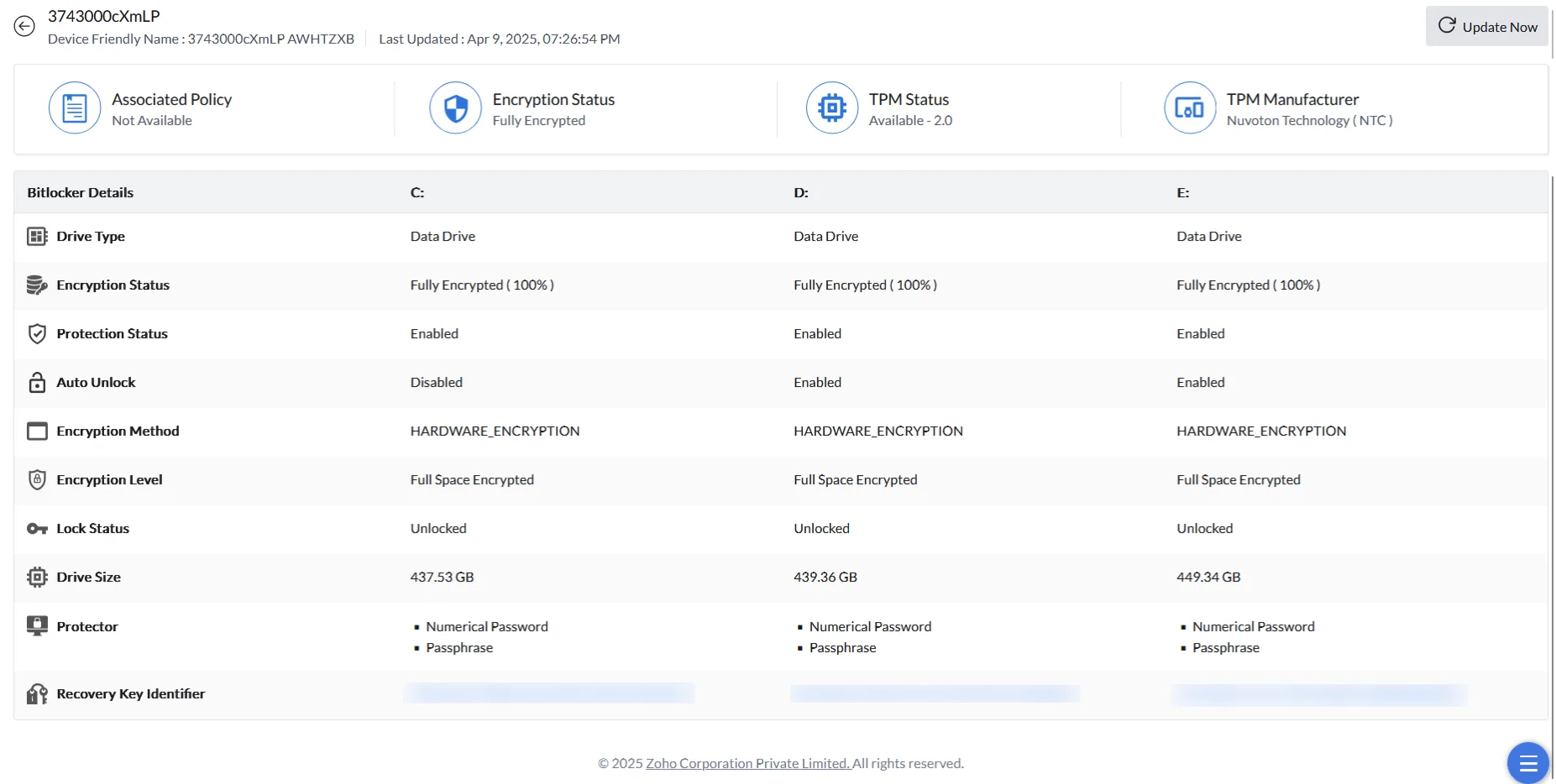
Every computer is scanned for its BitLocker and drive details, starting right after agent installation.
BitLocker status report fields
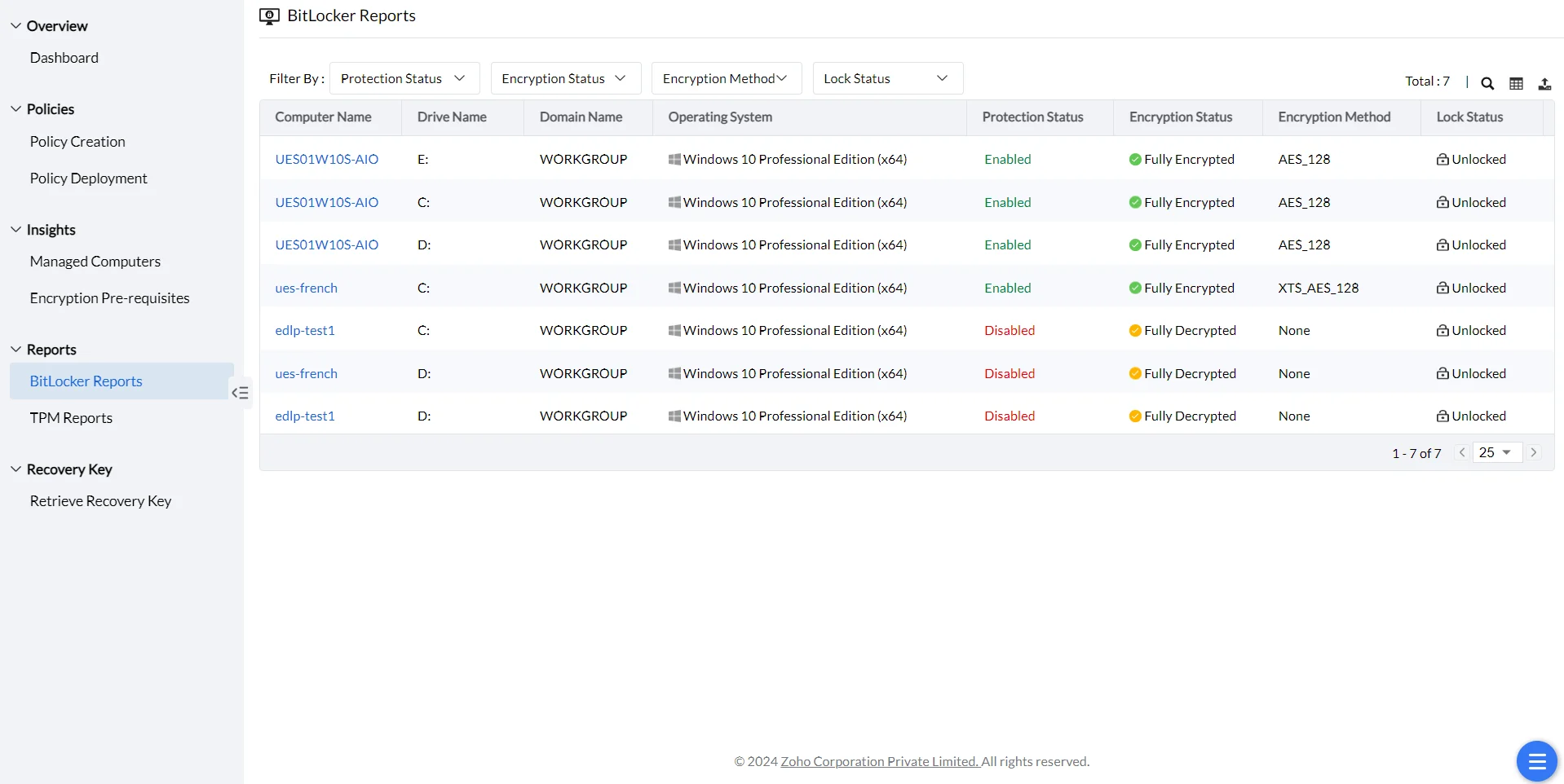
All computers are scanned to assess their BitLocker encryption status and drive details. The initial scan runs right after agent installation, and later scans detect new computers and track changes in drive status and encryption progress.
Each row in the BitLocker report represents ONE DRIVE/VOLUME, not one computer. A computer with multiple drives (C:, D:, K:, etc.) will appear as multiple rows in the report. If you have 100 computers with an average of 2-3 drives each, the report may show 200-300 rows. To count unique computers, use the Managed Computers grid or filter reports by unique computer names.
Reports
TPM Reports
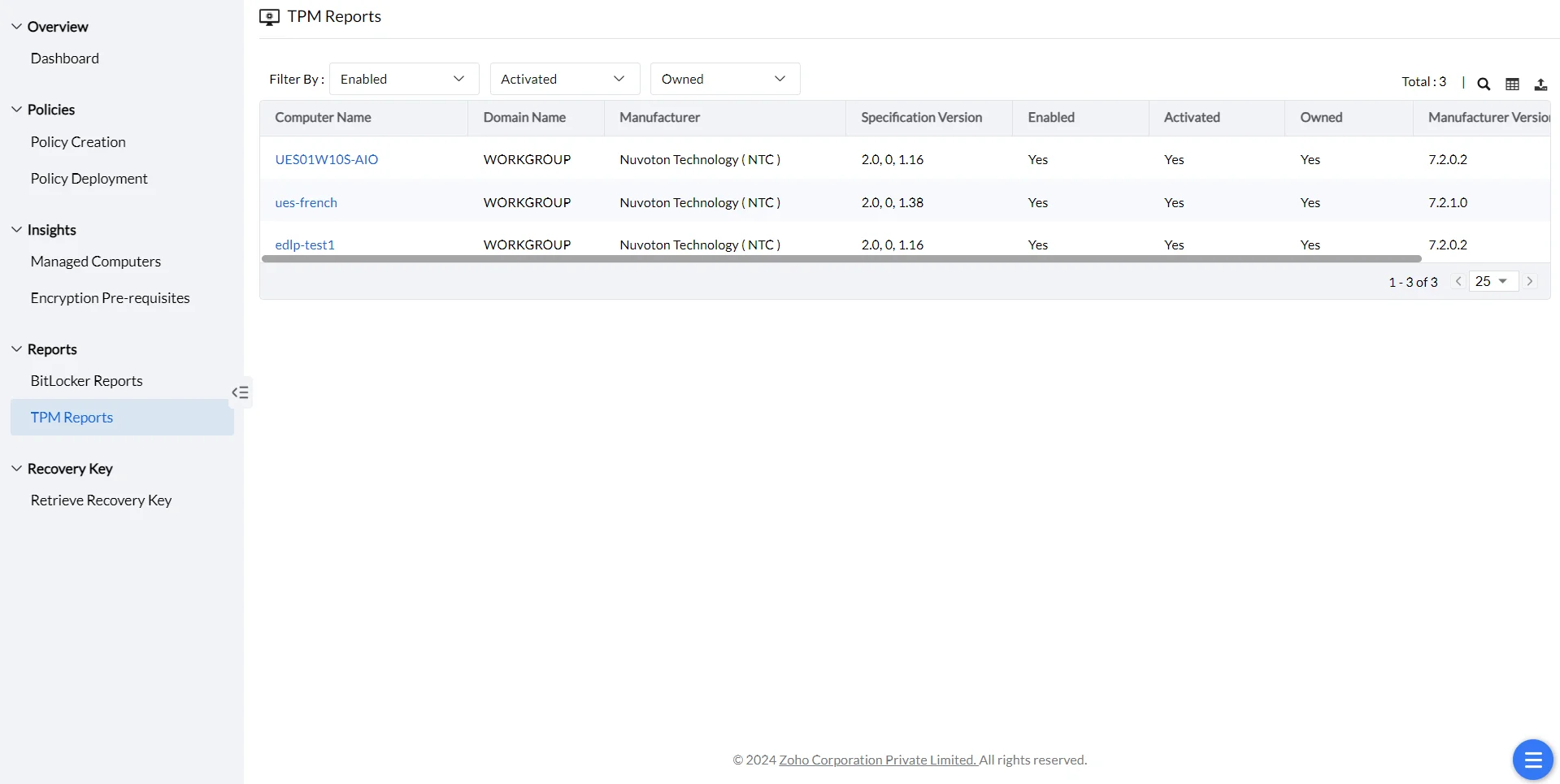
TPM handles the hardware side of encryption, and its own report tracks whether it's available, enabled, and owned.
TPM and drive protection
The Trusted Platform Module (TPM) is a hardware security chip on the motherboard that provides hardware-level drive encryption. It generates a set of cryptographic keys unique to the host system, storing part of the key in the TPM and the rest on the hard drive — the drive is only accessible when both halves match, so if the drive is moved to another computer, the data stays encrypted.
TPM report fields
BitLocker Management Dashboard & Tile Definitions
The BitLocker Management Dashboard provides a quick snapshot of encryption status across your organization through summary tiles, charts, and actionable links to drill down into specific areas.
Computer Encryption Summary Tiles
The dashboard displays four key metrics in the Computer Encryption Summary section:
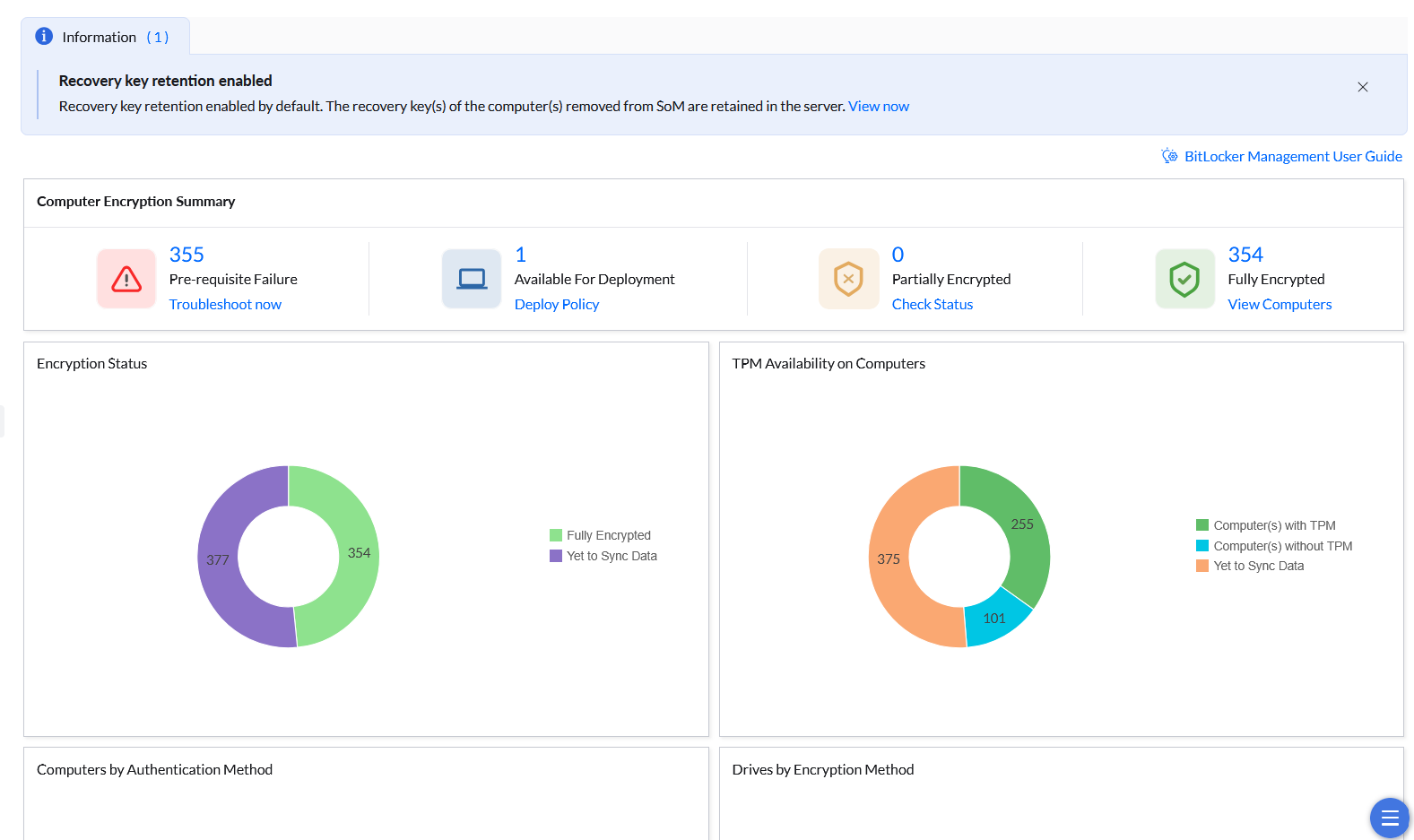
Pre-requisite Failure
Computers in the scoped prerequisite-failure query. Inspect the reported failure before choosing a remedy. The following are checks to investigate, not unconditional failure criteria:
- TPM availability and the TPM/non-TPM authentication selected by the policy
- Secure Boot disabled
- Insufficient drive space for encryption
- Incompatible hardware or firmware
Action: Verify hardware prerequisites on these machines and resolve the blocking issue before encryption can proceed.
Available For Deployment
Eligible Windows computers in managed/security scope with compatible prerequisites and no associated BitLocker policy. Actual drive encryption must be checked separately.
- Unencrypted machines (awaiting policy deployment)
- Machines encrypted outside this policy, including Windows native BitLocker, Device Encryption or legacy MBAM, can still require association and migration checks.
- Machines where no BitLocker policy has been selected in Policy Deployment yet
Important: A machine appearing here does NOT necessarily mean it is unencrypted; it may be encrypted but not yet under EC management.
Action: Review the current encryption settings and recovery-password backup before deploying a policy. Verify policy association and the next reported drive status.
Partially Encrypted
Machines whose reported per-drive aggregate includes at least one 100%-converted drive and an average below 100%. This is different from the encryption-in-progress condition.
Action: Check each drive’s reported conversion state and policy scope. Do not infer an ongoing conversion or completion deadline from this tile alone.
Fully Encrypted
Machines whose reported drive conversion statuses aggregate to fully encrypted. Verify Protection Status separately.
Status: Verify active protection and the latest reported data before confirming compliance.
| Tile | Definition |
|---|---|
| Pre-requisite Failure | Computers selected by the scoped prerequisite-failure query. Inspect the reported failure; do not list no TPM as an unconditional failure when passphrase encryption is supported. |
| Available For Deployment | Eligible managed/security-scope Windows computers with compatible prerequisites and no associated BitLocker policy. It does not by itself mean the drive is unencrypted. |
| Partially Encrypted | Reported per-drive aggregate has at least one 100%-converted drive and an average below 100%. This differs from the separate encryption-in-progress condition. |
| Fully Encrypted | The reported drive conversion statuses aggregate to fully encrypted. Check Protection Status separately; this count is not proof that protection is active. |
Counts are limited by customer, management and technician scope. Open the relevant device/drive view and compare the latest reported data before taking action. Do not assume all tiles require a previously deployed policy.
Dashboard Charts
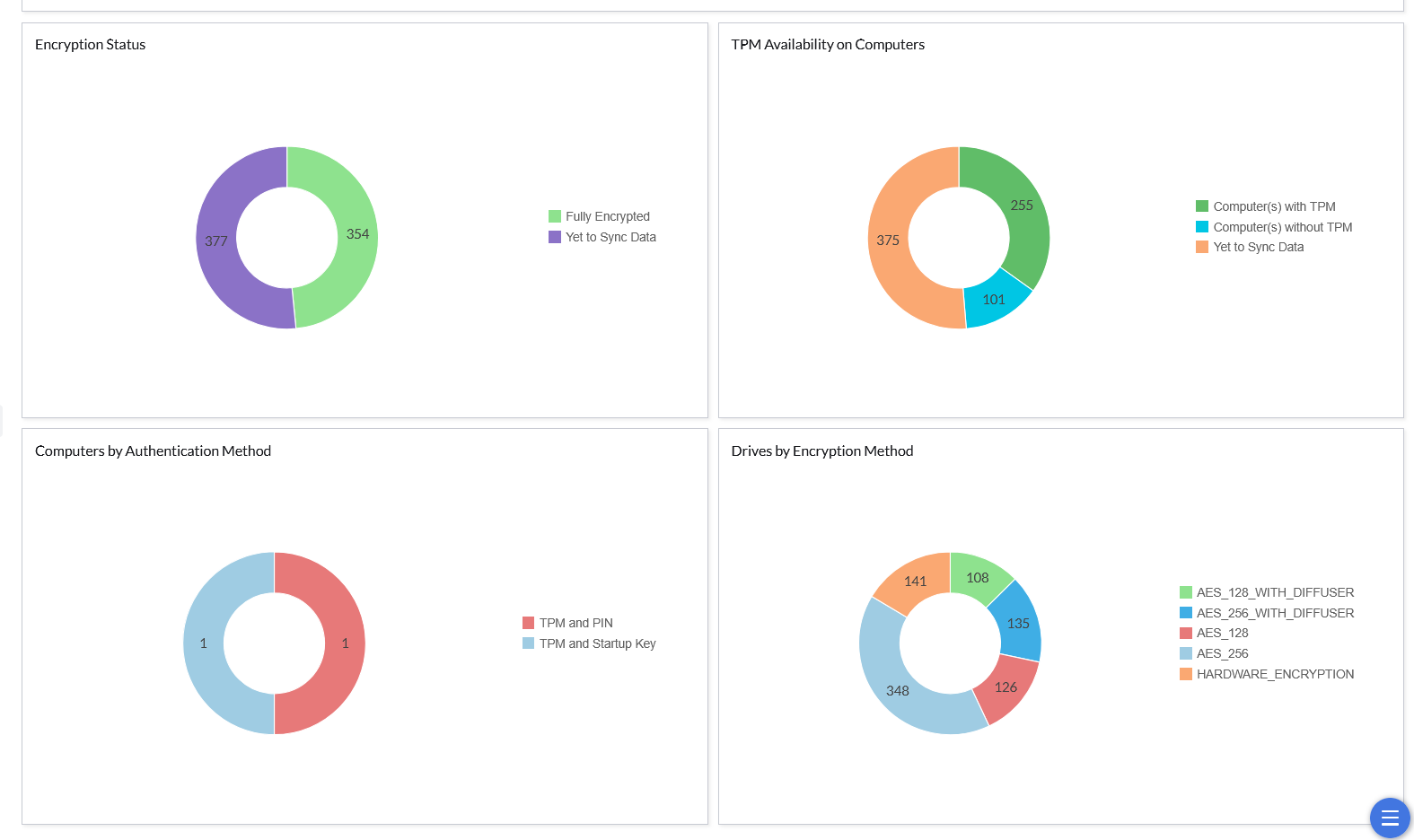
Encryption Status
Pie chart showing the overall encryption progress across all managed machines:
- Fully Encrypted: Machines with 100% encryption completion
- Yet to Sync Data: Machines where encryption status has not yet been reported or synced to the dashboard (typically newly deployed policies or machines awaiting first agent check-in)
TPM Availability on Computers
Pie chart showing TPM readiness across managed machines:
- Computers with TPM: Machines with available Trusted Platform Module (required for TPM-based encryption authentication)
- Computers without TPM: Machines without TPM (will require PIN or passphrase-based authentication)
- Yet to Sync Data: Machines where TPM status has not yet been reported
Computers by Authentication Method
Pie chart showing the distribution of authentication methods deployed across machines:
- TPM and PIN: Machines using TPM with PIN authentication
- TPM and Startup Key: Machines using TPM with startup key file authentication
- Other methods: Passphrase, TPM only, or other configured authentication types
Drives by Encryption Method
Pie chart showing the distribution of encryption algorithms used across all encrypted drives:
- AES_256_WITH_DIFFUSER: Advanced Encryption Standard 256-bit with DIFFUSER (legacy)
- AES_256: Advanced Encryption Standard 256-bit (standard modern encryption)
- AES_128: Advanced Encryption Standard 128-bit
- HARDWARE_ENCRYPTION: Self-encrypting drives or hardware-based encryption
- Other methods as configured in your policies
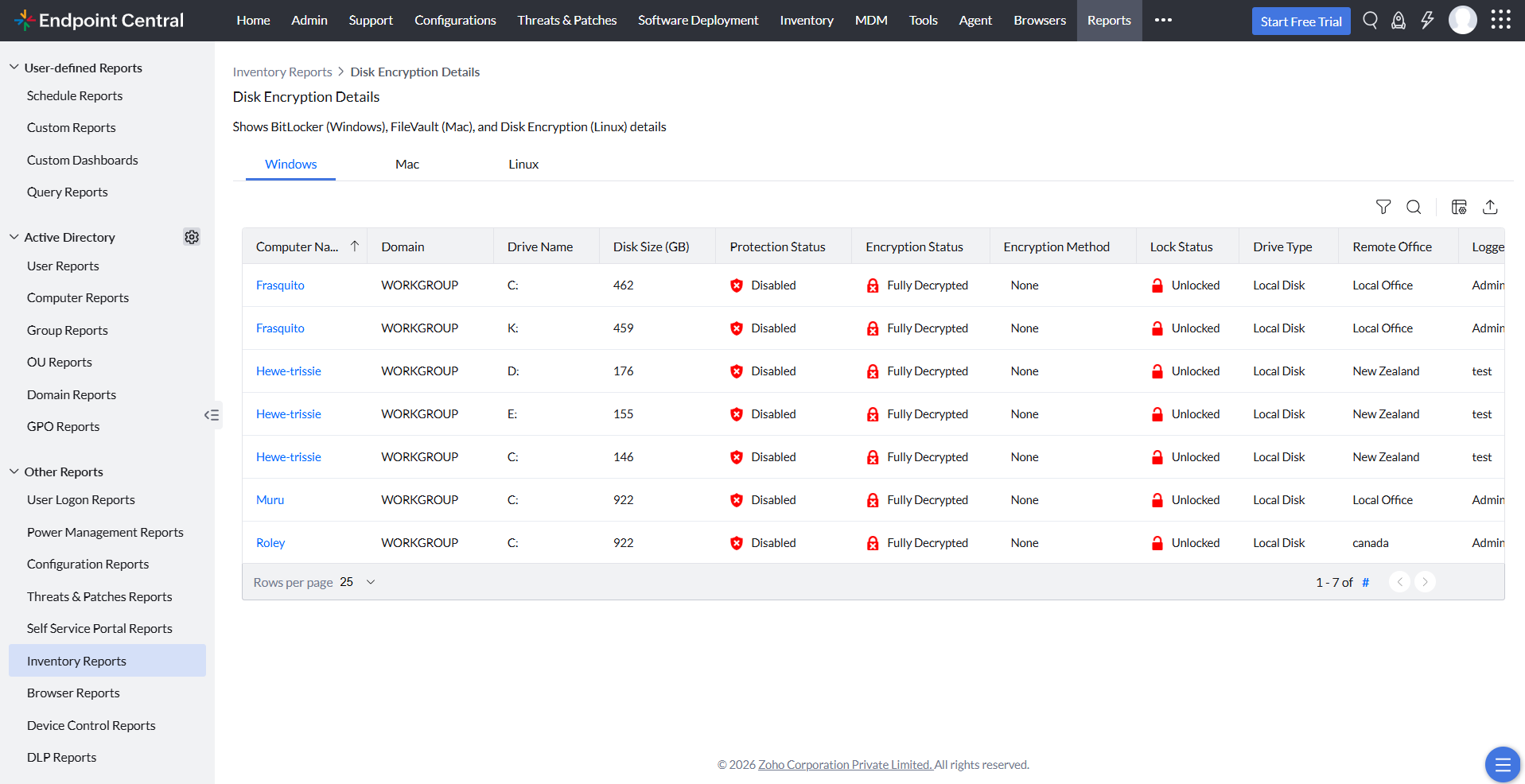
Disk Encryption Details
Endpoint Central provides detailed per-drive encryption information for each managed machine of Windows, Mac and Linux OS. Navigate to Reports -> Inventory Reports -> Disk Encryption Details (under Security Reports). You can also view the TPM Details and TPM Availability Report.