×![]()
×
×![]()
×
×
Browser Lockdown
Lock Internet Explorer or Microsoft Edge into kiosk mode, restricted to a predefined list of trusted sites.
About
Understanding Browser Lockdown
Legacy browsers still power legacy applications, but they need tighter guardrails.
What it does
Internet Explorer, due to its outdated plugins, is susceptible to security risks — yet many businesses still rely on it for legacy applications. Restricting its access to trusted websites is essential to mitigating those risks.
Browser Lockdown in Endpoint Central enables kiosk mode in Internet Explorer and Microsoft Edge, restricting users to a predefined list of websites. Administrators can use this to control and limit online access, so users only visit authorized sites.
Configuration
Implementing Browser Lockdown
Pick a browser, define the site allowlist, and roll it out.
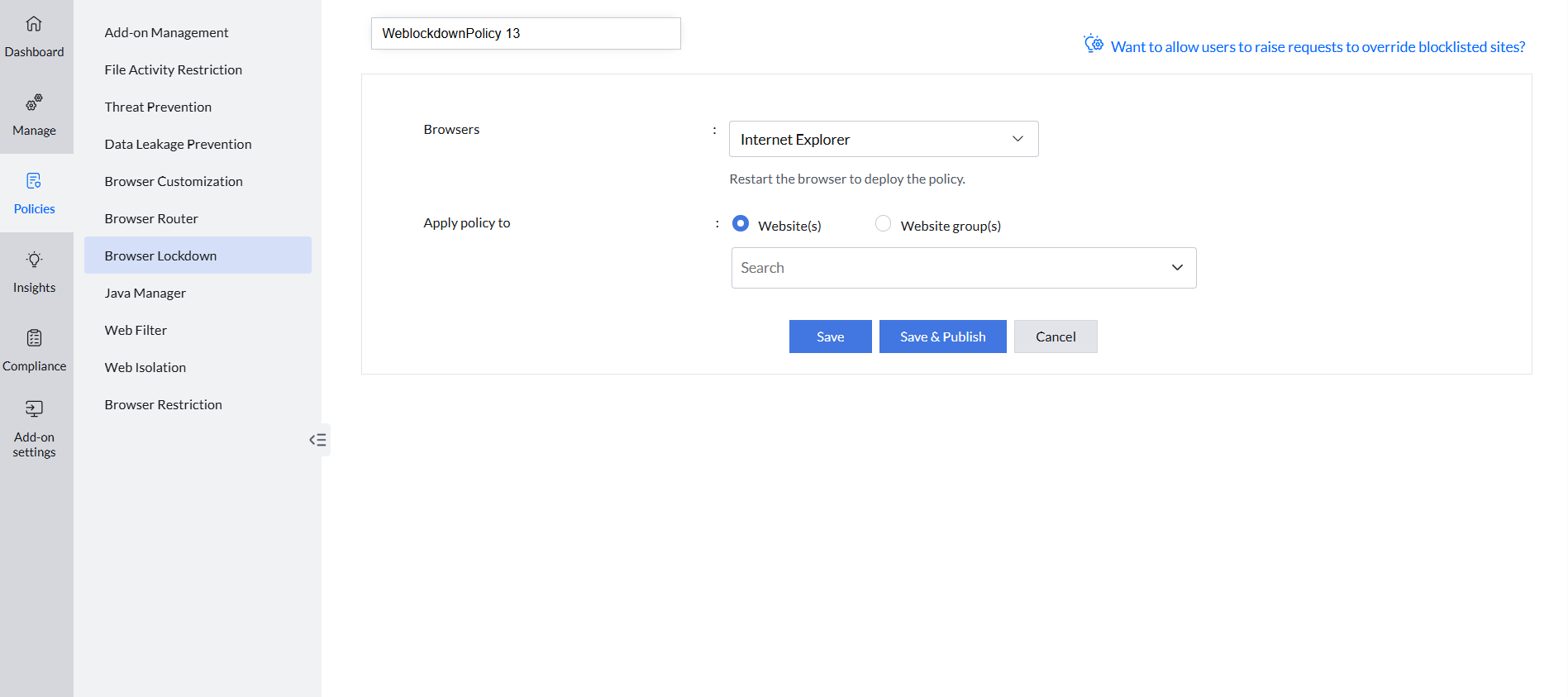
Create and deploy a Browser Lockdown policy
- Open the Endpoint Central console and go to Browsers → Policies → Browser Lockdown.
- Click Create Policy.
- Select the browser to enable in kiosk mode.
- Enter the websites or website groups end users should have access to.
- Click Save to save the policy as a draft, or Save & Publish to publish it.
- Deploy the policy with the computers or groups where web-application access should be restricted.