Threat Prevention Browser Configurations
Configuring Threat Prevention
Threat Prevention safeguards users from accessing malicious websites, including phishing sites, malware sites, and sites that distribute malware. By configuring this policy, administrators can effectively protect users from a range of online threats, such as script execution vulnerabilities. This document will explain how to create the policy and about each configuration provided by Endpoint Central.
Kindly follow the steps given below to successfully create and deploy Threat Prevention policy:
- Open Endpoint Central console and navigate to Browsers -> Policies -> Threat Prevention.
- Click Create Policy and select the OS platform.
- Give a name for the policy.
- Refer below to know more about each of the Threat Prevention settings.
- Click Save to save the policy as a draft. Click Save & Publish to save the policy.
- Associate the policy to computers/groups of computers in which you want the isolation of web-applications to take place.
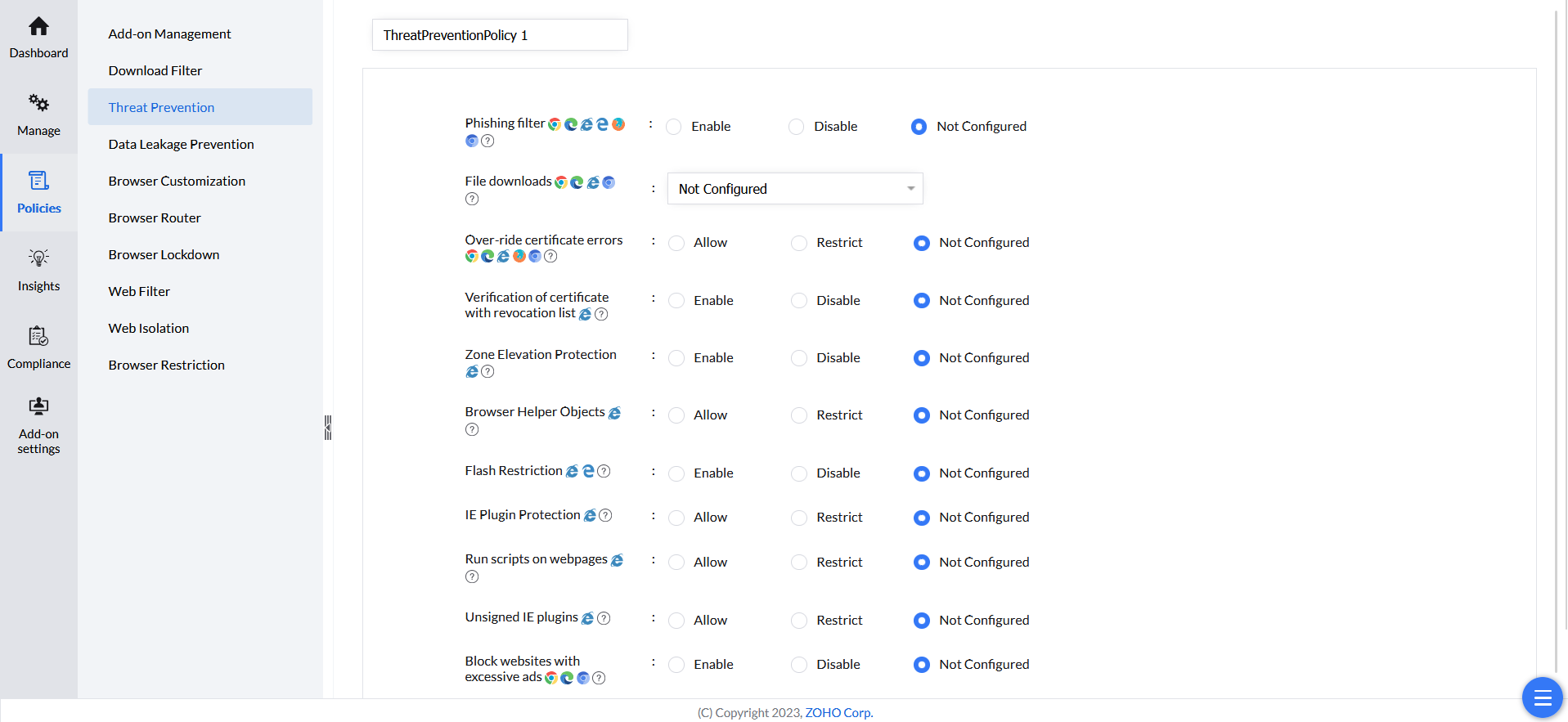
Settings under Threat Prevention
This document will explain each configuration for Threat Prevention provided by Endpoint Central and the browsers it is applicable for.
| Configuration | Description | Supported Browsers | Supported Platforms |
| Phishing Filter | Enabling this setting, protect browser against malware, abusive sites, Insecure extensions, phishing, malicious, and social engineering attacks. | Chrome, Edge, Firefox, Ulaa & Chromium Browsers | Windows, Mac |
| File Downloads | Enable - Enable all File Downloads Disable - Disable all File Downloads Restrict Malicious File Downloads - Allow downloads but blocks malware and phishing downloads | Chrome, Edge, Ulaa & Chromium Browsers | Windows, Mac |
| Over-ride certificate errors | Restricting this setting prevents the user from bypassing certificate errors and visiting potentially unsafe websites. Limitation: The Restrict over-riding SSL certificate errors policy (Threat Prevention) does NOT support per-domain or per-URL allowlists. When enabled, it prevents users from bypassing certificate warnings on ALL websites. If users need to access sites with certificate issues, disable the certificate-error restriction entirely for their policy group (not recommended for security). To request per-domain allowlisting, submit a feature request via the Product Roadmap. | Chrome, Edge, Firefox, Ulaa, Chromium Browsers | Windows, Mac |
| Verification of certificate with revocation list | Internet Explorer's certificate revocation list verifies certificates against a list of revoked ones, enhancing security by preventing usage of compromised certificates. | Internet Explorer | Windows |
| Zone Elevation Protection | This policy enables Zone Elevation Protection which ensures that content from a lower security zone cannot execute scripts in a higher security zone. | Internet Explorer | Windows |
| Browser Helper Object | This policy disables third-party Browser Helper Objects, which can be used to extend browser capabilities, but can also be used maliciously. | Internet Explorer | Windows |
| Flash Restriction | Restrict Flash plugins and content. Flash is deprecated and known for its security vulnerabilities. | Edge, Internet Explorer | Windows |
| IE Plugin Protection | Prevents installation of unsigned ActiveX controls or plugins, allowing only verified signed plugins. | Internet Explorer | Windows |
| Run scripts on webpages | This policy disables the execution of scripts on websites, preventing potentially harmful script-based attacks. | Internet Explorer | Windows |
| Unsigned IE plugins | Prevents installation of unsigned Internet Explorer plugins or add-ons, enforcing only digitally signed add-ons. | Internet Explorer | Windows |
| Block websites with excessive ads | Automatically block websites that display intrusive or excessive ads. | Chrome, Edge, Chromium Browsers | Windows, Mac |
| Block third party websites that inject code | Blocks untrusted third-party websites that attempt to inject unauthorized scripts or modify content on the webpage. | Chrome, Chromium Browsers | Windows, Mac |