Configure File Folder Operation
What is a file folder operation?
The file folder operation helps you to copy, delete, move, rename files and folders in a computer. By enabling the file folder configuration in Endpoint Central, files and folders across several computers can be copied, renamed, deleted and moved with ease. This configuration enhances the workflow of employees, as it enables them to access and use files efficiently and helps maintain proper storage. The file folder operation also helps to eliminate susceptible files and secure machines from threats.
For User Configuration, only the Deploy option is available, and the configuration is applied when the user logs on to the computer. For Computer Configuration, both Deploy and Deploy Immediately options are available, allowing the configuration to be applied either during the next agent refresh cycle or immediately on the target computers.
Supported OS
| Operating System | User Configuration | Computer Configuration |
|---|---|---|
| Windows | Yes | Yes |
| Mac | No | Yes |
How to configure a file folder operation?
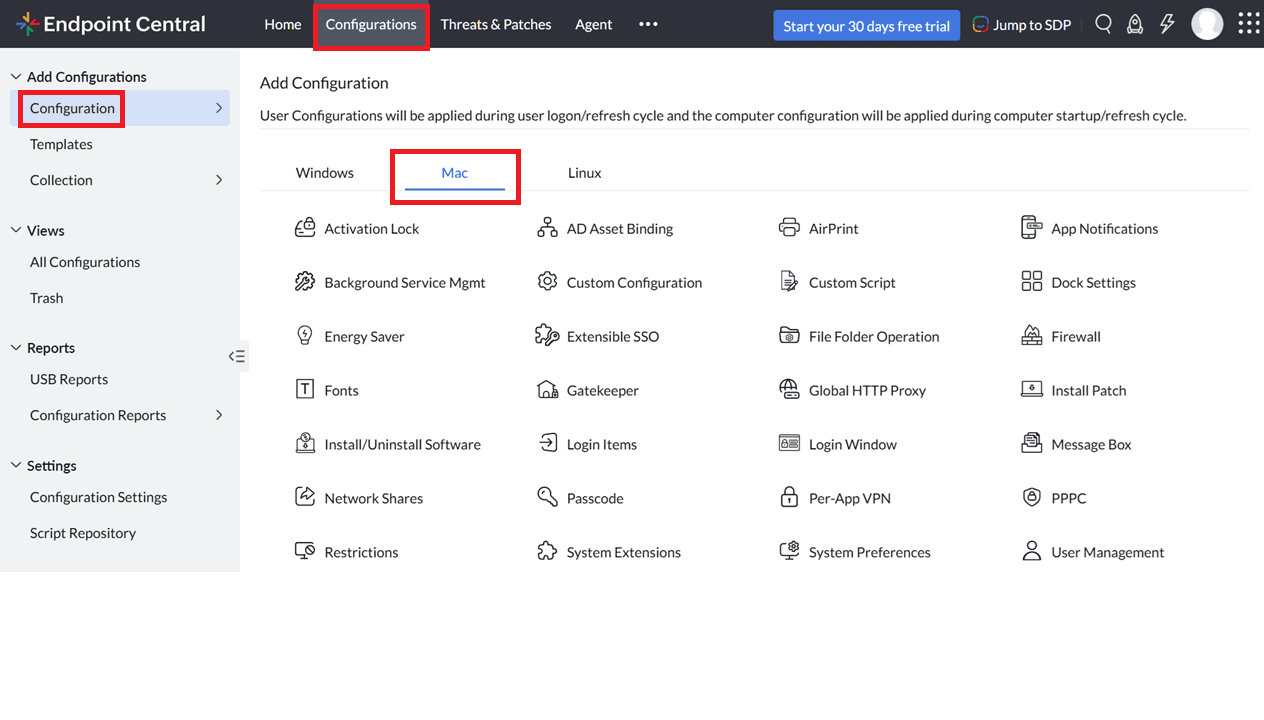
- In Endpoint Central console, navigate to Configurations tab --> Add Configurations --> Configurations--> Windows/ Mac
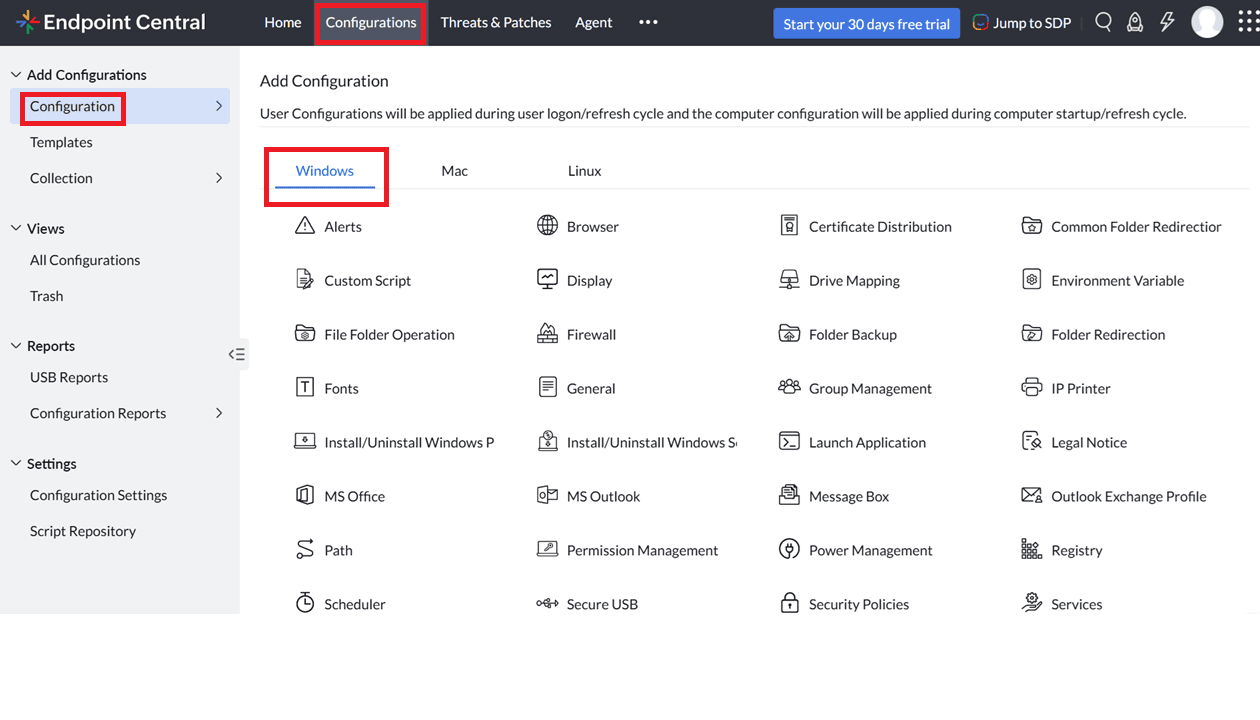
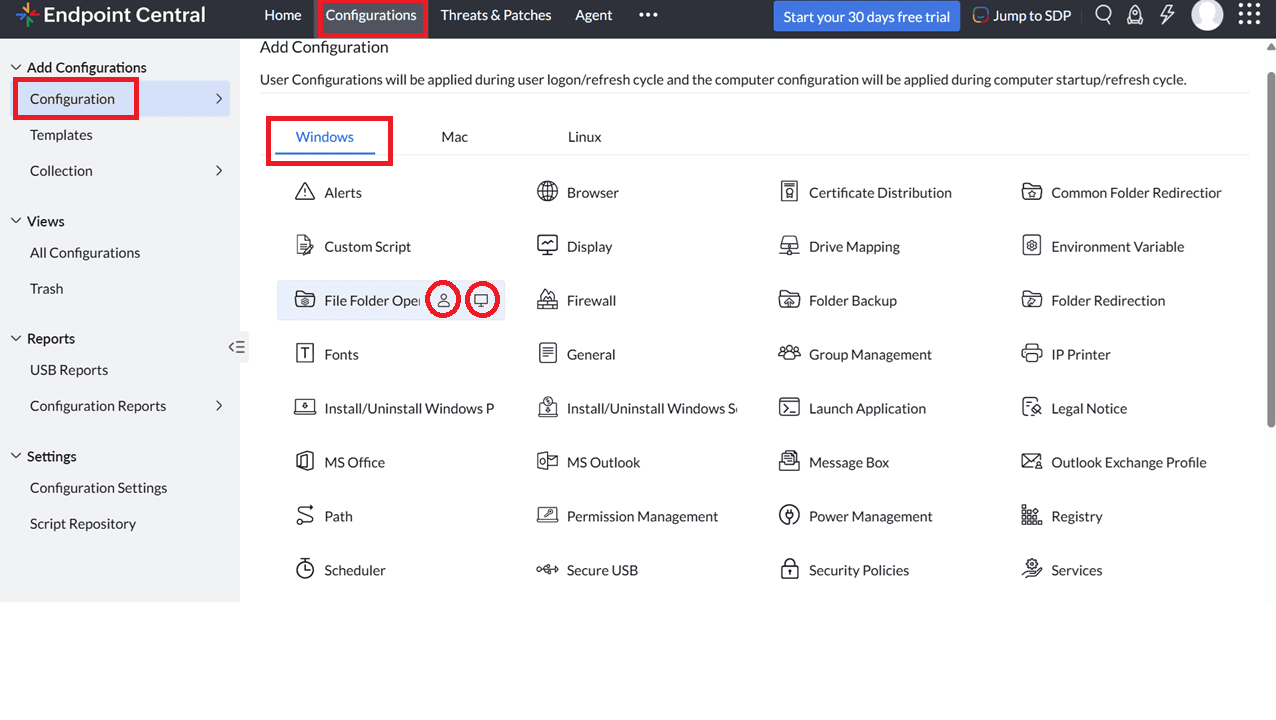
- For Windows, select the File Folder operation and choose Computer/User.
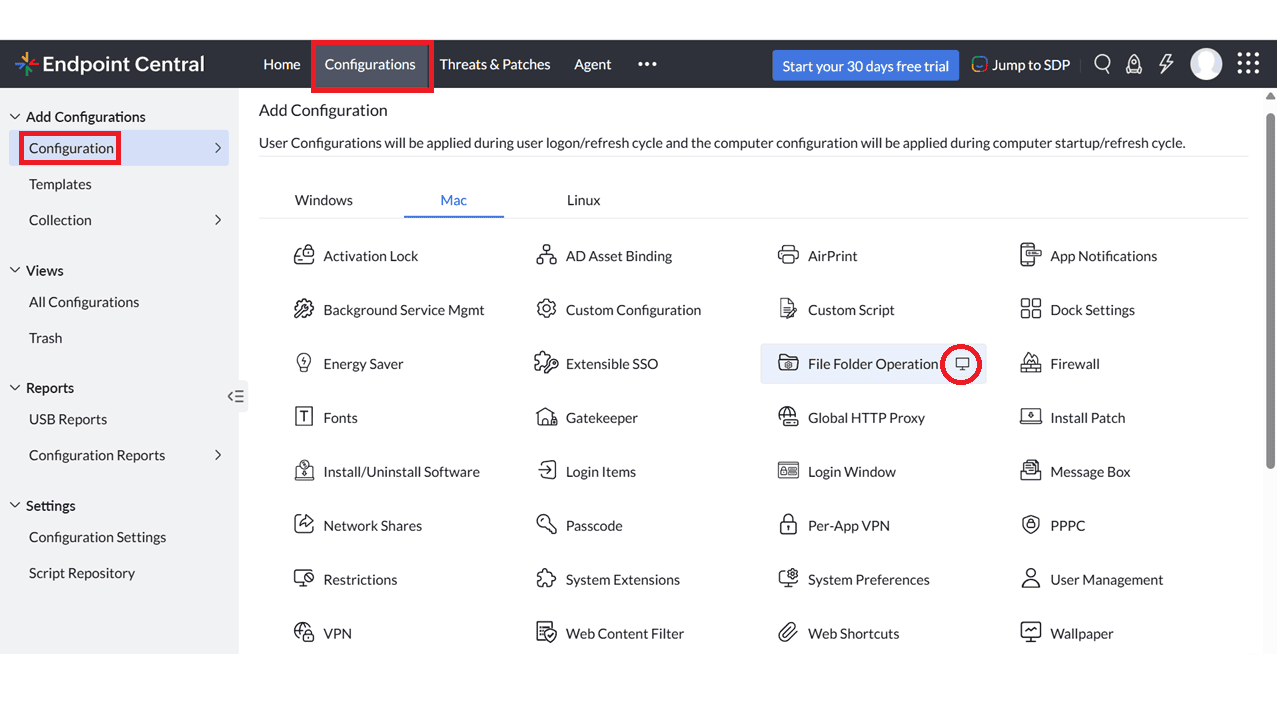
- For Mac, select the File Folder operation and choose Computer.
- Select File Folder operation and choose Computer/User.
- Configure the File Folder operation as follows:
- Specify the Name and Description for the configuration.
- In the Configure File Folder operation criteria, select the Action Type: Copy, Delete, Rename, or Move Files.
- Specify the Action Type to define the objective you want to achieve using the operation.
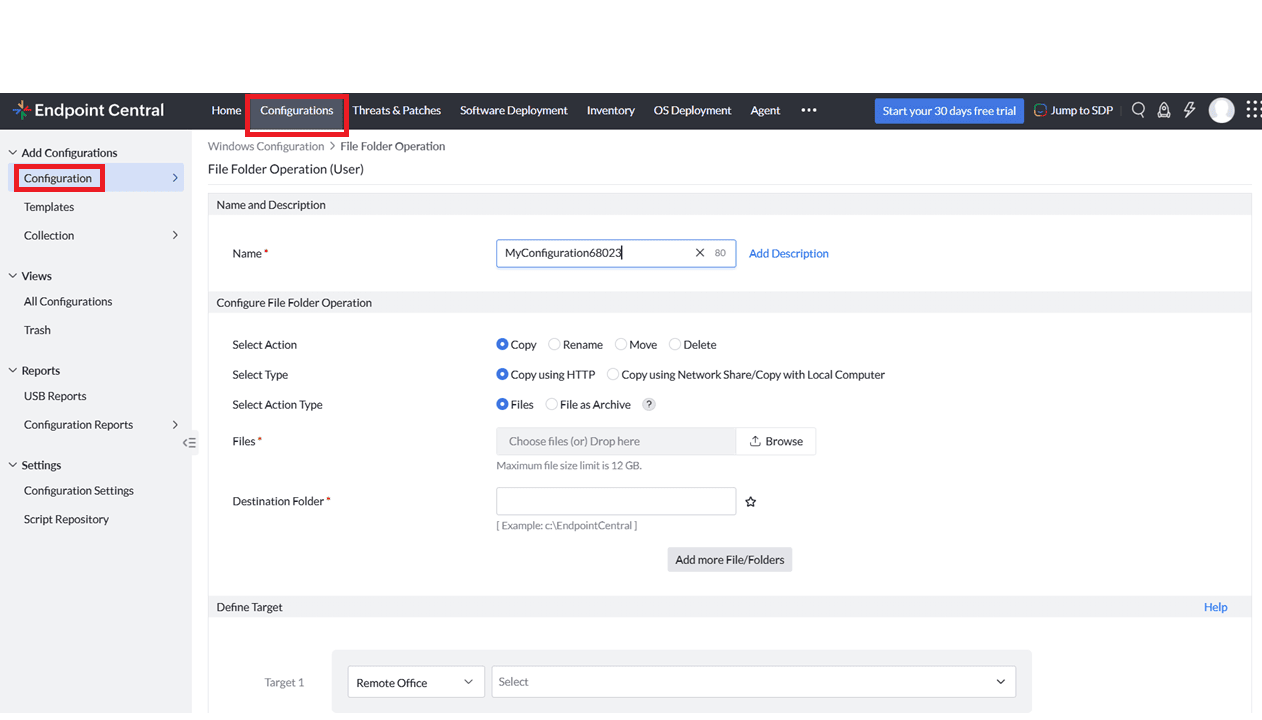
To know more about action types, take a close look at the table below:
| Action type | Objectives of using the action type |
|---|---|
| Copy | Copy files or folders using HTTP or network share. There is an additional option to copy files and folders in zipped format.(NOTE : If the destination folder is not available, it will be automatically created). |
| Rename | Rename files or folders |
| Move | Move a file or folder |
| Delete | Delete a file, multiple files or folders (NOTE : When this action is performed, deleted files and folders will be permanently removed and won't be moved to the Recycle Bin). |
- Kindly note that the file upload limit for both On-Premise and Cloud environment is 12GB.
- You can use dynamic variables in the source and destination path fields to target files and folders based on user or system-specific locations.
To Copy
- Select Copy as the action.
- Choose the required copy type:
- Copy using HTTP
- Copy using Network Share/Copy with Local Computer
Copy using HTTP
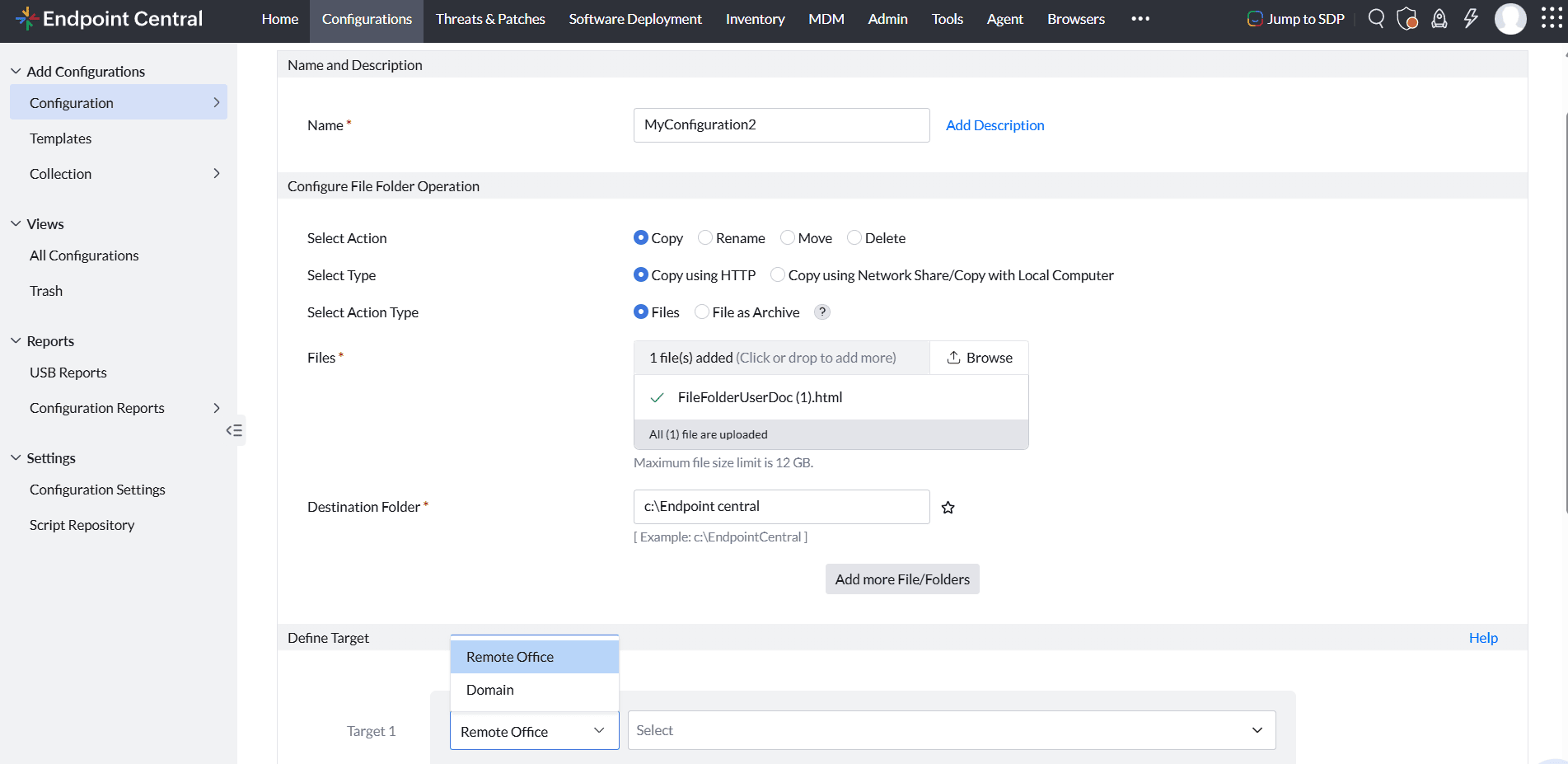
To Copy Files :
Select Files as the action type, browse and select the files to be copied, specify the destination folder path, define the target computers, and deploy the configuration.
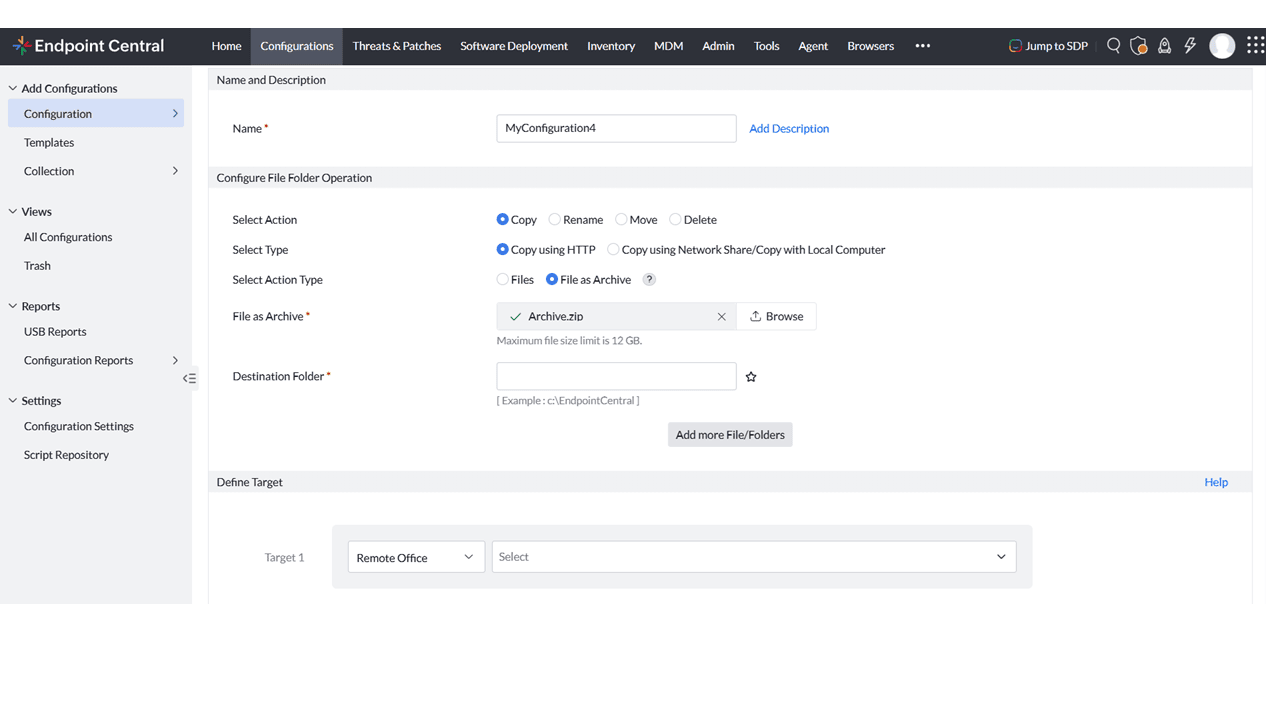
To Copy File as Archive :
Select File as Archive as the action type, browse and select the archived file, specify the destination folder path, define the target computers, and deploy the configuration. The archive is automatically extracted on the target computers after it is copied.
Copy using Network Share/Copy with Local Computer
For Copy using Network Share, the Source path can be specified using either a local path or a network share path. The Destination path is designed to accept a local path on the target computer, ensuring files and folders are copied directly to the intended endpoint location.
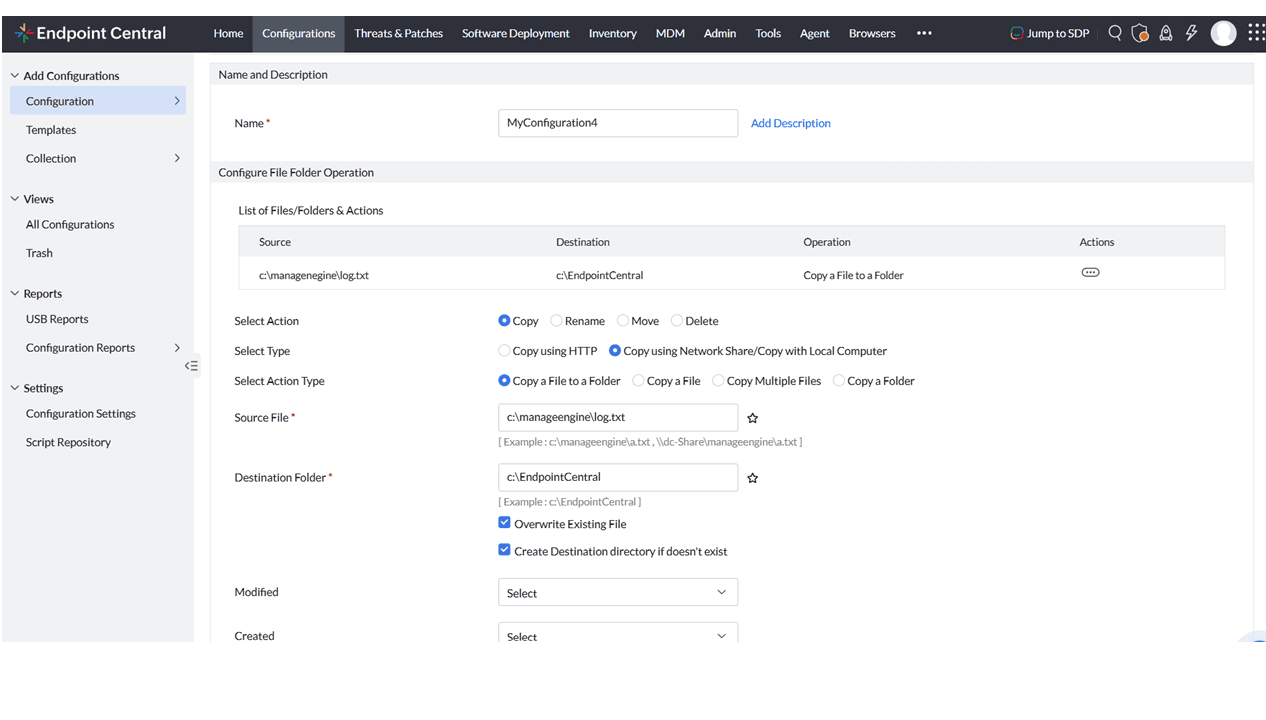
To copy a file to a folder :
Select Copy a File to a Folder as the action type, specify the source file path and destination folder path, optionally enable Overwrite Existing File to replace existing files and Create Destination Directory if Doesn't Exist to create the destination folder automatically, define the target computers, and deploy the configuration.
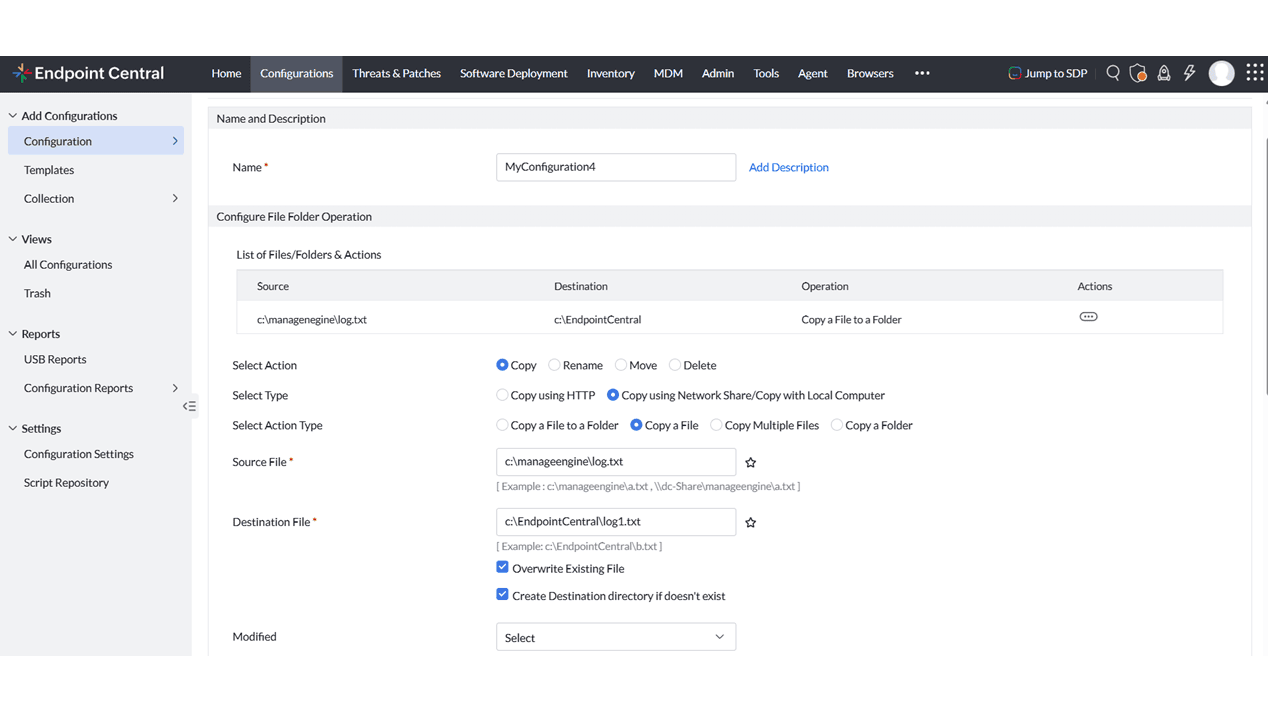
To copy a file :
Select Copy a File as the action type, specify the source file path and destination file path, optionally enable Overwrite Existing File to replace an existing file and Create Destination Directory if Doesn't Exist to create the destination folder automatically, define the target computers, and deploy the configuration.
To copy Multiple files :
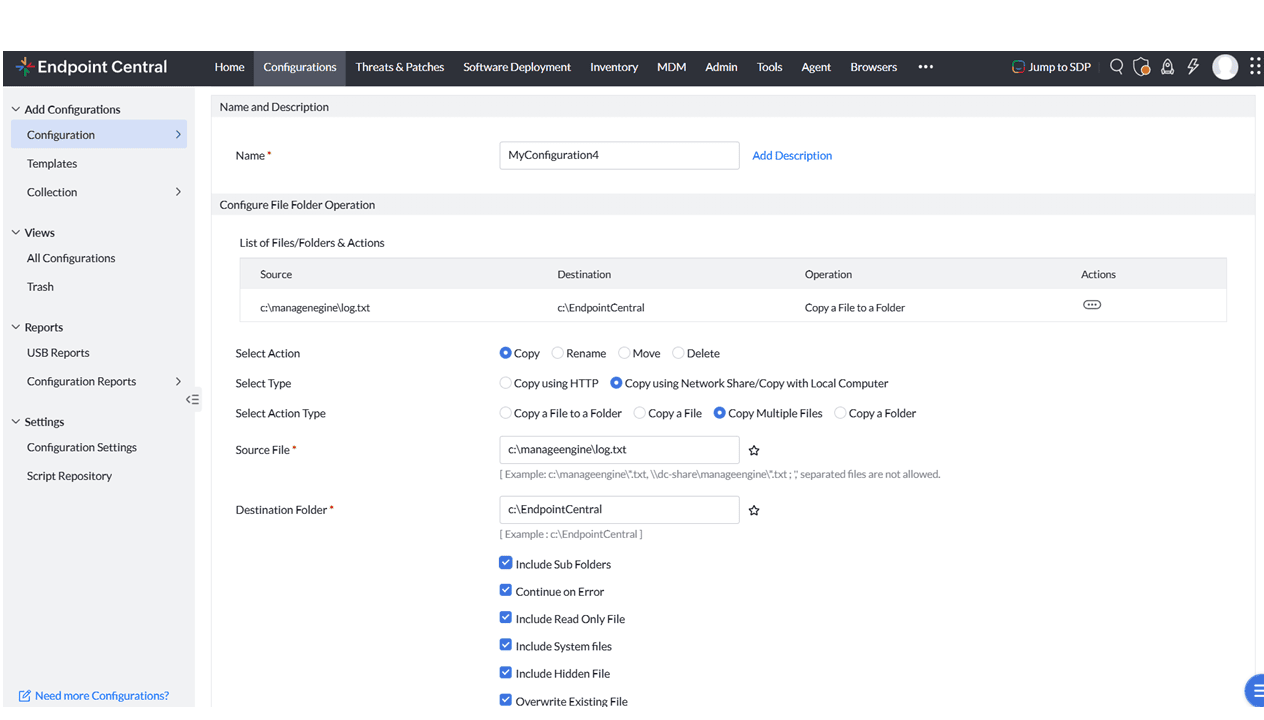
Select Copy Multiple Files as the action type, specify the source file path pattern and destination folder path, optionally enable Include Sub Folders, Continue on Error, Include Read Only File, Include System Files, Include Hidden File, and Overwrite Existing File as required, define the target computers, and deploy the configuration.
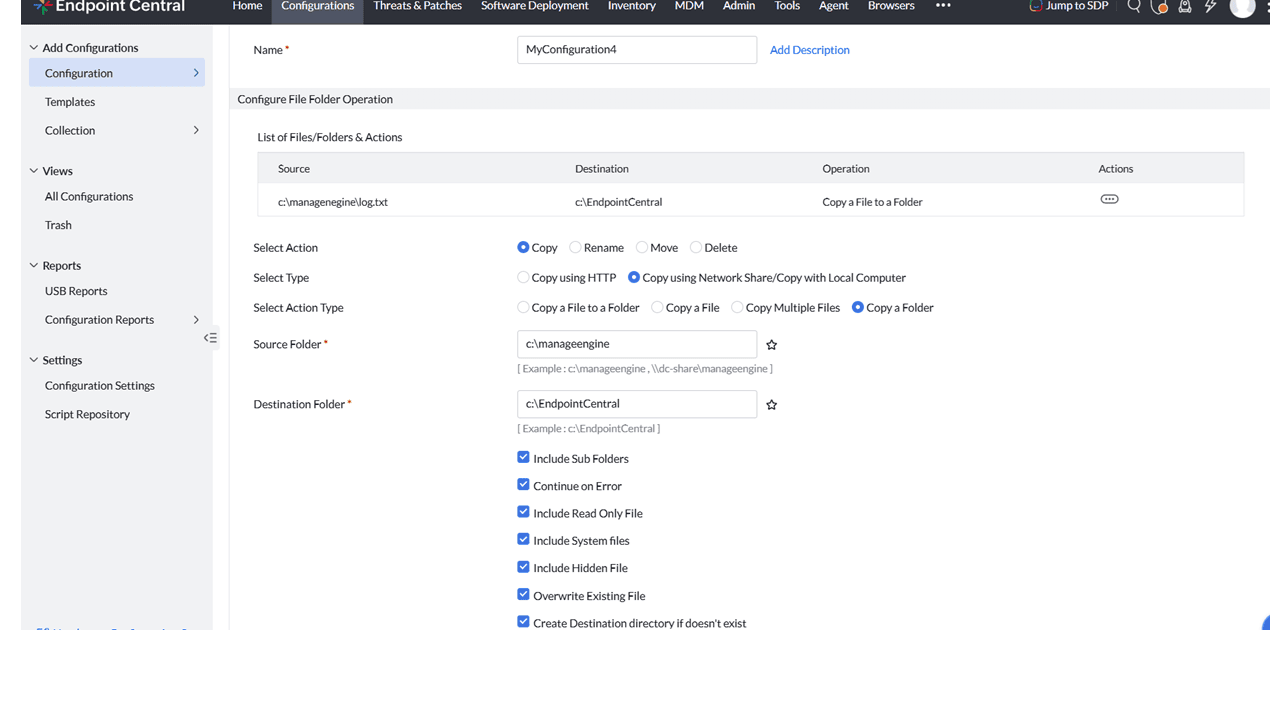
To copy a folder :
Select Copy a Folder as the action type, specify the source folder path and destination folder path, configure the required options, define the target computers, and deploy the configuration.
To Rename
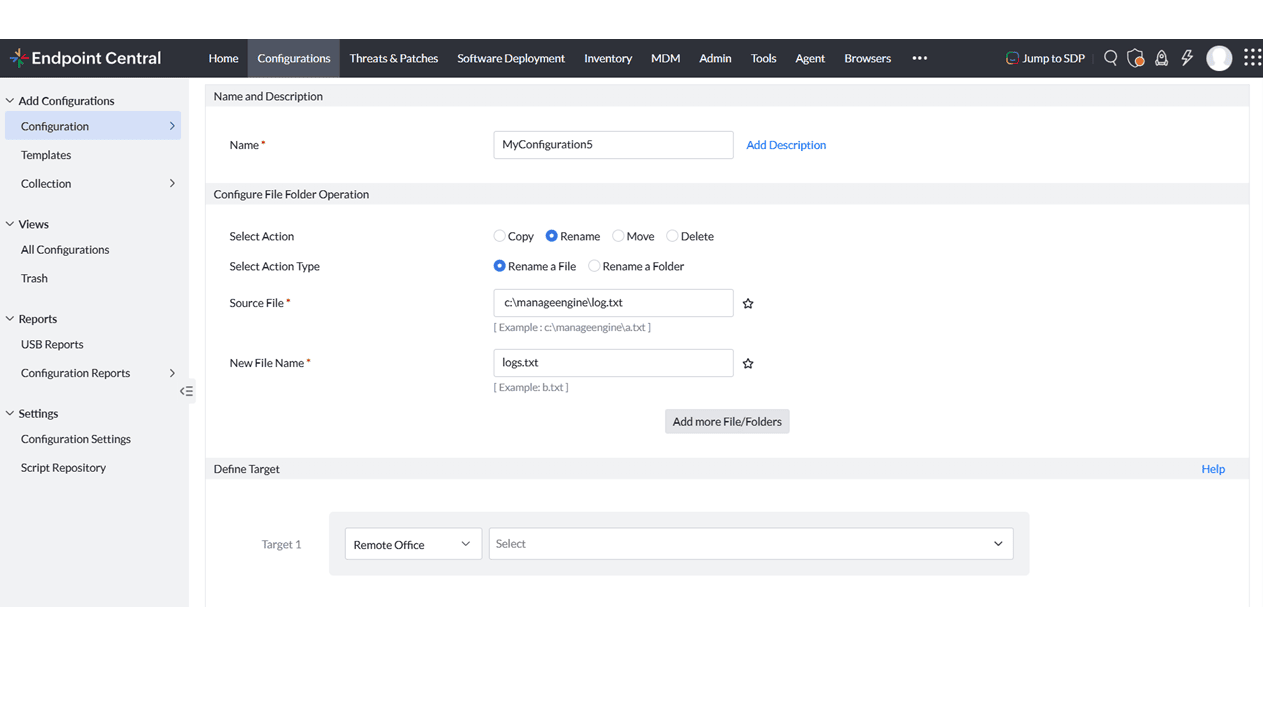
To Rename a file :
Select Rename a File as the action type, specify the source file path and the new file name, define the target computers, and deploy the configuration.
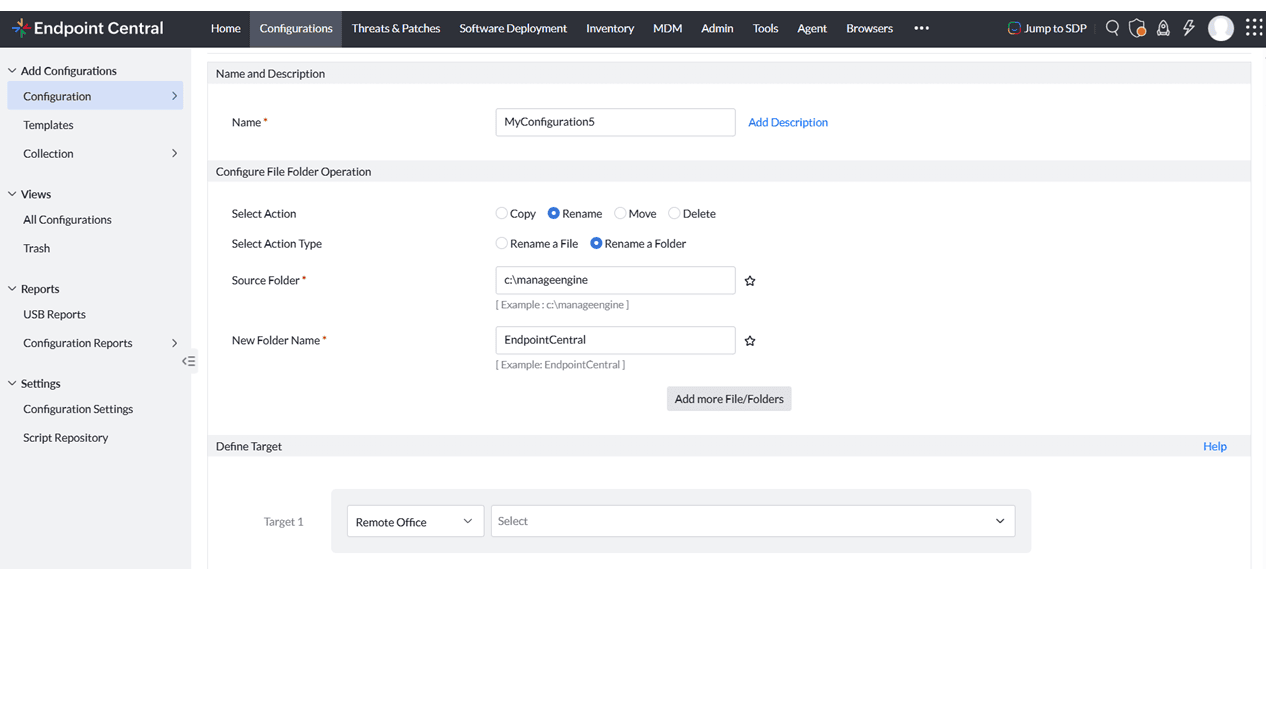
To Rename a folder :
Select Rename a Folder as the action type, specify the source folder path and the new folder name, define the target computers, and deploy the configuration.
To Move
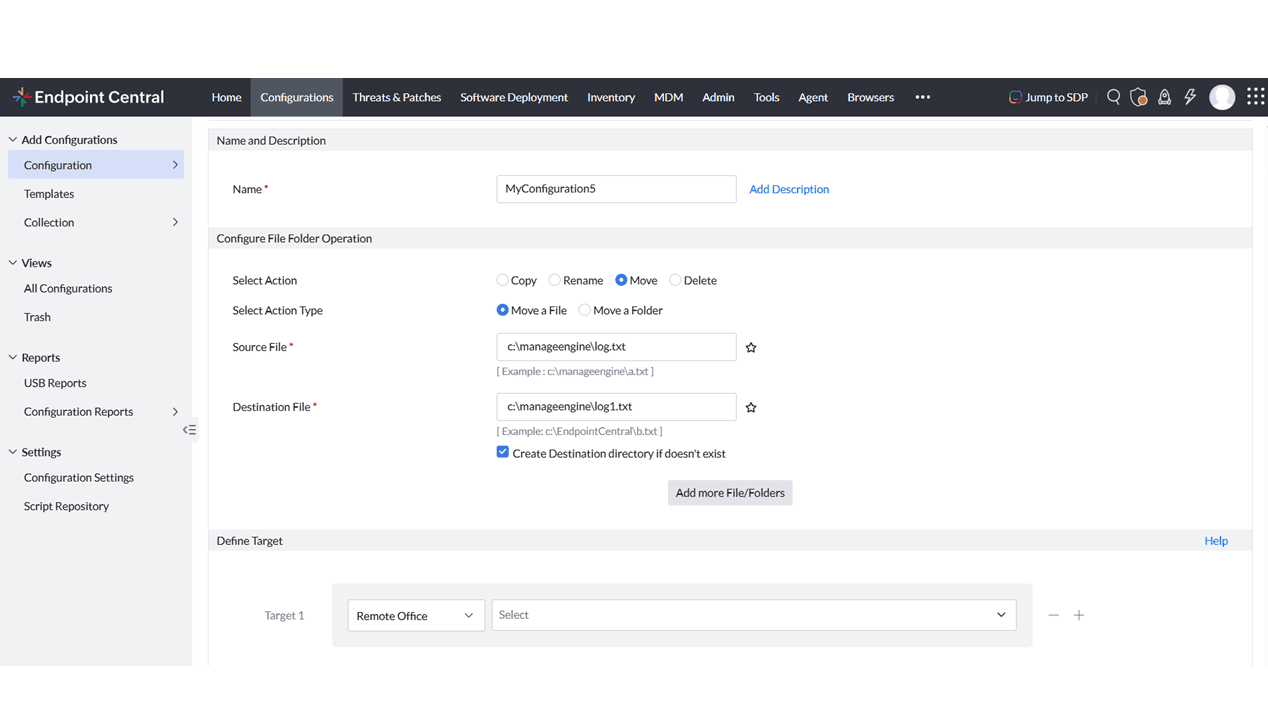
To Move a file :
Select Move a File as the action type, specify the source file path and destination file path, optionally enable Create Destination Directory if Doesn't Exist to create the destination folder automatically, define the target computers, and deploy the configuration.
To Move a folder :
Select Move a Folder as the action type, specify the source folder path and destination folder path, optionally enable Create Destination Directory if Doesn't Exist to create the destination folder automatically, define the target computers, and deploy the configuration.
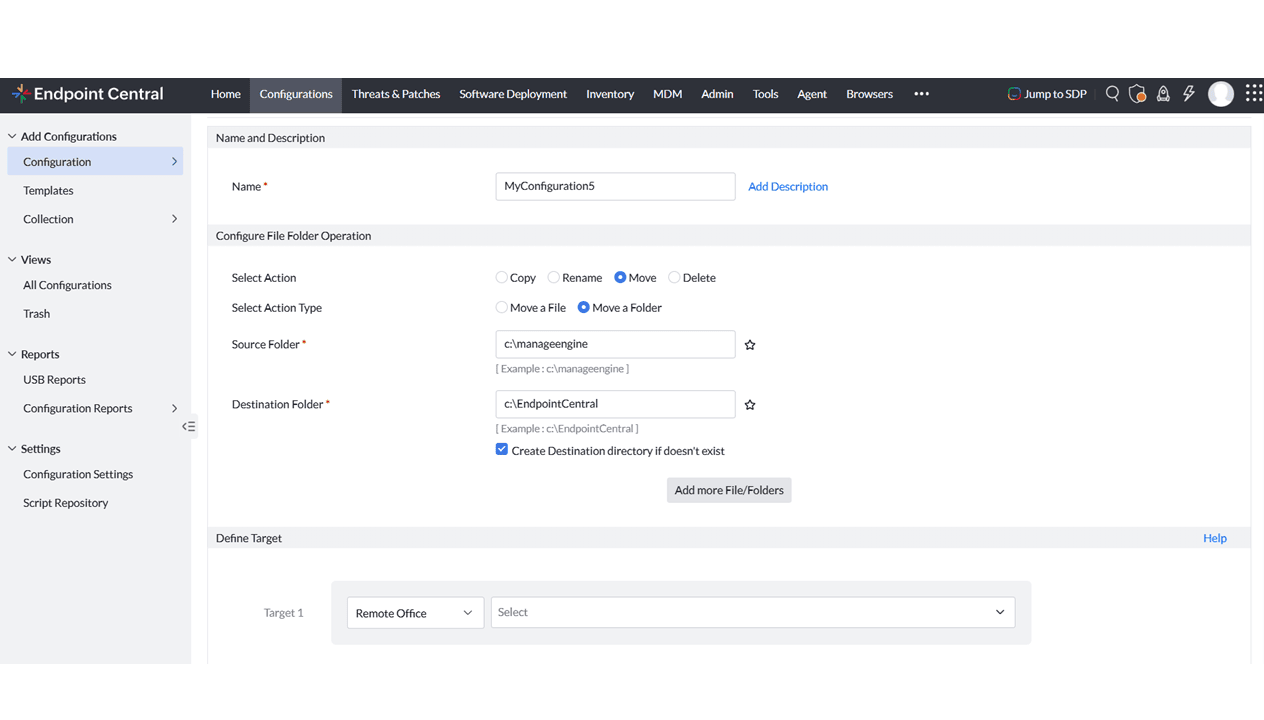
During Copy and Move operations using Copy using HTTP, existing files or folders at the destination are automatically overwritten to ensure that the latest source content is available on the target computers.
To Delete
When this action is performed, deleted files and folders will be permanently removed and won't be moved to the Recycle Bin
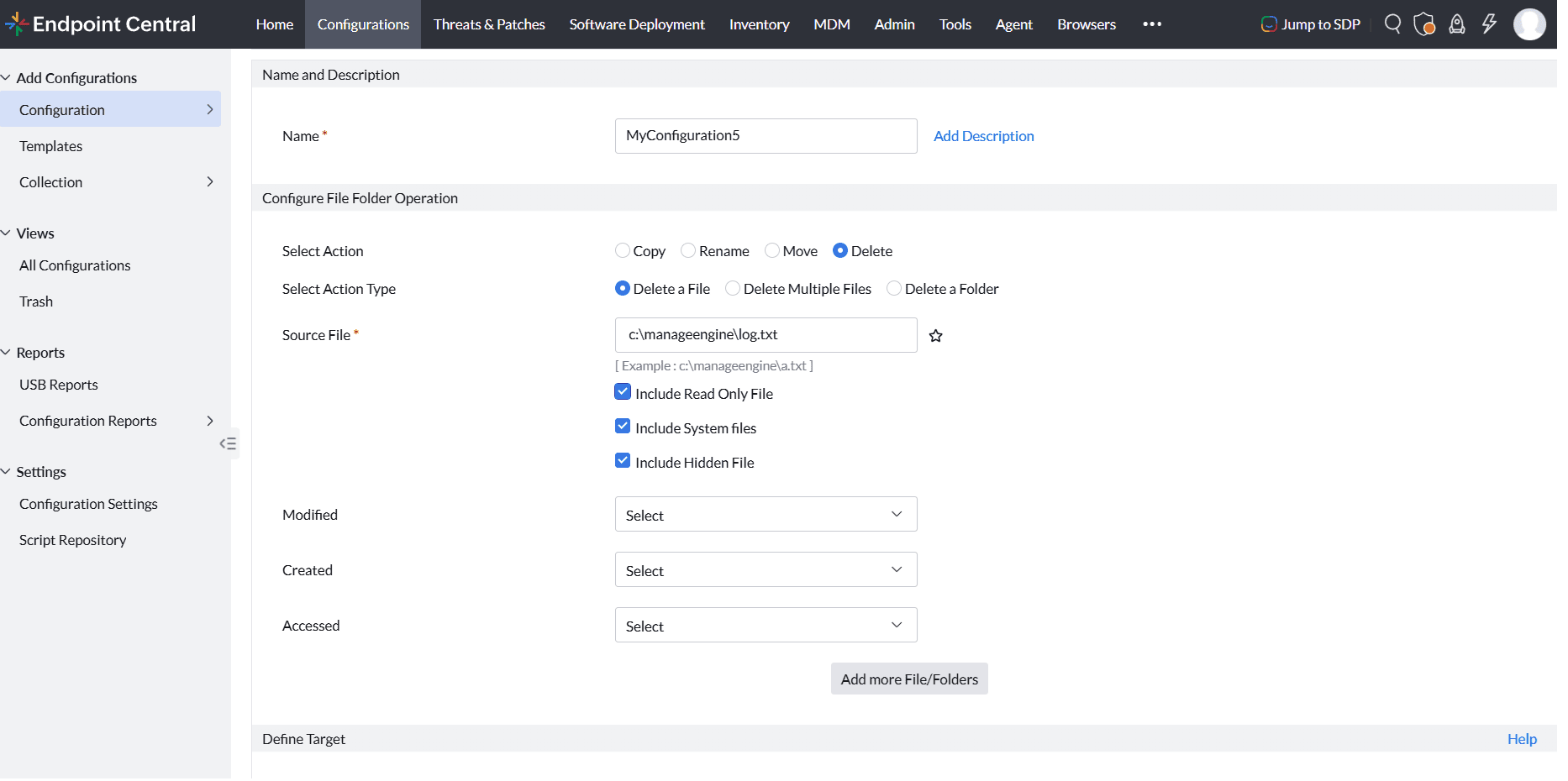
To Delete a File :
Select Delete a File as the action type, specify the source file path, optionally enable Include Read Only File, Include System Files, and Include Hidden File as required, configure the Modified, Created, and Accessed criteria if needed, define the target computers, and deploy the configuration.
To Delete Multiple files :
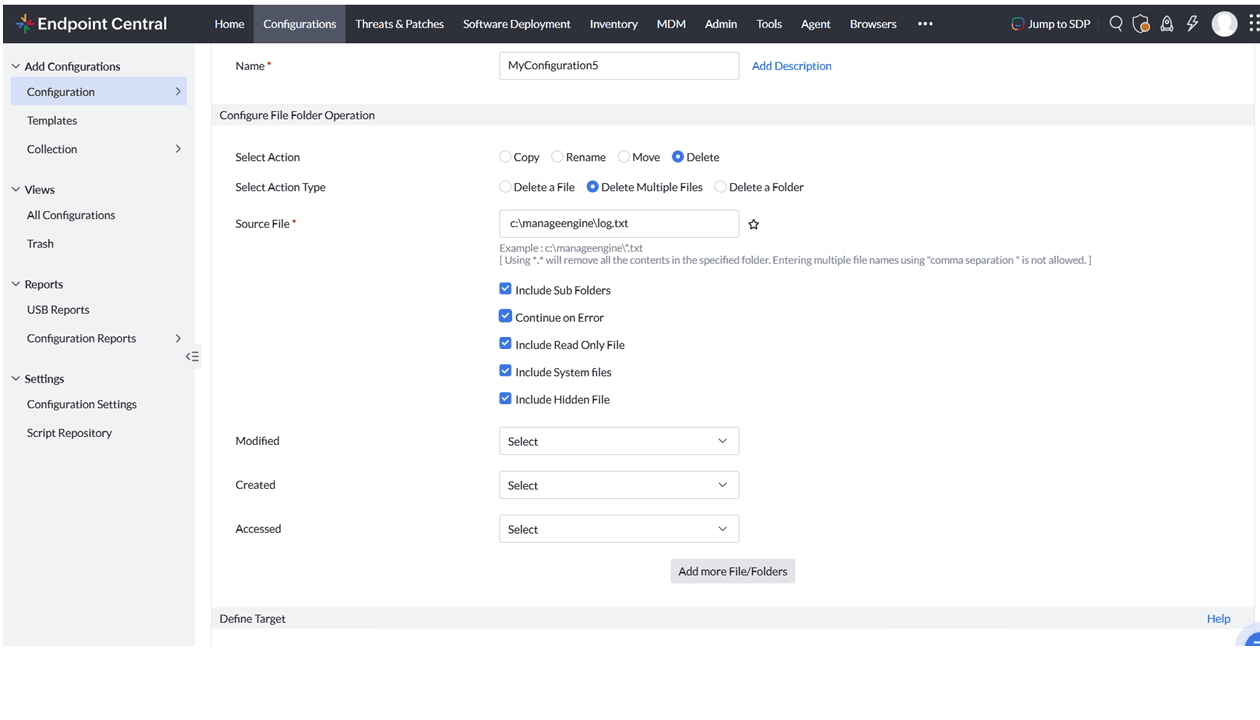
Select Delete Multiple Files as the action type, specify the file path or file pattern, optionally enable Include Read Only File, Include System Files, and Include Hidden File as required, configure the Modified, Created, and Accessed criteria if needed, define the target computers, and deploy the configuration.
To Delete a Folder :
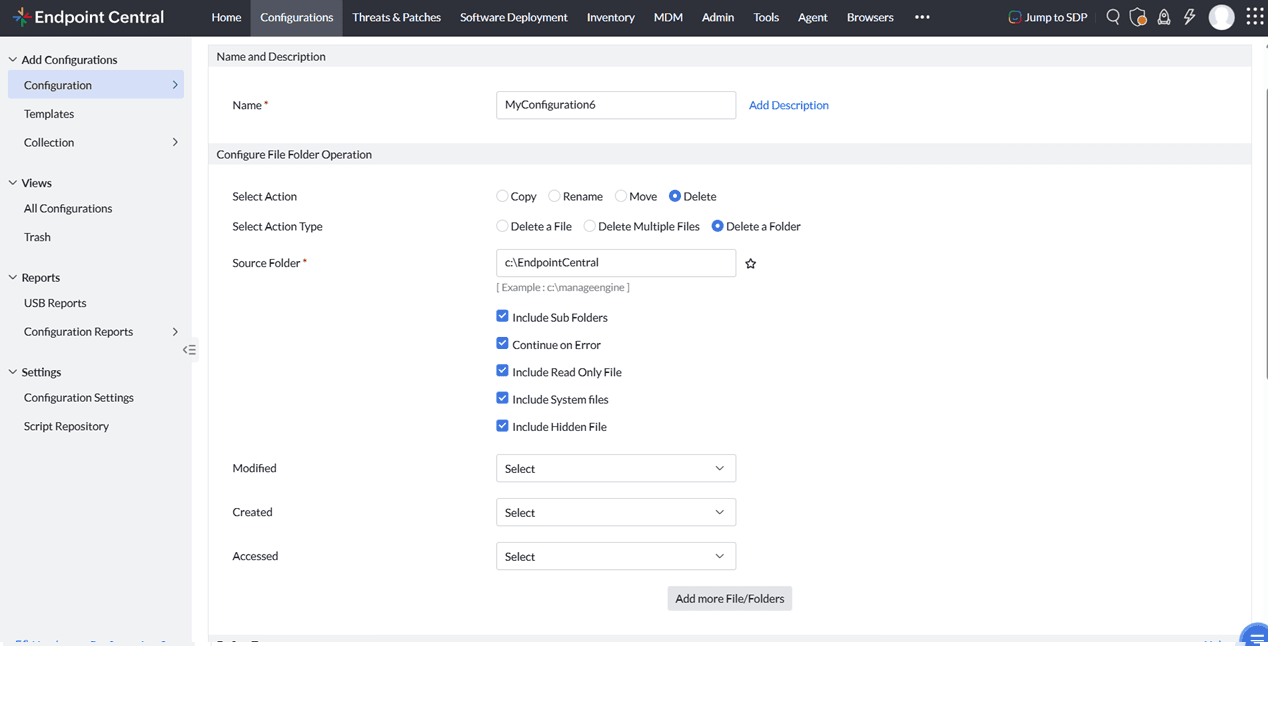
Select Delete a Folder as the action type, specify the source folder path, optionally enable Include Read Only File, Include System Files, and Include Hidden File as required, configure the Modified, Created, and Accessed criteria if needed, define the target computers, and deploy the configuration.
You have successfully configured the File Folder operation for Windows / Mac machines.