Schedule Tasks on Windows for Computers | Endpoint Central
What is a scheduler?
The Scheduler configuration in Endpoint Central aids you to schedule a task or program to run at a specified time. You can use the scheduler configuration to run a particular task daily, weekly, monthly and so on. If you want to run an anti-virus program every single day at a particular time, you can use the scheduler configuration to perform this task effectively and seamlessly. The scheduler configuration helps administrators to create, modify and delete tasks in multiple machines from one central point.
How to configure a scheduler in Endpoint Central?
- In Endpoint Central Console, navigate to Configurations tab --> Add Configurations --> Configurations --> Windows
- Select Scheduler and choose Computer
- Specify the Name and Description for the configuration.
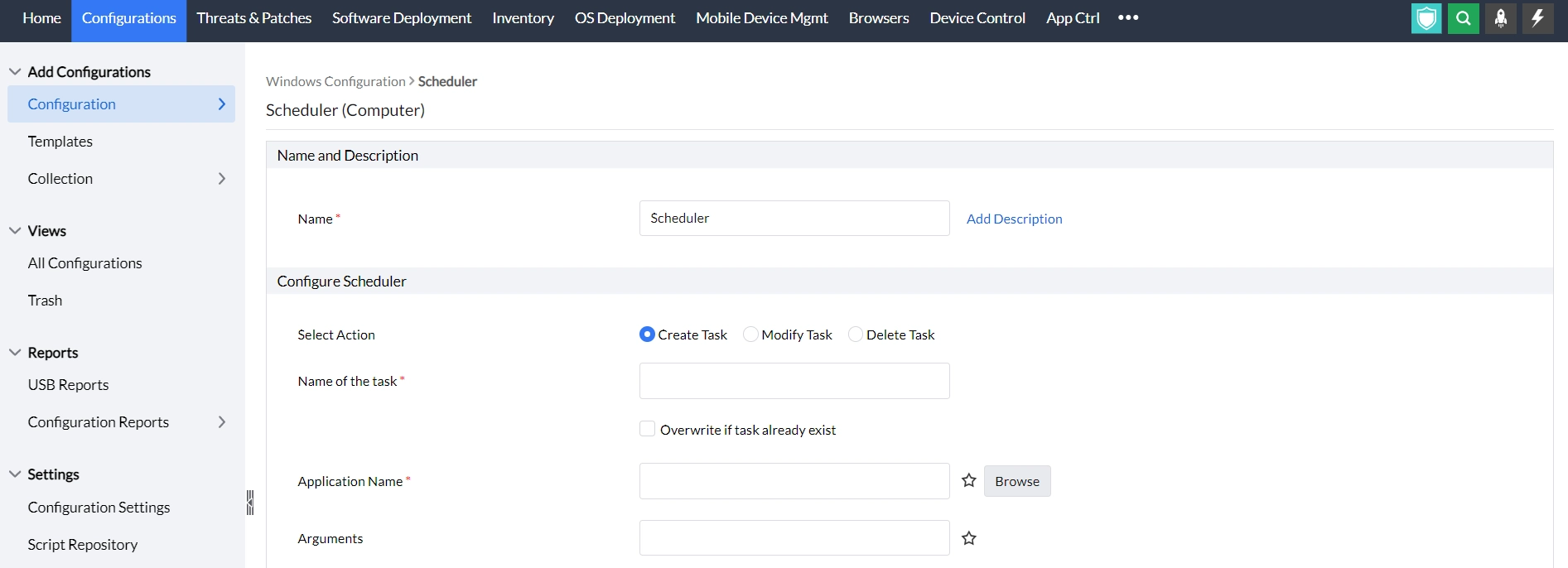
Create/modify a task
- In the configure Scheduler criteria, select the create task/modify task option to configure a new task and modify task option to alter an existing task.
- Provide the name of the task that has to be created/modified.
- Tick the checkbox if you want to overwrite a task that already exists.
- Enter the name of the application or program that has to be run.
- Provide the arguments to run the program, if there's any.
You can also configure the general settings to add more information as mentioned in the table below:
Settings | Criteria to be mentioned |
|---|---|
General Settings | Check the enable task option to enable a task.
|
Trigger settings |
|
Condition settings |
|
- Add more tasks as per your preference.
- Define the Target.
- Specify retry options if required and deploy the configuration.
- You can also enable notifications to receive emails based on the specified frequency.
- Click on the Deploy button to create or modify a task in all the target computers.
- To save the configuration as draft, click Save As.
Delete an existing scheduled task
- Select Action: Delete task.
- Enter the name of the task.
- Add more tasks if they are necessary.
- Define the Target.
- Specify retry options if required and deploy the configuration.
- You can also enable notifications to receive emails based on the specified frequency.
- Click on the Deploy button to delete a scheduled task in all the target computers.
- To save the configuration as draft, click Save as.
You have successfully learnt to schedule programs and tasks using the Scheduler configuration.