×![]()
×
×![]()
×
×
Message Box Configuration - Computers
What is a message box?
A message box is a small box that shows a piece of information to the user. The message box configuration in Endpoint Central is useful in scenarios where an admin wants to display an error, warning or information to users. A simple use case of a message box is when you want to inform users about any activity scheduled that requires user intervention. By enabling the message box to inform users, an admin can elevate the transparency and productivity levels of employees. A small pop-up box with the required content will appear on the screen for a particular time interval fixed by the admin during computer startup or for the subsequent refresh cycle.
How to configure a message box?
- In Endpoint Central Console, navigate to Configurations tab --> Add Configurations --> Configurations --> Choose Windows/Mac/Linux
- Select Message box and choose Computer
- Specify the Name and Description for the configuration
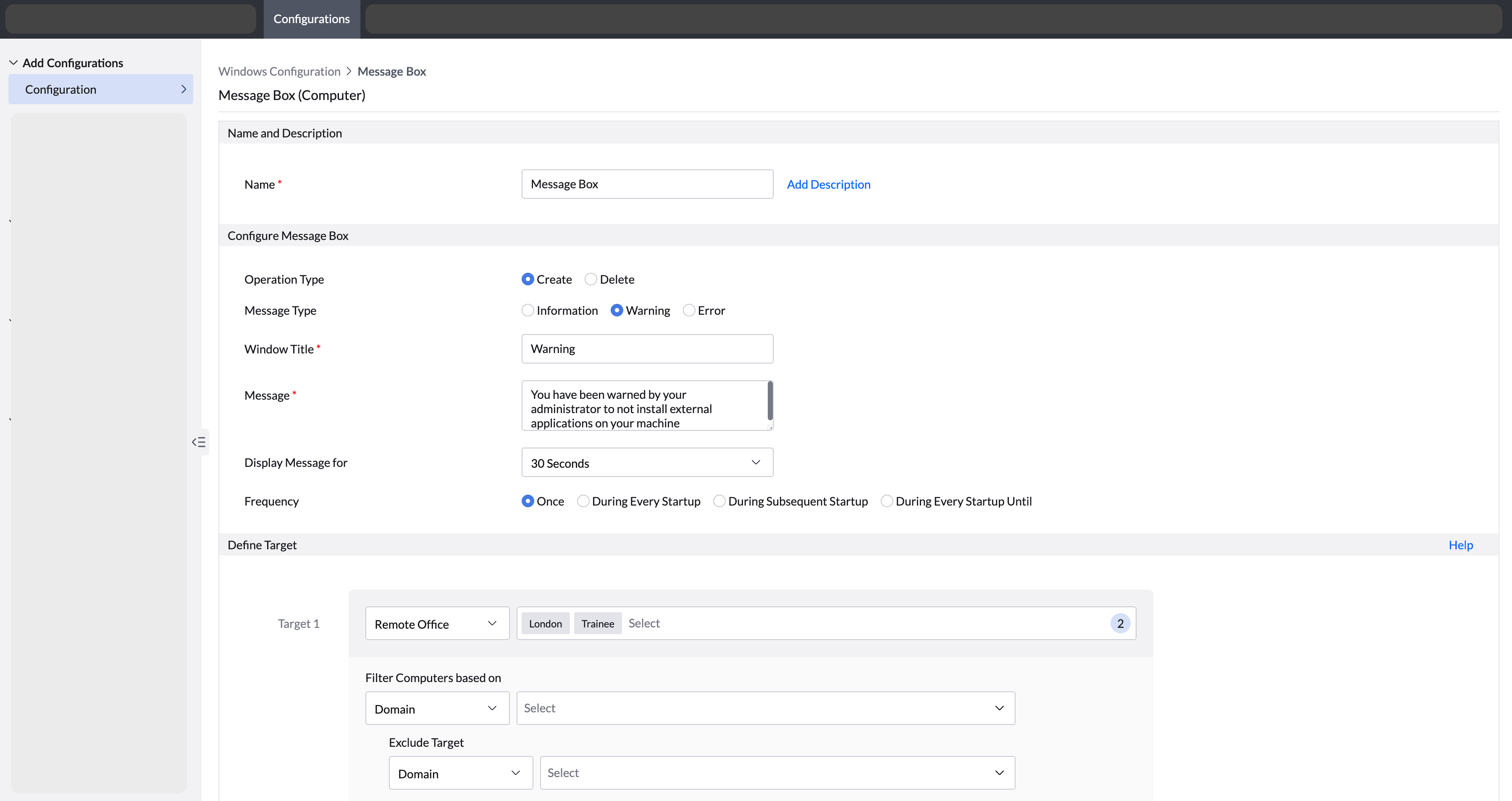
- In the configure message box section,
- Select the Operation type as Create.
- Choose the Message type.
- Enter the title of the message box in the Window Title .
- Enter the Message
- Display the message according to your desired time frame
- Select the desired frequency for the message box to appear on the user's screen
- Define the Target for the audience that needs this message box to be displayed.
- Specify retry options if required and deploy the configuration.
- You can also enable notifications to receive emails based on the specified frequency.
- Click on the Deploy button to deploy a message box in the target machines.
- To save the configuration as draft, click Save as Draft
How to delete a message box?
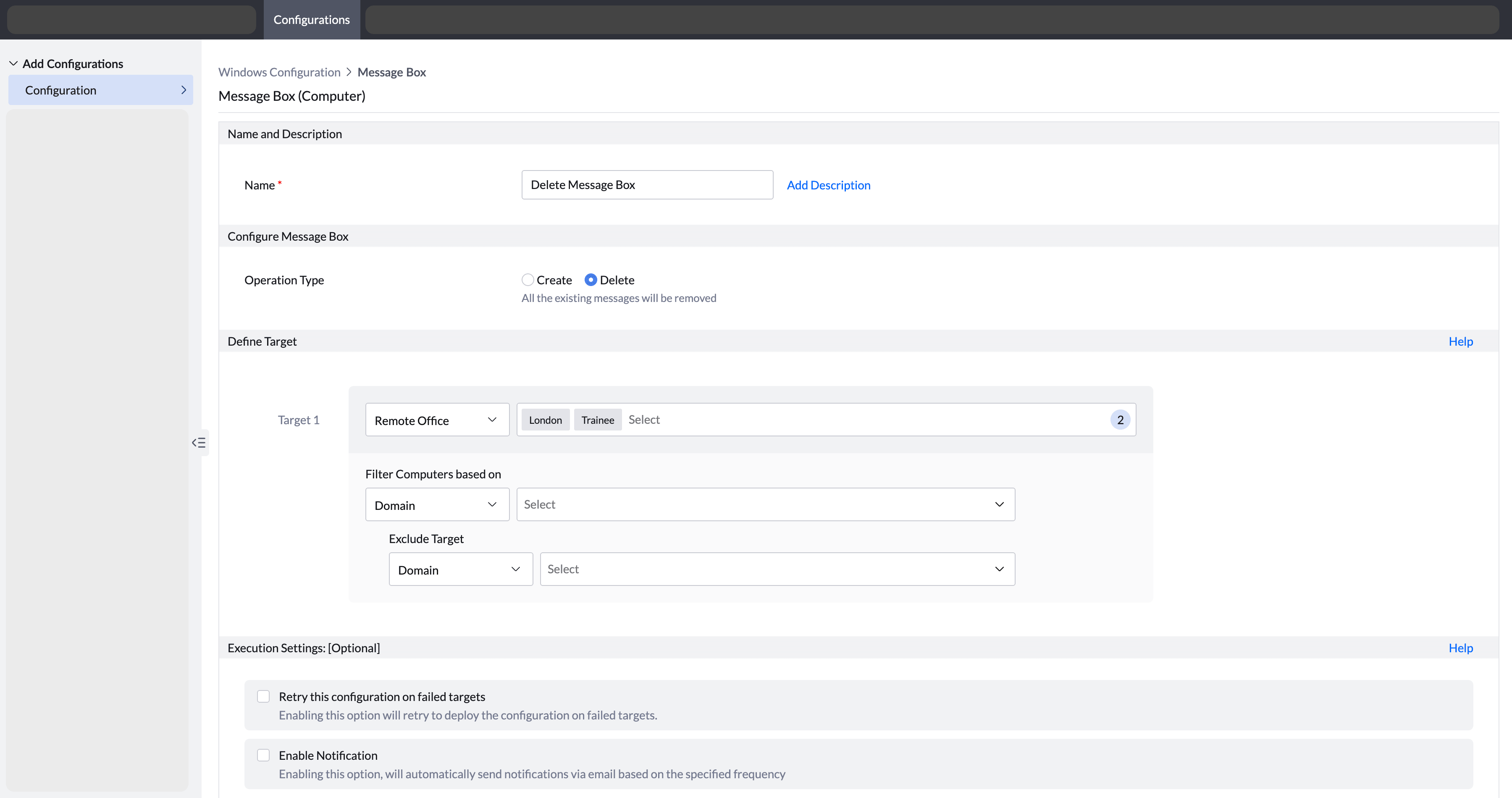
- Enter the name and description of the message box.
- Select the operation type as delete. It will delete all the existing message boxes that were configured.
- Define the target
- Enable the option to retry the configuration on failed targets if required.
- If you want to receive notifications, select the Enable Notification option
- Click Deploy or Deploy immediately to deploy the configuration on all endpoints or click Save as to save the configuration as a draft.