Managing Permissions with file folder | Endpoint Central
What is permission management?
Permission management is a feature that allows administrators to grant/revoke permissions on the files, folders and registry accessible to users and computers. The permission management configuration in Endpoint Central helps administrators to grant/revoke permission to multiple users from one central point and thereby enforces security and ensures that only authorized people have access to sensitive data.
How to configure permission management in Endpoint Central?
To configure permission management in Endpoint Central, follow the steps below:
- In Endpoint Central Console, navigate to Configurations tab --> Add Configurations --> Configurations--> Windows
- Select Permission management and choose User/Computer
- Specify the Name and Description for the configuration
Permission management allows you to grant/ revoke permission for files, folders and registry.
Permission for files
To grant/revoke permission for files, configure permission for files and specify the value for the given parameters in the Configure Permission criteria below:
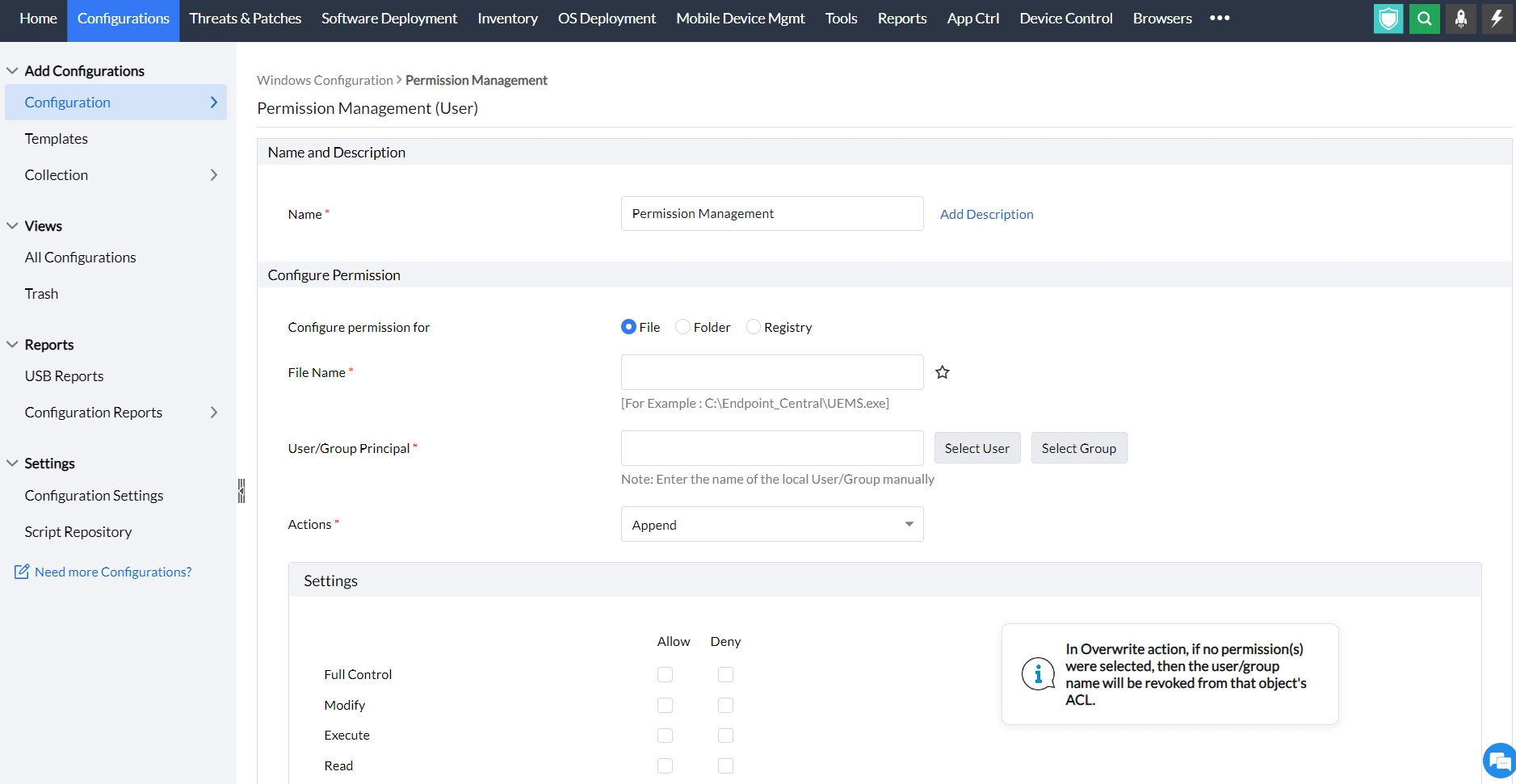
Parameter | Description |
|---|---|
File name | Add the name of the file you need to grant/revoke permissions for |
User/Group Principal | Specify the users or group for whom you want to grant/revoke permissions for |
Action | There are three types of actions for granting and revoking permissions, namely,
|
Settings | Allow/Deny rights to read, write, execute, modify and exert full control over the file |
- To add more permissions, click on the Add more Permissions button and repeat the above mentioned steps. The values will be mentioned in the table called list of permission actions.
- Define the target
- Specify retry options if required and deploy the configuration.
- You can also enable notifications to receive emails based on the specified frequency.
- Click on the Deploy button to deploy the configuration in all the target machines
- To save the configuration as draft, click Save as
Permission for folders
To grant/revoke permission for folders, configure permission for folders and specify the value for the given parameters in the Configure Permission criteria below:
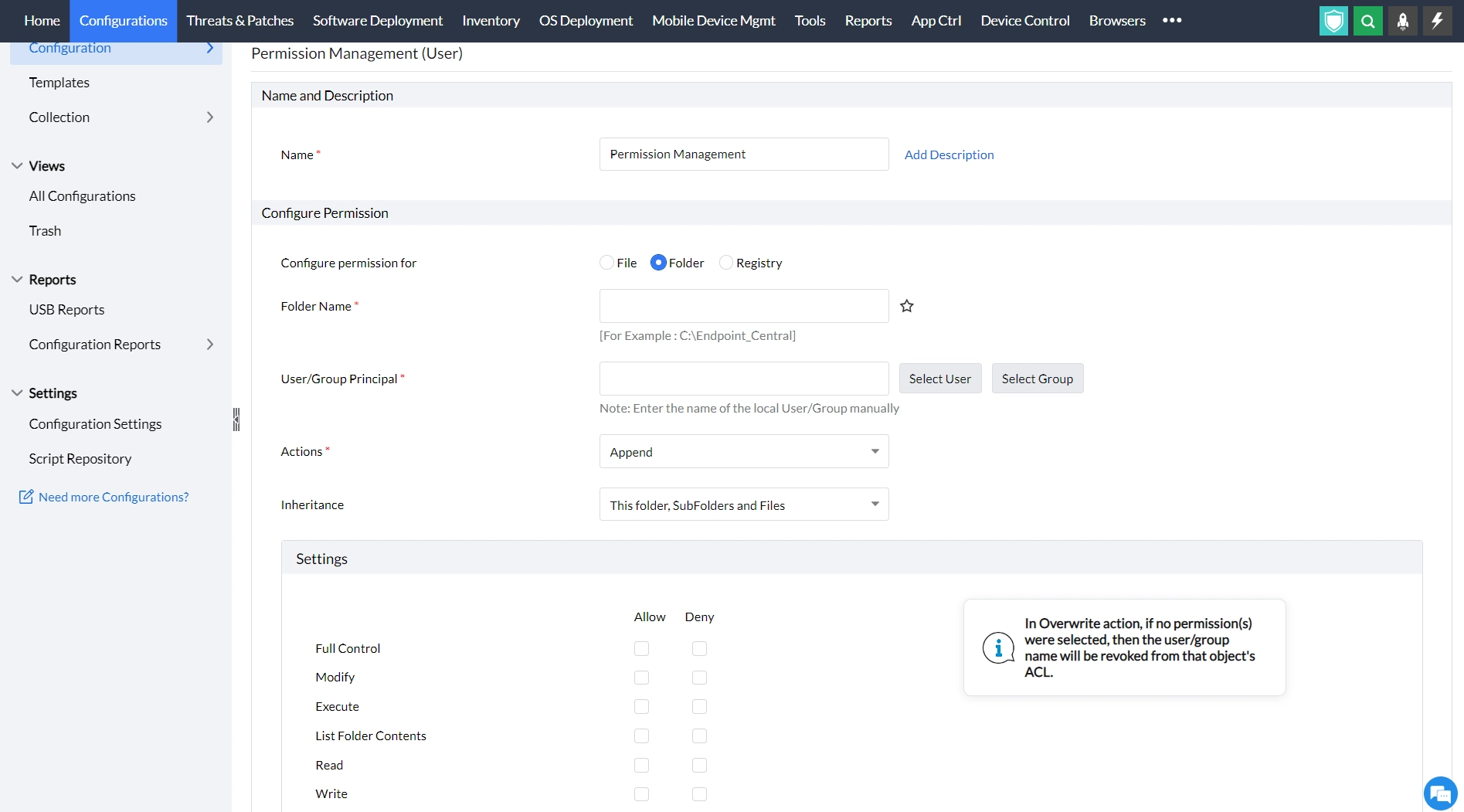
Parameter | Description |
|---|---|
Folder name | Add the name of the folder you need to grant/revoke permissions for |
User/Group Principal | Specify the users or group for whom you want to grant/revoke permissions for |
Action | There are three types of actions for granting and revoking permissions, namely,
|
Inheritance | The action to revoke helps to revoke the existing file permissions of the specified user/group. All the permissions to the specified user/group on that folder will be removed. However, the inherited permissions will not be removed.
|
Settings | Allow/Deny rights to read, write, execute, modify and exert full control over the folder |
- To add more permissions, click on the Add more Permissions button and repeat the above mentioned steps. The values will be mentioned in the table called list of permission actions.
- Define the target
- Specify retry options if required and deploy the configuration.
- You can also enable notifications to receive emails based on the specified frequency.
- Click on the Deploy button to deploy the configuration in all the target machines
- To save the configuration as draft, click Save as
Permission for registry
To grant/revoke permission for registry, configure permission for registry and specify the value for the given parameters in the Configure Permission criteria below:
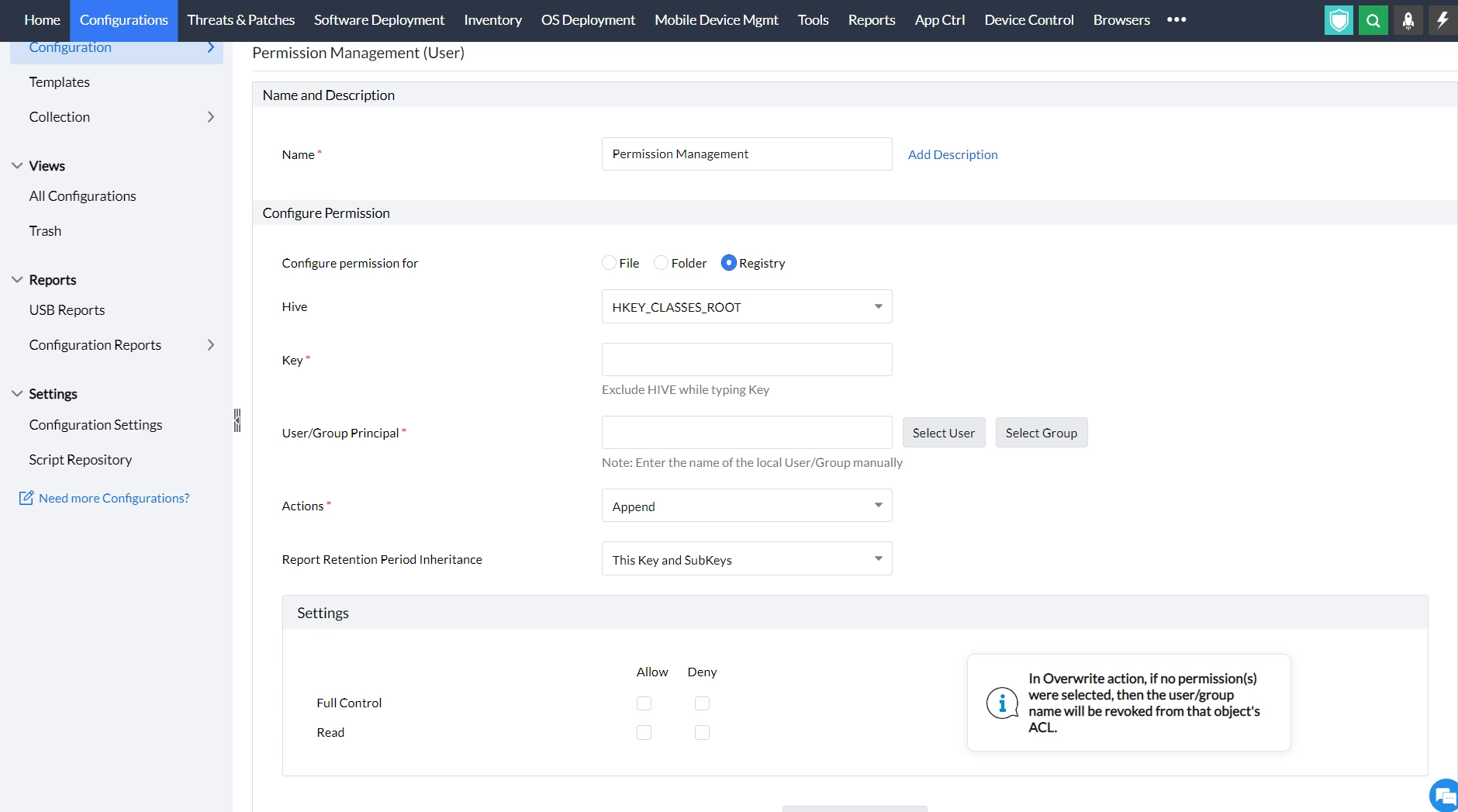
Parameter | Description |
|---|---|
Hive key | Select the registry hive from the given options listed below
|
Key | Specify the key within the hive for which you need to add the permissions for |
User/Group Principal | Specify the users or group for whom you want to grant/revoke permissions for |
Action | There are three types of actions for granting and revoking permissions, namely,
|
Report Retention Period Inheritance | Select the required options to mention how permission should affect its sub keys namely,
|
Settings | Allow/Deny rights to read and exert full control over the registry. |
- To add more permissions, click on the Add more Permissions button and repeat the above mentioned steps. The values will be mentioned in the table called list of permission actions.
- Define the target
- Specify retry options if required and deploy the configuration.
- You can also enable notifications to receive emails based on the specified frequency.
- Click on the Deploy button to deploy the configuration in all the target machines
- To save the configuration as draft, click Save as
You have successfully learnt to configure Permission Management in Windows machines.