Configure Power Management | Computer Configuration | Windows Platform
The power management configuration enables you to adjust your power settings to save energy. You can add, modify, and delete power schemes for computers from a central point. You can cut down the cost that is spent on power, when the computers are idle. You can create customized power schemes and apply them to computers via configurations.
Endpoint Central supports power management only for computers running Windows Vista and later versions. You can perform the following operations on idle computers by creating power schemes:
| Action to be performed | Impact on the target |
|---|---|
| Dim the Display | Only the computer display's brightness will be reduced to save power. |
| Turn Off the Display | Computer's display will be turned off and the power consumption will be reduced reasonably. |
| Turn Off to Sleep | Computer turns to standby mode, all working files/data will be stored on memory. Power consumed will be relatively very low. |
| System Hibernate | All working files/data will be stored on the hard disk and the computer turns off. Zero power is consumed. |
| Turn Off Hard Disk | Only the hard disk will be turned off; the computer will not be shut down. Power consumption will be cut down considerably. |
| Hybrid Sleep* (applicable for Windows 7 and later versions) | All working files/data will be stored on the hard disk and the computer turns to sleep. If a computer loses power, it still restores the working files and resumes back to work when it is booted up the next time. |
* - Hybrid Sleep is applicable for computers running Windows 7 and later versions.
The above listed operations can be executed on the computers based on the idle time and mode of power supply such as plugged in and battery mode. After customizing the power schemes, you can choose to apply the power scheme as follows:
- Overwrite the existing power schemes with the latest one that you have created. If more than one power scheme exists with the same name, you can choose to overwrite the previous one with the latest.
- Set the newly created power scheme as active power scheme. If you do not set it as active, then the power scheme will be deployed to the computer. You will have to apply/activate it manually for the power scheme to work.
- Enable support for hibernate. If you do not enable support for hibernate, then the option to hibernate will not work, even if it is specified in the power scheme.
- Enable Hybrid Sleep for computers running Windows 7 and later versions. It stores all data and working documents on the hard disk and turns the computer to sleep, which means the power consumed is relatively less. If a computer loses power, it still restores the working files and resumes back to work when it is booted up the next time.
These actions can be customized based on the mode of power — plugged in or running on battery.
Configuring Power Management
Step 1: Name the Configuration
Provide a name and description for the Power Management Configuration.
Step 2: Define Configuration
You can perform the following actions:
Create/Modify a Power Scheme
To create a new scheme, select Create Scheme from the Actions field. To modify an existing scheme, select Modify Scheme. When modifying, choose between User defined Scheme or Default Scheme. Specify the following values:
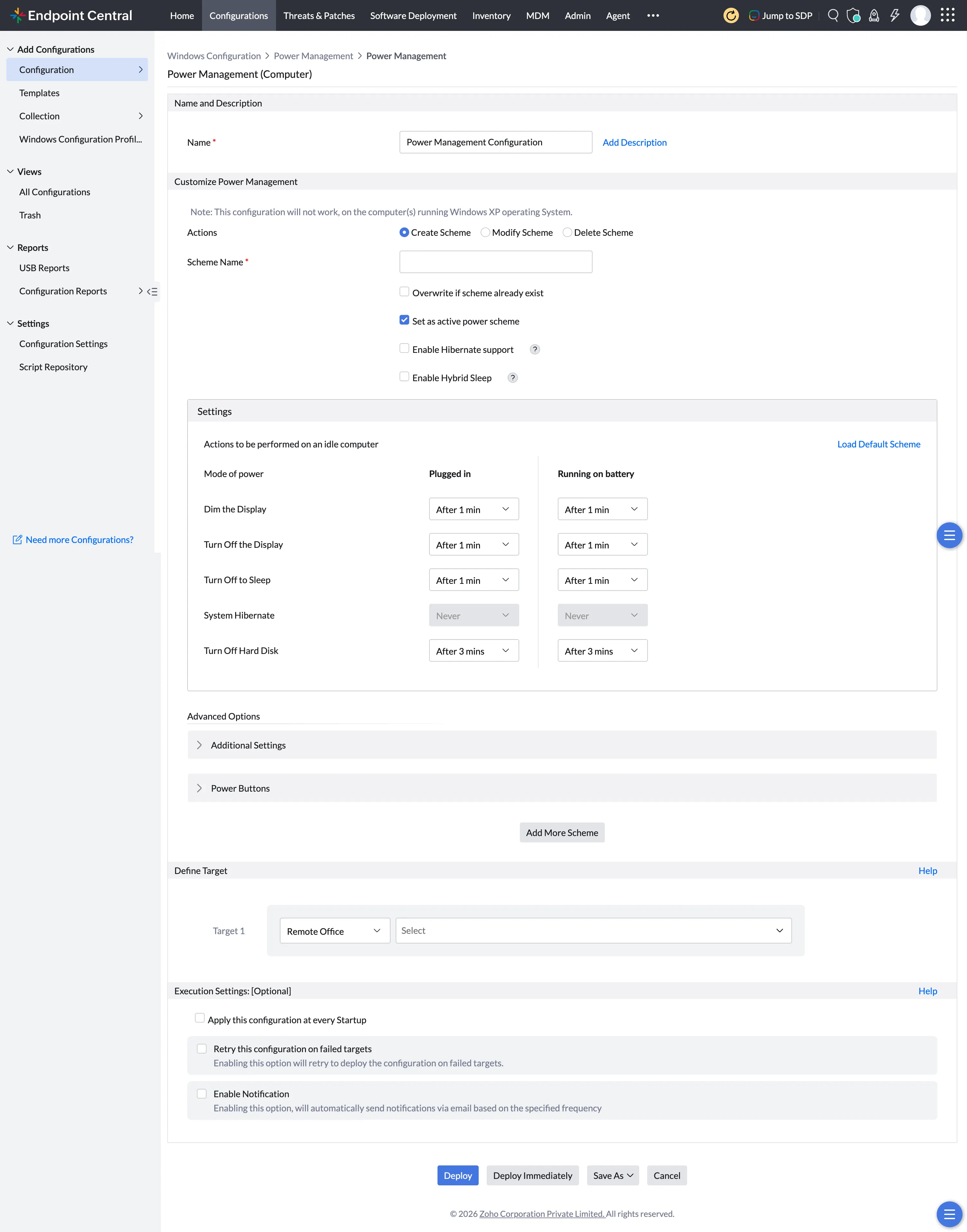
| Parameter | Description | ||||||||||||||||||
|---|---|---|---|---|---|---|---|---|---|---|---|---|---|---|---|---|---|---|---|
| Scheme Name* | The name of the power scheme that has to be created/modified. | ||||||||||||||||||
| Overwrite if scheme already exists | Select this option to overwrite the scheme if one with the same name exists. This option is only available for Create Scheme. | ||||||||||||||||||
| Set as active power scheme | Select this option to make this scheme active. Clearing this option will only create or modify the scheme and the system will continue to use the previously applied scheme. | ||||||||||||||||||
| Enable Hibernate support | Select this option to enable hibernation of the computer. If not enabled, the hibernate option will not work even if specified in the power scheme. | ||||||||||||||||||
| Enable Hybrid Sleep | Select this option to enable Hybrid Sleep for computers running Windows 7 and later versions. | ||||||||||||||||||
| Settings — Actions to be performed on an idle computer | |||||||||||||||||||
Each of the following actions can be configured separately for Plugged in and Running on battery modes. Select the time period after which each action should trigger from the dropdown.
You can click Load Default Scheme to load the values from any of the default Windows power schemes as a starting point. | |||||||||||||||||||
| Advanced Options — Additional Settings | |||||||||||||||||||
| Prompt for password when computer resumes from Sleep | Select this option if you wish the user to authenticate when the computer resumes from sleep. | ||||||||||||||||||
| Advanced Options — Power Buttons | |||||||||||||||||||
Each of the following actions can be configured separately for Plugged in and Running on battery modes.
Available actions for each: Do nothing, Sleep, Hibernate, Shut down, Turn off the display. | |||||||||||||||||||
* - denotes mandatory parameters
If you wish to create/modify more schemes, click Add More Scheme and repeat Step 2. The defined scheme gets added to the List of Power Schemes added table.
Delete a Power Scheme
To delete an existing power scheme, select Delete Scheme from the Actions field and specify the name of the scheme that has to be deleted. Click Add More Scheme to delete additional schemes.
To manage entries in the List of Power Schemes added table:
- To modify a scheme, select the appropriate row and click
 and change the required values.
 - To delete a scheme, select the appropriate row and click
 .
.
Step 3: Define Target
Using the Defining Targets procedure, define the targets for deploying the Power Management Configuration.
Step 4: Deploy Configuration
Click Deploy to deploy the configuration immediately, or Deploy Immediately to push it without waiting for the next schedule. The Power Management configuration will take effect during the next system startup.
To save the configuration as a draft or template for later use, click Save As.