Wallpaper Not Applied or Not Displaying | Mac Configuration
Problem
On a managed Mac machine, one or more of the following behaviors may be noticed:
- The wallpaper configuration was deployed successfully from Endpoint Central, but the wallpaper does not visually change on the device.
- The wallpaper appears correctly on the primary display, but is not applied on a newly connected external monitor.
- The wallpaper is not applied at all, and the device continues to show the default or previous wallpaper.
Cause
Wallpaper not applying (or not staying applied) on a Mac is usually caused by one of the following:
- An MDM restriction policy from Endpoint Central or another MDM/endpoint security tool that blocks wallpaper changes on the device.
- An unsupported image format used in the wallpaper configuration. Endpoint Central supports JPG and PNG formats only.
- Extremely low disk space on the endpoint. If the Mac's storage is almost full, the agent may not be able to save the wallpaper image, so it won't apply.
- A newer wallpaper configuration deployed after the current one, which overrides it.
- When a new monitor is connected, macOS sometimes takes a moment to apply the wallpaper to it. A display Space refresh or restarting the Mac usually fixes this. This is normal macOS behavior, not a wallpaper deployment issue.
Prerequisites
- Verify whether the machine is managed through Endpoint Central MDM, or through another MDM solution.
- Check the relevant agent logs to confirm the wallpaper was deployed successfully from the Endpoint Central agent side.
- Check whether any MDM policy (Endpoint Central or third-party) has been deployed that restricts or controls wallpaper changes via device restriction settings.
- This check applies only if the Mac is co-managed — that is, the wallpaper is deployed via Endpoint Central's configuration while the device is also enrolled in another MDM (Endpoint Central MDM or third-party).
If the wallpaper was deployed successfully but the user later connects an additional monitor, the wallpaper may not automatically appear on the newly added display. This is due to how macOS handles displays/Spaces, not a wallpaper deployment issue. A display Space refresh, or restarting the Mac, will typically resolve this. This is expected macOS behavior.
Log Analysis
Step 1: Verify Configuration Application
- Check the target user's
dcconfigaccess.log, located at/Library/ManageEngine/UEMS_Agent/logs, to verify the wallpaper configuration was applied successfully to the targeted user. - Also review
dcconfigaccess_<LoggedOnUsername>.logto confirm the configuration was applied for the currently targeted user.
Example (dcconfigaccess_admin.log):

What to check:
- The configuration status should read SUCCESS. (This only confirms deployment to the executable, not that the wallpaper actually applied; if a restriction exists, the status stays SUCCESS but the Remarks will show "Success - Not Effective.")
- The configuration should be associated with the correct logged-on user.
Step 2: Verify Wallpaper Deployment
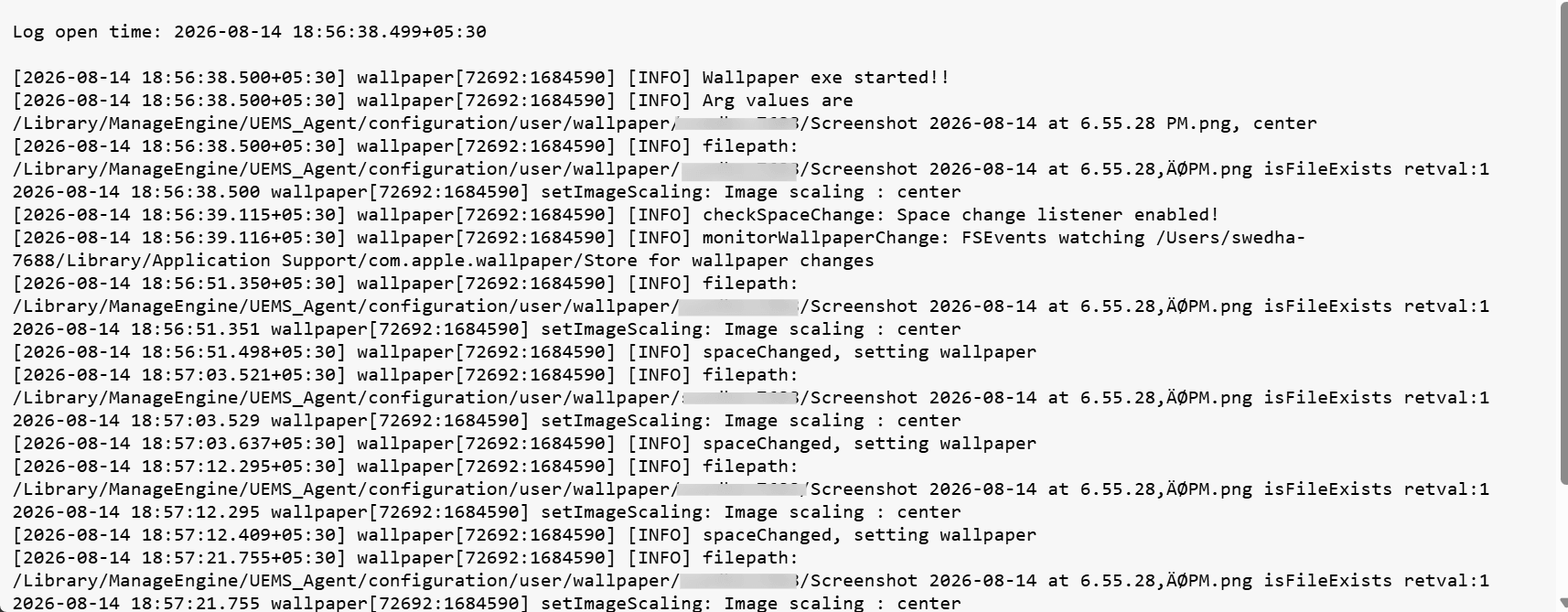
Check the wallpaper.log file to confirm the wallpaper configuration was processed successfully and that deployment was triggered by the Endpoint Central agent.
Example (wallpaper.log):
What to check:
- The wallpaper executable ran right after the configuration was deployed.
- The correct wallpaper image path was passed to the executable, and the wallpaper file actually exists at that path on the endpoint.
- The expected image scaling option (e.g., fill) is being used.
- There are no errors related to wallpaper processing or application in the log.
Step 3: Check for Newer Wallpaper Configurations
Check whether another wallpaper configuration was deployed after the current one, using Reports > Configuration Reports > Configurations by Type > Wallpaper in Endpoint Central.
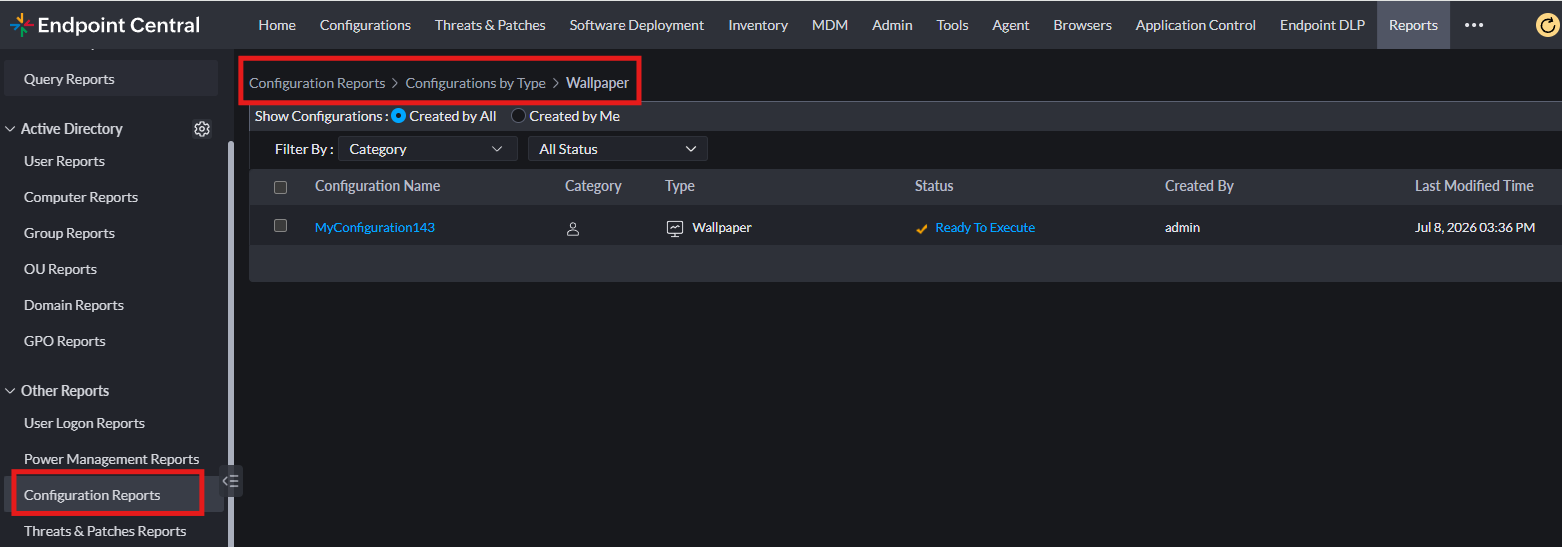
If a newer wallpaper configuration exists, it will override the previous one. Only the most recently deployed wallpaper configuration will be effective on the target machine.
Profile Level Analysis
Check whether any other profile related to wallpaper has been deployed either through Endpoint Central MDM or another MDM/endpoint security solution.
Endpoint Central MDM
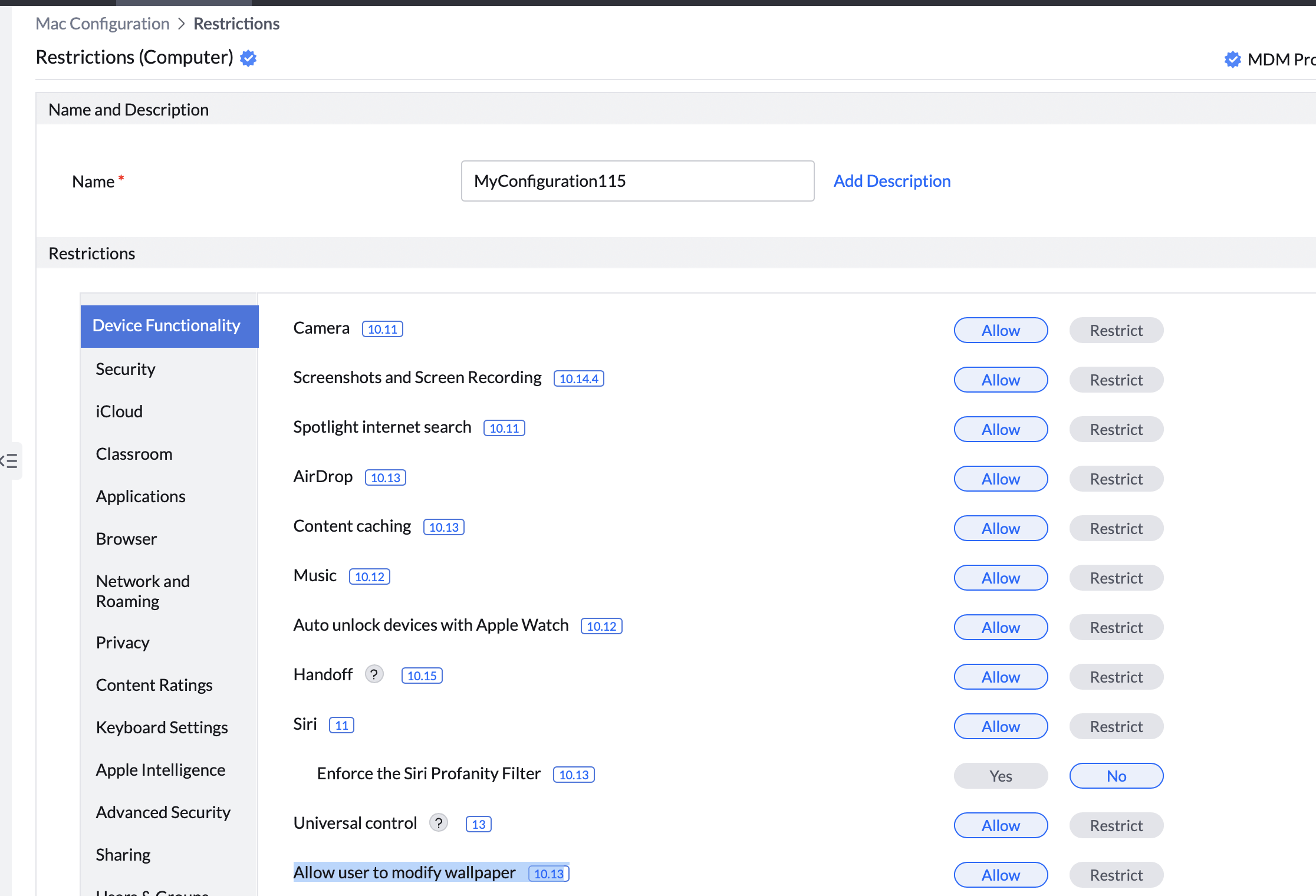
In the Mac Configuration's Restrictions policy, check the Allow user to modify wallpaper setting under Device Functionality. If this is set to Restrict, the wallpaper may not be able to be changed as expected.
Other MDM Solutions
If the device is also managed by another MDM or endpoint security tool, check for a similar wallpaper restriction there:
- Under the device restriction or configuration profile settings, check if wallpaper modification is blocked.
- Under the user interface or desktop settings of the macOS policy, check if wallpaper selection is hidden or restricted.
- Check if a desktop/screen saver-related payload is configured in a macOS policy, as this can push its own wallpaper and conflict with the one set by Endpoint Central.
The points above illustrate common examples of wallpaper-related restrictions found in MDM or endpoint security tools. If a different MDM solution is used, check that tool's device restriction or profile settings for a similar wallpaper-related policy. If a wallpaper profile is deployed from another MDM/security tool, it may override the wallpaper configured through Endpoint Central.
Machine Level Analysis
Step 1: Check for Restricting Configuration Profiles
Verify whether any configuration profile restricting wallpaper changes is deployed on the device, using either:
system_profiler -xml SPConfigurationProfileDataType -detailLevel full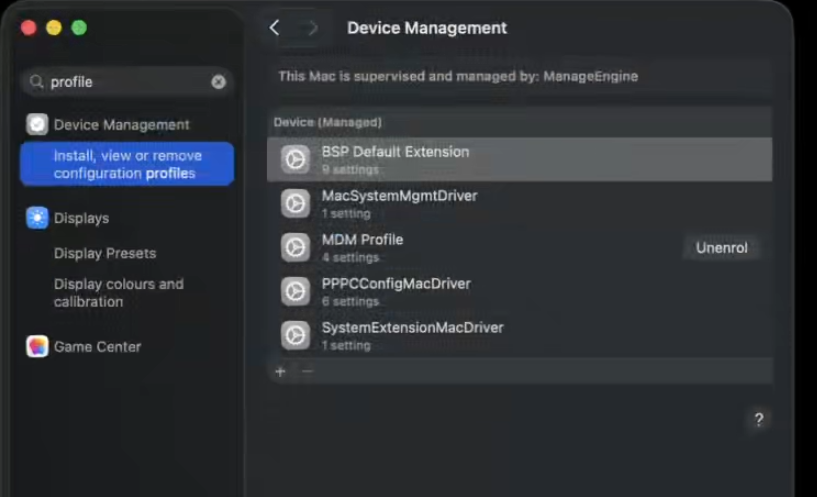
Step 2: Verify the Wallpaper File Exists
If no restriction profile is present, confirm the wallpaper image exists in the agent's designated wallpaper directory:
/Library/ManageEngine/UEMS_Agent/configuration/user/wallpaper/User_Name/ImageName.pngThe User_Name in the file path refers to the target device's logged-in user name.
Step 3: Verify the Wallpaper Process is Running
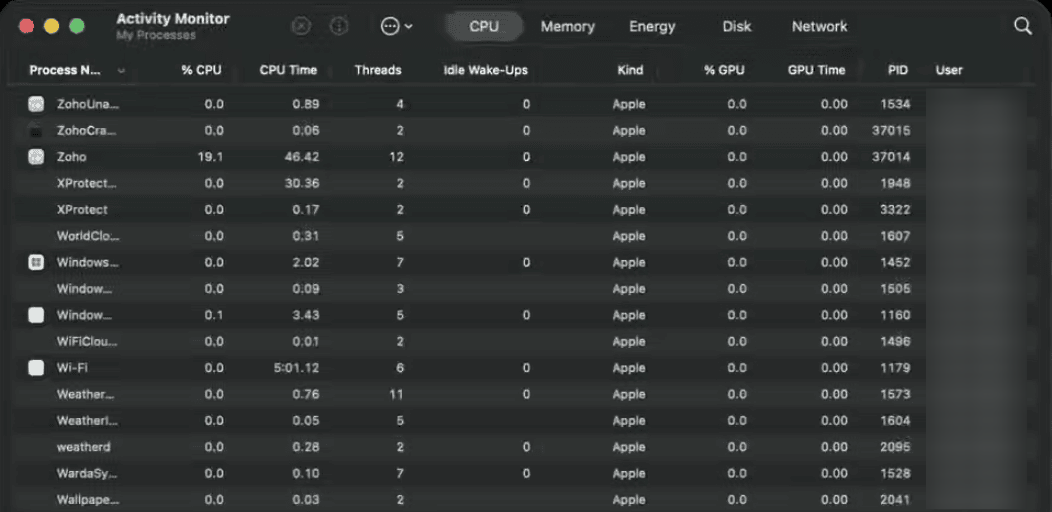
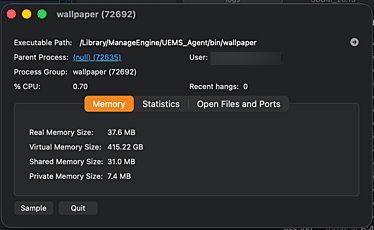
If the wallpaper file is present, open Activity Monitor and confirm that the wallpaper executable/process is running.