Manage Technician Roles with Granular Access
This document explains how to configure granular access for technician roles within your Endpoint Central environment. Granular access allows you to define precise access levels for each role, ensuring technicians have the exact functionalities needed to perform their duties effectively while restricting access to sensitive areas.
Benefits of Granular Access:
- Enhanced Security: By granting only the necessary access to each role, you minimize the risk of unauthorized modifications and potential security breaches.
- Reduced Errors: Restricting access to sensitive areas helps prevent accidental configuration changes and minimizes the risk of errors.
- Increased Compliance: Tailored granular access can help ensure adherence to specific security and regulatory requirements within your organization.
Creating a Custom Role with Granular Access Control
To create a new role:
- Navigate to the Admin tab -> Under User Administration -> Click Role.
- Click the "Add Role" button.
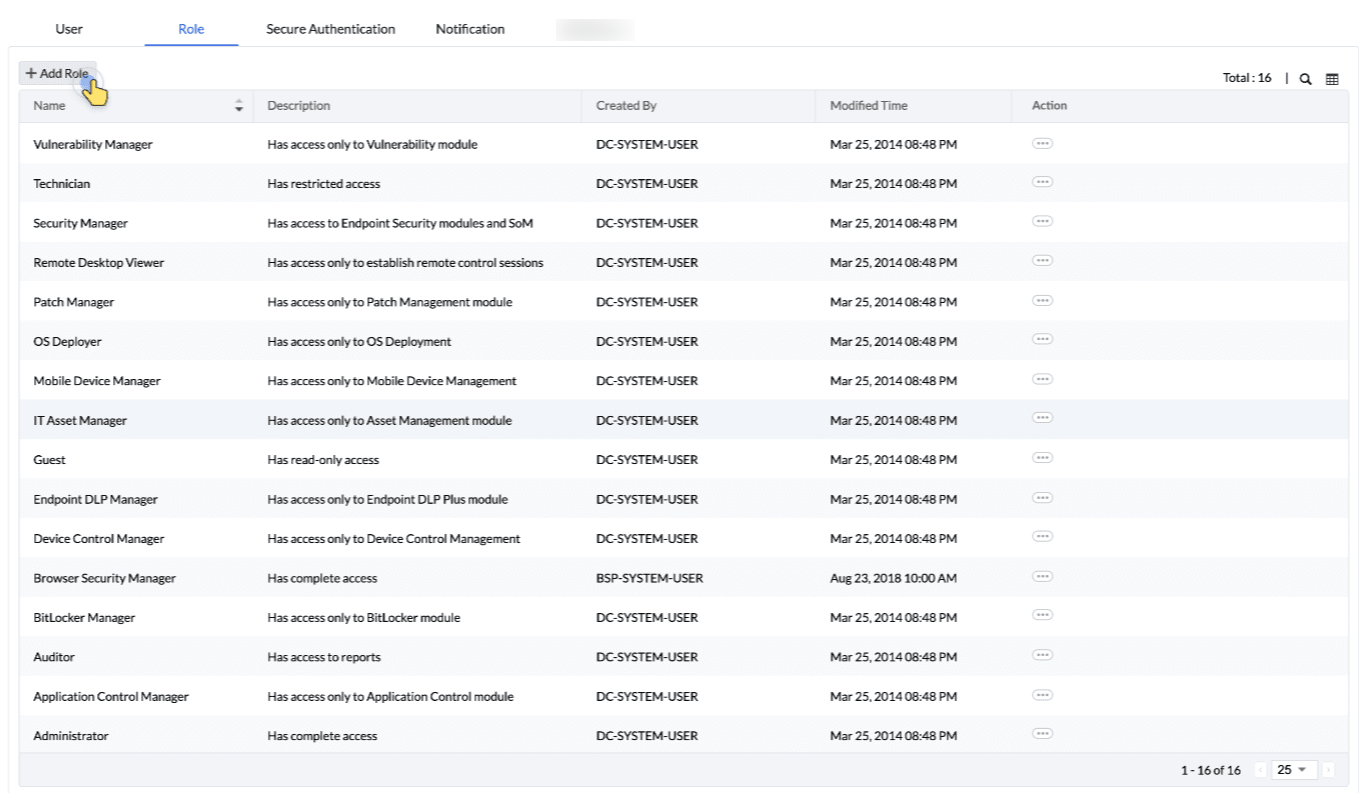
- Enter a descriptive name that reflects the role's intended responsibilities.
Define Module Permissions:
In the "Customize Control Section," assign appropriate access levels for each relevant module.
- Read: Allows viewing information.
- Write: Allows modifying information.
- Full Control: Grants both read and write permissions.
- No Access: Denies access entirely.
Achieving Granular Control by Restricting Access:
The restrict functionality can be used to define precise access controls within the different modules in the product. The availability of this feature and the required access level varies depending on the module's use case:
Configuration: Requires at least "Write" or "Full Control" access to the module in order to be able to use the restrict functionality.
Note: This feature is currently available only for the configurations module.
- Click "Restrict Functions" next to the desired module.
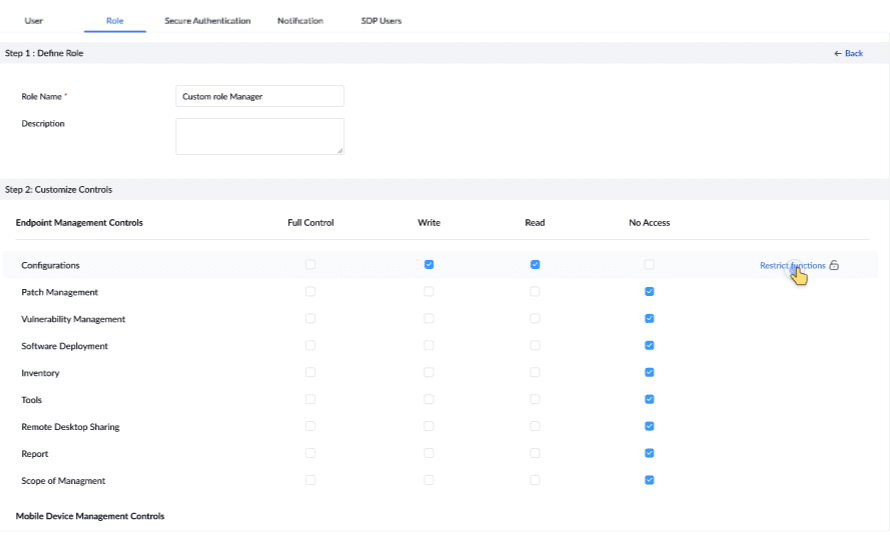
- A pop-up window will display a list of specific functionalities within that module. Uncheck the functionalities to which you want to restrict the user's access.
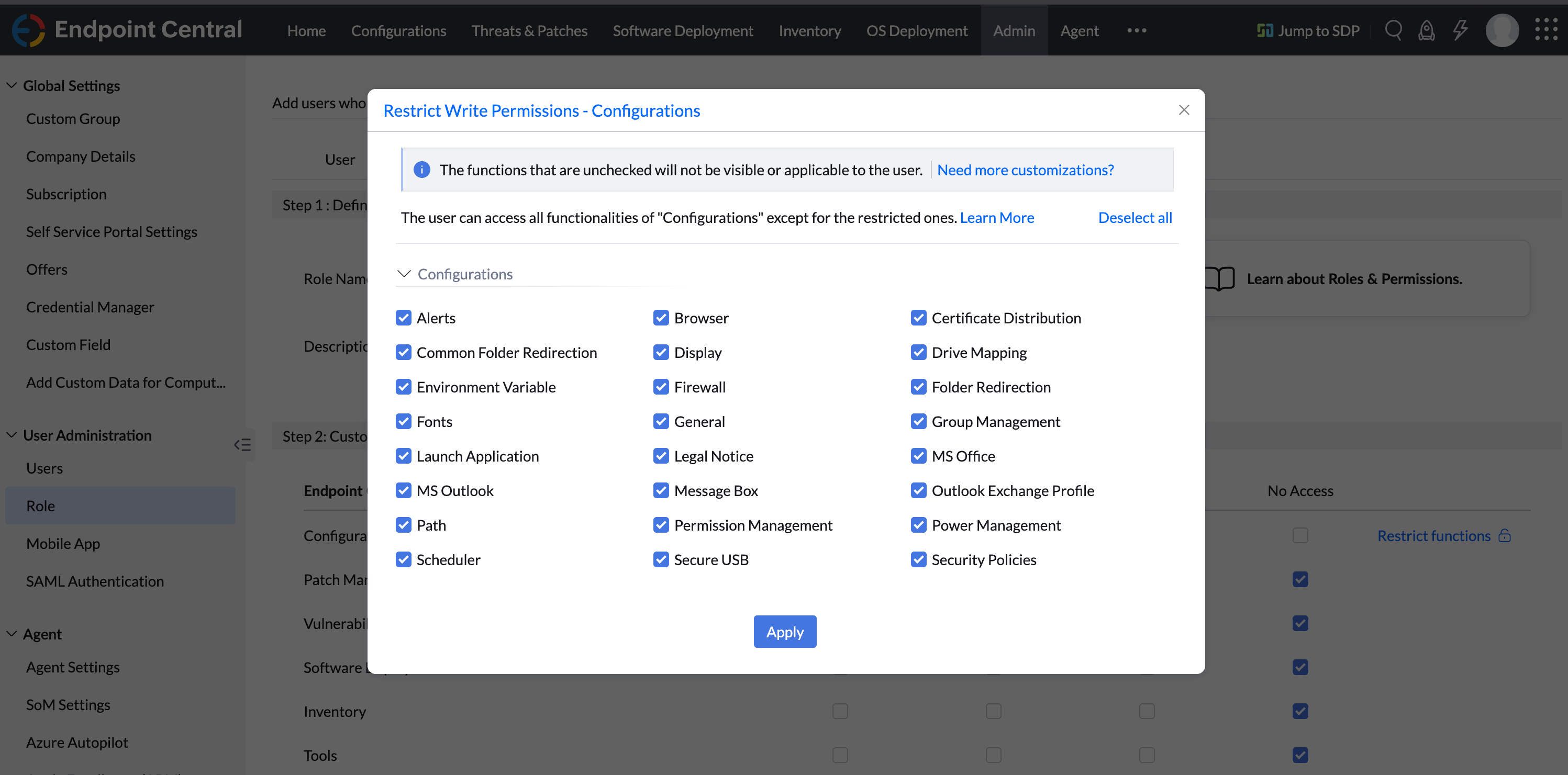
- Click Save to apply the restrictions.
Reviewing and Updating Roles
As your organization evolves, the responsibilities of different technician roles may change. It's important to regularly review the roles and their associated access levels to ensure they align with current operational requirements.
To review or update an predefined role:
- Navigate to the Admin -> User Administration -> Role tab and select the role you wish to review or update.
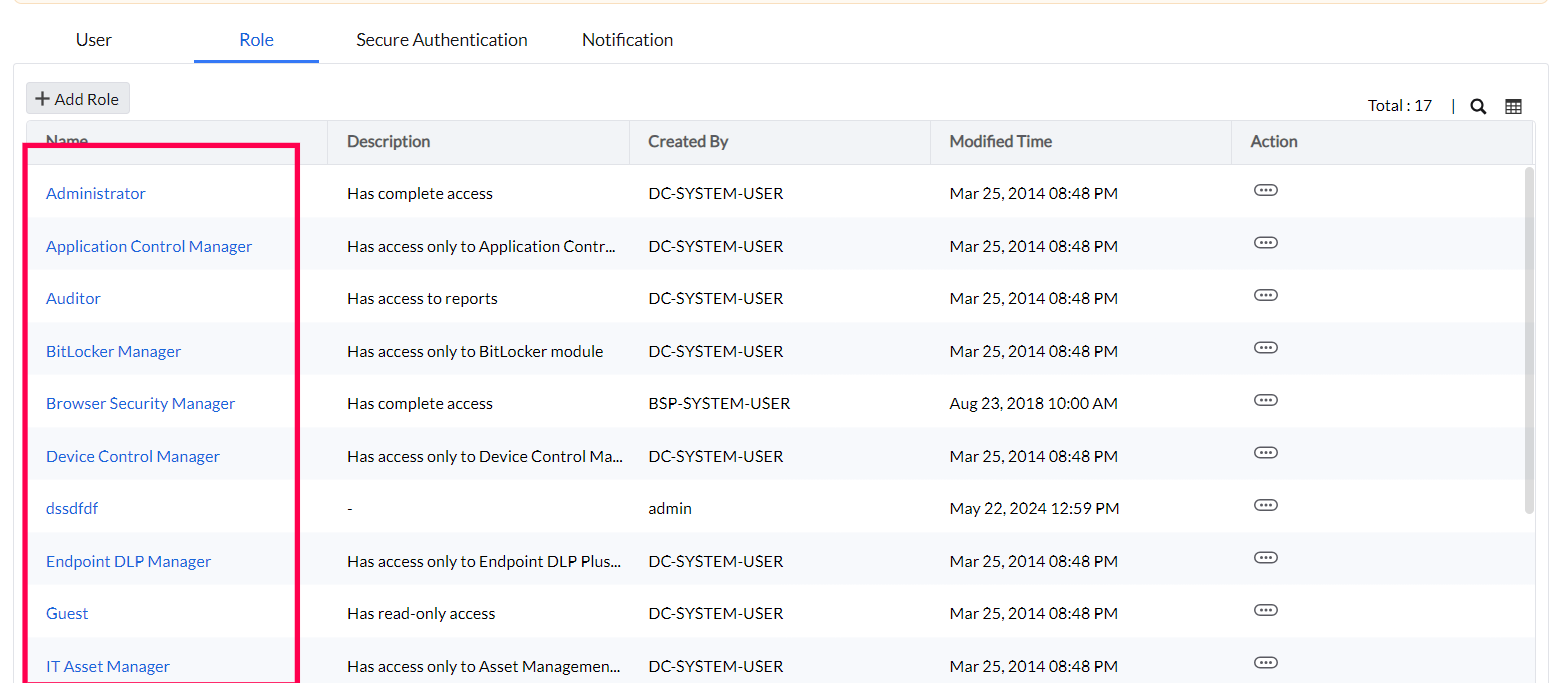
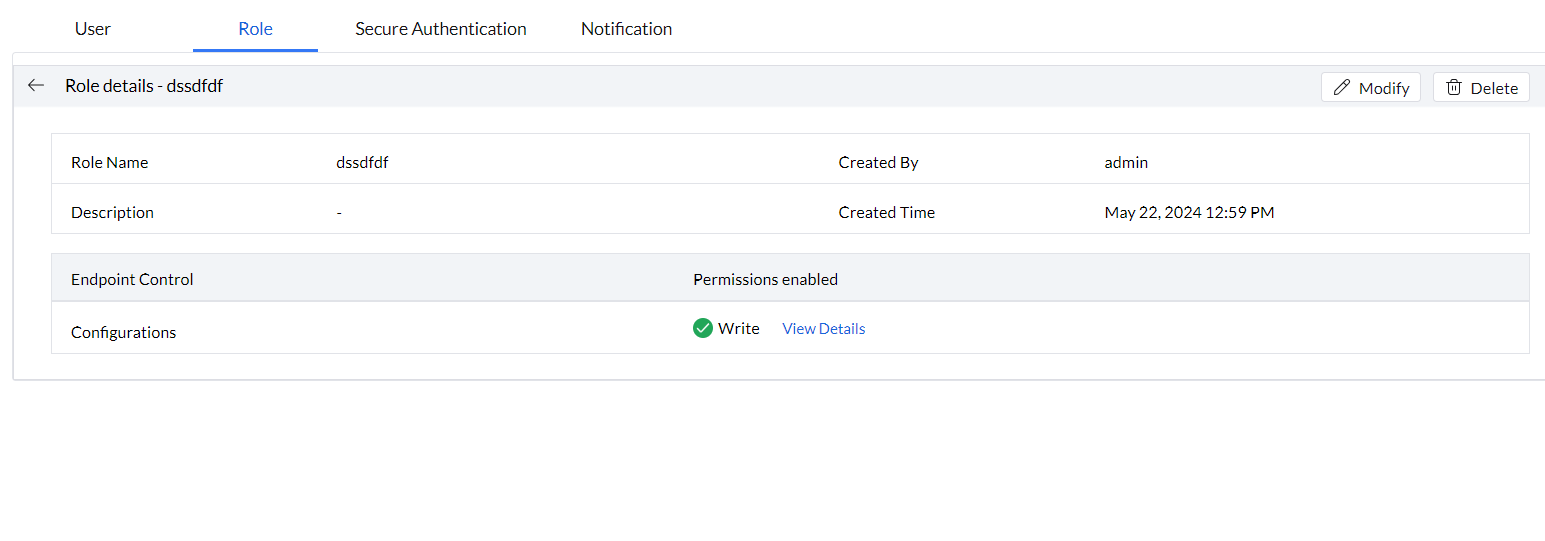
- Click Modify to make necessary adjustments to the permissions or module access levels.
- Click Save to apply the changes.
Troubleshooting Common Issues
If technicians report being unable to access specific functionalities, verify the following:
- Role Assignment: Ensure the technician is assigned the correct role with the appropriate access levels.
- Module Permissions: Check the module permissions within the role to confirm that the required access level is granted.
- Restricted Functions: Review any restricted functions within the modules to ensure that critical functionalities are not unintentionally disabled.
If issues persist, consider reassigning the role or adjusting the access levels to better meet the technician's needs.
Granular access control is essential for maintaining a secure and efficient Endpoint Central environment. By carefully defining and managing technician roles, you can ensure that each technician has the necessary access to perform their duties while protecting sensitive information and reducing the risk of errors.




