Agent Migration from On-premise to Cloud
Points to be noted before initiating the migration process
- The associated data with the computers will not be migrated to Cloud.
- The queued configurations associated with each computer will be suspended automatically after migrating the agent.
- The below-mentioned steps should be followed after signing up for Endpoint Central Cloud, and before you add the computer details in the Cloud console.
- This collection should be deployed from Endpoint Central OP console.
- Before deploying the script to the target machines, it is highly recommended to test it on a couple of machines, and then proceed with batch-wise deployment.
To know more about data migration, click here.
The below-given steps will help you migrate the agents to Endpoint Central Cloud.
Windows Agent Migration
- Download the new agent package
- Open the Cloud web console.
- Navigate to the Agent > Computers
- Select the required remote office
- Click the Download Agent button
- Place the downloaded agent installer exe in a folder.
- Download the Agent Migration Tool
- Copy the
.exefrom this link to the previously created folder.
- Copy the
- Launch AgentMigrationTool.exe and generate the Agent.exe
- Right-click on
AgentMigrationTool.exeand select Run as administrator. - Click Choose Agent Installer and select your target agent installer (
.exefile).
- Right-click on
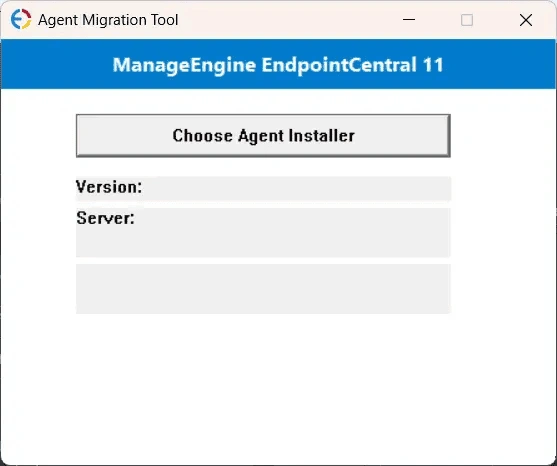
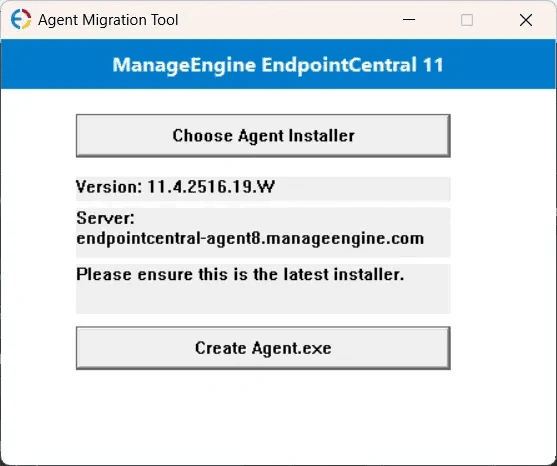
- Confirm the displayed Version and Server information match your destination server.
- Click Create Agent.exe and wait for completion.
- The
Agent.exefile will be created in the same directory as the tool.

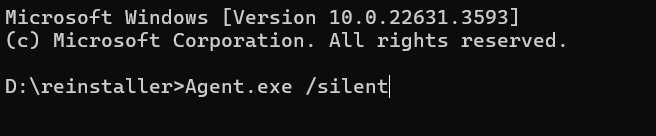
- Copy the file Agent.exe to the client machine and run it in CMD as administrator with /silent argument Eg: > Agent.exe /silent.
- Ensure if the migration is working seamlessly.
- In the Endpoint Central server web console, navigate to Configuration-> Windows-> Custom Script-> Computer
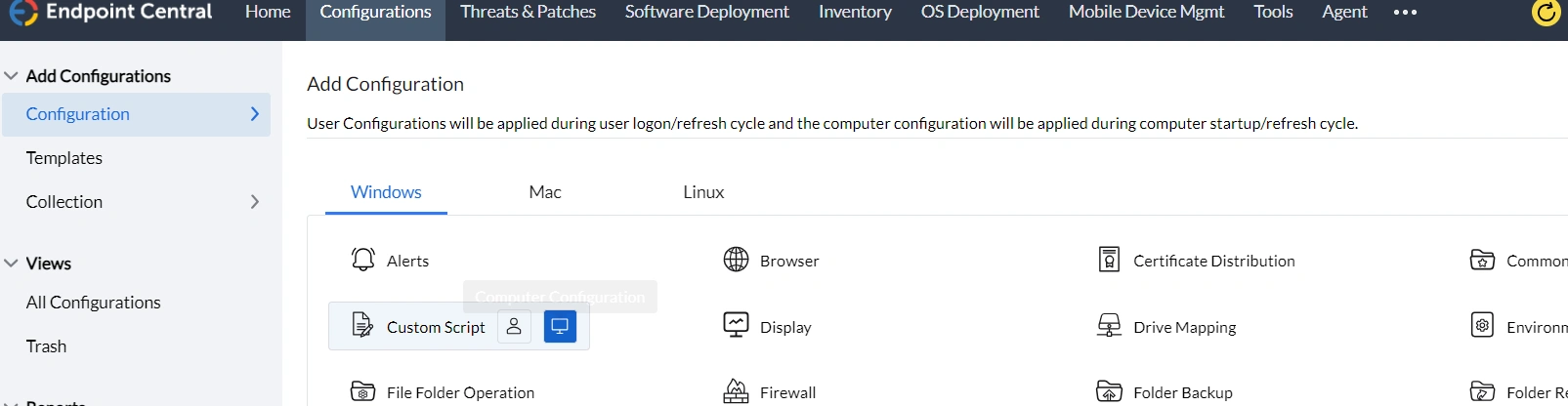
- Enter the name of the configuration and click the Create\Modify script and add the script to repository. Click here to download the script.
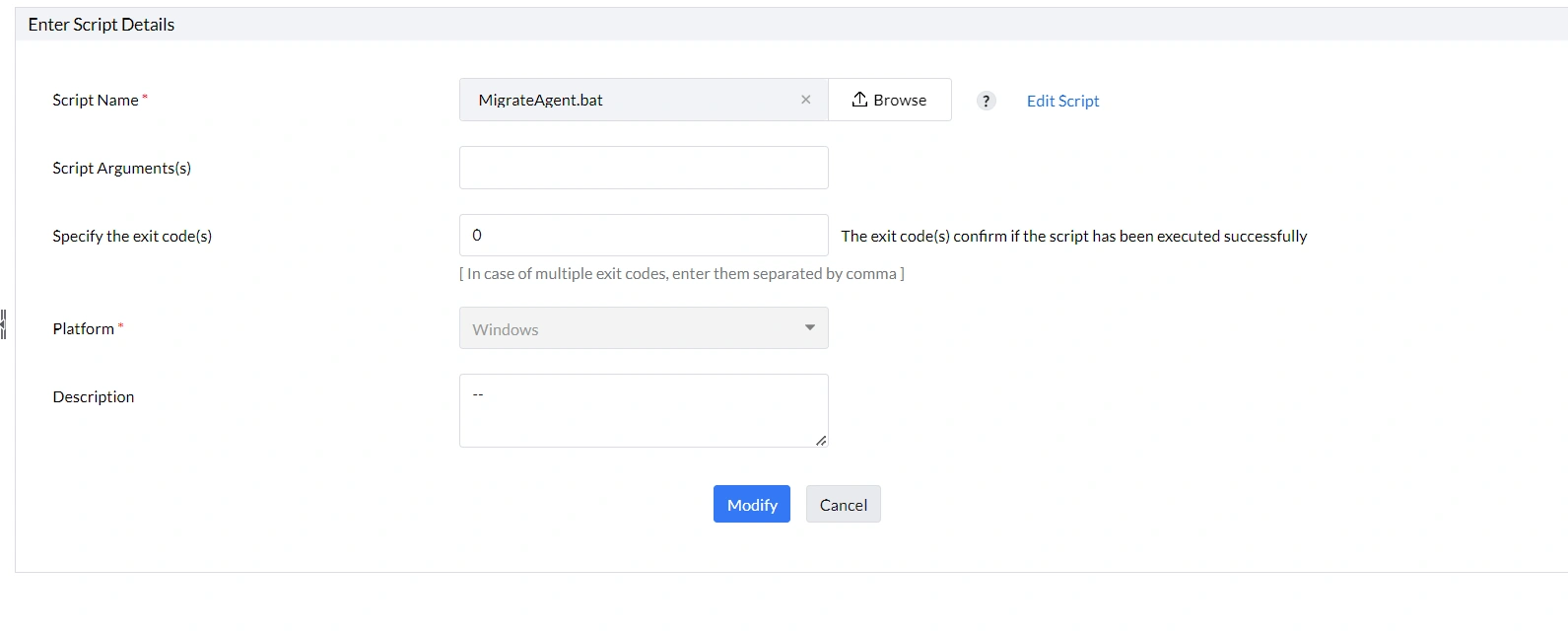
- Once done, select the script in the custom script configuration.
- In dependency files upload the previously generated Agent.exe file. Select the target and deploy the configuration
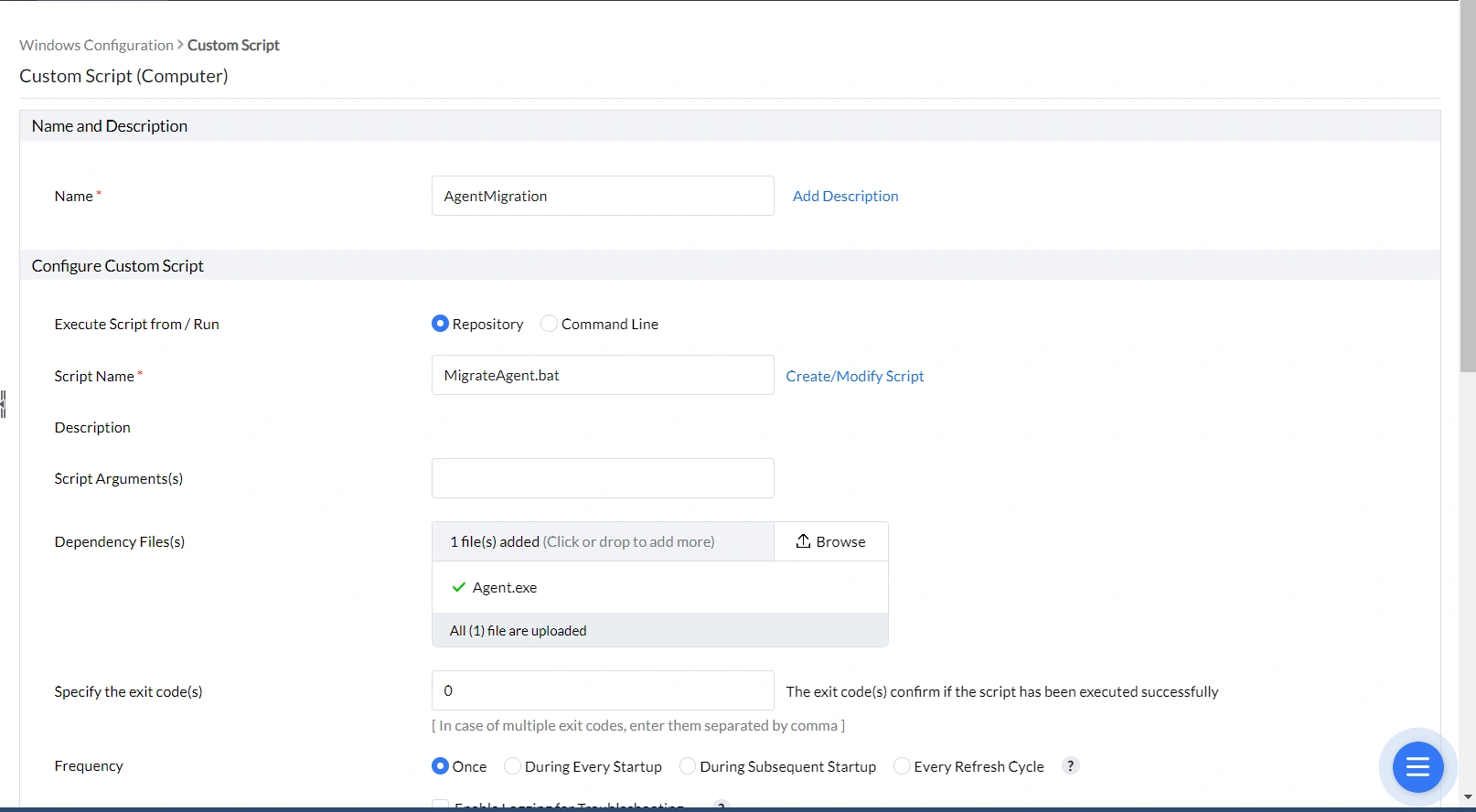
- Once the changes applied the agent will be moved to the new server console.
Mac Agent Migration
1. In the Endpoint Central on-premise web console, navigate to Agent tab -> Agent Settings -> Agent Protection Settings and disable Restrict users from uninstalling the Agent and Distribution server , if enabled.
2. Download Agent Package
- Open the Cloud web console.
- Navigate to the Agent > Computers
- Select the required remote office
- Click the Download Agent button
- Rename the file to UEMS_MacAgent.pkg and place it In a folder.
3. Download Migration.sh to the same directory.
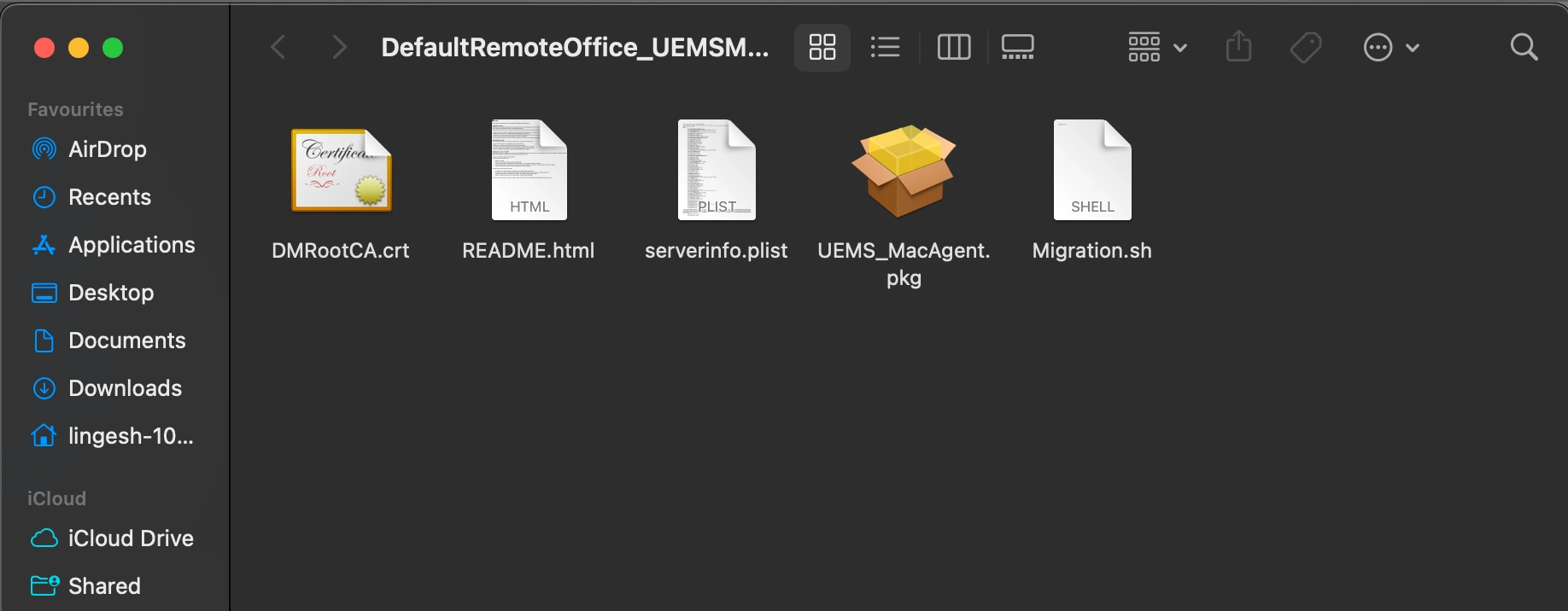
4. Zip the package with serverinfo.plist and Migration.sh
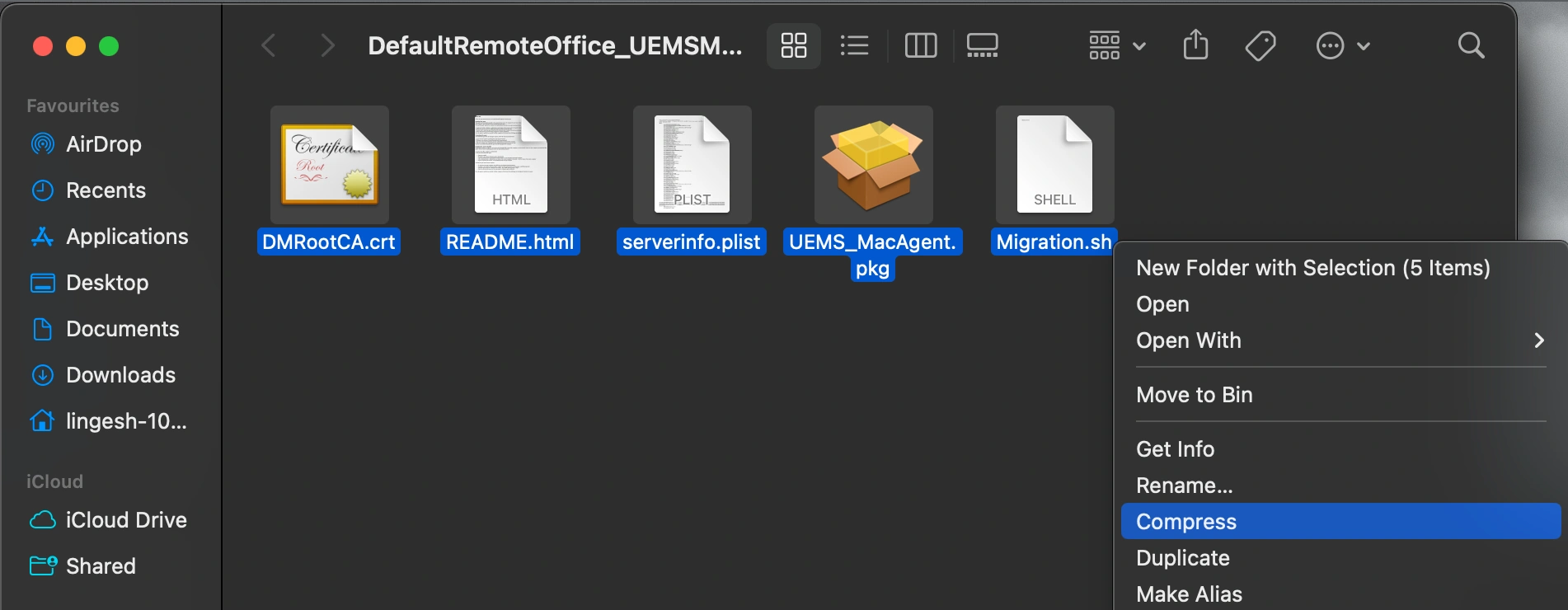
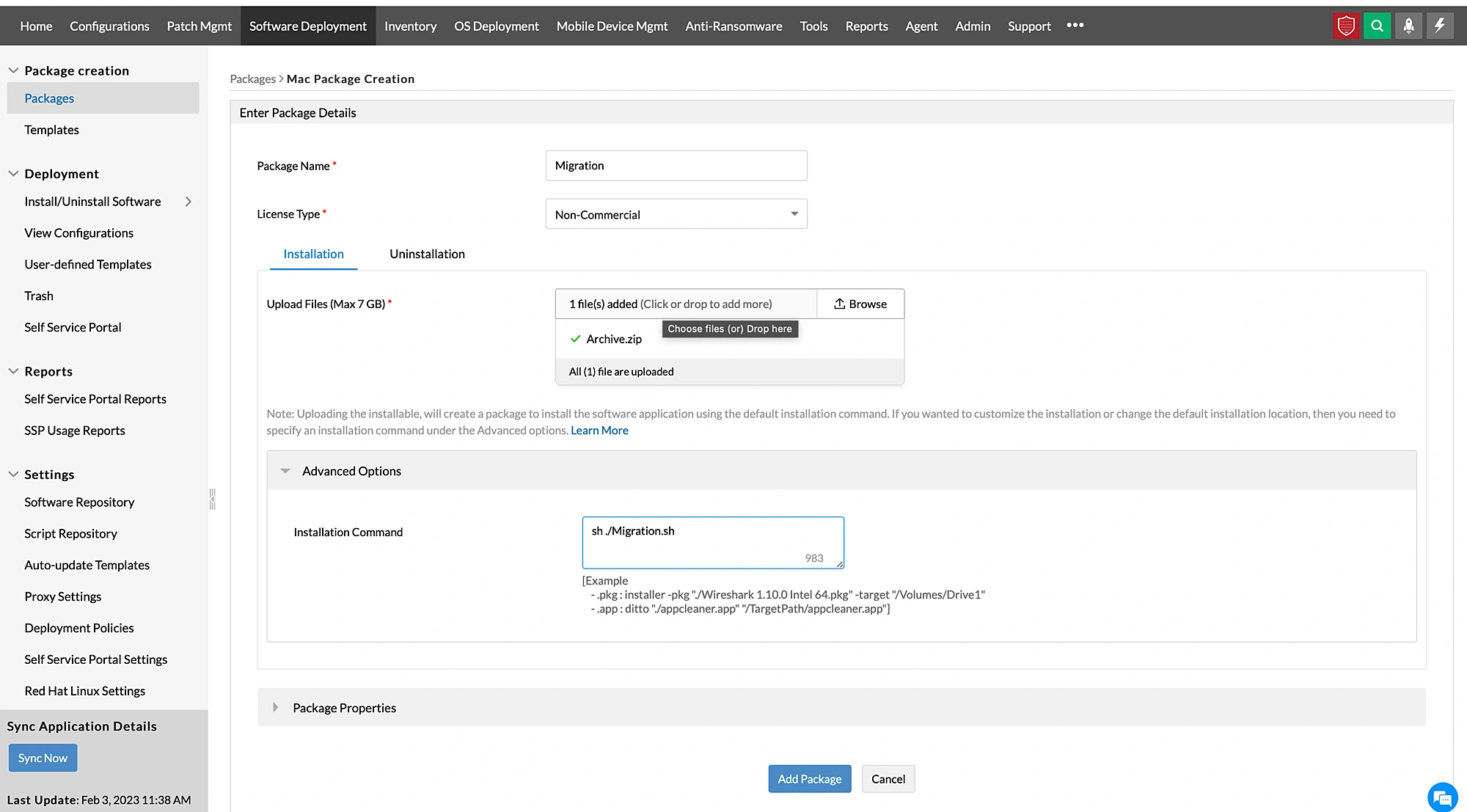
5. Navigate to Endpoint Central -> Software deployment -> Add Package -> Mac
6. Create a Mac package by uploading the Archive.zip generated. In advanced options, type sh ./Migration.sh as shown
7. Create a Mac Software Deployment configuration and deploy the created package to required machines on-premise. It is recommended to apply the configuration to a few test machines first.
Linux Agent Migration
1. In the Endpoint Central Cloud console, navigate to Agent tab -> Agent Settings -> Agent Protection Settings and disable Restrict users from uninstalling the Agent and Distribution server , if enabled.
2. Download the Linux agent
- Open the Cloud web console.
- Navigate to the Agent > Computers
- Select the required remote office
- Click the Download Agent button
- Rename the file to UEMS_LinuxAgent.bin and place it in a folder.
3. Create a Linux custom script configuration.
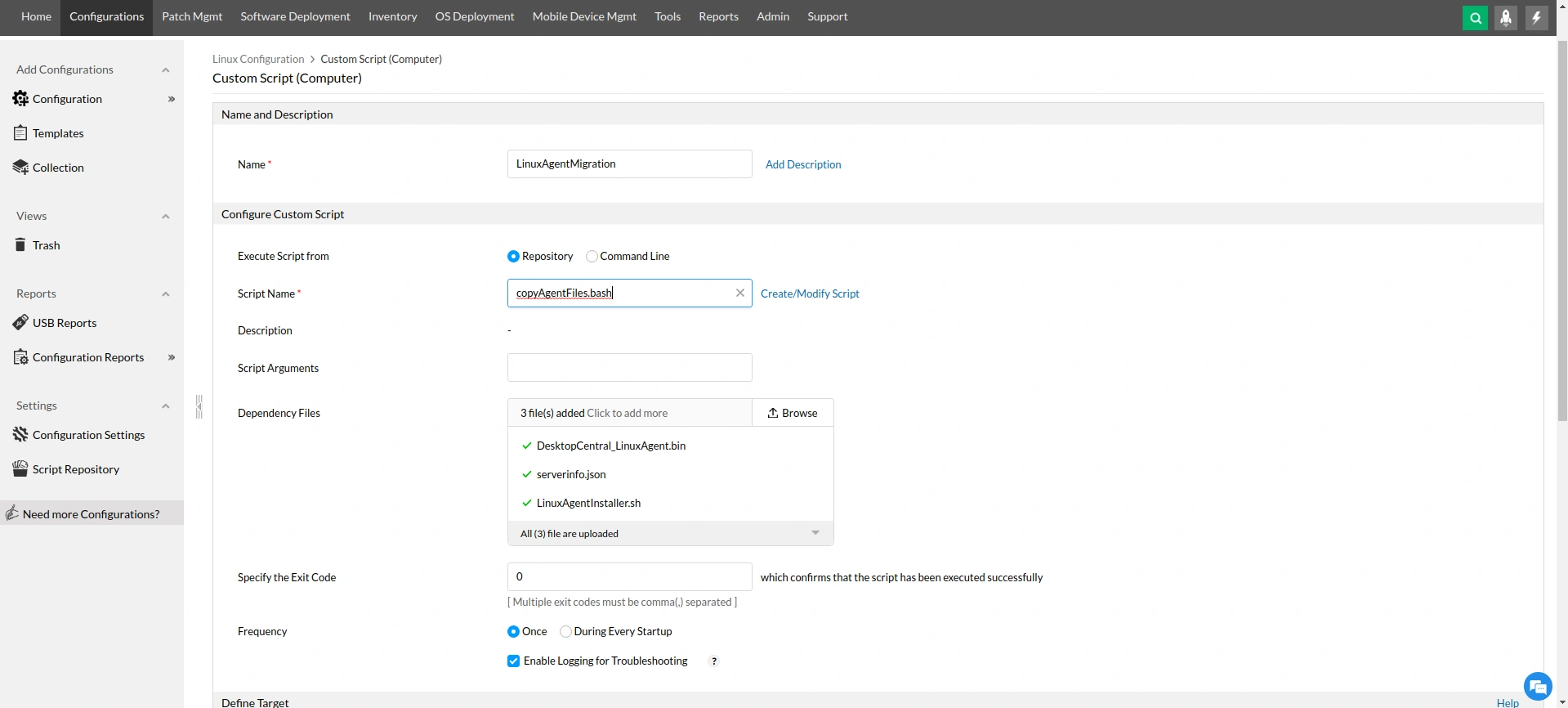
4. Add the script copyAgentFiles.bash to script repository and add below dependency files.
- DesktopCentral_LinuxAgent.bin/UEMS_LinuxAgent.bin (In the zip file downloaded from DC cloud console)
- serverinfo.json (In the zip file downloaded from DC cloud console)
- LinuxAgentInstaller.bash
5. Define the targets and apply the configuration.
This way, all the Endpoint Central agents will be migrated from OP to Cloud, thereby ensuring a seamless agent installation process.