Approval and Re-Approval of Computers and Distribution Servers
Endpoint Central provides a controlled approval mechanism for client computers (via the agent) and Distribution Servers.
- Agent Approval — Applies to computers that have the Endpoint Central agent installed.
- Distribution Server Approval — Applies to computers where Distribution Servers are installed in remote offices.
Applicable to & environment requirements
- Required User Roles
- SoM Full Control
- Supported OS
- Windows, macOS, Linux
- Edition
- All Editions
Need to assign permissions?Follow the steps in the permission assignment guide.
Computer (Agent) Approval
How approval works
- When approval is enabled, a computer whose agent is newly installed waits in Computer(s) for Approval until you approve or decline it. Until then, the server rejects its status updates.
- Computers that match the default or custom automatic-approval criteria skip the wait. See Automatic Approval of Computers.
- If a managed computer later behaves abnormally, its agent is isolated and blocked from communicating with the server until you approve it again. This is Re-Approval.
Approval keeps agents installed without your knowledge from reaching the server. Re-Approval keeps unknown or compromised endpoints from regaining access.
How to Enable Computer(s) for Approval
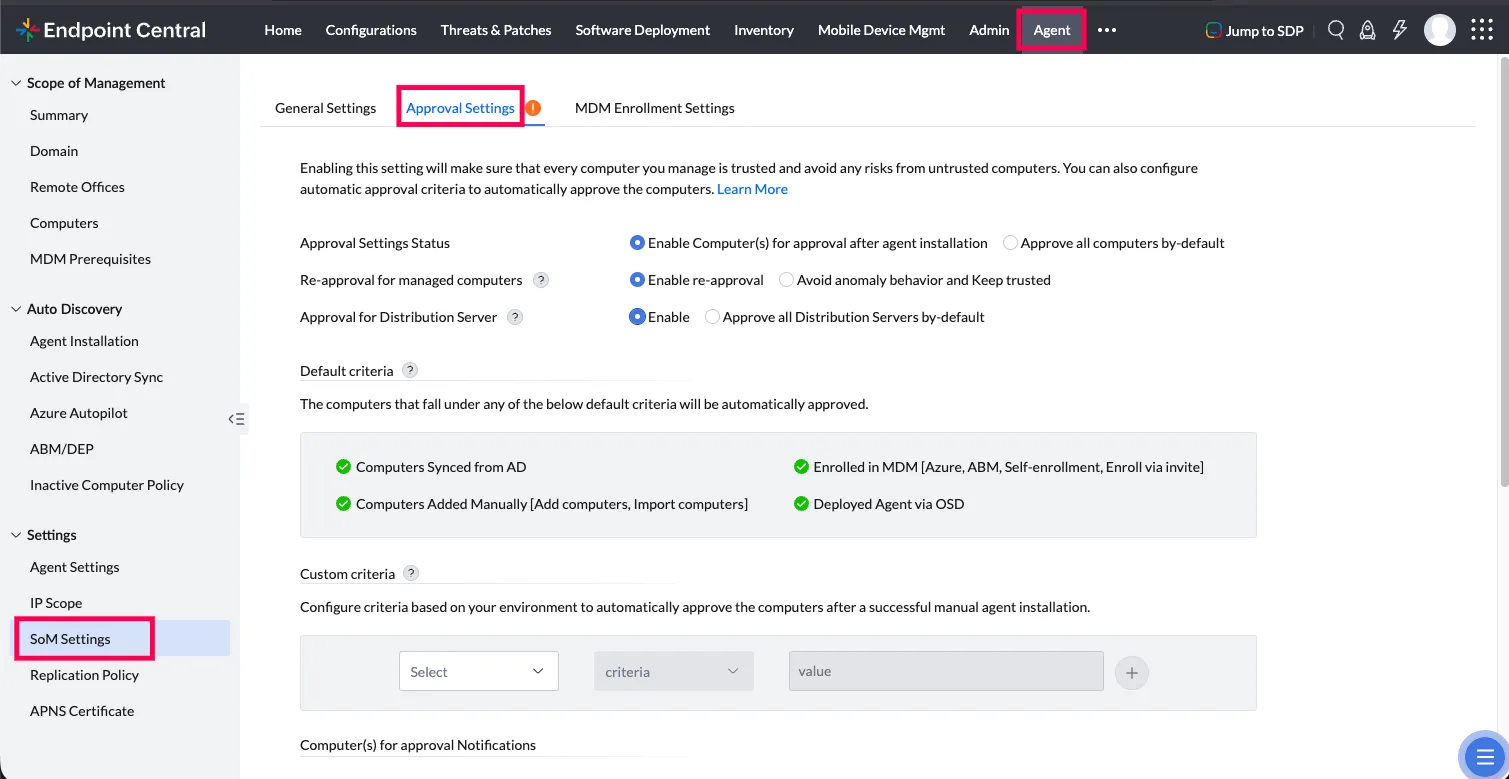
- Navigate to Agent > SoM Settings > Approval Settings.
- Under Approval Settings Status, select Enable Computer(s) for approval after agent installation.
The Computer(s) for Approval tab appears in the Computers view once the option is enabled.
Approve or Decline Computers
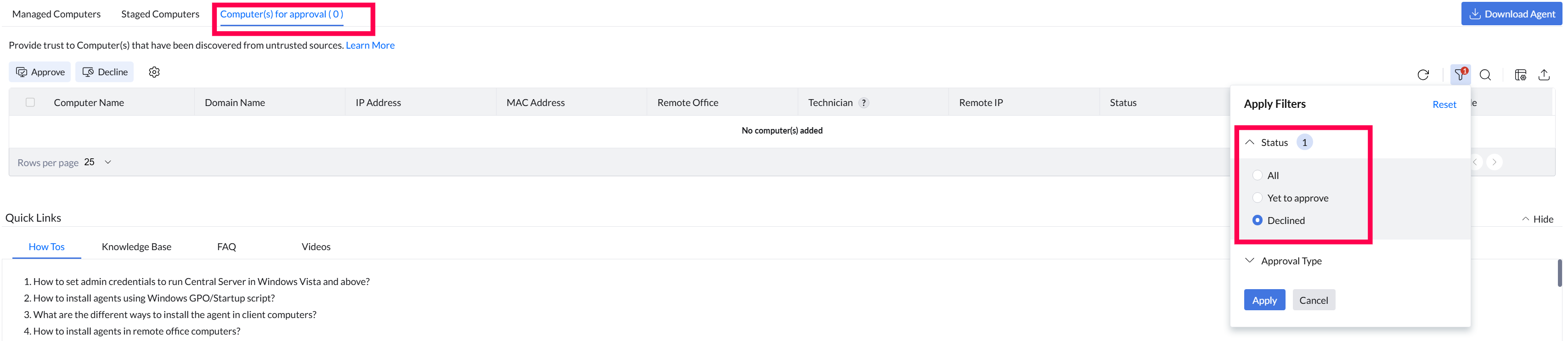
- Go to Computers > Computer(s) for Approval. The Status filter under Apply Filters is set to Yet to approve, so the list shows the computers waiting for a decision. To see computers in another state, such as Declined, change the filter.
- Check the Technician column. It shows the user who shared the agent installer that was used to install the agent on that computer, so you can identify where an installation came from.
- Select Approve or Decline for each computer.
Approved computers move to Managed Computers, and server configurations apply to them. Computers you have neither approved nor declined stay in the list until you act on them; they are not removed automatically. To be reminded of waiting computers, turn on the daily approval notifications described under Notifications.
Approval of Declined Computers
Computers you decline appear under Agent > Computers > Computer(s) for Approval, filtered by Declined. If you later approve a declined computer, agent installation is re-triggered on that machine.
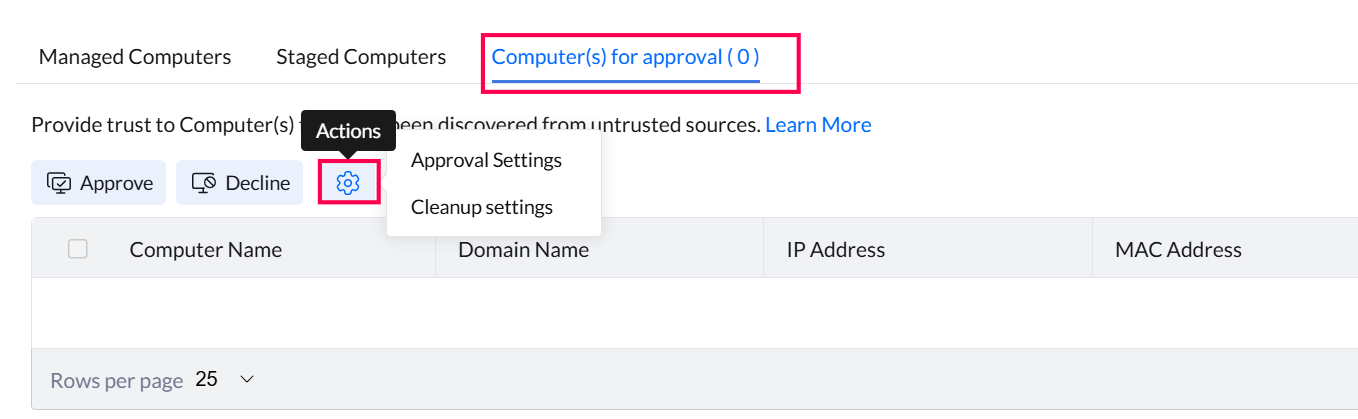
Declined computer details are retained on the server for 90 days by default. To change this, go to Agent > Computers > Computer(s) for Approval > Cleanup Settings.
Automatic Approval of Computers
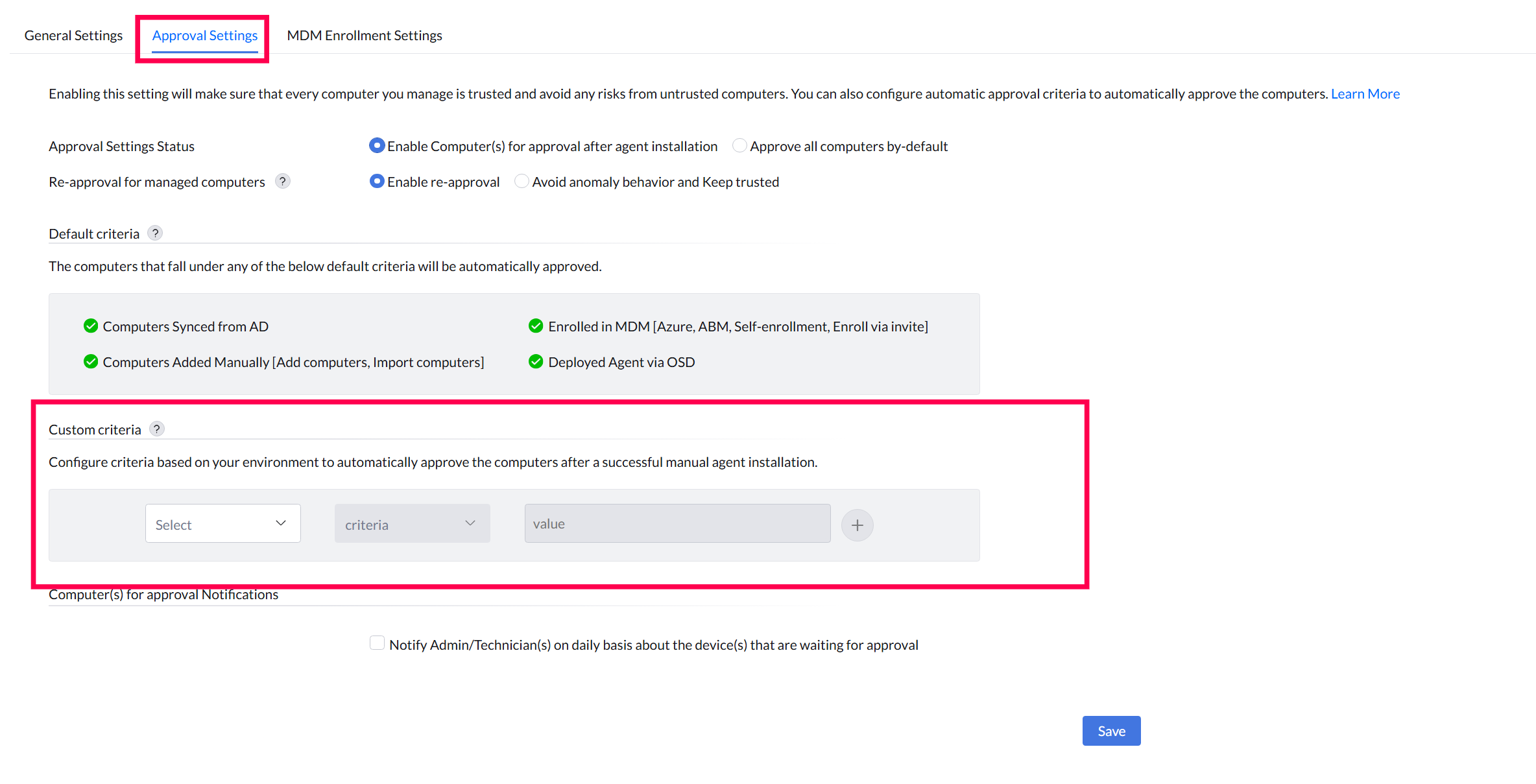
Computers that match the following default criteria are approved automatically:
- Computers synced from Active Directory
- Computers enrolled in MDM (Azure, ABM, self-enrollment, Enroll via Invite)
- Computers added with Import Computers or Add Computers
- Agents deployed with OSD Imaging
The default criteria always apply and cannot be turned off.
You can add automatic-approval criteria based on DNS Domain Name, Computer Name, Domain Name, or IP Address range.
Computer Re-Approval
A managed computer enters the Re-Approval state in these scenarios:
- Duplicate Computer and Domain Names — Multiple computers share the same computer name and domain name. Two computers with the same computer name and domain name cannot both be managed in Scope of Management, so rename one of them.
- Improper Imaging Process — The computer was imaged with the agent already installed, without following the official imaging guide for its operating system: Windows, Linux, or macOS.
- Agent Uninstalled and Reinstalled Offline — The agent is uninstalled and reinstalled while the computer cannot reach the server.
Review Computers in Re-Approval
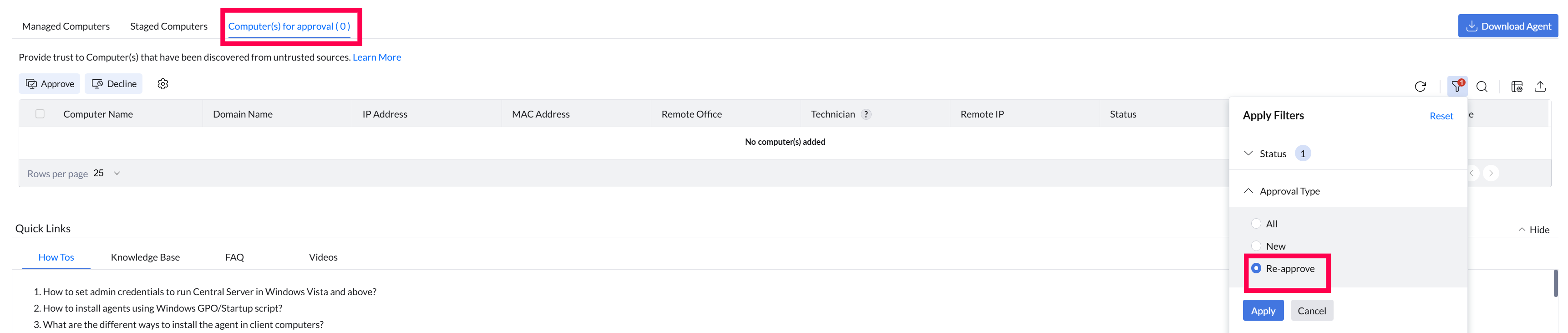
Go to Agent > Computers > Computer(s) for Approval and set the Approval Type filter to Re-Approve. Approve the computers you trust so they can communicate with the server again.
Control Re-Approval for Reinstalled Agents
Go to Agent > SoM Settings > Approval Settings and choose an option under Re-approval for managed computers:
- Enable re-approval — When the agent is reinstalled on a computer that is already managed, the computer can be sent back to Computer(s) for Approval. Automatic approval criteria do not apply.
- Avoid anomaly behavior and Keep trusted — When the agent is reinstalled, the computer stays trusted and is not sent back for approval. Choose this if agents are reinstalled routinely, for example on re-provisioned virtual desktops.
Keep trusted removes the manual check on reinstalled agents, so choose the option that matches your organization's security requirements.
Distribution Server Approval
Understanding Distribution Server Approval and Re-Approval
When you install a new Distribution Server in a remote office, it enters the Waiting for Approval state before it can serve agents. Review it, then approve or decline it from the console.
- If approved, the Distribution Server starts functioning and manages agents in its remote office.
- If declined, the Distribution Server is automatically uninstalled.
Importance of Distribution Server Approval
Without an approval gate, a misconfigured machine could be registered as a Distribution Server and serve policies and patches to managed endpoints. Approval ensures an administrator adds every Distribution Server on purpose.
Approve or Decline a Distribution Server
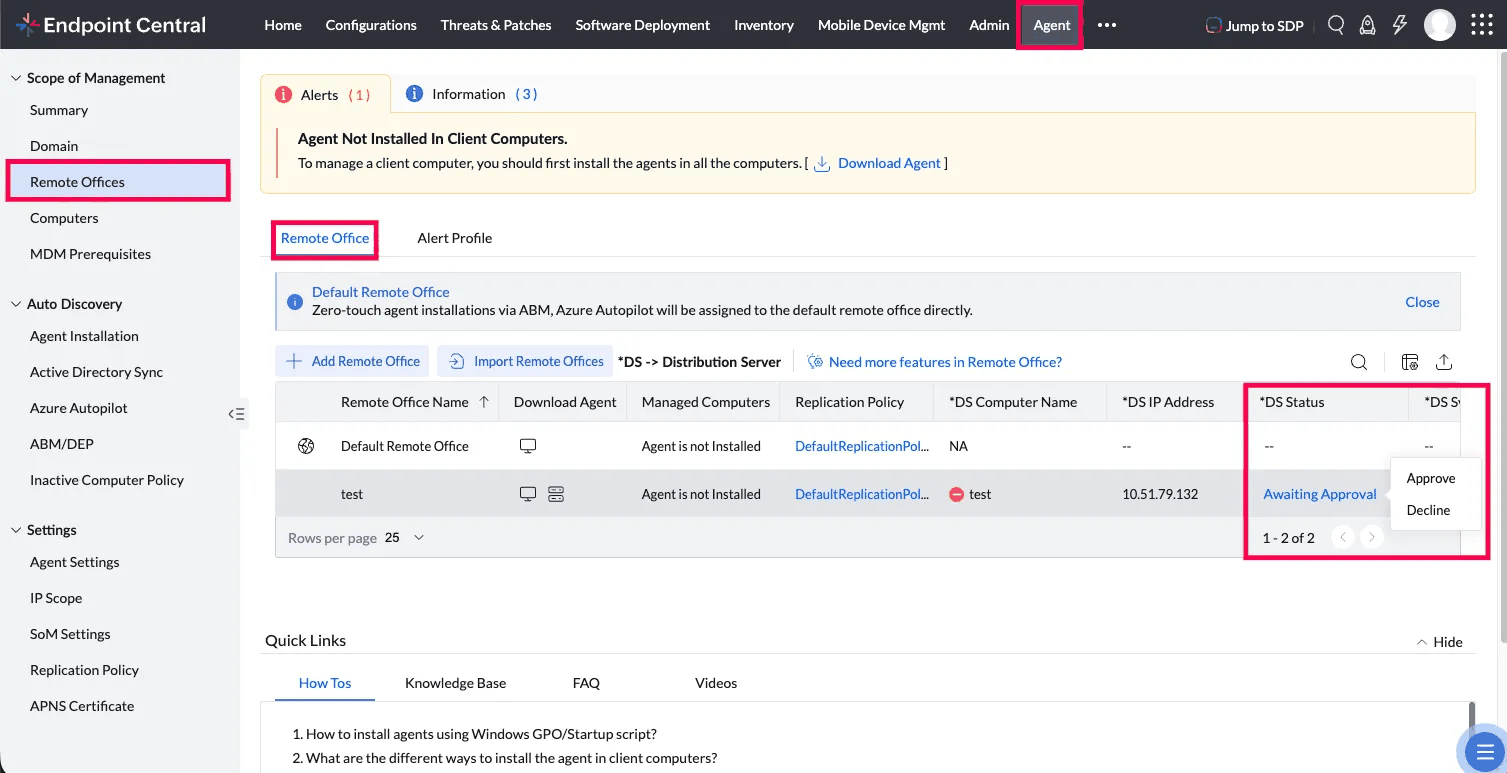
- Open the Endpoint Central console and navigate to Agent > Remote Offices.
- Under Remote Office view, locate the Distribution Server that shows Awaiting Approval in the DS Status column.
- Review the Distribution Server details (name, IP address, remote office).
- Click the Awaiting Approval status in the DS Status column, and then select Approve to allow the Distribution Server to start functioning, or Decline to trigger automatic uninstallation.
To approve Distribution Servers automatically instead of reviewing each one, go to Agent > SoM Settings > Approval Settings and select Approve all Distribution Servers by-default under Approval for Distribution Server.
Distribution Server Re-Approval
If the central server detects an anomaly in an active Distribution Server, such as unexpected configuration changes, communication irregularities, or integrity failures, it automatically moves the Distribution Server back to Waiting for Approval. The Distribution Server stops functioning until you act on it.
- If re-approved, the Distribution Server resumes normal operation.
- If declined, the Distribution Server is automatically uninstalled.
Notifications
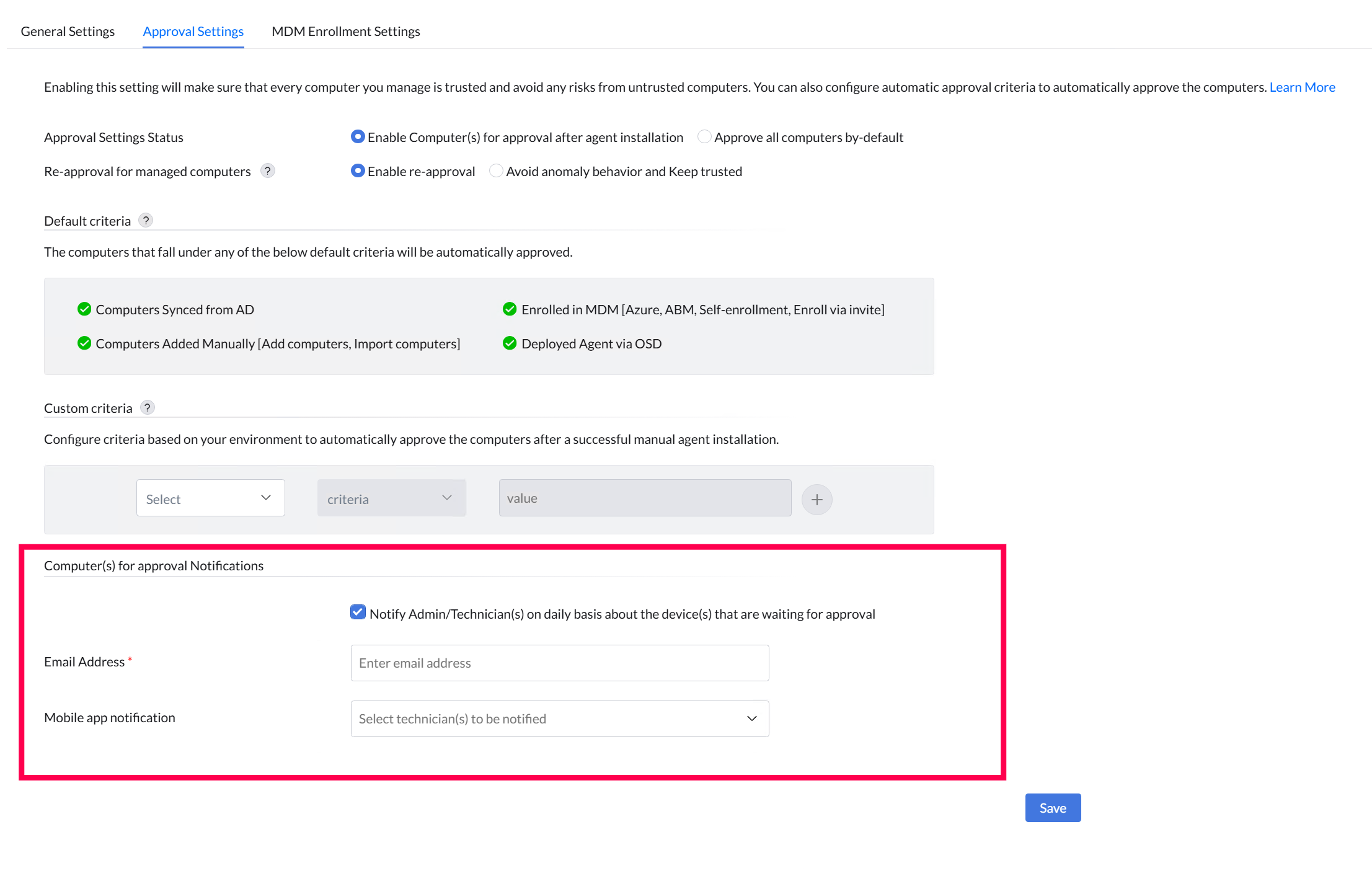
Endpoint Central can notify administrators and technicians on a daily basis about computers and Distribution Servers that are waiting for approval. Notifications are delivered through:
- The email address associated with the admin or technician account
- The Endpoint Centralmobile app
To configure notifications, go to Agent > SoM Settings > Approval Settings > Notification and enable the options for computers, Distribution Servers, or both.
Frequently Asked Questions
A computer with the agent installed does not appear under Computer(s) for Approval. What should I do?
Check the agent version, because an outdated agent may not appear in the list. Uninstall the old agent from Control Panel, download the latest agent from Agent > Computers > Download Agent, and install it again. Installing the latest agent does not affect computers that are already managed. You can view the agent version in the Agent Troubleshooting Tool. If the tool shows that the connection to the server fails, see Server Not Reachable.
The console says older agent and Distribution Server files cannot be used to onboard devices. What does it mean?
The notification applies only to new installations; computers that are already managed need no action. Install new computers only with agent files downloaded from the console, and approve or decline the computers waiting in Computer(s) for Approval before the date shown.
Why do I see the License Shortage Detected! dialog when I approve a computer?
Approving a computer brings it under management, so a license must be available for it. Check Admin > License: computers that run a server operating system need a server license, even when endpoint licenses are available. When the license limit is reached, newly added agents do not operate until the license is extended. For license types, see Server Licensing.