Circuit Workflows in DEX
A Circuit automates a task as a series of steps that run one after another, such as checking a condition, running your own code, waiting, and then taking the next action. You build it by dragging steps onto a canvas, so you can see the whole flow at a glance.
Circuits run in the cloud. They do not need the DEX agent and do not run on your managed devices. Use them for tasks that are not tied to a single device, such as calling another application, processing data, or sending updates on a schedule.
For automations that run on your devices (for example, cleaning up disk space or restarting a device), use a Device workflow. See Managing Workflows in DEX.
Device Workflow vs Circuit
| Device workflow | Circuit | |
|---|---|---|
| Runs on | Your managed devices, through the DEX agent | The cloud, with no agent or device |
| Use it for | Device tasks such as clean-up, restarts, fixes and user prompts | Tasks not tied to a device, such as calling other applications, processing data or raising tickets |
| Built with | Stages: Sensor, Switch, Script, Function, Engage, Send Mail, Delay, Restart and End | Steps: Function, Branch, Wait and Circuit |
| Custom code | Scripts (PowerShell, VBScript, Batch, Shell) and the Function stage | Functions in JavaScript or Deluge, created in the Functions tab |
| Platform | All Platforms, Windows or Mac | Not applicable |
| Ways to create | Create New, Choose from Extension or Zia | Create New |
| Deployment targets | Devices or groups | None |
| Deployment modes | Immediate, Scheduled or Trigger (on an alert) | Immediate or Scheduled |
| Results | For each device: the status of every stage | For each run: the canvas shows each step’s status and its input and output |
| Available in | Cloud and On-Premise | Cloud only |
Create a Circuit
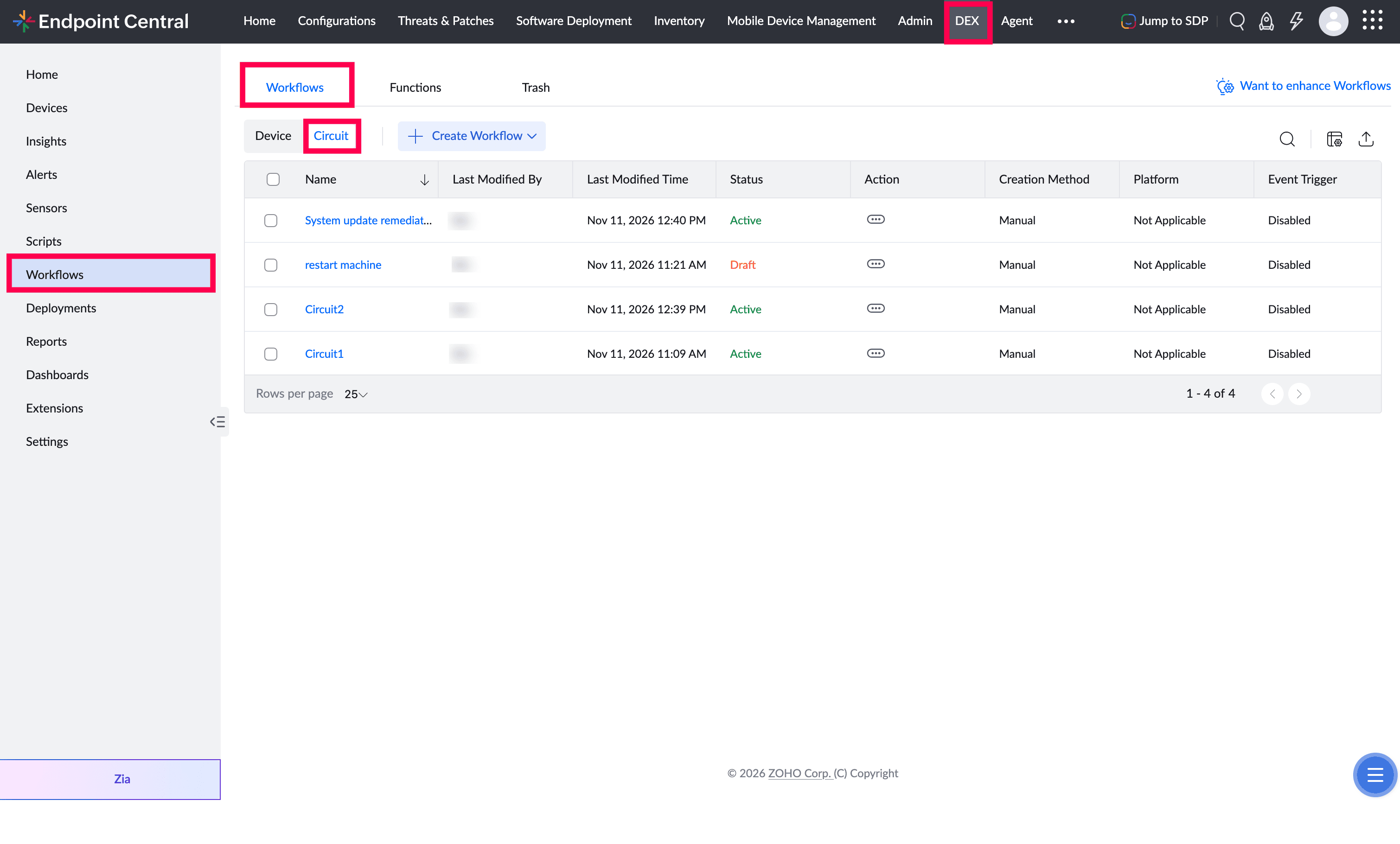
- Go to DEX > Workflows and select Circuit.
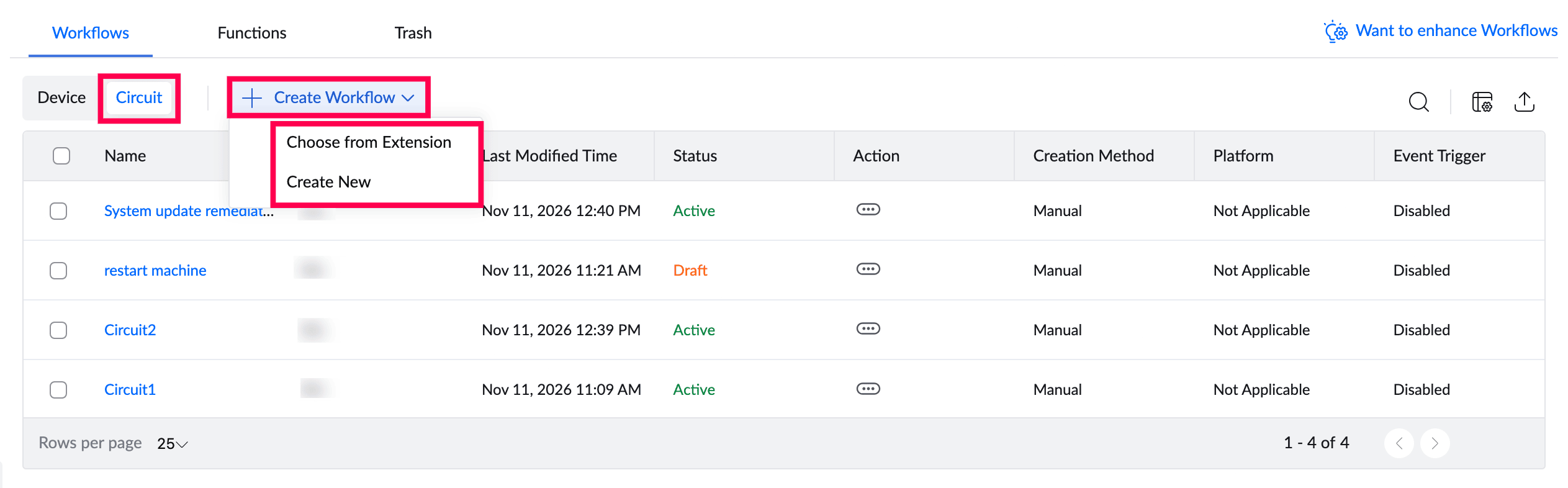
- Click + Create Workflow and select Create New.
- Enter a name and description, then click Done. The workflow is created as a Draft and the circuit canvas opens.
- Drag the steps you need from the left pane onto the canvas, and set up each step in the right-hand pane.
- Click Save to make the workflow Active so that it can be deployed. To finish it later, click Save as Draft.
Add a Function to a Circuit
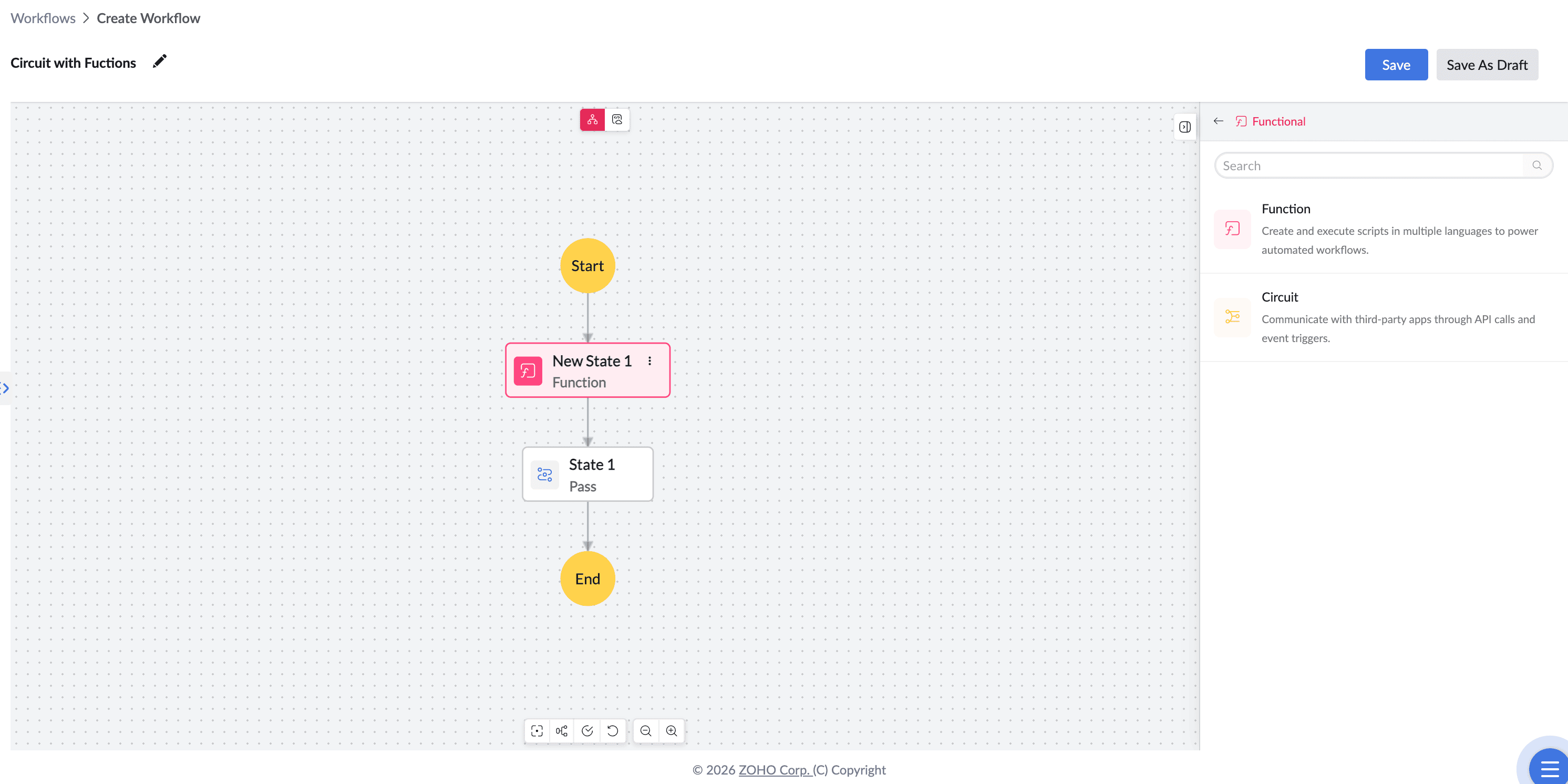
- Open your Circuit. The circuit canvas opens.
- From the left pane, drag the Function step onto the canvas, between the steps where it should run.
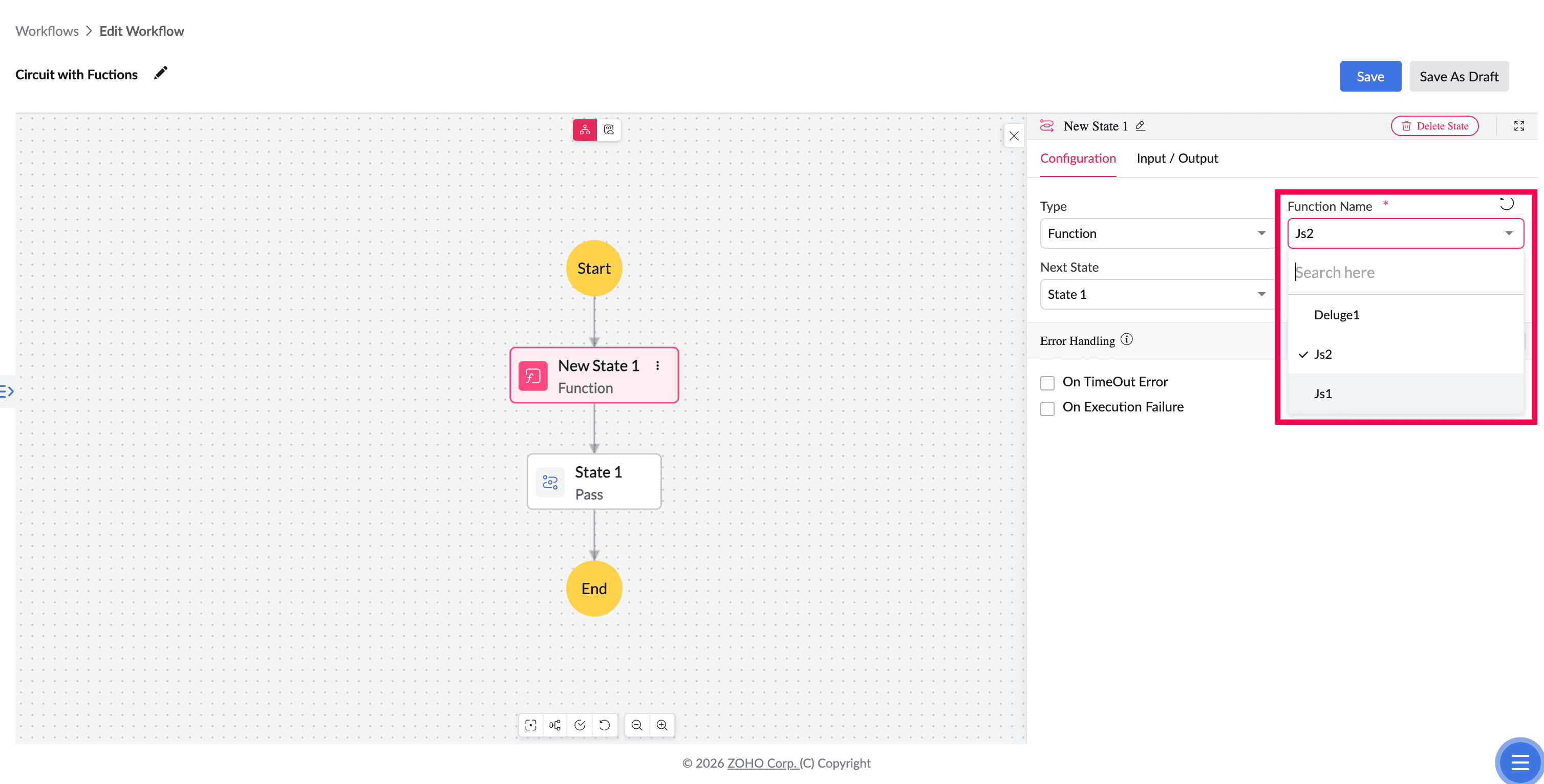
- Click the step and choose your function from the list. All functions from the Functions tab appear here.
- Add any input values the function needs.
- Optionally, choose what happens if the function fails: try again, or continue to the next step.
- Click Save.
Run a Circuit from Another
If several workflows share the same steps, build those steps once as their own Circuit and call it from the others.
- Open your Circuit. The circuit canvas opens.
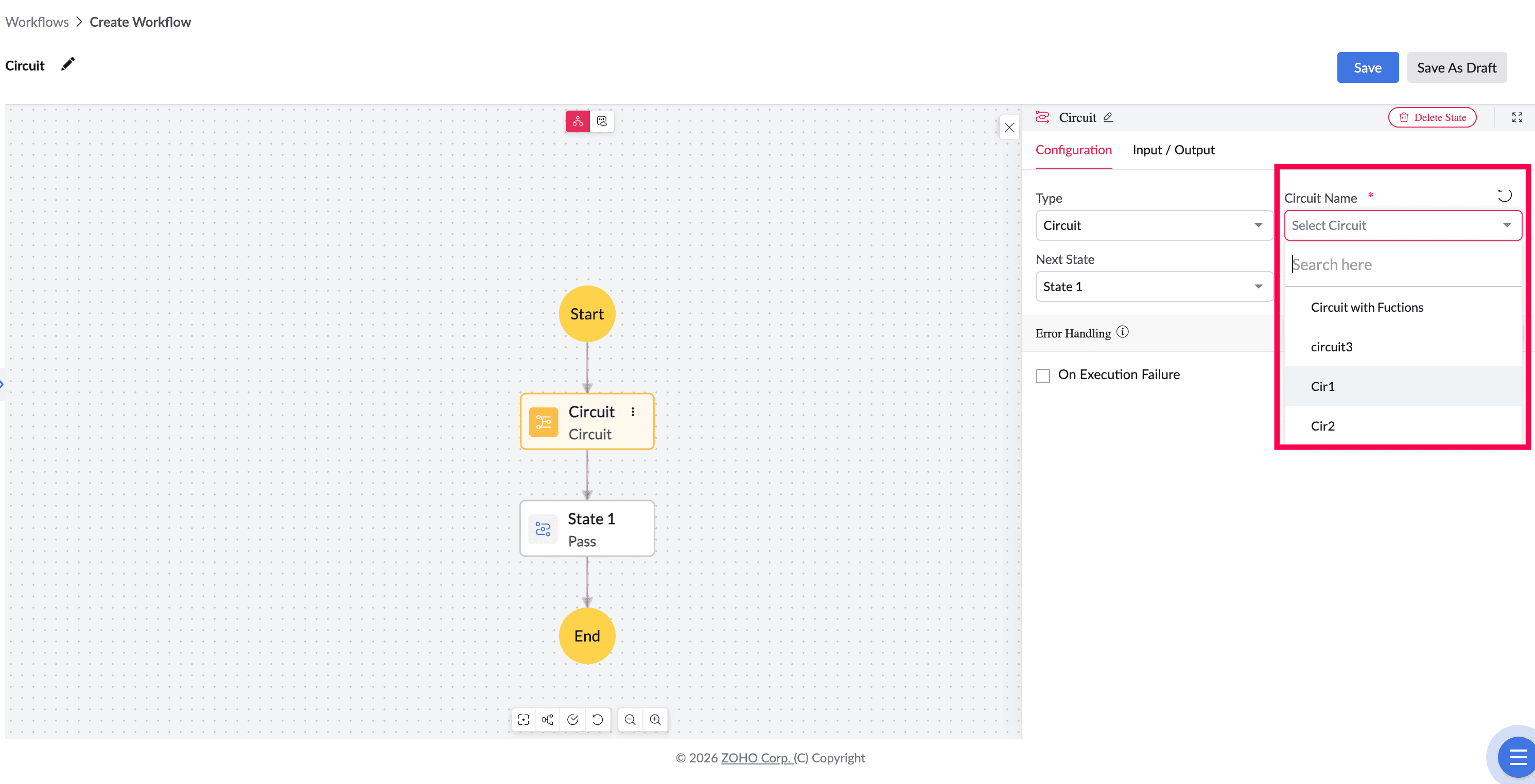
- From the left pane, drag the Circuit step onto the canvas.
- Click the step and choose the Circuit to run.
- Add any input values it needs.
- Click Save.
To learn more about each step and its settings, see Zoho Circuit help.
Deploy a Circuit
Saving a Circuit does not run it. To run it, create a Circuit deployment.
- Open the Circuit and click its Deployments tab.
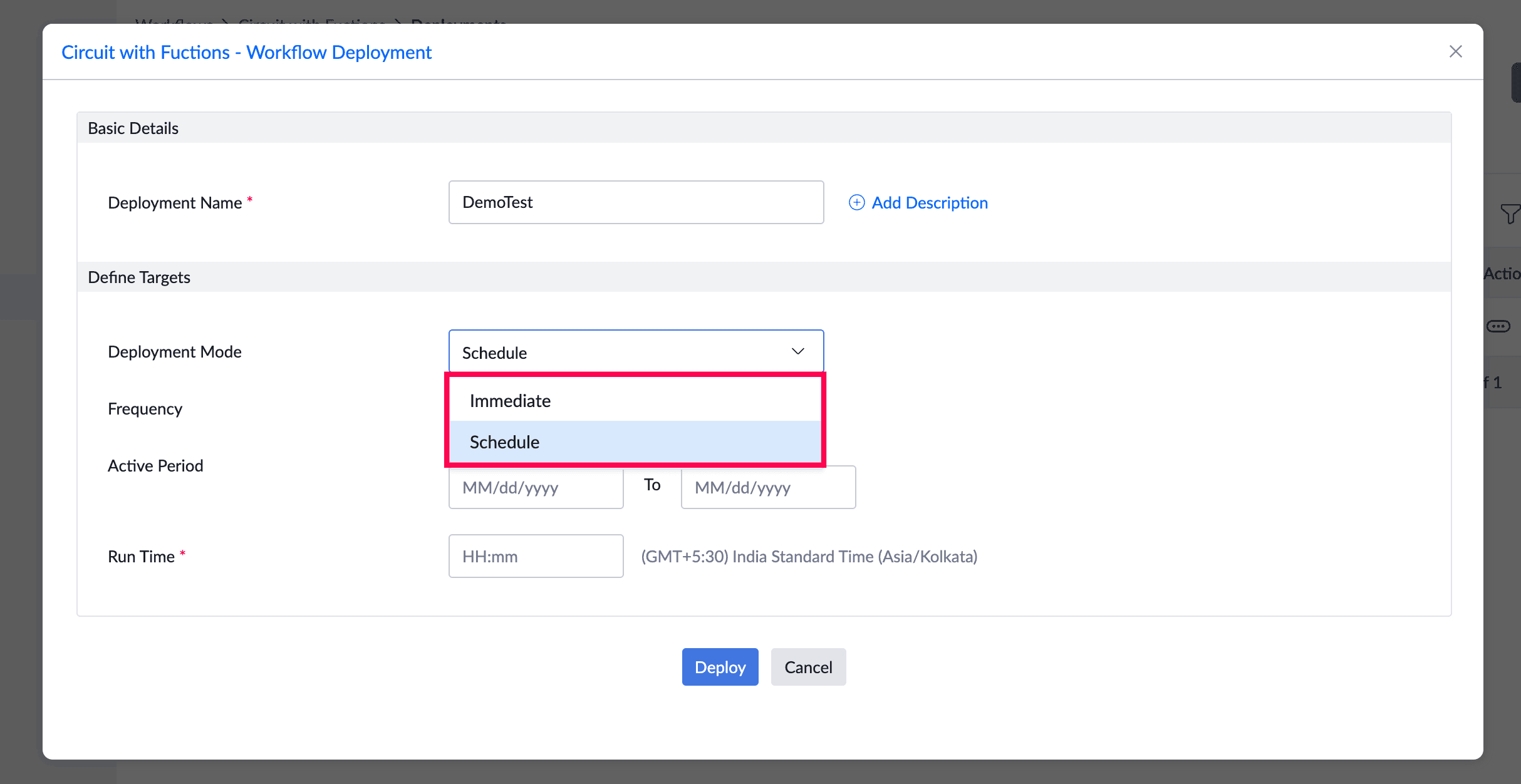
- Click Create Deployment.
- Enter a name and description.
- Choose when it runs: Immediate runs it once, right away. Scheduled runs it on the dates and time you choose.
- Click Create.
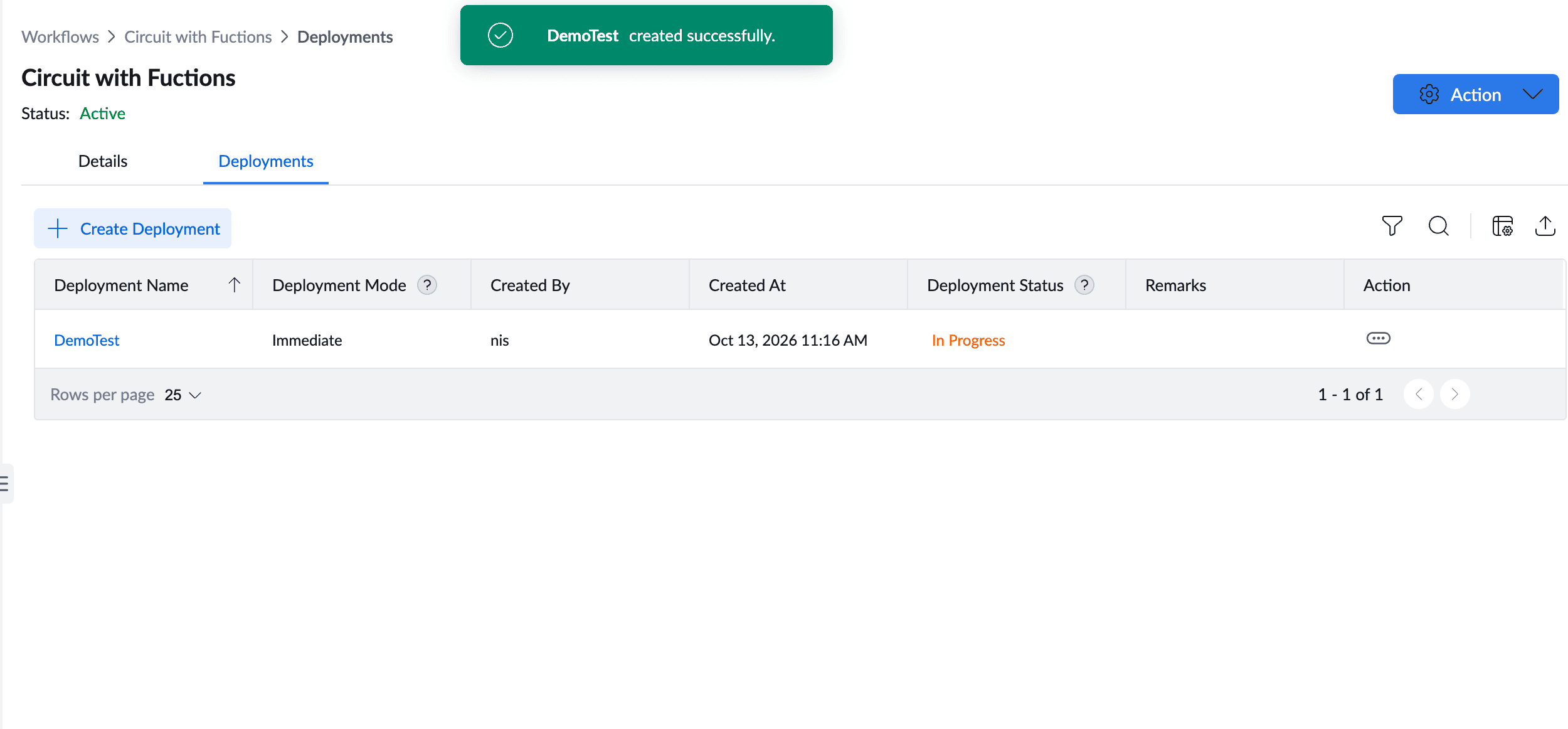
Note: You do not select devices or groups, because a Circuit does not run on devices. Only Active workflows can be deployed. Click Save, not Save as Draft, before you create a deployment.
View Run Details
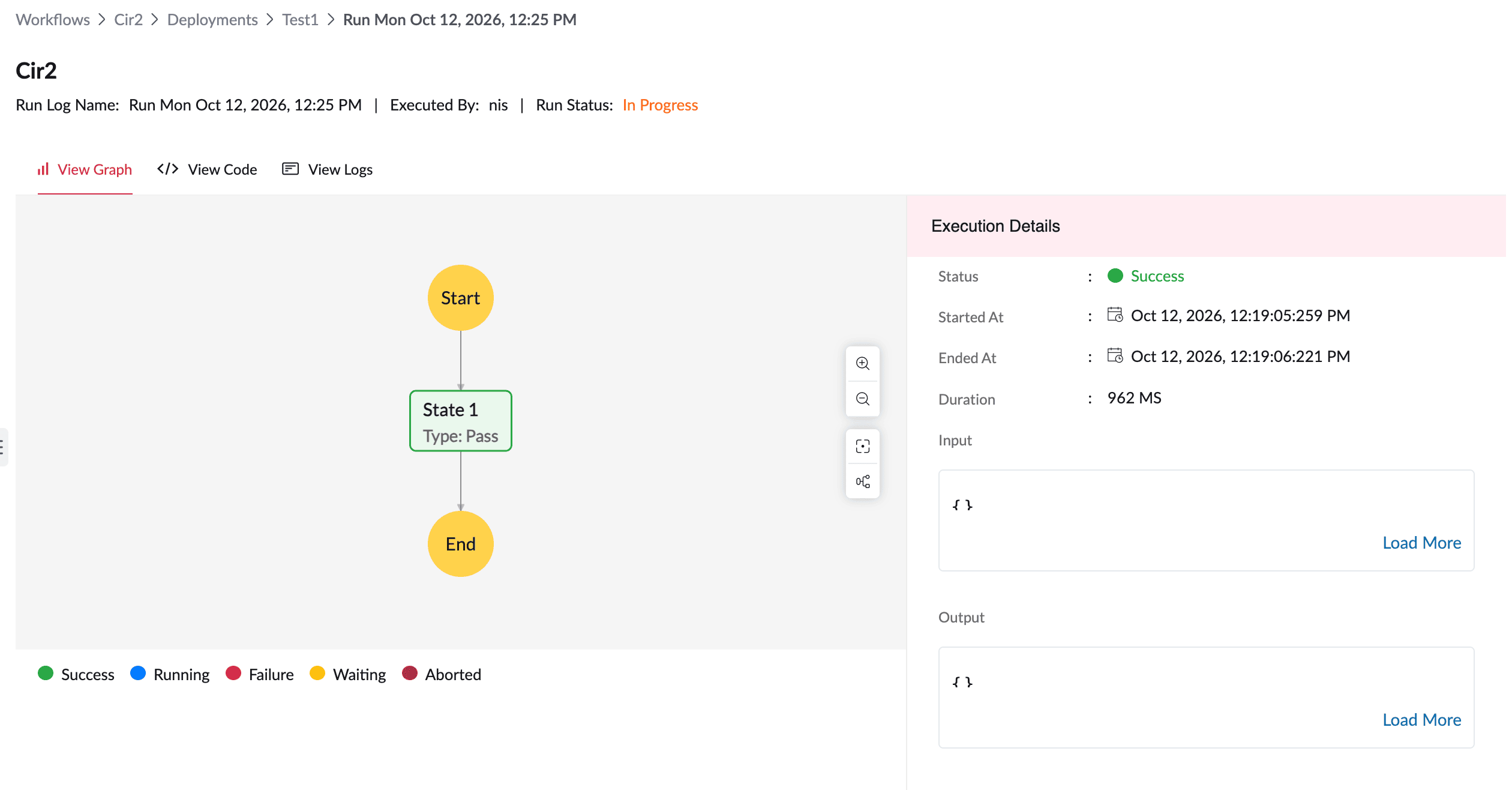
Open the deployment to see each run and its status. Click a run to see its details. The canvas shows each step and whether it passed or failed, with the data that went in and out of it.
Note: A Scheduled deployment shows In progress until its last scheduled run is complete.
Example: Create a Ticket for Missing Critical Patches
Every day, check for critical patches that have been missing for more than 7 days, and open one ticket in your service desk that lists them.
- Function “Find missing critical patches”: gets the critical patches that have been missing for more than 7 days.
- Branch: if any are found, go to the next step. If none are found, go to Success.
- Function “Create ticket”: creates one ticket in your service desk that lists the patches and the affected computers.
- Success: ends the workflow.
Deploy the workflow as Scheduled to run daily. No devices are needed. Each run appears in the deployment with its status.