# Extensions
## Overview
The Extensions module in Endpoint Central provides a centralized repository of ready-to-use, curated resources—including Sensors, Scripts, dashboards and Workflows—designed to accelerate your digital experience initiatives.
Rather than building components from scratch, you can browse, preview, and instantly add pre-configured extensions to your environment. This helps streamline endpoint operations, improve user experience, and address common IT challenges with minimal effort.
**Tip:** Use Extensions to save time, ensure consistency, and align your automations with best practices.
## Accessing Extensions
To access the Extensions module:
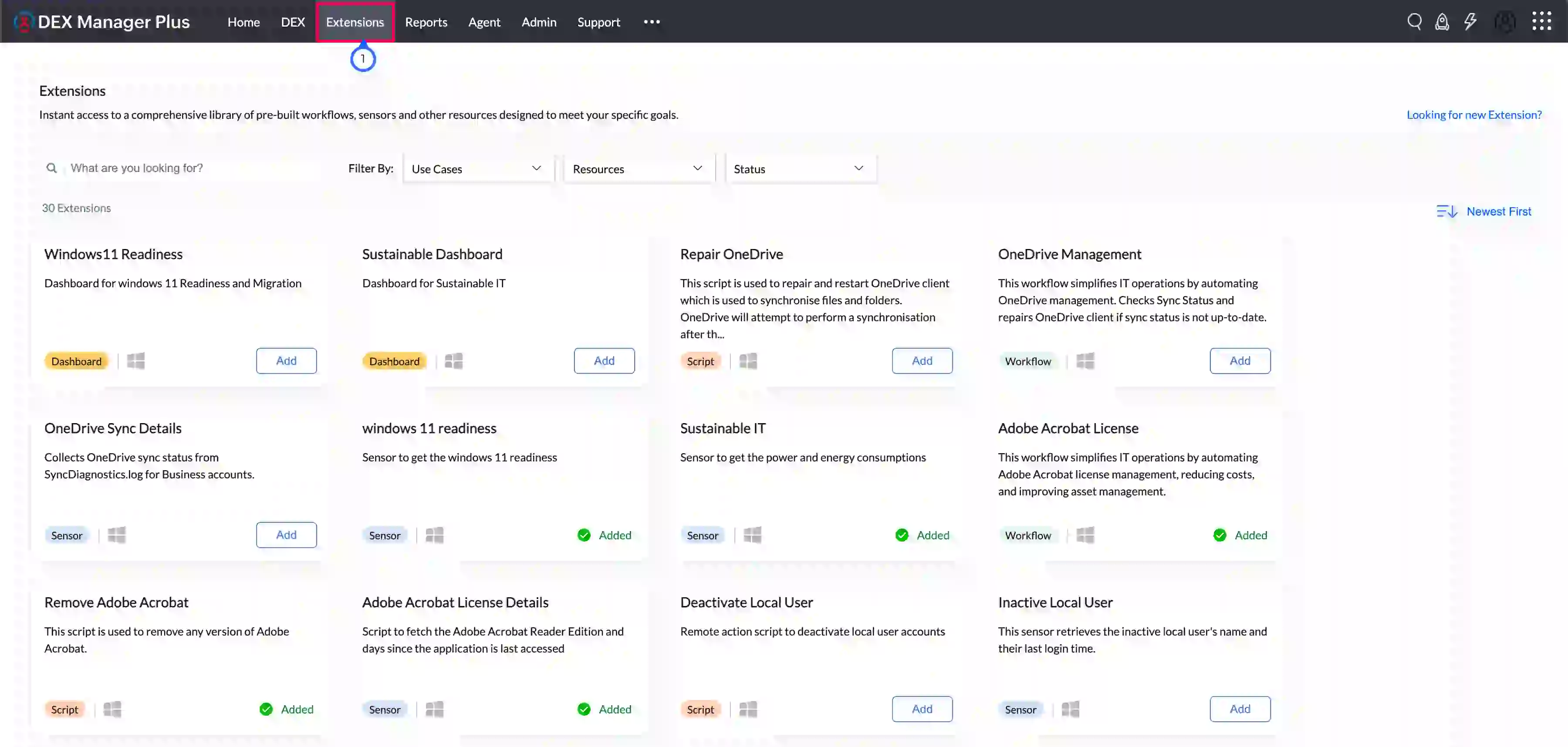
- Navigate to the **Extensions** tab.
- A gallery of published extensions will appear in tile format, showing resource type, platform compatibility, and current status.
## Finding the Right Extension
Use the available filters and search bar to quickly locate relevant extensions based on your needs.
### Filter Options
| Filter | Description |
|---|---|
| Use Case | Group extensions by specific endpoint challenges or goals (e.g., security, performance, user productivity). |
| Resource Type | Scripts: Prebuilt scripts for device actions
Sensors: Ready-to-use custom data collectors
Workflows: Automation flows using sensors, scripts, engage and other stages.
Dashboards: Visualise data collected using sensors. |
| Status | **Added:** Already installed in your environment
**Yet to Add:** Available but not yet used
**Updates Available:** Installed, but newer version exists |
## Extension Tile Details
Each extension tile displays:
- Extension Name
- Short Description
- Resource Type: Script / Sensor / Workflow / Dashboard
- Supported Platforms
- Status: Added / Yet to Add / Update Available
Click any tile to view the full Extension Details Page.
## Extension Details Page
The Extension Details page provides all the information you need to evaluate and deploy the extension.
| Section | Description |
|---|---|
| Problem Statement | Describes the specific challenge this extension addresses. |
| Solution | Explains how the extension resolves the challenge. |
| Key Features | Highlights the core benefits and capabilities. |
| Screenshots | Visual preview of functionality or results. |
| Version | Tracks update history. Click to view all available versions. |
| Release Date | Shows the release date of the current version. |
| Contents | Lists what’s included—e.g., one sensor, one workflow. |
*Image: Extension details page*
## Adding and Updating Extensions
- Click **Add** to install the extension into your resource list.
- Once added, the button changes to **Added**.
- You can customize the extension after adding it.
**Note:** If you modify an added extension, future updates will not overwrite your version. To apply an update:
- Click **Update** on the Extension tile.
- This installs the latest version as a new resource.
- Your existing modified version will remain unchanged.
## Permissions Required
To manage Extensions, appropriate user permissions must be assigned through role-based access.
### Granting Access to Extensions
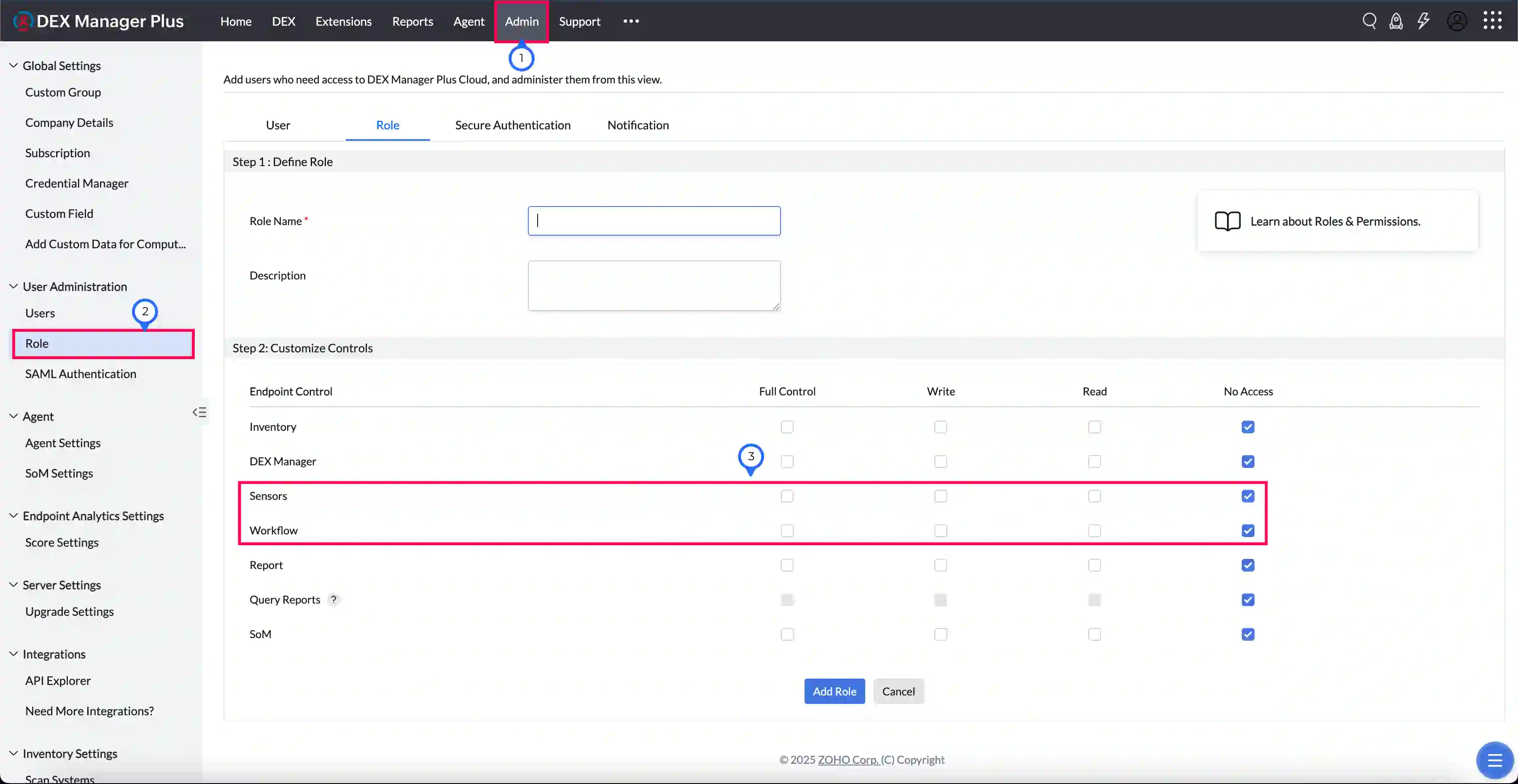
- Go to **Admin > Role**.
- Click **Add Role** or modify an existing one.
- Under the **Endpoint Central** section:
- Enable **Sensors Read** and **Workflow Read** to view extensions.
- Enable **Sensors Full Control** and **Workflow Full Control** to add or manage extensions.
**Warning:** Without the required permissions, users will not be able to view extensions.
## Best Practices
| Recommendation | Reason |
|---|---|
| Use Extensions as starting points | Saves time and follows curated best practices |
| Customize after adding | Tailor to your environment's specific needs |
| Review version notes before updating | Avoid overwriting critical customizations |