×![]()
×
×![]()
×
×
Deploying the ManageEngine Endpoint Central Web Add-in for Outlook
This page explains how to deploy the Endpoint Central Web Add-in for Outlook using the Microsoft 365 Admin Center, and how to verify the add-in has been successfully installed on user endpoints.
Deploy the Add-in via Microsoft 365 Admin Center
Follow the steps below to upload and deploy the add-in manifest to your Microsoft 365 organization.
- Log in to the Microsoft 365 Admin Center.
- Navigate to Settings → Integrated apps → Add-ins.
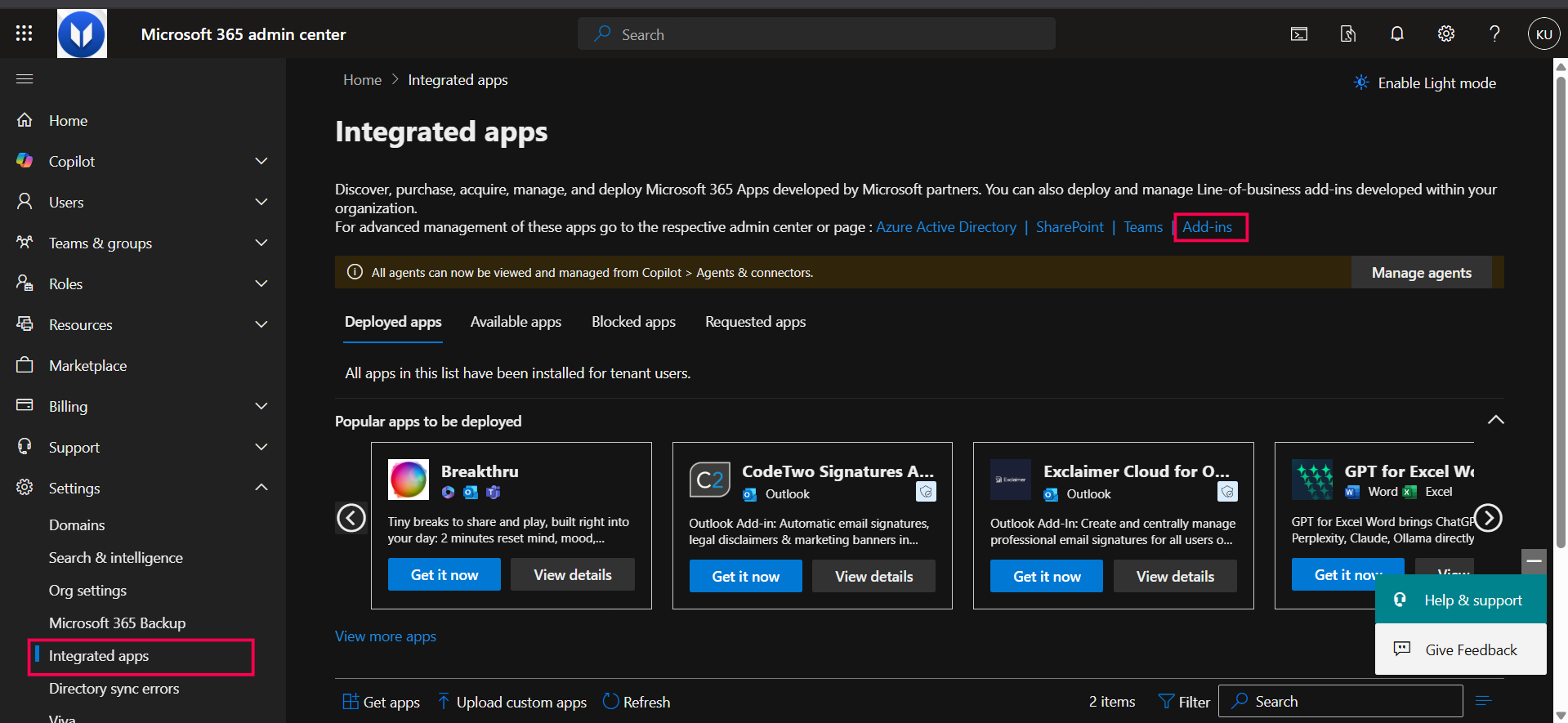
- Click Deploy Add-in → Next → Upload custom apps.
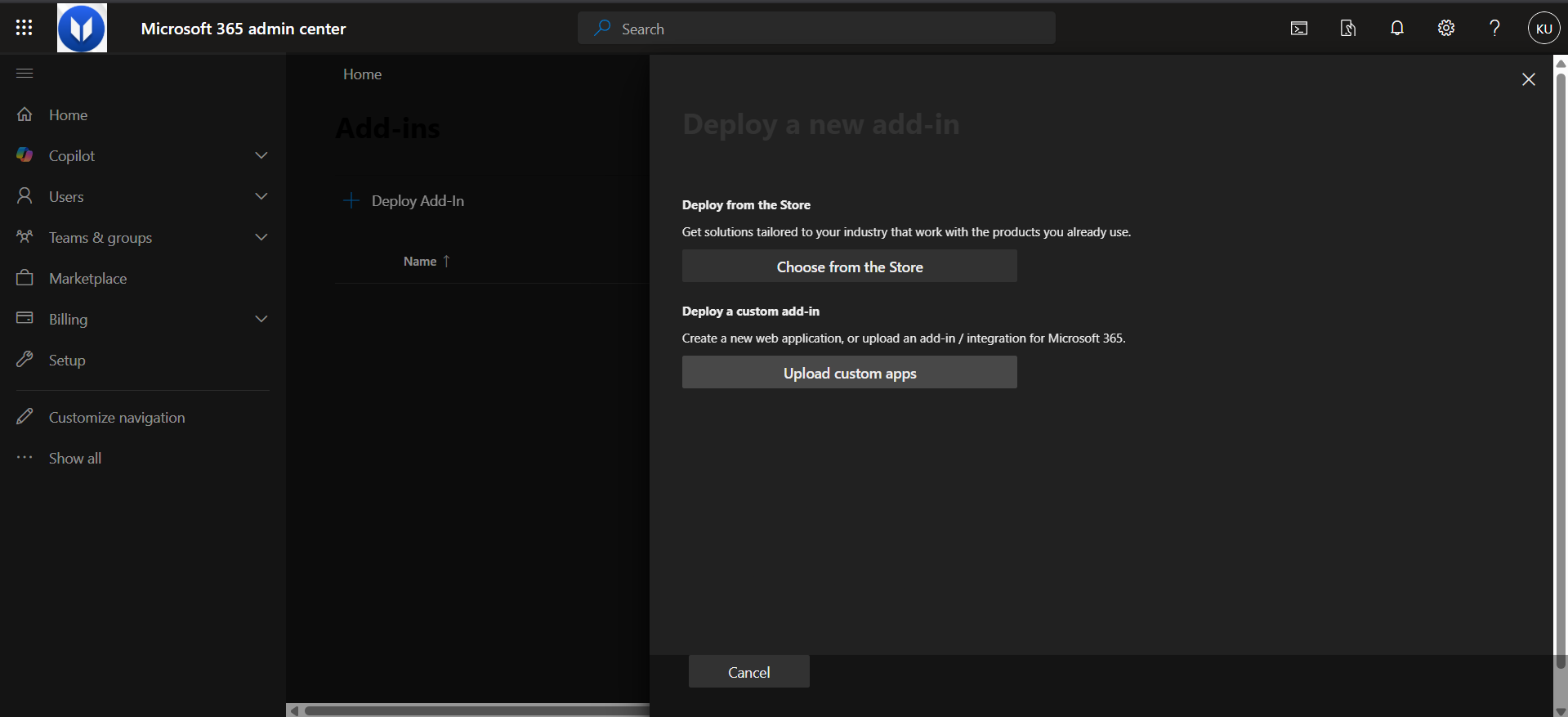
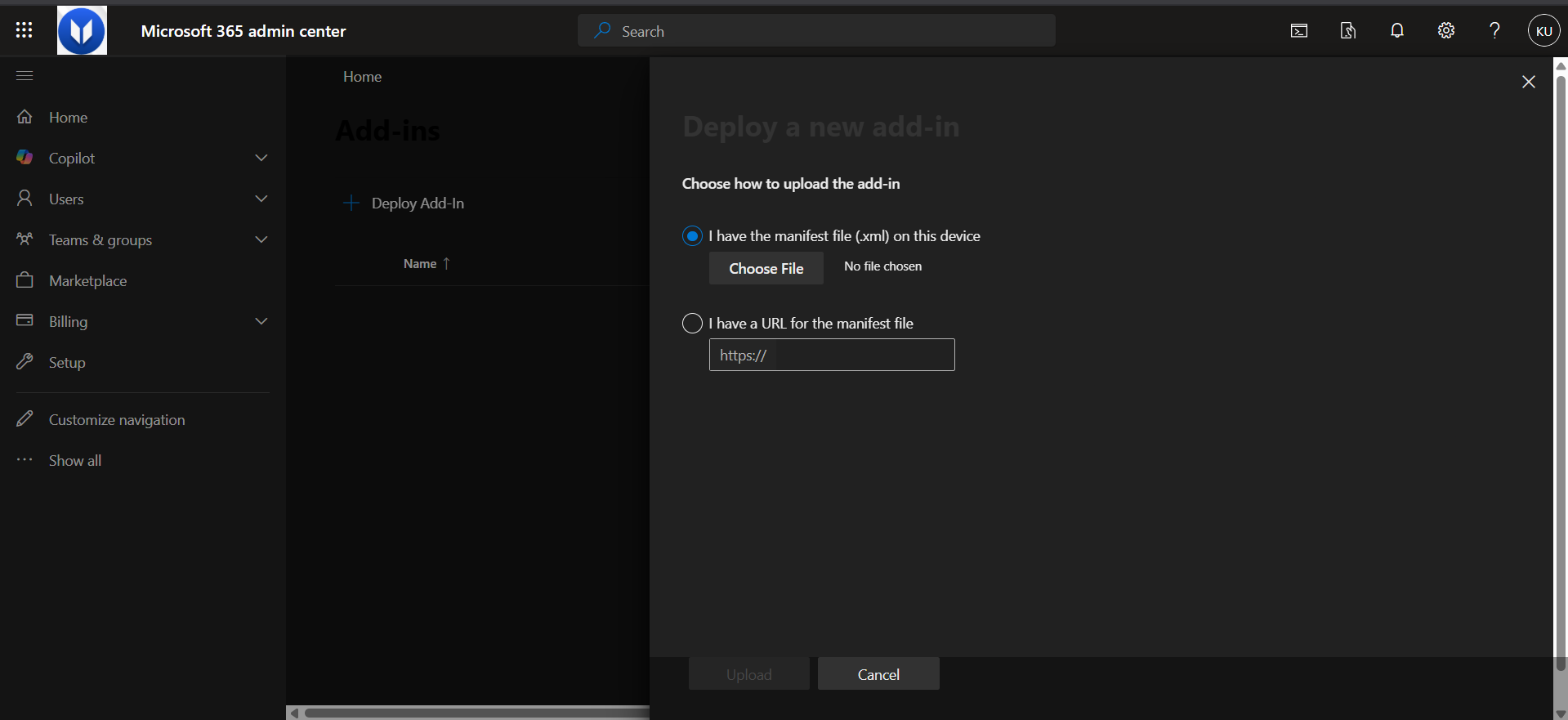
- Select the option to upload a manifest file.
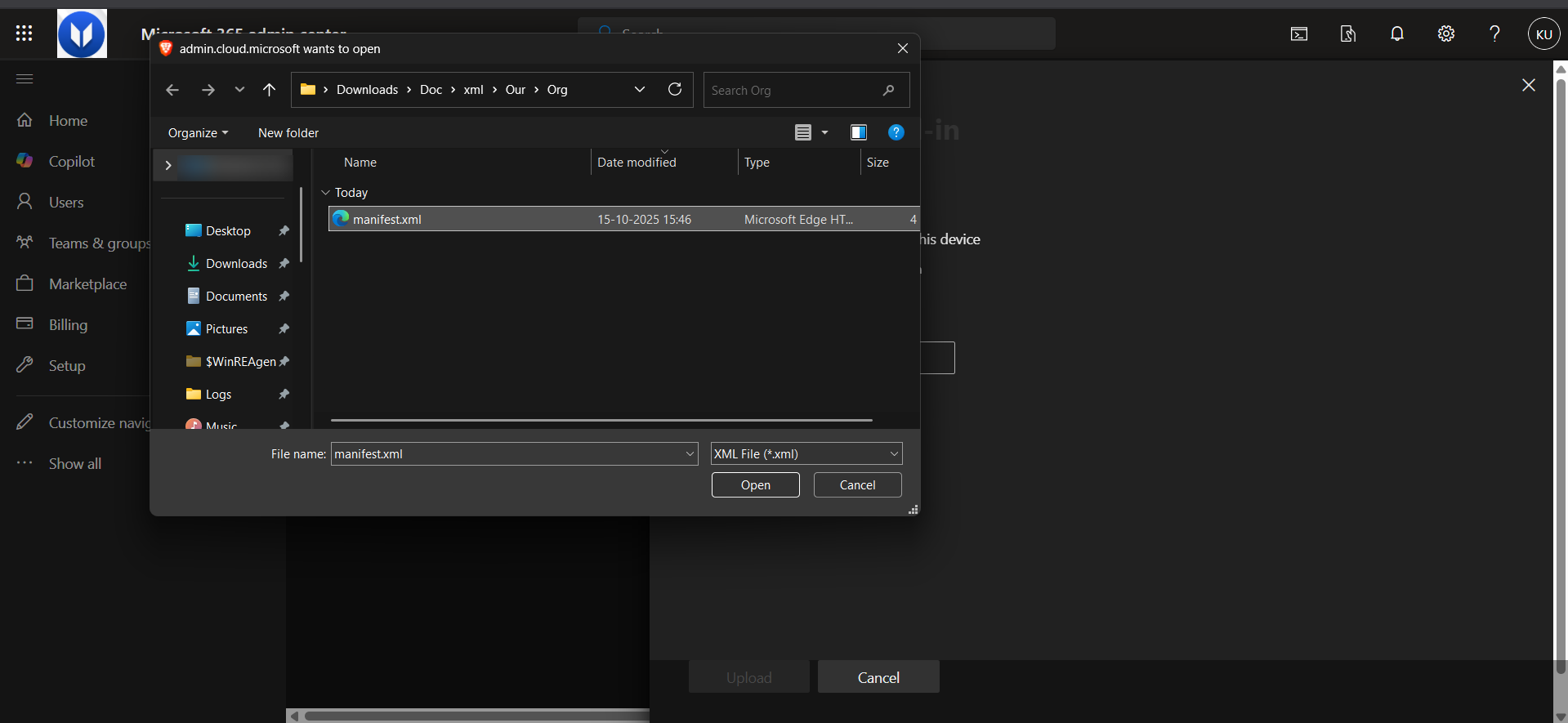
- Download the manifest.xml file, then browse to select it and click Upload.
- The Admin Center will validate the file and display the add-in's details. Click Deploy.
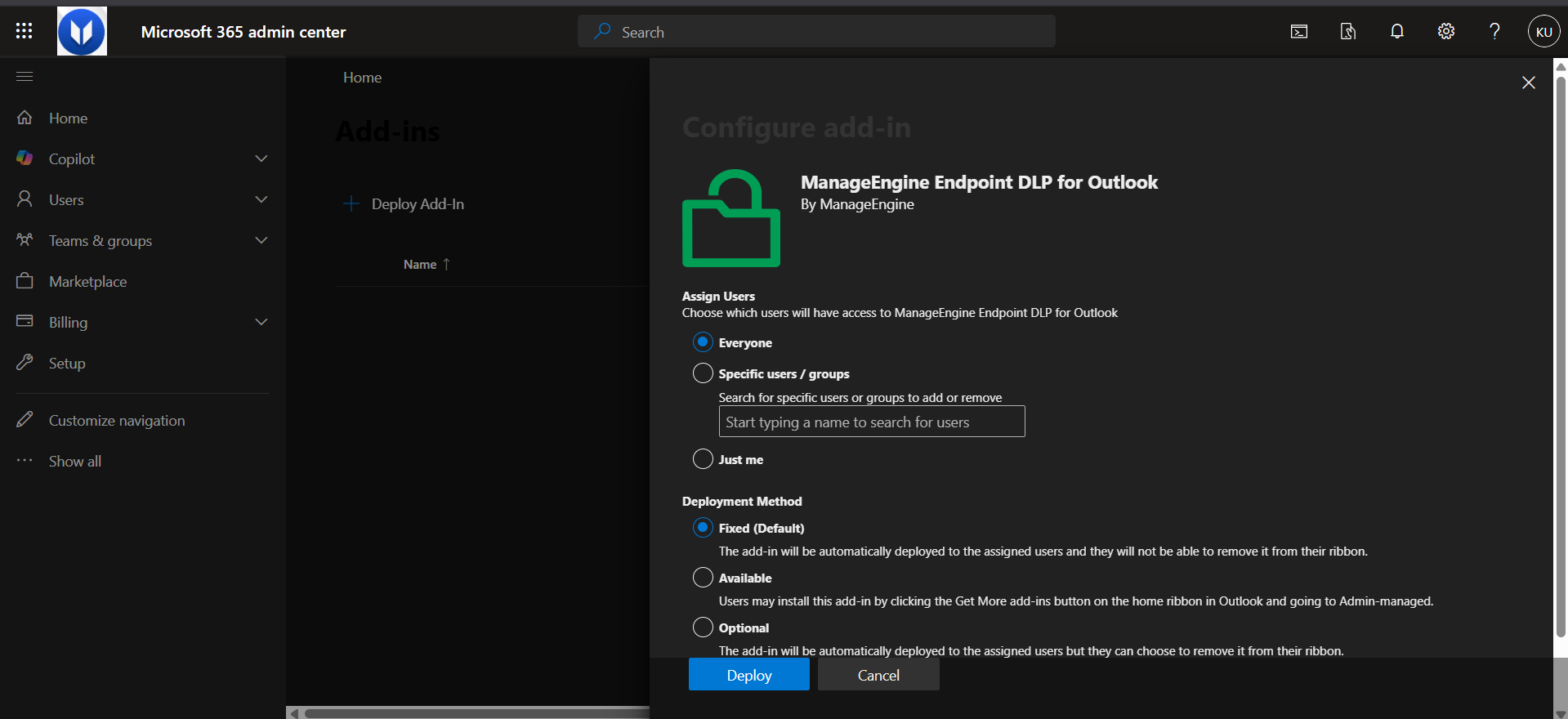
- The add-in will be automatically installed for your users the next time they open the Outlook desktop client, after a brief propagation period.
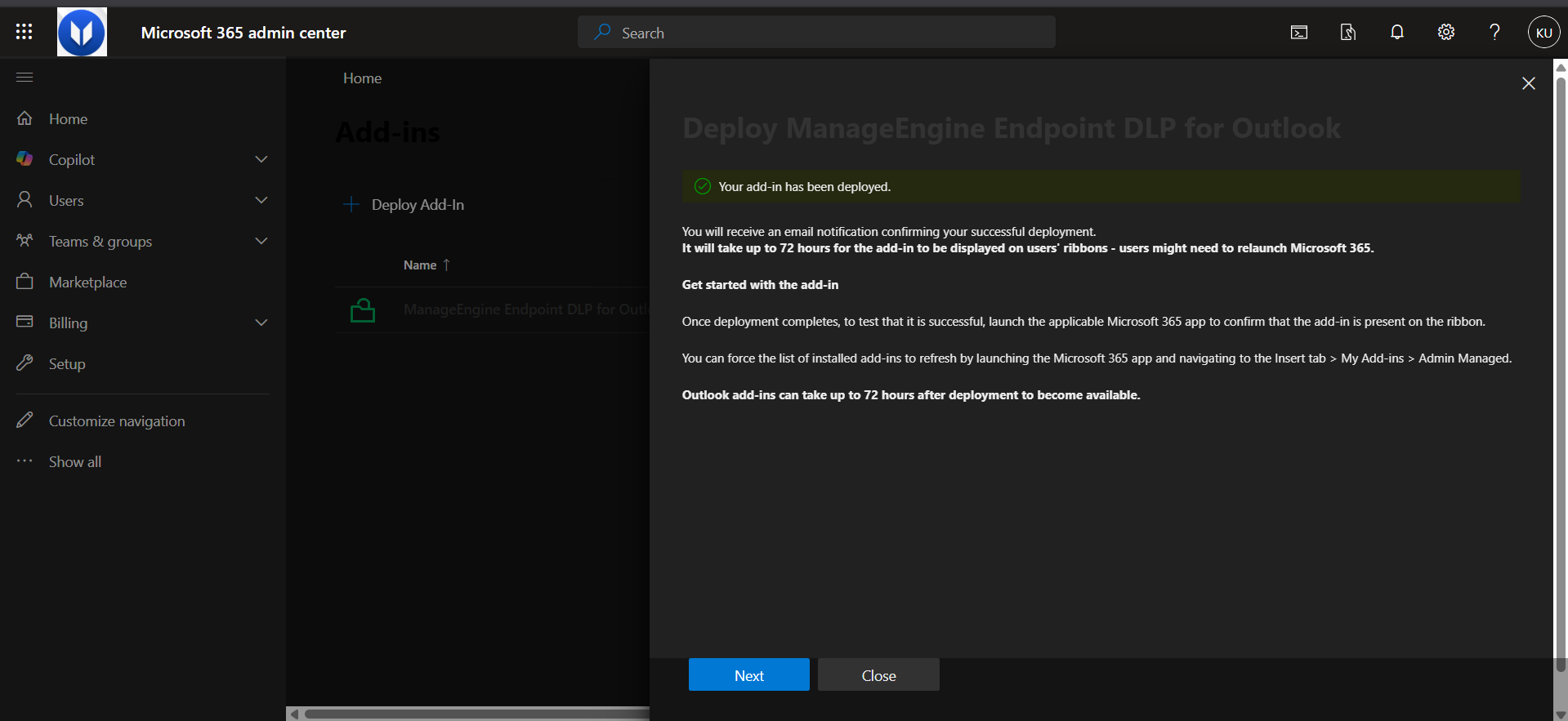
Verifying the Add-in Installation in Outlook
After deploying the Endpoint DLP add-in, verify that it has been successfully installed on user endpoints.
Check Add-in Status in Outlook Desktop (Windows)
- Open Outlook (desktop application).
- Go to File → Options → Add-ins.
- In the Manage add-ins dropdown, select COM Add-ins.
- Look for an entry named ManageEngine Endpoint Central DLP or similar.
- If visible: The add-in is installed. Check whether it is Enabled (checked) or Disabled (unchecked).
- If not visible: The add-in has not been installed yet. Wait for policy deployment to complete (typically 90 minutes) and refresh Outlook.
Alternative: Check via Outlook Trust Center
- Open Outlook.
- Go to File → Trust Center → Trust Center Settings → Add-ins.
- View the list of installed add-ins.
- Search for the Endpoint DLP add-in entry.
For Microsoft 365 (Cloud)
- In Outlook Web Access (OWA) or Outlook Desktop, add-in status is managed via the Microsoft 365 Admin Center.
- Endpoint DLP add-ins deployed via the Microsoft 365 Admin Center are automatically installed for users after policy propagation.
- If the add-in is not visible after 24 hours, verify the deployment status in Microsoft 365 Admin Center → Integrated apps → Add-ins.
Note
- Add-in installation requires the user endpoint to receive and process the DLP policy (default 90-minute refresh cycle).
- Web-based Outlook (OWA) does not support the Endpoint DLP add-in — only the Outlook desktop client is supported.
- If the add-in is disabled, sensitive email monitoring will not function. Contact your IT administrator to enable it.