×![]()
×
×![]()
×
×
CSV import encoding issues
Problem
When you import a CSV file to create or modify resources in Endpoint Central, you get an error as "The following headers are not allowed".
Cause
- To be able to import a CSV file successfully, the file should be saved with the correct encoding (ANSI or UTF-8 without BOM).
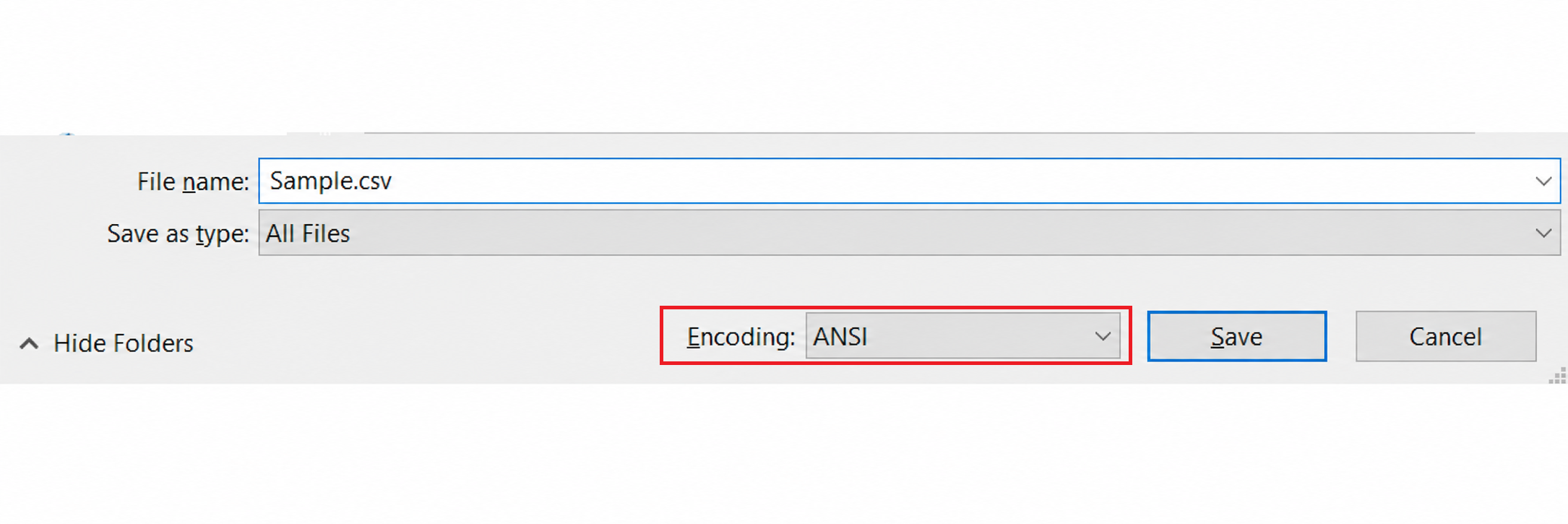
- Certain spreadsheet editors generate hidden characters (like a Byte Order Mark - BOM) at the beginning of the file when saving. If the CSV file contains these hidden characters, the application fails to read the first header properly, and you will get this error even if the header names are technically correct.
Resolution
You should fix the file's encoding to remove the hidden characters. Follow the steps below on your computer to change the format:
- Right-click your CSV file and open it with Notepad (or any basic text editor).
- Select File > Save As from the top menu.
- At the bottom of the Save dialog box, find the Encoding dropdown.
- Change the encoding to ANSI or UTF-8 (ensure it is not "UTF-8 with BOM").
- Click Save and overwrite the existing file.
- Re-import this updated CSV file into Endpoint Central.
Recommended Best Practice
Always download the Sample CSV provided on the respective import page. Paste your resource details directly into this sample file without modifying the existing header names to avoid encoding issues completely.