×![]()
×
×![]()
×
×
Starting the Central Server
You can start the Central Server using any of the following methods:
- From the notification area of the taskbar → Right-click the ManageEngine Central Server icon → Start Service
- Run services.msc → Right-clickManageEngine UEMS - Server → Start
Once started, the client automatically launches in the default browser.
The following processes are initiated along with the server:
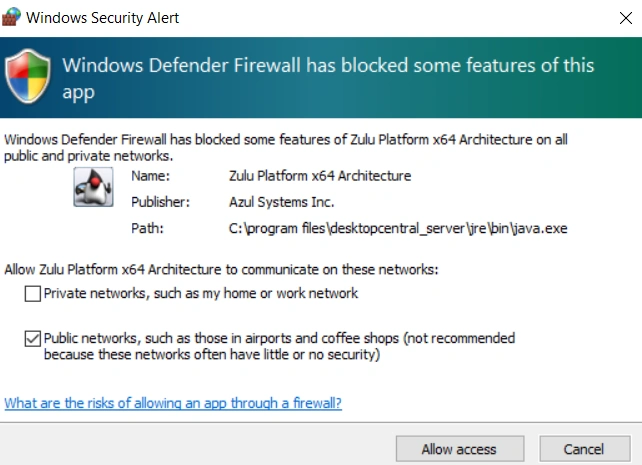
- <Install_Dir>\UEMS_CentralServer\jre\bin\java.exe — For runtime environment
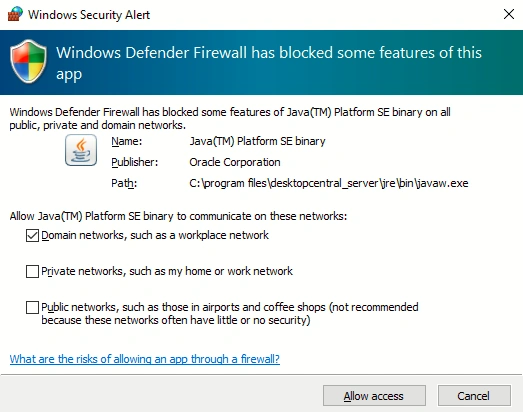
- <Install_Dir>\UEMS_CentralServer\jre\bin\javaw.exe — For standalone runtime processes
- <Install_Dir>\UEMS_CentralServer\pgsql\bin\postgres.exe — For the default database server
- <Install_Dir>\UEMS_CentralServer\bin\wrapper.exe — For running the application as a service
- <Install_Dir>\UEMS_CentralServer\ServerTroubleShooter\bin\MEDCCPUMonitor.exe — For troubleshooting purposes
Note: When starting the product or updating it on machines with an active firewall, Windows may display security alerts for the above programs. Click Allow access to proceed.
Launching the Central Server Client
To launch the Central Server client:
- Open a web browser and type http://hostname:8020 or https://hostname:8383 (for HTTPS). Here, hostname refers to the DNS name of the machine running the server.
- Enter your username and password, then click Login.
Stopping the Central Server
To stop the server, run services.msc → Right-clickManageEngine UEMS - Server → Stop.