Device Control Audit & Reports
Reports provide a detailed audit of connected devices, blocked devices, file tracing, and file shadowing activities.
Device Audit
The Device Audit feature provides detailed insights into devices that most recently connected to managed endpoints. It captures complete information, including the managed device accessed, the logged-in user, the type of connected device, its unique identifier, the connection timestamp and Last action - Allowed or Blocked.

Clicking the Column button allows admins to choose which columns to display, and the Export button provides options to export the audit report in PDF, XLSX, or CSV format, with an option to hide personal information during export.
- Audit reports are automatically generated every 24 hours when no policy is applied.
- When a policy is deployed, audit reports are generated according to the duration defined in the policy.
- To get the audit report for a specific device immediately, Navigate to Device Control module -> Insights -> Managed Computers -> Select the desired computer -> Device Audit -> Click the Update now button
To learn how to configure device audit settings, click here
Finding USB-Enabled Systems
To identify systems where USB or removable-storage devices are allowed, filter the Device Audit report:
- In the Device Audit report, filter by device type USB or Removable Storage
- Check the Last Action column for each entry:
- Allowed = Device was permitted on that system
- Blocked = Device was denied on that system
- Filter results where Last Action = Allowed
- Export the filtered list as CSV or XLSX for further analysis
Blocked Devices
The Blocked Devices feature provides detailed insights into devices that were blocked from accessing managed endpoints. It captures complete information, including the managed device that was accessed, the logged-in user, the type of blocked device, its unique identifier, the timestamp of the blocked connection
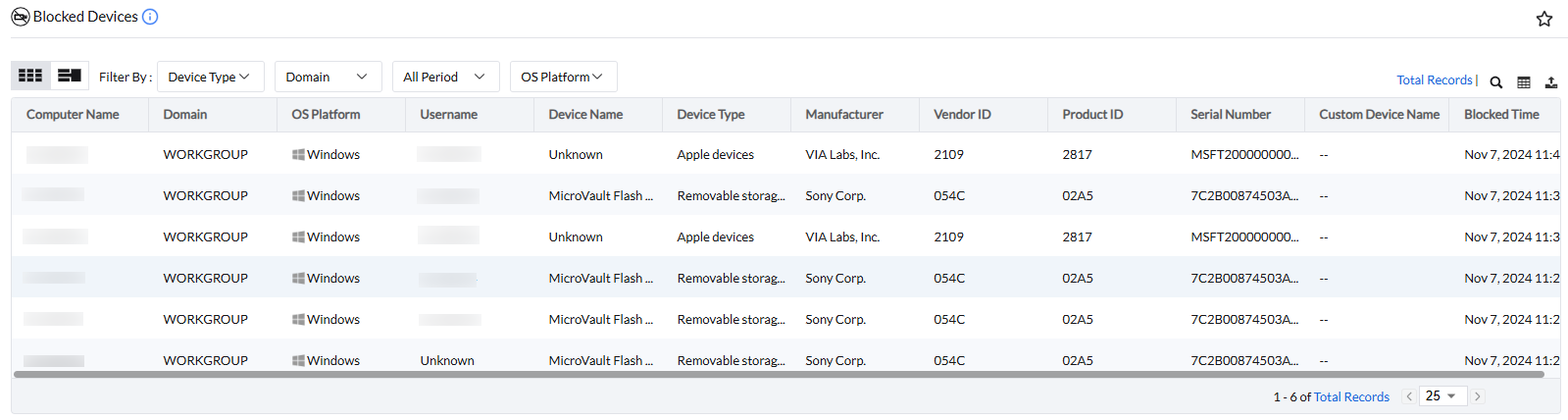
Clicking the Column button allows admins to choose which columns to display, and the Export button provides options to export the audit report in PDF, XLSX, or CSV format, with an option to hide personal information during export.
File Tracing
File Tracing provides detailed insights into the list of files and the actions performed on them, including creating, opening, modifying, copying, moving, deleting, or renaming.
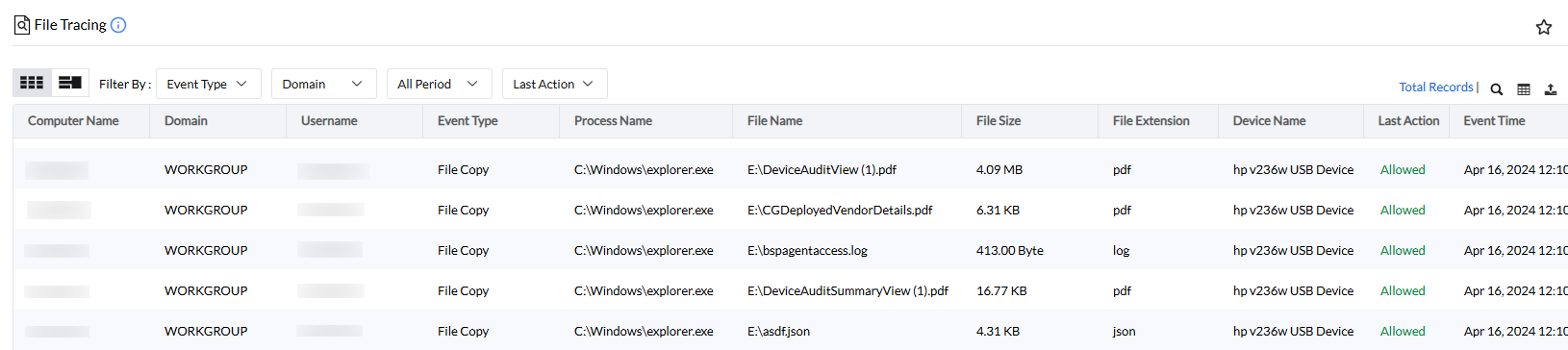
Clicking the Column button allows admins to choose which columns to display, and the Export button provides options to export the audit report in PDF, XLSX, or CSV format, with an option to hide personal information during export.
File Shadowing
The File Shadowing feature in Device Control stores a copy of all files transferred from a PC to an external device. The File Shadow Report provides details including the file name, the external device to which the file was transferred, and the network path where the shadow copy is stored.
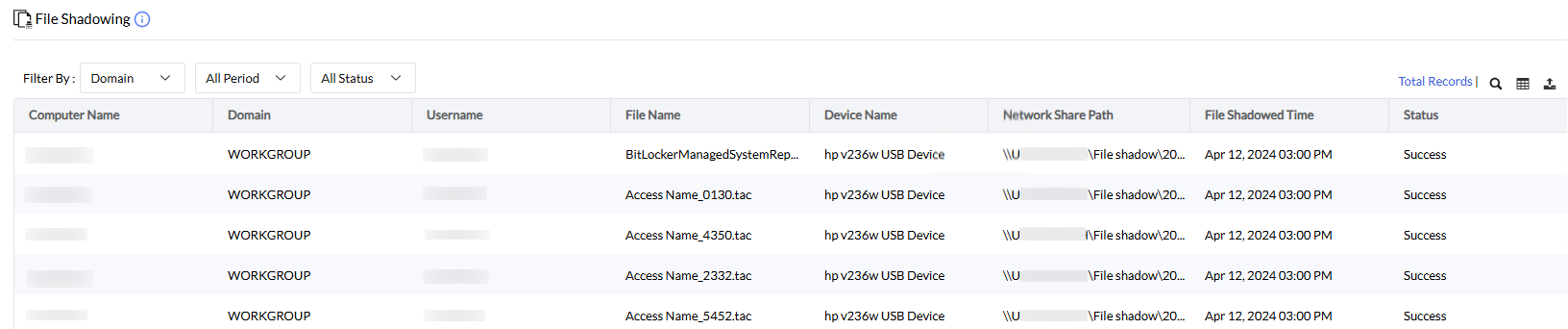
Clicking the Column button allows admins to choose which columns to display, and the Export button provides options to export the audit report in PDF, XLSX, or CSV format, with an option to hide personal information during export.
To learn how to configure file shadow settings, click here
Audit Data Retention
Configure retention periods in Settings → Audit Settings:
- Device Audit Report: Retention period configurable upto 90 days; default varies by setup
- File Audit Report: Retention period configurable upto 30 days; tracks file operations
- File Shadowing Report: Retention period configurable upto 90 days; stores shadow copies
- If audit settings disabled: Data retained for 1 day only, then automatically deleted
Device Manager
The Device Manager allows admins to view details about all supported hardware devices connected to a computer. Additionally, you can view device-specific policies, device audit, file tracing reports, and file shadowing reports on demand, without waiting for the refresh cycle.
Navigate to Insights -> Managed Computers -> Select a computer and click Device Manager
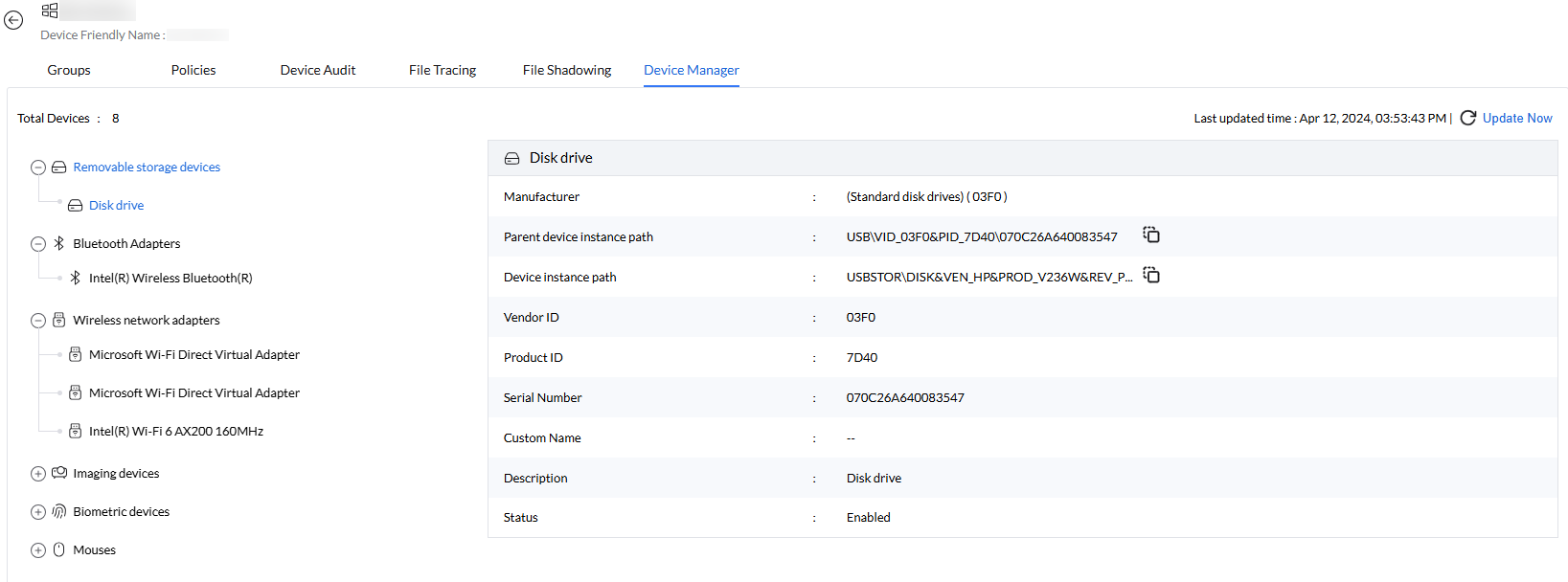
Clicking Update Now provides insights into the most recently connected devices on the computer, including details such as the parent device instance path, vendor ID, product ID, and serial number.