×![]()
×
×![]()
×
×
Manual Data Backup
Manual Data Backup enables administrators to create an on-demand backup of Endpoint Central data whenever they feel the need to secure the current server state before performing important tasks, configuration changes, or maintenance activities. This ensures that critical configuration and management information is preserved and can be restored in the event of unexpected issues, system failures, or data loss.
When to take Manual Data Backup
Recommended to take manual backup for the below scenarios such as:
- Before applying a service pack, hotfix, or major configuration change
- Before performing a database migration (e.g., Bundled PostgreSQL → MSSQL)
- As an extra precaution anytime
Before You Begin
Prerequisites
General Requirements
- Decide the location where the backup file has to be saved.
- Make sure there is enough free space at the chosen location
- Have a password ready to protect the backup
Database-Specific Requirements
No additional steps needed. Backups are handled automatically.
What you need to ensure
- The remote PostgreSQL database server must be running and reachable at the time of backup
- The firewall must allow connections on port 5432 (or your custom port) between the Endpoint Central server and the database server
What you need to ensure
- The SQL Server database must be running and reachable
- The SQL Server service account must have write access to the backup folder
- Required database permissions must be configured — see MSSQL Permissions for setup steps
How to Create a Manual Backup
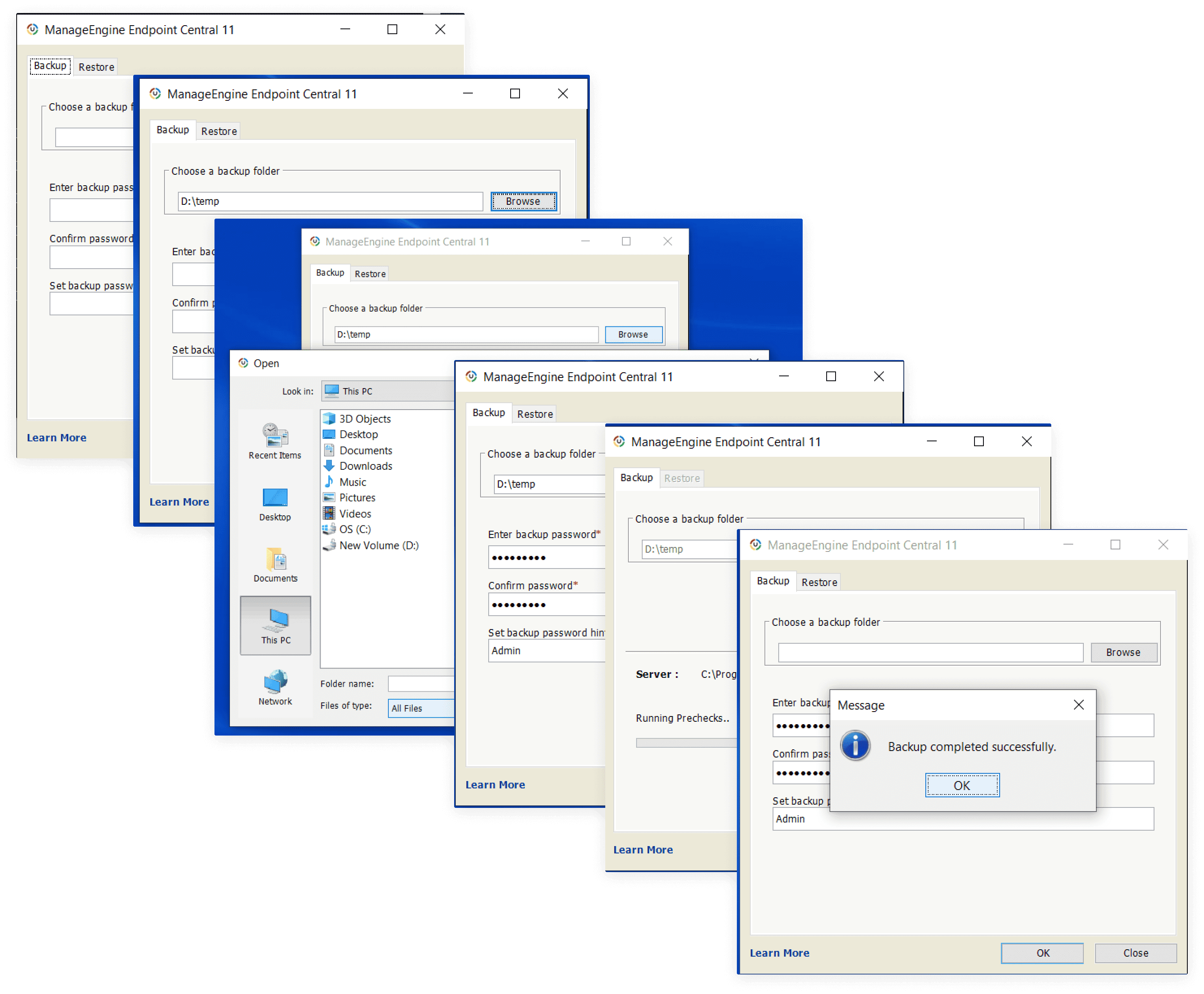
- Open the Backup Utility
Navigate to Endpoint Central installation folder:<Install Directory>\UEMS_CentralServer\bin
Double-click backuprestore.bat to launch the utility. - Select the Backup Tab
Click on the Backup tab in the utility window. - Choose a Save Location
Select the folder where you want to save the backup file. - Set a Backup Protection Password (Recommended)
Enter a password to encrypt the backup file. All backups are encrypted - setting a custom password gives you control over who can access the backup. - Start the Backup
Click Backup. Wait until the backup succeeds.
Server Running vs. Stopped
Manual backup can be taken, either when the server is running or stopped:
| Server State | What Happens | Best For |
|---|---|---|
| Running | Backup happens in the background. | Regular backups without interruption |
| Stopped | Faster backup with a complete snapshot of all data | Before major maintenance or migrations |