# Manual Package Creation for Windows
**Last Updated On**: 14 Jul 2026
**13 minutes read**
The fundamental step in software deployment is package creation. To install software on your network, you will require an installer package, which can be purchased from the vendor in the case of commercial software or downloaded from the vendor's website in the case of non-commercial software. The Silent Switches that need to be provided as the installation argument must be received from the vendor for automatic software installation without user interaction. Endpoint Central supports the following Windows executables: **MSI**, **MSP**, **EXE**, **APPX**, **APPX Bundle**, **MSIEXEC**, **MSU**, **MSIX**, and **MSIX Bundle**.
## Software Repository
The created software packages are stored in a centralized location called the Software Repository. Endpoint Central supports two types of software repositories: **Network Share** and **HTTP Repository**.
The **HTTP repository** is recommended for storing created packages when deploying software to both roaming Agents and Agents within your network. It is configured by default after the Central Server installation.
The **Network Share repository** is recommended when deploying software to Agents within your local network. It needs to be configured based on your requirements, and the configured network share must be accessible to all Agents in order to access the stored software installers.
To learn more about Software Repositories, refer to this [link](https://www.manageengine.com/products/desktop-central/help/software-deployment/edit_network_shared_path.html).
## Pre and Post-Deployment Activities
While creating software packages, you can configure certain activities to take place before and after the installation of the software; these are known as **Pre and Post Deployment Activities**.
**Pre-deployment activities** are configured to perform specific actions before the software is installed on the target computers or user accounts. For example, checking disk space on the target computer or verifying whether the software being deployed is already installed.
**Post-deployment activities** are configured to perform specific actions after the software installation is complete. Examples include setting environment variables, creating or deleting shortcuts, or managing ongoing processes related to the deployed software.
To learn more about Pre and Post Deployment Activities, refer to this [link](https://www.manageengine.com/products/desktop-central/help/software-deployment/pre-post-deployment-activities.html).
## Creating Windows Manual Software Package
Follow the steps below to create a Windows manual package:
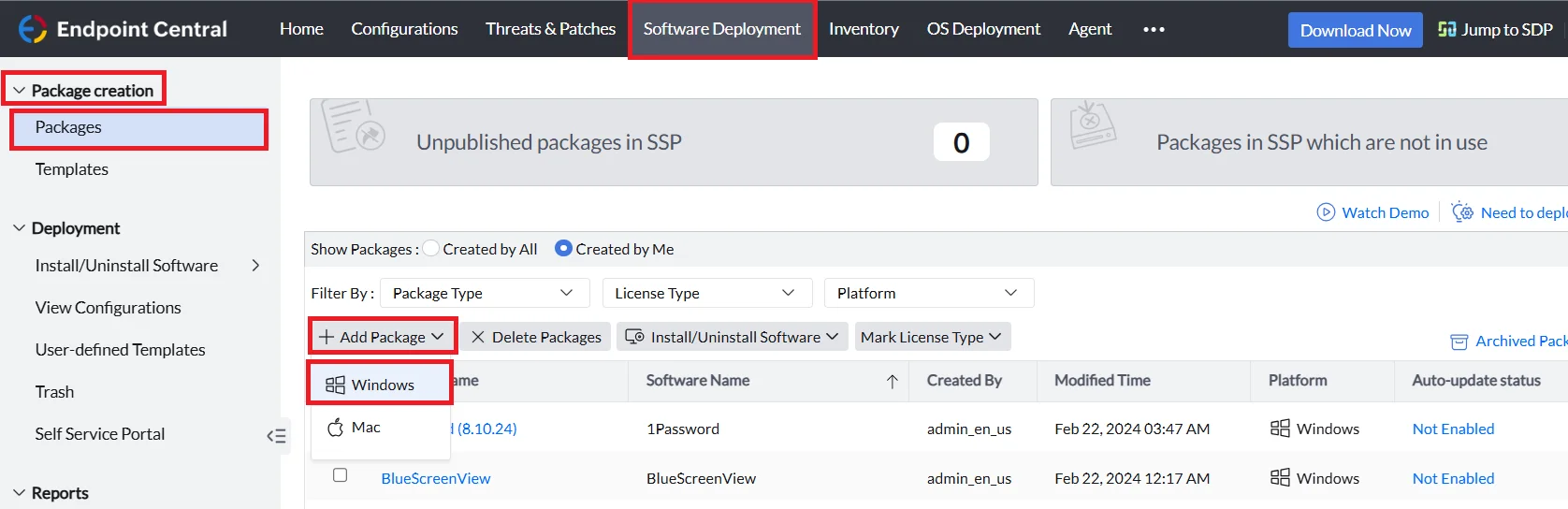
1. In the Endpoint Central console, navigate to the **Software Deployment tab > Package Creation > Packages > Add Package > Windows**
2. Give an appropriate name for your package in the **Package Name** field.
3. Based on the software that you are creating, select the **Package Type** as **MSI/MSP**, if you are creating an MSI or MSP package and select the package type as **EXE/APPX/MSIEXEC/MSU/MSIX/MSIX Bundle**, if you are creating an EXE or APPX or MSIEXEC or MSU or MSIX or MSIX Bundle package.
4. Select the **License Type** as **Commercial** or **Non-commercial** based on the software.
5. If you are deploying the software package from the Network Share repository, select **From Shared Folder** under **Locate Installable**. If you are deploying the software package from the HTTP Repository, select **From Local Computer** and upload the software installable by clicking the **Browse** option.
6. **For MSI or MSP Installation:**
- For MSI or MSP, provide the installation commands under **MSI/MSP File Name**. Refer the below [table](#supported-executables-and-switch-arguments) for the installation commands.
- If the deployment has any Transformation file dependencies, provide the files under **MST File Name**.
- Provide the properties for installation if any under **MSI/MSP Properties** field. Kindly refer this [link](https://www.manageengine.com/products/desktop-central/help/software_installation/property-reference-configuration-properties.html) for information about the MSI/MSP properties.
**Note:** Kindly note that multiple Properties should be given with space separating them.
**For MSI or MSP Uninstallation:**
- For MSI or MSP package the uninstallation switches are the same as the given MSI/MSP file in the installation field. The given MSI/MSP file under Installation will be automatically given as the uninstallation command.
- Provide the properties for the package if any under the **MSI/MSP Properties** for uninstallation. Kindly refer this [link](https://learn.microsoft.com/en-us/windows/win32/msi/property-reference#configuration-properties) for information about the MSI/MSP properties.
**Note:** Kindly note that multiple Properties should be given with space separating them.
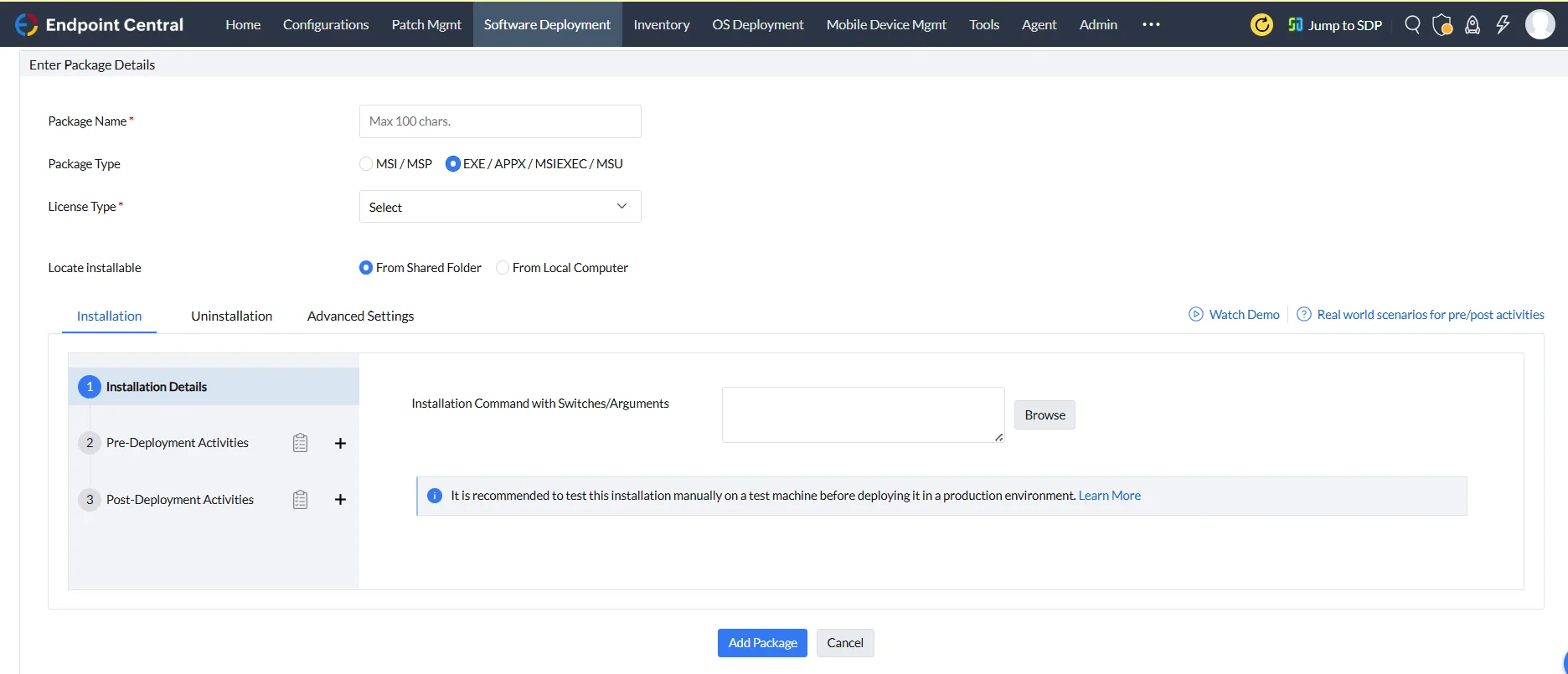
**For EXE/APPX/MSIEXEC/MSU/MSIX/MSIX Bundle Installation:**
Provide the installation command in the **Installation Command with Switches/Arguments** field. Refer the below [table](#supported-executables-and-switch-arguments) for the installation commands.
**For EXE/APPX/MSIEXEC/MSU/MSIX/MSIX Bundle Uninstallation:**
Provide the uninstallation command in the **Uninstallation Command with Switches/Arguments** field. Refer the below [table](#supported-executables-and-switch-arguments) for the uninstallation commands.
**Note:** Kindly note that the Silent Switches must be received from the Vendor for proper silent deployment.
7. Configure the **Pre-Deployment** and **Post-Deployment Activities** for both Installation and Uninstallation based on your requirement.
8. Under Advanced Settings, provide the below as per your requirement:
**Under Advanced Option:**
- Exit Code
- Architecture
- Maximum Time Limit for Installation (Hours)
**Under Package Properties:**
- Application Name
- Version
- Vendor
- Language
- Package Description
9. Click on **Add Package** to create your Windows manual software package.
## Supported Executables and Switch Arguments
| Executable | Network Share Command | HTTP Command |
|---|---|---|
| EXE | **For Installation**
`"\\\" /s`
**For Uninstallation**
`"\\\" /s` | **For Installation**
`installerfilename.exe /s`
**For Uninstallation**
`uninstallername.exe /s` |
| MSI | **For Installation**
`"\\Share Path\installerfilename.msi"`
**For Uninstallation**
`"\\Share Path\installerfilename.msi"` | **For Installation**
`installerfilename.msi`
**For Uninstallation**
`installerfilename.msi` |
| MSP | **For Installation**
`"\\Share Path\installerfilename.msp"`
**For Uninstallation**
`"\\Share Path\uninstallerfilename.msp"` | **For Installation**
`installerfilename.msp`
**For Uninstallation**
`uninstallername.msp` |
| APPX | **For Installation**
`"\\Share Path\installerfilename.appx"`
**For Uninstallation**
Not Supported | **For Installation**
`installerfilename.appx`
**For Uninstallation**
Not supported |
| Appx Bundle | **For Installation**
`"\\Share Path\installerfilename.appxbundle"`
**For Uninstallation**
Not Supported | **For Installation**
`installerfilename.appxbundle`
**For Uninstallation**
Not Supported |
| MSIEXEC | **For Installation**
`"msiexec /i "\\Share Path\ installerfilename.msi"`
**For Uninstallation**
`"msiexec /x "\\Share Path\installerfilename.msi"` | **For Installation**
`msiexec /i "intstallerpath\installerfilename.msi" /qn`
**For Uninstallation**
`msiexec /x "intstallerpath\installerfilename.msi"` |
| MSU | **For Installation**
`"\\Share Path\installerfilename.msu"`
**For Uninstallation**
`"\\Share Path\uninstallerfilename.msu"` | **For Installation**
`installerfilename.msu`
**For Uninstallation**
`uninstallername.msu` |
| MSIX | **For Installation**
`"\\Share Path\installerfilename.msix"`
**For Uninstallation**
Not Supported | **For Installation**
`installerfilename.msix`
**For Uninstallation**
Not Supported |
| MSIX Bundle | **For Installation**
`"\\Share Path\installerfilename.msixbundle"`
**For Uninstallation**
Not Supported | **For Installation**
`installerfilename.msixbundle`
**For Uninstallation**
Not Supported |
## Modifying the Package
The created packages can be modified based on your requirement. Follow the below steps to modify the package:
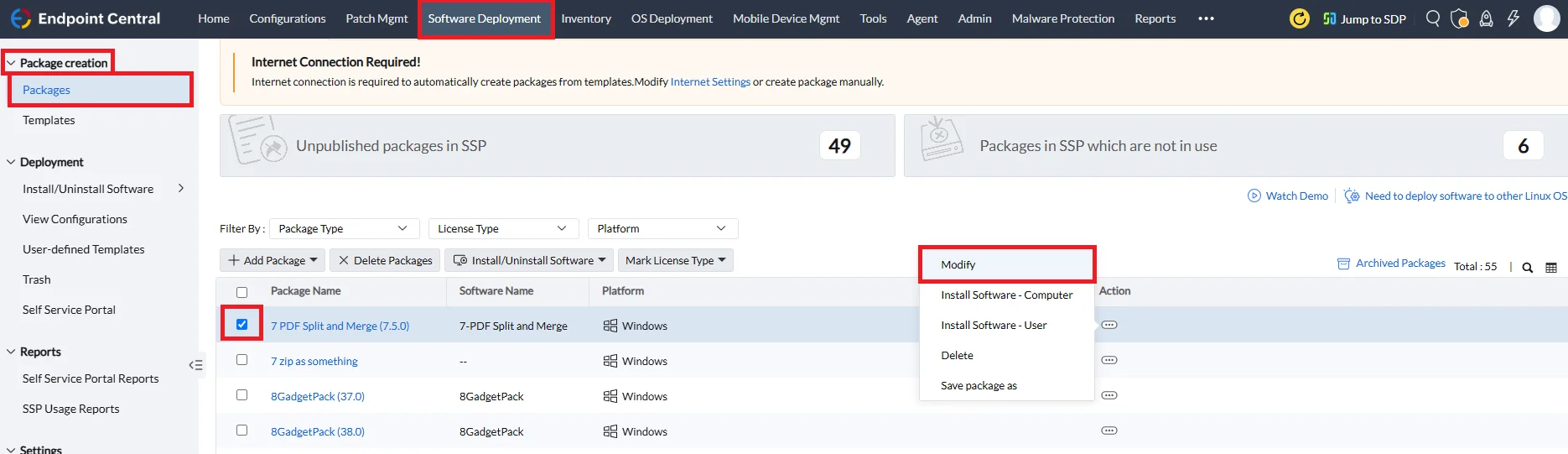
- In the Endpoint Central console, navigate to the **Software Deployment tab > Package Creation > Packages**.
- Select the software package you wish to modify.
- In the Actions column select the three dots icon and select the **Modify** option to proceed with your modifications.
## Saving the Package As
The created packages can be saved as a new package in case of package duplication requirement. Follow the below steps to duplicate the package:
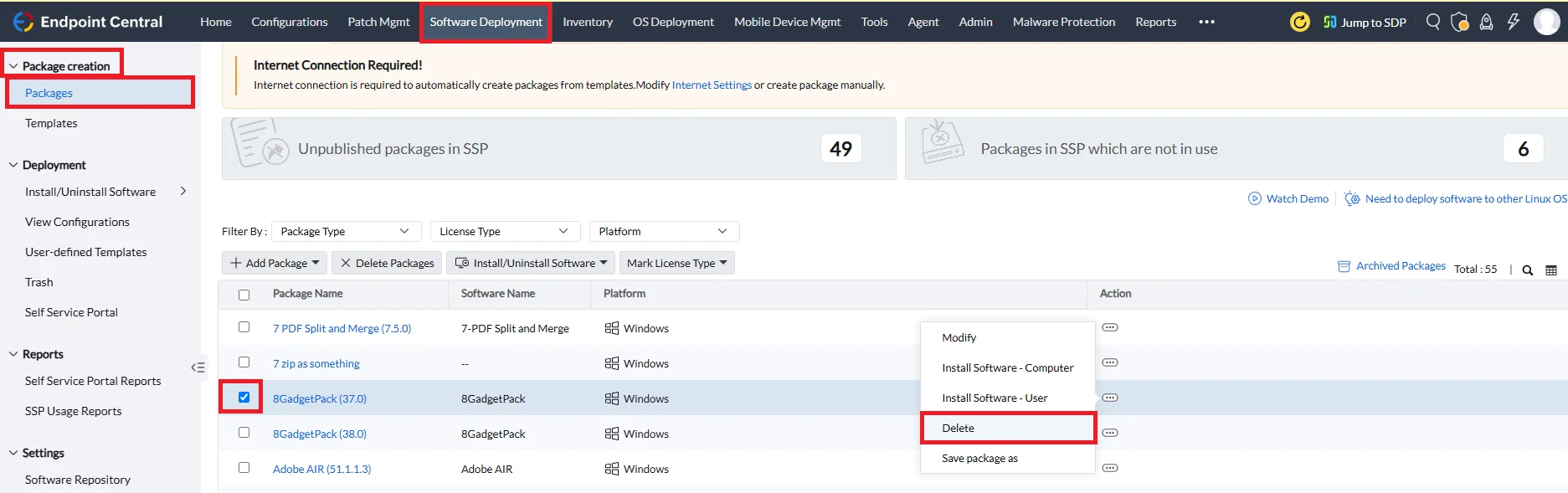
- In the Endpoint Central console, navigate to the **Software Deployment tab > Package Creation > Packages**.
- Select the software package you want to duplicate.
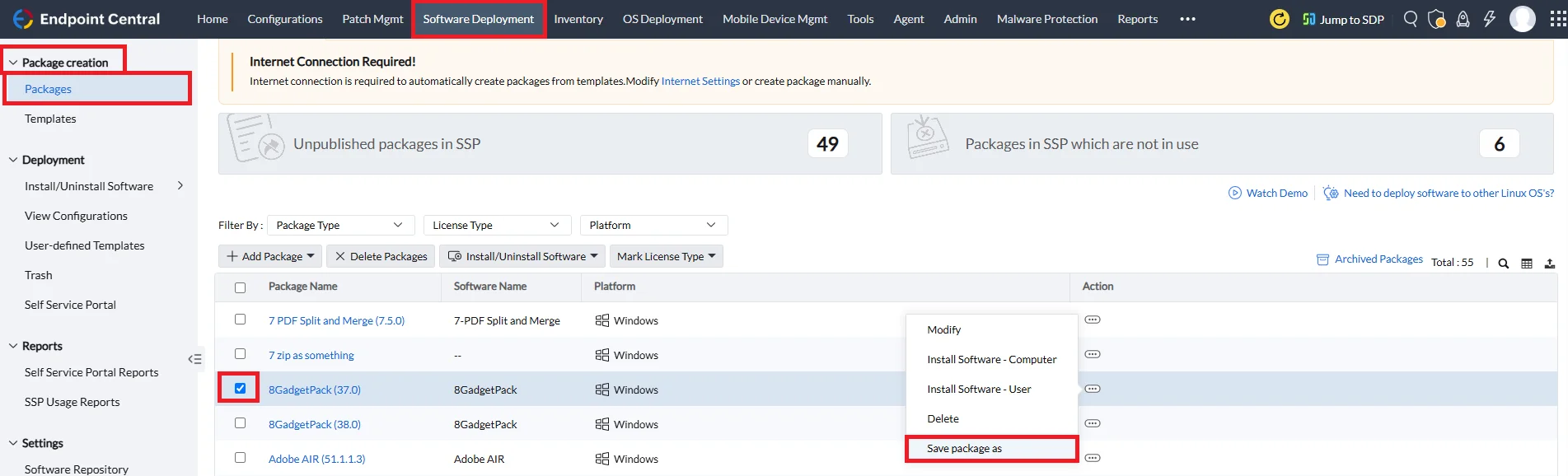
- In the Actions column select the three dots icon and select the **Save package as** option and perform the required changes and save the package.
## Deleting the Package
The created packages can be deleted based on your requirement. Follow the below steps to delete the package:

- In the Endpoint Central console, navigate to the **Software Deployment tab > Package Creation > Packages**.
- Select the software package you want to delete and click on the **Delete Packages** option.
The selected packages will not be deleted in the following scenarios:
- When the selected packages are in use in any Configuration. To delete these packages, you must delete the configuration to proceed with the package deletion.
- When the selected packages are published in the Self Service Portal. To delete the selected packages, you must disassociate the packages from the Self Service Portal. To learn about how to disassociate the package from the Self Service Portal, refer to [this link](https://www.manageengine.com/products/desktop-central/help/software-deployment/self-service-portal.html#ssp-disassociate-package).
- When the selected packages are in use in any User-defined Templates. To delete these packages, you must delete the user-defined templates to proceed with the package deletion.