Error while remotely connecting to macOS 10.14 (Mojave) and above
Error while remotely connecting to macOS 10.14 (Mojave) and above
Problem
Remotely connecting to Mac computers fails with an error message "Accessibility / screen capturing permissions not configured".
Cause
This might occur when Endpoint Central component or the Zoho component of Endpoint Central has insufficient privileges to remotely control that computer.
Enabling/ disabling the Screen Recording permission in macOS devices can be done by the standard user when the admin pushes a profile to the device enabling the user to toggle with the above permission. If no profile is pushed, they can still toggle with the permission by giving the admin password.
Resolution
- For Endpoint Central on-premise, to resolve this problem, grant accessibility and screen capturing permissions for Endpoint Central component to remotely control the computer.
- For Endpoint Central Cloud, to resolve this problem, grant accessibility and screen capturing permissions for Zoho component to remotely control the computer.
Steps
Choose the operating system:
Endpoint Central on-premise
This issue can be resolved in two ways, either from the problematic machine or directly from the product console. Please choose the method:
In the problematic Mac machine navigate to,
- Attempt to initiate remote control from the ManageEngine console. This will prompt the Mac to display "ManageEngineRemoteAccess" in the Accessibility settings, allowing you to grant necessary permissions.
- System Preference > Security and Privacy > Privacy > Accessibility > Enable access for "ManageEngineRemoteAccess" component. This will resolve the issue if you are using Mac OS version 10.14 - Mojave. If you are using the version 10.15 - Catalina, ensure you follow the next step as well.
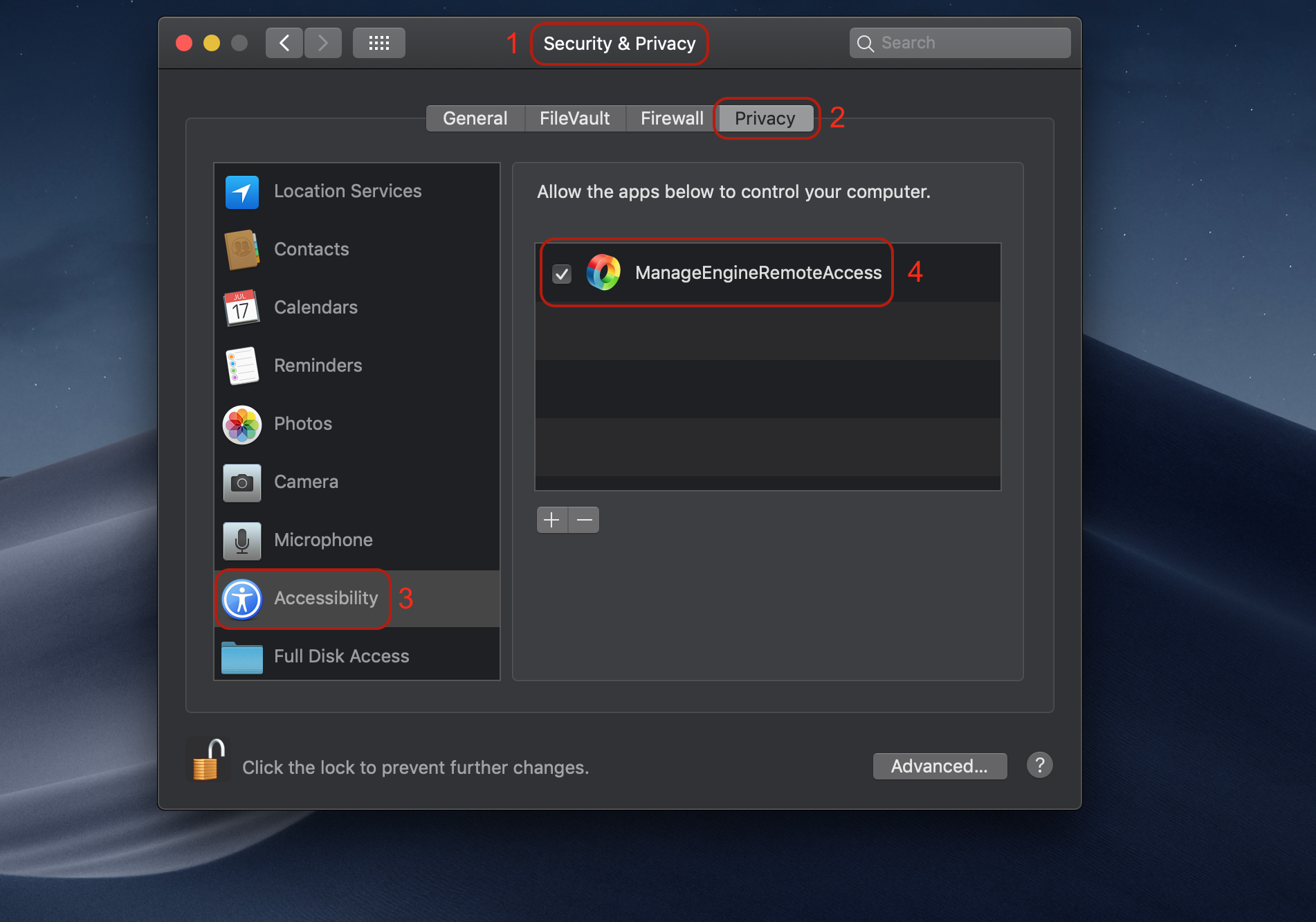
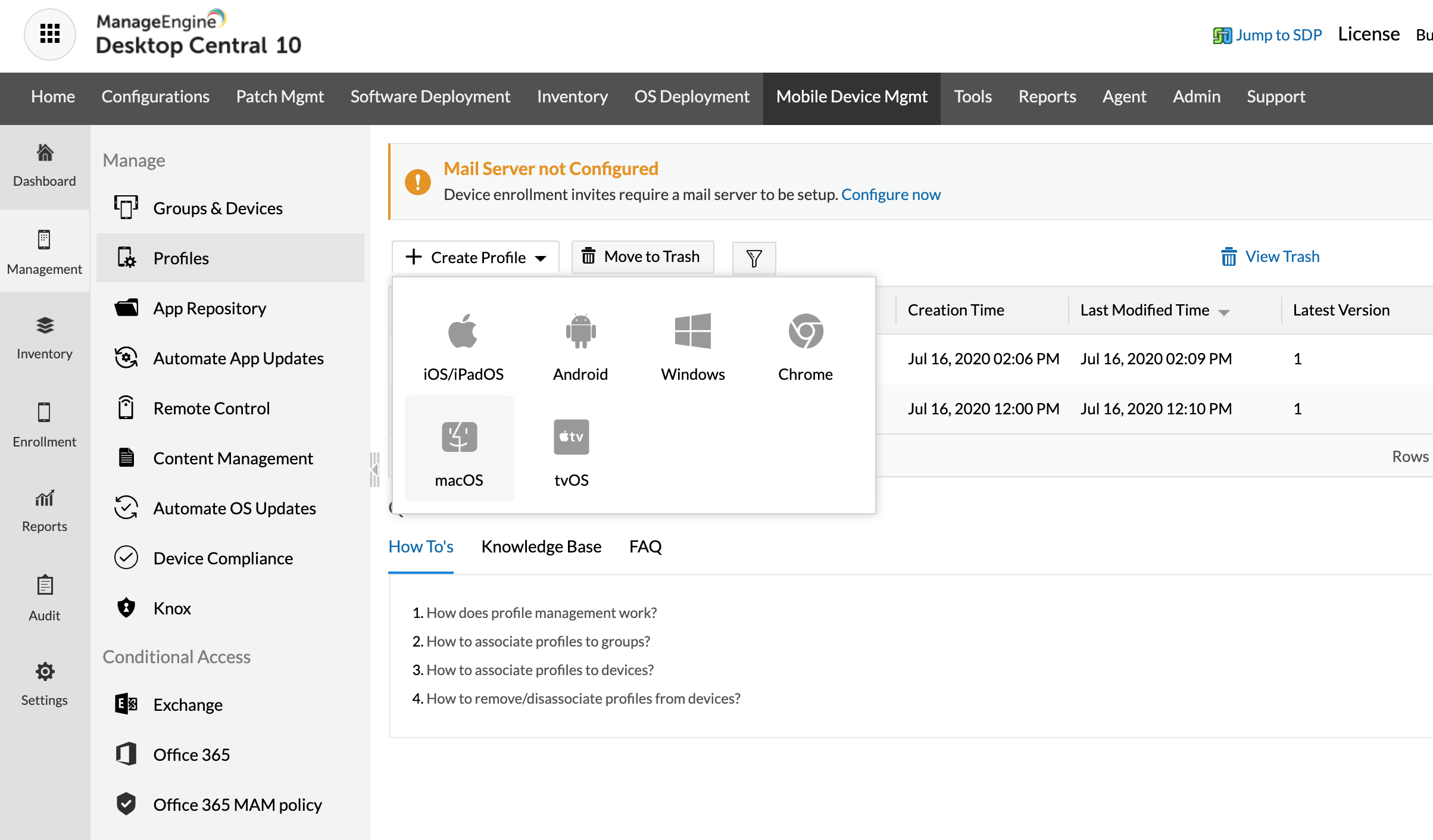
- Under Mobile Device Management, select Management > Profiles.
- Click Create Profile and select MacOS/Apple.
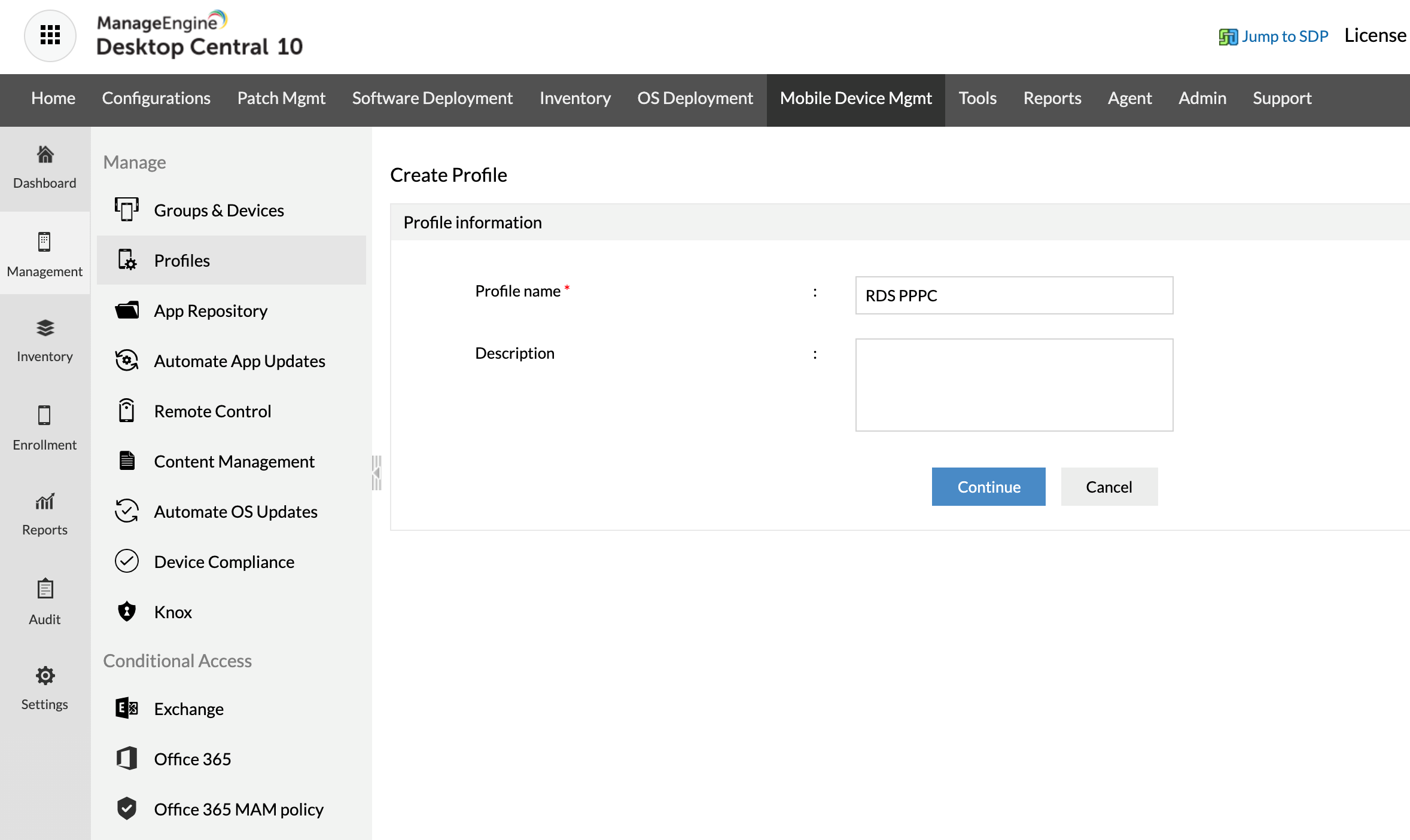
- Provide the Profile name and click Continue.
- On the left tree, select Custom Configuration. Download the PPPC file, extract it and upload the PPPC .mobileconfig file.
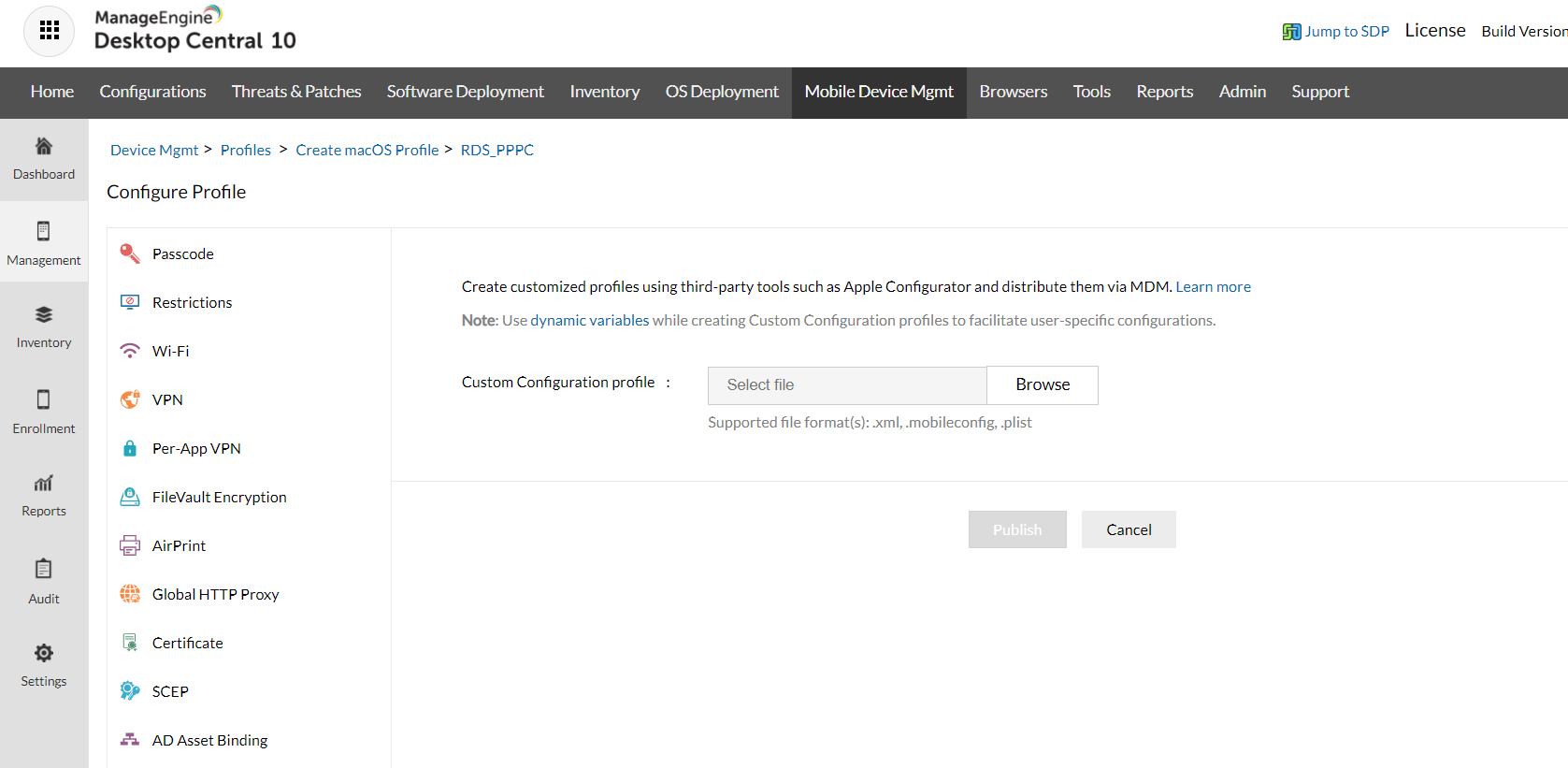
- Save and Publish this profile.
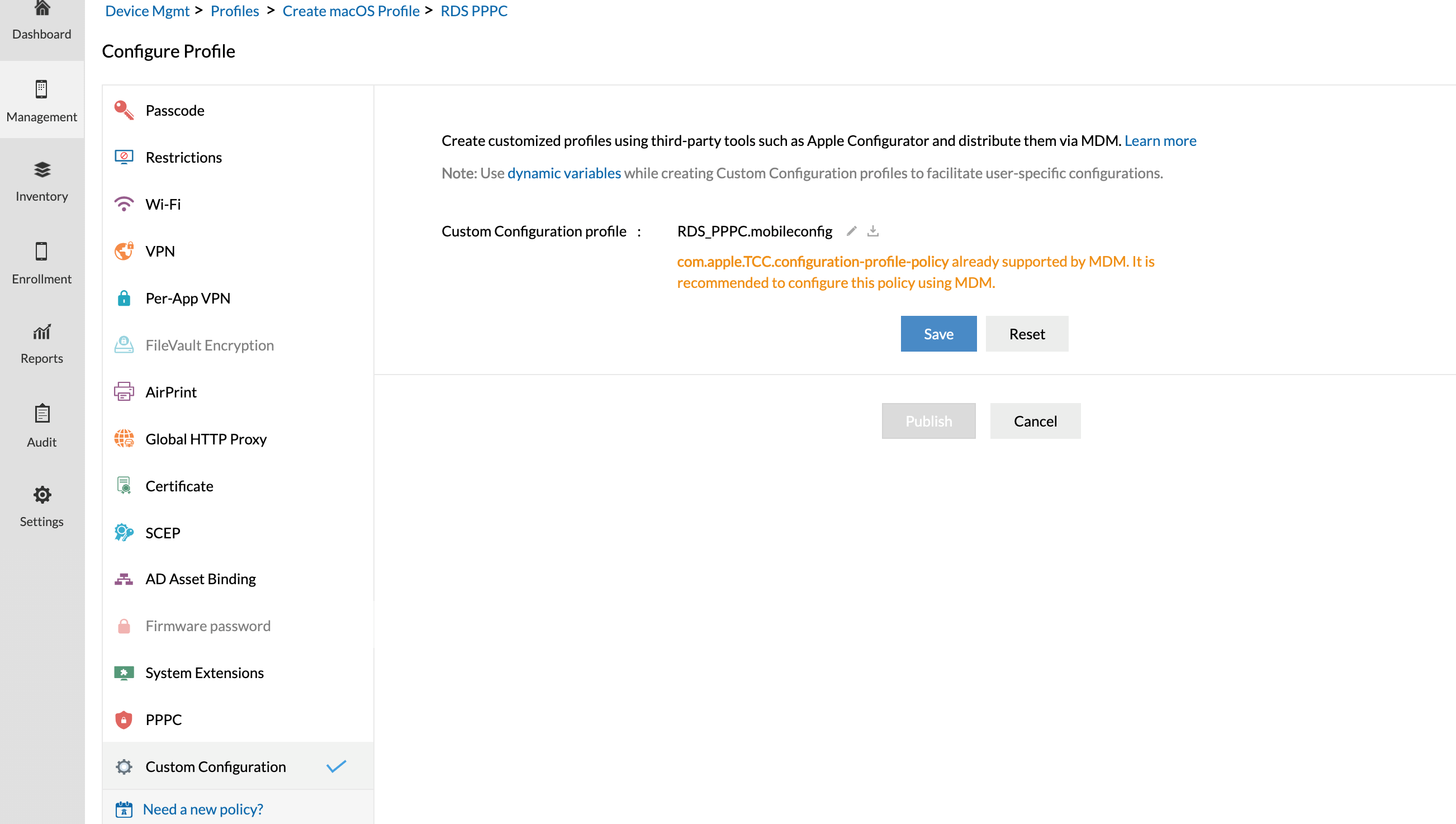
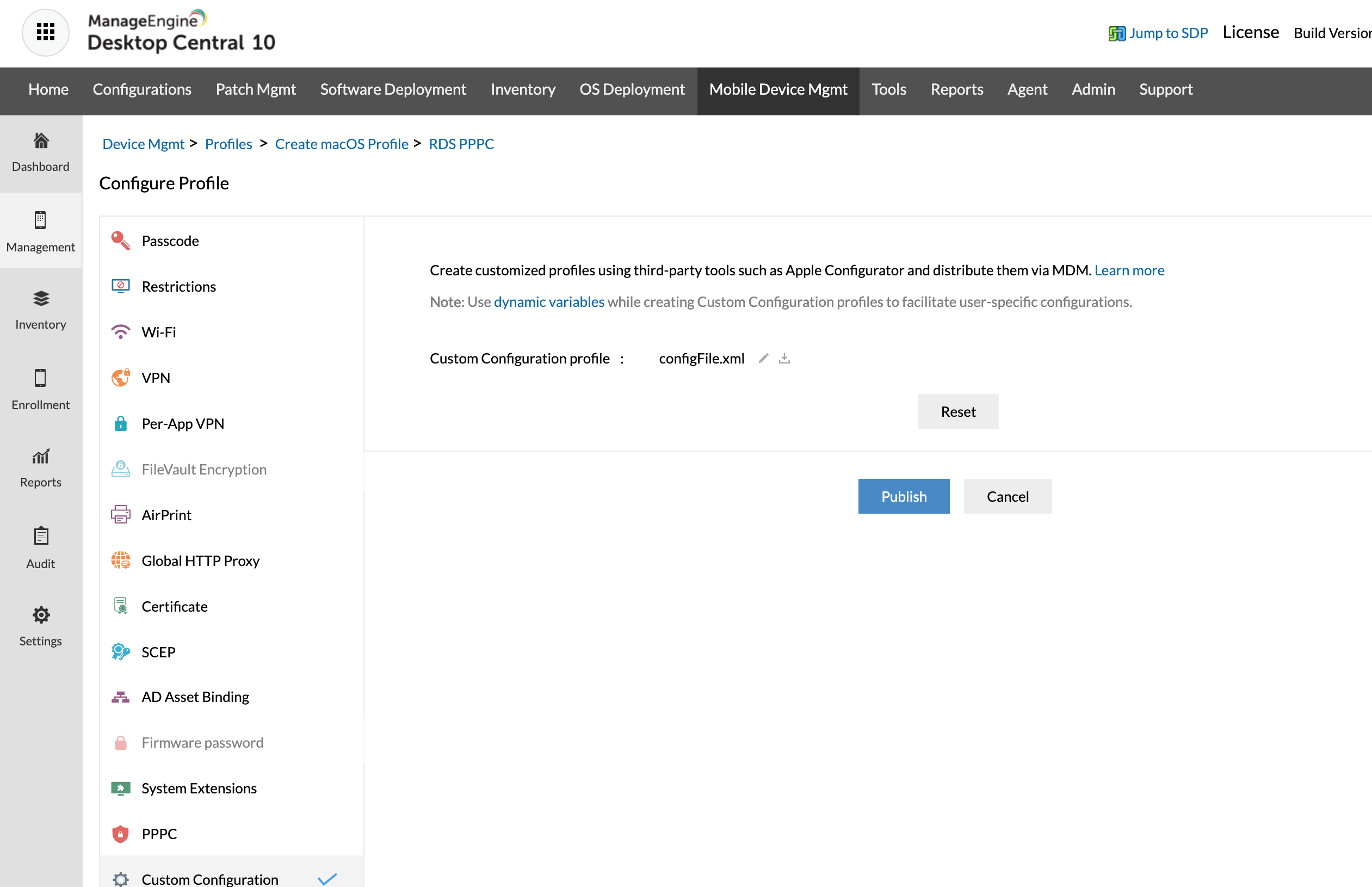
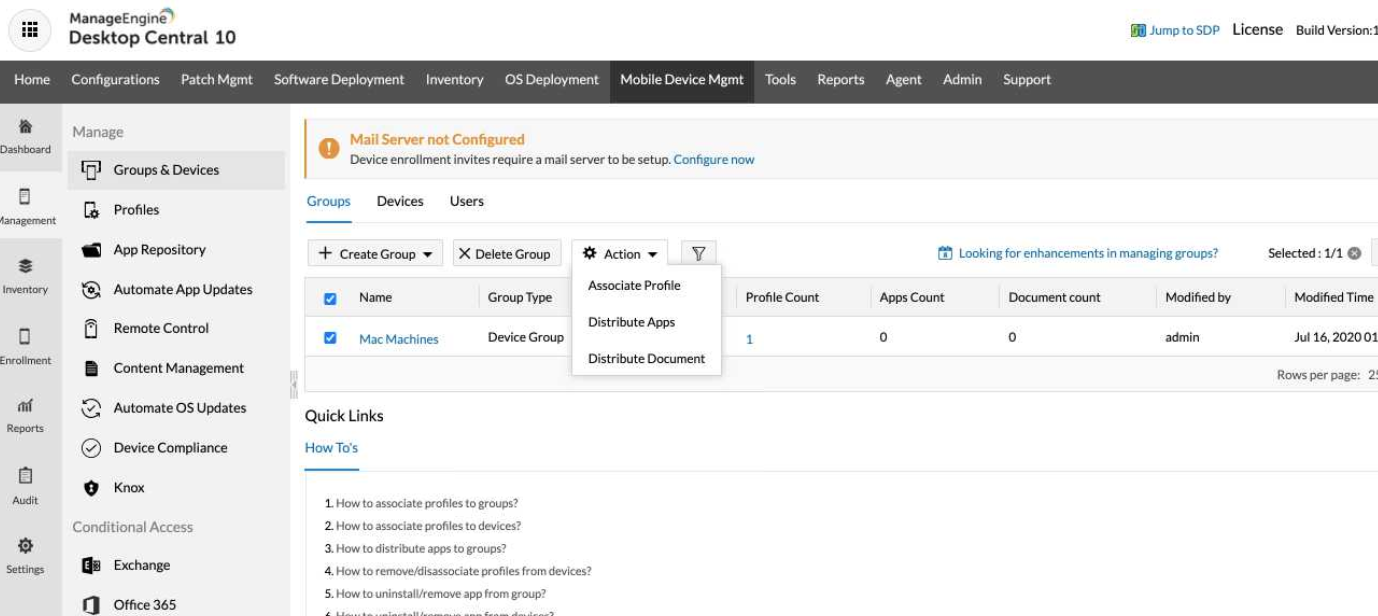
- Navigate to Groups and Devices. Select the required group. Click Action and select Associate Profile.
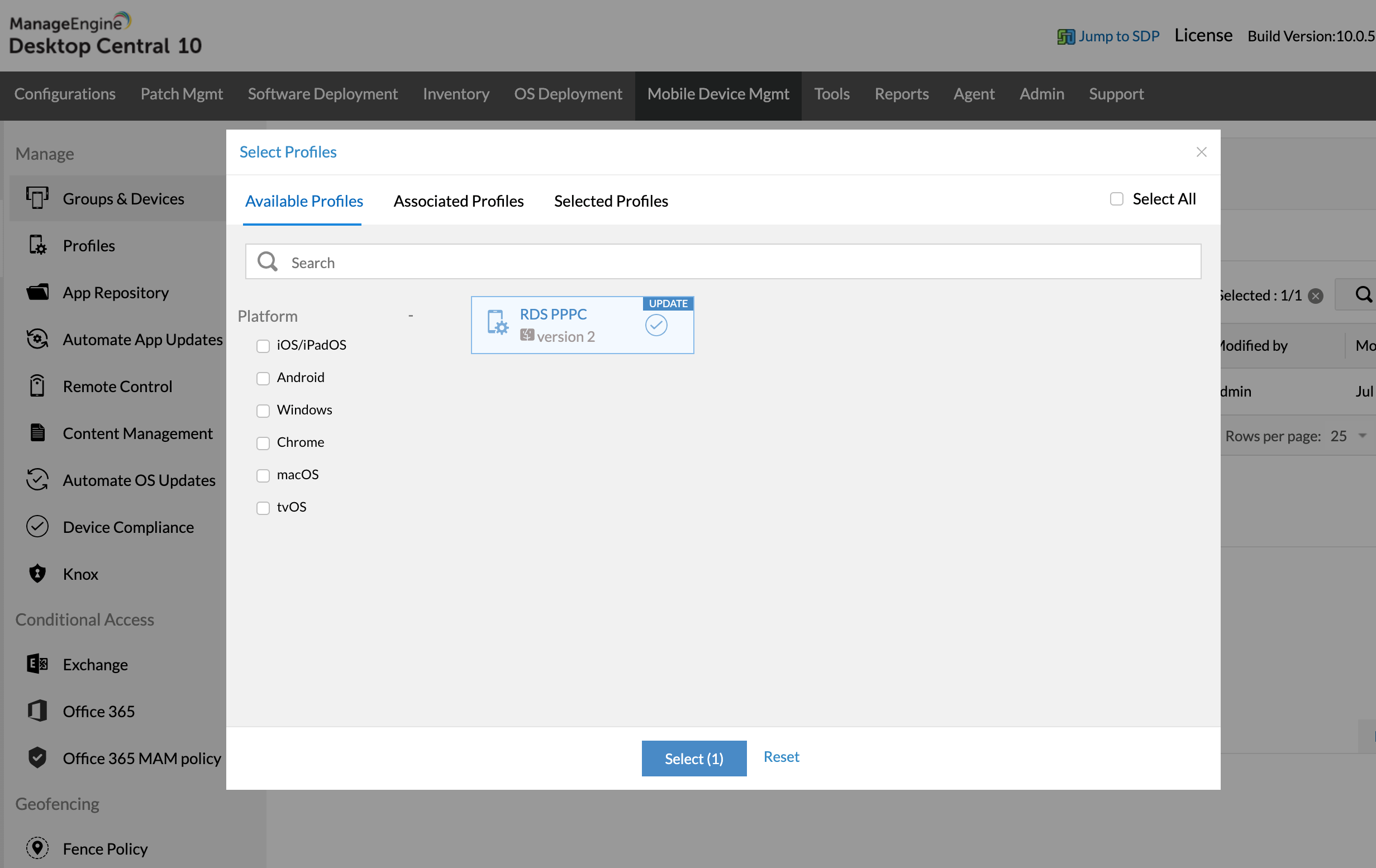
- Select the profile you have just created and associate it.
- Permission for accessibility has been fully configured. Standard users will now have the ability to grant access for screen capturing.
You can now remotely troubleshoot macOS 10.14 Mojave computers in your network.
This issue can be resolved in two ways, either from the problematic machine or directly from the product console. Please choose the method:
In the problematic Mac machine navigate to,
- Attempt to initiate remote control from the ManageEngine console. This will prompt the Mac to display "ManageEngineRemoteAccess" in the Accessibility settings, allowing you to grant necessary permissions.
- System Preference > Security and Privacy > Privacy > Accessibility > Enable access for "ManageEngineRemoteAccess" component.
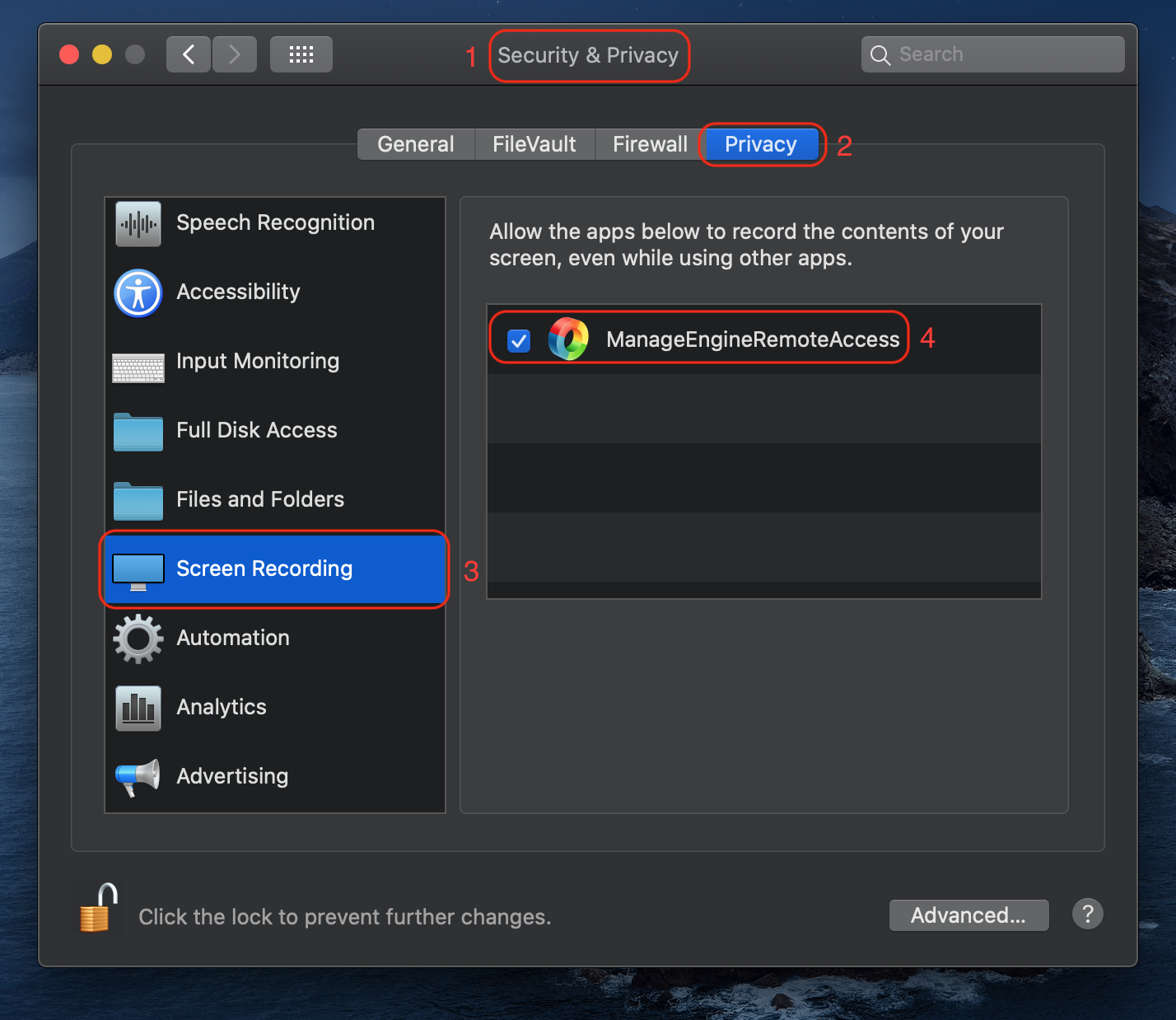
- System Preference > Security and Privacy > Privacy > Allow the "ManageEngineRemoteAccess" component to record the contents of your screen.
- Under Mobile Device Management, select Management > Profiles.
- Click Create Profile and select MacOS/Apple.
- Provide the Profile name and click Continue.
- On the left tree, select Custom Configuration. Download the PPPC file, extract it and upload the PPPC .mobileconfig file.
- Save and Publish this profile.
- Navigate to Groups and Devices. Select the required group. Click Action and select Associate Profile.
- Select the profile you have just created and associate it.
- Permission for accessibility has been fully configured. Standard users will now have the ability to grant access for screen capturing.
You can now remotely troubleshoot macOS 10.15 Catalina computers in your network.