×![]()
×
×![]()
×
×
Chat with End Users in Endpoint Central Cloud
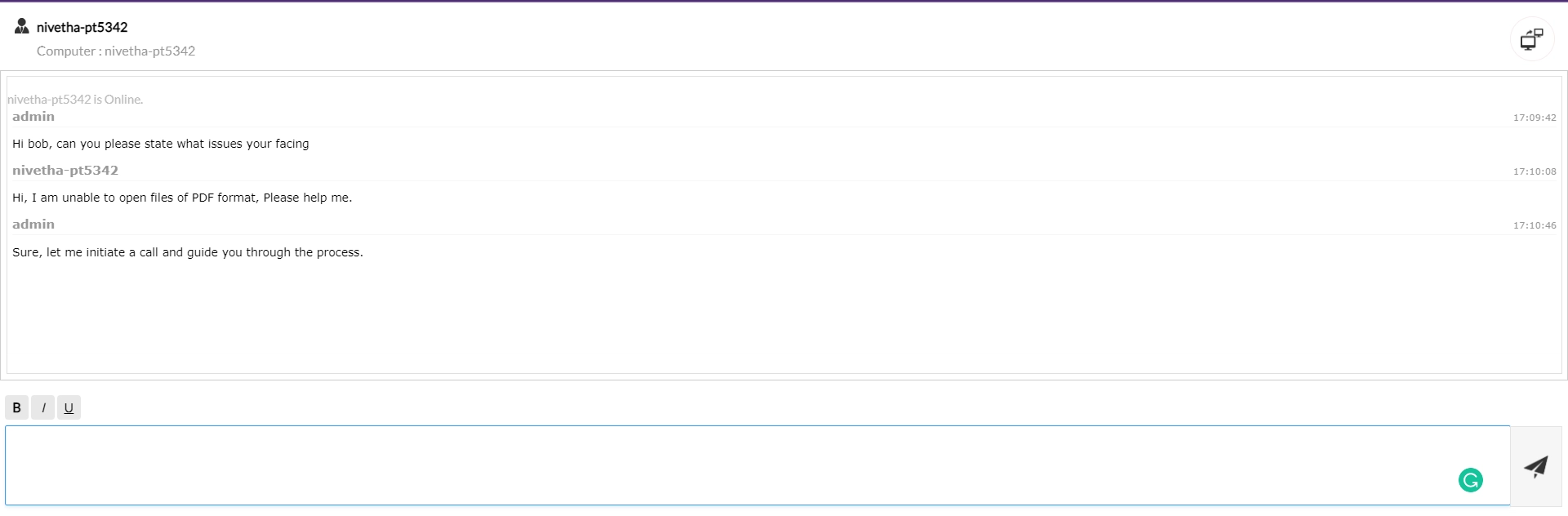
A clear understanding of any problem will help in figuring out the right solution in a short span of time. With Endpoint Central Cloud you can instantly initiate chat with the end user and get a clear picture of issue in the endpoint device.
Supported OS: Windows
Note
For the On-Premises environment, refer to this document.
Prerequisites
Browser settings
- If web browser blocks pop up, then you will not be able to view the chat window.
- Hence, ensure the browser you use does not block pop-ups.
History settings
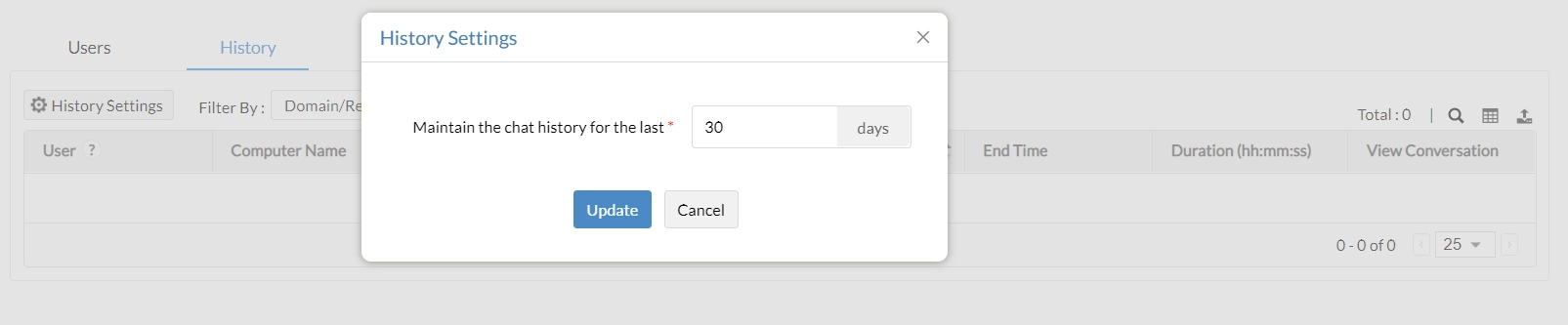
Streamline audit routines with the complete report of all the chat initiated, under History tab. Entire chat transcript will be available under View Conversation column. Follow below steps to ensure how long history must be stored in the Central Server.
- Navigate to Chat -> History -> History Settings
- Specify the number of days the history must be available.
- Any mode of communication initiated before the specified number of days will be automatically deleted from the server.
Initiate communication from product console
Before taking a remote control it is always recommended to understand the problem better. To do so initiate chat with the end user and analyze how to fix the solution.
- Under Tools -> Chat -> Users tab, you will find the list of users currently logged in to the managed computers. (Refreshed every 90 minutes)
- If same user has logged on from multiple devices, you can choose which device you wish to initiate communication with.
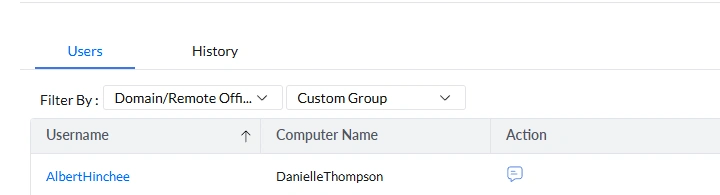
- Corresponding to every user name you will find an icon under Action column, click on it to instantly initiate chat.
 Chat
Chat - Chat: Chat will be instantly initiated and will not wait for end users' approval. Admin will be able to initiate remote control right from the chat window.