Essential configurations in remote control
Remote control settings
Configure the following settings under Tools - > Remote Control -> Settings tab to tailor-make your remote session:
- General Settings
- Idle Session Settings
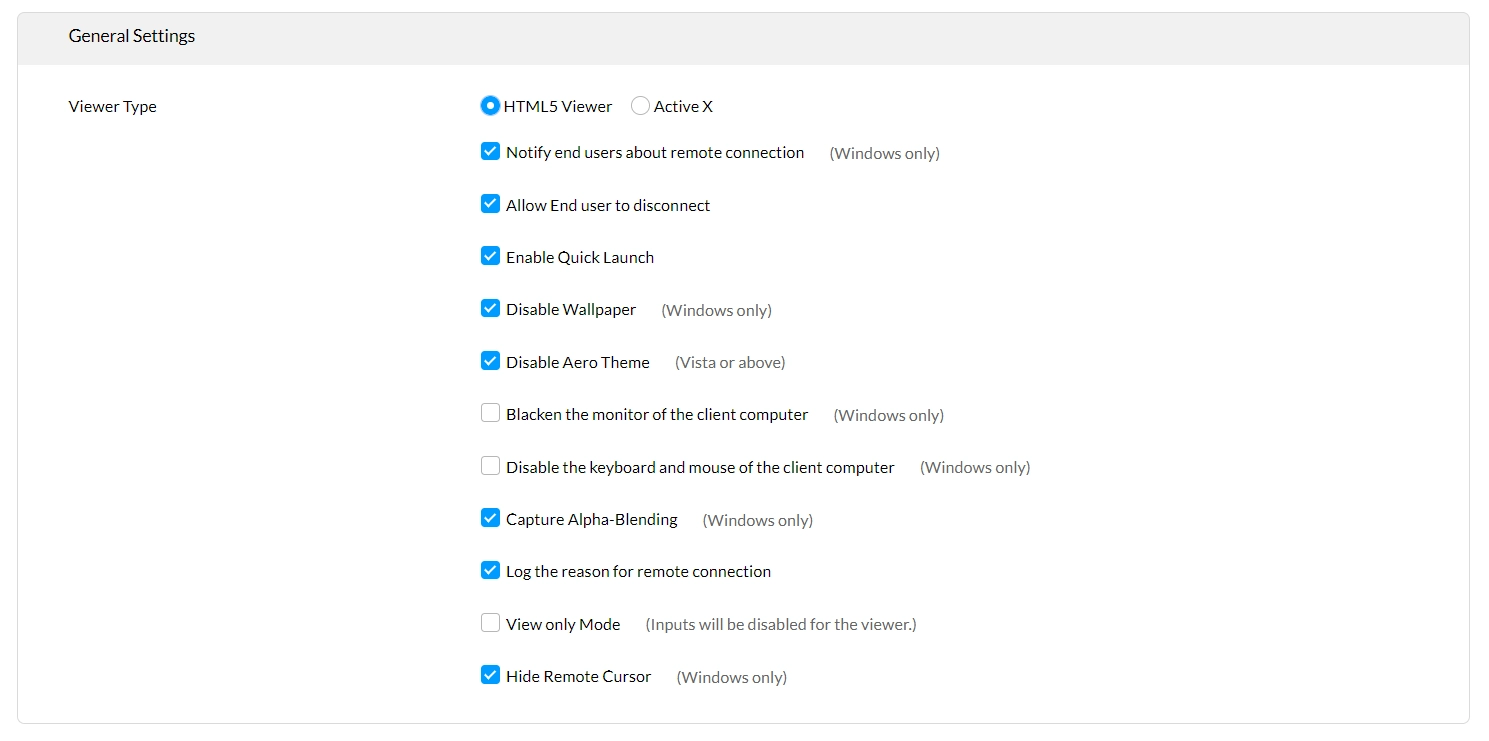
General Settings
Windows only:
Features available for cloud:
- Disable Wallpaper: Wallpaper set by the end user will not be visible during remote session.
- Blacken the monitor of client computer: Blacken the screen for end user to hide the sensitive changes made by IT admin.
- Disable keyboard and mouse of client computer: Get full control over remote computer by locking mouse and keyboard inputs of end user.
- Hide Remote Cursor: Hide mouse movements of viewer on remote computer.
Features available for on-premise:
- Disable Wallpaper: Wallpaper set by the end user will not be visible during remote session.
- Blacken the monitor of client computer: Blacken the screen for end user to hide the sensitive changes made by IT admin.
- Disable keyboard and mouse of client computer: Get full control over remote computer by locking mouse and keyboard inputs of end user.
- Hide Remote Cursor: Hide mouse movements of viewer on remote computer.
- Viewer Type: Opt for Active X if you need a native viewer.
- Notify end user: During the entire remote session, a prompt will be visible in the top right corner of end user's screen.
- Allow end user to disconnect: Give privilege to end user to disconnect a remote session.
- Enable Quick Launch: Enable this if you need quick access to tools like command prompt and other system manager tools or power options.
- Disable Aero Theme: If the end user device operates on Windows Vista or above with Aero theme GUI, it will be disabled during the remote session.
- Capture Alpha-Blending: View transparent windows in remote computer.
Supported for all OS:
Available for on-premise:
- Viewer Type: HTML5 is a browser-based viewer.
- Log the reason for remote connection: Prompt admin or technician to enter reason for initiating remote session.
- View only mode: Admin or technician initiating remote session will not have access to perform any action on remote computer.
Available only for cloud:
- Log the reason for remote connection: Prompt admin or technician to enter reason for initiating remote session.
- View only mode: Admin or technician initiating remote session will not have access to perform any action on remote computer.
Idle Session Settings
Enhance the security of remote control with these settings. When no actions are performed on the end user's computer during remote control, the session is said to be "idle". Configure an action that needs to be performed when the remote session reaches idle state.
- Specify the maximum time limit for the remote session to be idle.
- Choose the action to be performed if the time limit is reached:
- Disconnect remote connection.
- Disconnect and lock the remote computer.
Click here to watch the video on configuring Idle session settings:
Screen recording (Windows and Linux only)
Screen recording enables you to record the entire remote control session that can be used for auditing purposes and to educate new technicians.
- Navigate to Tools -> Remote Control -> Screen Recording tab.
- Select the "Enable Screen Recording" check box and configure below settings:
- Select Codec:Choose a codec of your choice to compress and decompress the video. If the selected codec is not available on the remote computer, the default codec will be used.
- Microsoft Video 1 (Default)
- Intel IYUV codec
- Cinepak Codec by Radius
- Frames per Second: When the number of frames captured per second increases, the mouse movements will be smooth. But this will increase the video size. If it is just for auditing purposes, it is better to leave it with the default value.
- Color quality: High (24 bit) and low (16 bit) are two available color qualities. Low quality is recommended for auditing purpose.
- Maximum storage size: If the configured size exceeds, oldest videos will be automatically deleted.
- Client computer runs out of space: You can either choose to stop the recording or end the remote session.
- Secure downloading recorded videos: Recorded videos can be downloaded only if the admin or technician provides valid password.
- Enable User Notification: A customized notification along with screen recording icon will be visible on end user's screen.
- Select Codec:Choose a codec of your choice to compress and decompress the video. If the selected codec is not available on the remote computer, the default codec will be used.
- Download the recorded videos from History tab.
Click here to watch the video on how to download the recorded remote sessions:
Remote session performance
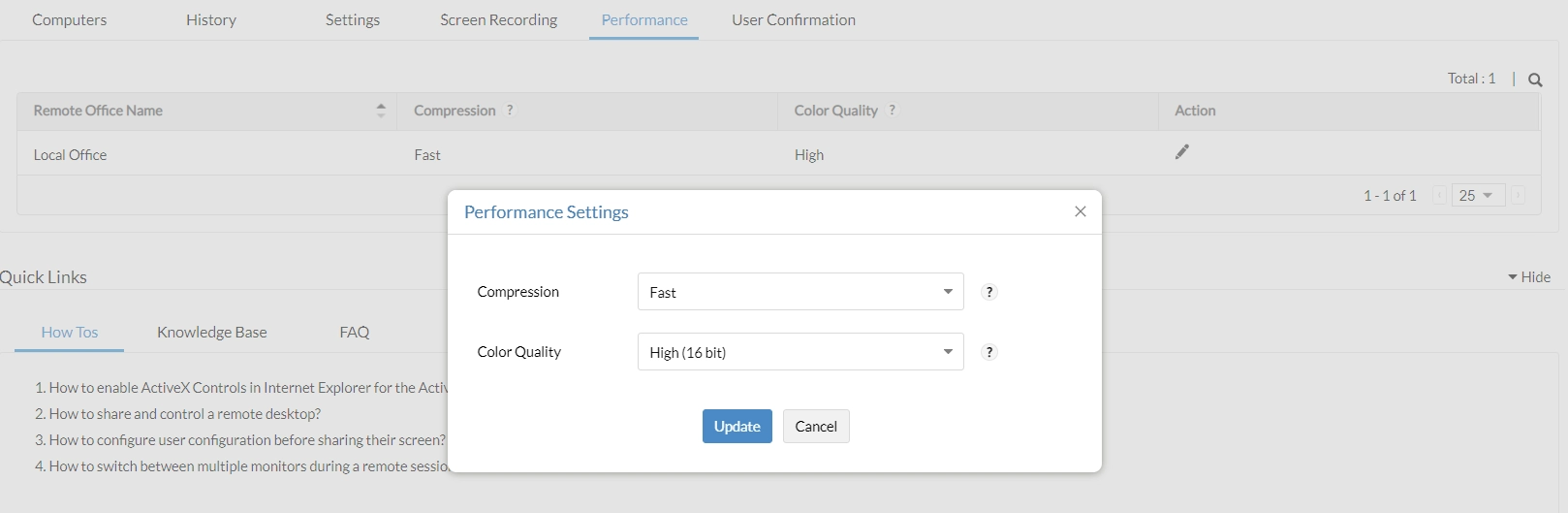
Performance of remote sessions is configured to keep bandwidth consumption under control. Customize unique settings for different remote offices and optimize the performance:
- Navigate to Tools -> Remote Control -> Performance tab
- Click on
 icon under Action column against the name of required Remote Office.
 - Compression Settings (Windows only):
- Best: Compression ratio will be higher and UI rendering will be comparatively slower for better bandwidth optimization.
- Fast: Compression ratio will be lower and UI rendering will be faster resulting in higher bandwidth utilization.
- Color Quality:During remote session, it is recommended to opt for lower color quality for better performance.
- Supported for all OS: True Color and Low.
- Windows only: High and Medium.
Configure User-confirmation
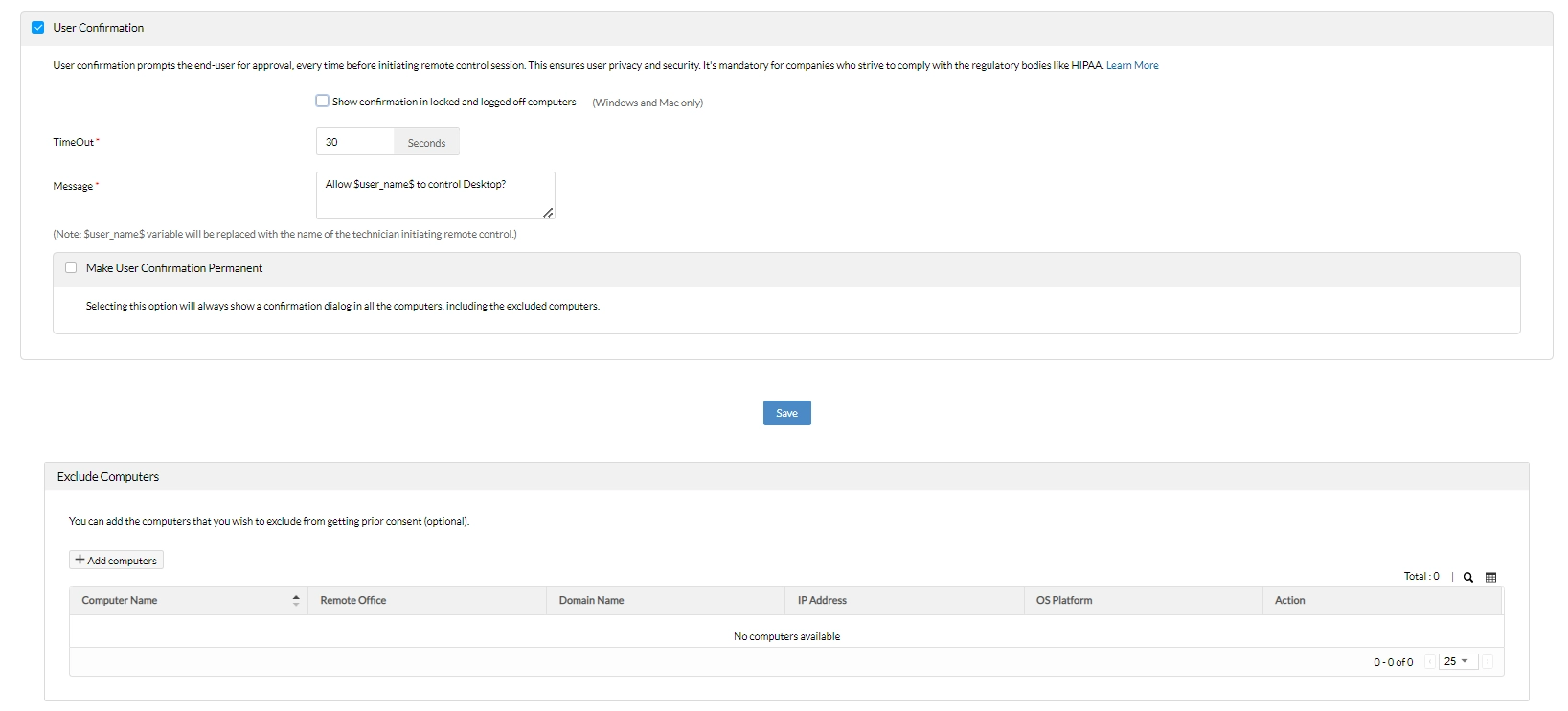
Stay compliant with policies like HIPAA by enabling user confirmation. This configuration will send a confirmation prompt to end user before sysadmin gets control over the remote computer. To enable User Confirmation, navigate to Tools -> Remote Control -> User Confirmation
- If "show confirmation in locked and logged off computers" is not enabled, remote session will be initiated without end users approval. (Supported on Windows & Mac)
- Time Out: Set a waiting time within which end user must approve. When time exceeds remote session will not be initiated.
- Message: Customize message shown on end user's device.
- Make User Confirmation Permanent: If this option is enabled it cannot be disabled by the admin. Contact support to revoke the configuration.
- Exclude Computers: Select computers that do not require prior consent to establish a remote session. Computers will be excluded even if user confirmation is made permanent.
Port Settings
The default remote control port will be 8443. Modify the port number by following below steps:
- Navigate to Admin -> Tools Settings -> Port Settings
- Modify the port details.
- Ensure the ports are not restricted on firewall and click Save
Customized and configured the essentials? It's time to initiate remote connection now!