lhs-panel Click here to expand

Extensions

Extensions are pre-built software components that can either add a set of custom features into EventLog Analyzer or integrate other third-party applications into EventLog Analyzer. EventLog Analyzer's flexible platform enables it to address a wide-range of industry specific use cases.

Third-party Application Extensions

Third-party application extensions enable users to integrate data from external security or business applications into EventLog Analyzer. Customers can download the extension for the application they use in their organization from the Marketplace, install it, and utilize it seamlessly.

How to download and install extensions

To install an extension for EventLog Analyzer, you need to first download the extension from the Marketplace and must be uploaded to EventLog Analyzer. Here's how you can achieve this.
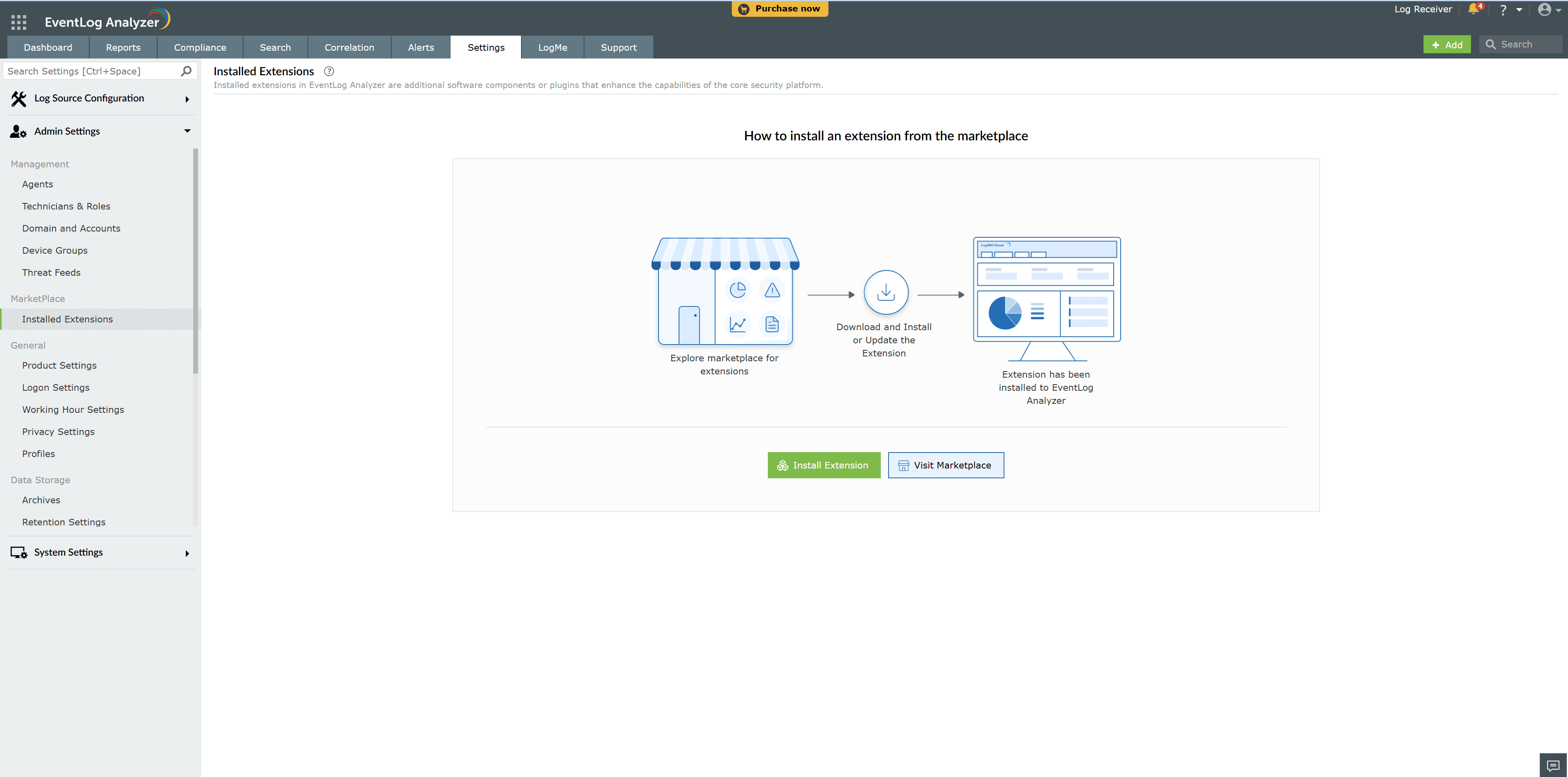
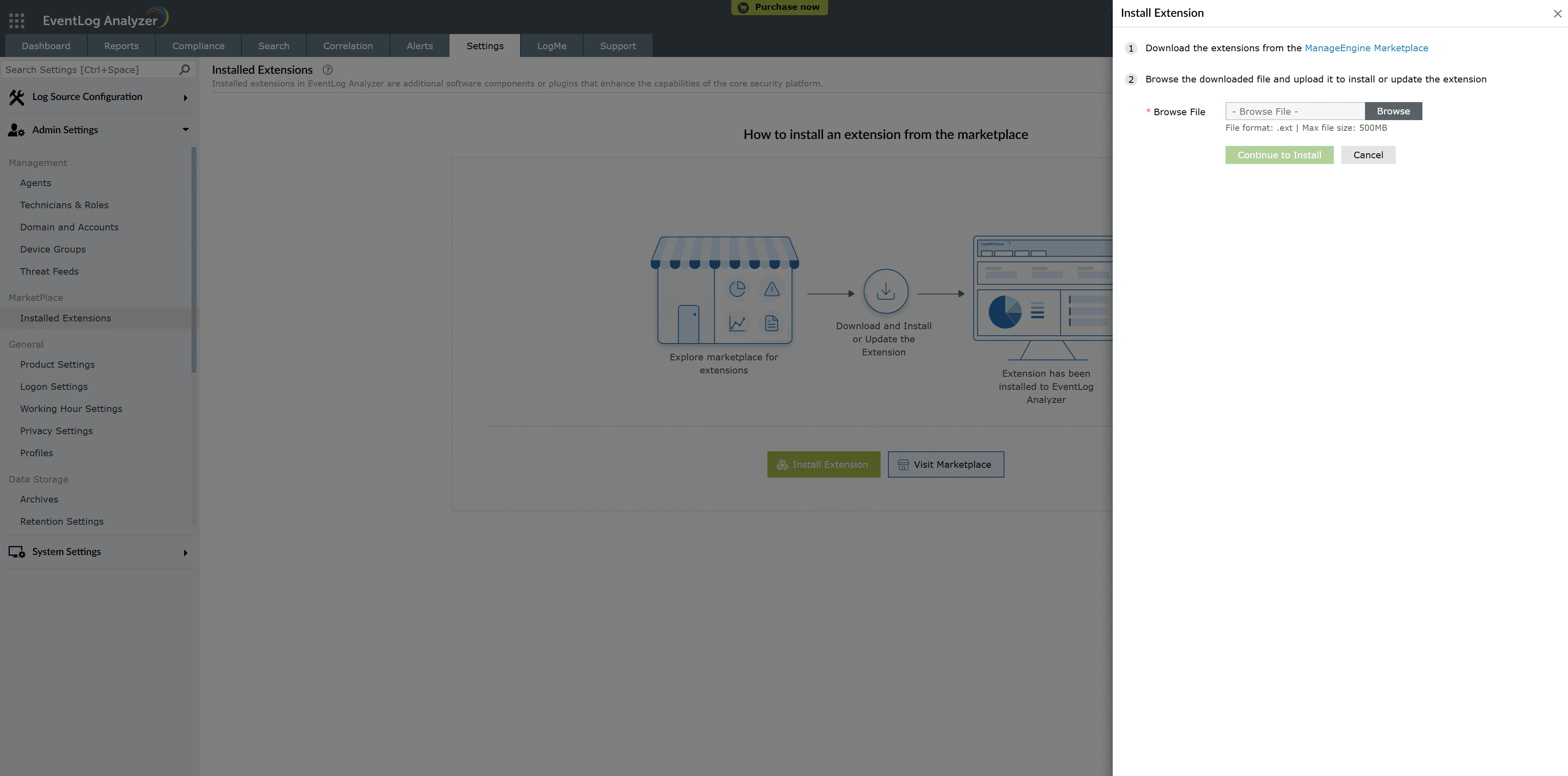
  1. Download the required EventLog Analyzer extension from the Marketplace.
  2. Once the download is completed, open EventLog Analyzer and navigate to Settings > Admin Settings > Marketplace > Installed Extensions.
  3. Installing Extensions
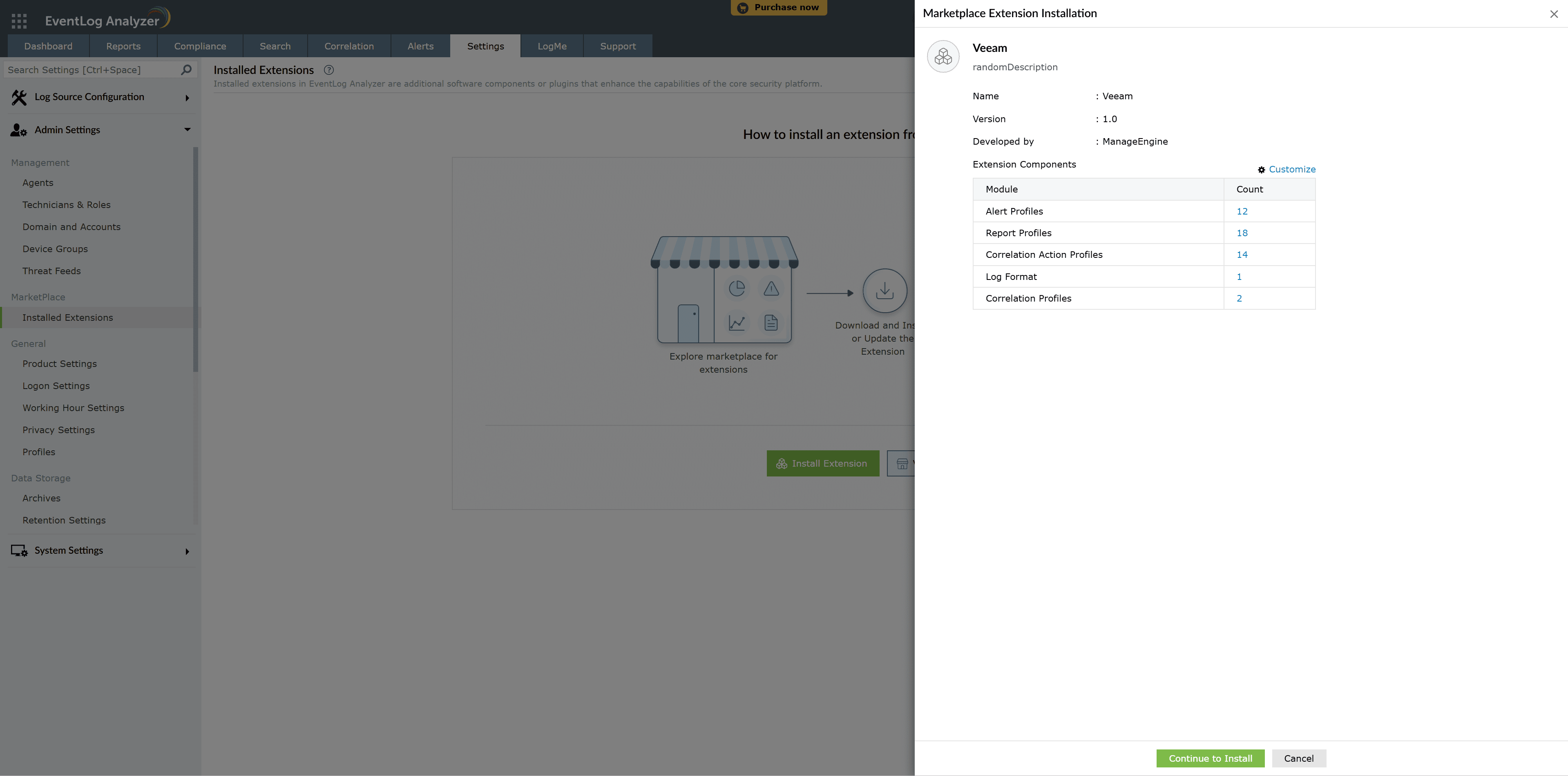
  4. Click Install Extension and upload the extension.
  5. Extensions
  6. Click Continue to Install to finalise the installation.
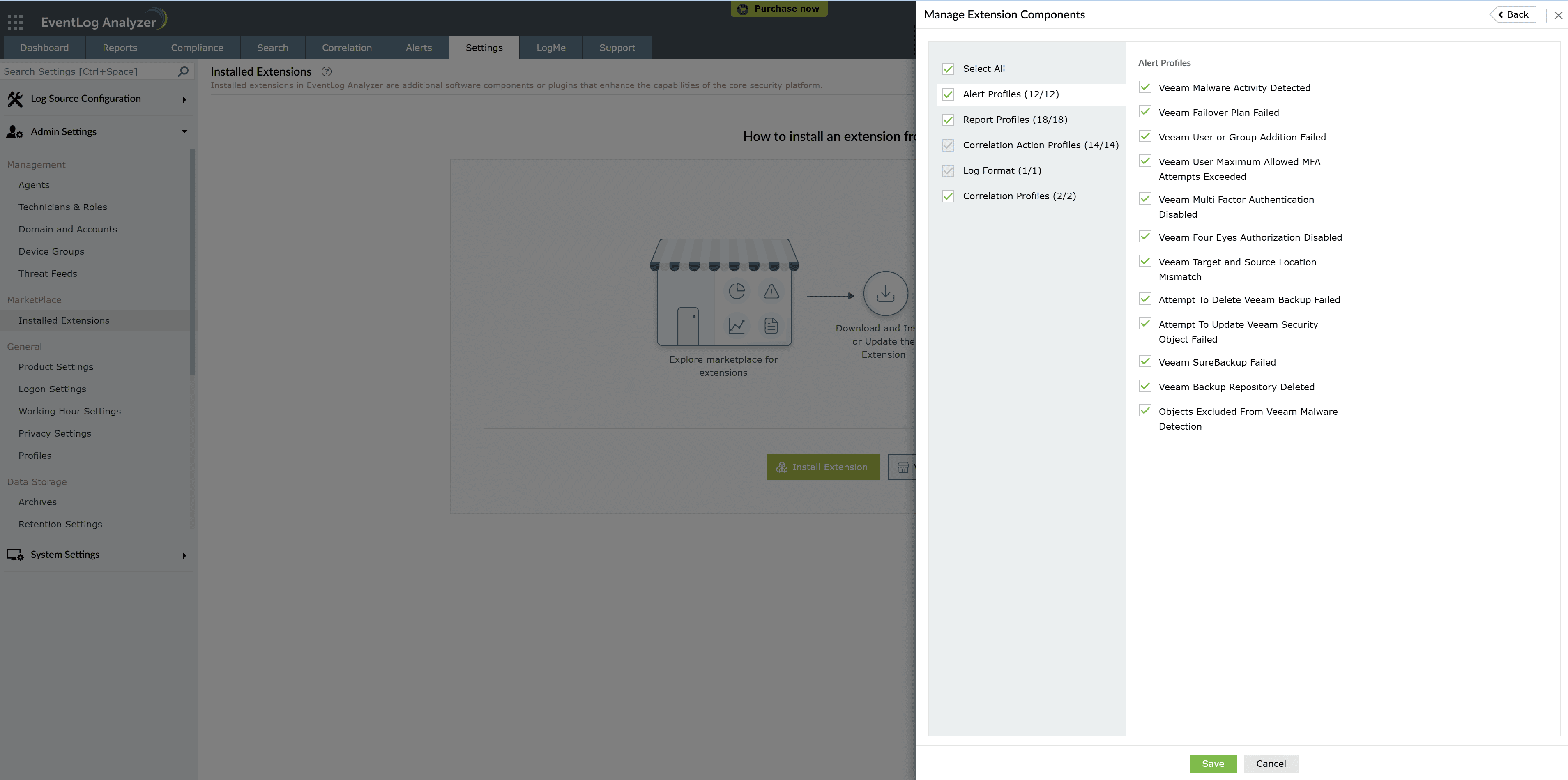
  7. Before installing, you can customize extension components such as reports, log formats, and other configurations using the Customize feature.
  8. Customize Extensions Customize Extensions

Updating an Extension

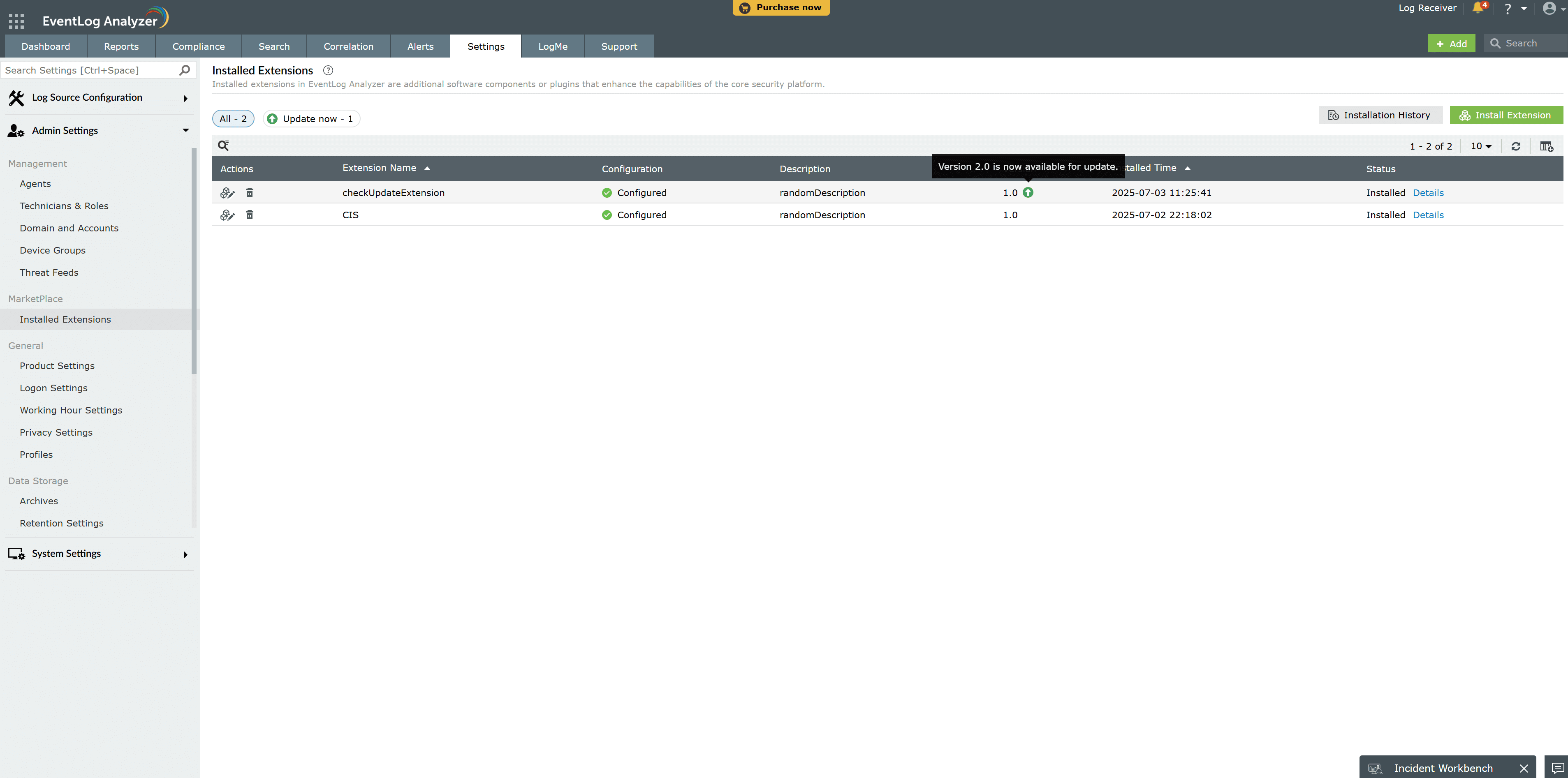
  1. If an update is available for an installed extension, an Update icon will appear in the Installed Extensions table.
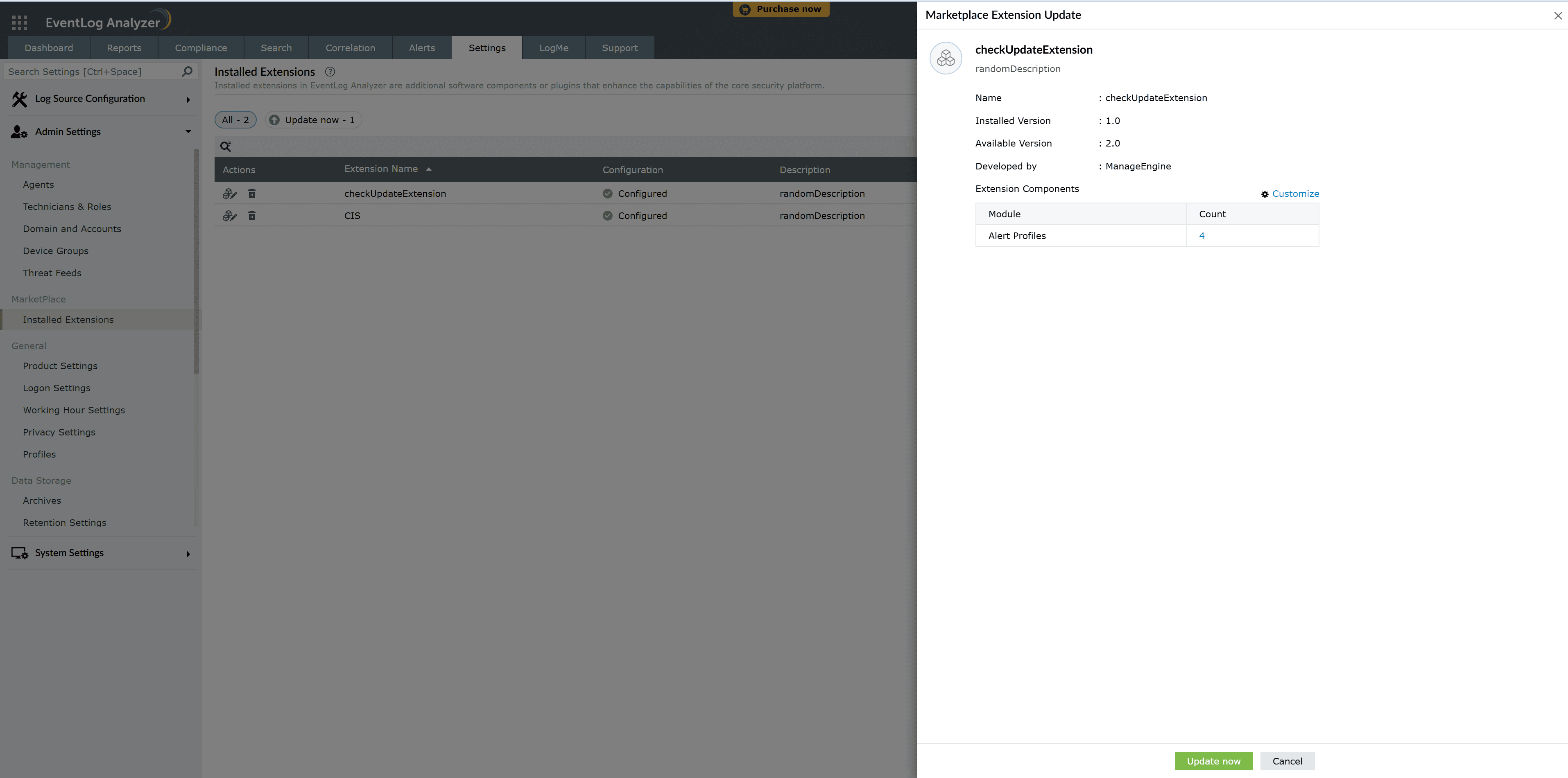
  2. Update Extensions Update Extensions
  3. Click the Update icon to update the extension. You can customize the components that need to be updated.
  4. The user can also manually update the extension by uploading the updated version, following the same steps used during extension installation.

Uninstalling an Extension

To uninstall an extension:

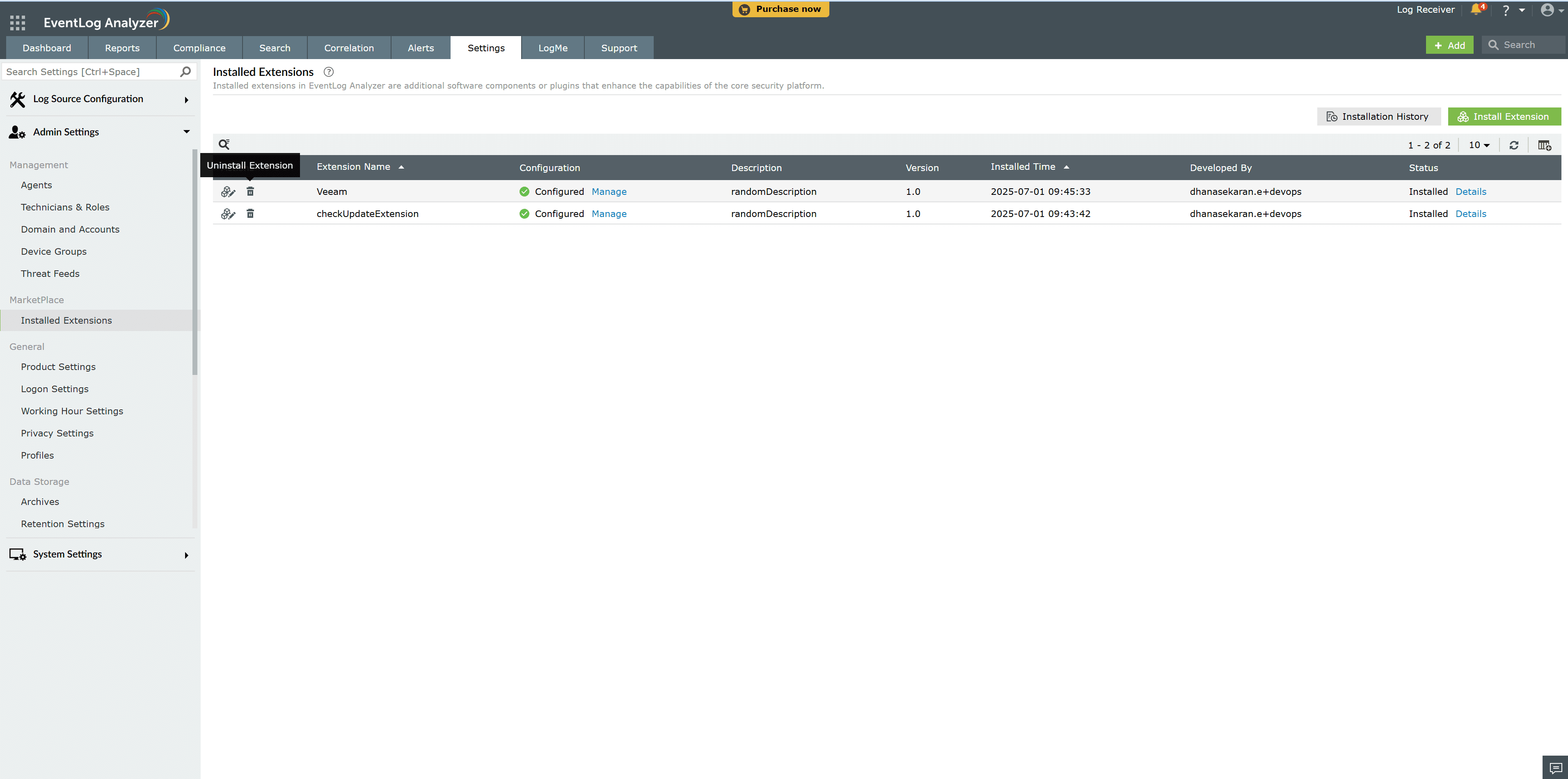
  1. Click the Delete icon in the Manage Extensions table.
  2. When an extension is deleted, all configurations associated with it will also be removed.
  3. Uninstall Extensions

Modifying an Extension

After an extension has been customized and installed, users can reinstall components that were not initially installed by clicking the Modify icon in the Manage Extensions table.
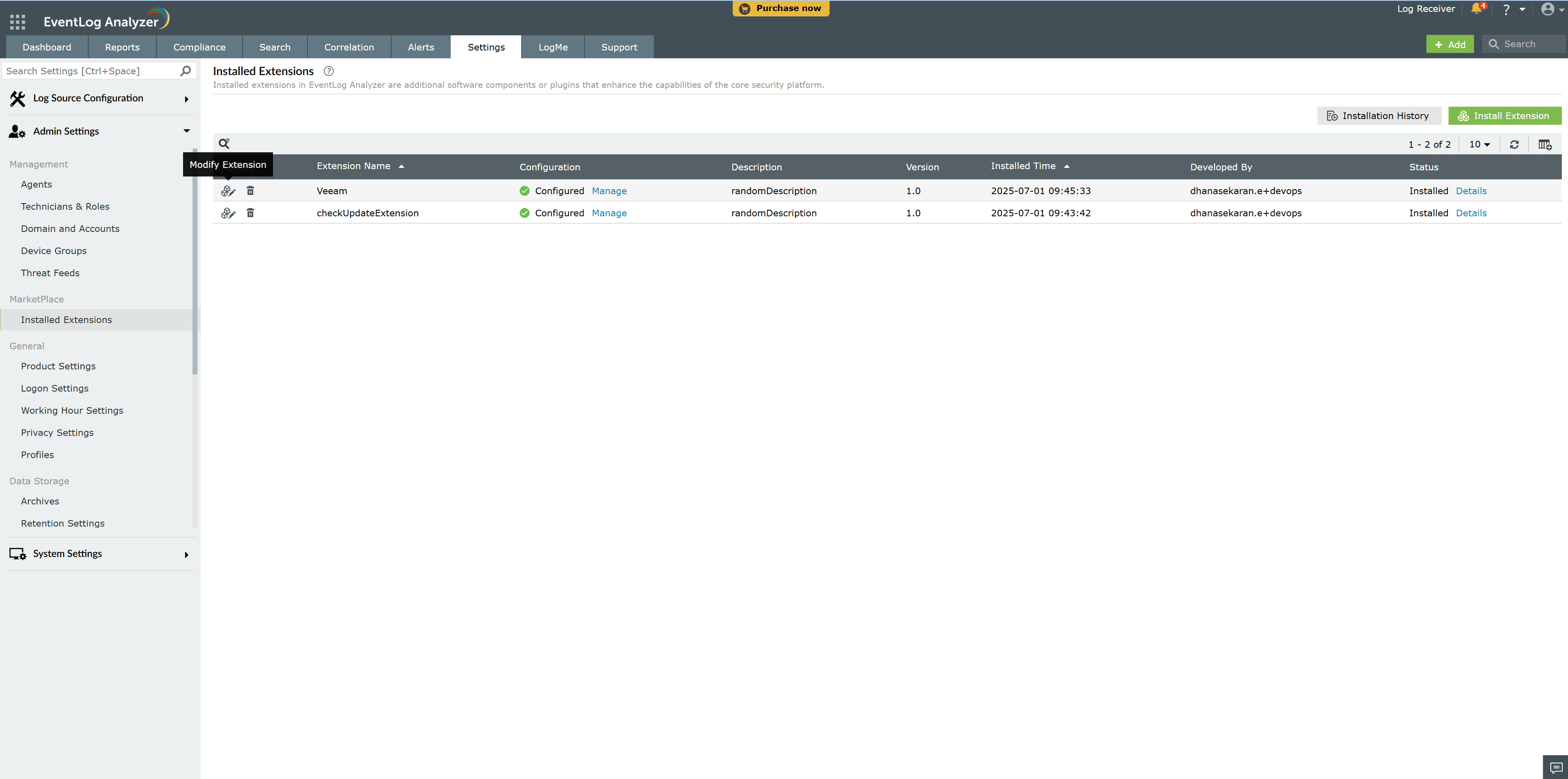
Modify Extensions

Extension Details

To view an extension's summary, usage statistics, installation history, and contents, click Details in the Manage Extensions table.

Extension Configurations

To configure applications or log sources for an extension:

  1. Click Manage in the Manage Extensions table.
  2. The configuration details window will open, allowing users to configure applications or log sources.

Installation History

To view the installation history of an extension, click the Installation History button.
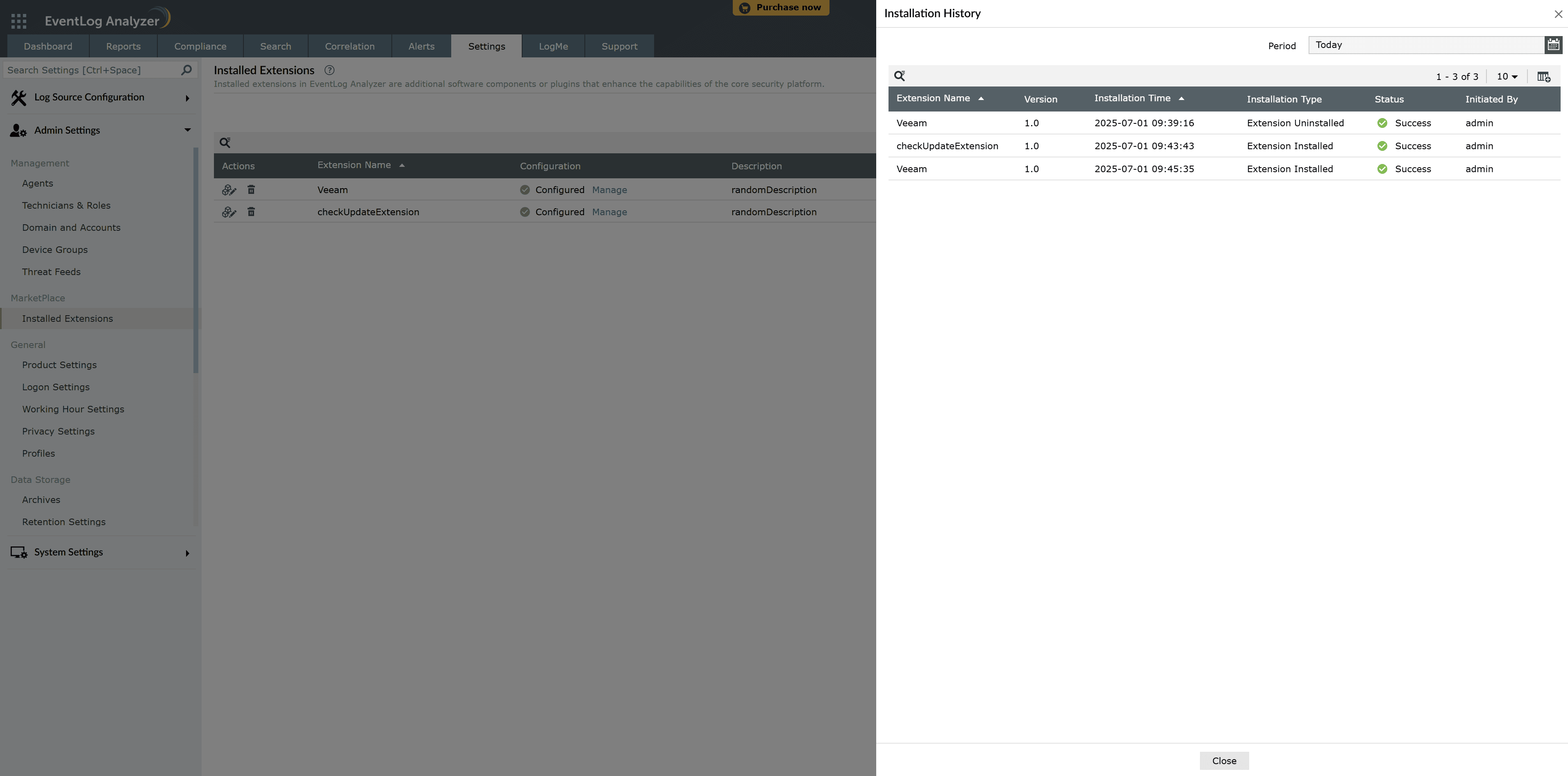
Modify Extensions

Troubleshooting Steps for Extension Installation Failure

Step 1: Verify that the extension is compatible with your application's version.

Step 2: Clear your browser cache and retry the installation.

Step 3: Check the failure status in the Installation History for more details.

Step 4: If the issue persists, contact our support team or the extension developer for further assistance.
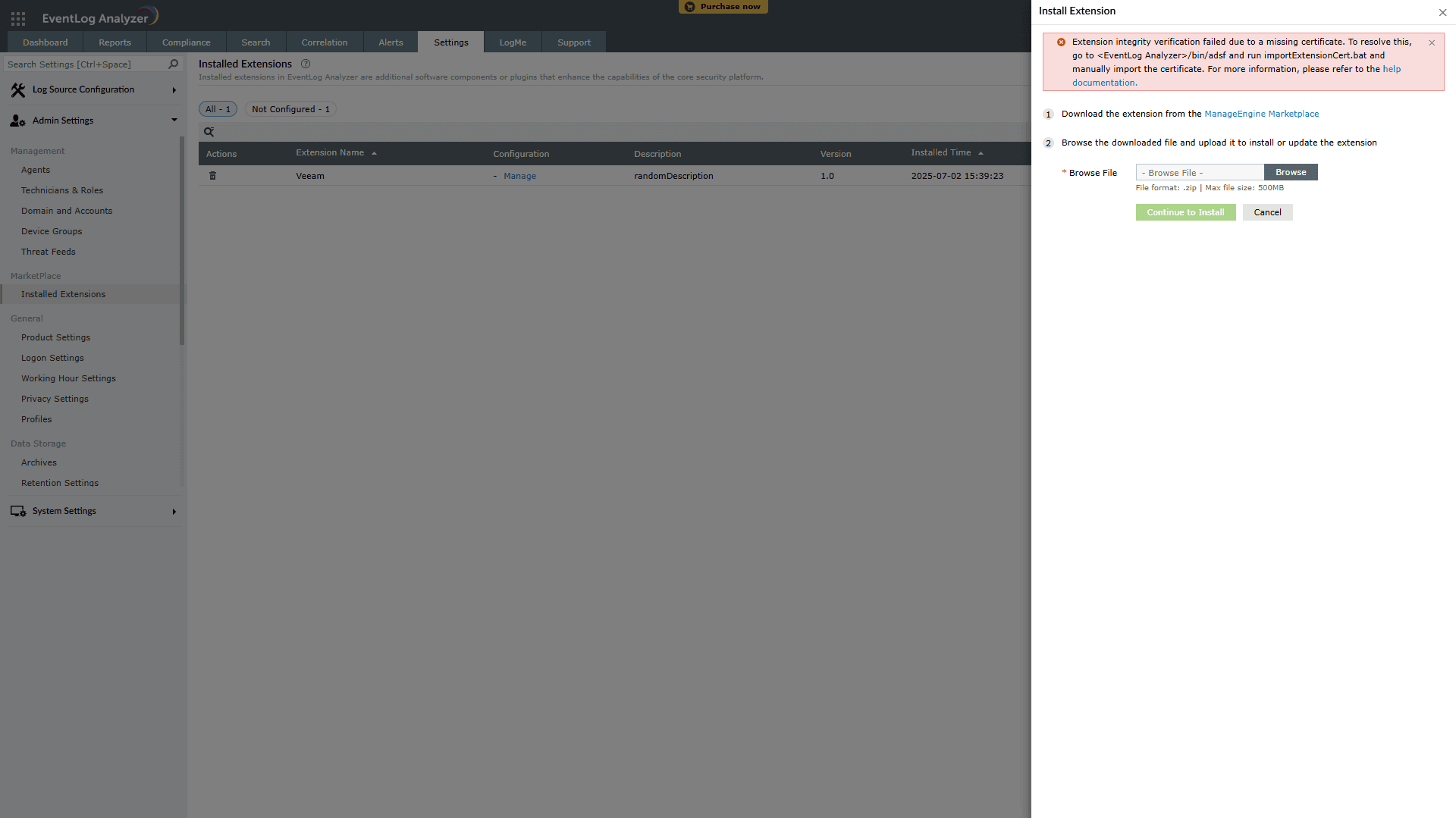
Manual Certificate Sync if Automatic Certificate Download Fails:

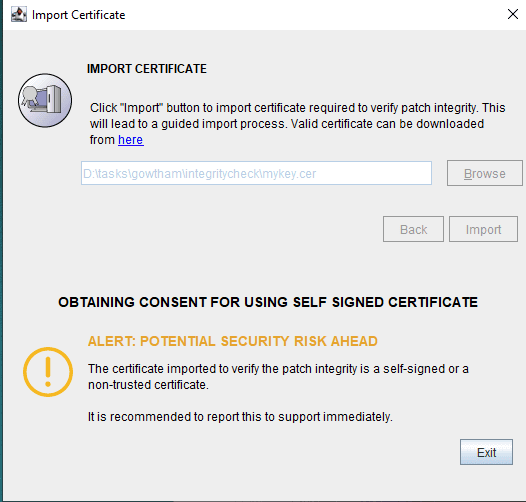
  • If automatic certificate synchronization fails due to network issues, extension integrity verification will not occur. In such cases, the following error will appear:
  • Certificate Sync Error
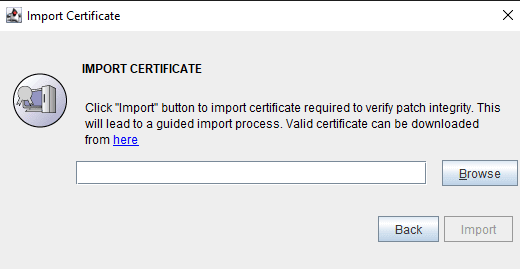
  • To import the certificate manually, navigate to server_home/bin/adsf and execute importExtensionCert.bat (for Windows) or importExtensionCert.sh (for Linux/macOS).
  • Certificate Sync Error
  • The certificate download link will be available within the popup. Once downloaded, browse to the file and import the certificate.
  • Note: Only the certificate downloaded from the provided link can be synced. Attempting to import any other certificate will result in an error.
    Certificate Sync Error
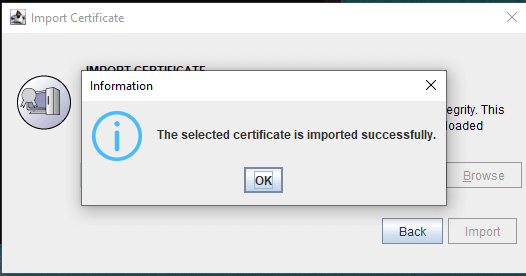
  • After importing the appropriate certificate, a success popup will appear.
  • Certificate Sync Success
  • Once the certificate is successfully imported, you can retry installing the same extension.

Copyright © 2020, ZOHO Corp. All Rights Reserved.

Get download link