How to troubleshoot PXE Errors?
These error codes will be visible only if you boot your computer in legacy mode. List of errors addressed in this document:
PXE-E32: TFTP open timeout / PXE-E35: TFTP read timeout
Problem
Open timeout error occurs when the TFTP open request to read the boot file goes unacknowledged. Read timeout error occurs when the TFTP data packet is not received by the client server.
Solution
To solve this issue follow the steps mentioned below:
- Check if the ManageEngine OS Deployer PXE Server is running
- Check Windows Defender Firewall Check the DHCP configurations
- Check network reachability
Check if the ManageEngine OS Deployer PXE Server is running
- Go to Windows Start → Run → Type Services.msc
- Select ManageEngine OS Deployer PXE Server. Verify if the service is running under status.
- If not running, restart the service. Refresh and check again.
- If still not running, verify port conflicts:
- Run in Command Prompt:
netstat -naop UDP | findStr "69" - Find PID → In Task Manager → Services tab → Match PID
- If other PXE services (eg., WDS PXE) are using port 69, stop/uninstall them.
- Restart ManageEngine OS Deployer PXE Service.
- Run in Command Prompt:
- Do this for both Local Server and Distribution Server installations.
Check Windows Defender Firewall
Applicable for both local and distribution server.
- Go to Control Panel → System and Security → Windows Firewall.
- If Firewall is ON:
- Click Advanced settings → Inbound Rules.
- Create a New Rule → Choose Port → Protocol UDP → Ports 69, 4011.
- Select Allow the connection if it is secure.
- Apply to Domain, Private, and Public profiles.
- Finish with a name like "ManageEngine OS Deployer PXE Service Ports."
Check the DHCP configurations
To verify the boot file names and servers, refer this document.
- Verify if the correct IP address and boot filename are configured in DHCP and boot the client again.
- If product server is migrated:
- Update the new IP address in DHCP.
- Create and publish new PXE media.
- For a new remote office, create and publish PXE media again and configure it in DHCP.
- Remove old PXE software DHCP settings if present (example: WDS PXE entries like option 66, 67, 60).
Network reachability
Ensure the product server, DHCP server, and the target computer are all connected to the same network and can communicate across VLANs.
NBP filesize is 0 bytes PXE-E23: Client received TFTP error from server
Problem
This error occurs when DHCP option is configured only for legacy mode but the target machine boots using UEFI sequence.
Solution
Perform any one of the following:
- If using a Windows DHCP server, create policies for multiple boot modes to auto-detect the right boot file. Refer this document.
- Or, change the boot file name based on boot mode:
EFI\Boot\bootx64.efifor UEFI 64-bitEFI\Boot\bootia32.efifor UEFI 32-bit- Or boot the machine in Legacy mode if required.
PXE-E53: No boot filename received PXE-M0F: Exiting Intel PXE ROM.
Problem
This error occurs when PXE boot response from DHCP is incomplete: missing PXE server address and/or boot filename.
Solution
Follow these steps:
- Check if the ManageEngine OS Deployer PXE Server is running
- Check Windows Defender Firewall
- Check the DHCP configurations
- Check network reachability
Check if the ManageEngine OS Deployer PXE Server is running
- Open Services.msc and verify the service status.
- If stopped, try restarting it. If still not running, check port 69 conflicts:
- Run:
netstat -naop UDP | findStr "69" - Identify PID using port 69, find the process in Task Manager → Services tab.
- Stop conflicting services (eg., WDS PXE).
- Run:
Check Windows Defender Firewall
- If Windows Firewall is ON:
- Create Inbound Rules for UDP ports 69, 4011.
- Allow connections if secure.
- Apply to Domain, Private, Public profiles.
Check DHCP configurations
- Ensure correct PXE server IP and boot file name.
- Update DHCP settings after server migration or remote office setup.
- Remove old PXE server entries like WDS options 66, 67, 60 if any.
Network reachability
Ensure proper connectivity across the product server, DHCP, and client devices, even across VLANs.
PXE-E16: No valid offer received
Problem
This error occurs when DHCP option 060 is configured as PXEClient.
Solution
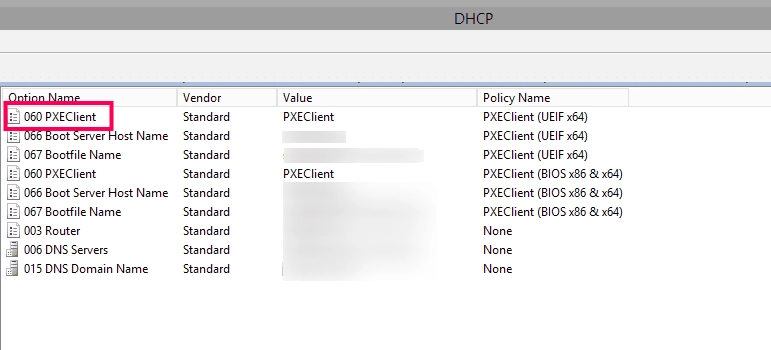
To resolve this problem, remove the DHCP option 060 PXEClient entry.
PXE-E79: NBP is too big to fit in base memory
Problem
This issue occurs when boot file name configured for Legacy and PXE boot performed in UEFI machine or UEFI boot file name is configures and trying PXE boot in Legacy machine.
Solution
Perform any one of the following:
- Change boot file name (Option 67) to EFI\Boot\bootx64.efi in DHCP for target machine subnet.
- Change boot file name (Option 67) to boot\pxeboot.n12 for target machine subnet
PXE-E18: Server response timed out
Problem
This issue happens for multiple reasons like PXE media not properly published, DHCP configured incorrectly, target machine unable to contact the local or remote office server.
Solution
Perform any one of the following:
- Run the PXE troubleshooting tool and check whether the basic requirements are met.
- Go through DHCP configurations to verify whether the local or remote office server IP is configured properly under the correct subnet.
- Check whether the local or remote office server is reachable from the target machine.