How to configure a driver repository
The pre-requisites for creating and deploying an image using OS Deployer involves creating two repositories: an image repository and a driver repository. The drivers collected using automatic and manual collection are stored in the driver repositories.
OS Deployer follows a similar process for creating an image repository as well as a driver repository. Follow the steps given below to create a driver repository:
- Under the Drivers tab, select Driver repository.
- Select Add driver repository.
- Specify a unique driver repository name.
- Select the remote office under which the repository is to be located.
- Specify the share path, the network share where you want to store the drivers detected from the imaged system.
- Select or add the credential to access the driver repository. Ensure that the specified credential has Read and Write permission to access the share.
- Specify the IP Address and FQDN of the computer where the shared network path is configured. This is optional.
- Select OK.
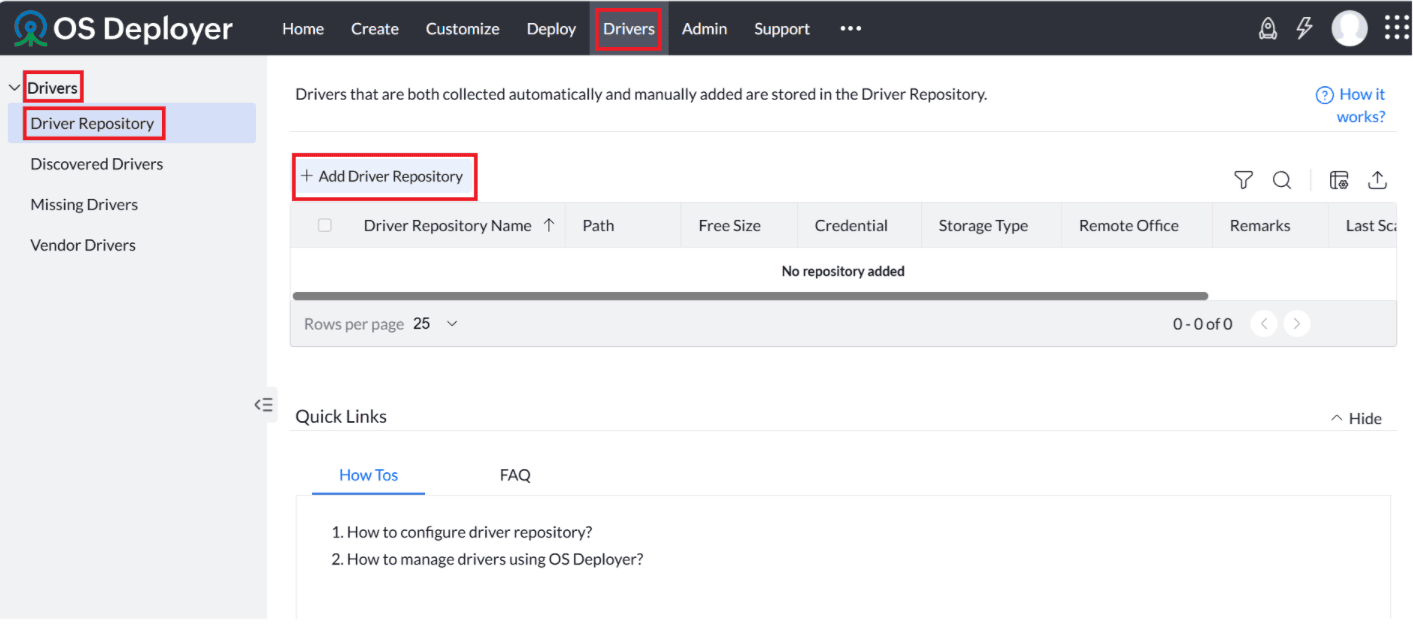
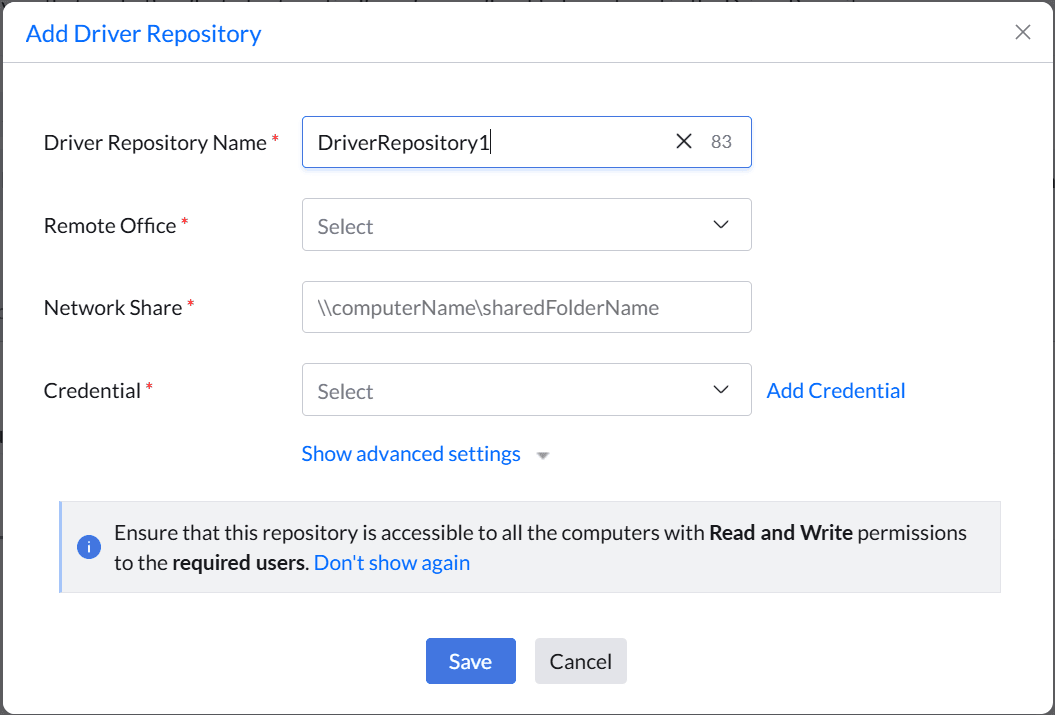
You have successfully created a driver repository.
The drivers automatically detected from the imaged system and from the system where the agent is installed will always be stored in the primary driver repository. If you have already created a driver repository, you will have the option to set this new repository as the primary driver repository.
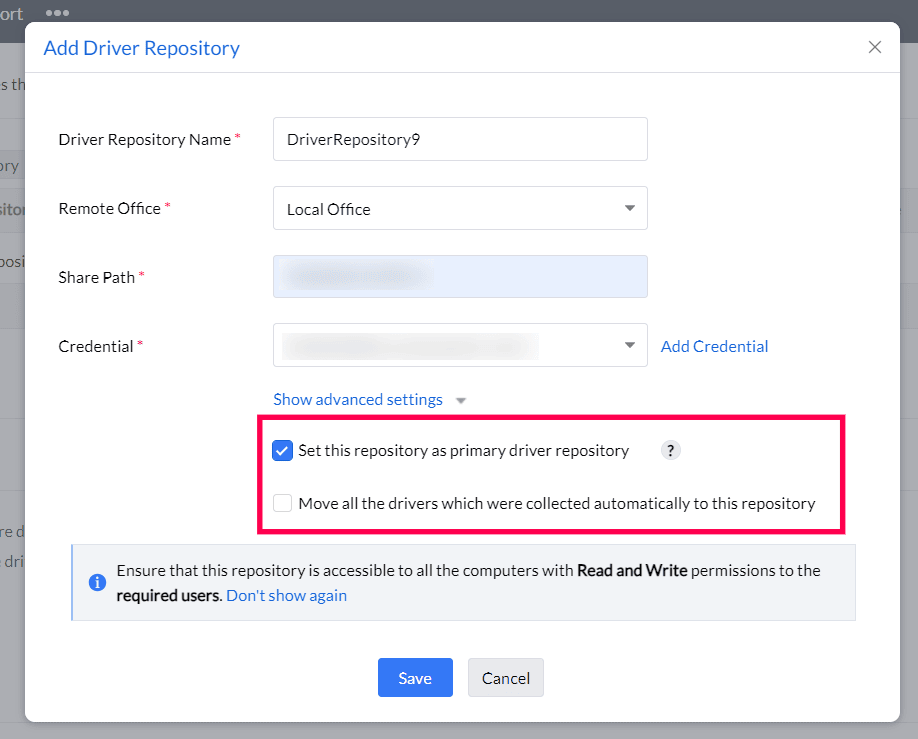
From then on, the automatically collected drivers will be stored in the new primary driver repository. However, the drivers in the old repository will still be used for deployment purposes. You can also move the drivers that were already collected to this new repository.
Refer this document to learn how to share a folder.
Driver Handling Status
After creating your driver repositories, OS Deployer keeps the repository data updated through automatic and on-demand scans. Local office repositories are scanned every 4 hours, while remote office repositories are scanned every 24 hours to detect newly added or removed drivers. You can also perform manual scans at any time:
- Differential Scan: Detects drivers that were recently added or removed. This can be triggered using the Scan Driver Repository option at the top of the console.
- Full Scan: Clears all previously stored driver details for that repository and rebuilds the complete driver database. This can be initiated using the Initiate Full Scan option under the Action menu.
During deployment, OS Deployer checks the drivers identified through automatic and manual scans and assigns one of the following statuses:
- Missing Driver
Shown when the required driver is not available in the captured image and is also not found in the driver repository after the most recent scan. - Existing Driver Retained
Shown when the required driver is available only in the captured image and not in the repository, or when the repository driver fails to install. In this case, OS Deployer keeps the driver from the image. A custom fix is available for installation failures. - Driver Installed Successfully
Shown when the driver is missing in the captured image, but is found in the repository and installs successfully. - Driver Updated Successfully
Shown when the driver exists in both the captured image and the repository, and the repository version installs successfully, replacing the older version.
 Yes No