Importance of Checksum validation of downloaded .ppm file
A PPM file is the upgrade package you apply to keep OS Deployer up to date. This page walks through downloading the right ppm for the current setup and verifying it before use.
Understanding PPM Files
A .ppm file is a self-contained upgrade package for OS Deployer, applied through the Update Manager tool (UpdateManager.bat) included with the installation. Each PPM is version-specific — it must correspond to the current build before it can be applied.
| Attribute | Details |
|---|---|
| File extension | .ppm |
| Example filename | ManageEngine_OS Deployer_SP_XXXXX.ppm |
| Typical file size | 200 MB — 1 GB |
| Applied using | <InstallDir>\bin\UpdateManager.bat |
| Can be re-used? | Yes — works on any server running the same source build |
Choosing the Right PPM
The correct PPM depends on your . If you are more than one service pack behind the target, the upgrade must be completed in stages rather than in a single step. Before downloading, verify the recommended upgrade path on ManageEngine's OS Deployer official service pack page.
Method 1 — From the Console (Recommended)
- Log in to the OS Deployer web console.
- When an upgrade is available, a notification banner or a Download Now link will appear. Clicking it redirects to ManageEngine's service pack page, where the applicable PPM for your current build is listed.
- Note the file path displayed in the console before running Update Manager.
Method 2 — From the Service Pack Page
- Navigate to ManageEngine's OS Deployer service pack page.
- Locate the build version required for your upgrade.
- Click Download next to the relevant service pack or hotfix.
- Save the
.ppmfile to a local drive on the Central Server (e.g.,C:\Upgrades\). Storing the file on a network share is not recommended, as intermittent read failures during the upgrade process are possible.
Checksum Validation
After downloading the PPM, verify the file's integrity before applying it to the server.
Validating File Integrity
A checksum confirms that the downloaded file is complete and unmodified. If the hash value does not match the published checksum, the file may be corrupted or incomplete. Applying a compromised PPM risks damaging the existing installation.
Checksum validation is especially important when the file has been transferred via USB, network share, or email. File corruption during transfer is a known cause of failed upgrades.
Steps to find the published Checksum
- Navigate to ManageEngine's service pack page.
- Locate the build you downloaded.
- Click the Checksum or MD5/SHA256 link next to the file.
- Copy the published hash value to compare against the output generated on your machine.
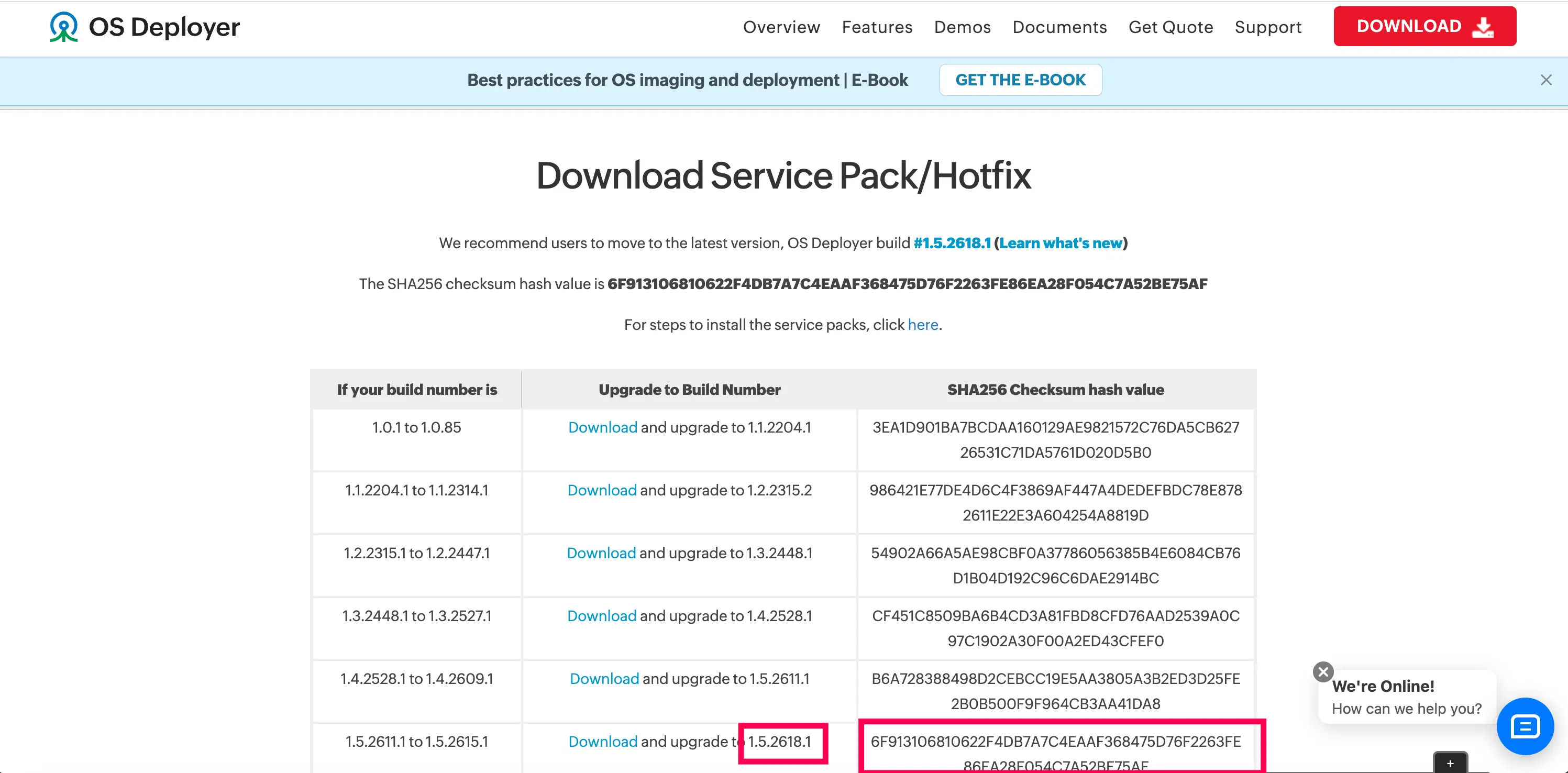
Validating on Windows
Use the built-in certutil command on Windows — no additional tools are required.
MD5
certutil -hashfile "C:\Upgrades\ManageEngine_OS Deployer_SP_XXXXX.ppm" MD5SHA256
certutil -hashfile "C:\Upgrades\ManageEngine_OS Deployer_SP_XXXXX.ppm" SHA256Compare the generated output against the hash published on ManageEngine's service pack page. The comparison is case-insensitive.
If the checksum matches the published value, the PPM file is valid and safe to use. Proceed with the upgrade by running UpdateManager.bat against the validated PPM file.
Checksum Mismatch
- Do not apply the file.
- Delete the downloaded PPM and any partially extracted files.
- Re-download the file from ManageEngine's official service pack page using a stable connection.
- Validate the checksum of the re-downloaded file.
- If the mismatch persists after a fresh download, contact ManageEngine Support — the published checksum may have been recently updated.