Accessing Privileged Accounts Configured with Access Control
Password Manager Pro enforces a structured password access control workflow to regulate access to privileged credentials, ensuring security, accountability, and compliance. Rather than granting unrestricted access to sensitive passwords, users must submit access requests, which are approved by designated administrators, before users can retrieve the privileged passwords. Users can request passwords instantaneously for high-priority tasks or schedule password requests in advance for planned maintenance or other activities that require privileged access. Users can quickly submit access requests, track their approval status, and retrieve passwords seamlessly once approved. This workflow prevents unauthorized access, reduces security risks, and ensures privileged credentials are used only when necessary, allowing users to perform their tasks efficiently while ensuring compliance
This help document covers the detailed steps to make password access requests via the Password Manager Pro interface, check out the password from the vault after approval, and check in the password to the vault after using it.
- Requesting Access to Passwords
- Requesting Access to Domain Account Passwords
- Check-In/Check-Out Passwords
1. Requesting Access to Passwords
Before you can enjoy access to privileged resources configured with access control, you should submit a password access request, which should be approved by the authorized administrators. Follow these steps to make a password access request:
- Navigate to the Resources tab and click on the resource that contains the desired account you wish to access. On the Account Details window, click the Request button beside the desired account.
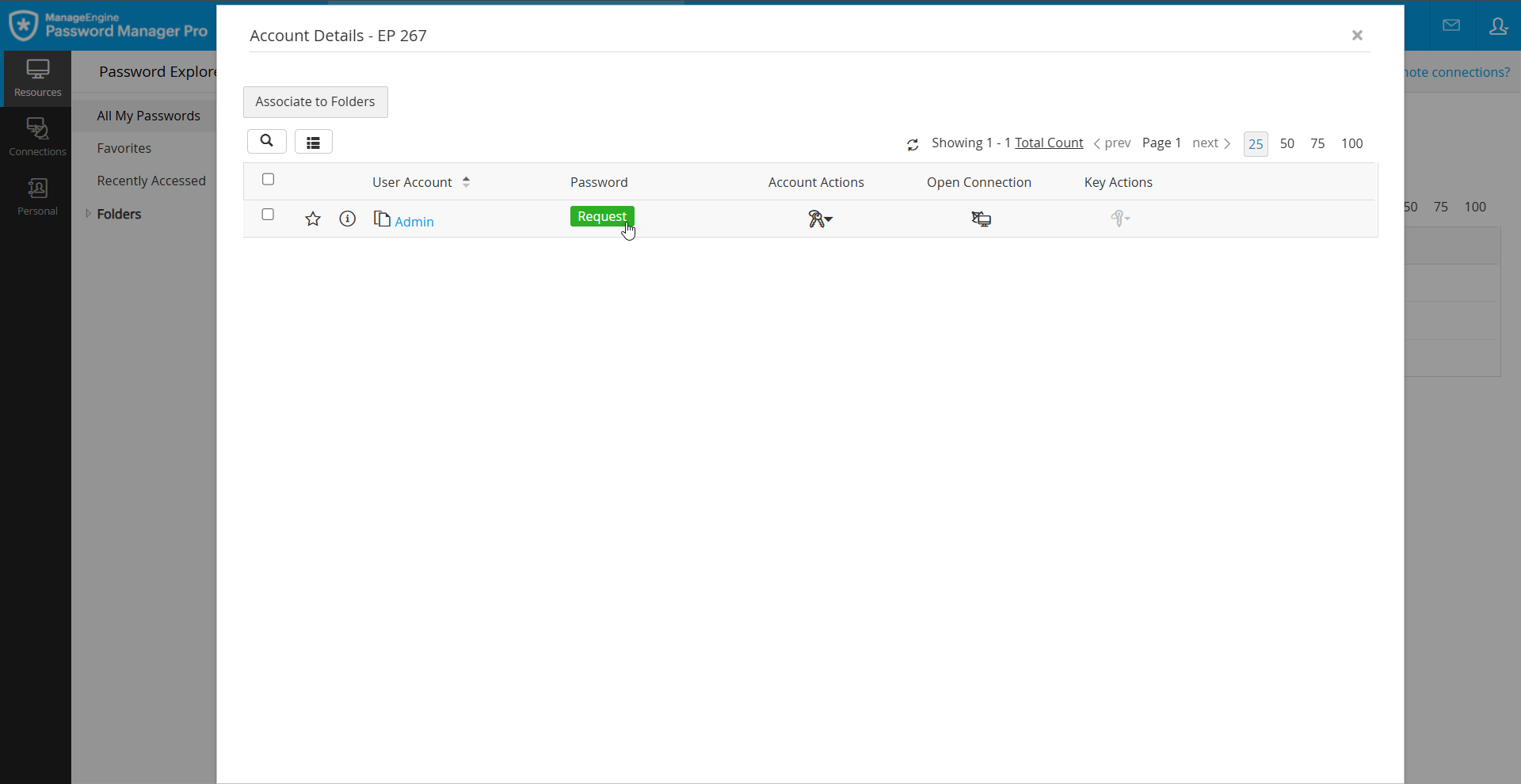
- Alternatively, you can switch to the Passwords tab, where you will see a list of all the privileged accounts shared with you, and click the Request button beside the desired account you wish to access.
- In the Password Request window, specify the following details:
- Access Time - Choose between one of the following options:
- Now - To access the password immediately
- Later - To schedule access for a future time
- Time Slot - Use the calendar option to select the start and end times for password access. Under Booked Slots, you can view the time slots for which the password is currently booked.
- Email Notification - Specify the time (in minutes) before the access duration when Password Manager Pro should send you a reminder email after the request is approved.
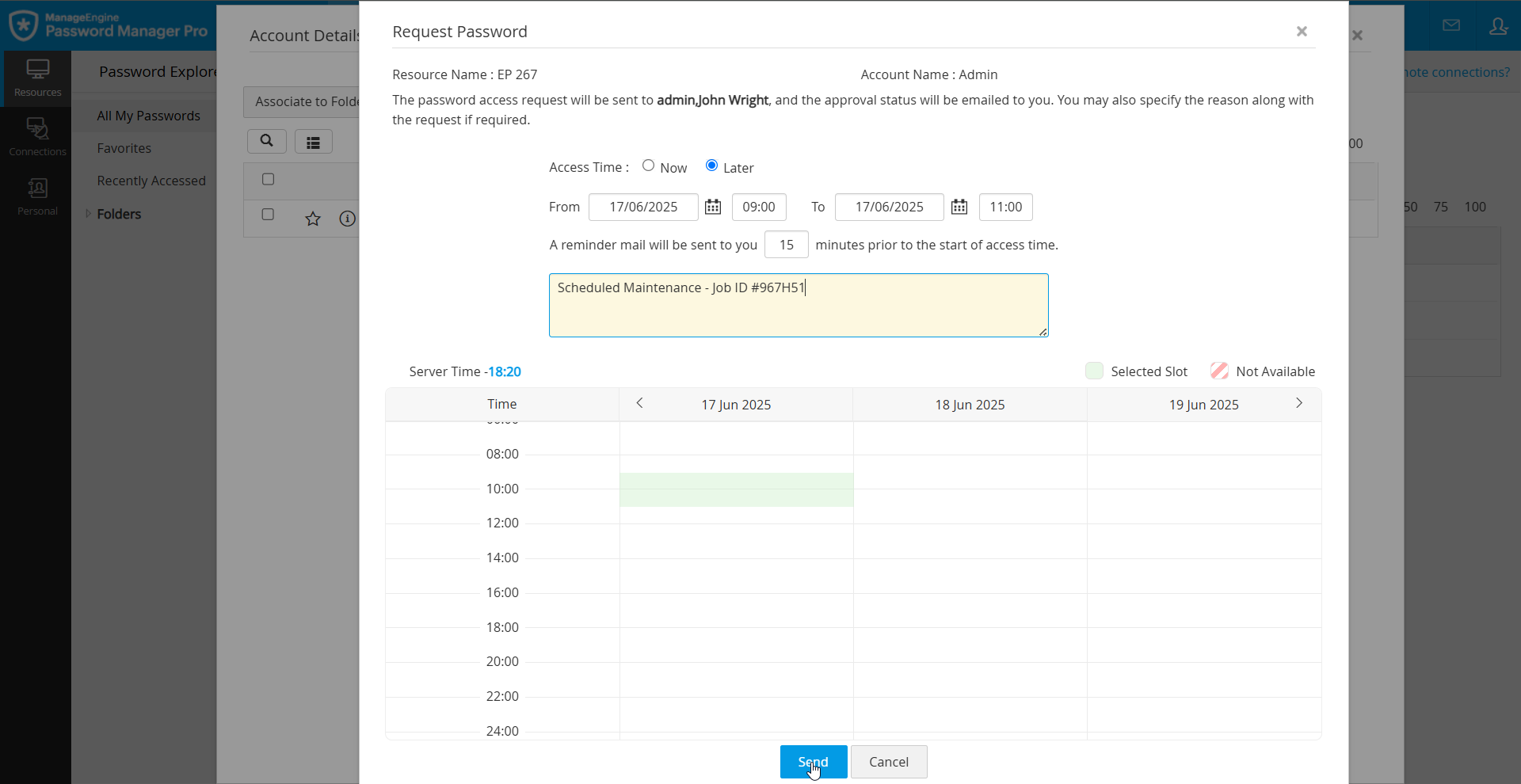
- Enter the reason for your request in the Reason field.
- If ticketing system integration is enabled in your environment for auto-approval, enter the ticket ID details in the Ticket ID field.
- Verify the resource and account names and click Send to submit the password access request. The status beside the account name will change to Waiting for Approval.
Your password access request has been successfully submitted for approval. You will receive an email notification once the administrator approves your request, indicating the access duration and status. After approval, you can check out the password.
2. Requesting Access to Domain Account Passwords
Follow these steps to request access to a domain account password:
- Navigate to the Resources tab and click on the Windows Domain resource that contains the desired account you wish to access. On the Account Details window, click the Request button beside the desired account to make a password access request.
- Alternatively, you can switch to the Passwords tab, where you will see a list of all the user accounts shared with you, and click the Request button beside the desired Windows Domain account you wish to access.
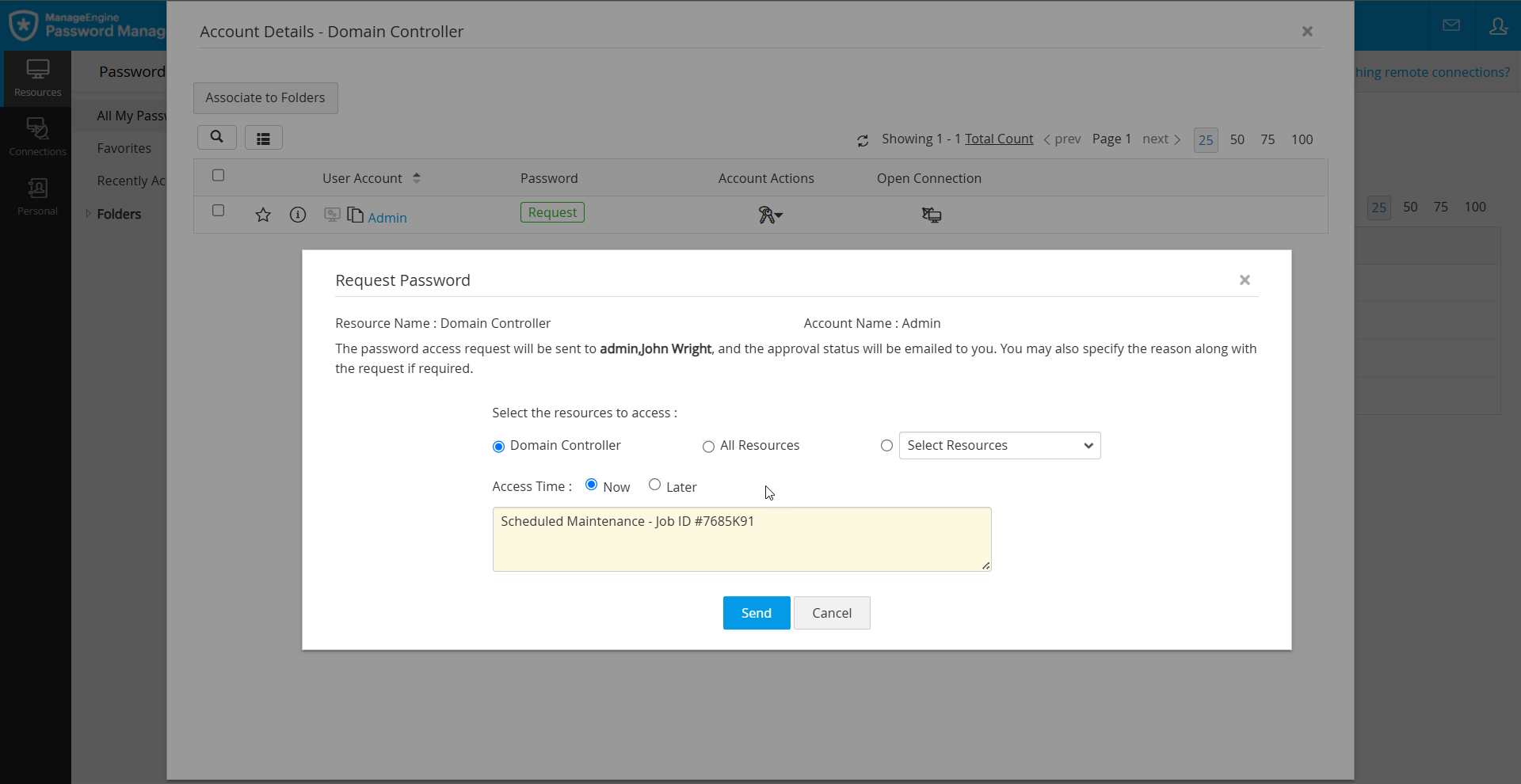
- In the Password Request window, specify the following details:
- Resources - Choose the desired member machines you wish to access using the selected domain account password.
- Domain Controller - To access the domain controller.
- All Resources - To access all the Windows Domain member machines that are shared with you.
- Select Resources - To access specific Windows Domain member machines that are shared with you.
- Access Time - Choose one of the following options:
- Now - To access the password immediately.
- Later - To schedule access for a future time.
- Time Slot - Use the calendar option to select the start and end times for the password access. Under Booked Slots, you can view the duration for which the password is currently booked.
- Email Notification - Specify the time (in minutes) before the access duration when Password Manager Pro should send you a reminder email.
- Enter the reason for your request in the Reason field.
- If ticketing system integration is enabled in your environment for auto-approval, enter the ticket ID details in the Ticket ID field.
- Verify the resource and account names and click Send to submit the password access request. The status beside the account name will change to Waiting for Approval.
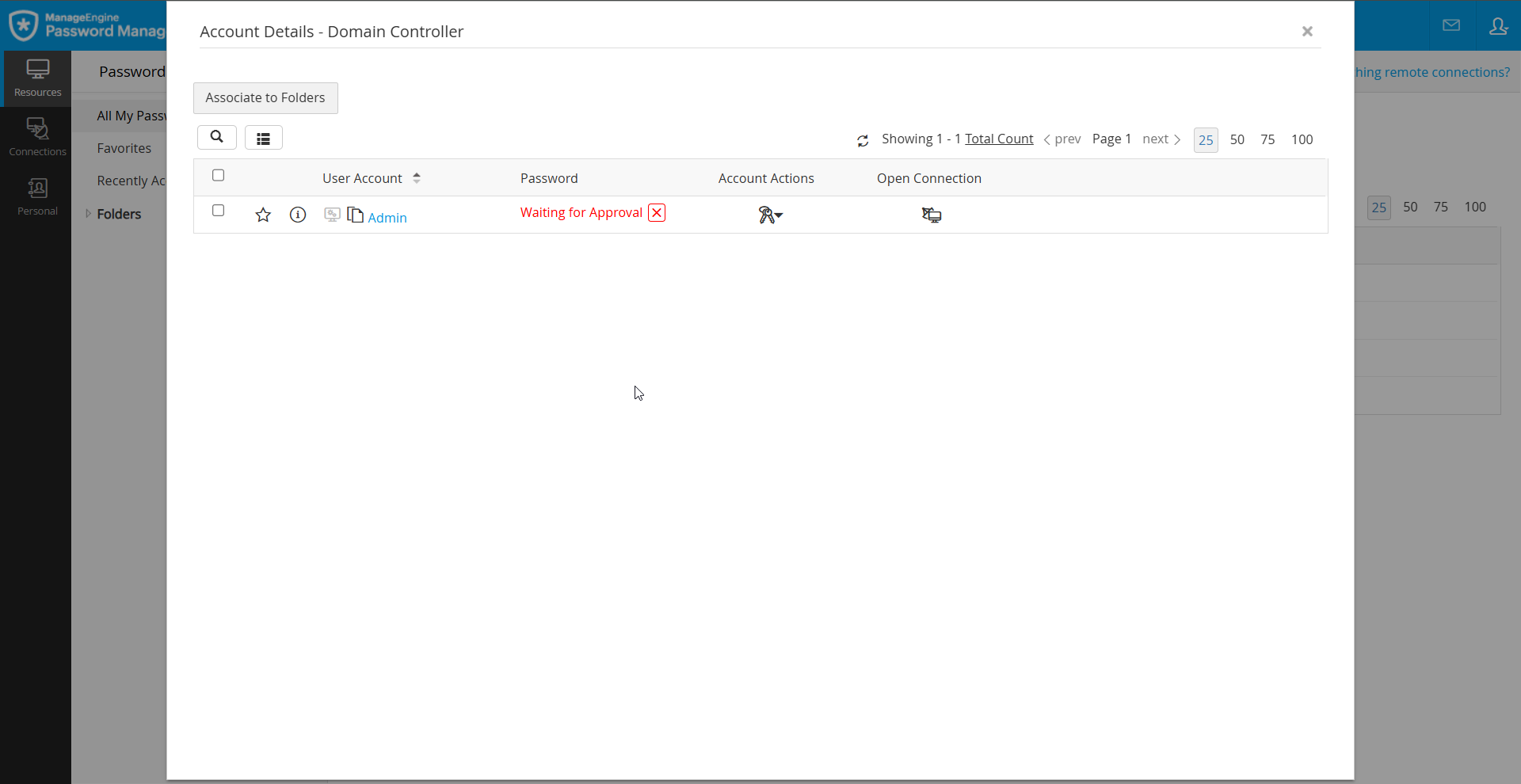
Your password access request has been successfully submitted for approval. Once the administrators approve the request, you will receive an email notification specifying the access duration and status. You can check out the password after approval.
Notes:
3. Check-In/Check-Out Passwords
You can check out the password once your access request is approved by the designated administrators and the access duration begins. Follow these steps to check out the password from the Password Manager Pro vault:
- Navigate to the Resources tab, switch to the Passwords window, and click the Check Out button next to the respective account for which you made a password access request.
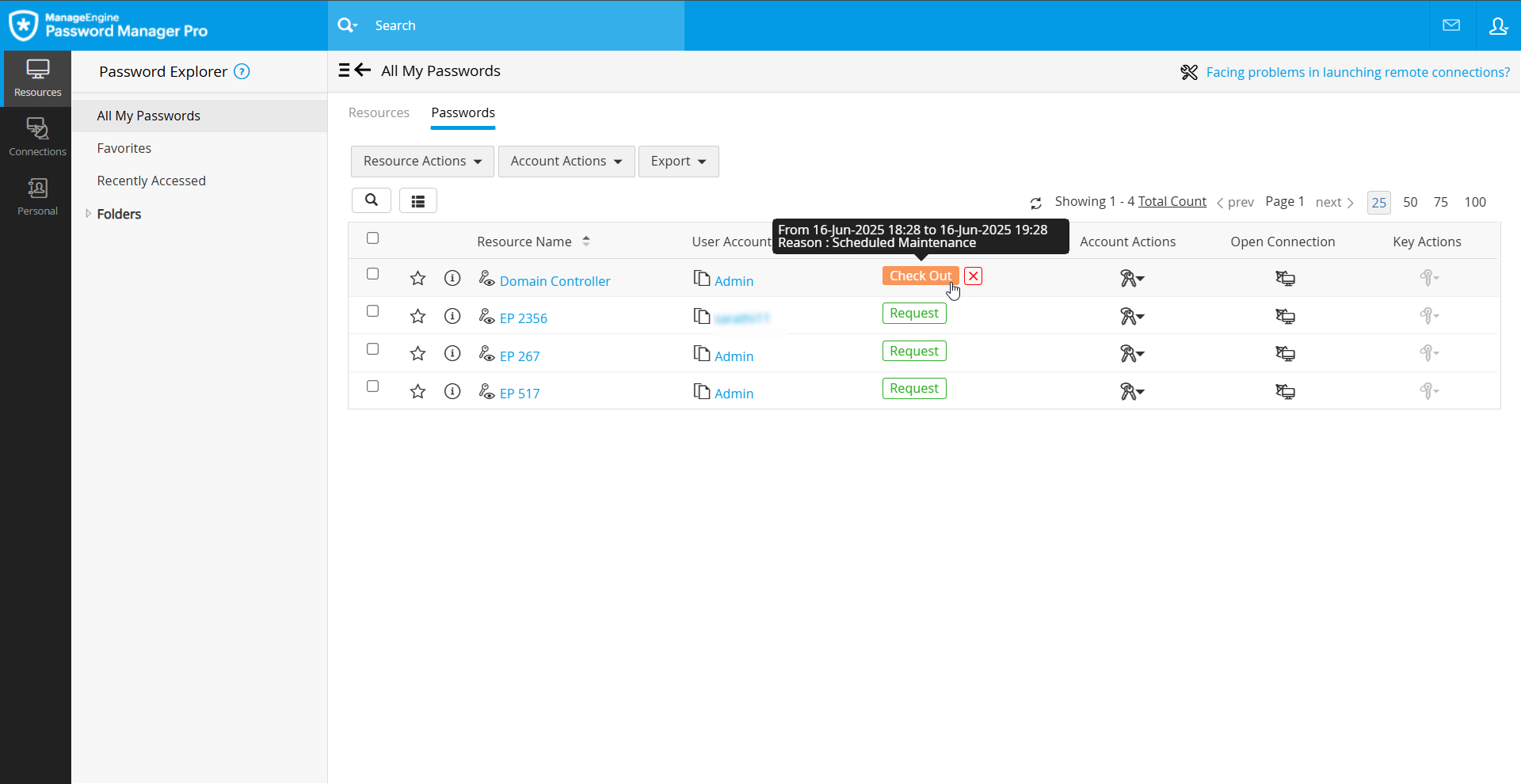
- Alternatively, click on the respective resource and select the Check Out button beside the desired account in the Account Details window.
- In the Password Check Out confirmation popup, you will see the resource and account details along with the approved access duration. Click Check Out to retrieve the password from the vault. You can then launch a remote connection using the retrieved password and perform your assigned tasks.
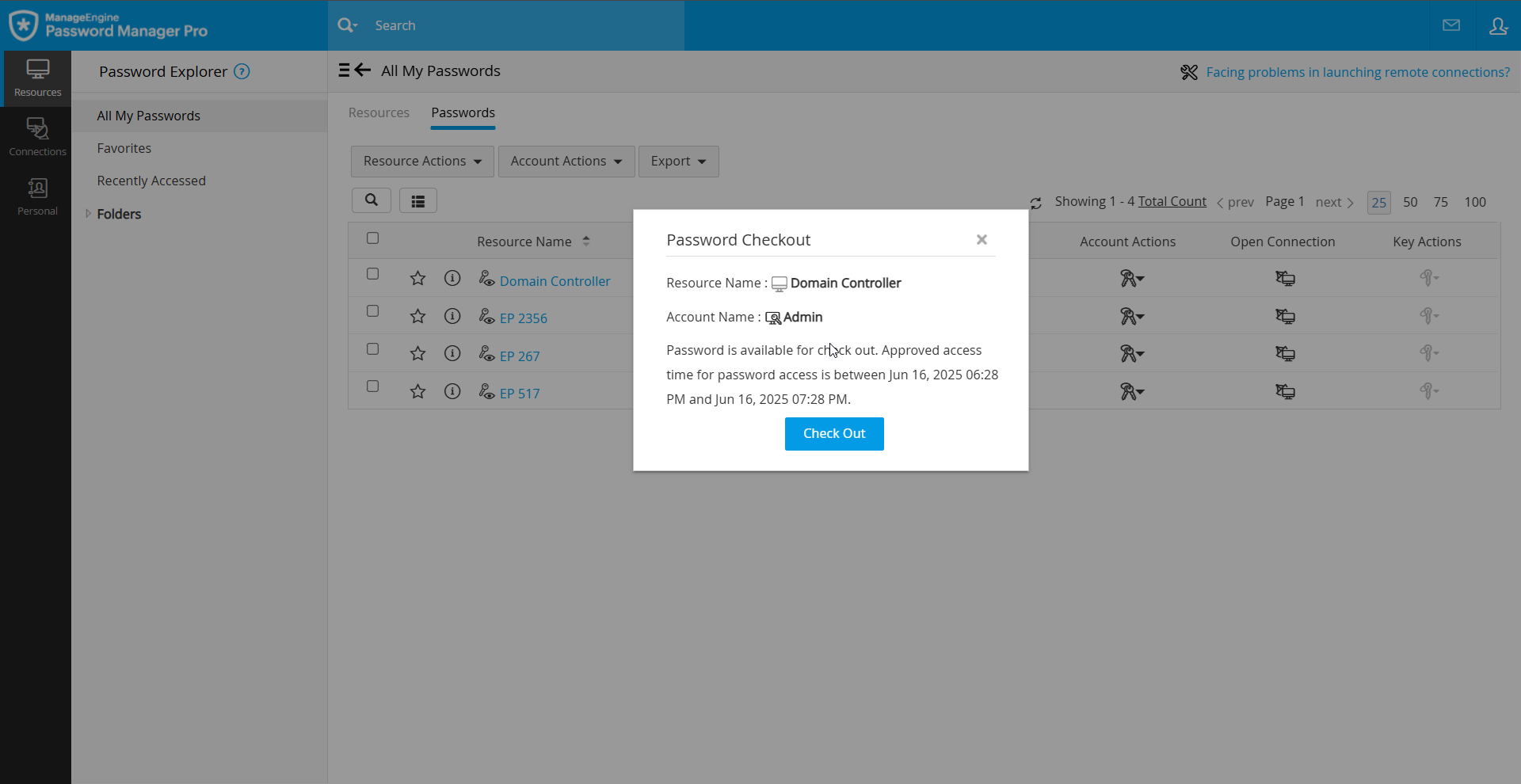
Note: You can check out the password from the vault only after your access duration begins. If you access this window before your approved access duration begins, you cannot check out the password. The Check Out button will remain disabled until your access period starts.
After completing your work, you should return the password to the vault. Follow these steps to check in the password to the vault:
- Navigate to the Resources tab, switch to the Passwords window, and click the Check In button next to the respective account whose password you checked out.
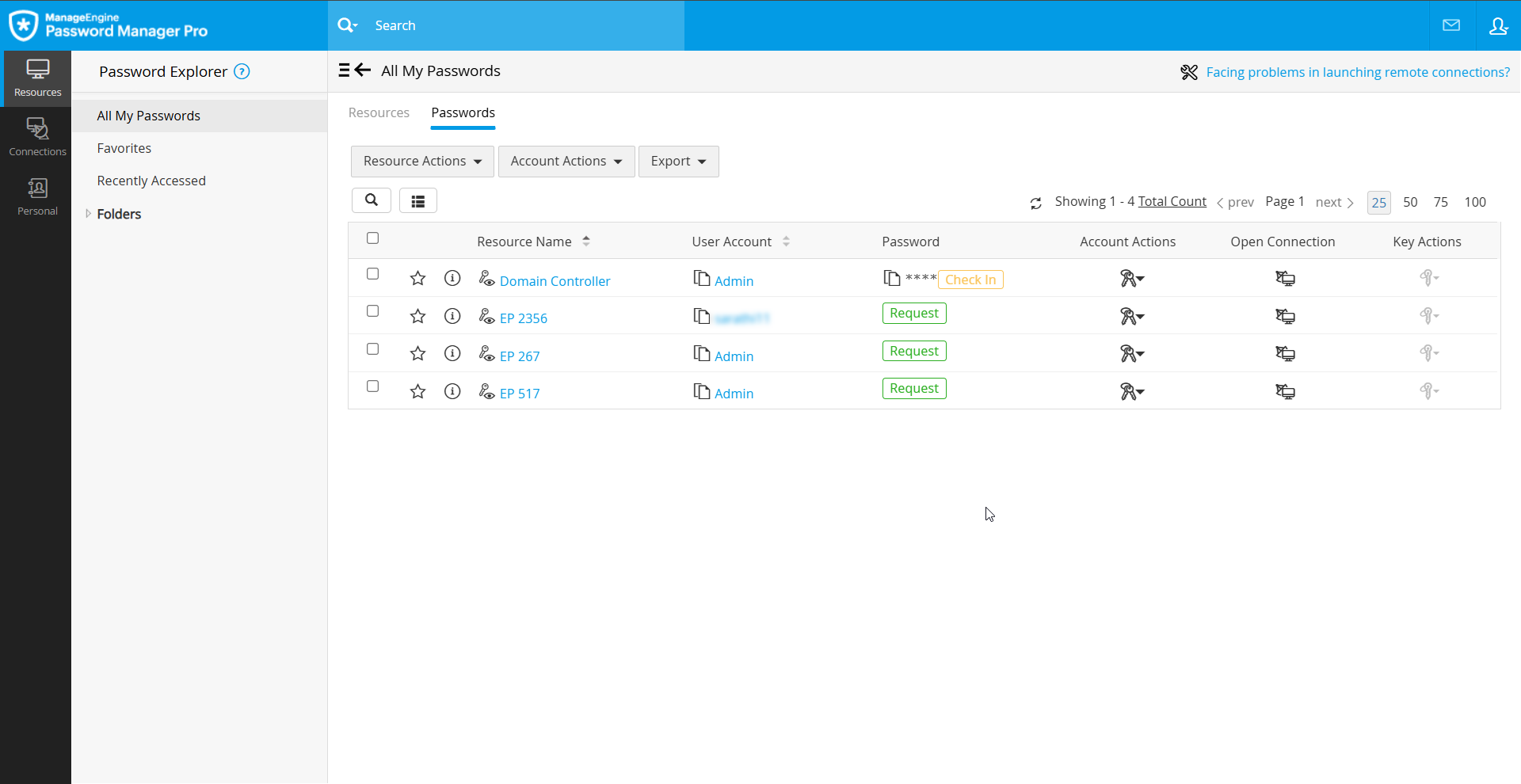
- Alternatively, click on the respective resource and select the Check In button beside the desired account in the Account Details window.
- In the Password Check In confirmation popup, you will see the resource and account details. Click Check In to relinquish access to the password.
Note: Once you manually check in the password to the vault or once the access duration stipulated in the password access request ends, you will no longer have access to the password. If you need to access the password again, you must submit a new password access request by following the request-approval workflow.