Failover deployment
Failover deployment ensures high availability by running ADSelfService Plus on more than one server so that end users can access the product even if a server fails. In this setup, you configure one instance as the primary server and one or more instances as secondary servers. The primary server handles all requests while the secondary servers stay on standby. If the primary server becomes unavailable, a secondary server takes over and continues serving requests without manual intervention.
How it works
Failover deployment in ADSelfService Plus groups the primary and secondary servers behind a single access point. As a result, end users always reach the active server through one address, no matter which server is currently active. At any given time, only the active server manages requests while the other servers remain on standby. And since all servers share one database, each server works from the same data.
The type of access point you use depends on whether the servers are on the same or a different subnet.
- When the servers are on the same subnet, end users connect through a virtual IP, which can be optionally mapped to a virtual hostname. During failover, the virtual IP automatically binds to the standby server that takes over.
- When the servers are on different subnets, a virtual IP cannot be assigned. You will have to use a virtual hostname instead.
When the active server experiences sustained downtime, a standby server becomes the new active server and resumes handling end-user requests. How traffic reaches the new server depends on the access mode: With a virtual IP, the IP automatically binds to the new active server. With a virtual hostname, end users reach the new server through that hostname. Because the standby server already shares the primary server's database, no data is lost during the takeover.
Scheduled jobs run on the primary server by default. If the primary server fails, scheduled jobs run on the server that takes over as the active server. You can identify the current active server in the Failover tab.
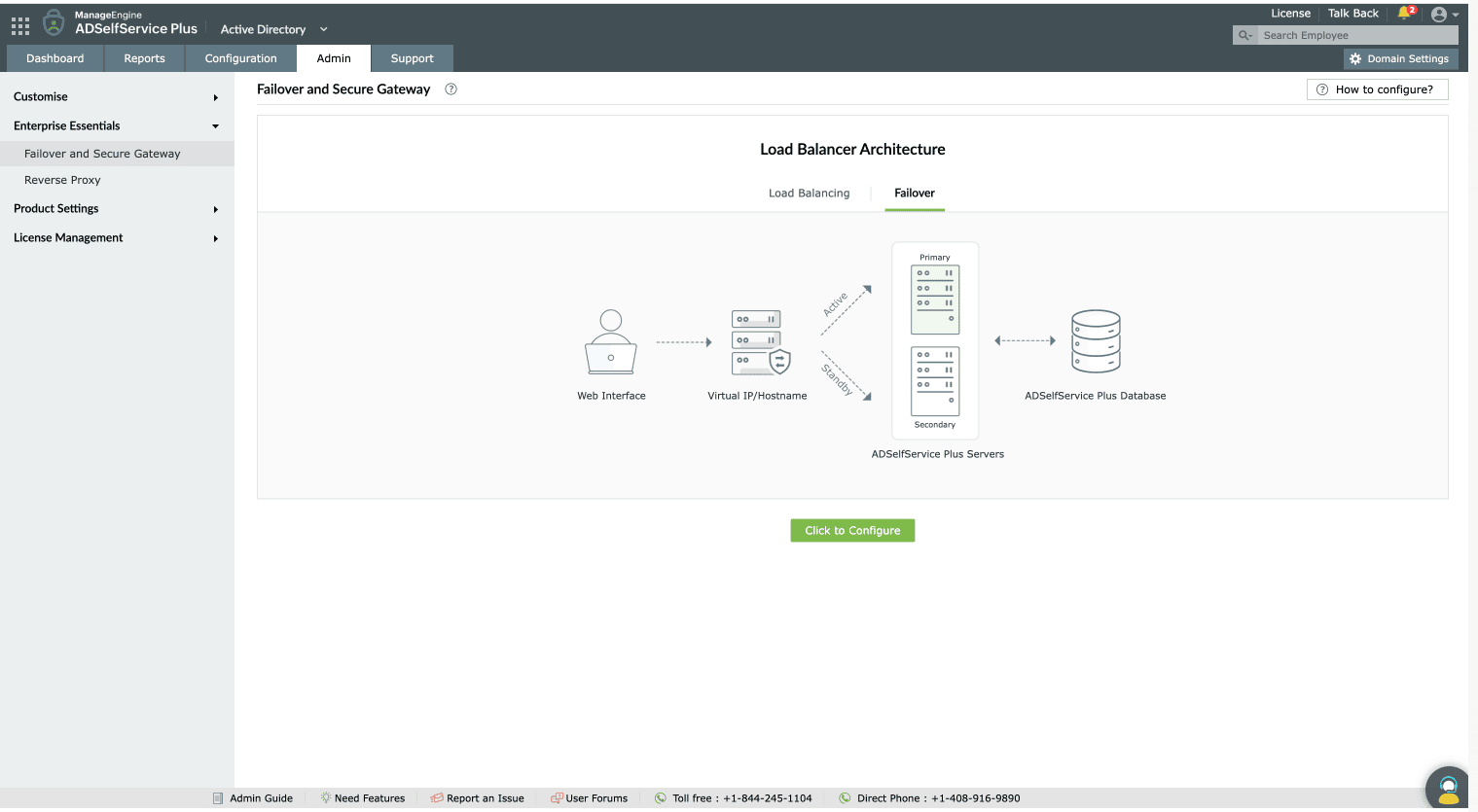
Prerequisites
Before you configure failover deployment, ensure that your environment meets the following requirements.
Permissions: Must have administrator access to the ADSelfService Plus console. The account that runs the product service needs operating system privileges to bind and unbind the virtual IP when the servers are on the same subnet.
Edition: Failover deployment can only be implemented through the Failover and Secure Gateway Services add-on. Visit the store to acquire this add-on.
Number of servers: Must have at least two ADSelfService Plus servers, one primary server and one or more secondary servers.
Product version: All servers must run the same ADSelfService Plus build version and build architecture (32-bit or 64-bit).
Service: Each ADSelfService Plus instance must run as a service.
Database: Use an external database (PostgreSQL or Microsoft SQL) for failover. The secondary servers use the database configured on the primary server. The built-in PostgreSQL database can cause a database connectivity failure if the primary server goes down, which renders the product nonfunctional.
Shared resources: Every server in the setup must be able to access all configured directories as well as the external database and product-related files.
Network: The product port (default 9251) must be open and reachable on all servers. Every server must use the same port as the primary server. The failover service communicates over a separate port (default 7800), so ensure that no firewall or antivirus blocks it between servers. If the access URL requires HTTPS, enable HTTPS on all servers.
Limitations
The following constraints apply to failover deployment in ADSelfService Plus.
- You must configure and change failover settings only from the primary server.
- Only one server is active at a time. The primary server serves all requests while the secondary servers remain on standby.
- If the primary and secondary servers are on different subnets, you cannot use a virtual IP. Use a virtual hostname for the access URL instead.
Configuration instructions
To set up failover deployment in ADSelfService Plus, define the primary server, add the secondary servers, and set the access mode. To do so, follow these steps:
- Log in to ADSelfService Plus as an administrator.
- Go to Admin > Enterprise Essentials > Failover and Secure Gateway.
- On the Failover tab, click Click to Configure.
- In the Deployment Mode field, select Failover.
- In the Primary Server section, confirm that the Primary Server URL is accurate. ADSelfService Plus fills in the URL of the server you are currently accessing.
- In the Secondary Server(s) section, enter the Secondary Server URL of the instance you want to add as a secondary server. The port defaults to 9251.
- Enter the Admin Username of the secondary server.
- Enter the Admin Password of the secondary server.
- To add more secondary servers, click + Add Secondary Server, then repeat the secondary server steps for each one.
- In the Access Mode section, configure how end users reach the active server. The fields you complete depend on whether the servers share a subnet. Complete either the same-subnet option or the different-subnets option below.
- Option A: Same subnet
- Ensure that the Primary and Secondary Servers are on Different Subnets checkbox is unchecked.
- In the Virtual IP field, enter a single IP address that can reach both the primary and secondary servers.
- In the Virtual Hostname field, enter an alias for the virtual IP.
- The virtual IP automatically binds to the active server. You can map this virtual IP to a virtual hostname in the DNS.
- Option B: Different subnets
- Click the Primary and Secondary Servers are on Different Subnets checkbox.
- In the Virtual Hostname field, enter the virtual hostname.
Note When your servers are on different subnets and the active server fails, your DNS or network administrator must update the hostname's DNS record to point to the new active server.
- Option A: Same subnet
- Click Configure. Once the configuration is successful, the secondary server restarts and joins the failover setup.
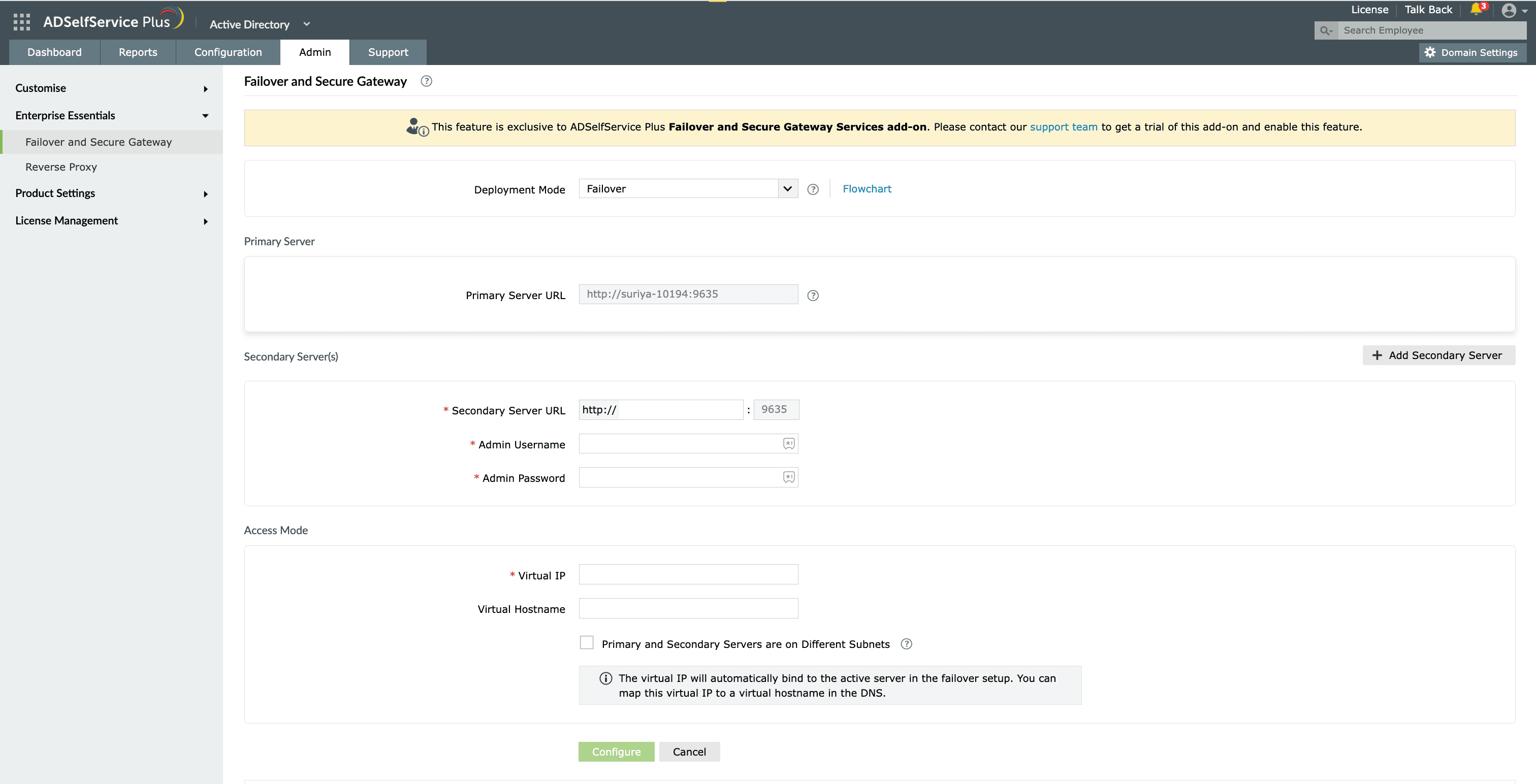
To use RADIUS authentication as an authentication method in the failover setup, configure every server on the RADIUS server with the same secret key. Use that secret key to enable RADIUS authentication.
You can change the deployment mode from Failover to Load Balancing, or vice versa, using the Deployment Mode drop-down.
Steps to promote a secondary server to primary server
- Log in to the secondary server.
- When the promotion prompt appears, click Promote Now.
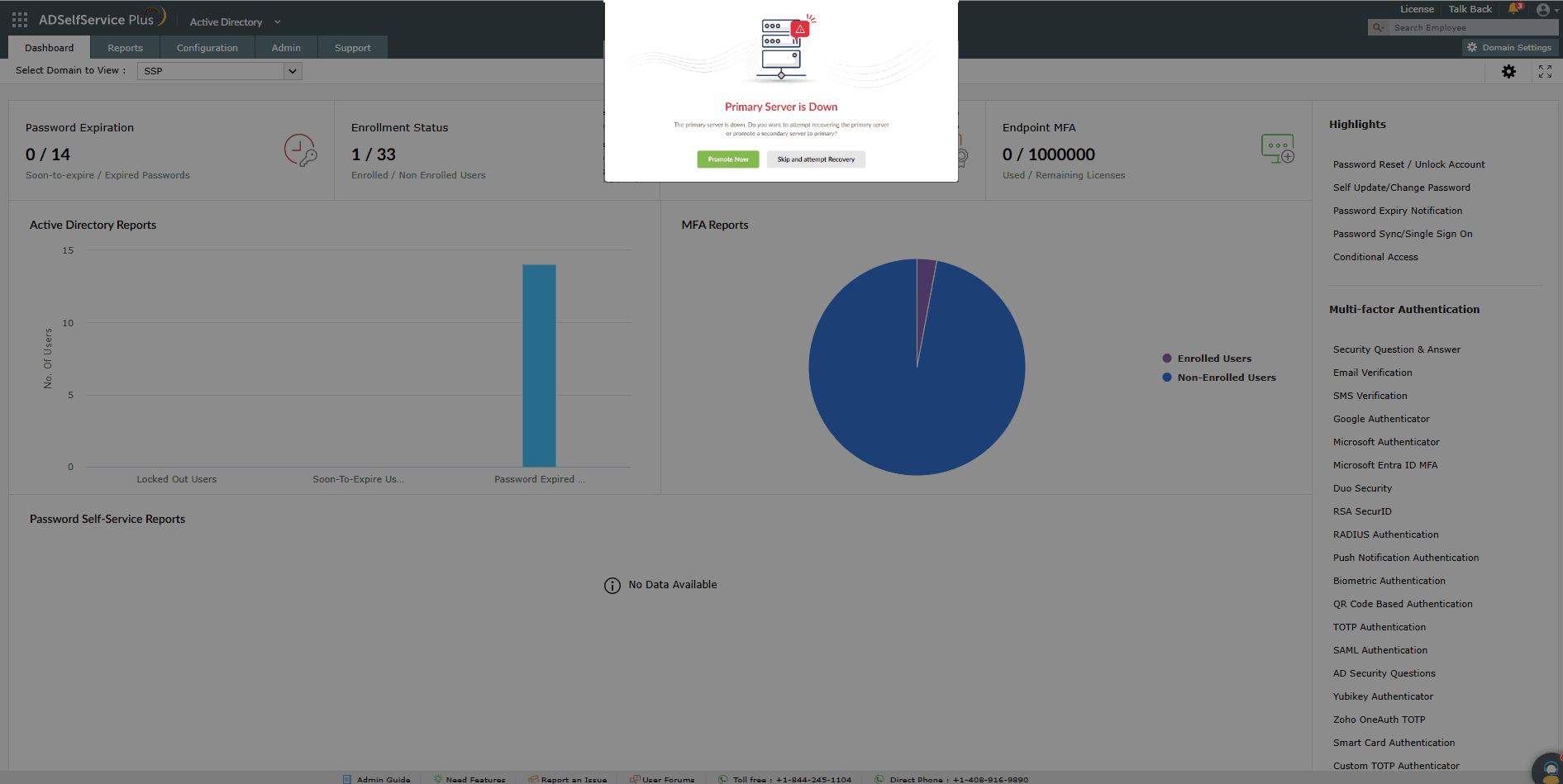
Fig. 3: Handling primary server failure in a failover setup. - You will be redirected to the Failover configuration page.
- Review the list of available standby servers.
- Click Promote as Primary for the secondary server you wish to promote.
The selected server becomes the new primary server and continues serving requests.
Promote a secondary server only when the primary server is unavailable and cannot be restored.
Secondary servers configured in load-balancing deployments can be promoted to the primary role.
Removing the failover configuration
You can either remove a single secondary server from the setup or dismantle the failover configuration entirely. Like all other configuration changes, both actions can only be performed from the primary server.
To remove a secondary server:
- On the configuration page, hover over the entry for the secondary server you want to remove and click the remove icon.
- When the confirmation prompt appears, confirm the action. The secondary server is then dropped from the failover setup.
To remove the entire failover configuration:
- On the configuration page, click Remove Configuration to tear down the complete failover setup.
- Once the removal is finished, the primary server restarts and the secondary servers are no longer reachable.
Tips
- Point end users and the ADSelfService Plus login agent at the virtual hostname rather than an individual server name so that access continues after a failover without any client-side reconfiguration.
- If you restrict administrator console access by IP address, add the virtual IP to the allowed list so that the console stays reachable after the virtual IP binds to a standby server. You will find this setting under Admin > Logon Settings > General.
- Because every server must run the same build, update secondary servers in the same maintenance window as the primary server. Staggered updates leave servers on mismatched builds, disrupting the failover setup until the versions match again.
- For a deployment that distributes traffic across active servers instead of keeping standby servers passive, see load balancing for ADSelfService Plus.