Minimum privileges and permissions required
Overview
By default, ADSelfService Plus functions seamlessly when the configured service account is a member of the Domain Admins group.
In environments that follow the principle of least privilege, you can instead use a delegated service account that has only the permissions required for the features you enable.
| Note: If you do not provide authentication details while adding domains, ADSelfService Plus acquires privileges in one of the following ways: If ADSelfService Plus is installed to run as a console application and no credentials are specified, it uses the permissions of the user account that installed the product. If ADSelfService Plus is installed to run as a service and no credentials are specified, it uses the permissions of the account configured to run the service. |
|---|
Feature-wise permission requirements
| Feature | Minimum permissions required |
|---|---|
| Self-service password reset | Reset password, Read pwdLastSet, and Write pwdLastSet on user objects |
| Self-service account unlock | Read lockoutTime and Write lockoutTime on user objects |
| Self-update user attributes | Read and Write on required user attributes |
| Display fine-grained password policy | Read for msDS-PasswordSettings objects and msDS-PasswordSettingsContainer objects |
| Self-service mail group subscription | Read Members and Write Members on group objects |
| NTLM single sign-on | Create and Read for computer objects |
| Force enrollment using logon script | Read scriptPath and Write scriptPath on user objects |
| View deleted users report | Membership in the Domain Admins group |
| Login agent installation | Membership in the Domain Admins group |
| Failover configuration | Membership in the Domain Admins group |
| Note: The service account referred to here is the account configured on the Domain Settings page. |
|---|
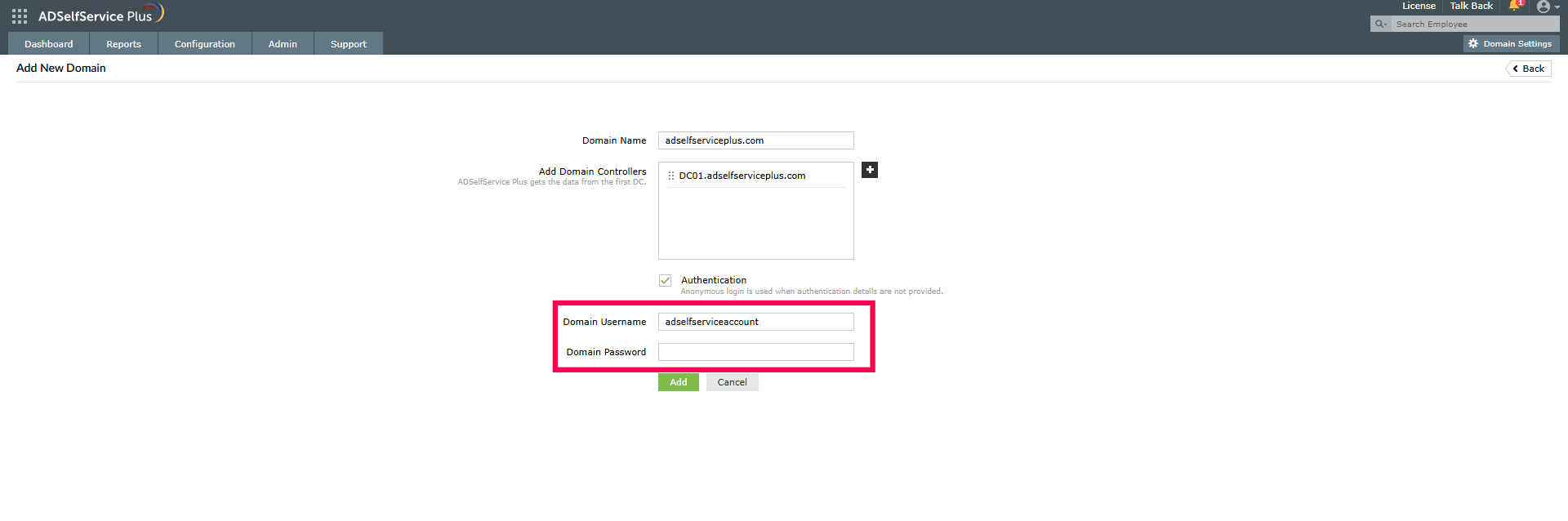
Fig 1: Domain configuration page with service account credentials
Granting permissions for all features
If you wish to enable all standard ADSelfService Plus features (password reset, account unlock, self-update, and NTLM SSO) without using a Domain Admin account, delegate the permissions listed below to the ADSelfService Plus service account.
Step 1: Delegate user management
- Open Active Directory Users and Computers (ADUC).
- Right-click the target domain or OU and select Delegate Control.
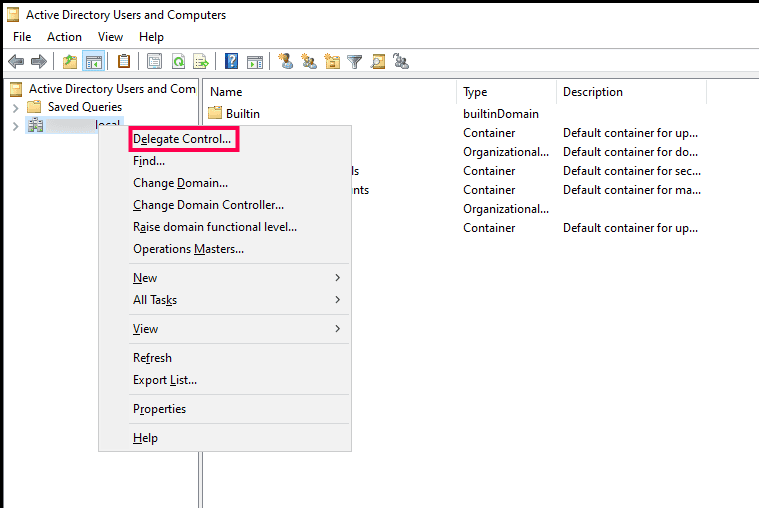
Fig 2: Selecting Delegate Control in Active Directory Users and Computers
- Click Next on the welcome screen.
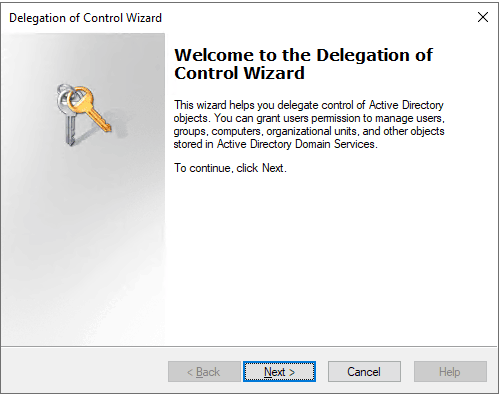
Fig 3: Delegation of Control Wizard welcome page
- Click Add, select the user account or service account, and click OK. Then click Next.
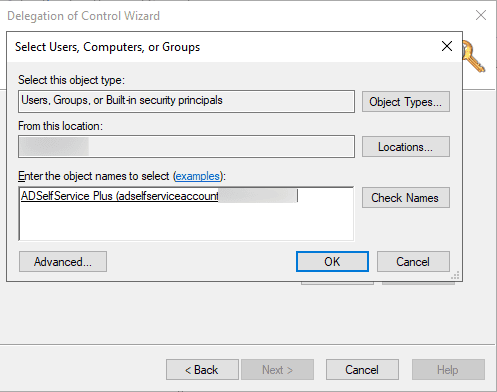
Fig 4: Adding the ADSelfService Plus service account
- Select Delegate the following common tasks and enable the following options:
- Reset user passwords and force password change at next logon
- Read all user information
- Modify the membership of a group
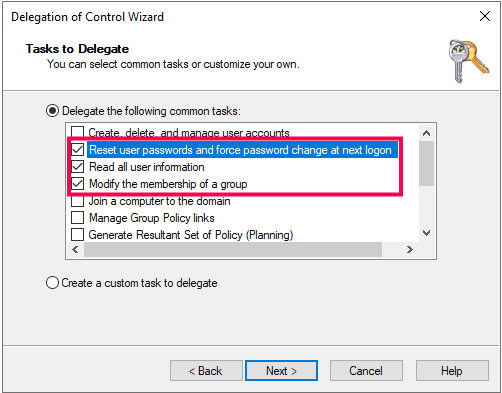
Fig 5: Selecting common delegation tasks
- Click Finish.
Step 2: Delegate attribute modifications
- Repeat steps 1-4 listed in Step 1.
- Select Create a custom task to delegate and click Next.
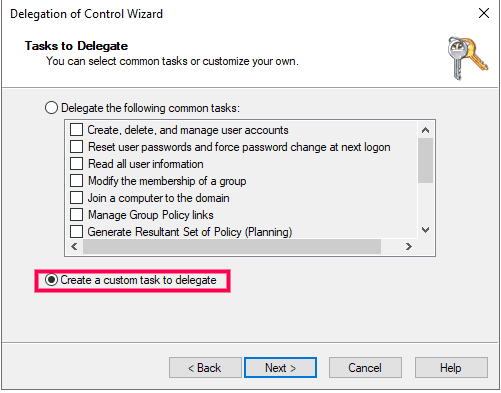
Fig 6: Choosing a custom delegation task
- Select Only the following objects in the folder.
- Check User Objects from the list and click Next.
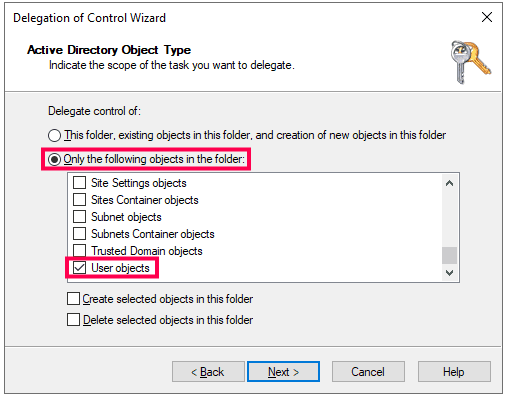
Fig 7: Selecting User objects for delegation
- Check General and Property-specific.
- Grant Read and Write permissions for the specific attributes users are allowed to update (e.g., mobile, department).
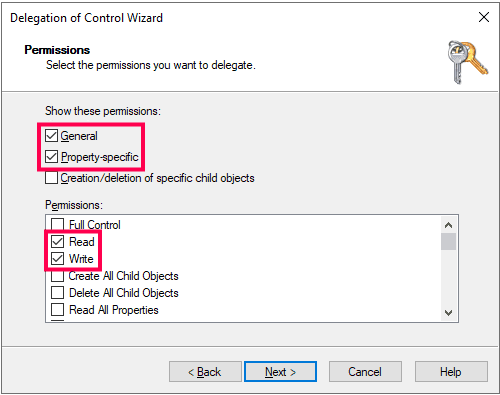
Fig 8: Granting read and write permissions for user attributes
- Click Finish.
Step 3: Delegate NTLM SSO permissions
- Repeat steps 1-4 listed in Step 1.
- Select Create a custom task to delegate and click Next.
- Select Only the following objects in the folder.
- Select Computer Objects from the list and check Create selected objects in this folder. Click Next.
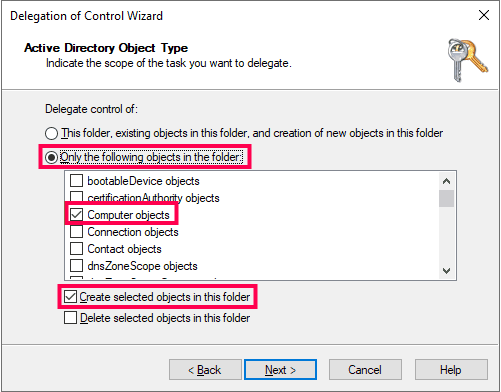
Fig 9: Selecting Computer objects for NTLM SSO delegation
- Select General. Under Permissions, check Read and click Next.
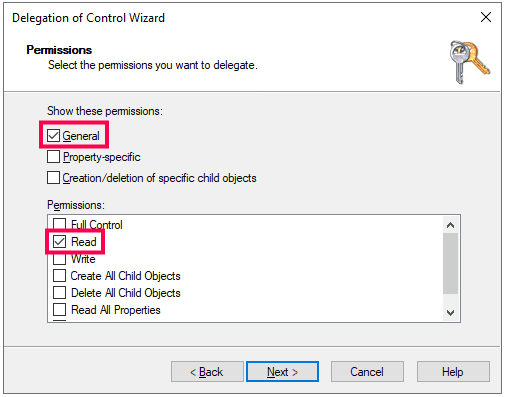
Fig 10: Granting read permissions on Computer objects for NTLM SSO delegation
- Click Finish.
Step 4: Delegate password policy visibility
- Repeat steps 1-4 listed in Step 1.
- Select Create a custom task to delegate and click Next.
- Select Only the following objects in the folder.
- Check msDS-PasswordSettings objects and msDS-PasswordSettingsContainer objects from the list, and click Next.
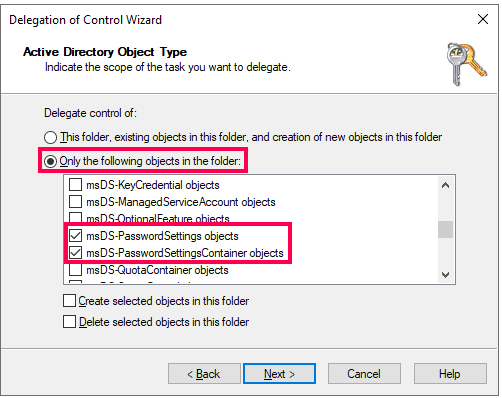
Fig 11: Selecting password settings objects
- Check the General box. Under Permissions, check Read and click Next.
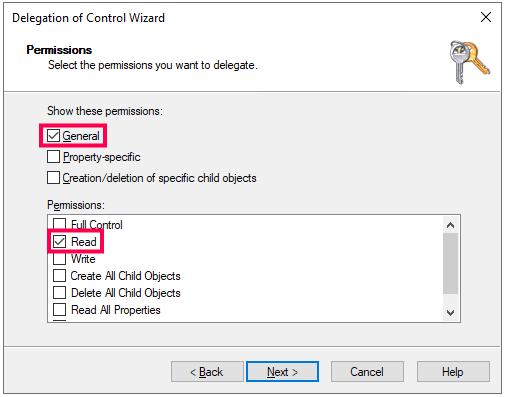
Fig 12: Granting read permission for password policy visibility
- Click Finish.
Granting feature-specific permissions
If you only require specific features, follow the delegation steps below for the relevant capability.
Self-service password reset
- In ADUC, right-click the target domain or OU and select Delegate Control.
- Click Next in the welcome dialog box.
- Click Add and select the ADSelfService Plus user account or service account, then click OK. Click Next.
- Select Create a custom task to delegate, and click Next.
- Check Only the following objects in the folder. Select User objects from the list, and click Next.
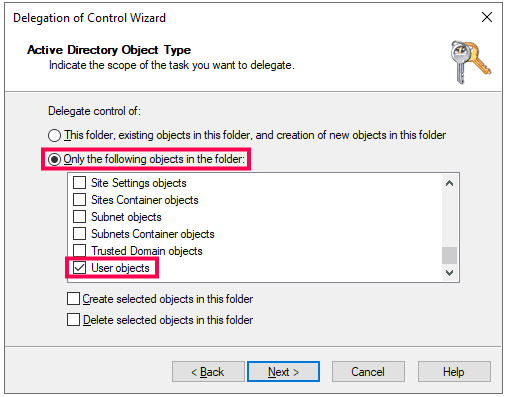
Fig 13: Selecting User objects for password reset delegation
- Check the General and Property-specific boxes.
- Under Permissions, check the Reset password, Read pwdLastSet, and Write pwdLastSet boxes and click Next.
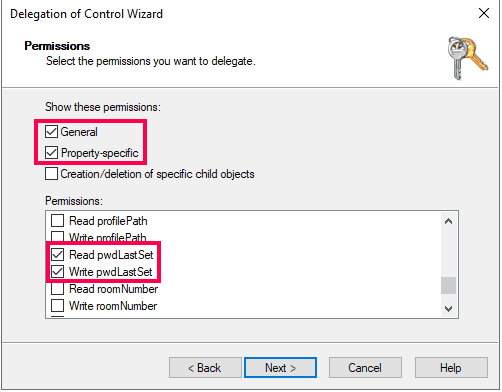
Fig 14: Granting password reset permissions
- Click Finish.
Self-service account unlock
- In ADUC, right-click the target domain or OU and select Delegate Control.
- Click Next in the welcome dialog box.
- Click Add and select the ADSelfService Plus user account or service account, then click OK. Click Next.
- Select Create a custom task to delegate, and click Next.
- Select Only the following objects in the folder. Select User objects from the list, and click Next.
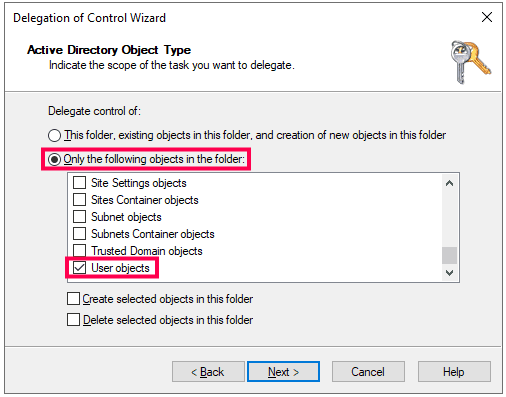
Fig 15: Selecting User objects for account unlock delegation
- Uncheck General and check Property-specific.
- Under Permissions, check Read lockoutTime and Write lockoutTime, and click Next.
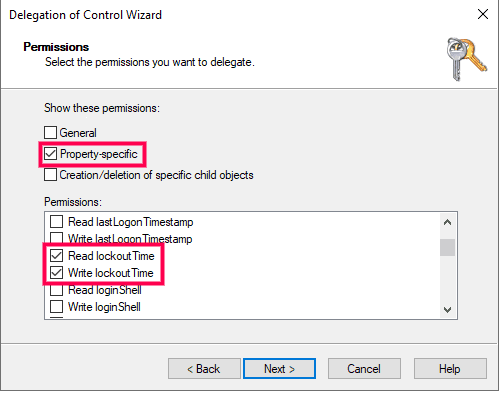
Fig 16: Granting lockoutTime permissions
- Click Finish.
Directory self-update
- In ADUC, right-click the target domain or OU and select Delegate Control.
- Click Next in the welcome dialog box.
- Click Add and select the ADSelfService Plus user account or service account, then click OK. Click Next.
- Select Create a custom task to delegate, and click Next.
- Select Only the following objects in the folder. Select User objects from the list, and click Next.
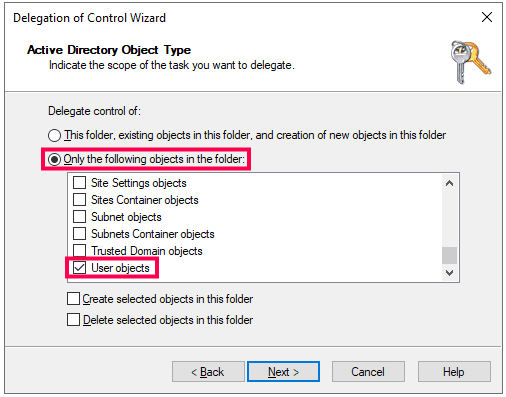
Fig 17: Selecting User objects for self-update delegation
- Check the General.
- Under Permissions, check the Read and Write. You can also grant Read and Write permissions for specific attributes that need to be available. Click Next.
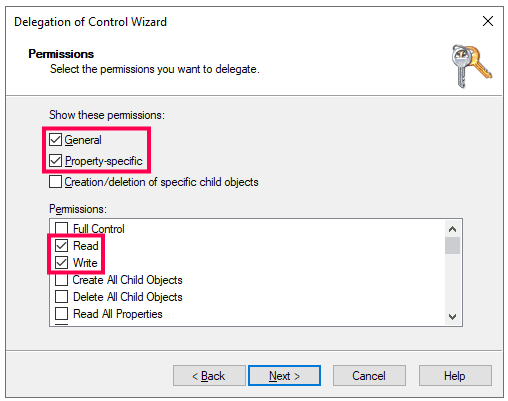
Fig 18: Granting read and write permissions for self-update
- Click Finish.
Display fine-grained password policy
- In ADUC, right-click the target domain or OU and select Delegate Control.
- Click Next in the welcome dialog box.
- Click Add and select the ADSelfService Plus user account or service account, then click OK. Click Next.
- Select Create a custom task to delegate, and click Next.
- Check Only the following objects in the folder. Select msDS-PasswordSettings objects and msDS-PasswordSettingsContainer objects from the list and click Next.
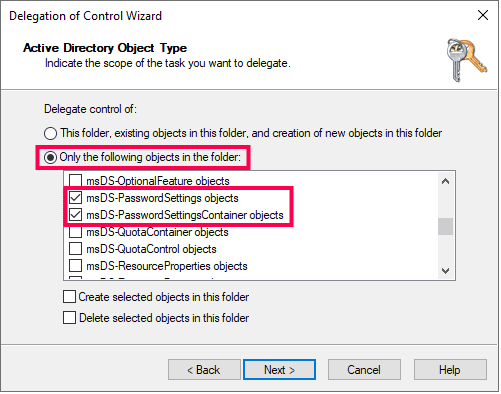
Fig 19: Selecting password settings objects for policy display
- Check the General box.
- Under Permissions, select Read and click Next.
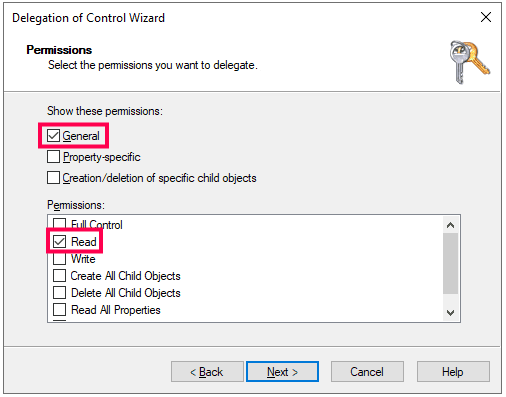
Fig 20: Granting read permission for password policy display
- Click Finish.
Self-service mail group subscription
- In ADUC, right-click the desired domain or OU, and select Delegate Control from the context menu.
- Click Next in the welcome dialog box.
- Click Add to select the ADSelfService Plus user account or service account, then click OK. Click Next.
- Select Create a custom task to delegate, and click Next.
- Check Only the following objects in the folder. Select Group objects from the list, and click Next.
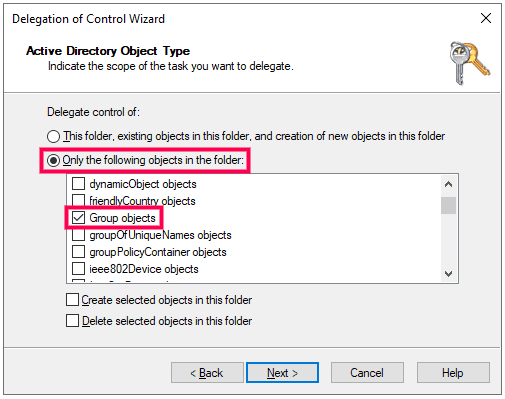
Fig 21: Selecting Group objects for mail group subscription
- Uncheck General and check Property-specific.
- Under Permissions, check the Read members and Write members boxes and click Next.
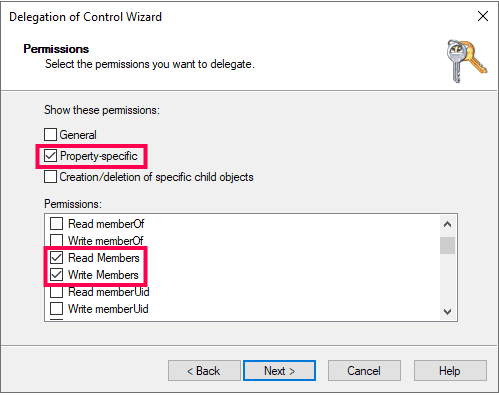
Fig 22: Granting Members attribute permissions
- Click Finish.
Synchronizing AD objects with ADSelfService Plus
To synchronize AD objects with ADSelfService Plus without errors:
- Open the ADUC console, right-click the desired domain or OU, and select Properties.
- In the Security tab, click Add to select the ADSelfService Plus user or service account.
- In the Permissions section, allow Replicating Directory Changes.
- Click OK.
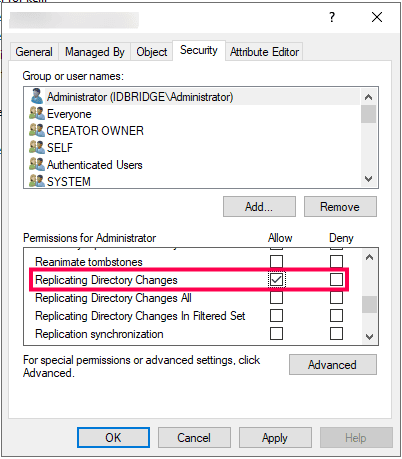
Fig 23: Enabling Replicating Directory Changes permission
Single sign-on to ADSelfService Plus via NTLMv2
- In ADUC, right-click the desired domain or OU, and select Delegate Control from the context menu.
- Click Next in the welcome dialog box.
- Click Add to select the ADSelfService Plus user account or service account, then click OK. Click Next.
- Select Create a custom task to delegate and click Next.
- Select Only the following objects in the folder.
- In the given list, select Computer objects and Create selected objects in this folder and click Next.
- Check the General box.
- Under Permissions, check Read and click Next.
- Click Finish.
Force enrollment using a logon script
To enforce users to enroll in ADSelfService Plus by modifying their logon script path:
- Open ADUC, right-click the desired domain or OU, and select Delegate Control from the context menu.
- Click Next in the welcome dialog box.
- Click Add to select the ADSelfService Plus user account or service account, then click OK. Click Next.
- Select Create a custom task to delegate and click Next.
- Select Only the following objects in the folder. Check User objects from the list, and click Next.
- Uncheck General and check Property-specific boxes.
- Under Permissions, check Read scriptPath and Write scriptPath and click Next.
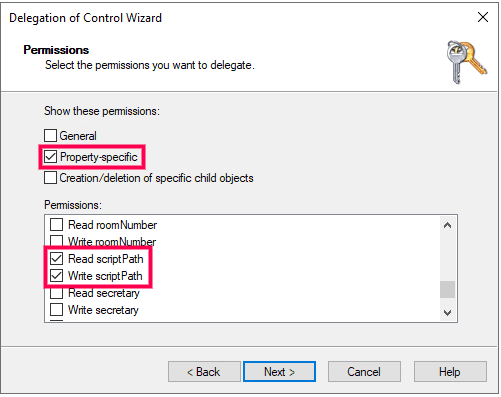
Fig 24: Granting scriptPath permissions for force enrollment
- Click Finish.
Features that require Domain Admin membership
View deleted users report
The minimum requirement to view this report is Domain Admin membership since accessing AD Recycle Bin or Tombstone objects requires elevated privileges.
Windows login agent (GINA) installation
Domain Admin privileges are required to push the installation via the ADSelfService Plus console. If you cannot provide Domain Admin credentials, install the login agent manually using Group Policy Objects (GPO) or SCCM. This method requires no elevated privileges within the ADSelfService Plus application.
Failover configuration
Domain Admin privileges are required only during initial setup. After setup, you can switch to a lower-privileged service account.
Service account privileges to run the ADSelfService Plus service
The service account referred to here is the account configured in the Log On tab under the ADSelfService Plus Service Properties.
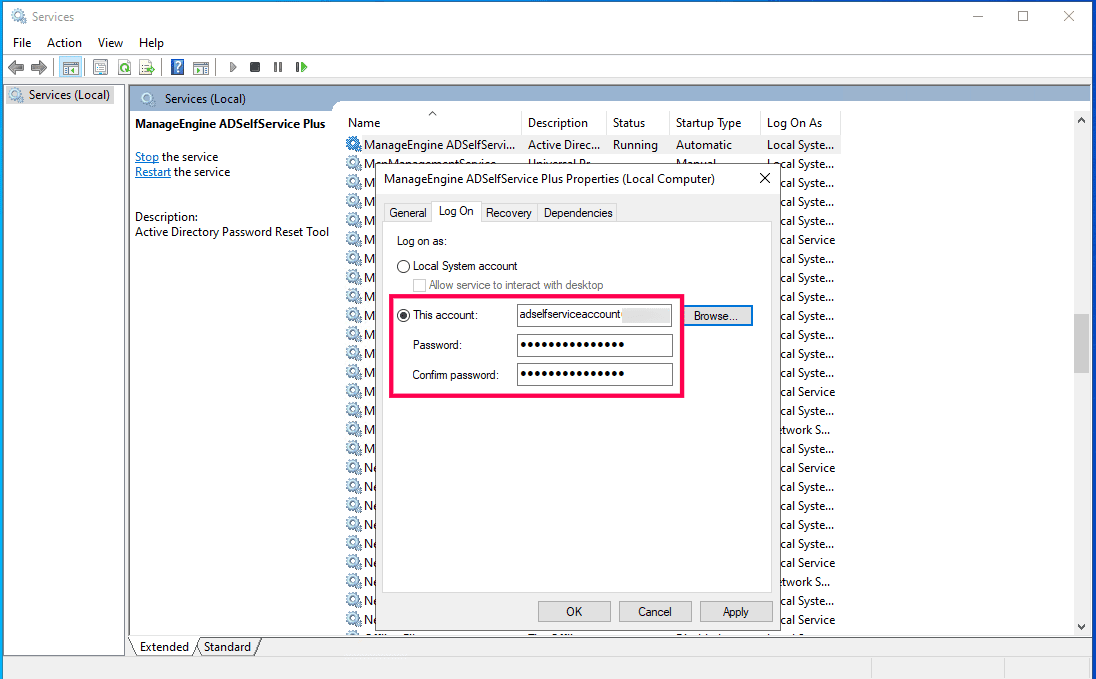
Fig 25: Configuring the ADSelfService Plus service account
Local server folder permissions
The service account running the application and the local user account used to launch the application must have Full Control permissions over the ADSelfService Plus installation directory (By default: C:\Program Files\ManageEngine\ADSelfService Plus).
Failure to grant these permissions will prevent:
- Service Pack upgrades.
- Report generation.
- Starting the product
- Product license application
- Database backups and restorations.
- Employee photo synchronization.
- Self-update options
- Dashboard graph updates.
Failover environment
If you switch to a lower-privileged service account after completing the initial failover configuration, the service account must have Share permissions to ensure uninterrupted folder sharing between both instances.
MS SQL database configuration
When an external Microsoft SQL server database is used, the service account configured to run the service must have SQL server login access and the required privileges (db_owner, bulkadmin).